NBN Speed Test: Check Your Internet Speed & Learn How to Fix It

Is that loading circle spinning again? Are you tired of paying for a super-fast NBN plan only to have your favourite show buffer at the worst possible moment? It’s a common frustration, and figuring out the cause can feel overwhelming. Is it your Wi-Fi, your computer, or is your provider simply not delivering? The first step to finding a real solution is to run a reliable nbn speed test.

But a speed test is only useful if you know what the results mean. In this guide, we’ll help you do just that. We’ll not only give you an accurate way to measure your connection, but we’ll also explain what download, upload, and ping speeds mean for your daily use. From there, you can follow our simple, expert-led troubleshooting steps to identify the real problem and finally fix your slow internet for good. Let’s get you connected properly.

Key Takeaways

  • Instantly check your internet performance with our simple one-click nbn speed test to get a clear baseline of your connection.
  • Slow NBN isn’t always your provider’s fault; many speed issues originate from your home Wi-Fi setup, modem, or connected devices.
  • Follow our practical troubleshooting checklist to systematically identify and fix the most common causes of a poor internet connection yourself.
  • Learn when a problem should be fixed by your Internet Service Provider versus when you need professional, local IT support to resolve it.

First, Run the Test: How Fast is Your NBN Connection?

Feeling the frustration of a slow connection? The first step to diagnosing any internet issue is to get a clear, accurate picture of your current performance. Below is a simple tool to measure your internet speed right now. Don’t worry, it’s quick and easy.

Using our free nbn speed test is straightforward. Simply press the ‘GO’ button to begin. The test will automatically measure your connection’s key metrics in under a minute, giving you the data you need to understand what’s happening.

For a quick visual guide on how internet speed tests work and what the results mean, watch this helpful video:

For the most reliable assessment, we recommend running the test a few times throughout the day-once in the morning, afternoon, and during the evening peak period (around 8-10 PM). This provides a clear average. Also, keep in mind that results can differ between a stable, wired Ethernet connection and a wireless (Wi-Fi) connection, which we will explore later in this article.

Understanding Your Speed Test Results

Your test will show three key numbers. Here’s what they mean in simple terms:

  • Download Speed (Mbps): This measures how quickly your device can pull data from the internet. A higher number is better for smooth video streaming (Netflix, YouTube), browsing websites, and downloading files.
  • Upload Speed (Mbps): This is how quickly your device sends data to the internet. It’s crucial for clear video calls (Zoom, Teams), sending large email attachments, and backing up photos to the cloud.
  • Ping/Latency (ms): This is the reaction time of your connection, measured in milliseconds (ms). A low ping is vital for responsive online gaming and lag-free real-time communication.

What is a ‘Good’ NBN Speed in Australia?

In Australia, internet plans are sold based on speed tiers offered by the National Broadband Network (NBN). Knowing which plan you are paying for helps you understand if you’re getting the performance you expect. Your test results should be close to the ‘Typical Evening Speed’ advertised by your provider.

Here’s a simple guide to common NBN speed tiers and what they are suitable for:

NBN PlanTypical Download SpeedBest For
NBN 25 (Basic)16-25 Mbps1-2 people, standard definition streaming, browsing, and email.
NBN 50 (Standard)40-50 Mbps2-4 people, 4K streaming, online gaming, and working from home.
NBN 100 (Fast)80-100 Mbps4+ people, multiple 4K streams, large file downloads, and tech-heavy households.

Compare your nbn speed test results to this table. If your download speed is consistently much lower than the tier you’re paying for, it’s a clear sign that something is slowing you down.

Slow Results? Common Causes of Poor NBN Speed

It’s frustrating to run an nbn speed test only to see a result that’s far below what you’re paying for. Don’t panic! The first step is to figure out where the bottleneck is: is it your NBN provider, or is something in your home slowing things down? Many ‘slow NBN’ issues are actually caused by your local network setup.

Fortunately, most of these problems are fixable. For a comprehensive overview, CNET offers excellent advice on troubleshooting slow internet, but let’s break down the three most common areas where your NBN connection can lose speed.

Your NBN Provider and Network Congestion

Sometimes, the issue is outside your home. Network congestion is common during peak hours (typically 7 PM – 11 PM) when many people in your area are streaming, gaming, and browsing. This can temporarily lower your speeds. Additionally, NBN Co might be performing local maintenance or there could be a network outage. Before troubleshooting your own equipment, it’s always a good idea to check your provider’s service status page for any known issues in your area.

Your Wi-Fi Router and Home Network

Your Wi-Fi router is the heart of your home network, and it’s often the weakest link. An old or cheap router simply can’t deliver the fast speeds of modern NBN plans. Other common culprits include:

  • Wi-Fi Interference: Signals from your neighbours’ Wi-Fi, microwaves, cordless phones, and even baby monitors can disrupt your connection.
  • Poor Router Placement: Hiding your router in a cupboard, behind the TV, or at the far end of the house will significantly weaken its signal. For best results, place it in a central, open location.

Your Computer or Device is the Bottleneck

Occasionally, the problem isn’t the internet connection at all-it’s the device you’re using. A slow computer will make any internet connection feel sluggish. Viruses or malware can consume your bandwidth by running hidden processes in the background. Similarly, having too many applications or browser tabs open at once can strain your device’s resources. Outdated hardware, like an old network card, can also limit the speeds your computer can achieve. If you suspect your device is the problem, professional computer repairs can make a huge difference in restoring its performance and speed.

NBN Speed Test: Check Your Internet Speed & Learn How to Fix It

A Practical Troubleshooting Checklist to Boost Your Speed

If your speed test results are lower than expected, don’t panic. We can often pinpoint the cause with a simple process of elimination. Work through these steps one by one, running another nbn speed test after each major change to see what makes a difference. It’s also helpful to know what speeds you actually need; the official FCC Broadband Speed Guide is an excellent resource for understanding what’s required for streaming, gaming, and working from home.

Step 1: The Universal Fix – Reboot Everything

This is the first step any IT professional takes, and for good reason-it works surprisingly often. Unplug both your NBN Connection Device (the NBN-supplied box) and your personal Wi-Fi router from the power outlet. Wait a full 60 seconds. This allows them to clear any temporary software glitches. Plug the NBN box in first, wait for its lights to become solid, and then plug your router back in. Once it’s up and running, test your speed again.

Step 2: Isolate the Problem – Use a Wired Connection

Next, we need to determine if the issue is your internet service or your Wi-Fi signal. Find an Ethernet cable and plug a laptop or desktop computer directly into a spare LAN port on your router. Make sure to disable Wi-Fi on your computer for this test. Run the speed test again. If the results are significantly faster, you’ve found the culprit: your Wi-Fi is the bottleneck.

Step 3: Optimise Your Wi-Fi Signal

If a wired connection is fast but your Wi-Fi is slow, it’s time to optimise your wireless network. Here are a few quick fixes:

  • Relocate Your Router: Move the router to a central, elevated, and open location in your home. Avoid placing it in cupboards, behind the TV, or near other electronic devices that can cause interference.
  • Change the Wi-Fi Channel: Your neighbours’ Wi-Fi networks can interfere with yours. Logging into your router’s settings to select a less congested channel can make a big difference.
  • Consider an Upgrade: For larger or multi-story homes, a single router may not be enough. A Wi-Fi extender or a modern mesh Wi-Fi system can eliminate dead spots and provide strong, reliable coverage everywhere.

Step 4: Check Your Computer’s Health

Sometimes, the slowdown isn’t caused by your NBN or router, but by the device you’re using. Close any unnecessary applications, background processes (like cloud syncing), and browser tabs that might be consuming bandwidth. It’s also wise to run a full system scan with up-to-date antivirus software to ensure no malware is secretly slowing you down. If your computer remains sluggish, it may be time for a professional tune-up to restore its peak performance. For expert help in Toowoomba and the surrounding areas, contact the team at Aspire Computing.

When to Call for Professional IT Help in Toowoomba

You’ve restarted the modem, checked your cables, and run an nbn speed test countless times. If your internet is still frustratingly slow, the problem might not be with your NBN provider at all. Often, the bottleneck is inside your home or office network. While your Internet Service Provider (ISP) is responsible for the connection to your property, everything from your router onwards is up to you. This is where an expert can save you hours of frustration.

Signs You Need an IT Expert, Not Your ISP

It’s time to call a local professional when the issue points to your internal setup. Your ISP’s support team can’t fix problems with your personal devices or Wi-Fi configuration. Look out for these common signs:

  • Your internet is fast on one computer (especially one connected by a cable) but slow on other devices.
  • You have frustrating Wi-Fi ‘dead zones’ where the signal drops out completely in certain rooms.
  • You’ve followed all the standard troubleshooting advice, and nothing has improved your connection speed.
  • You suspect a computer virus or malware could be consuming your bandwidth and slowing your device down.

How Aspire Computing Diagnoses and Fixes Slow Internet

As Toowoomba’s trusted local IT experts, we go beyond a simple nbn speed test to find the real source of your slowdown. We provide on-site analysis of your entire network, from the NBN connection point to every device you use. Our technicians can quickly identify and replace faulty hardware like old routers, failing network cables, or weak Wi-Fi cards. We also offer comprehensive computer tune-ups and virus removal to ensure your devices are running at peak performance.

Get a Complete IT Health Check

Don’t just fix the symptom; ensure your entire digital life is secure and efficient. A slow connection can sometimes be a warning sign of deeper issues. We can perform a complete IT health check for your home or business, assessing your network security, data backup solutions, and overall device performance. A proactive check-up today prevents costly slowdowns and critical security risks tomorrow.

For expert, on-site IT support in Toowoomba, contact the team at Aspire Computing to get your internet running smoothly again.

Get the NBN Speed You’re Paying For

Understanding your internet performance begins with a reliable nbn speed test. This crucial first step gives you a clear baseline, helping you identify if you’re truly getting the speeds you expect. As we’ve explored, many slowdowns can be resolved with simple troubleshooting, from optimising your Wi-Fi router’s position to managing the number of connected devices. Following our checklist can often restore the performance you need for smooth streaming, gaming, and working from home.

However, if you’ve worked through the fixes and your connection still lags, it’s time for a professional opinion. Don’t let frustrating internet hold you back. As Toowoomba’s local IT experts since 1999, Aspire Computing provides a reassuring, professional service to get to the root of the problem. We offer both convenient on-site and remote support to accurately diagnose and resolve your NBN issues for good.

Still struggling with slow internet in Toowoomba? Contact Aspire Computing for a professional diagnosis. Let us help you protect your productivity and connect with confidence.

Frequently Asked Questions

Why is my NBN so slow at night?

This is usually due to network congestion during peak usage hours. In the evening, more people in your area are online streaming videos, gaming, and browsing. This high demand puts a strain on the shared network capacity, causing speeds to drop for everyone. Think of it like a highway during rush hour-more traffic means everything moves slower. This is a common occurrence and not necessarily a fault with your individual connection.

How can I test my internet speed most accurately?

For the most reliable nbn speed test, connect your computer directly to your router using an Ethernet cable. This bypasses any Wi-Fi interference. Before starting, ensure you close all other programs, browser tabs, and stop any downloads or streams on all devices connected to your network. Testing at different times, including off-peak hours, will provide a clearer picture of your connection’s true performance.

Does using a VPN slow down my NBN connection?

Yes, using a Virtual Private Network (VPN) typically reduces your internet speed. This happens because a VPN encrypts your data and routes it through a separate server, which adds extra steps to the connection process. The distance to the VPN server and the quality of the VPN service also impact performance. While a VPN is excellent for enhancing your online privacy and security, it’s important to expect a slight decrease in speed.

What is the difference between Mbps and MB/s?

It’s a common point of confusion. Mbps stands for Megabits per second and is used to measure your internet connection speed. In contrast, MB/s means Megabytes per second and is used to measure file size or download speed. There are 8 bits in 1 byte, so to calculate your maximum download speed in MB/s, you divide your Mbps speed by 8. For example, a 100 Mbps NBN plan has a maximum theoretical download speed of 12.5 MB/s.

Can a new, better router actually improve my NBN speed?

Absolutely. While a router cannot increase the speed of the NBN plan you pay for, it can ensure you’re getting the full performance possible from that plan. An old or basic router provided by your internet company may struggle with faster speeds or multiple devices. A quality modern router can provide a stronger, more stable Wi-Fi signal throughout your home, significantly improving your day-to-day browsing, streaming, and gaming experience.

How do I know if I’m on the right NBN plan for my needs?

The right plan depends entirely on your household’s usage. A basic plan might suit one or two people for browsing and standard-definition streaming. However, if you have a larger family, work from home, stream in 4K, or have online gamers, a faster plan is essential. If your nbn speed test results consistently match your plan’s advertised speed but you still face lag and buffering, it’s a clear sign you should consider upgrading.

5 Common PC Problems and How We Fix Them Fast

It’s a feeling every computer user dreads: the sudden slowdown that grinds your productivity to a halt, or the moment of sheer panic when you press the power button and nothing happens. Your mind immediately races to your precious photos, important documents, and urgent deadlines, all while the fear of a costly and confusing repair process looms. Finding a trustworthy expert who speaks your language can feel just as stressful as the problem itself. But you don’t have to navigate it alone. Understanding the issue is the first step toward a fast solution, and that’s where a professional computer shop repair service provides genuine peace of mind.

In this guide, we will break down the five most common PC problems we see every day. We’ll explain them in simple, clear terms-no confusing tech-speak. You’ll learn to identify what might be wrong and understand how our experienced technicians provide quality, reliable solutions to get you reconnected quickly. Our goal is to protect your valuable data and get your computer back to peak performance without the hassle, ensuring a fast return to your digital life.

Key Takeaways

  • Learn to identify the early warning signs of common PC problems, from gradual slowdowns to sudden crashes, before they lead to serious issues.
  • Understand what symptoms like the ‘Blue Screen of Death’ or constant pop-ups actually mean and what’s causing them.
  • Discover which issues, such as strange hardware noises or suspected malware, require immediate professional computer shop repair to protect your data.
  • Get a clear guide on which simple fixes are safe to try yourself and when it’s essential to call an expert to prevent costly damage.

Problem 1: The Frustratingly Slow Computer

It’s one of the most common and frustrating technology issues we face: the computer that was once lightning-fast now takes ages to start up and struggles to open a simple web browser. This gradual slowdown isn’t just in your head. Over time, without proper computer maintenance, every machine accumulates digital clutter and its hardware begins to show its age. A slow PC is more than a minor annoyance; it’s a productivity killer that can waste hours of your valuable time each week. The key is to identify whether the problem is rooted in software or failing hardware.

Common Causes of Slowness

A computer’s performance can be hampered by several factors, but we often see the same culprits. An expert can quickly diagnose the specific cause, which typically falls into one of these categories:

  • Software Bloat: Too many applications launching at startup and unnecessary programs running in the background consume your computer’s processing power and memory.
  • Malware or Viruses: Malicious software often runs silently, stealing system resources to perform its tasks, which dramatically slows down your legitimate activities.
  • A Nearly Full or Failing Hard Drive: Traditional spinning hard disk drives (HDDs) slow down significantly as they fill up. If the drive is old or failing, performance can drop off a cliff.
  • Not Enough RAM: Modern software and multitasking with many browser tabs open at once require a good amount of memory (RAM). If you don’t have enough, your computer will constantly struggle to keep up.

How a Professional Repair Shop Fixes It

Instead of guessing at the solution, a professional computer shop repair service provides a targeted fix. After a thorough diagnosis, we tackle the root cause of the slowdown to restore your PC’s speed and responsiveness. Our quality solutions include:

  • Software Tune-Up: We perform a comprehensive clean-up, removing bloatware and optimising startup processes to ensure your computer’s resources are used efficiently.
  • Virus and Malware Removal: Our technicians use advanced tools to scan for and eliminate all traces of malicious software, securing your system and restoring its performance.
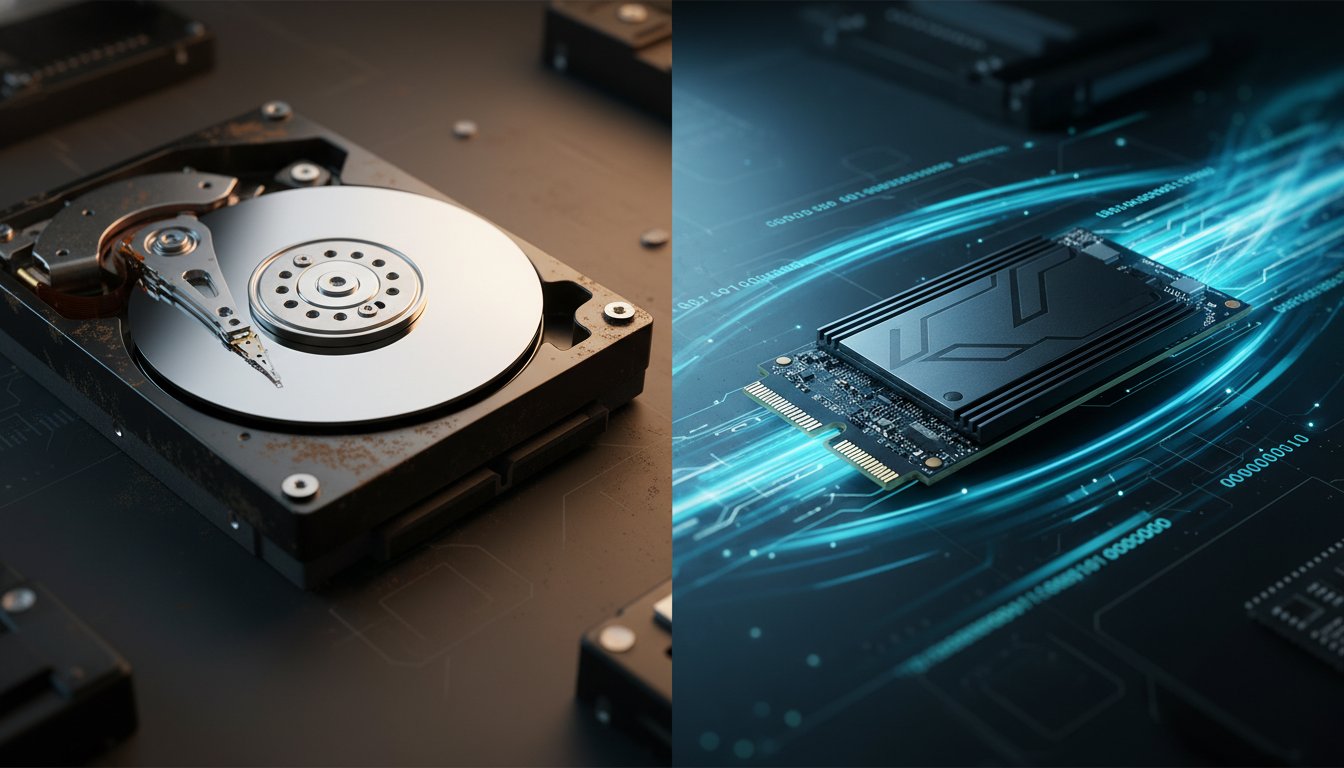
  • SSD Upgrade: For a massive speed boost, we often recommend upgrading an old HDD to a modern Solid-State Drive (SSD). This is the single most effective hardware upgrade for improving speed.
  • RAM Assessment and Upgrade: We can assess your typical workload and recommend a RAM upgrade that will deliver a smoother, more responsive multitasking experience.

Problem 2: The Computer Won’t Start or Crashes

There’s a unique sense of dread when you press the power button on your computer and nothing happens. Whether it’s a completely dead machine or one that crashes to the infamous ‘Blue Screen of Death’ (BSOD), a startup failure can bring your productivity to a sudden halt. The BSOD is simply your computer’s way of saying it has encountered a critical error it cannot recover from on its own.

Startup issues generally fall into two categories: no power at all (no lights, no fan sounds) or power with no successful boot-up (fans spin, but Windows never loads). In either case, it’s important to resist the urge to repeatedly force a restart. This can cause further damage, especially to your hard drive and the data stored on it.

Identifying the Source of Startup Failure

A computer that won’t start can be suffering from a wide range of issues, from simple to severe. Our experience shows the most common culprits include:

  • Power Supply Unit (PSU) Failure: The component that provides power to your entire system is often the first to fail.
  • Corrupted Operating System: Essential Windows files can become damaged, preventing the system from loading correctly.
  • Major Component Failure: A faulty motherboard, CPU, or graphics card can stop the boot process entirely.
  • Loose Connections: Sometimes, the fix is as simple as a dislodged RAM module or a loose internal cable.

Our Diagnostic and Repair Process

When you bring your device to a professional computer shop repair service like ours, we don’t guess. We follow a methodical process to protect your data and provide a reliable fix. We will:

  • Systematically test the PSU and other core hardware components to isolate the fault.
  • Use advanced diagnostic tools to check for and repair Windows boot loader errors.
  • Prioritise the safety of your files, performing data recovery before attempting major repairs whenever necessary.
  • Provide you with a clear, easy-to-understand report detailing the problem and your available repair options.

A non-starting PC feels like a disaster, but with an expert diagnosis, it’s often a very solvable problem. Finding a computer shop repair team that is thorough and transparent is key to getting back up and running quickly and safely.

Problem 3: Virus, Malware, and Suspicious Pop-ups

In today’s digital world, malicious software is often more subtle than you might expect. Gone are the days of obvious, flashing warnings; modern threats can hide deep within your system, quietly compromising your security. You might notice constant pop-up ads, your web browser redirecting to strange sites, or fake security alerts trying to trick you into paying for a solution. These aren’t just annoyances-they can be gateways for identity theft and serious data breaches.

While good antivirus software is a crucial first line of defence, it may not be enough to remove a deep or persistent infection. When you suspect a problem, getting help from a professional computer shop repair service is the most reliable way to fully clean your system and protect your personal information.

Signs You Have a Malware Infection

If your computer is acting strangely, don’t ignore it. Look out for these common warning signs that indicate your device may be compromised:

  • Your computer suddenly runs very slowly, and you can hear the fan working overtime even when you aren’t doing much.
  • New, unwanted toolbars have appeared in your web browser, or your homepage has changed without your permission.
  • Friends or colleagues tell you they are receiving spam emails that appear to come from your account.
  • Your antivirus or other security software has been disabled and you are unable to turn it back on.

How We Provide a Deep Clean and Secure Your PC

At Aspire Computing, we go beyond a simple scan to ensure your computer is truly secure. Our methodical approach is designed to eliminate threats and prevent them from returning. We will:

  • Use multiple professional-grade scanning and removal tools to find and delete every trace of malicious files.
  • Repair any damage that the infection has caused to your Windows operating system, system files, and web browsers.
  • Provide you with clear, practical advice on security best practices to help you avoid future infections.
  • Offer comprehensive virus removal services to give you complete peace of mind and protect your valuable data.

5 Common PC Problems and How We Fix Them Fast

Problem 4: Strange Noises and Overheating

Your computer should operate quietly. When it starts making strange grinding, clicking, or whirring noises, or feels unusually hot to the touch, it’s not just an annoyance-it’s a critical warning sign. These symptoms often point to imminent hardware failure, which can put your valuable data at risk. If you notice these issues, the safest first step is to shut down your computer immediately to prevent further damage and secure your files.

What Do Those Noises Mean?

Different sounds can point to specific problems. A professional technician can diagnose them accurately, but here are the most common culprits:

  • Clicking or Grinding: This is the most urgent sound. It almost always signals a mechanical failure within your hard drive. Continuing to use the computer can cause permanent data loss.
  • Loud Whirring or Rattling: This usually indicates a failing fan. It could be the fan for your CPU, graphics card, or the main case fan, leading directly to dangerous overheating.
  • High-Pitched Whine: A persistent electronic whine often comes from the power supply unit (PSU) or graphics card, suggesting a component is under severe strain and may fail soon.

Our Approach to Hardware Failure

When you bring a device with these symptoms to a quality computer shop repair service, the focus should be on both a quick fix and long-term protection. At Aspire Computing, we follow a methodical process to ensure your machine is returned in optimal health. Our commitment is to provide assurance and restore continuity with a fast, professional service.

Our expert approach includes:

  • Prioritising Your Data: Our first action for a clicking hard drive is to attempt a secure backup of your irreplaceable files.
  • Accurate Diagnosis: We pinpoint the exact failing component, whether it’s a fan, hard drive, or power supply.
  • Quality Component Replacement: We replace faulty parts with high-quality components and perform a thorough internal clean to remove dust and improve airflow, preventing future overheating.
  • Rigorous Testing: After any repair, we test the entire system to ensure it runs cool, quiet, and stable.

Don’t ignore the warning signs of hardware failure. If your computer is overheating or making strange noises, it’s time to seek professional help. Contact the experts at Aspire Computing for a thorough diagnosis and reliable computer shop repair.

When to DIY vs. Calling a Professional Computer Shop

When your computer starts acting up, the temptation to search for a quick online tutorial and fix it yourself is strong. For minor glitches, a little DIY troubleshooting is a great first step. However, it’s crucial to know where to draw the line to avoid turning a small problem into a costly disaster. This guide will help you decide when to try a simple fix and when it’s time to call in the professionals.

Safe DIY Troubleshooting Steps

Before you panic, some of the most common computer issues can be solved with a few simple checks. These steps are perfectly safe for you to try at home and often do the trick:

  • Restart Your Computer: It’s a classic for a reason. A simple reboot can clear temporary glitches and get things running smoothly again.
  • Check Your Cables: Ensure everything-power, monitor, keyboard, and internet cables-is securely plugged in at both ends.
  • Run a Virus Scan: Use your existing antivirus software to run a full system scan to check for any obvious threats.
  • Update Your Software: Make sure your operating system (like Windows or macOS) and key applications are up to date, as updates often include important security and performance fixes.

When You Absolutely Need an Expert

If the simple steps above don’t work, or if you encounter any of the following signs, it’s time to stop and seek professional help. Attempting to fix these issues without experience can lead to permanent data loss or hardware damage.

  • You need to open the computer case: Internal components are sensitive to static electricity and mishandling. If the problem requires opening the case, you need an expert.
  • You suspect a hardware failure: Strange grinding or clicking noises, a screen displaying odd colours, or a computer that won’t turn on at all point to hardware failure. This is when a professional computer shop repair service is essential.
  • A virus or malware won’t go away: If your antivirus scan can’t remove a threat, or pop-ups and strange behaviour persist, you’re likely dealing with a deep-rooted infection.
  • You need to recover data: If a hard drive has failed and you need to retrieve important files, do not try to fix it yourself. Professional data recovery offers the best chance of success.

Don’t Risk It – Get Professional Help

A botched DIY attempt can be far more expensive to fix than the original problem. We have the specialised diagnostic tools and experience to pinpoint the exact cause of the issue quickly and accurately, saving you time and stress. Most importantly, a professional repair protects your valuable data.

Plus, a quality computer shop repair comes with a warranty on parts and labour-an assurance and peace of mind you simply don’t get when you go it alone. When in doubt, it’s always safer and more cost-effective to talk to the experts at Aspire Computing.

Your Local Solution for Stress-Free PC Repairs

From a frustratingly slow system to sudden crashes or suspicious pop-ups, PC problems can quickly disrupt your day. While a simple restart can sometimes work wonders, many issues-especially those involving strange noises or potential hardware failure-require a professional touch to diagnose and fix correctly without risking your data. Knowing when to call in an expert is the key to a fast and effective solution.

For a dependable computer shop repair service in Toowoomba, look no further. Aspire Computing has been a trusted local name since 1999, offering quality assurance and peace of mind. We provide both convenient on-site and remote support to get your technology protected and connected again with minimal fuss.

Experiencing one of these problems? Don’t panic. Contact our Toowoomba computer experts today! Let us handle the technical stress so you can get back to what’s important.

Frequently Asked Questions About Computer Repair

How much does a typical computer repair cost?

The cost of a computer shop repair in Australia varies depending on the problem. A simple software fix or virus removal might cost between A$90 and A$180. For hardware issues, you can expect a diagnostic fee of around A$50-A$100, plus the cost of parts and labour. For example, replacing a laptop screen can range from A$250 to A$500+. Always ask for a detailed quote upfront to avoid surprises and ensure transparency.

How long will it take to fix my computer?

Turnaround times depend on the complexity of the issue and parts availability. Common software repairs, such as system tune-ups or virus removal, can often be completed the same day or within 24 hours. Hardware repairs that require ordering specific components, like a motherboard or a unique screen, might take 3-5 business days. A professional technician will give you a reliable time estimate after diagnosing the problem, ensuring you have a clear timeline for the fix.

Is it worth repairing an older computer, or should I just buy a new one?

This is a common dilemma. A good rule of thumb is to consider replacing your computer if the repair cost exceeds 50% of the price of a new, comparable model. Also, if your computer is more than five to seven years old and can no longer run the software you need efficiently, a new purchase is often the more practical long-term solution. We can help you assess the performance and cost-effectiveness to make an informed decision.

Will my personal data be safe during the repair process?

Your data privacy is a top priority. A trustworthy repair shop will have strict policies to protect your personal information. While we take every precaution to safeguard your files, we always recommend you perform a full backup before any repair work begins. We will only access your data when it is absolutely necessary for the repair and with your explicit permission. This ensures your files and privacy are always protected.

Do you offer a warranty on your repair work?

Yes, any reputable computer shop repair service should stand by its work with a warranty. This provides you with assurance and peace of mind. Typically, we offer a warranty on both parts and labour, which can range from 30 days to 12 months, depending on the nature of the repair. New hardware components also come with their own manufacturer’s warranty. Be sure to ask about the specific warranty terms before authorising any work on your device.

Can you help me set up a new computer and transfer my old files?

Absolutely. We understand that moving to a new computer can be a daunting task. We offer a comprehensive setup service to make the transition seamless. This includes transferring all your important files, photos, and documents from your old machine to your new one. We can also install essential software, set up your email accounts, and ensure your new computer is secure and connected to your network, so it’s ready to use right away.

PC Hardware Upgrades: A Complete Guide to a Faster Computer

Is that spinning loading icon becoming a familiar, frustrating sight? When your once-speedy PC or laptop starts to lag, it can feel like you’re stuck in the digital slow lane. You know it needs a fix, but the world of computer components can be confusing. You might be wondering if it’s time for a costly new machine, or if a few smart hardware upgrades could bring it back to life. The good news is that a targeted upgrade is often the most cost-effective way to get a significant performance boost.

But where do you start? And how do you avoid buying an incompatible part? Don’t panic. In this complete guide, we’ll demystify the process. We’ll walk you through the most impactful upgrades-from speedy solid-state drives (SSDs) to extra RAM-that deliver the biggest bang for your buck. You will learn how to identify the real bottleneck in your system and make an informed, confident decision, revitalising your computer’s performance without the hefty price tag of a brand-new machine.

Key Takeaways

  • Understand when it’s more cost-effective to upgrade your existing PC rather than buying a new one, potentially saving you hundreds of dollars.
  • Identify the three key hardware upgrades that provide the most significant performance boost, solving common slowdown issues for most users.
  • Recognise the signs that indicate you need more advanced upgrades and why supporting components are vital for long-term system stability.
  • Learn how a professional assessment takes the guesswork out of upgrading, ensuring you get the right parts for your needs and budget in Toowoomba.

Is It Worth Upgrading Your Computer in 2026?

As your PC starts to feel sluggish, the big question arises: should you upgrade it or replace it entirely? For many people in Australia, targeted hardware upgrades are the most cost-effective way to get a significant performance boost. Instead of spending over A$1,000 on a new machine, a strategic A$200-$400 investment in the right component can make your old computer feel new again. The key is to identify the “bottleneck”-the specific piece of your computer hardware that is slowing everything else down. Think of it like a traffic jam; clearing the one blockage gets everything moving smoothly again.

To help you visualise the process, this video from PC Builder provides a great overview of common upgrades:

Key Signs It’s Time for an Upgrade

If your computer is showing its age, don’t panic! You may not need a whole new system. If you’re experiencing any of the following frustrations, a component upgrade is likely the most direct and affordable solution to improve performance.

  • Slow startup and loading: Your computer takes several minutes to boot up, and applications open at a snail’s pace. This often points to an old hard drive.
  • Difficulty multitasking: Switching between browser tabs, a document, and another app causes freezing or stuttering. This is a classic sign you need more RAM.
  • Poor performance in demanding tasks: You notice low frame rates in modern games or long rendering times when editing videos, suggesting your graphics card or CPU is struggling.
  • Running out of storage: You constantly see “low disk space” warnings and can’t install new programs. A larger, faster storage drive is an easy fix.

When Buying a New PC Makes More Sense

While strategic hardware upgrades offer great value, sometimes a fresh start is the more practical choice. A new machine is a smarter long-term investment if your situation matches one of these points:

  • Your technology is obsolete: If your PC uses very old standards, like DDR2 or DDR3 RAM, finding compatible parts is difficult and not cost-effective. The performance gains will be minimal.
  • The costs add up: If you need a new processor, motherboard, and RAM, the total cost could easily exceed A$800. At that point, a modern pre-built PC offers better value and a full warranty.
  • You need modern features: Your current motherboard may lack support for faster storage (like NVMe SSDs), Wi-Fi 6, or the latest USB ports that you need for new peripherals.
  • Repairs are too extensive: If the computer has multiple failing components, a faulty power supply, or significant physical damage, a full replacement is often safer and more reliable.

Once you’ve decided to replace your old machine, the next question is what to do with it. Proper disposal is crucial for both data security and environmental responsibility. For a comprehensive overview of how to handle old equipment, the guide on IT asset disposition at surplustechnologysolution.com offers valuable insights for businesses and individuals alike.

The 3 Most Impactful Hardware Upgrades for a Slow PC

If your computer is grinding to a halt, don’t panic. You often don’t need a brand-new machine. For most slow PCs, a targeted component replacement can make it feel fast and responsive again. These three hardware upgrades deliver the most noticeable performance boost, and chances are, one of them is the perfect solution for you.

Upgrade 1: Solid State Drive (SSD) – The Single Best Speed Boost

This is, without a doubt, the most effective upgrade for almost any slow computer. A traditional Hard Disk Drive (HDD) is like a record player, with a physical arm that moves to find your data. An SSD, on the other hand, is all-digital, like a bank of light switches, accessing data instantly. The real-world benefits are dramatic:

  • Lightning-Fast Boot Times: Your PC will start up in seconds, not minutes.
  • Instant Application Loading: Programs like your web browser, Microsoft Office, or photo software will open almost immediately.

Even a basic SATA SSD will transform your user experience. For newer systems, an even faster NVMe SSD can offer another leap in performance.

Upgrade 2: More RAM – For a Smooth Multitasking Experience

Think of RAM (Random Access Memory) as your computer’s desk space. The more RAM you have, the more programs and browser tabs you can have open at once without everything slowing down. If your PC struggles when you multitask, you’re likely running out of “desk space.” Here are some simple guidelines:

  • 8GB: Suitable for light, everyday use like browsing and email.
  • 16GB: The “sweet spot” for most people, allowing for smooth multitasking with many tabs and applications open.
  • 32GB: Recommended for serious gamers, video editors, and professionals running memory-intensive software.

It’s crucial to ensure the new RAM is compatible with your computer’s motherboard.

Upgrade 3: Graphics Card (GPU) – Essential for Gaming and Creative Work

This upgrade isn’t for everyone. If you use your computer for web browsing, office tasks, and watching videos, your PC’s built-in graphics are likely sufficient. However, a dedicated Graphics Card (GPU) is a game-changer for:

  • Gamers: A better GPU means smoother gameplay at higher resolutions and visual quality settings.
  • Creative Professionals: Video editors, graphic designers, and 3D artists will experience much faster rendering and processing times.

Keep in mind that powerful GPUs can draw a lot of power, so this upgrade may also require a check of your Power Supply Unit (PSU).

PC Hardware Upgrades: A Complete Guide to a Faster Computer

Deeper Upgrades: When to Consider a New CPU or Motherboard

If you’ve already upgraded your RAM and storage but your PC still feels sluggish, it might be time for a deeper dive into its core components. Think of the Central Processing Unit (CPU) as the ‘brain’ and the motherboard as the ‘nervous system’ of your computer. They work hand-in-hand to manage every task you perform. Tackling these more advanced hardware upgrades provides a fundamental performance uplift that can make an old PC feel brand new. However, this is a significant step up in complexity from simpler installs, and they are often performed together.

Upgrading Your CPU (The Brain)

Your CPU is the engine of your PC, processing millions of calculations every second to run your operating system and applications. A faster, more powerful CPU means everything from opening programs to editing videos and browsing the web happens more quickly and smoothly. This upgrade is ideal when you feel a general slowness across your entire system, not just in one specific task. It’s important to know that a CPU upgrade is limited by your motherboard’s ‘socket type’-you can’t just fit any new processor into an older board. Navigating compatibility can be tricky, so if you’re unsure, it’s always best to get professional advice to ensure a worthwhile investment.

Upgrading Your Motherboard (The Foundation)

A motherboard upgrade is usually necessary to support a new generation of CPU, but its benefits go much further. As the foundation of your PC, a modern motherboard unlocks access to the latest technology, future-proofing your machine and improving overall system responsiveness. Key advantages include:

  • Support for faster and more efficient RAM (e.g., DDR5)
  • Newer connection standards for graphics cards and ultra-fast SSDs (e.g., PCIe 5.0)
  • More high-speed USB ports and improved onboard Wi-Fi and audio.

Replacing a motherboard is one of the most involved hardware upgrades you can perform, as it requires a near-complete disassembly and rebuild of your computer. This complex task requires expert hands to ensure every component is compatible and correctly installed for stable, long-term performance.

Essential Supporting Upgrades: Power Supply and Cooling

When planning to speed up your PC, it’s easy to focus on the flashy components like a new processor or graphics card. However, the unsung heroes of any stable, high-performance computer are its power supply and cooling system. These crucial parts ensure your new investments run correctly and safely.

Ignoring them after major hardware upgrades can lead to frustrating instability, random crashes, and even permanent damage to your components. A small investment in a quality power supply and effective cooling is a smart move that protects your PC and guarantees its long-term reliability.

Power Supply Unit (PSU): The Heart of Your PC

The Power Supply Unit, or PSU, is the heart of your PC. It draws power from your wall outlet and delivers the precise voltage needed for every single component to function. When you install a more powerful graphics card or CPU, you also increase your system’s power demand.

An old or underpowered PSU can’t keep up, leading to system crashes, especially under heavy load. A quality PSU not only provides enough wattage but also delivers clean, stable power that protects your sensitive electronics from damaging fluctuations. If you’re unsure what your system needs, our experts can help you choose the right unit to power your machine safely.

Cooling Systems: Keeping Your Components from Overheating

High-performance parts generate more heat-it’s a simple fact. If that heat isn’t efficiently removed from the case, your components will automatically slow down (a process called “thermal throttling”) to protect themselves, which defeats the purpose of your upgrade. Proper cooling is crucial for maintaining peak performance.

Watch for these common signs of poor cooling:

  • Your PC’s fans are constantly spinning loudly.
  • The computer case feels unusually hot to the touch.
  • Your system suddenly shuts down during intensive tasks like gaming.
  • Performance seems to drop after the PC has been on for a while.

Solutions can be as simple as installing better case fans for improved airflow or upgrading to a more capable CPU cooler. These supporting hardware upgrades ensure your components run at their best, stay reliable, and last longer.

Our Professional Hardware Upgrade Process in Toowoomba

Understanding which components to upgrade is one thing, but installing them correctly is another. While a DIY approach can be tempting, professional hardware upgrades take the guesswork and risk out of the equation, guaranteeing compatibility and performance. At Aspire Computing, we’ve refined a straightforward process to give your PC the speed boost it needs with complete peace of mind, right here in Toowoomba.

Step 1: Diagnosis and Consultation

Every great upgrade starts with a clear understanding of the problem. We don’t just sell you parts; we find the right solution. Our process begins by listening to the issues you’re facing and what you want to achieve with your computer.

  • Our experts perform a full diagnostic check to pinpoint the exact performance bottleneck.
  • We assess your system’s architecture to determine which upgrades are possible and will be most effective.
  • This ensures our recommendations are tailored to give you the best performance boost for your budget.

Step 2: Clear Recommendations and Quoting

We believe in total transparency. Once we’ve identified the ideal upgrade path, we explain our findings in simple, jargon-free language so you know exactly what’s needed and why. You’ll receive a detailed, no-obligation quote covering both quality parts and labour.

  • We only recommend and source reliable components from trusted brands like Kingston, Samsung, and Western Digital.
  • Your quote will be clear and transparent, with no hidden fees.
  • The friendly team at Aspire Computing is always here to answer any questions you have.

Step 3: Professional Installation and Testing

This is where our experience makes all the difference. Our technicians handle the physical installation with meticulous care, ensuring every component is seated, connected, and configured correctly within your system. We treat your computer as if it were our own.

  • All work is carried out by experienced technicians in a static-safe environment.
  • After installation, we run a series of stress tests to ensure system stability and performance gains.
  • You get your computer back faster, more reliable, and ready to handle your tasks with ease.

Don’t let a slow computer frustrate you. If you’re ready to unlock your PC’s true potential, talk to our Toowoomba experts for a professional hardware upgrade service you can trust.

Unlock Your PC’s True Potential with Expert Guidance

Breathing new life into a slow computer doesn’t always mean buying a brand new one. As we’ve explored, strategic upgrades can deliver a massive performance boost for a fraction of the cost. Focusing on high-impact components like a Solid-State Drive (SSD) and additional RAM can solve most common slowdowns, while more complex changes to your CPU and motherboard unlock even greater potential.

Navigating the world of PC hardware upgrades can feel complex, but you don’t have to do it alone. At Aspire Computing, our local, trusted Toowoomba technicians have been helping people speed up their computers since 1999. We take the guesswork out of the process, providing expert advice and professional installation, with both on-site and remote support available to ensure a seamless experience.

Ready to experience a faster, more responsive computer? Talk to our Toowoomba experts about a hardware upgrade today! Let us help you unlock the performance you deserve.

Hardware Upgrades: Your Questions Answered

How much do typical hardware upgrades cost?

The cost of hardware upgrades in Australia can vary depending on the component. For example, a RAM upgrade to improve multitasking might range from A$100 to A$250, including the part and our professional installation. Upgrading to a much faster Solid-State Drive (SSD) typically costs between A$150 and A$400. At Aspire Computing, we provide a clear, upfront quote to help you make an informed decision for your computer’s performance.

Can my laptop be upgraded, or just desktop PCs?

While desktop PCs offer the most flexibility, many laptops can also receive significant performance boosts. The most common and effective laptop upgrades are increasing the RAM (memory) and replacing an old hard drive with a modern Solid-State Drive (SSD). Components like the processor or graphics card are often permanent, but we can assess your specific model to see what quality improvements are possible to speed it up.

How long will a hardware upgrade take?

We pride ourselves on a fast and efficient service. A straightforward upgrade like installing new RAM can often be completed in under an hour. A more involved process, such as upgrading to an SSD which includes cloning your data, typically takes a few hours to complete thoroughly. Our goal is to ensure a smooth transition and get your improved computer back to you with minimal downtime.

Will upgrading void my computer’s warranty?

This is a common concern. Generally, under Australian Consumer Law, user-serviceable upgrades like adding RAM or a new storage drive should not void your entire warranty. However, any damage caused during the installation would not be covered. Using an experienced professional provides assurance that the job is done correctly, protecting your investment and minimising any risk to your warranty coverage.

Do I need to back up my data before an upgrade?

Absolutely, yes. While we take the utmost care with your device, backing up your data is a critical safety step before any hardware is changed. Think of it as essential insurance for your photos, documents, and important files. As part of our mission to “Aspire to Protect and Connect,” we can assist with a secure data backup as part of the upgrade service, giving you complete peace of mind.

What’s the difference between upgrading hardware and just tuning up my software?

A software tune-up optimises your current system by cleaning out unnecessary files and adjusting settings for better efficiency. In contrast, hardware upgrades involve physically replacing components like your RAM or hard drive with newer, faster parts. While a tune-up can help, a hardware upgrade provides a much more significant and lasting boost to your PC’s overall speed, power, and capability for modern tasks.

Data Recovery Services: Your Complete Guide to Getting Lost Files Back

It’s a heart-stopping moment: a hard drive clicks, a laptop screen goes black, or a folder of irreplaceable family photos simply vanishes. The initial panic is real, quickly followed by a wave of questions. Are those critical business files gone forever? Can I even afford to get them back? And who can I trust with my sensitive information? Before you do anything that could make the problem worse, take a deep breath. Professional data recovery services are designed for these exact emergencies, but choosing the right expert is crucial for a successful outcome.

This guide is here to help you navigate the process with confidence. We’ll walk you through everything, from understanding the first steps you should take (and what to avoid) to getting your files back safely. You’ll learn what to expect from the recovery process, understand potential costs here in Australia, and discover how to identify a trustworthy, quality service to protect your valuable data. Let’s get started on the path to getting your files back.

Key Takeaways

  • Learn the most critical first step to take the moment you suspect data loss, which can dramatically improve your chances of a full recovery.
  • Understand the different types of professional data recovery services and what to expect when an expert works on your device.
  • Get a clear checklist of what to look for in a reputable provider to help you confidently choose the right expert for the job.
  • Discover a simple yet effective backup strategy to protect your files and prevent the stress of future data loss.

What is Data Recovery and When Do You Need It?

That sinking feeling when a crucial file disappears or a hard drive stops responding is something many of us in Toowoomba have experienced. The first thing to remember is: don’t panic. Data loss is incredibly common, and in most cases, your files are not gone forever. Data recovery is simply the process of salvaging and retrieving inaccessible, lost, or corrupted data from damaged digital storage media when it cannot be accessed normally.

To better understand the process, this video provides a helpful overview of how experts approach the challenge:

While recovering a single deleted file from your Recycle Bin is straightforward, more serious situations require professional help. Understanding the cause of data loss is the first step toward a successful recovery.

Common Causes of Data Loss

Data can disappear for a wide range of reasons. Most issues we see fall into one of these four categories:

  • Hardware Failure: This is when a physical component breaks down. You might hear a clicking or grinding noise from your hard drive (HDD), your solid-state drive (SSD) might become completely unresponsive, or a power surge could fry internal circuits.
  • Human Error: It happens to the best of us. This includes accidentally deleting important files, formatting the wrong drive, or physically dropping a laptop or external hard drive.
  • Software Corruption: Sometimes the hardware is fine, but the software is not. A virus or malware attack, a critical operating system crash, or a failed software update can leave your files unreadable or your system unable to boot.
  • Natural Disasters: Though less common, events like fire, floods, or extreme heat can cause catastrophic damage to electronic devices, requiring specialised recovery techniques.

Understanding Logical vs. Physical Failure

Data loss is typically categorised as either logical or physical. A logical failure means the storage device is mechanically sound, but the data can’t be accessed due to non-physical issues like accidental formatting, file system corruption, or a virus. Some logical failures can be resolved with software, but complex cases still need an expert.

A physical failure, however, means the device itself is broken. This could be a failed motor, damaged read/write heads, or a fried circuit board. In these situations, turning the device on can cause further, irreversible damage. This is why physical failures almost always require professional data recovery services performed in a cleanroom lab to safely repair the device and extract the data.

The Golden Rules: What to Do Immediately After Data Loss

The moments immediately following data loss are the most critical. What you do next can make the difference between a successful recovery and permanent data loss. The single most important rule is to stop using the device immediately and power it down. This action preserves the data in its current state and gives you the best possible chance of getting it back.

When a file is deleted or a drive fails, the data isn’t usually gone forever-at least not right away. Instead, the space it occupies is marked as available for new information. If you continue to use your computer, browse the internet, or even run programs, you risk overwriting these crucial files, making them unrecoverable. Resisting the urge to try a “quick fix” is the first step towards a successful outcome with professional data recovery services.

If you hear any clicking, grinding, or other unusual noises, this is a sign of a mechanical failure. Powering the drive on again, even for a moment, can cause catastrophic damage to the internal components and destroy your data permanently.

First Aid for Your Failing Device

To maximise your chances of a full recovery, follow these simple but essential first aid steps. They help protect your data from further damage before it can be professionally assessed.

  • For external hard drives: Safely eject and disconnect the device from your computer. Do not plug it back in.
  • For internal drives (PCs & Laptops): Shut down the computer completely. Don’t restart it to “see if it works.”
  • Do not open the drive casing: Hard drives are sealed in a clean environment. Opening them exposes the sensitive platters to dust, which can cause irreversible damage.
  • Make a note: Write down what happened just before the failure. Were there error messages? Did you drop the device? This information is valuable for our technicians.

Critical Mistakes to Avoid at All Costs

In a panic, it’s easy to make a bad situation worse. Avoid these common pitfalls that can significantly reduce the chances of recovering your precious photos, documents, and business files.

  • Don’t install recovery software on the failing drive: Installing any new program writes data to the drive, potentially overwriting the very files you are trying to save.
  • Avoid the ‘freezer trick’: This is a persistent internet myth. Placing a hard drive in the freezer can cause condensation to form on the platters, leading to short circuits and permanent damage when it’s powered on.
  • Never ignore strange noises: A clicking or grinding drive is a cry for help. Continuing to power it on will only cause more physical damage.
  • Don’t assume it’s a lost cause: Even in cases of severe failure, data can often be retrieved. Always seek a professional diagnosis before giving up hope on your files.

Types of Data Recovery Services Explained

Data loss can happen on any device, from the family computer to a business server. Understanding the type of device you have is the first step towards a successful recovery, as each requires unique tools and specialised techniques. Our professional data recovery services are tailored to the specific medium and the nature of the damage, which also influences the overall success rate. This guide will help you identify your specific situation.

Hard Drive (HDD) and SSD Recovery

Your computer’s main storage drive is the most common point of failure. The approach to recovery differs significantly between older and newer technologies:

  • Hard Disk Drives (HDDs): These are mechanical devices with moving parts. We frequently handle physical failures like head crashes, platter damage from being dropped, and motor seizures. These often require a cleanroom environment to safely open the drive and repair or replace components.
  • Solid-State Drives (SSDs): With no moving parts, SSDs fail electronically. Common issues include controller chip failure, memory chip degradation, or corrupt firmware. Recovering data from modern SSDs is increasingly complex due to advanced encryption and proprietary controllers, demanding expert knowledge.

Removable Media Recovery (USB, SD Cards)

USB drives and SD cards are convenient but fragile. We often see issues like broken connectors, controller chip failures, and accidental formatting. Many of these devices are ‘monolithic,’ meaning the memory chip and controller are a single sealed unit. This requires intricate micro-soldering to bypass the damaged controller and access the raw data. Crucially, if your card or USB shows an error, stop using it immediately to prevent permanent data loss.

RAID & Server Data Recovery

Businesses in Toowoomba rely on RAID (Redundant Array of Independent Disks) systems for data protection and performance. However, these complex setups can also fail. Common scenarios include RAID controller card failure, simultaneous failure of multiple drives beyond the system’s tolerance, or errors during a rebuild process. It is vital that you do not attempt to rebuild a failing RAID array yourself. A wrong move can overwrite all your data, making recovery impossible. Always seek expert data recovery services first.

Data Recovery Services: Your Complete Guide to Getting Lost Files Back

The Professional Data Recovery Process: What to Expect

Losing access to your important files is incredibly stressful, and the thought of a complex technical process can add to the anxiety. At Aspire Computing, we believe in complete transparency. Our data recovery process is designed to be straightforward and keep you informed, so you know exactly what’s happening with your device every step of the way. Here is a clear, step-by-step guide to what you can expect.

Step 1: Initial Consultation & Diagnosis

The journey begins with your first contact. We’ll discuss the history of your device-what symptoms you noticed, whether it was dropped, or if it made any unusual noises. This information helps us understand the potential scope of the failure. You can then safely drop your device off at our Toowoomba workshop or arrange for secure shipping. Once we have it, our technicians perform a non-invasive diagnostic evaluation to determine the precise cause of the data loss without risking further damage to your media.

Step 2: Quote and Approval

Following the diagnosis, we provide you with a detailed assessment and a firm, all-inclusive quote. This price is based on the complexity of the recovery required, not the amount of data. We operate on a strict ‘no data, no fee’ policy, which means if we cannot recover the specific data you need, you don’t pay for the recovery service. Crucially, no invasive work will ever begin until you have reviewed the quote and given us your explicit approval to proceed. You are always in control.

Step 3: The Recovery and Data Verification

Once approved, the real work begins. Depending on the failure, this may involve using highly specialised tools in a dust-free, clean environment to repair or access internal components. Our first critical action is to create a sector-by-sector image of your drive. This clone allows us to work on an exact copy, preserving the integrity of your original device. After successfully extracting the data, we provide you with a file list for you to review and confirm that your essential files are present and intact. Our expert team guides you through every step, ensuring our professional data recovery services deliver the results you need.

Choosing the Right Data Recovery Service in Toowoomba

When your precious photos, critical business files, or years of personal documents are on the line, choosing a provider is a decision that requires care and confidence. Not all data recovery services are created equal, and making the right choice in Toowoomba means looking beyond a simple web search. It’s about entrusting your data to a professional who values its security and importance as much as you do.

To help you navigate this process, we’ve put together a checklist of key considerations and questions to ask before you hand over your device.

Key Questions to Ask Any Provider

Arming yourself with the right questions can protect you from hidden costs and poor service. A transparent and professional company will be happy to provide clear answers.

  • What is your diagnostic process and is there a fee? A reputable expert will first assess the device to determine the fault and the likelihood of recovery. Ask if they offer a free evaluation or a “no data, no fee” policy, which provides peace of mind.
  • How do you ensure the security and privacy of my data? Your hard drive contains sensitive information. A trustworthy provider must have strict confidentiality protocols to protect your privacy throughout the recovery process.
  • What is your pricing structure? Avoid surprises by asking for a firm quote after the initial diagnosis. A flat-fee structure is often preferable to an open-ended hourly rate, giving you clarity on the final cost.
  • Can I speak directly to the technician working on my device? Direct communication with the expert handling your recovery ensures you get clear, accurate updates without going through a call centre.

The Advantage of a Local, Trusted Expert

While large national companies have a wide reach, a local Toowoomba expert offers distinct advantages. Instead of being a number in a queue, you receive personal, one-on-one service from someone who understands the local community. There’s no need to risk shipping your sensitive hard drive across the country; you can drop it off securely and speak face-to-face with the technician.

Choosing a local business means you’re supporting the Toowoomba economy and working with a company that has built its reputation on trust and results, year after year. This commitment to quality and community is why Aspire Computing has proudly served Toowoomba and the Darling Downs since 1999.

Prevention is Better Than Cure: A Simple Backup Strategy

While we are always here to help Toowoomba residents and businesses with our expert data recovery services, our ultimate goal is to ensure you never need them. At Aspire Computing, we believe in proactive protection. Moving from a reactive mindset to a preventative one is the single most important step you can take to safeguard your precious files, photos, and business documents. Think of us not just as an emergency service, but as your long-term IT partner dedicated to your digital continuity.

The 3-2-1 Backup Rule Explained

The gold standard in data protection is the 3-2-1 rule. It’s a simple, memorable, and incredibly effective strategy for making your data resilient against almost any disaster, from hardware failure to theft or fire. Here’s how it works:

  • 3 Copies of Your Data: Your original files (the primary copy) plus at least two backups.
  • 2 Different Media Types: Store your copies on two separate types of storage. For example, an external hard drive and a cloud service.
  • 1 Copy Off-Site: At least one backup copy should be stored in a different physical location, protecting it from local disasters.

Automated Backup Solutions We Recommend

Setting up a backup system doesn’t have to be complicated. Modern tools can automate the entire process, giving you complete peace of mind. We recommend a combination of local and cloud solutions tailored to your needs:

  • For Home Users: Services like Google Drive, OneDrive, or Dropbox are excellent for cloud backups. For a local copy, Windows File History or Apple’s Time Machine can automatically back up your files to an external hard drive.
  • For Small Businesses: A Network Attached Storage (NAS) device provides centralised, on-site backup for multiple computers, which should be combined with a robust cloud backup service for off-site protection.

A solid backup strategy is the best defence against data loss, saving you the stress and expense of requiring professional data recovery services. Need help setting up a robust backup plan for your home or business in Toowoomba? Contact us for IT support. We’re here to help you protect what matters most.

Secure Your Files and Your Peace of Mind

Losing critical files is a stressful experience, but this guide has shown there is a clear path forward. Remember the golden rules: immediately stop using the device to prevent further damage and avoid the temptation of DIY software that can make matters worse. While a robust backup strategy is the best long-term defence, when data loss strikes, turning to professional data recovery services is the safest and most effective solution for retrieving your irreplaceable files.

Choosing the right partner is crucial. Here in Toowoomba, you don’t have to face this challenge alone. Aspire Computing has been a trusted part of the local community since 1999, offering a professional, confidential, and secure process. You get to speak directly with local experts who understand the urgency of your situation and are dedicated to providing clarity and peace of mind from start to finish.

Lost your files? Don’t panic. Talk to our local Toowoomba data recovery experts today.

With the right team on your side, your lost data doesn’t have to be lost forever.

Frequently Asked Questions

How much do data recovery services typically cost?

The cost of data recovery varies depending on the complexity of the issue. A simple recovery from a logically damaged USB stick might start from around A$150. However, complex cases involving physically damaged hard drives that require clean room work can range from A$500 to over A$2,000. We provide a firm quote after a thorough diagnosis, and our ‘no data, no fee’ policy gives you complete peace of mind. We are always transparent about the costs involved.

How long does the data recovery process usually take?

The timeframe depends on the severity of the damage. An initial diagnosis usually takes 24-48 hours, after which we can provide an accurate estimate. Simple logical recoveries can often be completed within a few business days. More complex physical recoveries, especially those needing specific parts or extensive clean room work, can take one to two weeks or longer. We prioritise clear communication and will keep you updated every step of the way throughout the process.

Is my data kept private and secure during the recovery process?

Absolutely. Protecting your privacy is our highest priority, aligning with our mission to ‘Protect and Connect.’ Your data is handled with the strictest confidentiality in our secure Toowoomba workshop. All our technicians adhere to strict privacy protocols, and we are happy to sign a non-disclosure agreement (NDA) for your complete assurance. Your personal and business files are safe with us from diagnosis to the final return of your recovered data.

What is your success rate for data recovery?

With over two decades of experience since 1999, we have a very high success rate. While no company can guarantee 100% recovery in every case, we successfully recover data from the vast majority of devices we receive. Success often depends on the extent of the damage and whether previous recovery attempts have been made. For the best possible outcome, it’s crucial to stop using the device immediately and contact a professional for an expert assessment.

Can you recover data from a hard drive that has been dropped or physically damaged?

Yes, we certainly can. Recovering data from dropped or physically damaged hard drives is a specialised task that requires our advanced tools and clean room facility. This type of damage often involves failed read/write heads or platter issues, which can cause further data loss if the drive is powered on. Please do not attempt to use the drive. Bring it to us for a professional assessment, where we can safely diagnose the fault and perform the necessary repairs.

Is it a good idea to try data recovery software myself before calling a professional?

We strongly advise against using DIY software, especially if you hear clicking sounds or suspect physical damage. Running software on a failing drive can cause the read/write heads to do more damage, making professional recovery much harder or even impossible. While software can sometimes work for simple accidental deletions on a healthy drive, for any critical data loss, professional data recovery services offer the safest and most effective solution. It’s always best to get an expert opinion first.

What is a ‘clean room’ and why is it important for data recovery?

A clean room is a highly controlled environment with advanced air filtration systems that remove microscopic dust and contaminant particles. It’s essential because the internal components of a hard drive, particularly the data platters, are incredibly sensitive. A single speck of dust landing on a platter can scratch it and cause permanent data loss when the drive is active. Our Class 100 clean room ensures we can safely open and repair your drive without risking further damage.

What are vCIO Services? A Strategic IT Guide for Small Businesses

Does your current IT support feel more like a firefighter than a strategist-only showing up when things go wrong? Many small business owners in Australia feel the same way. You’re left wondering if you’re spending money on the right technology, worrying about cybersecurity threats you don’t understand, and wishing you had high-level IT advice without the hefty A$ salary of a full-time executive. This is where the right vcio services can completely change the game for your business, helping you protect and connect your operations for the long term.

In this guide, we’ll break down exactly what a Virtual Chief Information Officer (vCIO) does in simple, practical terms. We’ll show you how this strategic partnership can help you save money, strengthen your security, and create a clear technology roadmap that aligns with your business goals. It’s time to move beyond the break-fix cycle and discover how proactive IT strategy can become your most powerful tool for driving growth.

Key Takeaways

  • Understand the difference between daily IT support and strategic technology leadership to align your tech with your business goals.
  • Discover how professional vcio services provide executive-level IT strategy without the cost of a full-time executive salary.
  • Learn how a clear technology roadmap helps you budget effectively, prevent costly surprises, and ensure your IT investments support future growth.
  • Identify the key signs that your Toowoomba business has outgrown basic IT support and is ready for a strategic technology partner.

What is a Virtual CIO? Beyond Everyday IT Support

Imagine having an expert IT director on your team, but only when you need them. That’s the core idea behind a Virtual Chief Information Officer, or vCIO. It isn’t just one person; it’s a strategic service designed to move your business away from the constant cycle of “break-fix” IT support. Instead of just reacting to problems, vcio services provide proactive guidance to ensure your technology not only works but actively helps you achieve your business goals.

To better understand this concept, watch this helpful video:

The primary goal of a vCIO is to create a long-term technology strategy. This means looking at your entire business-your budget, your growth plans, and your operational challenges-and developing an IT roadmap that supports your vision, enhances security, and improves efficiency.

vCIO vs. Traditional CIO: Key Differences

While a vCIO performs many of the same strategic functions as a traditional Chief Information Officer, the delivery model is built specifically for small and medium-sized businesses. The key differences come down to accessibility and cost-effectiveness.

  • Cost: A full-time CIO in Australia can command a salary well over A$200,000 per year, plus benefits. A vCIO provides this executive-level expertise for a fraction of that cost.
  • Flexibility: The service is scalable. As your business grows or your needs change, your vCIO support can be adjusted accordingly without the hassle of a new executive hire.
  • Access to Expertise: Instead of relying on the knowledge of a single individual, you gain access to the collective experience of an entire team of IT professionals and strategists.

vCIO vs. Standard IT Support: Proactive vs. Reactive

It’s crucial to understand that a vCIO doesn’t replace your day-to-day IT support; it enhances it with a layer of strategic planning. Think of it this way:

  • Standard IT Support is reactive. They are the experts you call when a printer stops working, an employee can’t log in, or a server goes down. Their job is to fix immediate, tactical problems.
  • A vCIO is proactive. They work to prevent those problems from happening in the first place by planning your IT budget, managing technology lifecycles, and aligning your infrastructure with future business needs. They focus on the strategic big picture.

What Does a vCIO Actually Do for Your Business?

A Virtual Chief Information Officer (vCIO) moves beyond day-to-day IT support to become a strategic partner for your business. Think of them not as a tech expert, but as a high-level advisor dedicated to aligning your technology with your long-term business goals. This aligns with Gartner’s vCIO definition, which highlights their role in strategic planning and business outcomes. They translate complex technical decisions into clear, actionable plans that drive growth, improve efficiency, and protect your assets.

So, what does that look like in practice? Here’s a breakdown of the core responsibilities that come with professional vcio services.

Strategic Technology Planning and Roadmapping

Your vCIO starts by thoroughly assessing your current technology-what’s working, what’s outdated, and where the gaps are. From there, they develop a clear 1, 3, and 5-year IT roadmap tailored to your specific growth plans. This proactive approach means recommending hardware and software upgrades before they become critical problems, ensuring your technology can support your business ambitions every step of the way.

IT Budgeting and Financial Management

Worried about spiralling IT costs? A vCIO brings financial discipline to your technology spending. They analyse your current expenses to identify potential savings and forecast future costs, so you can budget effectively without nasty surprises. When considering a new investment, like a server upgrade or new software, they help you calculate the Return on Investment (ROI) to ensure every dollar (A$) is spent wisely.

Cybersecurity and Risk Management

In today’s digital landscape, security isn’t optional. A vCIO acts as your chief security strategist, developing a comprehensive security policy to protect your sensitive data. This includes ensuring you have robust data backup and disaster recovery plans in place for business continuity. They keep you informed about the latest cyber threats relevant to Australian businesses and implement measures to mitigate those risks effectively.

Finally, a vCIO simplifies your relationships with technology vendors. They help you select the right partners, negotiate contracts, and manage those relationships to ensure you get the best value and service. By handling these key areas, vcio services provide the strategic oversight you need to turn technology into a true competitive advantage.

The Top 5 Benefits of vCIO Services for Small Businesses

For many small business owners, technology can feel like a constant source of stress-a drain on time and money rather than a tool for growth. A virtual CIO helps turn this around by aligning your IT strategy with your core business goals. Instead of just fixing problems, they focus on preventing them and creating new opportunities. The right vcio services provide the assurance you need to move forward with confidence.

Here are the top five ways a vCIO can make a tangible difference to your business:

  • Get executive-level expertise without the executive salary.
  • Make smarter, more cost-effective technology decisions.
  • Increase business efficiency and employee productivity.
  • Strengthen your cybersecurity and reduce business risk.
  • Gain a long-term partner focused on your business growth.

Cost Savings and Predictable IT Spending

Hiring a full-time, in-house CIO in Australia can cost upwards of A$200,000 per year plus benefits-an impossible expense for most small businesses. A vCIO gives you access to that same strategic expertise for a fraction of the cost. This service helps you move away from unpredictable, reactive repair bills and towards a stable, planned IT budget. Proactive planning minimises costly downtime, ensuring your technology budget is an investment, not just an expense.

Enhanced Security and Business Continuity

In today’s digital world, cybersecurity can’t be an afterthought. A vCIO puts a robust security strategy at the heart of your business operations, helping to protect your valuable data and your reputation. They will also work with you to develop a practical business continuity and disaster recovery plan. This ensures that if the worst happens-from a cyber-attack to a hardware failure-you can get back up and running quickly, while also navigating essential compliance requirements like the Australian Privacy Act.

Technology as a Competitive Advantage

The right technology can transform your business, but choosing it can be overwhelming. A vCIO helps you select and implement tools that genuinely streamline your processes, improve customer service, and boost productivity. By leveraging their expert advice, you can adopt new solutions before your competitors do. Ultimately, engaging vcio services frees you from worrying about technology, allowing you to focus on what you do best: running and growing your business.

What are vCIO Services? A Strategic IT Guide for Small Businesses

Is a vCIO Right for Your Toowoomba Business?

As a business owner in Toowoomba, your focus is on growth and serving your customers. Technology should be a powerful tool that helps you achieve your goals, not a constant source of frustration. If you’re wondering whether your IT strategy is keeping pace with your ambitions, it might be time to consider professional vcio services.

Ask yourself if any of these situations sound familiar:

  • Your growth is outpacing your IT. The technology that worked for a team of five is now struggling to support a team of fifteen, causing slowdowns and inefficiencies.
  • You have no long-term technology plan. You make IT decisions reactively, without a clear roadmap or budget that aligns with your business objectives for the next one to three years.
  • Cybersecurity is a constant worry. You’re concerned about the increasing threat of data breaches, phishing scams, and ransomware, but you’re not sure if your business is adequately protected.
  • Productivity is suffering. Your team is frequently held back by recurring tech problems, slow systems, or software that isn’t fit for purpose.

If you nodded along to one or more of these points, it’s a strong sign that your business could benefit from strategic IT leadership.

Signs You’ve Outgrown Break-Fix IT Support

Many small businesses start with a “break-fix” approach-calling for help only when something breaks. But this reactive model leads to unpredictable costs, recurring issues, and a lack of forward planning. When you need expert advice on major decisions, like migrating to the cloud or upgrading critical infrastructure, a break-fix provider simply isn’t equipped to offer the strategic guidance you need.

How a Local Partner Makes a Difference

Engaging vCIO services from a local Toowoomba partner means working with an expert who understands our unique business landscape. It’s about building a trusted, long-term relationship with a team that is invested in your success. We provide the strategic advice you need to protect your assets and connect your team for maximum efficiency. Learn about our comprehensive IT support for business and see how we can help you build a technology strategy for the future.

How to Get Started with Aspire Computing’s vCIO Services

Engaging a technology partner might seem daunting, but our goal is to make it simple and effective. We believe strategic IT support should be accessible to every small business. That’s why our process begins not with technical jargon or a sales pitch, but with a straightforward, no-obligation conversation about your business goals.

We’ve broken down our approach into three clear steps, designed to build a foundation of trust and deliver measurable results from day one.

Step 1: The Initial Discovery Session

We start by sitting down with you to listen. This first meeting is all about understanding your business vision, your long-term goals, and the daily technology frustrations that are holding you back. We want to know where you are now and where you want to be. This conversation ensures our recommendations are perfectly aligned with your unique needs and a core part of our vcio services.

Step 2: Technology Assessment and Roadmap

Next, our experts conduct a thorough health check of your entire IT environment. We analyse your hardware, software, security protocols, and workflows to identify risks, inefficiencies, and hidden opportunities for improvement. Based on this assessment, we develop a clear, actionable technology roadmap. We present you with practical solutions and transparent budget options, giving you full control over the path forward.

Step 3: Ongoing Strategic Partnership

Our work doesn’t end with a report; it’s the beginning of a long-term strategic partnership. Your vCIO will schedule regular meetings to review progress against the roadmap, discuss new challenges, and adjust the plan as your business evolves. We act as your trusted advocate in all technology matters, from negotiating with vendors to planning for future growth, ensuring your IT empowers your success. Ready for a strategic approach? Talk to our experts today.

Partner with Aspire Computing for a Smarter IT Future

Ultimately, a Virtual CIO moves your business beyond reactive IT support and into the realm of proactive technology strategy. By aligning your digital tools with your core objectives, you can enhance security, boost efficiency, and create a clear path for sustainable growth. For Toowoomba businesses, engaging professional vcio services is the most cost-effective way to access C-level expertise without the executive price tag.

As Toowoomba’s local and trusted IT experts since 1999, Aspire Computing delivers the personalised, professional service your business deserves. We are here to help you protect and connect your operations for a more successful future. Don’t leave your IT strategy to chance-let us help you build a technology roadmap that drives real results.

Ready to align your technology with your business goals? Contact Aspire Computing for a strategic IT consultation.

Frequently Asked Questions About vCIO Services

What is the difference between a vCIO and a Managed Services Provider (MSP)?

Think of it as strategy versus execution. An MSP manages your day-to-day IT needs-like monitoring networks, fixing computer issues, and providing helpdesk support. A vCIO, on the other hand, focuses on high-level strategy. They create your IT roadmap, manage technology budgets, and ensure your tech investments align with your long-term business goals. Your vCIO guides what your MSP does, ensuring every action has a strategic purpose and delivers maximum value.

How much do vCIO services typically cost?

In Australia, the cost for vCIO services can vary based on your business size and the scope of work. For small businesses, this strategic guidance is often bundled into a comprehensive managed IT plan. As a standalone service, you might expect a monthly retainer between A$750 and A$2,500. This investment provides access to executive-level expertise that helps you avoid costly IT mistakes and ensures your technology budget is used effectively for business growth.

My business only has 10 employees. Is a vCIO service still beneficial?

Absolutely. In fact, small businesses often see the greatest benefit. A vCIO ensures you build a solid and scalable technology foundation from the start, preventing expensive problems down the road. They help you make smart software choices, enhance cybersecurity, and improve efficiency. Quality vCIO services are not about company size; they are about giving your business the strategic IT direction it needs to grow securely and successfully, no matter the headcount.

How often will I meet or communicate with my vCIO?

Communication is structured and consistent to keep your strategy on track. Typically, you can expect scheduled monthly meetings to review progress and address immediate concerns. We also conduct more in-depth quarterly business reviews to assess performance against your IT roadmap and adjust goals. Of course, your vCIO is also available for important ad-hoc consultations as business needs arise, ensuring you always have expert guidance when you need it most.

Can a vCIO help us choose the right business software?

Yes, this is a core function of a vCIO. Instead of you spending hours researching, your vCIO will analyse your specific business processes and goals. They then provide unbiased, expert recommendations for tools like CRMs, accounting packages, or project management software. This ensures you invest in solutions that truly fit your needs, integrate well with your existing systems, and provide a genuine return on investment, helping your team connect and collaborate more effectively.

Does a vCIO replace our existing IT support?

No, a vCIO complements your IT support team, whether it’s an in-house person or an MSP. Your IT support handles the daily hands-on tasks-the “doing.” The vCIO provides the strategic oversight-the “thinking” and “planning.” They work together to ensure that day-to-day support activities align with the long-term business strategy, creating a more cohesive and powerful IT function for your business. It’s about adding leadership, not replacing support.

Printer Supply and Repair in Toowoomba: Your Complete Guide

That blinking error light. The paper jam that won’t clear. The sudden realisation that your printer has given up just hours before a crucial deadline is a feeling of pure panic for any Toowoomba home or business. You’re left wondering: can this be fixed? Is it worth the cost, or should I just buy a new one? Finding a straightforward answer and a local expert for printer supply and repair can feel overwhelming, but it doesn’t have to be.

In this guide, we provide the clarity you need. We will walk you through troubleshooting common issues you can solve yourself, help you source the correct ink and toner with confidence, and provide an honest breakdown of repair versus replacement costs. Consider this your complete roadmap to getting your printer back online quickly, with dependable, expert advice from a local Toowoomba team you can trust.

Key Takeaways

Key Takeaways

  • Quickly diagnose common printer issues with our simple checklist to determine if you need professional help.
  • Make a confident, cost-effective choice between repairing or replacing your faulty printer using our practical decision-making guide.
  • Streamline your search for the right ink and toner, and see why a local specialist like Aspire Computing is the best choice for reliable printer supply and repair in Toowoomba.
  • Understand exactly what to expect during a professional service call with our transparent, step-by-step guide to the repair process.

Common Printer Problems: What You Can Fix vs. When to Call an Expert

There’s nothing more frustrating than a printer suddenly refusing to print, especially when you’re on a deadline. Unexpected downtime can disrupt your home office or bring business operations to a standstill. The good news is that not every error message requires a service call. While understanding the complex details of how printers work isn’t necessary, knowing a few basic diagnostic steps can save you time and money.

One of the most frequent issues is a printer showing as ‘offline’. This helpful video from MDTechVideos guides you through the simple steps to fix it:

Quick Fixes You Can Try in 5 Minutes

Before you panic, run through this simple checklist. These steps resolve a surprising number of common printer faults and can get you back up and running quickly.

  • Resolve Paper Jams Carefully: Open all access panels and gently pull the jammed paper in the direction of the paper path. Tugging against the mechanism can cause damage. Make sure no small, torn pieces are left behind.
  • Check Cables and Connections: Ensure the power cord and the USB or Ethernet cable are securely plugged into both the printer and the wall or computer. For wireless printers, try restarting your Wi-Fi router.
  • Perform a Full Restart: The classic “turn it off and on again” works wonders. Power down both your computer and your printer, wait 30 seconds, and then turn them back on to clear temporary errors.
  • Update Your Printer Drivers: Outdated software can cause communication issues. A quick search for your printer model on the manufacturer’s website will lead you to the latest drivers to download and install.

Warning Signs That You Need Professional Repair

While DIY fixes are great for minor glitches, some symptoms point to deeper mechanical or electronic faults. For your safety and to avoid causing more damage, it’s time to call an expert for professional printer supply and repair when you see these signs:

  • Loud Grinding or Mechanical Noises: Any sudden clunking, squealing, or grinding sounds suggest an internal component is broken, worn out, or misaligned.
  • Persistent, Cryptic Error Codes: If an error code on the printer’s display won’t go away after a restart, it often indicates a specific hardware failure that requires a technician to diagnose.
  • Poor Print Quality (After Changing Cartridges): If you’re still getting streaks, smudges, or faded prints with a new ink or toner cartridge, the problem likely lies with the fuser, drum unit, or print head.
  • The Printer Won’t Power On: If the printer is completely unresponsive or shuts down unexpectedly, even after checking the power cord, it points to a faulty internal power supply.

Our Toowoomba Printer Repair Process: Simple, Fast, and Transparent

When your printer stops working, you need a solution that’s fast and easy to understand. At Aspire Computing, we’ve designed our Toowoomba printer repair process to be completely transparent from the moment you call us. We eliminate the guesswork and technical jargon, so you know exactly what to expect, what it will cost, and when you’ll be back to printing. Our goal is to provide a convenient, stress-free service for local businesses and homes.

Step 1: Diagnosis and Assessment

Getting started is simple. Just give us a call or fill out our online form to schedule a service visit. Our experienced technicians will come directly to your Toowoomba home or business for a convenient on-site assessment. We perform a thorough diagnosis to pinpoint the exact cause of the issue-whether it’s a hardware fault, a software glitch, or a connectivity problem-ensuring we fix the root of the problem correctly the first time.

Step 2: A Clear, Upfront Quote

Once we’ve identified the problem, we provide a clear, itemised quote detailing the costs for any necessary parts and labour. We take the time to explain the required repairs in plain English, so you can make an informed decision. We believe in complete transparency, which aligns with your consumer rights on printer repairs, ensuring you have all the information you need. No work ever begins until you give us your full approval-that’s our no-surprise guarantee.

Step 3: Expert Repair and Testing

With your approval, our technicians get to work using high-quality, reliable parts to complete the repair efficiently. As a trusted local provider of printer supply and repair, we ensure every component meets our strict standards for performance and longevity. Afterwards, we rigorously test your printer to confirm every function is operating perfectly. Our expertise isn’t limited to printers; you can learn more about our full range of IT support services to keep all your technology running smoothly.

Repair or Replace? How to Make the Right Choice for Your Printer

When your printer stops working, the most pressing question is often whether to fix it or buy a new one. It’s a frustrating situation, but making a hasty decision can be costly. At Aspire Computing, we believe in providing clear, honest advice to help you make the most cost-effective choice. Here’s a practical framework to guide you.

Consider the Cost

The first step is a simple cost-benefit analysis. We use the “50% rule” as a starting point: if the repair cost is more than half the price of a comparable new printer, replacement is often the smarter financial move. However, don’t forget to factor in the hidden costs of a new device. Many new printers come with “starter” ink or toner cartridges, meaning you’ll soon be spending A$100 or more on a full set. Our transparent repair quotes allow you to compare the true, long-term costs accurately.

Evaluate the Printer’s Age and Usage

A printer’s age and how heavily it’s been used are critical factors. An office workhorse that’s over seven years old may be nearing the end of its reliable service life. Before deciding on a repair, ask yourself a few key questions:

  • Is the printer still fast enough for my current needs?
  • Does it have essential features like Wi-Fi, scanning, or duplex printing?
  • Has it required multiple repairs in the past year?

Answering these can help determine if investing more money into an older machine aligns with your future needs.

Inkjet vs. Laser Printers: A Key Difference

The type of printer you own significantly impacts the repair-or-replace equation. High-quality laser printers are built for durability and high-volume work, and repairing them is often a worthwhile investment that extends their life for many more years. On the other hand, budget inkjet printers (often costing less than A$100) are typically not economical to fix, as the cost of parts and labour can easily exceed their replacement value. As Toowoomba’s trusted experts in printer supply and repair, we can assess your specific model and provide a professional recommendation, ensuring you don’t waste money on a repair that isn’t practical.

Printer Supply and Repair in Toowoomba: Your Complete Guide

Printer Supply Solutions: Getting the Right Ink and Toner in Toowoomba

A reliable printer is essential, but it’s only as effective as the ink or toner you put in it. Running out of supplies at a critical moment is frustrating, and finding the correct replacement can be confusing. At Aspire Computing, we go beyond just fixing machines; we provide complete printer supply and repair services to ensure you have everything you need for seamless printing.

Keeping your printer running smoothly means understanding its consumable needs. Let our experts take the guesswork out of the process for you.

Finding Your Cartridge Model Number

Before you can buy a new cartridge, you need to know exactly which one your printer takes. Don’t worry, finding the model number is usually straightforward. Here’s where to look:

  • On the old cartridge: The easiest way is to check the label on the ink or toner cartridge you are replacing.
  • Inside the printer: Most printers have a label near the cartridge carriage that lists the required model numbers.
  • Using your computer: The printer’s software or driver on your PC often displays supply levels and model information.

If you’re still unsure, just let us know. When we visit for a service call, we can quickly identify the correct supplies for your device.

Genuine vs. Compatible vs. Remanufactured

When shopping for cartridges, you’ll encounter a few options. Understanding the difference is key to protecting your investment.

Genuine (OEM) cartridges are made by your printer’s manufacturer (e.g., HP, Canon, Brother). They offer the highest quality, guaranteed compatibility, and protect your printer’s warranty. While the upfront cost is higher, they provide peace of mind and consistent, professional results.

Compatible or remanufactured cartridges are third-party alternatives that are often cheaper. However, they can come with risks, including lower print quality, inconsistent page yields, and even potential leaks that could damage your printer. For business-critical documents and to ensure the long-term health of your machine, we typically recommend sticking with genuine supplies for quality assurance.

How We Can Help with Supplies

Why spend your valuable time searching for the right cartridges? As your local Toowoomba expert in printer supply and repair, we can source and deliver high-quality, genuine ink and toner for all major brands. We ensure you get the right product for your specific model, eliminating costly purchasing mistakes.

Next time you book a repair service with us, simply mention your supply needs. We can often bring the correct cartridges with us, getting you back to printing faster and with complete confidence.

Why Choose a Local Toowoomba Expert Over a National Chain?

When your printer stops working, you have a choice: call a faceless national service or partner with a local expert who understands your needs. For Toowoomba’s small businesses and home offices, the difference is significant. While large chains offer a standardised service, a local specialist provides the speed, accountability, and personalised care that keeps you productive.

Fast, Personalised Service

A printer issue can bring your workday to a grinding halt. You need a solution now, not a booking scheduled for next week from a depot in another state. We are part of the Toowoomba community, which means we’re just around the corner. Instead of navigating a call centre, you can speak directly with the technician who will be working on your equipment. This direct communication eliminates misunderstandings and ensures a faster, more accurate diagnosis and repair.

The benefits of our local focus include:

  • Quicker Turnaround: We can often provide same-day or next-day service because our workshop and technicians are right here.
  • Clear Communication: You get straight answers from the expert fixing your device, not a customer service representative reading from a script.
  • Local Understanding: We know the specific challenges and needs of businesses in the Darling Downs region.

Accountability and Trust Since 1999

Our reputation is our most valuable asset, built on more than 25 years of dedicated service to the Toowoomba community. Unlike a national chain, our success is directly tied to your satisfaction. We stand behind every job with a comprehensive service guarantee, ensuring our work meets the highest standards of quality and reliability. Our long history in printer supply and repair means we have the experience to handle any issue, from legacy models to the latest technology.

At Aspire Computing, we are deeply committed to the success of our local clients. We’re not just a service provider; we are your neighbours and technology partners. When you choose us for your printer supply and repair needs, you’re investing in a local business that is dedicated to protecting and connecting our community.

Your Partner for Reliable Printer Solutions in Toowoomba

Printer frustrations can bring productivity to a halt, but finding a solution shouldn’t be complicated. This guide has shown that knowing when to call an expert can save you from costly mistakes, and making an informed decision between repairing or replacing your machine ensures you get the best value. Ultimately, partnering with a local Toowoomba specialist provides a level of service and accountability you simply won’t find with a national chain.

For dependable printer supply and repair, Aspire Computing is your trusted local team. We have been proudly serving the Toowoomba community since 1999, offering expert on-site and remote support for all major printer brands. We take the guesswork out of maintenance and supplies, ensuring you have what you need for seamless business continuity.

Stop letting printer issues disrupt your workflow. For fast, transparent, and professional help, talk to a Toowoomba printer expert today! Let us handle the technology, so you can focus on what matters most.

Frequently Asked Questions About Printer Repair

What printer brands do you supply and repair?

Our technicians have extensive experience with a wide range of printer models. We commonly service and supply major brands including HP, Brother, Canon, Epson, and Kyocera. Whether you have a small home office inkjet or a large business laser printer, we have the expertise to diagnose and fix the issue. If you don’t see your brand listed, don’t worry-give our Toowoomba team a call, as we can likely still provide the quality service you need.

How quickly can you come out for a printer repair in Toowoomba?

We understand that a broken printer can halt your productivity. As a local Toowoomba business, we pride ourselves on providing a fast response. In most cases, we can arrange for an on-site technician to visit you on the same or next business day. Our goal is to get you back up and running with minimal disruption, ensuring your business continuity. Contact us early to secure the quickest possible appointment for your printer repair.

Do you offer a warranty on your printer repair work?

Absolutely. We stand behind the quality of our work with a comprehensive warranty. All our printer repairs are covered by a 30-day warranty on labour and a manufacturer’s warranty on any new parts we install. This gives you peace of mind knowing that your investment is protected. Our commitment is to provide a reliable, long-lasting solution, not just a temporary fix. Your satisfaction and trust are our top priorities here in Toowoomba.

Can you help me set up a new printer and connect it to my network?

Yes, we certainly can. Our services go beyond just fixing problems; we provide complete printer supply and repair solutions, including new device installation. We’ll unbox your new printer, connect it to your Wi-Fi network, and ensure all your computers and mobile devices can print seamlessly. Our ‘Aspire to Protect and Connect’ philosophy means we make sure your technology works together perfectly, saving you the frustration of a complicated setup process.

Is it more cost-effective to use a managed print service?

For many businesses in Toowoomba, a managed print service (MPS) can be very cost-effective. MPS consolidates your printing costs into a predictable monthly fee, covering toner, maintenance, and repairs. This is often ideal for offices with high print volumes, as it prevents unexpected repair bills and reduces downtime. We can assess your specific printing needs to help you determine if an MPS or our on-demand repair service is the better financial choice for you.

My printer says it’s ‘offline’. What does that mean and how can I fix it?

Don’t panic! An ‘offline’ printer status usually means your computer can’t communicate with it. First, check that all cables are securely connected and that the printer is turned on. For wireless printers, ensure it’s connected to the correct Wi-Fi network. A simple restart of both your computer and printer can often solve the problem. If these quick steps don’t work, there may be a driver or network issue that our technicians can diagnose and fix for you quickly.

Remote IT Support: Your Guide to Fast, Secure & Convenient Tech Help

That familiar feeling of dread-your computer is running painfully slow, a critical file won’t open, or a strange error message has appeared, and you need a fix, now. The thought of unplugging a tangle of cables and driving to a repair shop is enough to cause a headache. But what if you could get expert help from a trusted technician without ever leaving your home or office? This is the power of professional remote IT support, a fast, convenient, and secure way to solve your tech troubles.

We understand that letting someone access your computer from afar can seem daunting. Is it safe? How does it even work? In this guide, we’ll demystify the entire process for you. We will show you exactly how our secure support sessions work, how we protect your data and privacy, and why it’s the most efficient way to get your technology working for you again. Prepare to discover the peace of mind that comes with having expert help just a click away.

Key Takeaways

  • Get fast and effective tech solutions for many common computer issues without ever having to unplug your machine or leave your home.
  • Understand the simple, secure process of a remote support session, giving you full control and peace of mind from start to finish.
  • Learn which frustrating software glitches, virus problems, and performance issues can be fixed instantly, and when an on-site visit is necessary.
  • Discover the advantages of choosing a local expert for your remote IT support, ensuring you get personalised service you can trust.

What is Remote IT Support? Demystifying Tech Help from a Distance

When technology troubles strike, the last thing you need is the stress of waiting for a technician to arrive. Put simply, remote IT support is a secure and incredibly efficient way for our experts to fix your computer problems directly over the internet. Think of it like having a trusted IT professional sitting right beside you, taking control of your mouse and keyboard to diagnose and resolve issues in real-time. It’s a similar concept to a telehealth appointment with a doctor, but for the health of your technology.

To see how these tools work in practice, this short video provides a helpful overview:

The entire process is built on a foundation of security and your complete control. Using specialised software, we create a temporary, encrypted connection to your computer. This modern approach to technical support is only possible with your explicit permission for each session. You can watch every action our technician takes on your screen and can end the connection at any moment, giving you total peace of mind.

How Does the Technology Work?

The process is straightforward and designed to be user-friendly. When you have an issue, you contact us. We guide you to a secure section of our website to download a small, safe application. You will then be given a unique, single-use access code to start the session. Once you enter the code, the connection is established, and we can begin our work. Security is our top priority, so every session includes:

  • User-Initiated Connection: We can never access your computer without your consent and action.
  • One-Time Access Codes: Each support code is unique and expires after the session ends.
  • Full Encryption: The data transmitted during the session is fully encrypted to protect your privacy.
  • Immediate Disconnection: The moment the session is closed, our access is permanently terminated.

Remote Support vs. On-Site Visits: What’s the Difference?

While incredibly versatile, remote support is best suited for certain types of problems. It’s often the fastest and most cost-effective first step in diagnosing any issue. However, some situations still require a hands-on, on-site visit. A quality IT partner will offer both to ensure your business has the flexible support it needs.

  • Ideal for Remote Support: Software troubleshooting, virus and malware removal, system performance tune-ups, email configuration, and driver updates.
  • Requires an On-Site Visit: Hardware failures (e.g., a computer that won’t power on), physical network setup, internet or NBN connection outages, and installing new physical equipment like servers or printers.

The Key Benefits: Why Remote Support is a Game-Changer

When your computer plays up, the last thing you need is more frustration. Traditional IT support often means booking an appointment days in advance or packing up your machine for a trip to a repair shop. Fortunately, remote it support offers a modern solution that directly addresses these pain points, providing fast, affordable, and incredibly convenient help for home users and small businesses alike.

Speed and Efficiency: Get Help in Minutes, Not Days

The most significant advantage of remote support is speed. With no travel time required, our technicians can connect to your device almost instantly. Forget waiting for an on-site visit; many software glitches, email problems, or performance issues can be diagnosed and resolved in under an hour. This is a game-changer for urgent problems, like a POS system failure during business hours, getting you back to work with minimal disruption.

This focus on minimizing business disruption applies to more than just office computers. Many industries now use remote support for specialized equipment, such as industrial weighing systems that require precise calibration. For an example of how this specialized remote service works, check out Independent Scale Service.

Cost-Effectiveness: Save Money on Tech Support

Because we don’t need to travel to your location, we can pass those savings directly on to you. Remote support eliminates call-out fees, which often start from A$100 or more for an on-site visit. Our technicians can work more efficiently, leading to shorter billable hours. This model also reduces costly downtime for your business-a faster fix means you’re back to earning sooner. Many of our remote services also come with the assurance of a ‘no fix, no fee’ policy for complete peace of mind.

Ultimate Convenience: Support from Anywhere

Get expert help without leaving your desk. There’s no need to unplug a web of cables and haul your PC to a workshop. You can stay in your home or office and watch in real-time as our technician works on your screen. This transparency allows you to ask questions and see exactly what is being done. It’s also why it’s vital to choose a trusted provider and learn how to avoid tech support scams from illegitimate operators. For those in regional areas like the Darling Downs, this service provides access to expert help that might otherwise be hours away.

How a Remote Support Session Works: A Step-by-Step Guide

If you’ve never used remote IT support before, the idea of someone else accessing your computer can feel a bit strange. We understand completely. That’s why our process is designed to be completely transparent, secure, and simple, putting you in the driver’s seat from start to finish. There are no hidden steps or technical jargon-just a straightforward solution to get you back up and running. Here’s exactly what you can expect.

Step 1: Making Contact and Describing the Problem

It all begins with a simple phone call or by filling out our online request form. You’ll speak directly with one of our experienced technicians who will listen carefully to understand the issue you’re facing. Based on your description, we’ll assess whether the problem can be resolved remotely. Before any work begins, we will provide you with a clear, upfront cost estimate in AUD, ensuring there are no surprises down the line.

Step 2: Establishing a Secure Connection

Once you agree to proceed, we will guide you to a secure page on our website to download a small, temporary support application. This software creates a highly encrypted, one-time connection between your computer and our technician. This secure connection is the foundation of modern remote support, allowing us to see what you see. You will be given a unique session code to read back to us. Crucially, we cannot see or control anything until you explicitly grant permission on your screen.

Step 3: Diagnosis, Repair, and Completion

Now, you can sit back and watch our expert get to work. You’ll see your own mouse cursor move on the screen as our technician diagnoses and fixes the issue. We pride ourselves on clear communication and will explain what we are doing as we go. Once the repair is complete, we will walk you through the solution and confirm that you are 100% satisfied. The moment the session ends, the connection is permanently closed. We have no way to get back into your computer unless you initiate a brand new session with a new code. Your privacy and security are guaranteed.

Remote IT Support: Your Guide to Fast, Secure & Convenient Tech Help

What Problems Can Be Fixed Remotely? (And What Can’t)

One of the greatest strengths of modern technology is the ability to solve problems from a distance. High-quality remote it support can resolve a vast range of common and frustrating computer issues, getting your business back to full productivity faster. However, it’s important to be honest and realistic. Some problems simply require a hands-on approach. Understanding the difference helps you get the right help, right away.

By setting clear expectations, we can ensure we take the most efficient path to a solution, saving you time and stress.

Ideal Issues for Remote IT Support

If your computer can still turn on and connect to the internet, many software-related problems can be diagnosed and fixed quickly. Our remote sessions are secure and efficient, designed to solve issues like:

  • Virus, Spyware, and Malware Removal: We can securely access your system to scan, identify threats, and remove malicious software to protect your valuable data.
  • Software Troubleshooting & Updates: From Microsoft Office glitches and email configuration problems to installing new applications, we can resolve errors and ensure your software is up to date.
  • PC Tune-Ups and Performance Optimisation: Is your computer running slow? We can clean up unnecessary files, adjust system settings, and optimise startup programs to significantly boost its speed.
  • Driver and Peripheral Issues: We can update or reinstall drivers and troubleshoot connectivity problems for devices like printers, scanners, and webcams.

When You Need an On-Site Visit

Remote support relies on two things: a working computer and an internet connection. When a problem is physical or prevents the computer from starting up, a technician needs to be there in person. These situations include:

  • No Power or Failure to Boot: If your computer won’t turn on at all, it’s likely a hardware issue such as a failed power supply, motherboard, or hard drive.
  • Physical Damage: A cracked laptop screen, a broken keyboard, or a damaged USB port cannot be fixed through a screen share.
  • Total Internet Outage: If your business has no internet connection, we can’t connect remotely. This often points to a problem with your modem, router, or NBN service that needs physical diagnosis.

For these critical hardware or connectivity failures, you need professional on-site computer repairs to diagnose the faulty component and get you back online.

Choosing a provider who offers both remote and on-site services gives you the assurance that no matter the problem, there is always a solution available.

Why Choose a Local Toowoomba Expert for Your Remote Support?

While the convenience of remote IT support is clear, who you choose to provide that support makes all the difference. You could opt for a large, national provider and spend your time navigating call centre queues and speaking with a different technician every time. Or, you can partner with a local expert who knows your community and is invested in your success.

For Toowoomba businesses, choosing a local provider like Aspire Computing offers a level of service and accountability that faceless corporations simply can’t match. It’s about building a relationship, not just closing a support ticket.

The Value of Trust and Accountability

When you have a critical IT issue, trust is paramount. Aspire Computing isn’t a faceless helpdesk; we are a local Toowoomba business that has been serving our community since 1999. Our reputation is built on two decades of reliable, professional service. You can speak directly with the owner, Chaim Lee, a trusted local expert who stands behind our work. This direct accountability ensures you receive consistent, high-quality care from someone who values your business.

Seamless Transition to On-Site Help

What happens when a problem is too complex for a remote fix? This is where a local provider truly shines. Unlike remote-only services that leave you stranded, we offer a complete, integrated solution. If an issue requires hands-on attention, we don’t just give up. We seamlessly schedule an on-site visit to resolve the problem properly. This hybrid approach gives you the best of both worlds: the immediate response of remote it support and the thorough, in-person expertise needed for complex hardware or network issues. You get the right help for your situation, all from a single, trusted provider. Get the peace of mind that comes from a complete solution with Aspire Computing.

Embrace Smarter Tech Support with a Trusted Local Expert

As we’ve seen, tech troubles don’t have to mean downtime or inconvenient appointments. Modern remote support offers a fast, secure, and highly effective way to resolve a wide range of software issues, getting you back to work or play with minimal disruption. It’s the smart, convenient solution for today’s digital world.

But the true value comes from pairing this technology with personal, accountable service. When you choose a local Toowoomba expert for your remote it support, you get more than just a quick fix; you get peace of mind. At Aspire Computing, we’ve been proudly serving our community since 1999. You’ll receive personal service directly from the owner, ensuring a level of care and accountability that larger, anonymous companies simply can’t match.

Don’t let frustrating tech issues disrupt your day any longer. For dependable help that combines modern convenience with trusted, local service, get in touch. Need fast, reliable tech help? Talk to our Toowoomba experts today!

Frequently Asked Questions About Remote IT Support

Is remote IT support safe and secure?

Absolutely. Your security is our top priority. We use industry-leading remote access software that establishes a highly encrypted connection to protect your data. You are always in control of the session; you must grant us permission to connect, and you can see everything our technician does on your screen in real time. We believe in complete transparency to give you the assurance that your systems are in safe, professional hands.

What happens if my internet connection drops during a session?

Don’t worry, this is a common occurrence. If your internet connection drops, the remote session will automatically terminate. Our technician will lose access to your computer immediately, ensuring your system remains secure. Once your connection is restored, we will simply contact you to re-establish the session and continue resolving the issue right where we left off. It’s a straightforward process designed for business continuity.

Do I need to have any technical skills to use remote support?

Not at all. The process is designed to be as simple as possible for you. All you need is a working internet connection. Our technician will guide you through a couple of easy steps, which usually involves clicking a link and giving permission for us to connect. We handle all the technical complexities from our end, so you can sit back while we get your system running smoothly again. It’s a hassle-free solution.

What if the problem can’t be fixed remotely? Do I still have to pay?

While we can solve most issues remotely, some problems require a hands-on approach, like a hardware failure. If we determine the issue cannot be resolved remotely, we will explain the situation clearly. We operate on a fair-assessment basis. Often, we will apply the initial remote diagnostic fee as a credit towards the cost of an on-site visit, ensuring you only pay for a successful resolution. Our goal is to provide a quality solution, not just a service.

Can you provide remote support for both PC and Mac computers?

Yes, we certainly can. Our team is experienced in providing comprehensive support for a wide range of systems. This includes both Windows-based PCs and Apple Mac computers, whether they are desktops or laptops. Our remote tools are fully compatible with both macOS and Windows operating systems, allowing us to diagnose and resolve issues efficiently, regardless of your preferred platform. We are equipped to connect and assist with the technology your business relies on.

How much does remote IT support typically cost?

The cost of remote it support in Australia can vary based on the complexity of the issue and the provider. Many services charge an hourly rate, typically ranging from A$90 to A$180 + GST per hour. Some businesses opt for a managed services plan, which offers ongoing support for a fixed monthly fee. We believe in transparent pricing and will always provide a clear estimate before commencing any work, ensuring there are no surprises.

Computer Printer Repair: A Complete Guide to Fixing Common Issues

That flashing error light. The cryptic message on your screen. The stack of important documents that refuse to print. When your printer stops working, your entire day can grind to a halt. It’s a common frustration that leaves many people searching for a reliable computer printer repair solution, all while worrying about the potential cost and wasting precious time on online fixes that lead nowhere. But don’t panic-you’re in the right place to find a clear, straightforward solution.

This complete guide is designed to give you back control. We will walk you through troubleshooting the most common printer problems with simple, step-by-step instructions. You’ll learn how to decode those confusing error messages, determine if a quick fix is possible, and understand when it’s time to call in a professional. Our goal is to provide the assurance you need to get your printer working again fast and connect you with a trustworthy local expert who can solve the issue without hassle.

Key Takeaways

  • Before calling for help, try our 5 quick fixes that solve many common printer issues in less than 10 minutes, potentially saving you time and money.
  • Learn to decode your printer’s symptoms-from streaks and smudges to persistent paper jams-to better understand the underlying problem and explain it to a technician.
  • Decide whether to repair or replace by comparing the potential cost of a professional computer printer repair with your printer’s age and long-term value.
  • Find a trustworthy local technician by knowing what to look for, including transparent pricing, quick turnaround times, and a solid quality guarantee.

Before You Call: 5 Simple Printer Fixes You Can Try in 10 Minutes

There’s nothing more frustrating than a printer that refuses to print right when you need it most. It can bring your workflow to a complete halt. But don’t panic! Before you spend money on a professional computer printer repair service, there are several quick fixes you can try yourself. In fact, these simple steps solve over 50% of common printer problems and can save you significant time and money. Checking the basics first is always the best approach.

For a visual guide on some of these basic checks, this video can be a helpful starting point:

1. The ‘Turn It Off and On Again’ Superpower

It’s a classic for a reason. A full power cycle forces your printer to clear its internal memory, which can resolve temporary glitches and software errors. To do this correctly, don’t just use the power button. Unplug the printer directly from the wall socket, wait a full 60 seconds, and then plug it back in. It’s also a good idea to restart your computer, as this will clear the print queue and reset the connection from its end.

2. Check Your Connections: Wires and Wi-Fi

A loose cable or a dropped network connection is a very common culprit. Before assuming the worst, perform a quick physical check:

  • For wired printers: Make sure the USB cable is firmly plugged into both the printer and the computer. Try a different USB port on your computer if the first one doesn’t work.
  • For wireless printers: Verify that your printer is connected to the correct Wi-Fi network. If you’ve recently changed your password or router, you’ll need to update the printer’s settings. A quick restart of your router can often resolve network glitches.

3. Address Consumables: Ink, Toner, and Paper

Your printer might be working perfectly but is simply missing the materials it needs. It’s a simple check that can prevent an unnecessary call for computer printer repair. First, check that your ink or toner cartridges aren’t empty and are seated correctly in their slots. Then, inspect the paper tray. Ensure you’re using the right type of paper and that it’s loaded squarely to prevent misfeeds and jams.

4. Clear the Print Queue

Sometimes, a single corrupted print job can get stuck in the queue, blocking all subsequent documents from printing. Clearing this logjam is a crucial step in troubleshooting and a fundamental part of good Computer Maintenance.

  • On Windows: Go to ‘Settings’ > ‘Bluetooth & devices’ > ‘Printers & scanners’. Select your printer, click ‘Open print queue’, and then cancel all documents.
  • On Mac: Open ‘System Settings’ > ‘Printers & Scanners’. Select your printer, click the ‘Print Queue…’ button, and delete any stuck jobs.

If jobs won’t clear, restarting the ‘Print Spooler’ service in Windows can force a reset.

Diagnosing the Problem: Common Printer Issues and What They Mean

If the simple fixes haven’t worked, don’t worry. The next step is to identify the specific type of problem your printer is having. Most printer faults fall into a few common categories, and understanding what you’re seeing is key to finding the right solution. Let’s break down the most frequent issues and what they typically indicate.

Paper Jams and Feeding Issues

A paper jam is frustrating, but it often points to a simple cause. It could be from using the wrong type of paper, worn-out rollers that can’t grip pages anymore, or small debris blocking the paper path. When removing a jam, always turn the printer off first and gently pull the paper in the direction it normally travels to avoid tearing. If jams become a constant headache, it’s a strong sign that a component is failing and needs professional service.

Poor Print Quality: Streaks, Fading, and Smudges

The quality of your prints can tell you a lot. For inkjet printers, streaks or blank spots usually mean clogged printheads; running the built-in cleaning cycle a couple of times can often fix this. For laser printers, faded print may just mean a low toner cartridge, while smudging can point to a problem with the fuser unit. Before assuming a hardware fault, also check your printer driver settings to ensure you haven’t accidentally selected a low-quality “draft” mode.

Connectivity Problems: ‘Printer Offline’ or Unresponsive

When your printer refuses to connect, the cause can be more complex than a loose cable. This is a common issue where a deeper look is required. Intermittent connection drops can be caused by IP address conflicts on your network or a corrupted printer driver on your computer. For a detailed guide, Microsoft offers excellent resources for troubleshooting printer problems in Windows. If the issue persists, it may signal a failing network card within the printer itself.

Cryptic Error Codes and Flashing Lights

Flashing lights and error codes on your printer’s display can seem alarming, but they are designed to help. Be sure to write down the exact code or the sequence of flashing lights. These codes point to specific internal hardware or service errors. While a quick search online might identify the error, many of these codes-especially those indicating a “service required” status-are a clear sign that you need an expert in computer printer repair to safely resolve the underlying fault.

Repair or Replace? How to Decide if a Fix is Worth the Cost

You’ve tried the troubleshooting steps, and your printer is still causing headaches. Now you’re facing the big question: is it worth paying for a repair, or should you just buy a new one? There’s no single right answer, but we can help you make a smart business decision by weighing the costs, features, and long-term value. At Aspire, we believe in providing honest advice to help you find the most practical and cost-effective solution.

Consider the Printer’s Age and Type

The type of printer you own is the most significant factor. As a general rule, consumer-grade inkjet printers under A$200 are often not economical to fix if they are more than a couple of years old. In contrast, business-grade laser printers are built for durability and high volume. These machines are investments designed to last, making a professional computer printer repair a very sensible choice that extends their lifespan for years.

Calculate the Cost Comparison

Before you decide, do some quick maths. First, research the price of a comparable new printer-not just the cheapest one available. Remember to factor in the cost of a full set of new ink or toner, as the “starter” cartridges included with new printers often contain very little. Compare that total figure to the estimated repair cost. A simple fix might only be a fraction of the replacement cost, saving you significant money.

Think About Usage and Features

How critical is this specific printer to your workflow? If your business relies on specialised features like A3 printing, high-capacity trays, or advanced scanning functions, repairing your current machine is often the better path. Replacing it could mean a costly upgrade or losing features you depend on. This decision requires a careful cost-benefit analysis, a topic expertly covered in many guides on whether to Repair or Replace Your Old Office Printer. Don’t forget to consider the “hidden cost” of setting up a new device across your network.

Environmental Impact

Finally, consider the environmental impact. Discarded electronics contribute to a growing e-waste problem. Choosing to repair a quality machine is a more sustainable choice than sending it to a landfill. Opting for a computer printer repair not only saves you money but also reduces your environmental footprint, which is a responsible choice for any business.

Computer Printer Repair: A Complete Guide to Fixing Common Issues

Finding a Professional: What to Look for in a Computer Printer Repair Service

When you’ve tried all the troubleshooting steps and your printer still refuses to cooperate, it’s time to call in an expert. However, not all repair services are created equal. Choosing the wrong one can lead to more frustration, wasted time, and unnecessary costs. To protect your equipment and your budget, here’s what to look for in a quality computer printer repair service.

Local Presence and On-Site Service

When your printer fails, you need a fast solution. Choosing a local Toowoomba business means you get a quicker response time. Even better, look for a technician who offers on-site repairs. This convenience is a game-changer, as it saves you the hassle of unplugging a web of cables and transporting a bulky machine. A local expert also understands the specific needs of Toowoomba’s homes and small businesses, ensuring a more personalised service.

Experience and Expertise

Technology changes, but experience is timeless. Look for an established business with a long history of service (for example, one operating since 1999). A seasoned technician will have seen it all and can diagnose problems quickly and accurately. Ensure they service a wide range of major brands like Brother, Canon, and HP. Crucially, the best services can fix both computer and printer issues, as the root cause often lies with the PC, not the printer itself.

Transparent Process and Clear Communication

A trustworthy technician will always be upfront about the process and potential costs. Before any work begins, you should receive a clear diagnosis of the problem and an honest quote. They should explain the issue in plain English, avoiding confusing technical jargon. This transparency builds trust and ensures there are no surprises on your final bill. For an example of trusted local support, see how Aspire Computing helps our clients with a clear, straightforward process.

Reviews and Testimonials

One of the most reliable indicators of quality is the feedback from previous customers. Before committing to a service, take a moment to check their Google reviews and read testimonials from other local clients. Pay close attention to comments about:

  • Professionalism and punctuality
  • The speed and quality of the repair
  • Fairness and transparency of pricing

Consistent positive feedback is a strong sign that you’ve found a dependable expert who can get you back to printing without delay.

Our Toowoomba-Based Repair Process: Simple, Fast, and Reliable

If you’ve worked through the troubleshooting steps and your printer still refuses to cooperate, there’s no need to panic. At Aspire Computing, we’ve refined our professional computer printer repair service to be as straightforward and stress-free as possible. We understand that technical downtime costs you time and money, so our entire focus is on getting you printing again, fast. Here’s how our simple four-step process works.

Step 1: Contact Us and Describe the Problem

The first step is simply getting in touch. You can call our Toowoomba office or fill out our quick online contact form. To help us get a head start, it’s useful to provide your printer’s make and model, along with a brief description of the issue (e.g., error codes, paper jams, or quality problems). You can expect a prompt and friendly response from our local team to schedule the next step.

Step 2: Diagnosis and Honest Quoting

We’ll perform a thorough diagnostic check to pinpoint the exact cause of the fault. Once we understand the problem, we provide a clear, upfront quote for the repair. We operate on a strict ‘no-surprise’ policy, ensuring you know the full cost before any work begins. If we determine that a repair isn’t cost-effective, we’ll give you honest advice on whether replacement is a better option.

Step 3: Professional Repair and Testing

With your approval, our experienced technicians will carry out the repair work efficiently. We only use high-quality, reliable parts to ensure our computer printer repair services deliver a lasting solution. After the physical repair is complete, we conduct comprehensive testing to verify that your printer is operating perfectly and the original issue has been completely resolved.

Step 4: Getting You Back to Business

Our final step is handing your fully functional printer back to you. We can also provide practical maintenance tips to help you prevent similar issues in the future. The goal is always to minimise your disruption and ensure business continuity. We aspire to protect your workflow and connect your technology seamlessly.

Ready for a hassle-free solution? Contact Aspire Computing today.

Expert Printer Support When You Need It Most

Navigating printer issues doesn’t have to be a frustrating experience. As we’ve explored, many common glitches can be resolved with a few simple checks at home, and understanding when to repair versus replace can save you significant time and money. The key is knowing when to call for professional help to avoid a small problem becoming a major expense.

When DIY fixes aren’t enough, you need a trusted local partner. For reliable computer printer repair, it’s essential to choose a service with a proven track record. At Aspire Computing, we have been proudly serving Toowoomba and the Darling Downs since 1999. Our technicians have deep expertise with all major PC, laptop, and printer brands, offering the convenience of both on-site and remote support to get you back to business with minimal disruption.

Don’t let a faulty printer slow you down. Need fast, local printer repair in Toowoomba? Talk to our experts today!

Frequently Asked Questions About Printer Repair

How much does it typically cost to repair a computer printer?

The cost of a computer printer repair in Australia can vary, but you can generally expect a service call-out and initial diagnosis to start from A$90 to A$150. More complex repairs requiring new parts, such as a fuser or roller kit, may cost between A$150 and A$300+. We always provide a clear quote before proceeding, ensuring you can make an informed decision. For many budget inkjet printers, replacement is often more economical than repair.

Can all brands and types of printers be repaired?

Our experienced technicians can repair most major brands, including HP, Canon, Brother, Epson, and Kyocera, whether they are inkjet, laser, or multifunction devices. However, some budget or obscure brands can be challenging due to a lack of available spare parts and service information. We can quickly assess your printer’s make and model to advise on the feasibility of a repair, providing an honest and practical recommendation for your specific situation.

How long does a typical printer repair take?

The timeframe for a computer printer repair depends on the issue. Many common problems, like software glitches, driver issues, or paper jams, can often be resolved on-site within an hour or two for a fast return to service. If a specific hardware component needs to be ordered, the repair may take several business days. We prioritise clear communication and will always keep you updated on the progress and expected completion time of your repair.

Do you offer a warranty on your printer repair services?

Absolutely. We stand behind the quality of our work with a comprehensive service warranty. All our printer repairs come with a 90-day guarantee on both the parts we install and the labour we perform. This provides you with peace of mind and assurance that the job has been done correctly by a professional. If the same issue reoccurs within the warranty period, we will resolve it promptly at no additional cost to you.

Is it better to use the manufacturer’s repair service or a local expert?

While manufacturer services are an option, a local expert often provides a faster, more convenient, and personalised solution. Sending a printer back to the manufacturer can involve lengthy shipping times and communication delays. As your local Toowoomba experts, we offer on-site service to diagnose the problem quickly. We provide direct communication and practical advice tailored to your needs, helping you get back to printing with minimal disruption to your day.

My printer is very old. Can you still get parts for it?

In many cases, yes. We have established relationships with a wide network of suppliers who stock parts for a vast range of older and even discontinued printer models. For popular brands, common components like rollers, fusers, and maintenance kits are often available for many years. Before committing to a repair, we will first verify parts availability for your specific model, ensuring we can complete the job effectively and reliably for you.

Mobile Computer Repair: Your Guide to Convenient On-Site Tech Help

That dreaded blue screen appears just before a deadline, or your laptop slows to a crawl right when you want to relax. We understand the frustration. The thought of unplugging a complex web of cables, packing up your device, and losing half your day at a repair shop is often more stressful than the problem itself. But what if the expert came directly to you? When you need a fast, quality solution with minimal fuss, searching for a mobile computer repair near me is the smartest first step you can take to restore your digital continuity.

This guide is here to provide clarity and assurance. We’ll walk you through exactly how on-site tech help works, the surprising range of issues that can be resolved right in your home or office, and the key benefits of choosing this convenient service. More importantly, we’ll give you practical advice on how to find a trustworthy local technician you can feel confident welcoming into your space. Let’s demystify the process and help you get your technology back on track without the headache.

Key Takeaways

  • Mobile computer repair brings a qualified technician to your home or office, saving you the hassle of unplugging and transporting your equipment.
  • Many frustrating software issues, including virus removal, system slowdowns, and email problems, can often be resolved in a single on-site visit.
  • When searching for “mobile computer repair near me,” learn how to identify a trustworthy local business with genuine customer reviews for your peace of mind.
  • Understand the simple steps of an on-site appointment, from the initial diagnosis to the final solution, ensuring a stress-free and efficient repair experience.

What is Mobile Computer Repair and How Does It Work?

When your computer slows down or stops working, the last thing you need is more hassle. Mobile computer repair is a professional service designed to eliminate that stress by bringing an expert technician directly to your location. Instead of you having to unplug a tangled mess of cables, pack up your machine, and drive to a shop, Aspire Computing comes to your home, home office, or small business to solve the problem on-site. It’s the most convenient and efficient way to get your technology back on track.

The process is simple and focused on you. It all starts with a phone call or online inquiry where you describe the issues you’re experiencing. Our experienced technicians at Aspire Computing will ask a few key questions to understand the problem, often providing an initial remote diagnosis and a clear idea of the next steps. From there, we schedule an appointment at a time that perfectly fits your schedule, ensuring you receive a quality solution exactly when you’re searching for mobile computer repair near me.

The Difference: On-Site vs. Drop-Off Repair

Traditional repair shops require you to do all the heavy lifting: unplugging your PC, transporting it, waiting in a queue, and then having to set everything back up again when you get home. On-site service is the modern alternative. The technician not only saves you time and effort but also gets to see the problem in its actual environment. This is a huge advantage, as many issues are related to your specific Wi-Fi network, printer, or other connected devices. Understanding the full picture is a core part of what a computer repair technician does to provide a lasting, reliable fix.

Who is Mobile Repair For?

Our on-site service at Aspire Computing is designed for anyone who values efficiency, convenience, and personalised support. It’s an ideal solution for:

  • Busy professionals and small business owners who cannot afford operational downtime.
  • Home users and families who prefer the security and ease of an expert coming to them.
  • Individuals with mobility issues or those who find it difficult to transport bulky equipment.
  • Anyone who wants a straightforward, expert solution without the technical headaches.

The Top Benefits of Choosing an On-Site Technician

When your computer fails, the last thing you want is the added stress of dismantling your setup and hauling it to a repair shop. Searching for mobile computer repair near me is the smart first step toward a faster, more secure, and convenient solution. An on-site technician brings the expertise directly to your door, offering a superior service experience that a traditional depot repair simply can’t match. From saving you time to providing total peace of mind, the advantages are clear.

Save Time and Hassle

Your time is valuable. On-site computer repair is designed to protect it. Forget about spending your afternoon navigating traffic and waiting in queues. We eliminate the entire process of unplugging a complex web of cables, packing up your tower or laptop, and transporting it across town. Our technician comes to you, allowing you to get back to your work, family, or life with minimal disruption. The entire service is built around your convenience.

  • No Travel Required: We come to your home or office at a time that suits you.
  • No Heavy Lifting: Your desktop PC and peripherals stay exactly where they are.
  • Immediate Return to Normalcy: Once fixed, your computer is ready to use instantly.

Holistic Problem Solving

Some of the most frustrating tech issues aren’t caused by the computer alone. Is it a slow PC, or is your NBN connection the real culprit? Is your printer refusing to connect because of a driver or a network glitch? A technician working in your environment can see the whole picture. By diagnosing your computer within its own ecosystem-connected to your Wi-Fi, your printer, and your other devices-we can solve the actual problem accurately and ensure the fix is permanent.

Peace of Mind and Security

When you hand over your computer, you’re also handing over your personal data. With our on-site mobile computer repair near me service, your device and its sensitive information never leave your sight. This provides an unmatched level of security and transparency. You can oversee the entire repair process, ask questions, and be confident that your privacy is protected. This approach aligns with expert recommendations on maintaining good digital safety, as you remain in full control of your hardware and data. We believe this transparency is fundamental to building trust and ensuring you feel secure, reinforcing the Good Security Habits that keep your information safe.

Common Issues a Mobile Technician Can Fix at Your Doorstep

You might be surprised by the wide range of issues that can be resolved without you ever leaving your home or office. When you search for mobile computer repair near me, you’re looking for a fast, effective solution that doesn’t disrupt your day. The good news is that most software, network, and even some hardware problems are perfectly suited for on-site service, bringing professional help directly to you.

Software & Operating System Fixes

Software-related faults are the most common reason for call-outs, and they are ideal for on-site diagnosis and repair. Our technician can work on your device in its own environment to quickly identify the root cause. Because your system security is vital, choosing a trustworthy technician is paramount to protect your data. We can help with:

  • Virus & Malware Removal: We thoroughly scan for and eliminate viruses, spyware, and other malicious software to secure your data.
  • Operating System Errors: We resolve frustrating Windows or macOS errors, crashes, and the dreaded “blue screen of death.”
  • Software Troubleshooting: From setting up new applications to fixing problems with existing software like email clients, we ensure everything runs smoothly.
  • Performance Tune-Ups: If your computer is running slow, we can perform a comprehensive system clean-up to restore its speed and responsiveness.

Connectivity and Network Problems

Is your Wi-Fi constantly dropping out or is the internet painfully slow? Network issues are best diagnosed at your location, where we can test the entire setup. We come to you to fix frustrating connectivity problems and get you back online quickly. Services include diagnosing slow internet, setting up new modems and routers, and configuring printers or other network devices to ensure all your technology works together seamlessly.

Hardware Upgrades and Simple Repairs

While complex hardware failures may require workshop tools, many common upgrades and replacements can be done on-site. This is a convenient way to boost your computer’s performance without the hassle of unplugging everything. We can perform fast hardware services such as:

  • Installing new RAM (memory) for a significant speed boost.
  • Upgrading an old, slow hard drive (HDD) to a modern, lightning-fast Solid State Drive (SSD).
  • Replacing faulty components like noisy fans or failing power supplies.

From software glitches to hardware boosts, we handle a wide range of PC and laptop repair issues on-site, providing quality assurance and continuity for your home or business.

Mobile Computer Repair: Your Guide to Convenient On-Site Tech Help

How to Choose a Trustworthy Mobile Repair Service in Toowoomba

When your computer fails, a quick search for “mobile computer repair near me” can feel overwhelming. You need a service that is not only skilled but also reliable and trustworthy. In Toowoomba, knowing what to look for can save you time, money, and stress. A professional technician should provide peace of mind, not more problems. By checking for a few key indicators, you can confidently choose a service that will get you back up and running fast.

Verify Their Local Presence and Experience

A truly local business understands the community and its unique needs. Look for a provider with a physical address and a long, established history in the area. Experience is crucial; a technician who has seen it all is better equipped to handle complex issues efficiently. For example, Aspire Computing has proudly served Toowoomba and the Darling Downs since 1999. Always check their service map or list of suburbs to confirm they come directly to your home or office.

Read Reviews and Testimonials

Genuine customer feedback is one of the best indicators of quality service. Look for reviews on platforms like Google that mention specific positive traits: professionalism, punctuality, clear communication, and technical skill. A few good reviews are nice, but a consistent pattern of positive feedback suggests a dependable service. Also, note how the business responds to feedback-professional and helpful engagement is a great sign of a customer-focused company.

Understand Their Process and Pricing

Transparency is key to a stress-free repair. Before booking, a trustworthy technician will be upfront about their pricing structure. Don’t hesitate to ask about:

  • Any applicable call-out fees
  • Their hourly rates (in A$)
  • Potential costs for new parts or software

A reputable service will explain these details clearly, so there are no surprises. It’s also wise to learn about their full range of IT support services, as they may be able to assist with networking, data backup, or other tech needs down the track. Choosing a provider like Aspire Computing ensures you have a reliable partner for all your future tech challenges.

What to Expect During Your On-Site Repair Appointment

We understand that a broken computer is a major disruption. That’s why we’ve designed our entire on-site process to be simple, transparent, and completely stress-free for you. From the moment you call us to the final system check, our focus is on providing a clear, professional service that gets you back up and running as quickly as possible. Our goal is to solve the problem efficiently in a single visit, giving you peace of mind and a working device.

The Initial Call and Arrival

Your repair journey starts with a simple phone call. When you contact us, describe the symptoms your computer is experiencing. The more detail you provide, the better we can prepare. Our technician will arrive at your home or office at the scheduled time, ready to help. To ensure a speedy repair, please have the following ready:

  • The computer, laptop, or device that needs repair.
  • Any necessary power cords and accessories.
  • Relevant passwords (e.g., your Windows/Mac login or Wi-Fi password).

Diagnosis and Quoting

Once on-site, our technician will begin a thorough diagnostic process to identify the root cause of the issue. This may involve running specialised software or performing hardware tests. We believe in complete transparency, which is why our service for mobile computer repair near me includes a no-obligation quote. Before any work begins, we will explain the problem to you in plain English and provide a clear, upfront cost in Australian Dollars (A$) for the required parts and labour. You will have all the information you need to make an informed decision.

The Repair and Final Checks

With your approval, our expert technician will perform the necessary repairs, replacements, or upgrades right there on the spot. We use only high-quality components to ensure a lasting fix. After the work is complete, we don’t just pack up and leave. We conduct final system checks to guarantee that the issue is fully resolved and your computer is running smoothly and reliably. You’ll have the chance to test it yourself and ask any questions, ensuring you’re completely satisfied before we go. It’s all part of our commitment to being the most dependable solution for mobile computer repair near me.

Your Local Solution for Stress-Free Tech Support

When your computer slows down or stops working, the last thing you need is the hassle of unplugging it and hauling it to a repair shop. Mobile computer repair eliminates this stress by bringing expert technical help directly to your doorstep. This on-site service not only saves you valuable time but also ensures a more accurate fix, as the technician can diagnose problems within your own home or office environment.

The next time you find yourself searching for reliable mobile computer repair near me, remember that the best choice is a local service built on trust and experience. For residents and businesses in Toowoomba and the surrounding areas, Aspire Computing has been that trusted partner since 1999. Our local, experienced technicians are dedicated to providing quality solutions with the convenience of both on-site and remote support.

Don’t let tech troubles disrupt your day. Get the fast, professional help you need without leaving your home. Need fast, on-site computer help in Toowoomba? Contact Aspire Computing today!

Frequently Asked Questions

Is mobile computer repair more expensive than taking it to a shop?

While our mobile computer repair near me service includes a call-out fee, many clients find it more economical overall. When you consider the value of your time, fuel costs, and the hassle of disconnecting your equipment, our on-site solution provides excellent value. We offer a transparent pricing structure with no hidden charges, so you know the costs upfront. Our goal is to provide a convenient, quality service that saves you time and stress.

How long does a typical on-site repair visit take?

Most common issues, such as software troubleshooting, virus removal, or network configuration, are typically resolved within one to two hours. More complex hardware problems might take a little longer. Our experienced technicians work efficiently to diagnose and implement a quick fix, ensuring minimal disruption to your day. We always aim for a fast return to full functionality, letting you get back to what’s important.

What happens if my computer can’t be fixed on-site?

In the rare event a repair requires specialised equipment, we offer a workshop service. With your permission, our technician will safely transport your computer to our fully equipped workshop. We will keep you updated throughout the process and return the device to your home or office once the repair is complete and fully tested. This ensures your computer gets the expert attention it needs while maintaining our commitment to convenience and quality assurance.

Is it safe to have a technician work on my computer at home?

Absolutely. Your security and peace of mind are our top priorities. All our technicians are thoroughly vetted, professional, and operate with the utmost integrity, a standard set by our owner, Chaim Lee. We work transparently in your presence and are committed to protecting your data and privacy at all times. We are a trusted, local business dedicated to providing a secure and reliable service you can depend on for your home or office.

Do I need to provide any tools or software for the repair?

No, you don’t need to provide anything. Our technicians arrive fully equipped with all the necessary diagnostic tools and repair hardware to handle a wide range of issues. The only exception is if a specific piece of software you own needs to be reinstalled; in that case, having your license key available can speed up the process. We aim to make the repair as seamless and hassle-free for you as possible.

Can you fix both PC and Mac computers on-site?

Yes, we certainly can. Our technicians are highly experienced in diagnosing and repairing both Windows-based PCs and Apple Mac computers, including desktops and laptops. Whether you’re facing a software glitch on your MacBook or a hardware failure on your PC, we have the expertise to help. You can trust our team to provide a quality, on-the-spot solution for all major computer brands, right in your home or office.

What is an SSD? The Ultimate Guide to a Faster Computer

That familiar, frustrating wait. You press the power button, go make a coffee, and come back to find your computer is still thinking about starting up. If you’re tired of applications taking forever to load and constantly worry that your old, noisy hard drive might fail, we have good news. The solution is often simpler and more affordable than you think, and it comes in the form of a Solid-State Drive, or SSD.

Don’t panic if you’re not a tech expert. In this guide, we’ll walk you through everything you need to know in simple, clear language. We will explain what an SSD is, how it dramatically improves your computer’s speed, and why it’s the best investment you can make for a faster, more reliable machine. We’ll even demystify the jargon, helping you understand the difference between types like SATA and NVMe. Get ready to discover how to protect your data and make your computer feel brand new again.

Key Takeaways

  • Discover why an SSD is the single most effective upgrade for boosting your computer’s speed, from startup to opening applications.
  • Navigate the different types of SSDs with confidence and learn how to choose the right one for your specific computer and budget.
  • Understand the key steps in the upgrade process, helping you decide whether a DIY or professional installation is the best path for you.
  • Explore the benefits beyond just speed, including greater durability, quieter operation, and a significantly improved gaming experience.

What is an SSD and How is it Different from a Hard Drive (HDD)?

Think of your computer’s storage as a way of organising information. A traditional Hard Disk Drive (HDD) is like a large, mechanical filing cabinet. To find a file, a physical arm has to move and locate it on a spinning platter. It works, but it takes time. An SSD (Solid-State Drive), on the other hand, is like a modern digital bookshelf where every piece of information has a specific spot and can be accessed instantly, with no moving parts involved.

This core difference in technology is what makes upgrading to an SSD so transformative. To better understand this concept, watch this helpful video:

At its heart, a Solid-state drive uses flash-based memory to store data, similar to a high-performance USB stick. Because it has no moving components, it’s not just faster, but also more durable and efficient. This single technological shift delivers three core benefits that completely revitalise an older laptop.

The Speed Advantage: Instant Responsiveness

Because an SSD accesses data electronically, the delay associated with a mechanical HDD is eliminated. This results in a dramatic improvement in performance you can feel immediately. Your laptop’s operating system will boot up in seconds, not minutes. Applications and large files open almost instantly, and the entire system feels snappy and responsive, removing those frustrating lags and waiting times.

Built for Durability and Reliability

Laptops are designed to be portable, but this movement can be risky for a traditional HDD with its delicate moving parts. An SSD has no such vulnerability. With no spinning platters or read/write heads to damage, it is far more resistant to the shocks, bumps, and vibrations of daily use. This inherent durability provides greater peace of mind that your important files are safe and secure, wherever you go.

Energy Efficiency and Quiet Operation

The constant spinning of an HDD’s platters consumes a surprising amount of power. By operating without any moving parts, an SSD uses significantly less energy. For a laptop user, this translates directly into longer battery life, allowing you to work or browse for longer between charges. As a bonus, the absence of mechanical action means SSDs are completely silent, creating a cooler and quieter computing experience.

Key SSD Types Explained: Which One is Right for You?

Choosing a new Solid State Drive (SSD) can feel confusing with all the different acronyms, shapes, and connectors. Don’t worry – it’s simpler than it looks. The right choice depends on your computer’s age and motherboard, focusing on two things: the form factor (its physical shape) and the interface (how it connects). While there are various Key SSD Types Explained by manufacturers, for most users reviving an old laptop, the incredible speed boost over a traditional hard drive is the most important benefit, regardless of the specific type you choose.

SATA SSDs: The Universal Upgrade

This is the most common and versatile option, especially for older laptops and desktops. A SATA SSD looks like a small, 2.5-inch rectangular box and uses the same SATA connector as the traditional spinning hard disk drives (HDDs) it replaces. This makes it a straightforward, plug-and-play upgrade for the vast majority of computers, offering a massive and immediately noticeable improvement in boot times and overall system responsiveness.

NVMe M.2 SSDs: The Modern Speed Demon

Looking more like a small stick of RAM, an NVMe M.2 SSD represents the pinnacle of modern storage performance. It plugs directly into a dedicated M.2 slot on the motherboard, eliminating cables and allowing for breathtakingly fast data transfer speeds. However, this power comes with a crucial requirement: they are only compatible with newer computers that have the required M.2 slot. It’s an excellent choice for performance-heavy tasks, but you must confirm your motherboard supports it first.

How to Choose the Right Capacity (Storage Size)

Once you know which type of drive your computer needs, the next step is choosing the right amount of storage. Your decision should be based on how you use your computer. Here’s a simple guide:

  • 250GB – 500GB: Ideal for basic use. This is plenty of space for your operating system, essential programs like Microsoft Office, and web browsing.
  • 1TB: The sweet spot for most users. This capacity provides a great balance of price and space, comfortably holding your OS, programs, photos, and a good collection of documents and media.
  • 2TB and above: Recommended for power users. If you’re a serious gamer, video editor, or content creator with large project files and media libraries, the extra space is a worthwhile investment.

If you’re still unsure what you need, don’t guess. Our expert computer repair team can assess your usage and recommend the perfect ssd upgrade to protect your data and connect you faster.

What is an SSD? The Ultimate Guide to a Faster Computer

The Upgrade Process: DIY vs. Professional Installation

Upgrading your old laptop’s hard drive to a Solid-State Drive (SSD) is one of the single most impactful changes you can make to boost its performance. The process involves two key stages: migrating your operating system and personal data, and then physically installing the new drive. While it’s possible to tackle this as a DIY project, it comes with significant risks. Here, we’ll outline the steps and explain why a professional service is often the best choice for a seamless, frustration-free upgrade.

An Overview of the DIY Method

For the technically confident, a DIY upgrade involves a few critical steps. First, you must back up all your important data as a precaution. Next, you’ll need specialised software to “clone” your entire existing hard drive onto the new drive. Finally, you’ll open your laptop to physically swap the old drive for the new one.

However, this path has several potential pitfalls:

  • Incompatible Software: Cloning software can fail or create errors, leading to an unbootable system.
  • Physical Damage: Laptops contain delicate components that can be easily damaged by static electricity or improper handling.
  • Complete Data Loss: A mistake during the cloning process can corrupt both the old and new drives, risking your precious files.

Why Choose a Professional SSD Upgrade Service?

Opting for a professional service eliminates the guesswork and risk. At Aspire Computing, we ensure a perfect, stress-free transition for your computer, giving you total peace of mind.

  • Guaranteed Data Integrity: We use proven methods and commercial-grade tools to create a perfect clone of your system, ensuring all your files and programs are exactly where you left them.
  • The Right Tools and Expertise: We have the specialised equipment and anti-static environment to safely perform the installation without risking damage to sensitive internal parts.
  • Saves You Time and Stress: Avoid hours of troubleshooting complex software. We handle the entire process quickly and efficiently, getting your upgraded laptop back to you fast.
  • Expert Advice: Unsure which ssd is right for your machine? We can recommend the best model for your specific laptop and budget, ensuring optimal performance and reliability.

Ready for a Faster PC Without the Hassle?

A professional upgrade is the safest, most reliable way to revitalise your computer. We handle everything from selecting the right components to the final performance testing. Your laptop will feel brand new-booting in seconds and loading applications instantly-with all your important data securely in place.

Let us provide a fast, reliable upgrade that protects your data and gets you back to work without the worry. Talk to the experts at Aspire Computing today.

Beyond Speed: Other Reasons to Switch to an SSD

While the incredible speed boost is the most celebrated benefit of an SSD upgrade, the advantages don’t stop there. A solid-state drive improves your computer’s performance in ways that enhance nearly everything you do, making it a powerful investment in your productivity and overall user experience.

A Better Experience for Gamers

For gamers, the difference is night and day. An ssd drastically cuts down on loading screens and the time it takes to transition between levels. In-game assets and textures load almost instantly, which significantly reduces stuttering and pop-in. This results in a smoother, more responsive, and far more immersive gaming experience, letting you focus on the action instead of the waiting.

A Boost for Professionals and Creatives

Creatives and professionals who work with large files will notice a massive improvement. Whether you’re editing high-resolution photos in Adobe Photoshop, rendering video in Premiere Pro, or managing complex design projects, a solid-state drive allows you to open, save, and export files with remarkable speed. You’ll spend less time watching progress bars and more time focused on your creative work.

Breathe New Life into an Old Computer

Perhaps the most practical benefit is the ability to revitalise an ageing computer. An SSD upgrade is often the single most cost-effective way to modernise an older laptop or PC in Australia. In many cases, a five-year-old machine with a new drive can feel more responsive than a brand-new computer still using a traditional hard drive. It’s an affordable way to postpone a costly full system replacement.

From smoother gaming to faster creative workflows and extending the life of your hardware, the benefits are clear. If you’re ready to unlock your computer’s true potential, the experts at Aspire Computing can help you choose and install the right drive for your needs.

Ready for a Faster, More Responsive PC?

Upgrading to a Solid State Drive is the single most effective way to breathe new life into a slow computer. As we’ve explored, these modern drives deliver incredible speed, enhance overall system responsiveness, and offer superior durability compared to older hard drives. The difference isn’t just about faster boot times; it’s about a smoother, more enjoyable experience every time you use your machine.

While the benefits are clear, choosing the right ssd and ensuring your valuable data is transferred safely requires expertise. That’s where we can help. As Toowoomba’s trusted local experts since 1999, Aspire Computing provides professional hardware upgrades with a focus on complete data protection. We offer a friendly, reassuring service for both home and business users, taking all the stress out of the process.

Ready to make your computer fast again? Contact Aspire Computing for a professional SSD upgrade! Don’t put up with frustrating delays-unlock the true performance of your computer today.

Frequently Asked Questions About SSD Upgrades

Will an SSD work in my old desktop or laptop computer?

In almost all cases, yes. The vast majority of older laptops and desktops use a standard connection called SATA, which is fully compatible with modern 2.5-inch SSDs. This makes an SSD upgrade one of the most effective and widely compatible ways to dramatically improve the performance of an aging computer. It provides a quality, noticeable boost in speed for boot times and opening programs, giving your trusted machine a new lease on life.

How long do SSDs last compared to traditional hard drives?

Modern SSDs are incredibly reliable and durable. Because they have no moving parts, they are resistant to shocks and drops that could easily damage a traditional hard disk drive (HDD). An SSD’s lifespan is measured in the total amount of data that can be written to it, which for a typical user translates to many years of service. In most scenarios, the SSD will comfortably outlast the other components in your laptop or computer.

Will I lose all my files and programs if I upgrade to an SSD?

No, you won’t lose anything. A key part of our professional upgrade service is a process called “cloning.” We create an exact, bit-for-bit copy of your old hard drive, including the operating system, all your programs, documents, photos, and settings. This entire image is then transferred to the new SSD. When you get your computer back, it will look and feel exactly the same, just significantly faster.

What’s the real difference between a SATA and an NVMe SSD for an average user?

Think of SATA as a standard highway and NVMe as a Formula 1 racetrack. While NVMe drives are technically much faster, a SATA SSD already provides a massive speed increase over a traditional hard drive. For everyday tasks like browsing the web, sending emails, and using office software, a SATA SSD delivers the performance boost you’re looking for. NVMe is typically beneficial for professionals who handle very large files, like video editors.

How much does a professional SSD upgrade cost in Toowoomba?

The total cost depends on the size of the SSD you choose. Generally, a professional installation service in Toowoomba, which includes cloning your existing data and fitting the new drive, ranges from A$150 to A$220 for labour. The cost of the SSD itself is additional, with a quality 500GB drive typically costing around A$80 to A$120. We can provide a precise quote based on your computer’s needs and desired storage capacity.

Can you install an SSD and keep my old hard drive for extra storage?

Absolutely. This is a very popular and practical solution. In a desktop computer, we can easily install the new SSD as the primary drive for your operating system and programs, while keeping your old hard drive inside as a secondary drive for storing large files like photos and videos. For a laptop, we can place your old hard drive into an external USB enclosure, turning it into a portable drive perfect for backups.