Notebook Repairs Near Me: Expert Laptop Fixes in Toowoomba

Imagine sitting down at your desk in Newtown, ready to tackle a busy workday, only to find your laptop won’t boot past a flickering logo. It is a gut-wrenching moment when you realize your business files, family photos, and daily schedule are trapped behind a hardware failure. If you’ve been searching for notebook repairs near me, you know the immediate stress isn’t just about the broken machine. It’s the nagging fear of losing data and the anxiety over how much a professional fix might actually cost.

We believe that tech support should be transparent and reassuring, not a source of more frustration. You deserve to know exactly what’s wrong with your device and whether a repair is a smarter investment than a total replacement. This article will help you find the most reliable notebook repair services in Toowoomba so you can get your laptop running like new again. We’ll walk through the essentials of hardware diagnostics, the peace of mind offered by expert data recovery, and how a professional Windows tune-up can breathe fresh life into a sluggish system.

Key Takeaways

  • Learn why choosing a local Toowoomba expert provides better accountability and faster service than a national franchise.
  • Discover how professional hardware diagnostics identify the true root cause of your laptop’s failure rather than just treating the symptoms.
  • Understand the economic framework and the “three-year rule” to help you decide if repairing your device or upgrading is the better financial choice.
  • Find out how to ensure your personal data and business files remain secure while looking for notebook repairs near me.
  • See how a specialist Windows tune-up can restore your computer’s speed and reliability as a cost-effective alternative to a full replacement.

Finding Reliable Notebook Repairs Near Me in Toowoomba

When your device fails, searching for notebook repairs near me often leads to a choice between large, faceless franchises and local specialists. Professional notebook repair is more than just swapping out parts. It involves a systematic approach to hardware integrity and software stability, ensuring your machine handles the specific demands of your home office or business. For residents in Toowoomba, Newtown, and the wider Darling Downs, this service is best delivered by someone who understands the local environment and has a stake in the community.

The Advantage of Local On-Site Support

Choosing on-site support means you don’t have to pack up your workstation and drive across town. A technician visiting your office in the Lockyer Valley or your home in Newtown saves you valuable time. You get to see the repair process happen in real-time, which builds trust and allows you to ask questions as they arise. Local experts also bring specific knowledge of regional connectivity issues. They understand the nuances of the NBN rollout in our area and can troubleshoot setup problems that a remote call center might miss.

Identifying a Trustworthy Repair Shop

A reliable computer repair technician should have a clear, documented history. Aspire Computing has been serving the region since 1999, providing a level of stability that’s rare in the tech industry. When you look at a professional biography, you’re looking for personal accountability. You want to know who is handling your data. Transparency in diagnostics and quoting is essential; you should never feel pressured into a repair without a clear understanding of the costs involved.

At its core, professional local repair is a combination of high-level technical skill and deep community accountability. It’s about building a relationship where the technician cares as much about your uptime as you do. By visiting Aspire Computing, you’re engaging with a service that has spent over two decades refining its approach to local IT needs. This long-standing reputation ensures that when you need notebook repairs near me, you’re getting help from someone who will be here tomorrow to stand by their work today.

Diagnosing Common Laptop and Notebook Hardware Issues

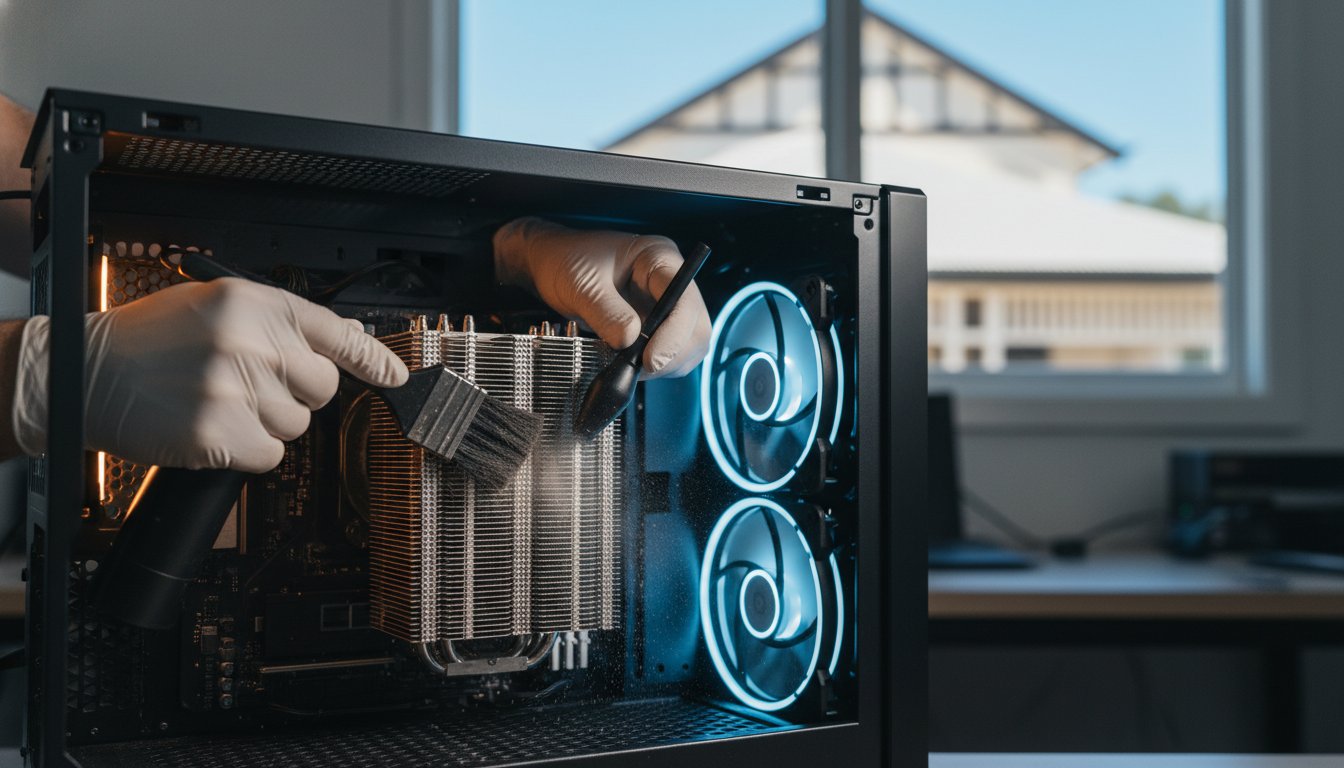
Searching for notebook repairs near me often starts when a device behaves unpredictably. You might notice a slow startup or a screen that occasionally flickers. These are just symptoms. They don’t always reveal the underlying problem. Professional diagnostics are essential because they pinpoint whether a failure is caused by a dying battery, a corrupted driver, or a physical hardware fault. In our Toowoomba climate, heat and dust are the two biggest silent killers of portable tech. Dust builds up in the small cooling vents, causing the internal temperature to spike. This thermal stress eventually degrades sensitive components and shortens the lifespan of your machine.

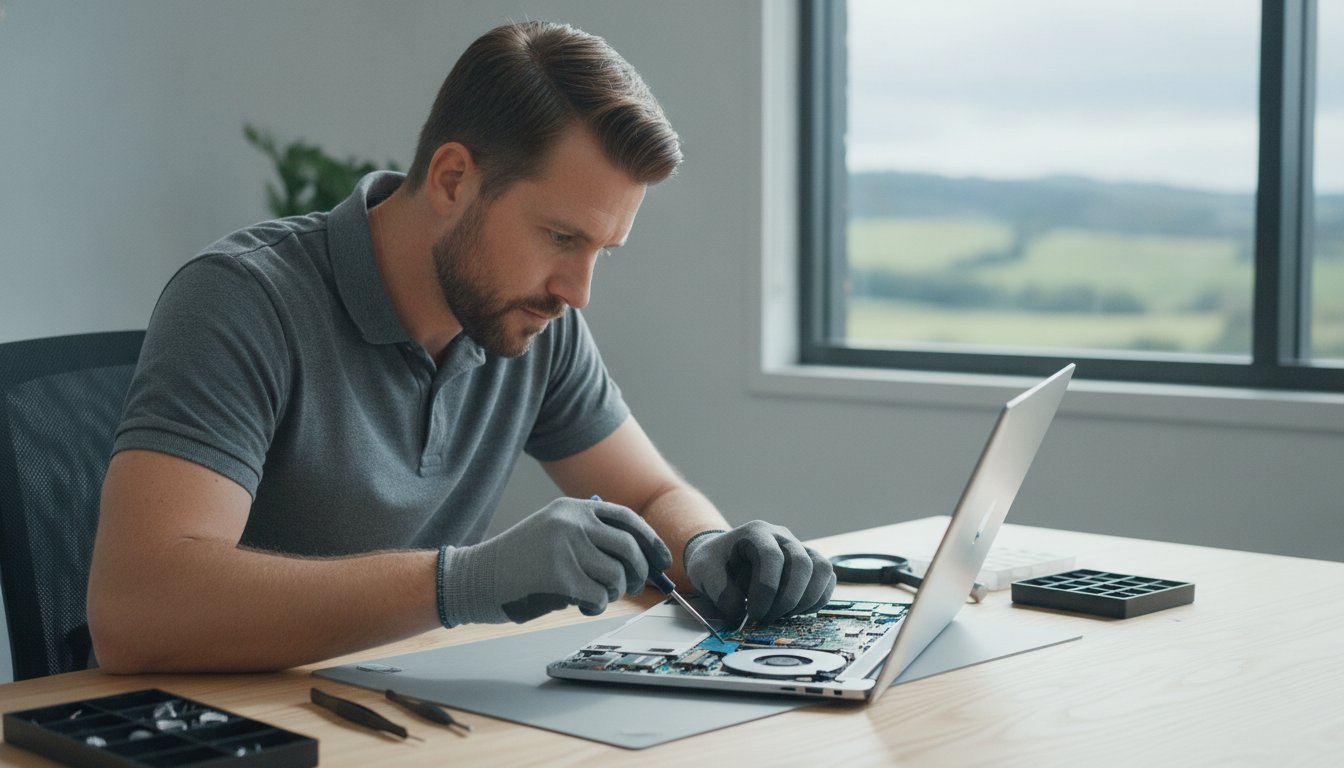
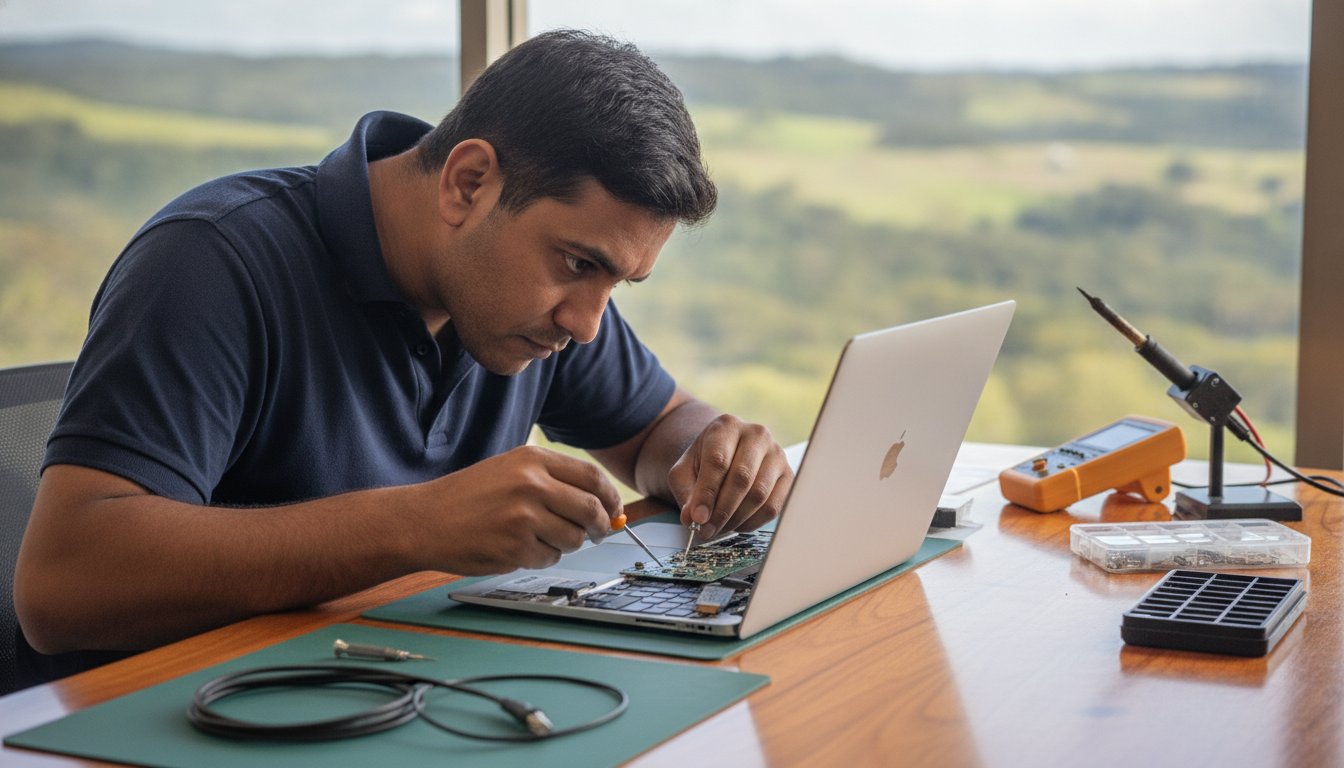
Modern laptops are incredibly compact. Most components are integrated into the motherboard, which makes DIY fixes risky without professional tools. A technician uses specialized equipment to test voltage and signal paths without causing further damage. This precision is vital when weighing the costs of Repair vs. Replacement, as an accurate diagnosis prevents you from wasting money on parts you don’t actually need. Professional tools allow us to see exactly what’s happening inside the chassis before we even pick up a screwdriver.

Screen, Battery, and Power Problems

Battery issues are common but often misunderstood. If your laptop only works while plugged in, it’s likely a dead cell. However, if it won’t charge even when connected, the problem might be a damaged charging port or a failing power brick. We always recommend using genuine power supplies. Non-genuine chargers often lack the correct voltage regulation, which can fry high-end laptop circuitry. If your screen goes black or flickers, it could be a loose internal cable or a failing LCD panel. Testing these requires opening the chassis, a task best left to an expert who understands the delicate ribbon cables involved.

Performance Bottlenecks and Overheating

Slow performance doesn’t always mean you need a new computer. A professional Windows tune-up can often clear out software bloat and registry errors that drag down speed. If you hear your fan spinning loudly or feel excessive heat on the bottom of the case, your cooling system is struggling. This physical sign shouldn’t be ignored, as overheating can lead to permanent data loss. Upgrading to a Solid State Drive (SSD) is often the most effective way to breathe life back into an older machine. It provides a massive speed boost that far exceeds the performance of traditional hard drives. If your device is struggling to keep up, you can book a hardware assessment to see which upgrades will offer the best value for your specific model.

Notebook Repair vs. Replacement: Making the Economical Choice

Choosing between fixing a broken device and buying a new one is a common headache for Toowoomba residents. When searching for notebook repairs near me, you need a clear framework to decide if your machine is worth the investment. Generally, if a laptop is less than three years old, a repair is almost always the better financial choice. High-quality hardware is built to last. It often just needs a specific component replaced or a professional cleaning to return to peak performance. This “three-year rule” helps you avoid the trap of the premature replacement cycle that many big-box retailers encourage.

Repairing your current device also has significant environmental benefits. Australia generated 588,000 tonnes of e-waste in 2023. Extending the life of your hardware directly helps reduce this growing environmental impact. Strategic hardware upgrades, such as adding more RAM or a faster drive, can often extend a notebook’s functional life by several years. This approach keeps your familiar keyboard and screen intact while providing the internal speed required for modern applications. It’s a practical way to maintain operational resilience without the high cost of a new purchase.

Calculating the ROI of Your Repair

It’s helpful to look at the return on investment when your laptop starts to fail. A quality repair often costs less than 25% of a new machine. When you compare this to the price of a new mid-range laptop, the savings are immediate and substantial. You also avoid the hidden costs that come with starting over. These include the time spent on complex data transfers, the hassle of re-installing specialized business software, and the hours required to set up your desktop preferences. A professional repair keeps your workflow moving without these interruptions.

When Replacement is the Better Option

There are certain scenarios where repair isn’t the most logical path. Catastrophic failures, such as extensive liquid damage to the motherboard or a cracked chassis that compromises structural integrity, can sometimes exceed the value of the device. If your central processor is so old that it can no longer run current security updates, an upgrade becomes a necessity for your safety. If we find that your machine has reached this point during our diagnostic process, Aspire Computing can help you source quality new hardware. We provide honest advice to ensure your new system is perfectly suited to your specific needs in Toowoomba or the Darling Downs.

Notebook Repairs Near Me: Expert Laptop Fixes in Toowoomba

The Importance of Data Security During the Repair Process

Handing over your personal or business laptop can feel like giving someone the keys to your entire life. It’s a common fear; you might wonder if a technician will look at your private files while your device is in the shop. When you’re searching for notebook repairs near me, data security should be your primary concern. We operate with strict protocols to ensure your privacy is never compromised. Our diagnostics focus on system health and hardware signal paths, not the contents of your personal folders. This professional boundary is a cornerstone of our service in Toowoomba, backed by over two decades of local accountability.

Data integrity is also about protecting your files from external threats. A hardware failure often happens at the same time a system is vulnerable to software corruption. We follow best practices in line with Australian privacy standards to ensure that your information remains yours alone. Whether we’re working on a machine from Newtown or a business setup in the Darling Downs, our goal is to return a device that’s both physically functional and digitally secure.

Virus and Malware Removal Protocols

Malware can do more than just slow down your computer; it can act as a gateway for data theft. Our approach involves a methodical scan of system directories to identify malicious code without opening your personal documents. These deep scans ensure that no hidden threats remain to re-infect your notebook once the hardware is fixed. Securing your system after a hardware repair is vital for long-term stability. You can find more detailed information on protecting your device in our Virus and Malware Removal Guide.

Data Recovery and Backup Strategies

It is a gut-wrenching moment when a notebook won’t boot, but your files are still trapped on the drive. In many cases, the data is perfectly intact; it’s just the operating system or a power component that has failed. We specialize in retrieving these files and implementing a “Business Continuity” plan for home office users. This ensures you never face the same panic again. If you’re dealing with a drive that seems unresponsive while looking for notebook repairs near me, our Data Recovery Services can help you get those lost files back safely. You can contact us today to discuss a secure data backup plan for your home or business.

Professional Laptop Services with Aspire Computing

Aspire Computing represents a different approach to technology support. Since 1999, we’ve provided a stable and reliable presence in the Toowoomba region. While national chains often rotate staff or use remote call centers, our business is built on personal accountability. When you search for notebook repairs near me, you aren’t just looking for a technician; you’re looking for a partner who understands your history and your specific setup. We combine this decades-long experience with a modern focus on efficiency and security.

Our service extends beyond the laptop itself. We supply and repair quality peripherals, ensuring your entire office ecosystem works together. Whether you need printer supplies for your Canon or Epson devices or a complete hardware overhaul, we use parts that meet high industry standards. This commitment to quality ensures that once your notebook is fixed, it stays fixed. We focus on tangible improvements that you can feel the moment you turn your machine back on.

Personalised Tech Support for Toowoomba

The owner-led model at Aspire Computing means you always speak directly to the person performing the work. There’s no middleman and no corporate jargon. This direct line of communication allows for a much deeper understanding of your technical issues. Every repair we undertake includes a focus on “Cyber Security” to ensure your machine isn’t just fast, but also protected against modern threats. For a broader look at our local expertise, you can visit our Pillar Page for Computer Repairs Toowoomba.

Getting Started with Your Notebook Repair

Initiating your repair is a straightforward process. You can contact us to book an on-site visit or a remote diagnostic session depending on the nature of the fault. When you call, describing your symptoms accurately helps us prepare the right tools and parts. If you’ve noticed specific error messages or unusual sounds, jot them down before the session starts.

Before our technician arrives at your Newtown or Toowoomba location, ensure you have your power cables and any relevant passwords ready. This preparation helps us get straight to work, reducing your downtime. If you’re searching for notebook repairs near me because of a sudden failure, don’t panic. We’ve spent over 25 years helping Toowoomba residents restore their digital lives quickly and safely. We’re here to ensure your technology serves you, rather than the other way around.

Get Your Notebook Back in Top Shape

Your laptop is the hub of your digital life. Understanding when to repair rather than replace can save you significant money while keeping your valuable data secure. We have explored how professional diagnostics pinpoint the root cause of hardware failures and why local, owner-led support offers a level of accountability you won’t find at a national franchise. Whether you are dealing with a flickering screen or a system that won’t boot, finding reliable notebook repairs near me is about choosing a partner you can trust with your privacy and your productivity.

Aspire Computing has been serving the Toowoomba community since 1999. We offer expert on-site and remote support, specializing in complex data recovery and robust cyber security. You don’t have to struggle with a slow or broken machine any longer. Contact Aspire Computing for Reliable Notebook Repairs in Toowoomba and let us handle the technical details for you. We are ready to help you get back to work with a fast, secure, and reliable device.

Frequently Asked Questions

How long does a typical notebook repair take in Toowoomba?

Most software fixes or virus removals are completed within one to two hours of starting the work. Hardware repairs depend on the availability of specific parts, but we always aim for a rapid turnaround to minimize your downtime. Since we offer both on-site and remote assistance, we can often begin the diagnostic process quickly. We understand that your notebook is essential for daily life, so we prioritize efficient and reliable service.

Can you fix my laptop screen if it is cracked?

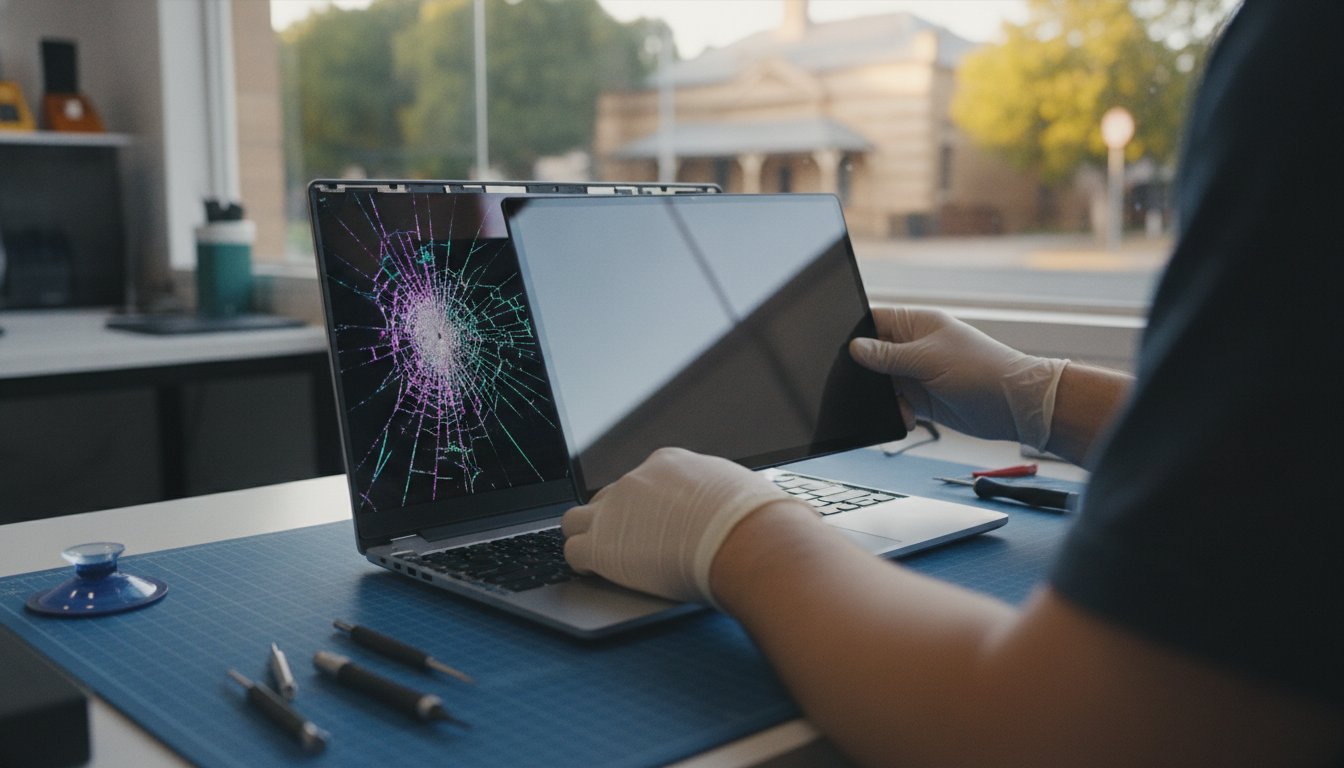
Yes, we provide professional laptop screen replacement services for most major brands. A cracked or flickering screen usually requires a full panel replacement to restore clarity and touch functionality. We source high-quality replacement parts to ensure your display looks like new again. Because modern screens are integrated with delicate cables, we handle the installation with precision to prevent damage to the internal camera or the Wi-Fi antennas housed in the lid.

Will I lose my files during a notebook repair?

We prioritize data integrity and take every precaution to protect your files during the repair process. For many hardware fixes, your data remains completely untouched on the drive. However, if we identify a failing storage device, we specialize in data recovery and secure backups to save your information. When you search for notebook repairs near me, choosing a technician who emphasizes cyber security ensures your personal and business files are handled with professional care.

Do you offer on-site laptop repairs for small businesses?

We specialize in on-site IT support for small businesses and home offices throughout Toowoomba and the Darling Downs. Our technician can visit your location in Newtown or surrounding suburbs to troubleshoot hardware issues or network connectivity problems. This service saves you the hassle of disconnecting equipment. It also allows us to see how your devices interact with your local environment, including printers, scanners, and network storage solutions.

Is it worth upgrading the RAM or SSD in an older notebook?

Upgrading your hardware is often the most cost-effective way to extend the life of a laptop that is several years old. Replacing a traditional hard drive with a Solid State Drive (SSD) provides a massive boost in startup speed and application responsiveness. Adding more RAM allows your system to handle multiple tasks without slowing down. These upgrades frequently cost significantly less than purchasing a new machine and provide immediate, tangible improvements.

What brands of laptops and notebooks do you service?

We service all major PC laptop brands, including Dell, HP, Lenovo, ASUS, and Acer. Our expertise covers a wide range of hardware configurations and operating system versions. Whether you have a high-end business workstation or a student notebook, we use professional diagnostic tools to identify specific faults. We also supply quality parts and peripherals from trusted brands like Canon and Epson to ensure your entire office setup remains stable and reliable.

How much does a laptop diagnostic cost?

We provide clear, upfront quotes for all repairs after a thorough assessment of your device’s symptoms. Our diagnostic process identifies the root cause of the failure, whether it’s a hardware fault or a software conflict. We believe in transparency, so you’ll have a full understanding of the costs before any work begins. When searching for notebook repairs near me, this clear communication helps you make an informed decision about your technology investment.

Can you help with printer setup alongside my notebook repair?

Yes, we offer comprehensive printer supply and repair services as part of our IT support. We can assist with the initial setup, driver installation, and wireless configuration for brands such as Canon, Samsung, and Epson. Ensuring your notebook communicates correctly with your printer is essential for a smooth workflow. We can handle these tasks during an on-site visit to your home or office to ensure your entire system functions perfectly.

Motherboard Upgrade Guide 2026: Is It Worth It for Your PC?

Is your home office PC starting to feel like it’s stuck in the past while software demands keep moving forward? It’s a common frustration when your system lags during a critical meeting or refuses to install the latest security updates. You might be considering a motherboard upgrade to breathe new life into your hardware, but the fear of losing important business files or making a costly technical mistake often stands in the way.

We understand that your computer is the backbone of your professional life here in Toowoomba. You want a machine that works as hard as you do without the constant threat of a system crash. In this guide, you’ll discover whether a motherboard upgrade is the right strategic move for your specific setup or if investing in a new system is the smarter financial choice for 2026. Since 1999, we’ve helped locals navigate these technical crossroads with confidence and ease.

We’ll explore the vital role this component plays in your PC’s stability and provide a clear framework to help you make a confident decision. From understanding modern connectivity to finding local expert support in Newtown, you’ll gain the clarity needed to ensure your technology supports your business goals rather than hindering them.

Key Takeaways

  • Learn why a motherboard upgrade is the essential first step for accessing the latest high-speed processors and DDR5 memory in 2026.
  • Use the “50% Rule” to determine if upgrading your current system is a sound investment or if a full replacement offers better value for your home office.
  • Understand the technical complexities of CPU socket compatibility and RAM types to avoid purchasing incompatible hardware.
  • Discover how to protect your business data and manage Windows licensing issues that often arise during major hardware changes.
  • See how local on-site support across Toowoomba and Newtown can eliminate the risks of a DIY installation and keep your system stable.

What is a Motherboard Upgrade and Why Consider it in 2026?

Think of your computer as a house. The motherboard is both the foundation and the electrical wiring. To understand what a motherboard is, you should view it as the central nervous system that allows your processor, memory, and storage to talk to each other. In 2026, a motherboard upgrade isn’t just about chasing speed. It’s often a necessity to meet the strict security standards of modern operating systems like Windows 11 or the newer Windows 12.

Modern boards include integrated security features and firmware that older hardware lacks. Without these, your system might be blocked from receiving critical updates, which puts your business data at risk. Beyond security, a foundation refresh allows you to use the latest PCIe 6.0 standards and USB 4.0 ports. These technologies move data at speeds that were impossible a few years ago. If you’re managing a home office in Newtown or anywhere in Toowoomba, these efficiencies can save you hours of frustration every week.

The Core Benefits of a Foundation Refresh

A motherboard upgrade serves as the gateway to better performance across your entire system. By installing a modern board, you unlock support for the latest CPU generations that offer more cores and better power efficiency. This shift leads to improved system stability and a significant reduction in “Blue Screen of Death” errors that plague ageing hardware. You also gain access to next-generation connectivity like Wi-Fi 7 and high-speed Ethernet, ensuring your internet connection actually reaches the speeds you pay for.

Signs Your Current Motherboard is Obsolete

It’s often hard to tell if your hardware has reached its limit, but certain red flags are hard to ignore. At Aspire Computing, we’ve helped Toowoomba residents identify these issues since 1999. Watch for these common signs:

  • Your system is blocked from installing Windows 11 or 12 because of TPM 2.0 or CPU requirements.
  • Physical components like USB ports, audio jacks, or Ethernet ports are working intermittently.
  • You cannot add more RAM because your board has reached its maximum capacity or doesn’t support modern DDR5 modules.
  • Your PC frequently crashes or freezes during standard multitasking.

If you’re experiencing these symptoms, your hardware is likely struggling to keep up with modern software demands. Upgrading this core component can often be more cost-effective than replacing the entire machine, provided your other parts are still in good health.

Understanding Compatibility: The “Big Three” Technical Hurdles

The most stressful part of a motherboard upgrade is the fear that your new parts won’t actually fit together. It’s a valid concern because hardware standards change rapidly. If you buy a board that doesn’t match your existing components, you face extra costs and frustrating delays. We often see local Toowoomba residents struggle with these technical mismatches, but these hurdles are manageable with the right roadmap.

RAM compatibility is a frequent sticking point in 2026. You cannot put DDR5 memory into a DDR4 motherboard because the physical notches are in different positions. If your current PC uses DDR4, you’ll likely need to buy new RAM modules alongside your board. Additionally, you must consider the “Form Factor.” This refers to the physical size of the board. An ATX board offers more expansion slots but won’t fit inside a smaller Micro-ATX case. Always check your case dimensions before committing to a purchase.

CPU Sockets and Chipsets Explained

A CPU socket is the physical interface on the board that must match your processor’s pin layout exactly. In 2026, we primarily work with AMD’s AM5 socket and Intel’s LGA 1700 or the newer LGA 1851 interfaces. If the pins don’t line up, the system simply won’t work. Chipsets act as the traffic controller for your data. They determine how many high-speed NVMe drives or external peripherals you can connect at once. Choosing a modern chipset is vital for “future-proofing” your system, ensuring it remains stable and compatible with new software for the next five years.

Power Supply and Thermal Considerations

Modern motherboards often require more power than older models. You need to check if your current Power Supply Unit (PSU) has the correct 8-pin or 12-pin connectors required for a 2026-era board. Heat management is another critical factor. Newer chipsets run hotter, so modern boards feature larger integrated heatsinks to maintain stability. Don’t forget your CPU cooler. The mounting hardware that worked on your old board might not fit the height or hole pattern of a new socket. If these technical details feel daunting, our team can handle the hardware upgrade process for you at your Newtown home or office to ensure total compatibility.

The Upgrade vs. Replace Dilemma: Making a Smart Investment

Deciding between a motherboard upgrade and a full system replacement is often a financial calculation rather than a technical one. We suggest applying the “50% Rule” to your decision. If the combined cost of the new board, any required parts like RAM or a CPU, and the professional labour exceeds half the price of a brand new, equivalent PC, it’s usually wiser to replace the entire unit. This framework helps you avoid “throwing good money after bad” on a system that might still have ageing components ready to fail.

Evaluating the “bones” of your current setup is the next step. If you own a high-quality case, a reliable power supply, and modern storage drives, keeping them makes sense. Not only does this save you money, but it also significantly reduces e-waste across the Darling Downs region. However, you must account for hidden costs. A new PC often includes a Windows license and a warranty, whereas a component swap might lead to licensing reactivation hurdles or data migration time that you hadn’t budgeted for.

When a Motherboard Upgrade Makes Sense

A motherboard upgrade is a brilliant move if your current processor is still powerful enough for your daily tasks but lacks modern features. Perhaps you need extra M.2 slots for faster business data storage or a Thunderbolt port for high-speed peripherals. If you’ve previously invested in premium parts like a high-end graphics card or a silent cooling system, a foundation refresh allows you to keep those assets while gaining modern connectivity. It’s a targeted way to boost performance without the expense of a whole new tower.

When It is Time to Buy a New PC

If your computer is more than six years old, it likely uses obsolete RAM standards and older power architectures. In these cases, the cost of a new CPU, compatible memory, and the motherboard itself often approaches the price of a modern pre-built system. When the gap in price is small, the benefit of a full system warranty and a “fresh start” with software usually outweighs the savings of an upgrade. For more help with this choice, you can read our guide on Is Repairing Your Computer Worth It? to see how we weigh these factors for our clients at Aspire Computing.

Motherboard Upgrade Guide 2026: Is It Worth It for Your PC?

Common Upgrade Pitfalls and How to Avoid Them

A motherboard upgrade is essentially open-heart surgery for your PC. While it’s an exciting way to modernise your tech, several traps can turn a weekend project into a costly nightmare. One major issue is the “bottleneck” effect. Installing a high-speed 2026 chipset won’t magically fix the slowness of an old mechanical hard drive. If your storage can’t keep up with the new board’s data lanes, you won’t see the performance gains you expect.

Software licensing is another frequent headache. Windows usually ties its activation to your specific motherboard ID. When you perform a motherboard upgrade, the operating system often assumes it’s on a completely new machine and deactivates itself. You’ll need to ensure your license is linked to a Microsoft account or have your product key ready to avoid being locked out of your own system.

Physical risks are just as significant. Static electricity is a silent killer that can fry delicate circuits before you even press the power button. Even more dangerous is the risk of bent pins in the CPU socket. Modern Intel and AMD sockets have hundreds of tiny, fragile pins. A single slip during installation can ruin an A$400 motherboard instantly, leaving you with an expensive paperweight.

Data Safety and Software Prep

Adopting a professional data recovery mindset is essential before you even pick up a screwdriver. Always back up your business files to an external drive or cloud service first. You should also check for BIOS or UEFI updates for your new board and have your hardware drivers downloaded on a USB stick. This prevents boot loops and ensures your system recognises the new hardware immediately.

Physical Installation Risks

Standoffs are the small brass spacers that prevent your motherboard from short-circuiting against the metal case. Forgetting even one of these can lead to a total hardware failure the moment you turn it on. Use anti-static wrist straps and work on a non-conductive surface to stay safe. Finally, don’t ignore cable clutter. Managing your wires ensures proper airflow, which is critical for keeping modern, high-performance components cool during long workdays in Newtown. If these risks sound overwhelming, our team at Aspire Computing can handle your hardware installation on-site, giving you total peace of mind.

Professional Motherboard Upgrades in Toowoomba

Attempting a motherboard upgrade on your own can be a daunting prospect, especially when your livelihood depends on your computer’s stability. Since 1999, Aspire Computing has been the trusted name for hardware solutions in the local region. We provide a calm, professional alternative to the anxiety of DIY technical failures. Our team understands that you don’t just need new parts; you need a system that works reliably from the moment you turn it on. With over 25 years of experience, we’ve seen every generation of hardware and know exactly how to handle the latest 2026 standards.

Our “No-Stress” process is designed to take the technical weight off your shoulders. We don’t just tell you what to buy. We source the high-quality components your specific system requires, handle the intricate physical installation, and meticulously verify your data to ensure nothing is lost during the transition. Once the hardware is in place, we perform essential post-upgrade tuning. This includes optimizing your security settings and performing a thorough virus and malware removal check to ensure your refreshed PC is as clean and secure as it is fast.

Why Toowoomba Residents Trust Aspire Computing

Choosing a local expert means you get personal accountability that a “Big Box” retailer simply cannot offer. You won’t have to deal with generic advice or long wait times at a distant service desk. We provide on-site service in Newtown and across the wider Toowoomba area, coming directly to your home or office to minimize your downtime. This personal approach is the core of our business. Our expertise isn’t limited to just the tower either. We offer comprehensive support for your printers, scanners, and networking gear to ensure your entire home office ecosystem remains stable and productive.

Get a Performance Health Check Today

We proudly serve the Darling Downs and Lockyer Valley, helping small business owners make informed decisions about their technology investments. Before you commit to a motherboard upgrade, a professional diagnostic can often reveal if a simpler, more cost-effective fix might solve your lag issues. This health check can save you hundreds of dollars in unnecessary part purchases by identifying the true source of your system’s performance bottlenecks. We believe in functional utility and security above all else. If you’re ready to unlock your computer’s potential without the risk of a DIY disaster, Contact Aspire Computing today for a professional hardware consultation.

Secure Your PC’s Future with the Right Foundation

A motherboard upgrade is more than just a part swap; it’s a strategic investment in your computer’s longevity and security. By now, you understand how this core component unlocks modern speeds and ensures your home office remains compatible with the latest software updates. Whether you choose to refresh your current system or invest in a new machine, making an informed decision today prevents costly technical failures tomorrow. We’ve helped Toowoomba residents navigate these complex hardware choices since 1999. Our team specializes in providing on-site support for small businesses and home offices in Newtown and across the Darling Downs.

We take the stress out of hardware changes by handling the technical details and verifying your data safety every step of the way. If you’re unsure which path is right for your budget, we’re here to help you find the most reliable solution. Book a Hardware Upgrade Consultation in Toowoomba to get expert advice tailored to your specific needs. Let’s make sure your technology works as hard as you do.

Frequently Asked Questions

Will a motherboard upgrade make my internet faster?

A new board can improve your connection speeds if your current hardware is outdated. Modern motherboards often feature Wi-Fi 7 and 2.5Gbps or 10Gbps Ethernet ports, which handle high-speed data much better than older standards. While this won’t change the speed provided by your NBN plan, it ensures your PC isn’t the bottleneck. You’ll experience more stable connections and faster file transfers across your local home office network.

Do I need to reinstall Windows after a motherboard upgrade?

It’s highly recommended to perform a clean Windows installation. While your system might boot with the old installation, hidden driver conflicts can lead to “Blue Screen” errors and general instability. Since Windows licenses are often tied to the motherboard’s unique ID, you may also need to reactivate your software. Linking your license to a Microsoft account before the motherboard upgrade makes this transition much smoother and less stressful.

Can I upgrade the motherboard in my laptop?

No, you generally cannot upgrade a laptop’s motherboard. Laptop boards are custom-engineered to fit a specific chassis and often have the processor and memory soldered directly to the circuits. If your laptop is struggling with modern software or lacks essential ports, a full system replacement is the only practical solution. We can help you select a new machine and migrate your business data so you don’t lose any important files.

How long does a professional motherboard installation take?

A professional installation usually takes between two to four hours. This time allows for the physical component swap, meticulous cable management, and a BIOS update to the latest stable version. We also verify that your operating system boots correctly and that all hardware drivers are functioning. Our on-site service in Newtown ensures your computer is back in action quickly, allowing you to focus on your work without technical distractions.

Will a new motherboard improve my gaming performance?

A motherboard upgrade provides minimal direct gains in frame rates, but it enables the use of faster supporting hardware. By moving to a modern board, you gain support for powerful new CPUs and high-speed DDR5 memory. It also offers PCIe 5.0 or 6.0 slots, which provide the maximum possible bandwidth for your graphics card. These improvements combined create a much smoother and more responsive experience during high-demand tasks or gaming.

How do I know which motherboard is compatible with my CPU?

You must match the CPU’s socket type with the motherboard’s physical socket. For example, AMD Ryzen 9000 series chips require an AM5 socket, while recent Intel processors use LGA 1700 or LGA 1851. You also need to confirm the chipset supports your specific processor generation. Checking the manufacturer’s “CPU Support List” is the only way to be certain. If you’re unsure, our Toowoomba experts can verify compatibility for you before you buy.

Is it cheaper to upgrade my motherboard or buy a new PC?

Upgrading is often more affordable if your existing case, power supply, and storage are still in good condition. However, the costs can add up if you also need a new CPU and RAM to match the board. We suggest the “50% Rule” mentioned earlier in this guide. If the total cost of parts and labour exceeds half the price of a new system, investing in a fresh PC is usually the smarter financial move.

What happens to my files when I change the motherboard?

Your files remain safe on your storage drive, but they might be difficult to access if the system doesn’t boot properly. A motherboard upgrade doesn’t delete your data, but driver mismatches can prevent the operating system from loading. We always perform a full backup before starting any hardware work. Our team ensures your business documents and personal photos are verified and accessible once the new board is installed and configured.

How to Prevent Hard Drive Failure: 7 Warning Signs and Proactive Tips for 2026

Did you know that nearly half of all hard drives fail within their first year of operation? A 2026 study of over 5,000 failed drives found that a staggering 49.8% didn’t even make it to their first birthday. For many of us in Toowoomba, this isn’t just a statistic; it represents the potential loss of priceless family memories or critical business data. It’s a heavy burden to worry about when your computer starts making a strange clicking sound or feels a bit sluggish. Learning how to prevent hard drive failure is the best way to ensure your digital life stays intact without needing to be a tech expert.

I understand the anxiety that comes with technical glitches, especially since 30.5% of drives fail without any prior SMART warnings. I’m here to help you protect your hardware through simple, proactive steps. You’ll discover how to decode the “silent” warnings your hardware sends before it’s too late. We will explore the seven most common warning signs, demystify technical jargon, and outline a reliable backup strategy tailored for our local climate. By the end of this guide, you’ll know exactly how to extend your drive’s life and precisely when it’s time to call in a professional for help.

Key Takeaways

  • Learn how Toowoomba’s unique humidity and summer heat impact your hardware and what you can do to mitigate these environmental risks.
  • Discover practical steps on how to prevent hard drive failure by maintaining optimal airflow and using high-quality surge protectors.
  • Identify the critical differences between the noisy “death rattle” of traditional hard drives and the silent failure modes of modern SSDs.
  • Master the immediate “Emergency Triage” steps to take the moment you suspect a drive is failing to maximize your chances of successful data recovery.
  • Understand how to use SMART technology to monitor your drive’s health and catch potential issues before they lead to permanent data loss.

Why Hard Drives Fail: Understanding Mechanical and Digital Risks

Living on the Range in Toowoomba brings specific challenges for our technology. While we might enjoy the seasonal changes, our computers often struggle with the shifting environment. Understanding the fundamentals of hard disk drive failure is essential for anyone looking to secure their data. In 2026, storage devices are smaller and faster than ever, but this compact design makes them increasingly sensitive to physical movement and heat.

The Darling Downs region is known for its summer humidity and occasional power instability. These factors play a major role in how local hardware degrades over time. Whether you use a traditional mechanical drive or a modern flash-based system, knowing the risks helps you understand how to prevent hard drive failure before a total crash occurs. High-density 2026 hardware is particularly vulnerable to physical shock, meaning even a small bump to your laptop can have serious consequences.

Mechanical Wear vs. Electronic Failure

Hard Disk Drives (HDDs) rely on physical platters spinning at thousands of revolutions per minute. A tiny read/write head hovers just nanometres above these surfaces. Any physical shock can cause a “head crash,” where the head touches the platter and destroys data. Because these drives have moving parts, they eventually wear out through simple friction and mechanical fatigue. Solid State Drives (SSDs) are different. They have no moving parts but possess a finite “write life.” Every time you save a file, the electronic cells degrade slightly until they can no longer hold a charge.

In many Toowoomba home offices, dust and poor ventilation are the primary culprits for early hardware death. Our local dust can quickly clog intake fans; this forces the drive to operate at higher temperatures, which significantly shortens the lifespan of both HDDs and SSDs. Maintaining a clean, cool environment is a simple but effective strategy for any computer user.

The Silent Killer: Logical Data Corruption

Not every failure is physical. Logical corruption happens when the drive’s hardware is fine, but the file system becomes scrambled. This often occurs during sudden power loss. Our regional grid can experience brownouts or surges during storm season. If your system loses power while installing a Windows update, the data can become “orphaned” or corrupted. This mimics the symptoms of a hardware crash, such as being unable to boot into your operating system.

It’s a common mistake to try and fix these issues with software “tune-up” tools. If the underlying cause is actually a physical component failing, running intensive repair software can make the damage worse. If your computer is acting up, Aspire Computing can help determine if the issue is a simple software fix or a sign of a dying drive. Remember, you can’t fix a broken motor with a software patch.

Proactive Prevention: How to Extend Your Drive’s Lifespan

Preventing data loss isn’t just about luck; it’s about consistent habits. While modern drives are faster than their predecessors, they remain delicate pieces of engineering. Understanding how to prevent hard drive failure starts with controlling your machine’s physical environment. Small changes in how you handle your computer can mean the difference between a drive that lasts five years and one that fails in its first 362 days, which was the median lifespan found in a 2026 study of failed drives.

Heat is the primary enemy of all computer hardware. In the Darling Downs, our summer temperatures can easily push internal components past their safe operating limits. When a drive runs too hot, the lubricants in mechanical HDDs can thin out, and the delicate electronic cells in SSDs can degrade faster. To stay ahead of potential issues, you should regularly Check Your Hard Drive’s Health using diagnostic tools to ensure your cooling system is doing its job effectively.

Power stability is another critical factor for Queensland residents. Our region is prone to sudden storms and power surges that can fry sensitive circuitry instantly. A high-quality surge protector is a basic requirement, but it isn’t always enough. If you’re using a desktop or a small business server, an Uninterruptible Power Supply (UPS) provides a much-needed buffer. It gives your system enough battery life to shut down safely during a blackout, preventing the logical corruption that occurs when power is cut mid-write.

Environmental Controls for Toowoomba Users

Humidity and dust management are essential for anyone living on the Range. High humidity can lead to subtle corrosion on internal connectors over time, while dust acts as an insulator that traps heat. I recommend cleaning your computer’s dust filters at least every three months. This prevents thermal throttling, where your computer slows down to protect itself from melting. For small businesses, keeping servers in a climate-controlled room is the gold standard for hardware longevity.

Digital Hygiene Practices

Your software habits also impact your hardware’s physical health. For example, an overfilled SSD will wear out faster because the drive has fewer empty cells to rotate data through, a process known as wear-levelling. Aim to keep at least 20% of your drive empty. Additionally, keeping your system free of malicious software is vital. Regular Virus and Malware Removal prevents background processes from overworking your drive and causing unnecessary wear. These habits are the foundation of how to prevent hard drive failure over the long term. If you’re unsure about your current setup, a quick consultation with Aspire Computing can provide peace of mind and help you establish a better protection plan.

SSD vs. HDD: How Warning Signs Differ for Modern Drives

Many computer users assume all drives give a clear warning before they stop working. While a traditional Hard Disk Drive (HDD) might click or grind, a Solid State Drive (SSD) often fails in total silence. Understanding these distinct symptoms is a vital part of learning how to prevent hard drive failure. Because modern laptops and desktops almost exclusively use NVMe or SATA SSDs, you can no longer rely on your ears to detect a problem. You need to watch for digital cues instead.

Most storage devices manufactured in 2026 include SMART (Self-Monitoring, Analysis, and Reporting Technology). This internal system tracks performance metrics and error rates. However, it isn’t a perfect safety net. A July 2026 study revealed that 30.5% of failed drives had zero pending sector counts, meaning they died without any prior SMART warnings. This is why I always recommend a combination of software monitoring and physical observation. If your system feels “off,” it’s better to investigate early.

If a failure does occur, the recovery process differs greatly between the two technologies. Traditional HDDs are often mechanical puzzles where we might replace a motor or a read/write head. In contrast, SSD data recovery is significantly more complex. These drives use sophisticated encryption and wear-levelling algorithms that scramble data across chips. If the controller chip fails, the data remains trapped in a digital jigsaw puzzle that requires specialist tools to solve. For complex cases, Aspire Computing provides specialised data recovery services to help Toowoomba residents retrieve their lost files.

The SSD Warning Checklist

SSDs are incredibly fast, but they have a finite lifespan based on how much data you write to them. Watch for these three specific red flags:

  • Read-only mode: Your drive suddenly prevents you from saving or deleting files but still lets you open them. This is a final safety measure the drive takes when it reaches its write-cycle limit.
  • Frequent Bad Block errors: You might see system logs mentioning “bad blocks” or notice that certain applications take a long time to load or frequently freeze.
  • BIOS/UEFI disappearance: Your computer may occasionally fail to boot, showing a “No Boot Device Found” screen. This often happens as the controller chip begins to fail intermittently.

HDD-Specific Mechanical Red Flags

Mechanical drives are much more vocal about their problems. You might notice increasingly long boot times as the motor struggles to spin the internal platters up to their required speed. During heavy file transfers, listen for grinding or rhythmic clicking sounds, often called the “death rattle.” Hard Disk Drives often provide a grace period of noise before total failure, giving you a small window of time to secure your data.

How to Prevent Hard Drive Failure: 7 Warning Signs and Proactive Tips for 2026

The 7 Most Critical Hard Drive Failure Signs to Watch For

Recognising the early symptoms of a hardware crash can be the difference between a simple upgrade and a total data disaster. While our previous sections focused on long-term maintenance, this checklist helps you spot immediate threats. If you notice these signs, your window for learning how to prevent hard drive failure has likely closed, and your focus must shift to immediate data protection. Reacting quickly to these warnings is your final line of defence against permanent loss.

Strange noises are the most obvious red flags for mechanical drives. If you hear rhythmic clicking, grinding, or whirring, it’s often the “death rattle” of a failing motor or head assembly. Beyond sounds, pay attention to frequent system crashes. The Blue Screen of Death (BSOD) is often blamed on software, but it’s frequently triggered by the operating system being unable to read a critical file from a failing sector. Similarly, if files or folders suddenly disappear or show corrupted characters, your drive’s internal index is likely crumbling. Understanding how to prevent hard drive failure involves knowing when the hardware is past the point of no return.

Extremely slow performance is another subtle sign. When a drive is dying, it spends more time retrying failed read operations. This causes the entire system to freeze during simple tasks like opening a PDF or browsing the web. Don’t assume it’s just “old age” or a simple virus. If your computer feels like it’s wading through treacle, the hardware itself might be the bottleneck.

Audible and Physical Warning Signs

  • The Click of Death: In traditional HDDs, this sound indicates the read/write head is struggling to find its home position. It’s a clear signal that the drive is physically failing.
  • Excessive Heat: If your laptop casing feels unusually hot to the touch near the storage bay, the drive’s internal components may be overworking or suffering from excessive friction.
  • Vibrations: A computer tower that vibrates more than usual can indicate an unbalanced spinning platter. This is a sign of imminent mechanical collapse for HDD owners.

System Behaviour and Error Messages

Watch for “Operating System Not Found” or “No Boot Device” errors when you turn your computer on. These suggest the hardware is no longer communicating with the motherboard. Frequent “chkdsk” prompts on startup are another warning; Windows is trying to repair file system errors that keep reappearing due to physical damage. Finally, the “spinning wheel of death” during file transfers often indicates a hardware bottleneck where the drive simply cannot keep up with data requests. If your computer is showing any of these seven critical signs, don’t wait for a total crash. I recommend you stop using the device immediately to prevent further damage. You can contact Aspire Computing for an expert assessment and professional data recovery services before your memories or business records are lost for good.

Emergency Triage: What to Do When Failure is Detected

If you’ve spotted the red flags I mentioned earlier, the next few minutes are critical. Your primary goal is to preserve the data still on the drive. While we’ve discussed how to prevent hard drive failure through long-term care, sometimes hardware simply reaches its limit. When this happens, follow these triage steps immediately. Don’t panic; taking a methodical approach gives you the best chance of a positive outcome.

First, stop using the computer. Shut it down properly and leave it off. Every second a failing drive spins, the read/write head could be scraping across the platter, turning your data into unrecoverable dust. Second, verify your backups from a different, healthy device. Check your cloud storage accounts or plug your external backup drive into another machine to see exactly what has been saved. Knowing what is already secure will reduce your anxiety during the recovery process.

Third, never run a defrag or a “stress test” on a suspect drive. These processes are incredibly intensive and will likely finish off a dying component before you can get your files off. Finally, if your data isn’t backed up and the files are important, seek professional Data Recovery Services here in Toowoomba. Expert intervention is much safer than any home remedy, especially when dealing with physical mechanical issues.

The Dangers of DIY Fixes

I’ve seen many people try the “freezer trick” after reading about it on old internet forums. Please don’t do this. Putting a drive in the freezer causes moisture to condense inside the housing when it warms up, which can permanently destroy the delicate electronics. Similarly, avoid running “free” recovery software on a drive that is making noise. These tools often work the drive hard, overwriting the very files you’re trying to save. Opening a hard drive yourself is also a major risk. Even a single speck of dust can cause a head crash, which is why professionals use certified clean room environments.

Securing Your Future Data

Once your data is safe, it’s time to look forward. A proactive PC Hardware Upgrade to a high-quality SSD is the best way to avoid mechanical failures in the future. For Toowoomba small businesses, I recommend setting up automated, redundant backup systems. This typically involves the 3-2-1 rule: three copies of your data, on two different media types, with one copy off-site. Regular health checks are essential for Darling Downs home offices to catch issues before they become emergencies. This total approach is the ultimate answer to how to prevent hard drive failure and ensure your digital life remains secure.

Secure Your Digital Legacy with Proactive Care

Protecting your data from the unique environmental challenges of the Darling Downs doesn’t have to be overwhelming. By managing heat and dust, monitoring for the “death rattle” of mechanical drives, and understanding the silent failure modes of modern SSDs, you’ve taken the first steps in learning how to prevent hard drive failure. Remember that 30.5% of drives fail without any SMART warnings; this makes a robust backup strategy your most valuable asset.

If your computer is already showing signs of distress or you need a professional health check, I’m here to help. Since 1999, I’ve provided specialised hardware diagnostics and data recovery for home offices and small businesses across our community. Whether you need on-site support or a high-performance hardware upgrade, getting expert assistance early can save years of memories and critical records.

Contact Aspire Computing for Expert Data Recovery and Repairs in Toowoomba. Your peace of mind is just a conversation away, and I’m committed to keeping your technology running reliably.

Frequently Asked Questions

Can a failing hard drive be fixed or repaired?

A failing hard drive cannot typically be repaired for continued use. While technicians can replace internal components like the read/write head or motor to retrieve your files, the drive’s physical integrity is permanently compromised. Once a drive starts showing signs of failure, it’s safer to recover the data and replace the unit. Attempting to “fix” it with software often causes more damage to the delicate platters inside the housing.

How long do hard drives and SSDs usually last in 2026?

In 2026, drive longevity depends heavily on the specific technology used. While enterprise-grade SSDs are more durable, a recent study of failed consumer drives found an average lifespan of 807 days. This marks a significant 23.2% decrease in reliability compared to three years ago. High-capacity drives over 20TB are becoming more common but require careful handling. Most users can expect a well-maintained SSD to serve them reliably for five to seven years in a stable environment.

What does a clicking hard drive sound like?

A clicking hard drive produces a rhythmic, mechanical sound often referred to as the “Click of Death.” It sounds like a tiny metallic tapping or a repetitive “tick-tick-tick” as the read/write head struggles to find its position on the platter. If you hear this, it indicates a severe mechanical fault. You should shut down your computer immediately to avoid scratching the internal disks, which can make professional data recovery much more difficult.

Will my computer still turn on if the hard drive has failed?

Yes, your computer will usually still turn on, but it won’t load your operating system. You’ll likely see a black screen with an error message like “No Boot Device Found” or “Operating System Not Found.” The motherboard is still functional, but it cannot access the files needed to start Windows. If this happens, don’t keep restarting the machine. Repeatedly trying to boot a failed drive can cause permanent physical damage to the storage media.

Is it better to repair a hard drive or replace it with an SSD?

It’s almost always better to replace a failing hard drive with a Solid State Drive (SSD). SSDs have no moving parts, making them much more resistant to physical shock and the vibrations that kill traditional hard drives. They also offer a massive speed boost for your system. While we can perform specialised data recovery on your old drive, we recommend a hardware upgrade to an SSD to ensure your computer remains reliable for years to come.

Can Toowoombas heat cause my hard drive to fail faster?

Toowoomba’s summer heat and high humidity definitely accelerate hardware degradation. High temperatures cause the mechanical parts in hard drives to expand and lubricants to thin, leading to increased friction. Humidity can also lead to subtle corrosion on internal electronic contacts. Maintaining good airflow in your home office and using a dehumidifier during the wet season are practical ways to help protect your equipment and learn how to prevent hard drive failure in our local climate.

What is SMART data and how do I check it?

SMART stands for Self-Monitoring, Analysis, and Reporting Technology. It tracks internal metrics like reallocated sectors and power-on hours to predict potential crashes. You can check these values using free utilities like CrystalDiskInfo. However, don’t rely on it exclusively. Since nearly a third of drives fail without any SMART warning, I recommend using these tools as just one part of your broader strategy for how to prevent hard drive failure and data loss.

Does a Blue Screen of Death always mean my hard drive is failing?

A Blue Screen of Death (BSOD) is a general error indicating a system-level crash. While it can be caused by faulty RAM or driver conflicts, it often points to a drive that can’t read a critical system file. If your BSOD is accompanied by slow performance or disappearing folders, the hardware is likely the culprit. I recommend a professional diagnostic to rule out simple software bugs before assuming your storage hardware has reached its end of life.

RAM Upgrade Guide 2026: The Fastest Way to Boost Your PC Performance

What if the reason your computer feels like it’s wading through treacle isn’t a virus or a dying processor, but simply a lack of “thinking space” for modern AI and web apps? It’s a common frustration for many of my clients here in Toowoomba. You’re trying to work, but every new tab causes a lag, and startup feels like it takes an eternity. You might even hesitate to fix it yourself, fearing that one wrong move inside the case could break everything.

I understand that anxiety completely. The good news is that a professional ram upgrade is often the fastest and most affordable way to restore that “new computer” feel to your current PC or laptop. By giving your system the memory it needs to handle 2026 software demands, you can eliminate those irritating pauses and get back to a smooth, lag-free experience.

In this guide, I’ll explain how to tell if your device is a candidate for more memory and help you understand the technical shift from DDR4 to DDR5. We will also look at why having a local expert handle the hardware installation can save you time and prevent costly mistakes, ensuring your machine stays stable and secure.

Key Takeaways

  • Understand the “desk analogy” to see why more memory directly translates to faster multitasking and smoother app performance.
  • Identify the specific warning signs that your computer is starving for memory rather than suffering from a virus or malware.
  • Learn how to check compatibility between DDR4 and DDR5 modules to ensure you purchase the correct hardware for your specific PC or laptop.
  • Discover why a professional ram upgrade is the safest way to avoid static electricity damage and ensure your new hardware is configured correctly.
  • Find out how local experts in Toowoomba and the Darling Downs provide convenient, on-site installation to get your system running at peak speed.

What is a RAM Upgrade and Why Does Your Computer Need It?

Random Access Memory, or RAM, is your computer’s high-speed workspace. It holds the data your processor needs to access immediately. Imagine your computer is a home office. Your RAM is the size of the desk you’re sitting at, while your hard drive is the filing cabinet in the corner. If you have a tiny desk, you can only work on one document at a time. Every time you need to look at something else, you have to put the first document back in the cabinet and fetch a new one. This constant back-and-forth is what makes your computer feel sluggish. A ram upgrade simply gives you a much larger desk. You can have your email, twenty browser tabs, and your accounting software all spread out and ready to use at the same moment.

It’s helpful to distinguish this from other hardware upgrades. While a new SSD makes your “filing cabinet” faster to open, adding memory ensures you don’t have to visit that cabinet nearly as often. For many of the systems I see in Toowoomba, the bottleneck isn’t the storage speed; it’s the fact that the “desk” is simply too small for modern work.

The Role of RAM in 2026 Computing

By 2026, the demands on our hardware have shifted. Modern operating systems now integrate local AI features that run in the background to help with everything from search to image editing. These tools are incredibly useful, but they’re also memory-hungry. Browser “bloat” is another factor. Every website you visit today is more complex than it was five years ago. If you’re the type of person who keeps multiple tabs open while you work, your system is likely gasping for air. In the current climate, 8GB of memory has become the new “unusable” for professional use. I now recommend 16GB as the absolute minimum, with 32GB being the sweet spot for anyone doing more than just basic typing.

Benefits of Increasing Your Memory

The benefits of adding memory go beyond just speed. You’ll notice an immediate reduction in system freezes and the “spinning blue wheel of death” that occurs when your PC runs out of room to think. Multitasking becomes seamless. You can jump from a heavy Excel spreadsheet to a video call without the computer stuttering. For many of my clients, the biggest win is the financial one. A professional ram upgrade can delay the need for a A$1,500 laptop replacement by several years. It’s a sustainable way to keep your existing hardware fast, reliable, and capable of handling whatever software comes next.

Signs Your PC or Laptop is Starving for More Memory

It’s a frustrating feeling when your computer stops keeping up with your thoughts. You click a button and wait. You type a sentence and watch the letters trickle onto the screen seconds later. These performance hiccups often lead people to fear the worst. Many of my clients in Toowoomba initially worry their machine has been infected with a virus. While keeping your security software up to date is vital, these specific slowdowns are frequently caused by a simple hardware limitation. A professional diagnosis from Aspire Computing can provide peace of mind by identifying whether you need a deep malware cleanup or a ram upgrade to handle your daily workload.

Common Symptoms of Low RAM

Your computer will usually tell you when it’s struggling. You just need to know what to look for. One of the most telling signs is “delayed typing.” This happens when the communication between your keyboard and the processor gets stuck in a queue because the memory is full. Another classic symptom is the need for frequent restarts. If your PC feels fast at 9:00 AM but becomes unusable by lunchtime, it’s likely that your open apps have consumed all the available “workspace” we discussed earlier. You might also notice that switching between programs, like moving from a web browser to a Word document, takes several seconds of waiting while the screen flickers or stays white.

Using Task Manager to Diagnose the Bottleneck

You don’t need to be a technician to see how your memory is performing. Windows provides a built-in tool that shows you exactly what’s happening under the hood. To access it, press Ctrl+Shift+Esc on your keyboard. Once the window opens, click on the Performance tab and select Memory. This screen displays a graph of your usage in real time.

  • In Use: This is the amount of memory currently occupied by your open apps and the Windows operating system.
  • Available: This is your remaining headroom. If this number is consistently below 1GB or 2GB, your system is starving.
  • Compressed: You might see a value here if Windows is trying to “shrink” data to fit it into your limited RAM. This is a clear sign that your hardware is working overtime just to stay functional.

If you see that your memory usage is constantly sitting above 80%, your productivity is being held back. In these cases, a ram upgrade is the most effective way to eliminate those annoying pauses. If you’re unsure about what these numbers mean for your specific device, feel free to reach out for a quick hardware health check to see if your memory is truly the bottleneck.

Understanding RAM Compatibility: DDR4, DDR5, and Beyond

Choosing the right parts for your ram upgrade can feel like solving a puzzle where the pieces all look identical but don’t actually fit together. Memory is not a one-size-fits-all component. Your computer’s motherboard dictates exactly what type of memory it can accept. If you buy a module that isn’t compatible, it physically won’t fit into the slot, or worse, it could cause your system to fail to boot. Beyond the generation of the memory, we also have to consider voltage and latency. These terms simply refer to how much power the stick draws and how quickly it responds to requests. While these details are vital for stability, the most important thing to know is that your hardware must be a perfect match for your system’s specifications.

DDR5 is the 2026 standard for high-speed data transfer. Most new computers sold in Australia today utilize this technology to handle the heavy data loads required by modern software. However, many reliable machines built just a few years ago still rely on DDR4. Knowing which one you have is the first step in any successful performance boost.

DDR4 vs. DDR5: Can You Mix Them?

The short answer is no. You cannot mix different generations of memory in the same computer. Each stick of RAM has a small physical “notch” on the bottom edge. The position of this notch changes with every generation. This design feature prevents you from accidentally forcing a DDR4 stick into a DDR5 slot, which would cause electrical damage. Your motherboard is designed for one specific type. For a standard home office in Toowoomba, DDR4 is often still quite capable. However, if you are building a new system or looking for the best possible future-proofing, DDR5 offers a significant performance gap that justifies its place in modern setups.

Laptop vs. Desktop Upgrades

The physical size of the memory stick depends on the type of computer you own. Desktop towers use DIMM sticks, which are long and slender. Laptops use SO-DIMM sticks, which are much shorter to fit into compact cases. Be aware that some modern “ultra-thin” laptops have moved away from removable sticks entirely. In these devices, the memory is soldered directly to the motherboard, meaning a ram upgrade is unfortunately impossible.

For systems that can be upgraded, I always recommend using “matching pairs.” This means installing two identical sticks of the same capacity and speed. Most modern processors use a feature called dual-channel memory. When you use matching pairs, the computer can talk to both sticks at once, effectively doubling the speed at which data moves. This small detail can make a noticeable difference in how snappy your computer feels during a busy workday.

RAM Upgrade Guide 2026: The Fastest Way to Boost Your PC Performance

The RAM Upgrade Process: DIY vs. Professional Installation

Opening your computer case for the first time is often a daunting experience. You might fear touching the wrong thing or snapping a delicate component. While online tutorials make a ram upgrade look like a five-minute task, modern hardware is often quite fragile. Choosing between a DIY approach and professional installation comes down to your comfort level and the value of your time.

How a Professional Installs RAM

When I handle an installation at Aspire Computing, it’s never just about popping in a new stick of memory. Every service includes a comprehensive computer repair health check to ensure your entire system is running at its peak. I want you to leave with a machine that feels completely refreshed, not just slightly faster.

I start by performing a complete system backup. While memory upgrades are generally safe, protecting your personal data and photos is always my top priority. It’s a safety net that many home users forget to set up before they begin tinkering with internal parts.

The next step involves a thorough internal dust cleaning. Over time, fans and heat sinks in Toowoomba homes can collect significant debris. This causes overheating and can shorten the life of your new hardware. By clearing this out, I help your computer stay cool and quiet.

Once the RAM is seated, I verify the BIOS settings. This technical step ensures the computer recognizes the new capacity and is running it at the correct speed. Without this check, you might not even be getting the full performance you paid for.

Why DIY Can Be Risky for Modern Devices

Modern laptops in 2026 are thinner and more complex than ever. Many manufacturers now use hidden adhesive or very tight plastic clips instead of standard screws. If you aren’t careful, you can easily crack the chassis or snap a ribbon cable. These small mistakes can turn a simple boost into a very expensive repair bill.

Another hidden danger is Electrostatic Discharge (ESD). You might not even feel the spark, but a tiny bit of static from your carpet can permanently fry a motherboard. I use specialized anti-static mats and wrist straps to keep your hardware safe from these invisible threats. It’s a level of protection that’s hard to replicate at a kitchen table.

Finally, consider your warranty. Some brands will void your protection if they see evidence of an unauthorized entry. If you’d rather have the peace of mind that comes with 25 years of industry experience, you can book a professional hardware upgrade to ensure the job is done right the first time.

Professional Hardware Upgrades in Toowoomba

When your computer starts failing, it’s easy to feel a sense of panic. You might worry about losing your work or the high cost of a brand-new machine. At Aspire Computing, I’ve spent over 25 years providing a calm, professional alternative to that stress. Since 1999, I’ve been the local face of technical support for residents and business owners throughout Toowoomba. Whether you need a simple performance boost or a complex ram upgrade, my goal is to provide a service that is both competent and convenient. You don’t have to navigate a distant corporate helpdesk. Instead, you can speak directly with an expert who understands the local community and takes personal accountability for every job.

On-Site Service for Toowoomba Small Businesses

For many small businesses in the region, taking a computer “into the shop” simply isn’t an option. Downtime means lost revenue. I provide on-site hardware services that bring the solution directly to your office or home. I regularly serve a wide range of locations, including:

  • Newtown and all inner Toowoomba suburbs
  • The Darling Downs regional area
  • The Lockyer Valley and surrounding townships

Often, a ram upgrade is just one part of a wider IT support session. While I’m there, I can perform a Windows tune-up, check your security settings, and ensure your backup systems are functional. This methodical approach ensures your technology serves your business goals rather than hindering them. My “No Panic” philosophy means I focus on finding the most efficient, cost-effective path to getting your system back to peak performance.

The Aspire Computing Guarantee

When you choose Aspire Computing, you’re getting a personal commitment to quality. I, Cam, lead every service and personally handle your hardware. I only supply memory modules from trusted, industry-standard brands to ensure your machine remains stable for years to come. My mission is to provide a dual focus on security and functional utility. This means that during any upgrade, your data safety is my primary concern. I follow strict protocols to protect your files and personal information while the case is open. It’s this blend of technical specificity and approachable, local service that has made me a trusted partner for Toowoomba’s computing needs for over two decades. You can expect a rapid turnaround and a process designed to get you back to work without the headache.

Ready for a Faster, More Reliable Computer?

A simple ram upgrade is often the difference between a frustratingly slow machine and a system that keeps up with your busiest work days. By expanding your digital workspace, you can handle the heavy demands of 2026 software and background AI features without the constant lag. We’ve seen how identifying the right hardware and ensuring compatibility is the first step toward a stable, long-lasting device. Whether you are using a reliable older desktop or a newer laptop, professional installation takes the guesswork and the physical risk out of the equation.

I’ve been helping the Toowoomba community with dependable hardware solutions since 1999. At Aspire Computing, I provide the personal expert service you need to ensure your data is safe and your hardware is configured perfectly. Whether you prefer on-site assistance at your home or office or remote support, I’m here to help you get the most out of your technology. My focus is always on providing a smooth, stress-free experience that gets you back to work quickly.

Don’t let a slow PC hold you back any longer. Contact Aspire Computing for a Fast Hardware Upgrade today. Let’s get your computer running like new again.

Frequently Asked Questions

How much RAM do I really need for Windows 11 in 2026?

You should aim for at least 16GB of memory for a smooth experience with Windows 11 today. While 8GB was once the standard, modern background features and web browser demands now consume most of that space before you even open your own apps. If you handle large spreadsheets or use creative software, 32GB is the ideal sweet spot to ensure your system remains snappy and responsive for years to come.

Will a RAM upgrade fix a computer that is freezing?

Yes, it will fix the issue if the freezing is caused by your system running out of “thinking space.” When your PC hits its memory limit, it starts swapping data to the much slower hard drive, which causes those frustrating pauses and hangs. If your computer freezes specifically when you have multiple tabs or programs open, a memory boost is likely the solution. I can run a quick diagnostic to confirm this before we proceed.

Can I add more RAM to my laptop myself?

You can certainly try, but modern laptops are increasingly difficult to open without specialized tools. Many newer models use hidden plastic clips or adhesive that can snap if handled incorrectly. There is also the risk of static electricity damaging the delicate internal circuitry. For most people, having a professional handle the installation is a safer way to protect their investment. Experienced providers like Flashy Bee Computers also advocate for professional handling to ensure the new hardware is recognized correctly by the system without risking permanent damage.

What is the difference between RAM and a Hard Drive?

RAM is your computer’s short-term workspace, while a hard drive or SSD is the long-term storage for your files. Think of RAM as the surface of your desk where you keep things you’re currently working on. The hard drive is the filing cabinet where you store things away. A ram upgrade makes your “desk” larger so you can have more documents open at once without having to constantly go back to the cabinet.

How much does a professional RAM upgrade cost in Toowoomba?

The total cost depends entirely on the type of memory your computer requires and the current market price for those specific modules. Different machines use different generations of technology, such as DDR4 or DDR5, which vary in price. I provide a transparent quote that includes the high-quality hardware and my professional installation service. Contact me directly with your computer’s model number, and I can give you an accurate price for your specific device.

Will adding more RAM delete my files?

No, adding memory will not affect your photos, documents, or personal data in any way. RAM is temporary storage that clears itself every time you turn the computer off. Your permanent files live on your hard drive or SSD, which remains untouched during the physical installation process. It’s a hardware improvement that changes how fast your computer thinks, not what it remembers long-term, though I always perform a safety backup as part of my professional service.

How do I know if my computer is compatible with DDR5?

You can check this by looking at your system information or opening the Windows Task Manager. Most computers manufactured before 2022 use the older DDR4 standard. DDR5 is a newer, faster technology that requires a specific type of motherboard. Because the two types are physically different and have notches in different places, they aren’t interchangeable. If you aren’t sure which one your machine needs, I can quickly identify the correct parts for you.

Is it better to upgrade RAM or buy a new computer?

It is often much more cost-effective to perform a ram upgrade if your current processor is still performing well. If your only complaint is that the computer feels sluggish during multitasking, a memory boost can extend your machine’s life by several years. This saves you the significant expense of a new A$1,500 laptop and the hassle of moving all your data to a new system. I always give honest advice on whether an upgrade is a smart investment for your specific PC.

Slow Computer Fix Toowoomba: The 2026 Local Troubleshooting Guide

You’re sitting in your home office in Newtown, watching a loading circle spin while your deadline looms closer. It’s more than just a minor annoyance. It’s a drain on your productivity and a source of genuine anxiety when you start wondering if your hard drive is about to give up for good. If you’ve been searching for a reliable slow computer fix Toowoomba locals can trust, you aren’t alone. Many people feel overwhelmed by technical jargon or the sheer hassle of unplugging a heavy desktop just to get it looked at.

We understand how frustrating it is when your technology stops working for you. Since 1999, we’ve helped our community overcome these digital hurdles with personal, jargon-free support that puts you at ease. This guide will show you exactly why your PC is lagging and provide the best local solutions to get your machine running like new again. We’ll walk through simple troubleshooting steps, explain when a hardware upgrade makes sense, and show you how to get expert help right at your doorstep without the stress.

Key Takeaways

  • Learn how regional factors like Darling Downs dust and pollen impact your PC’s internal cooling and overall performance.
  • Discover why a professional slow computer fix Toowoomba service can save you time and stress by coming directly to your home or office.
  • Apply the “5-year rule” to decide if a cost-effective A$200 hardware upgrade is a smarter investment than a full A$1200 replacement.
  • Master simple DIY troubleshooting steps like the Cold Boot method to resolve minor software glitches before calling for expert help.
  • Understand the critical difference between system bloat and hardware failure to protect your data and restore your daily productivity.

Why Tech Troubles Hit Hard in Toowoomba: Local Factors

Toowoomba’s unique environment presents challenges that standard online troubleshooting guides often miss. Living on the edge of the Great Dividing Range means your PC faces specific regional stressors, from the fine red dust of the Darling Downs to the sudden voltage drops during a summer storm. Finding a permanent slow computer fix Toowoomba residents can rely on often requires looking at these regional factors first. Whether you’re working from a home office in Newtown or running a business in the CBD, local expertise is vital for on-site troubleshooting that accounts for our specific climate and infrastructure.

To better understand how these issues manifest, watch this helpful video:

Environmental Stress on Darling Downs Hardware

The fertile soil of our region is great for gardens but challenging for laptop fans. Dust and pollen from the Darling Downs accumulate inside your computer’s casing over time, creating a thick blanket over sensitive components. This leads to thermal throttling, where your processor intentionally slows down to prevent permanent damage. If your fan sounds like a jet engine during a humid Queensland afternoon, your system is likely struggling to breathe. To maintain what computer performance means for your specific setup, try keeping your desktop off the carpet and using a can of compressed air to clear vents every few months. This is especially vital in older, high-set homes where dust circulation is often higher.

Maintaining a healthy home environment in regional Queensland goes beyond just your electronics; for those relying on tanks or bore systems, it is also wise to visit AWARE Water Testing for professional laboratory analysis of your drinking water.

Connectivity Quirks in the Lockyer Valley

Slow performance isn’t always a hardware fault. Many residents in the Lockyer Valley and surrounding ridges experience NBN dropouts caused by aging copper lines or regional infrastructure limits. In many traditional Toowoomba brick houses, Wi-Fi signals struggle to penetrate thick walls, leading to lag that feels like a computer problem but is actually a networking issue. Before assuming your hard drive is failing, check if the slowness only happens while browsing the web. We often find that placing your router in a central, elevated position can resolve these symptoms without needing a full system rebuild. At Aspire Computing, we help locals distinguish between a genuine hardware failure and a simple connectivity quirk.

Identifying the ‘Big Five’ Causes of a Slow Computer

Identifying the root cause is the first step toward the permanent slow computer fix Toowoomba residents need to get back to work. It’s rarely just one issue. Often, your system is battling a combination of digital bloat and physical wear. Understanding these signs helps you decide whether you need a simple software tune-up or a more significant hardware intervention. If you’re seeing the Blue Screen of Death (BSOD), your system is sounding a serious alarm. These errors usually point to deep-seated driver conflicts or failing memory modules that require professional attention.

Startup times are another major indicator. If your PC takes several minutes to reach the desktop, you might be dealing with a bloated startup list or an aging hard drive that’s struggling to read data. While you can follow official Microsoft performance tips to manage which apps open at boot, persistent lag often suggests a hardware bottleneck. Physical warning signs like grinding noises or fans that spin constantly shouldn’t be ignored either. These sounds often precede a total component failure. For Toowoomba home offices, printer connectivity remains a common nightmare, usually caused by corrupted drivers or network handshake failures rather than the printer hardware itself.

Software Glitches vs. Physical Hardware Failure

A recent Windows update might be the culprit if your lag started overnight. These updates can sometimes clash with existing software, leading to sudden performance drops. Corrupted drivers are also a frequent cause of peripheral and Wi-Fi failures in regional setups. Hardware failure is the physical breakdown of components like the motherboard or SSD. If you aren’t sure whether your problem is digital or physical, an on-site diagnostic can save you hours of guesswork.

Cyber Security Threats for Toowoomba in 2026

In 2026, regional Queensland businesses and home professionals are frequent targets for sophisticated phishing and modern malware. These threats don’t just put your data at risk; they also consume massive amounts of system resources, making your machine feel incredibly sluggish. Basic antivirus is no longer enough for professionals who handle sensitive client information from home. You need a multi-layered defence to stay secure. For a deeper look at protecting your system, read our guide on Virus and Malware Removal: Your Complete Guide to a Secure PC.

Slow Performance vs. Total Failure: Should You Repair or Replace?

Deciding whether to invest in a slow computer fix Toowoomba service or replace your machine entirely is a common dilemma. We generally recommend the “5-year rule” as a starting point. If your laptop or desktop was purchased before 2021, its internal architecture might struggle with the heavy processing demands of 2026 software. However, age isn’t the only factor. We often see machines that are sluggish simply because of a single bottleneck. Before you spend A$1200 on a new unit, consider that a targeted A$200 upgrade can often deliver comparable speed for everyday tasks. Repairing your current device is also the more sustainable choice for the Toowoomba environment, as it keeps functional electronics out of regional landfills.

Sometimes, the priority shifts from the machine to the information inside it. If your computer won’t turn on at all, our focus moves toward data recovery to ensure your family photos or business records aren’t lost. Following expert troubleshooting tips for slow performance can help you identify if the issue is a simple software glitch or something more terminal. If the hardware is healthy but slow, a few strategic changes can give your PC a second life.

The Power of Strategic Hardware Upgrades

You don’t always need a new computer to get modern speeds. Replacing an old spinning hard drive with a Solid State Drive (SSD) is the single most effective way to boost performance. This change can make a 2020 laptop feel as responsive as a 2026 model. Additionally, increasing your RAM is essential for small business multitasking and smooth video conferencing. If you want to explore your options further, check out our guide on PC Hardware Upgrades: A Complete Guide to a Faster Computer. These professional improvements provide a high-speed experience without the high-end price tag of a new device.

Signs Your Computer is Beyond Economical Repair

There are times when a replacement is the only logical path. Motherboard failure is a major red flag; symptoms include a computer that fails to power on or frequent, random system crashes that software fixes can’t resolve. For laptops, a cracked screen or liquid damage can often result in repair costs that exceed the device’s remaining value. At Aspire Computing, we provide an honest assessment for local seniors and businesses. We won’t suggest an expensive repair if we believe your money is better spent on a new system. Our goal is to ensure you have a reliable, fast machine that meets your needs for years to come.

Slow Computer Fix Toowoomba: The 2026 Local Troubleshooting Guide

Quick DIY Troubleshooting Steps to Try Before You Call a Pro

Before reaching for the phone to book a professional slow computer fix Toowoomba residents can try a few safe DIY methods to resolve minor issues. The most effective starting point is a “Cold Boot”. Unlike a standard restart, which often saves the current state of the kernel to speed up the next boot, a cold boot clears the system memory entirely. Turn your machine off, unplug it from the wall for at least 30 seconds, and then power it back on. This simple act frequently resolves temporary software glitches and resets hardware controllers that may have stopped responding correctly.

Connectivity issues are another area where a quick check can save you hours of frustration. In our region, NBN dropouts or internal wiring faults in older Toowoomba homes can mimic the symptoms of a slow computer. If your lag only occurs while browsing the web or using cloud-based apps, check your physical cables first. A loose ethernet cord or a dusty wall socket can cause significant packet loss. If the slowness persists across all tasks, try booting into Safe Mode. This loads Windows with only essential drivers, allowing you to see if a recently installed program is the culprit. You can also use built-in Windows diagnostic tools like the Resource Monitor to identify which apps are hogging your CPU or disk usage.

Isolating the Performance Culprit

Start by disconnecting all non-essential peripherals. Printers, external drives, and even webcams can cause hardware conflicts if their drivers are outdated or corrupt. If your computer fails to boot, listen closely for startup beep codes. These pulses are specific diagnostic signals from your motherboard that indicate exactly which component is failing. For local home offices, stalled printer jobs are a frequent but hidden productivity killer. Clearing these “ghost” jobs from the print spooler can immediately free up system resources and restore your machine’s responsiveness.

The Golden Rule of Data Safety

Your personal data is far more valuable than the hardware it lives on. You should never run automated “PC Booster” or “Registry Cleaner” software without a current backup. These tools often delete critical system files or corrupt user profiles, leading to more severe instability. If you suspect your hard drive is physically failing, especially if you hear a clicking or grinding sound, shut the system down and do not turn it back on. Continued use can cause permanent platter damage, making professional retrieval impossible. If you have already lost access to important files, our Data Recovery Services: Your Complete Guide to Getting Lost Files Back explains the safest next steps to take.

If these DIY steps don’t resolve the lag, don’t risk your hardware or your data. Contact us for a professional on-site diagnostic and get your system running properly again.

Professional Computer Repairs in Toowoomba: The Aspire Advantage

When you need a slow computer fix Toowoomba residents can rely on, you deserve more than a ticket number at a big-box retail tech bar. Aspire Computing was established in 1999 to provide a more personal, professional alternative. For over 25 years, we’ve served the Darling Downs community with a focus on trust and accountability. Whether you’re a home user in Newtown or a local business owner, you’re dealing directly with an expert who values your time and security. This personal approach ensures that your specific concerns are heard and addressed without the distant feel of a corporate help desk.

Choosing between on-site and remote support depends on your specific situation. Remote support is excellent for quick software tune-ups or malware removals where a physical presence isn’t required. However, physical issues like failing hard drives or overheating require an on-site visit. Our process is methodical and user-friendly. We start with a detailed diagnostic to find the real culprit. Then, we provide a clear quote before any work begins. Once the repair is complete, we secure your system to ensure it stays functional and safe long after we leave.

Convenient On-Site Support for Home & Office

We know how inconvenient it is to unplug a heavy desktop and lug it across town. That’s why we bring the repair shop to you. Our on-site service covers Newtown and the wider Toowoomba region, allowing us to see your setup in its natural environment. This is the best way to handle complex network issues or printer connectivity nightmares that remote sessions can’t always solve. We offer flexible scheduling to ensure your daily productivity isn’t derailed by tech failures. You don’t have to worry about the hassle; just let us handle the technical details at your doorstep.

Trusted Local Expertise and Transparent Service

Experience matters when it comes to your digital life. With 25+ years in the industry, we’ve seen technology evolve from basic desktops to the complex systems used in 2026. This history allows us to provide jargon-free explanations that actually make sense to non-tech users. You won’t feel confused by technical terms or pressured into services you don’t need. We believe in transparent service where you know exactly what you’re paying for and why it’s necessary. If you’re looking for dependable assistance that puts your needs first, check out our dedicated page for Computer Repairs Toowoomba: Fast, Local Fixes for PC & Laptops. We’re here to help you get back to work with a machine that runs like new.

Restore Your Productivity and Speed

Since 1999, we’ve helped our community overcome technical hurdles with personal, owner-operated service. We provide convenient on-site and remote support for PCs, laptops, and printers, ensuring you never have to unplug your life just to fix your tech. Our goal is to provide jargon-free, dependable assistance that gets you back online quickly and securely.

Ready to stop the spinning circles? Get Your Slow Computer Fixed Fast – Contact Aspire Computing Toowoomba. Your computer can run like new again, and we’re here to make it happen.

Frequently Asked Questions

Why is my computer running so slowly all of a sudden?

Sudden slowness often results from a major Windows update, a background malware infection, or a failing hard drive. In our region, environmental factors like dust buildup from the Darling Downs can also cause overheating, which forces the processor to slow down. If the lag happened overnight, checking for recent software installations or hardware conflicts is the best first step to identifying the problem.

Can you fix a laptop screen in Toowoomba?

We provide expert laptop repair services, though we always recommend checking if the screen replacement is economically viable compared to the device’s age. For many modern laptops, the cost of the panel and labour makes repair a great way to extend the life of your machine. We can assess the damage on-site to help you decide on the most cost-effective path forward.

Is it worth repairing a 6-year-old computer?

It depends on the specific hardware and your daily needs. While a 6-year-old machine is past our recommended 5-year rule, a strategic hardware upgrade like an SSD can often make it feel new again. We provide an honest assessment for local seniors and businesses to ensure you don’t spend money on a machine that’s genuinely beyond economical repair.

Do you offer on-site computer repairs in Newtown?

Yes, we provide convenient on-site support across Newtown and all surrounding Toowoomba suburbs. This service is ideal because it saves you the hassle of unplugging your desktop or printer. We come directly to your home or office to provide a professional slow computer fix Toowoomba residents have trusted since 1999, ensuring your technology works exactly where you need it.

What should I do if I think I have a virus?

Disconnect your computer from the internet immediately to prevent the malware from spreading or communicating with a remote server. Avoid logging into bank accounts or sensitive websites until the system is professionally cleaned. We specialise in thorough virus and malware removal, ensuring your data is secure and your system’s performance is fully restored with a focus on long-term stability.

Can you recover files from a hard drive that won’t turn on?

We offer dedicated data recovery services for drives that have suffered logical or minor physical failures. If your hard drive is clicking or completely silent, it’s vital to stop using the device immediately to prevent further platter damage. We use specialist tools to retrieve your family photos and business records as safely as possible, even when the machine itself won’t boot.

Do you help with printer setup for small offices?

We provide comprehensive printer supply and repair services, including network integration for small businesses. Setting up a printer in a Toowoomba office can be tricky due to local connectivity quirks or driver conflicts. We ensure your devices are configured correctly so you can print reliably from any computer on your network, keeping your home or small office running smoothly.

How much does a typical computer repair cost in Toowoomba?

Costs vary significantly depending on whether the issue is a simple software glitch or a complex hardware failure. We follow a methodical process involving a diagnostic and a clear quote before any work begins. This transparency ensures you understand the value of the slow computer fix Toowoomba service you’re receiving without any hidden surprises or confusing technical jargon.

Notebook Repairs Near Me: The Complete Toowoomba Laptop Fix Guide

You’ve just sat down with a coffee to finish your weekly invoicing, but when you press the power button, your laptop screen stays black. The immediate wave of panic isn’t just about the hardware. It is the fear of losing years of family photos or the critical files your business needs to survive. Most people feel overwhelmed by the thought of hidden costs or the risk of losing private data during a laptop repair Toowoomba service. We agree that your technology should work for you, not cause you more stress.

This guide explains how to get your notebook fixed quickly and securely with a focus on local, personal accountability. You will find out how to protect your privacy, what to expect from on-site assistance, and how to ensure your device performs better than the day you bought it. I will walk you through the process of restoring your digital life, whether you are running a home office in Newtown or a small business across the Darling Downs.

Key Takeaways

  • Learn why “notebook” and “laptop” are interchangeable terms and which common hardware issues, such as screen or battery failures, require expert intervention.
  • Identify critical warning signs like excessive heat or fan noise to address internal problems before they lead to permanent data loss.
  • Understand how to select a trustworthy provider for laptop repair Toowoomba by verifying their local history and commitment to data privacy.
  • Apply the “50% rule” and evaluate the age of your device to make an informed decision on whether to repair or replace your notebook.
  • Discover the convenience of mobile IT support that brings professional hardware and software solutions directly to your home or office.

What Does Notebook Repair Near Me Actually Cover?

Searching for “notebook repair near me” in Toowoomba can occasionally lead to a bit of confusion. In the modern tech landscape, the terms “notebook” and “laptop” are used interchangeably by manufacturers and technicians alike. Whether you call it a notebook or a laptop, the internal components are essentially the same. A notebook is a portable personal computer requiring specialised micro-electronics repair. Because these devices are built with compact, integrated parts, fixing them requires a steady hand and a deep understanding of how these portable systems are assembled.

When you seek out laptop repair Toowoomba services, the work generally falls into two categories: physical hardware restoration and software optimisation. Hardware repairs deal with the tangible parts of your machine, such as replacing a cracked LCD screen, swapping out a failing battery, or fixing a keyboard where the keys have stopped responding. Software fixes are more about the “brain” of the computer. This includes removing malicious viruses, performing critical Windows 10 or 11 updates, and tuning the operating system to ensure your device runs as fast as possible.

Hardware vs. Software: Identifying the Fault

Determining whether your issue is hardware or software-related is the first step toward a solution. Physical damage is usually easy to spot. If you’ve dealt with a liquid spill, a broken hinge, or a screen that looks like a spiderweb of glass, you’re looking at a hardware fix. However, performance-based issues can be trickier. A professional Computer repair technician possesses the skills to navigate these complexities. Common signs of a software or performance fault include:

  • Extremely slow boot times or applications that “hang” and won’t open.
  • The dreaded “Blue Screen of Death” appearing during normal tasks.
  • Constant pop-ups or strange browser redirects indicating a malware infection.
  • System crashes that happen only when running specific programs.

Why Local Toowoomba Support Matters

Choosing a local expert over a massive interstate service centre offers peace of mind that a corporate helpdesk can’t match. When you use a local provider for laptop repair Toowoomba, you avoid the high risk of mailing your expensive device across the country. Shipping a laptop involves the danger of further physical damage or, worse, the loss of the device in transit. By visiting a specialist in Newtown or requesting on-site support, you get to speak face-to-face with the person actually doing the work.

This personal connection ensures your specific concerns, especially regarding data privacy, are heard and respected. Local service also means faster turnaround times, as your device isn’t sitting in a shipping container for days. Plus, by keeping your business within the Darling Downs and Lockyer Valley regions, you’re directly supporting the Toowoomba small business community. You can learn more about our local approach at Aspire Computing, where we’ve been helping locals since 1999.

5 Signs Your Notebook Needs Professional Repair

Recognizing symptoms early prevents a minor glitch from becoming a total system failure. If you’re looking for laptop repair Toowoomba, knowing these five signs can save your data and your budget. Most hardware issues start small and give you plenty of warning before the device stops working entirely.

  • Excessive Heat and Fan Noise: If your laptop feels hot to the touch or sounds like a jet engine, the cooling system is likely clogged with dust. This forces the fan to work harder, which eventually leads to component failure.
  • Battery Health: When a notebook only works while connected to a charger, the battery cell has reached the end of its life. If it won’t charge at all, you might have a damaged DC power jack.
  • Unexpected Shutdowns: Random freezing or the “Blue Screen of Death” often points to faulty RAM or a motherboard that’s starting to fail.
  • Strange Mechanical Noises: Clicking or grinding sounds from inside the chassis are major red flags. This usually indicates a mechanical hard drive is physically failing.
  • Display Distortions: Flickering, vertical lines, or dead pixels are signs of an ageing or damaged LCD panel.

When these issues arise, it’s helpful to understand your consumer guarantees under Australian Law. These protections ensure that products must be of acceptable quality and fit for purpose, even after a manufacturer’s warranty might have expired.

The Danger of Ignoring Minor Faults

A simple fan issue might seem like a nuisance, but it often leads to a total CPU meltdown. Heat is the primary killer of portable electronics. Similarly, a notebook that freezes frequently puts your files at risk. Every hard crash increases the chance of file system corruption, which can make your data unrecoverable. Even a small crack in your screen can spread over time, eventually causing the digitiser to fail and leaving you with a useless black display right when you have a deadline.

When to Seek Immediate Help

For urgent laptop repair Toowoomba needs like liquid spills, speed is the most important factor. You have a “golden hour” to get the device opened and professionally cleaned before motherboard corrosion sets in. If you notice a burning smell or smoke, turn the device off and unplug it immediately to avoid a fire hazard. Finally, if you hear clicking or grinding, stop using the device right away. These sounds mean your hard drive is physically self-destructing; every minute it stays powered on makes data recovery more difficult.

If you’ve noticed any of these red flags, it’s a good idea to chat with a local technician before the problem gets worse.

How to Choose the Best Laptop Repair Shop in Toowoomba

Data security should be your top priority. Ensure the technician has strict protocols to keep your private business files confidential. Unlike large retail chains where your device might be handled by several different staff members, a local specialist provides personal accountability. You know exactly who is accessing your data and where it is stored. This direct relationship reduces the anxiety often associated with technical failures.

Convenience also plays a major role in your choice. For residents in Newtown, the Darling Downs, and the Lockyer Valley, on-site service is a significant advantage. It eliminates the need to pack up your equipment and drive into a crowded shopping centre. Instead, the expert comes to your home office or small business, often solving the problem much faster than a workshop drop-off. Reading local reviews from other Toowoomba small business owners can confirm if a technician is as helpful and professional as they claim to be.

Questions to Ask Your Technician

Before you commit to a service, it’s vital to get clear answers to a few specific questions. This transparency prevents “bill shock” and ensures your expectations align with the service provided. Always ask:

  • “Do you provide a clear quote before starting any repair work?”
  • “What is your policy on data backup and recovery during the fix?”
  • “Do you offer remote support for software issues after the physical repair is done?”

Getting these details settled upfront protects you and your device. For a breakdown of how a professional handles these requests, you can view the Aspire Computing computer repairs Toowoomba page for more details on our local process.

Assessing Professional Credentials

There is a massive difference between a “backyard” hobbyist and a professional with over 25 years of industry experience. While a hobbyist might offer a cheap “quick patch,” a seasoned expert focuses on a long-term, reliable solution. Professional technicians understand the specific needs of home office and small business IT environments. They don’t just fix the immediate fault; they ensure the entire system is stable and secure for the future. When your income depends on your technology, you need a technician who treats your laptop repair Toowoomba with professional seriousness.

This professional approach to electronics maintenance is mirrored by reputable service providers worldwide, such as Pleasanton Computer Repair, who offer expert diagnostics and fixes for various devices.

Notebook Repairs Near Me: The Complete Toowoomba Laptop Fix Guide

Repair vs. Replace: Making the Smart Choice for Your Device

Deciding whether to invest in a fix or buy a new machine is a common headache for many users. A reliable guideline used by many professionals is the 50% rule. If your laptop repair Toowoomba quote exceeds half the cost of a new, comparable device, replacement might be the more logical path. Some industry experts even suggest a 60% rule for older machines. You should also consider the “Age Factor.” For a notebook over five years old, the return on investment for a major hardware repair often diminishes as other components approach their end of life.

Repairing your current device is often the more sustainable and cost-effective choice. In Queensland, a waste levy introduced in 2019 has made sending e-waste to landfills more expensive, which encourages recycling and repair. By choosing to fix your machine, you reduce your environmental footprint and often save hundreds of dollars compared to the price of a mid-range new laptop. This approach aligns with a focus on functional utility, ensuring you get the most value out of your existing technology before sending it to a recycling centre.

When an Upgrade is Better Than a Repair

Sometimes, your machine isn’t actually broken; it’s just outdated. Replacing a slow mechanical hard drive with a lightning-fast Solid State Drive (SSD) is the single most effective way to boost an old computer’s speed. This upgrade can make a five-year-old laptop feel faster than the day you unboxed it. Additionally, moving to Windows 11 ensures you have the latest security patches and software compatibility for modern apps. For a deeper look at these options, check out our hardware upgrades guide.

Hidden Costs of Buying New

Many people forget the “setup tax” that comes with a new purchase. You’ll spend hours transferring files, reinstalling software, and potentially buying new licenses for programs that won’t transfer. There’s also the risk that your existing printers or specialised office equipment won’t be compatible with a brand-new operating system without additional troubleshooting. If you do decide to upgrade to a new system, our data recovery services can help migrate your critical files safely to the new device.

If you’re unsure which path to take, contact Aspire Computing today for an honest, professional assessment of your device’s potential.

Aspire Computing: Your Local Toowoomba Notebook Specialist

When you choose Aspire Computing for your laptop repair Toowoomba, you aren’t dealing with a faceless national call centre or a rotating cast of subcontractors. Since 1999, I’ve provided a personal, owner-operated service that prioritises accountability and trust. Based in Newtown, our business is built on the belief that technology should be reliable and easy to understand. We strip away the confusing technical terminology to give you straightforward, honest advice about your device’s health.

Our expertise extends well beyond simple hardware fixes. We understand that for small business owners and home office workers across the Darling Downs, a laptop is just one part of a larger digital ecosystem. That’s why we offer comprehensive support that includes cyber security, data backup, and business continuity planning. Whether you need printer supply and repair or a complete system overhaul, we ensure your entire setup works together seamlessly. This community-focused approach has allowed us to serve the region for over 25 years with a reputation for being thorough and professional.

Our On-Site and Remote Repair Process

We know your time is valuable, so we’ve designed our service to be as convenient as possible. We come directly to your home or office in Toowoomba to perform on-site repairs, saving you the hassle of disconnecting cables and transporting equipment. For software glitches, performance tuning, or virus removal, our remote IT support allows us to fix many issues instantly over the internet. When hardware parts are needed, we source high-quality replacements with a quick turnaround to ensure your downtime is kept to an absolute minimum.

Secure Your Device Today

The Aspire Computing mission is simple: we prioritise your data security and the functional utility of your devices. We don’t just patch problems; we provide long-term stability so you can work with confidence. Whether you are dealing with a broken screen in the Lockyer Valley or a slow system in Newtown, we are ready to help. You can book a comprehensive IT health check or a specific laptop repair Toowoomba service by reaching out to us directly. Contact Aspire Computing today for reliable laptop repairs and expert local service.

Restore Your Digital Confidence Today

Technology is the backbone of your daily life, and a sudden failure shouldn’t derail your productivity or cause unnecessary anxiety. By recognizing the early warning signs of hardware failure and applying the 50% rule to repair costs, you’ll make smarter financial decisions for your home office or small business. Choosing a local expert who prioritises data security ensures that your private files remain exactly where they belong. We’ve seen how a quick hardware upgrade or a professional tune-up can breathe new life into a machine you thought was destined for the scrap heap.

When you need a reliable laptop repair Toowoomba service, you deserve a partner with deep roots in the community. Aspire Computing has been serving the region since 1999, specialising in small business IT security and functional utility. Whether you require on-site assistance in Newtown or remote troubleshooting across the Darling Downs and Lockyer Valley, we provide professional, jargon-free help that gets you back to work quickly. You don’t have to face technical hurdles alone when expert, local support is just a click away.

Book Your Professional Notebook Repair in Toowoomba Now

Frequently Asked Questions

How much does a typical notebook repair cost in Toowoomba?

The total cost for your fix depends on whether the issue is software related or requires physical hardware replacements. Software troubleshooting and virus removal generally involve a flat service fee, while hardware repairs like screen or battery replacements vary based on the price of the specific parts needed for your model. We always provide a clear quote before starting any work to ensure you don’t face unexpected costs.

Will I lose my data during a laptop repair?

We prioritise the safety and confidentiality of your private files during every laptop repair Toowoomba service. While most hardware repairs like screen or keyboard fixes don’t affect your stored data, we always recommend having a current backup before any technical work begins. If your system has crashed and you can’t access your files, we offer specialised data recovery services to retrieve your important documents and photos safely.

How long do most notebook repairs take to complete?

Turnaround times depend on the complexity of the fault and whether we need to order specific replacement parts. Many software issues and performance optimisations can be resolved on the same day through on-site or remote support. If a unique hardware component like a specific LCD panel is required, it may take a few business days to source the part and complete the installation to our high standards.

Can you fix a laptop screen that is completely black?

Yes, a black screen is a common issue that can usually be fixed by identifying the specific point of failure. This problem often stems from a faulty backlight, a loose internal video cable, or a damaged LCD panel. We perform a thorough diagnostic to determine if the issue is the screen itself or a deeper motherboard fault, ensuring we provide the most cost-effective solution to get your display working again.

Do you provide on-site notebook repairs in the Lockyer Valley?

We offer mobile on-site support throughout the Lockyer Valley, the Darling Downs, and the greater Toowoomba region. Our technician can visit your home or office in suburbs like Newtown or travel to surrounding rural areas to save you the hassle of transporting your equipment. This service is particularly convenient for small business owners who can’t afford the downtime of leaving their device at a workshop for several days.

Is it worth fixing a notebook that is more than 4 years old?

Repairing a four year old device is often a very smart investment, especially if the repair cost is less than half the price of a new machine. Many notebooks from this era perform exceptionally well once they receive a simple hardware upgrade, such as a new SSD. This can make an older device feel faster than a brand new budget model while saving you the significant time and expense of migrating all your software and files.

What brands of notebooks do you repair?

We provide expert laptop repair Toowoomba services for all major brands, including Dell, HP, Lenovo, ASUS, Acer, and MSI. Because we’ve been working with portable computers since 1999, we’re familiar with the specific assembly methods and common faults of almost every manufacturer. Whether you have a high-end gaming laptop or a compact business notebook, we use quality parts to ensure your device remains reliable and stable.

Do you offer remote support if I can’t bring my notebook to you?

Remote IT support is an excellent option for fixing software glitches, removing malware, or performing system updates without a physical visit. If your device can still connect to the internet, we can securely access your system to diagnose and fix many performance issues. This is a fast and efficient way to handle “brain” related problems, though physical hardware faults like broken hinges or cracked screens will still require an on-site visit or workshop repair.

Expert Laptop Screen Repair Toowoomba: A 2026 Guide to Fast Local Fixes

You’re in the middle of a busy morning in Toowoomba when a small slip turns your vibrant laptop display into a fractured web of glass and flickering lines. It’s a frustrating moment that stops your work day cold, and the thought of being without your computer for weeks is enough to cause anyone stress. You might feel tempted to just buy a new machine or worry about the high costs and privacy risks of sending your device away to a distant repair factory.

We believe that getting a professional laptop screen repair Toowoomba doesn’t have to be a complicated or anxious experience. This 2026 guide is designed to give you total clarity on the repair process, from understanding modern OLED and high-refresh-rate technology to ensuring your personal data stays right here in local hands. I’ll show you how a fast, expert fix can restore your display to its original crispness while saving you the expense of a full replacement. You will learn about local service options, what to expect during the repair, and how to get your productivity back on track without the hidden fees or shipping delays.

Key Takeaways

  • Learn how to distinguish between a simple cracked top glass and a complex internal OLED or Mini-LED failure to better understand your repair options.
  • Discover why 2026 display technologies and integrated touchscreens require specialized local expertise to ensure a precise and safe installation.
  • Apply the “50% Rule” to determine if a laptop screen repair Toowoomba is a smarter financial investment than purchasing a completely new machine.
  • Find out the essential safety steps to take immediately after a screen break to protect your data and prevent injury from sharp glass shards.
  • Understand the benefits of choosing a local expert with 25 years of experience to avoid the shipping risks and long wait times of national mail-in services.

Identifying Laptop Screen Damage: Cracked Glass vs. Internal Failure

Seeing a crack on your screen is stressful, but the actual damage might be more or less severe than it looks. Understanding the difference between a shattered top glass and a failing internal panel is the first step toward a solution. When you seek a laptop screen repair Toowoomba, knowing these details helps me provide a more accurate initial assessment. Modern screens are complex; they often involve several layers of modern display technologies that work together to produce the image you see.

To better understand how these components are replaced, watch this helpful video:

If the outer glass is smooth but you see “ink bleeds” or dark splotches, the internal LCD or OLED layer has likely ruptured. This is an internal failure. Conversely, if the glass is physically shattered but the image underneath is perfect, you’ve only damaged the digitizer or protective layer. Sometimes, flickering lines don’t mean the screen is dead at all. A loose or pinched video cable inside the hinge can cause horizontal lines that appear and disappear as you move the lid. Getting a professional laptop screen repair Toowoomba ensures that you don’t misdiagnose a simple cable issue as an expensive panel failure.

Common Symptoms of a Failing Display

Identifying the exact symptom helps determine if the repair is a simple part replacement or something more involved. Look for these specific signs:

  • Vertical or horizontal lines: These often indicate a failure in the panel’s gate drivers or a loose internal connection.
  • Dim or “ghost” images: If you can only see your desktop by shining a torch on the glass, your backlight or inverter has failed.
  • Bruising: These dark, spreading spots mean the liquid crystals are leaking, which requires a full panel replacement.
  • Dead Pixels: Small, static dots of colour that stay the same regardless of what is on the screen.

Is it the Screen or the Graphics Chip?

It’s a common fear that a black screen means the entire computer is dead. This isn’t always the case. You can perform a simple test at home: plug your laptop into a TV or external monitor via HDMI. If the image appears perfectly on the external screen, your motherboard and graphics chip are healthy. The problem is isolated to the laptop’s display assembly.

However, if the external monitor also shows lines or stays black, the issue might be a failing graphics chip or a software driver conflict. A computer repair Toowoomba specialist can pinpoint the exact failure by testing your hardware against known-good components.

Understanding Modern Laptop Display Technology in 2026

Laptop displays in 2026 are far more advanced than the basic LCD panels we used just a few years ago. When you’re searching for laptop screen repair Toowoomba, it’s helpful to understand the specific tech inside your device. We’ve seen a massive shift toward OLED and Mini-LED panels in mainstream models. These screens offer incredible contrast and brightness, but they also change the repair landscape. If your laptop features a high refresh rate, like 120Hz or 240Hz, the replacement part must match these specs exactly. Using a lower-spec screen can lead to driver conflicts or even hardware instability.

OLED, IPS, and High-Refresh Rate Screens

Creative professionals across the Darling Downs often choose OLED for its superior colour accuracy. For most small businesses and home offices in Toowoomba, IPS (In-Plane Switching) remains the reliable choice. It provides wide viewing angles and excellent longevity for daily office tasks. You might feel tempted to “upgrade” your screen type during a repair, but this is rarely feasible. The internal video cables and motherboard pin configurations are typically locked to a specific panel technology. We also consider your workspace. Matte finishes are ideal for reducing glare from bright windows, while glossy finishes are better for colour depth in controlled lighting.

Touchscreens and Digitizer Complexity

Touchscreen laptops add a significant layer of technical difficulty to any repair. In 2026, many manufacturers have moved to “fused” display assemblies. This design bonds the display panel and the touch glass into one thin unit. While this makes laptops thinner, it means a small crack in the glass often requires a full assembly replacement. The digitizer is the invisible layer that sits over the display to convert your touch into digital input; it’s the heart of any 2-in-1 notebook’s functionality. Replacing these bonded units requires precision tools to avoid damaging the delicate internal frame.

If you aren’t sure which technology your laptop uses, I can provide a clear assessment for your laptop screen repair Toowoomba to ensure you get the right part the first time. I’ll help you work through these technical choices so your computer feels like new again.

To Repair or Replace? Evaluating Your Laptop’s Value

Deciding whether to invest in a laptop screen repair Toowoomba or simply buy a new machine often comes down to simple maths and a bit of foresight. A common industry standard is the 50% Rule. If the cost of the repair exceeds half the price of a brand-new equivalent model, it’s time to weigh your options carefully. However, price isn’t the only factor. I always recommend assessing the health of your other components first. If your battery still holds a strong charge and your keyboard is in good shape, a new screen can easily add another three to four years of life to a quality machine.

High-end business laptops are almost always worth the investment. These machines are built with durable chassis and replaceable parts, unlike the “disposable” consumer models found at big-box retailers. A cheap new laptop might look tempting, but it often comes with a slower processor, less memory, and a lower-quality display than the premium unit you already own. Repairing a high-quality device ensures you keep the performance you’re used to without the hidden costs of downgrading to a budget-tier replacement.

The ROI for Small Business Laptops

For Toowoomba business owners, downtime is the biggest expense. Repairing your current device is often much faster than the hours spent migrating gigabytes of data, reinstalling software, and reconfiguring security settings on a new PC. There are also tax considerations; repairing an existing asset is typically treated as an immediate business expense rather than a long-term capital expenditure. While the laptop is on my bench, a simple hardware upgrade like a larger SSD can make a repaired unit feel even faster than it was when you first bought it.

Environmental and Sustainability Benefits

Choosing to repair also has a positive impact on the Darling Downs and Lockyer Valley regions by reducing local e-waste. Manufacturing a single new laptop has a significant carbon footprint and requires the extraction of rare earth minerals. By opting for a replacement panel instead of a whole new device, you’re directly supporting sustainable tech practices. At Aspire Computing, I focus on extending the utility of your hardware to keep functional electronics out of our local landfills for as long as possible. It’s a practical way to be environmentally conscious while keeping your office budget under control.

Expert Laptop Screen Repair Toowoomba: A 2026 Guide to Fast Local Fixes

What to Do Immediately After Your Laptop Screen Breaks

If you’ve just heard that sickening crunch of glass, take a deep breath. Your first priority is safety. Modern displays are made of extremely thin glass that can splinter into microscopic shards. If the impact was severe enough to dent the chassis, be mindful of potential battery punctures. Don’t try to ‘save’ the screen with sticky tape or superglue. These DIY fixes often leak into the bezel or damage the delicate webcams and sensors integrated into the lid. This can make your eventual laptop screen repair Toowoomba more expensive than it needs to be.

Shut the laptop down if you see smoke, smell something metallic, or if the device feels unusually hot. If the computer seems to be running fine but the screen is just a mess of colours, you can still save your work. Avoid the temptation to keep pressing on the glass to see if it ‘fixes’ itself; this usually just spreads the internal ink leaks and could cause more permanent damage to the underlying hardware. Keep the lid open if possible to avoid grinding glass into the keyboard.

Temporary Fixes and Workarounds

You don’t have to lose your day’s work just because you can’t see the desktop. Most laptops have an HDMI or DisplayPort output that allows you to turn the machine into a temporary desktop. Simply plug it into your TV or an office monitor. If you have remote desktop software like TeamViewer or AnyDesk already set up, you can access your files from another device entirely. This is also a perfect time to check your cloud sync status. If your files aren’t syncing, I can help you with professional data recovery to ensure your important documents are safe before the hardware repair begins.

Choosing Local Toowoomba Repairers vs. Mail-in

While national mail-in services might seem convenient, they come with significant risks. Shipping a delicate laptop through StarTrack or Australia Post exposes it to vibrations and temperature changes that can damage fragile 2026 OLED panels. When you choose a local expert in Newtown, you eliminate those shipping risks entirely. You get to speak directly with me about your concerns rather than dealing with a faceless web portal. A local service also allows for extra care; I can perform a virus and malware removal check or a general system tune-up while the laptop is already open on my bench.

If you’re worried about your data privacy or need a fast turnaround to meet a deadline, I’m here to help. You can contact me at Aspire Computing to discuss your specific model and get your display back to crystal clarity.

Professional Laptop Screen Repair at Aspire Computing Toowoomba

When you choose Aspire Computing for your laptop screen repair Toowoomba, you’re dealing with over 25 years of local history and hands-on expertise. I started this business in 1999 with a focus on providing honest, reliable technical support to the Darling Downs community. Unlike national franchises that often ship your device to a centralized warehouse, I handle your equipment personally. I’ve seen every type of display failure, from the early LCD panels to the sophisticated OLED technology of 2026, and I understand the specific needs of home offices and small businesses in our region.

My methodical approach ensures your device is restored to its original condition without any guesswork. Each repair begins with a detailed diagnostic to confirm the failure is isolated to the screen rather than the graphics chip or internal cables. Once identified, I provide a clear quote before any work begins. I source high-quality replacement panels for all major brands, including Dell, HP, and Apple, ensuring the colour accuracy and refresh rates match your original specifications. Precision installation is critical; I take the time to properly seat every connector and secure the bezel to prevent future light bleed or structural issues.

For small businesses in Toowoomba that cannot afford to leave the office, I offer on-site support options. If you’re managing a busy practice or a home-based consultancy, I can often assess the damage at your location to minimize your downtime. This personalized service is designed to take the stress out of technical failures, providing you with a fast, local solution that keeps your data secure and your hardware in top shape.

The Aspire Computing Advantage

You won’t have to deal with call centres or faceless web portals when you work with me. I provide personal service that focuses on accountability and clear communication. You can find me at my physical location at 46 Brigalow St, Newtown QLD 4350, where I’ve built a reputation for stability and trustworthiness. My pricing is transparent and straightforward; you won’t find any hidden “Geek” surcharges or unexpected fees added to your bill at the end of the day. It’s about providing dependable assistance that is both competent and convenient for every local customer.

Booking Your Screen Assessment

Getting your laptop back to crystal clarity is a simple process. To provide a fast and accurate quote, I just need your specific laptop model number, which is usually found on the bottom of the device. When you’re ready for the repair, please remember to bring your charger and any necessary login passwords so I can fully test the new display after installation. This ensures that every pixel and touch sensor is functioning perfectly before you take it home.

Contact Aspire Computing for a professional laptop screen repair Toowoomba assessment today.

Restore Your View with Local Toowoomba Expertise

A broken screen is a significant hurdle, but it doesn’t have to mean the end of your device. By accurately identifying the damage and applying the 50% rule, you can make a clear decision that protects your budget and the environment. We’ve explored how modern 2026 display tech requires a precise touch and why staying local is the safest way to handle delicate hardware. Choosing a laptop screen repair Toowoomba specialist ensures your data stays private and your computer returns to service faster without the risks of national shipping.

At Aspire Computing, I’ve been serving Toowoomba and the Darling Downs since 1999. I provide expert on-site and remote IT support for small businesses, alongside specialised hardware repairs for all major laptop brands. You don’t have to settle for a blurry view or a costly new machine when a professional fix is just around the corner in Newtown. I’m here to help you navigate the technical details and get your productivity back on track with a display that looks as good as the day you bought it.

Book Your Toowoomba Laptop Screen Repair with David today and experience the difference of 25 years of local experience. Your path to a crystal-clear display is simpler than you think.

Frequently Asked Questions

How much does laptop screen repair cost in Toowoomba?

The cost of a screen repair depends entirely on the specific model of your laptop and the display technology it uses. A high-end OLED panel in 2026 will have a different price point compared to a standard LCD screen. I provide individual quotes for every laptop screen repair Toowoomba to ensure you only pay for exactly what your machine requires without any hidden surcharges.

Can a cracked laptop screen be fixed or does the whole panel need replacement?

In almost all modern laptops, a cracked screen requires a full panel replacement rather than a simple glass fix. The display, backlight, and touch layers are typically bonded together at the factory into a single unit. Attempting to replace just the top glass usually results in damage to the delicate internal layers, so replacing the entire assembly is the only way to ensure a perfect result.

How long does a laptop screen replacement typically take at your Toowoomba shop?

The turnaround time for a screen replacement depends on whether the specific part for your model is currently in stock. If the panel is on the shelf, the physical installation is often completed within one to two business days. I always aim for a rapid turnaround to get you back to work as quickly as possible, and I’ll give you a clear timeframe when you book your assessment.

Is it worth fixing a 5-year-old laptop screen in 2026?

It is often worth fixing a five-year-old laptop if it’s a high-quality business model with a healthy battery and fast storage. I recommend applying the 50% rule; if the repair cost is significantly less than a new equivalent machine, extending the life of your current device is a smart choice. Repairing a premium older machine often provides a better experience than buying a cheap, budget-tier new laptop.

Will I lose my photos and files if I get my laptop screen repaired?

You won’t lose your photos or files during a screen repair because the storage drive remains untouched throughout the hardware swap. The repair is purely mechanical and involves the display assembly rather than your data. I prioritize your data privacy and security, so your personal information stays exactly where it belongs on your computer.

Can I still use my laptop with a cracked screen by connecting it to a TV?

Yes, you can continue to use your laptop by connecting it to an external monitor or TV via an HDMI or DisplayPort cable. This is a great temporary workaround for urgent deadlines while you wait for your laptop screen repair Toowoomba. It allows you to see your desktop clearly and back up any important files even if the main panel is completely dark or shattered.

Do you repair touchscreen laptops and 2-in-1 tablets?

I certainly repair touchscreen laptops and 2-in-1 tablets, though these units involve a more complex fused assembly. These displays integrate the touch digitizer and the visual panel into one thin component. I have the specialized tools required to handle these delicate precision installations for all major brands, ensuring your touch functionality is perfectly restored.

Does Aspire Computing provide a warranty on replacement laptop screens?

Every screen replacement I perform at Aspire Computing includes a professional warranty on the hardware and the installation. I source quality parts from trusted brands to ensure your new display is reliable, vibrant, and free from defects. This gives you long-term peace of mind that your repair is backed by over 25 years of local accountability and expertise.

Why Is My New Computer So Slow? Causes and Quick Fixes for 2026

What if the most powerful computer you’ve ever owned was intentionally held back the moment you took it out of the box? It’s a common frustration to unbox a premium machine only to find it sluggish and unresponsive. You’ve likely spent a significant amount of money and feel worried that the hardware might be defective. I understand how stressful it is to face technical hurdles when you just want to get to work. You’re probably asking yourself, why is my new computer so slow when it should be the fastest thing in the house? It’s a valid concern, and in most cases, your hardware is perfectly fine.

The truth is that a new PC is rarely “ready” for peak performance on day one. Manufacturers often pack systems with background processes and apps like Microsoft 365 Copilot or Clipchamp that drain resources. In this guide, you’ll discover exactly why your brand-new PC is lagging and learn the steps to unlock the speed you paid for. We’ll explore the common bottlenecks found in Windows 11 and macOS 26 Tahoe, providing you with a clear path to smooth multitasking. By the end, you’ll know how to get your apps opening instantly and whether your system needs a professional tune-up to reach its full potential.

Key Takeaways

  • Understand why “factory fresh” hardware often requires software optimization before it reaches its true potential.
  • Learn how to identify and safely remove pre-installed bloatware that consumes vital system resources.
  • Discover the temporary impact of initial cloud syncing and security scans on your system’s responsiveness.
  • Find out why is my new computer so slow and how adjusting power settings can provide an immediate performance boost.
  • Recognize when a professional tune-up is necessary to resolve hidden software conflicts or potential hardware defects.

The New PC Paradox: Why Your Fast Machine Feels Slow Out of the Box

You’ve just spent a small fortune on a high-end machine, yet it’s struggling to open a basic browser window. This is the New PC Paradox. It happens because there’s a massive gap between a “factory fresh” device and one that is truly “performance ready.” While your hardware is technically superior to your old setup, the software is unoptimised and overwhelmed by initial configuration tasks. You might even notice that your old computer feels more responsive for simple tasks. This is because your old system finished its heavy lifting years ago, whereas your new one is just beginning a very busy first 48 hours.

To better understand this concept and see how it impacts your daily use, watch this helpful video:

I often hear from clients asking, why is my new computer so slow when it has the latest processor? The answer usually lies in what is happening behind the scenes. Your computer isn’t just waiting for your commands; it’s fighting for resources against its own operating system and manufacturer settings.

Initial Background Tasks: The Hidden Resource Hogs

When you first log in to a new Windows 11 or macOS 26 Tahoe system, a process called Search Indexing begins. Your PC is building a massive database of every file and folder so that your future searches are instant. During this time, your CPU and hard drive are working overtime. Simultaneously, telemetry and data collection settings are constantly phoning home to the manufacturer. These background tasks cause the “hiccups” and stuttering you feel. If these issues persist beyond the first few days, seeking PC and Laptop Repair can help you disable these unnecessary background services safely.

The Windows Update Backlog

Most computers sit in a warehouse or on a retail shelf for months before they reach your hands. By the time you unbox it, the operating system is often several versions behind. For example, as of July 2026, a new PC might be trying to catch up on the latest Windows 11 security updates for versions 25H2 and 24H2 all at once. This simultaneous downloading and installing of patches puts a massive load on your system. Your computer might feel sluggish simply because it’s waiting for a restart to apply these critical changes. Until that backlog is cleared, you won’t see the true speed of your new hardware.

The “Bloatware” Problem: Identifying and Removing Manufacturer Clutter

A major reason your experience might feel sluggish is the presence of bloatware. These are pre-installed applications that manufacturers include on your hard drive before you even open the box. While you might expect a clean slate, companies often include trial versions of antivirus software and productivity tools. They do this because software developers pay manufacturers to include these “samples,” which helps keep the retail price of the hardware lower. However, the cost to you is system performance.

When ten or more of these trial apps attempt to start every time you boot up, the cumulative effect is massive. Your processor and memory are busy launching programs you’ll likely never use instead of the apps you actually need. Identifying what is safe to remove can be tricky. Generally, anything labeled as a “Trial,” “Game,” or “Promotion” is fair game. However, you must be careful not to touch critical drivers that manage your Wi-Fi, audio, or graphics card. If you’re worried about deleting something important, getting professional PC and Laptop Repair can ensure your system is stripped of junk without losing functionality.

Identifying Common Pre-installed Culprits

Trial antivirus programs like McAfee or Norton are the most notorious resource hogs. They often run deep system scans the moment you connect to the internet. Manufacturer “Support Assistants” are another common issue. These tools frequently ping servers to check for updates you don’t need yet. You’ll also find pre-installed games like the Microsoft Solitaire Collection or social media apps like TikTok and Instagram. These often run background processes that consume data and CPU cycles, contributing to why is my new computer so slow during your first week of ownership.

Managing Startup Impact

You don’t always have to uninstall an app to stop it from slowing you down. Open your Task Manager (Ctrl+Shift+Esc) and head to the “Startup apps” tab. Here, Windows 11 provides “Startup Impact” ratings. If you see an app labeled as “High Impact” that you don’t recognize, it’s likely a prime candidate for disabling. Disabling an app simply prevents it from launching automatically when you turn on the PC. For a deeper diagnostic, you can perform a “clean boot.” This starts Windows with only the most essential drivers, allowing you to see exactly how fast your computer could be without the manufacturer clutter.

Software Bottlenecks: Cloud Syncing and Security Scans

After you’ve cleared the initial updates and removed the obvious manufacturer clutter, you might still find your system dragging. This is often due to active services designed to protect or sync your data. These tools provide essential security and functional utility, but they can be incredibly aggressive during the first few days of use. If you are still asking why is my new computer so slow after cleaning up the desktop, the culprit is likely a service running in the background. Modern systems also face a hardware challenge. Many new laptops feature stunning 4K displays, yet entry-level graphics chips can struggle to render high-resolution interfaces while heavy background tasks are running. This creates a noticeable stutter that feels like a hardware failure, even though the components are working as intended.

OneDrive and Cloud Syncing Lag

OneDrive is a core part of the Windows 11 experience, and it immediately attempts to back up your entire Desktop, Documents, and Pictures folder to the cloud. If you have moved hundreds of gigabytes of data from an old machine, your internet connection and CPU will be pinned at 100% capacity for hours. This constant data transfer is a major reason why is my new computer so slow during the initial setup phase. You can manage this by right-clicking the OneDrive icon in your taskbar and selecting “Pause syncing” during intensive work sessions. I also recommend enabling “Files On-Demand.” This setting keeps your files in the cloud until you actually need to open them, which saves local disk space and reduces the processing power required for constant synchronization.

Security Software Overload

Security is vital for operational stability, but too much of it can create a massive bottleneck. Most new PCs come with a trial antivirus like McAfee or Norton that conflicts with the built-in Windows Defender. Having two active real-time scanners is like having two security guards trying to check the same ID at the same time; they get in each other’s way. This conflict consumes a significant portion of your RAM and CPU cycles. To fix this, choose one primary security solution. If you don’t plan to pay for the trial subscription, remove it entirely and let Windows Defender take over. You should also schedule deep system scans for times when you aren’t using the computer, such as late at night. This ensures your active work hours remain smooth and responsive for multitasking.

Why Is My New Computer So Slow? Causes and Quick Fixes for 2026

Actionable Performance Fixes You Can Try Today

If you’ve cleared out the bloatware and waited for updates but still find yourself asking why is my new computer so slow, it’s time to look at your system settings. Many manufacturers ship computers with conservative settings to prioritize battery life or quiet operation. While this keeps the fans silent, it often caps your hardware’s potential. You can reclaim this speed by making a few intentional adjustments to how Windows handles your resources.

Optimising Power and Performance Settings

Windows 11 features a power mode slider that is often set to “Balanced” by default. To change this, go to Settings > System > Power & battery. Locate the “Power mode” dropdown and select Best performance. This tells your CPU to run at its maximum clock speed whenever possible. If you’re using a laptop with a dedicated graphics card, ensure your high-demand apps are actually using it by checking Settings > System > Display > Graphics. Power Throttling is a hardware management feature that limits the energy sent to your processor to save battery life, which often results in a significant reduction in processing speed. While “Best performance” mode provides the snappiness you expect, remember that it will drain your battery faster when you aren’t plugged into a wall outlet.

Visual Adjustments for Instant Snappiness

Modern operating systems use transparency and animations to look sleek, but these effects require constant GPU cycles. You can reduce this load by going to Settings > Accessibility > Visual effects and turning off “Transparency effects.” For an even bigger boost, search for “Adjust the appearance and performance of Windows” in the Start menu. Select Adjust for best performance to disable all window animations. This makes the interface feel much faster because windows snap open instantly rather than sliding or fading. I also recommend disabling “Tips and Suggestions” in your notification settings. This prevents Windows from constantly monitoring your activity to offer pop-ups, which can cause noticeable lag during typing or browsing.

You should also check for manufacturer-specific drivers that Windows Update often misses, especially for your chipset and storage controllers. If these manual tweaks don’t provide the speed you paid for, your system might benefit from a professional Hardware Upgrade or a deep system optimization to ensure every component is configured correctly for your specific needs.

When “New” Needs a Professional Tune-Up: Expert Help in Toowoomba

Sometimes, despite your best efforts with settings and software, your machine remains sluggish. I understand the frustration of unboxing a high-cost purchase only to have it underperform. If you have followed the previous steps and are still asking why is my new computer so slow, there is a possibility that the hardware itself is the issue. Occasionally, new PCs arrive with DOA (Dead on Arrival) components, such as a faulty memory module or a struggling storage drive. In these cases, no amount of software tweaking will provide the speed you paid for. A professional assessment can determine if your machine needs a warranty claim or a specific technical adjustment.

Aspire Computing uses advanced diagnostic tools to identify bottlenecks that the standard Windows Task Manager often misses. We look deep into system logs and hardware thermal performance to see why your “fast” machine is lagging. Our goal is to provide a calm, dependable solution that removes the anxiety of a technical failure. We believe your technology should work for you, not against you.

The Value of a Professional Setup

A professional setup goes beyond simply turning on the machine. We ensure your security software is correctly configured to protect you without the heavy resource drain of bloatware. If you have opted for hardware upgrades, we verify that these components are working as intended and are fully compatible with your system architecture. Our expert driver installation service also fixes common “new PC” annoyances like mouse hiccups, flickering screens, and laggy window resizing. This methodical approach transforms a factory-standard box into a streamlined tool tailored for your specific tasks.

Getting Local Help from Aspire Computing

With over 25 years of experience in computer repairs in Toowoomba, I have seen every type of system failure imaginable. We project a service-oriented personality that focuses on the local community. We offer on-site visits to Newtown and surrounding suburbs for both home users and small businesses across the Darling Downs. This convenience means you don’t have to pack up your setup and drive across town; we bring the expertise to your door.

You can book a “New PC Health Check” to ensure your 2026 tech investment starts on the right foot. We will strip away the junk, optimize your registry, and ensure your hardware is operating at peak efficiency. Don’t settle for a lagging system when the speed you paid for is just a few clicks away. Book your computer tune-up with Aspire Computing today and experience the difference a professional touch makes.

Unlock the True Speed of Your New Machine Today

You shouldn’t have to wait for your technology to catch up with your workflow. Most performance issues on a brand-new device stem from unoptimized software and aggressive background tasks rather than actual hardware failure. By managing your startup apps, clearing the update backlog, and adjusting your power settings, you can often see an immediate improvement in responsiveness. If you’re still wondering why is my new computer so slow after trying these fixes, it’s likely time for a deeper look at your system configuration.

I’ve been serving the Toowoomba community since 1999, helping home users and businesses get the most out of their technology investment. My expertise in Windows 10 and 11 performance optimization ensures that your machine isn’t held back by hidden bottlenecks or manufacturer clutter. Whether you require convenient on-site assistance or rapid remote IT support, I’m committed to providing a dependable and professional solution. You can contact Aspire Computing for a professional New PC Tune-Up to ensure your machine is running exactly as you expected. It’s time to enjoy the smooth, fast experience you deserve.

Frequently Asked Questions

Is it normal for a brand-new computer to be slow for the first few days?

Yes, it is perfectly normal for a new machine to experience some lag during the first 48 to 72 hours of use. During this window, the operating system is busy indexing files for search, downloading a backlog of security patches, and syncing cloud data. These processes consume significant CPU and disk resources, which often leads users to ask why is my new computer so slow. Once these initial tasks finish, performance usually stabilizes.

Should I uninstall the antivirus that came with my new computer?

You should uninstall the trial antivirus if you don’t intend to purchase a full subscription. Most new PCs ship with trial versions of McAfee or Norton that can conflict with the built-in Windows Defender. Having two security scanners active at once creates a massive bottleneck that slows down your system. Removing the trial version allows Windows Defender to protect your machine efficiently without the unnecessary resource drain.

How can I tell if my new PC is slow because of a hardware fault?

A hardware fault typically manifests as sudden blue screen errors, random restarts, or audible grinding noises from the cooling fans. If your computer freezes completely even when you aren’t running heavy apps, it could indicate a defective memory module or storage drive. While software is the usual culprit, persistent instability that survives a fresh Windows installation often points toward a hardware defect that requires a professional diagnosis.

Does disabling startup programs void my manufacturer warranty?

Disabling startup programs does not void your manufacturer warranty because it is a standard software configuration change. You aren’t opening the case or modifying the physical components of the machine. Managing these apps through the Task Manager is a safe way to improve boot times and system responsiveness. It is a highly recommended step for anyone trying to figure out why is my new computer so slow without risking their warranty coverage.

Why is my new laptop slower when it is not plugged into the charger?

Most laptops are configured to “throttle” or slow down the processor when running on battery to extend your usage time. This power-saving mode reduces the clock speed of the CPU and might even disable the dedicated graphics card to conserve energy. You can change this behavior in the Windows Power and battery settings by selecting the “Best performance” mode. Just be aware that this will cause your battery to drain much faster.

Can a slow internet connection make my new computer feel slow?

What is Windows 11 S-Mode, and is it making my PC lag?

Windows 11 S-Mode is a version of the operating system that only allows apps from the Microsoft Store to be installed. While it is designed for security and stability, it can feel restrictive and sometimes unresponsive if you are trying to run resource-heavy store apps on entry-level hardware. Switching out of S-Mode is a one-way process that allows you to install any software, which often provides more flexibility for performance-focused tools.

How much RAM should a new computer have in 2026 to avoid slowing down?

In 2026, a new computer should have at least 16GB of RAM to ensure smooth multitasking and long-term stability. While 8GB is still common in entry-level laptops, modern operating systems and web browsers consume memory quickly. If you plan on doing video editing, gaming, or keeping dozens of browser tabs open, opting for 32GB will provide the best experience and prevent the system from slowing down as software demands grow over time.

How Often Should I Back Up My Computer? The 2026 Data Protection Guide

Did you know that only 10% of computer users perform daily backups, despite the fact that 87% of IT professionals reported data loss in the last year? It is a startling gap, especially when you consider how much of our lives we store on our devices. You might feel a lingering anxiety every time a heavy summer storm rolls over Toowoomba, wondering if a sudden power surge could erase your precious family photos or essential tax documents. It is completely natural to feel confused about whether you need a physical hard drive, a cloud service, or both. You are likely asking, “how often should I back up my computer” to ensure your data stays safe without it becoming a daily chore.

We agree that data protection should be simple and stress-free rather than a source of constant worry. In this 2026 guide, you will discover the ideal backup frequency tailored to your specific habits and learn how to safeguard your digital life against unexpected hardware failures. We will preview the latest industry standards for data resilience and show you how to implement automated solutions that work quietly in the background. By the end, you will have a clear, manageable schedule that provides the professional level of peace of mind you deserve.

Key Takeaways

  • Learn how to assess your “Recovery Point Objective” to finally answer the question of how often should I back up my computer based on your personal or business needs.
  • Understand the 3-2-1 backup strategy, the industry gold standard for ensuring your most important files survive even the most severe hardware failures.
  • Transition from unreliable manual saves to modern “set and forget” automated tools that secure your data without you having to lift a finger.
  • Discover why local environmental factors like Toowoomba power surges make a secondary off-site backup essential for true peace of mind.
  • Get a clear roadmap for what to do if your device fails suddenly, including how professional data recovery services can rescue lost information.

Why Regular Backups Are Non-Negotiable in 2026

In 2026, our computers are the central hubs for our entire lives. We use them to manage home finances, run small businesses, and store thousands of irreplaceable family memories. However, many people still treat data protection as an afterthought. It’s a risky approach because hardware failure isn’t just a possibility; it’s a statistical certainty for traditional hard drives over time. When you ask yourself, “how often should I back up my computer,” you’re really looking for a way to prevent the devastating emotional and financial loss that follows a total system crash.

Here in Toowoomba, our equipment faces unique physical challenges that many generic online guides ignore. The intense Darling Downs storms and unpredictable power surges can fry a motherboard or corrupt a file system in seconds. Relying on a single device sitting on your desk is a high-stakes gamble that often ends in a call for emergency data recovery. Taking a proactive stance now is the only way to ensure your digital life remains intact when the unexpected happens.

To better understand this concept, watch this helpful video:

The Rise of Modern Cyber Threats

Modern ransomware has become incredibly sophisticated. It can now encrypt an entire hard drive in just a few minutes, often targeting your connected USB backup drives first to prevent easy recovery. While a good antivirus program is a great start, it’s not a complete solution. A robust cyber security strategy must include off-site, immutable backups that hackers can’t reach. To understand the foundations of these systems, many professionals recommend following The 3-2-1 Backup Strategy. This method ensures you have multiple recovery options when a digital disaster strikes your home or office.

Physical Risks in the Toowoomba Region

At Aspire Computing, we frequently see computers damaged by the severe weather patterns common to our region. Power fluctuations in the Lockyer Valley are notorious for causing “silent” data corruption. This is where files become unreadable over time without any obvious signs of a hardware crash. If your only copy of your business records or wedding photos is on a single external drive kept in the same room as your PC, a single lightning strike could take everything. Having a clear answer to “how often should I back up my computer” helps you build a routine that accounts for these local environmental threats, giving you true peace of mind regardless of the weather outside.

Determining Your Backup Frequency: Daily, Weekly, or Monthly?

Backup frequency is the heartbeat of your data protection plan. It’s simply the interval at which you create a copy of your files to minimise potential loss. Many people ask, “how often should I back up my computer,” but the truth is that the answer depends on your specific digital habits. The most dangerous schedule is “whenever I feel like it.” Human memory is unreliable, and this approach often results in gaps of several months where no data is saved. When a crash eventually happens, those missing months of files are usually gone forever.

To find your ideal timing, you should use the “How Much Can You Lose?” test. In technical terms, this is your Recovery Point Objective (RPO). Imagine your computer fails right now. Would losing everything you have done since this morning be a minor inconvenience or a total disaster? If you can’t afford to lose more than a few hours of work, your frequency needs to be much higher than someone who only uses their PC once a week. Balancing this need for safety with your system’s performance is key to a plan you can actually stick to.

Daily Backups: Who Needs Them?

For Toowoomba small businesses and active home offices, daily backups are a necessity. You are likely generating new financial records, customer emails, and project documents every day. Statistics show that while 87% of IT professionals reported data loss in the last year, only 10% of users perform daily backups. This disconnect is where most data disasters occur. Modern automated software makes daily saves invisible. It works quietly in the background, protecting your active projects without slowing down your afternoon tasks.

Weekly and Monthly Options for Casual Users

A weekly schedule might be sufficient if you only use your device for casual web browsing or the occasional personal letter. However, we rarely suggest a monthly schedule for anyone. Losing 30 days of digital life, such as photos from a family gathering or a month’s worth of tax prep, is a heavy price to pay. If you are still wondering how often should I back up my computer as a casual user, consider “milestone backups” as a supplement. This means running an extra save immediately after a significant event, like importing a large batch of holiday photos.

Setting up a reliable routine doesn’t have to be a chore. If you’re struggling to find a balance that works for you, the experts at Aspire Computing can help you configure an automated system that provides professional-grade protection with zero daily effort.

The 3-2-1 Backup Strategy: The Gold Standard for Data Safety

The 3-2-1 strategy is the most reliable framework for protecting your digital life. It has remained the benchmark for IT professionals since 1999 because it addresses every common way data is lost. The rule is simple to follow. You keep three copies of your data. You use two different storage media types. You store at least one copy off-site. When you consider how often should I back up my computer, applying this structured approach is just as important as the frequency itself. It ensures that no single event, whether it’s a spilled coffee or a hard drive crash, can wipe out your files forever.

By maintaining three copies, you have the original on your PC and two separate backups. Using two different media types, such as an external drive and a cloud service, protects you from specific hardware flaws. Finally, the off-site copy is your ultimate insurance. If a fire, theft, or a severe Toowoomba storm damages your home, your data remains safe in another location. This multi-layered defense is what provides true peace of mind for families and local businesses alike.

Choosing Your Media: SSDs vs. Cloud Storage

Modern hardware upgrades have made local backups faster than ever. External SSDs (Solid State Drives) are incredibly durable and can save large video libraries or photo collections in minutes. However, physical drives can still be lost or damaged. Cloud storage complements this by providing automatic, off-site protection. For Toowoomba residents, a combination is essential. You get the rapid recovery speed of an SSD for small accidents and the total security of the cloud for major disasters.

Syncing vs. Backing Up: Don’t Get Confused

A common mistake is assuming that tools like Dropbox, Google Drive, or OneDrive are true backup solutions. These are actually “sync” tools. Their job is to make sure the files on your computer match the files in the cloud exactly. This leads to a danger called “cascading deletion.” If you accidentally delete a folder on your laptop or a virus corrupts your files, the sync tool will instantly delete or corrupt those same files in the cloud.

A dedicated backup programme is different. It keeps a history of your files over time. If you realize a week later that you deleted an important tax document, you can “go back in time” to a previous backup and restore it. When planning how often should I back up my computer, make sure you are using a tool that offers this version history rather than just syncing your mistakes across all your devices.

How Often Should I Back Up My Computer? The 2026 Data Protection Guide

How to Set Up a “Set and Forget” Backup System

Manual backups are a thing of the past. In the early days of computing, you might have dragged and dropped files onto a USB stick once a month. Today, that simply isn’t enough to keep up with the volume of data we create. Sophisticated software now runs in the background, monitoring your files for changes and saving them instantly. This “set and forget” approach removes human error from the equation entirely. When you ask how often should I back up my computer, the modern goal is near-real-time protection that happens without you needing to remember a thing.

For Windows users in 2026, tools like IDrive or Backblaze offer seamless integration. These services provide version history and immutability, which are essential defenses against modern ransomware. However, setting up the software is only half the battle. You must monitor the results. Most programmes send a weekly email report or a push notification. Don’t ignore these alerts. If a backup fails because of a full drive or a lost connection, you need to know immediately so you can fix the issue before a crash occurs.

Testing your recovery is the most overlooked step in data protection. A backup that has never been tested is just a collection of hope. Every few months, try to restore a single folder to a different location on your desktop. This simple check confirms that your data is actually readable and your recovery process works when you need it most.

Leveraging NBN Speeds for Cloud Backups

The quality of your internet speed determines how effectively you can use cloud storage. If you have a large amount of data, the initial upload can take days. We recommend scheduling these heavy tasks for off-peak hours. This prevents your backup from slowing down your video calls or daily business operations. For Toowoomba businesses with limited upload bandwidth, we can help configure incremental backups. This only uploads the changes you’ve made since the last save, which significantly reduces the strain on your connection.

Managing External Drives for Local Backups

Local drives are excellent for speed, but they need proper care. We suggest using at least two external drives and rotating them. Keep one at your office and one at a separate location. This ensures you always have a copy safe from physical damage like fire or theft. Label your drives clearly with the date of their last use so you never get confused about which copy is the most recent.

In our region, power surges are a major threat to hardware. Always disconnect your backup drive once the process is complete. If a storm hits while your drive is plugged in, a surge can travel through your computer and fry your backup along with your PC. Regularly checking the health of these drives is also vital. Most modern SSDs have built-in monitoring tools that can warn you months before a drive fails completely.

If you want to ensure your system is configured correctly for maximum safety, our team at Aspire Computing can design a custom data backup solution for your home or office.

Professional Data Recovery and Backup Support in Toowoomba

Even with the best intentions, life often gets in the way of technical chores. You might have spent months asking “how often should I back up my computer” without ever finding the time to configure a system. If you find yourself staring at a blank screen or a “disk boot failure” message, don’t panic. Technical failures are stressful, but they don’t always mean your data is gone forever. Whether you’re a home user in Newtown or a business owner in the Lockyer Valley, there are professional pathways to get your digital life back on track.

At Aspire Computing, we specialise in helping local residents move from data anxiety to digital stability. For our commercial clients, this often starts with designing custom IT support plans that make data protection automatic. We believe that a good backup system should be invisible. If you’re currently facing a crisis where your computer won’t start, our data recovery services can often retrieve files from drives that appear completely dead. We provide on-site assistance across the Darling Downs, bringing expert help directly to your door.

When to Call a Professional

It’s vital to recognise the signs of physical hardware failure. If you hear rhythmic clicking, grinding, or whirring sounds coming from your laptop or tower, turn it off immediately. These are symptoms of a mechanical crash. Many people try to use DIY recovery software they found online, but this can be a fatal mistake. Running software on a physically failing drive causes the read heads to scrape across the data platters, which can make data loss permanent. We approach every recovery with a “no fix, no fee” mentality. If we can’t get your data back, you don’t pay for the recovery service. This provides you with a risk-free way to explore your options during a technical emergency.

The Aspire Computing Difference

We’ve served the Toowoomba community for over 25 years. This long-standing history means we’ve seen every type of failure imaginable, from storm-damaged PCs in the Lockyer Valley to corrupted servers in the CBD. When you call us, you aren’t reaching an anonymous call centre. You’re talking to local experts who take personal accountability for your technology. We pride ourselves on being approachable and professional, explaining technical issues in plain English rather than confusing jargon. If you are still unsure about your current setup, contact us today for a comprehensive system health check and backup audit. We will help you implement a schedule that finally answers the question of “how often should I back up my computer” with a solution that works for your specific needs.

Secure Your Digital Future Today

Protecting your data in 2026 is no longer about manual effort; it is about building a resilient, automated system. By embracing the 3-2-1 strategy and moving away from simple syncing tools, you ensure your memories and business records survive everything from hardware failure to severe Toowoomba storms. Ultimately, the answer to how often should I back up my computer is simple: you should back up as often as you create data you cannot afford to lose. For most of us, an automated, daily schedule is the professional standard for true peace of mind.

If setting this up feels overwhelming, you don’t have to do it alone. Aspire Computing has been serving the Toowoomba community since 1999, providing expert data recovery for failed drives and reliable on-site or remote support. We can audit your current setup and implement a “set and forget” solution tailored to your specific needs. Get peace of mind with a professional backup setup from Aspire Computing. Your data is too important to leave to chance, and we are here to help you keep it safe.

Frequently Asked Questions

Is backing up to an external hard drive enough?

No, a single external drive is not enough for total protection. While it provides a fast way to recover from a simple software error, it is still vulnerable to local risks like theft, fire, or a power surge that could destroy both your PC and the connected drive. For a reliable setup, you need to combine your local drive with an off-site copy, such as a secure cloud storage service.

How long does a full computer backup typically take?

The duration of a full backup depends on the amount of data you have and the speed of your hardware. A first-time backup of 500GB might take two to four hours when using a modern external SSD. If you are backing up to the cloud, it could take several days depending on your internet upload speed. Fortunately, subsequent backups are much faster because the software only saves new or changed files.

What happens if my backup fails without me knowing?

If a backup fails silently, you will be unprotected until you manually check the status of your software. This often happens because a drive has run out of space or a cable has become loose. Most professional backup tools are designed to send you an email alert or a desktop notification if a task is unsuccessful. It is a good habit to check these reports weekly to ensure your data remains safe.

Should I back up my entire computer or just my files?

You should prioritise your personal files, but a full system image is the best choice for a fast recovery. Backing up just your documents and photos saves storage space and is often quicker. However, a full system backup includes your operating system and all your installed programmes. This allows you to restore your entire digital workspace in one step after a major hardware failure.

Can I use a USB thumb drive for my computer backups?

USB thumb drives are not recommended for long-term backups because they are prone to failure and easy to lose. They are perfect for moving a few files between devices, but they aren’t built for the constant writing and reading required for a full system save. When you are deciding how often should I back up my computer, it is much safer to use a dedicated external SSD or a reputable cloud service.

How much storage space do I need for a complete backup?

You generally need a backup drive that has at least twice the capacity of your computer’s internal storage. If your laptop has a 512GB drive, you should use a 1TB or 2TB backup drive. This extra space is necessary because it allows your software to keep multiple versions of your files. Having these older versions ensures you can still recover your data if a file was accidentally deleted weeks ago.

What is the difference between an incremental and a full backup?

A full backup makes a copy of every single file on your system, while an incremental backup only saves the files that have changed since the last session. Full backups are thorough but take a lot of time and storage space. Incremental backups are very fast and efficient. This makes them ideal for automated daily schedules because they can run in the background without slowing down your computer.

Is cloud storage safe for sensitive personal or business data?

Yes, cloud storage is extremely secure if you use a provider that offers end-to-end encryption. This means your files are scrambled before they leave your computer and can only be unlocked with your private password. When considering how often should I back up my computer for business needs, choosing an encrypted cloud provider ensures you stay compliant with privacy laws while protecting your most sensitive information from hackers.

That thick layer of dust inside your computer isn’t just a bit of mess. It’s actually a thermal blanket that’s slowly suffocating your hardware in the intense Queensland heat. While many people think a quick blast of compressed air is enough, a professional PC cleaning service Toowoomba is more like essential thermal surgery than a simple dusting. You’ve likely felt the frustration of a loud fan disrupting your focus or the anxiety of an unexpected shutdown during an important task. It’s draining to deal with sluggish performance when you know your system has great specs.

I understand how vital your technology is to your daily life. This guide shows you why professional internal maintenance is the secret to extending your computer’s life and preventing expensive hardware failure. We’ll look at the specific risks of our local climate and how a deep internal refresh can return your system to its original, quiet, and cool-running state. You’ll discover the practical steps we take to ensure your machine stays reliable and fast for years to come.

Key Takeaways

  • Understand how local dust and Darling Downs humidity create a “clumping” effect that chokes your computer’s cooling system.
  • Learn why using a household vacuum cleaner is the number one mistake that leads to permanent static damage.
  • Discover how a professional PC cleaning service Toowoomba uses a dual approach to clear both physical debris and digital bloatware.
  • Identify the “jet engine” fan noise and other critical warning signs that mean your computer is at risk of overheating.
  • See how Cam’s 25 years of experience and a thorough 5-point inspection process ensure your system stays reliable and cool.

Why Your Computer Needs a Professional Deep Clean in Toowoomba

Professional cleaning involves more than just wiping your screen or blowing air into the keyboard. When I talk about a PC cleaning service Toowoomba residents can trust, I am referring to a meticulous internal process. We focus on removing debris from the delicate components inside your case and ensuring your thermal management systems are working perfectly. Over time, dust settles on your motherboard and graphics card, creating a barrier that prevents heat from escaping. It’s essentially a layer of insulation that keeps your hardware running at dangerous temperatures.

Living on the Darling Downs presents a unique challenge for electronics. Our famous red soil produces a fine dust that finds its way into even the most well-sealed homes. When this dust meets the humidity common in our region, it creates a “clumping” effect. This sticky mixture adheres to fan blades and heat sinks, making it much harder to remove than dry dust found in other climates. Without regular computer maintenance, this buildup traps heat against sensitive silicon chips. This leads to permanent hardware degradation. Investing in a professional PC cleaning service Toowoomba ensures your machine can handle the summer heat without crashing.

To better understand how much debris can accumulate inside a system over time, watch this helpful video:

The Impact of Dust on Thermal Throttling

Your computer has built-in safety features to prevent it from literally melting. When temperatures spike due to blocked vents, the system engages “thermal throttling.” This means your processor intentionally slows down its speed to generate less heat. While this saves the hardware from immediate death, it results in the sluggish performance you feel during work or gaming. A clean fan and heat sink allow for higher sustained clock speeds. This ensures you get the performance you actually paid for. Keeping things cool also protects the delicate circuits on your motherboard from the stress of constant heat cycles. Heat is the primary enemy of long-term stability.

Local Environmental Hazards in the Darling Downs

Our local environment is particularly tough on cooling systems. Seasonal dust storms can send a surge of particles through your tower’s intake vents in a single afternoon. If you have pets, their hair and carpet fibres often combine with that local dust to create a felt-like mat that completely chokes intake filters. When you add Toowoomba’s peak summer temperatures into the mix, your internal cooling has to work twice as hard. If the airflow is restricted, your components will operate at dangerous levels. It’s a simple reality of living here; your tech needs extra care to survive the climate. Regular cleaning prevents these environmental factors from turning into an expensive repair bill later on.

The Risks of DIY Cleaning: Why Your Vacuum Can Kill Your PC

It’s tempting to grab the household vacuum when you notice dust bunnies peeking through your computer’s vents. You might think you’re doing your hardware a favour, but this is actually the most dangerous mistake you can make. Vacuums create massive amounts of static electricity as air and dust particles rush through the plastic nozzle. This static can jump to your motherboard and fry sensitive circuits instantly. While a professional PC cleaning service Toowoomba uses specialized tools, a standard vacuum is a blunt instrument that often causes more harm than good.

Another common DIY error involves using compressed air without proper technique. If you hold the can at an angle or shake it, you risk spraying freezing liquid propellant directly onto your components. This thermal shock can crack solder joints or leave behind moisture that causes a short circuit. Even if you manage to avoid the liquid, high-pressure air can spin your cooling fans at speeds they weren’t designed to handle. This doesn’t just damage the bearings; it can actually turn the fan into a small generator, sending a surge of electricity back into the motherboard. This voltage feedback is a leading cause of unexplained hardware failure following a home cleaning attempt.

Moisture is another silent killer. I’ve seen many well-meaning users try to wipe down internal parts with a “slightly damp” cloth or generic household chemicals. This is a recipe for disaster. Any amount of moisture can bridge connections that should stay separate, leading to a permanent short. Chemicals can also strip away protective coatings on the circuit boards. If you’re worried about your system’s health, it’s safer to consult a professional PC and laptop repair expert who has the right equipment and experience to handle these sensitive parts.

Static Electricity: The Invisible Component Killer

Electrostatic Discharge (ESD) is a silent threat. You don’t need to see a spark to cause damage. A discharge so small you can’t even feel it is enough to ruin a processor. This is why I always use anti-static mats and grounded wrist straps when working on a client’s machine. One of the most frustrating aspects of ESD is “latent damage.” Your computer might still turn on after a DIY session, but the internal pathways have been weakened. This leads to random crashes and a significantly shorter lifespan for your device. Understanding the causes of computer overheating is the first step, but safe removal of that heat-trapping dust requires expert precision.

The Problem with Compressed Air

Cans of “air” are rarely just air. They contain chemical propellants that can be messy and leave residues. More importantly, they often lack the force needed to actually remove “clumped” dust from deep within a power supply. Instead, they often just push the debris further into crevices where it’s impossible to reach. Professional technicians use air compressors fitted with moisture traps and pressure regulators. This provides a steady, dry stream of air that safely dislodges debris without the risk of moisture contamination. A professional PC cleaning service Toowoomba ensures every nook and cranny is clear without risking your hardware’s integrity.

Physical Cleaning vs. Software Tune-ups: The Dual Approach

A sparkling clean interior is a great start, but it doesn’t solve every performance problem. If your operating system is bogged down with junk files, your computer will still feel sluggish. There is a powerful synergy between clearing physical dust and removing digital “bloatware.” When you book a professional PC cleaning service Toowoomba, it’s the perfect time to look at the digital side of things too. A machine that is physically cool but digitally cluttered is like a sports car with a clean engine but a trunk full of lead. This is why a comprehensive PC cleaning service Toowoomba should always consider the software environment.

Hardware and software work together in a delicate balance. When your CPU is forced to process unnecessary background tasks, it generates more heat. If your cooling system is already struggling with dust, this creates a vicious cycle of overheating and poor performance. We often find that a deep clean is the ideal moment to consider PC hardware upgrades. Swapping an old mechanical hard drive for a modern Solid State Drive (SSD) can make a five-year-old computer feel faster than it was when it was brand new. These upgrades generate less heat and provide a much smoother user experience.

When Cleaning Isn’t Enough: Hardware Upgrades

Sometimes, a simple dusting isn’t the whole solution. During a deep clean, I might identify a fan that is rattling or failing to reach its target RPM. In these cases, replacement is the only way to ensure reliability. Another critical step is the reapplication of high-quality thermal paste. Over several years, the factory paste between your CPU and its cooler can dry out and crack. This creates tiny air gaps that trap heat. Fresh paste restores the efficient transfer of heat, which is essential for the longevity of your motherboard. This is a standard part of a thorough service. Older PCs benefit most from this combined maintenance approach.

Windows Tune-ups and Malware Removal

Digital clutter is just as real as physical dust. Background processes, unneeded startup items, and hidden “bloatware” all eat into your system resources. This constant load keeps your CPU working harder and running hotter than necessary. Even worse, certain types of malware can force your computer to run at 100% capacity in the background. This doesn’t just slow you down; it causes excessive wear on your hardware. Integrating professional Virus and Malware Removal into your maintenance routine ensures your system is both physically and digitally optimized. It’s about creating a quiet, fast, and secure environment for your work.

Signs Your Computer is Overheating and Needs Service

Your computer usually tells you when it’s struggling. The most obvious sign is the “jet engine” effect. This happens when your fans spin at maximum speed to compensate for dust-clogged vents and restricted airflow. If you hear a constant, loud whirring that doesn’t stop even when you aren’t doing much, your system is working too hard. You might also notice your laptop keyboard or the side of your PC case feels unusually hot to the touch. These are early warnings that you need a professional PC cleaning service Toowoomba before the heat causes lasting damage.

Random shutdowns are a more serious symptom. If your computer suddenly turns off or restarts during a video call or while you’re working on a big project, it’s likely a thermal emergency. Modern hardware has built-in sensors that cut power to prevent the processor from literally melting. You may also see the dreaded Blue Screen of Death (BSOD) with error messages related to “thermal events.” Another common sign is a sudden performance drop after about 20 minutes of use. This is your computer intentionally slowing itself down to survive the heat, a process we call thermal throttling.

Monitoring Your Internal Temperatures

You don’t have to guess how hot your components are running. Simple software tools like HWMonitor or Core Temp can show your internal readings in real time. During a Toowoomba summer, idle temperatures for a CPU should stay between 35°C and 50°C. Under a heavy load, anything consistently above 85°C is a cause for concern. If your software shows readings hitting 95°C or higher, your cooling system has likely reached a critical failure point. These temperatures are too high for long-term stability and indicate that the internal heat sinks are completely choked with debris.

The Danger of Ignoring These Signs

Ignoring these warnings can lead to expensive hardware failure. Constant overheating causes physical components to expand and contract repeatedly. Over time, this stress can lead to motherboard warping or microscopic cracks in the circuit traces. Even worse, an unexpected shutdown during a save operation can corrupt your operating system or personal files. If you’ve already lost important work due to a heat-related crash, I offer professional Data Recovery Services to help retrieve your information. Don’t wait for a total hardware failure to occur. Contact me today at Aspire Computing for a thorough PC cleaning service Toowoomba to get your system running reliably and quietly again.

Professional PC Maintenance with Aspire Computing

I have been helping the Toowoomba community manage their technology since 1999. With over 25 years of experience, I understand the unique challenges that our regional environment poses to sensitive electronics. At Aspire Computing, I provide a comprehensive PC cleaning service Toowoomba residents trust to keep their systems running at peak performance. I believe in personal accountability. When you call for help, you’re dealing directly with an expert who values your time and your hardware’s safety. This local focus allows me to offer a level of care that larger, anonymous providers simply cannot match.

My thorough 5-point cleaning and inspection process is designed to be exhaustive. It includes a complete internal debris removal using professional equipment that won’t damage your circuits. I also perform a detailed inspection of all cooling fans to check for bearing wear. I examine the thermal paste on your processor and test the overall airflow efficiency of your case. Finally, I conduct a performance stress test to ensure your temperatures remain stable under load. This methodical approach is why local business owners rely on me for their critical IT support and maintenance needs.

I offer both on-site service at your location and dedicated workshop repairs for more complex tasks. This flexibility ensures that your day isn’t derailed by technical issues. Whether you’re dealing with a single home laptop or a fleet of office workstations, I provide the same level of professional, dependable assistance. I’ve built my reputation on being a reliable expert who is always approachable and ready to help.

Our Toowoomba-Focused Service Area

Providing mobile support across our region is a cornerstone of my business. I frequently visit clients in Newtown, Highfields, and throughout the Lockyer Valley. It’s helpful to have a local expert who understands how our specific climate affects your gear. My work in Computer Repairs Toowoomba serves as a core pillar of what I do. I focus on practical solutions that extend the life of your technology and prevent the need for expensive emergency replacements.

Book Your PC Health Check Today

If your computer is running hot or making unusual noises, don’t wait for it to fail. I invite you to book a comprehensive thermal and performance audit today. I provide a jargon-free service that explains exactly what your system needs in plain English. You’ll receive a clear, upfront quote and a streamlined process that gets you back to work quickly. You can explore my full range of repair and recovery options at Aspire Computing Home. Let’s work together to ensure your computer stays quiet, cool, and reliable for years to come.

Restore Your Computer’s Performance and Reliability

Your computer is a significant investment that deserves expert care to survive our local climate. We’ve explored how professional internal maintenance prevents hardware failure and why risky DIY methods like vacuuming often lead to permanent damage. By combining a deep physical clean with a software tune-up, you ensure your system remains fast, quiet, and secure. A quality PC cleaning service Toowoomba is the most effective way to protect your data and extend the life of your device.

I’ve been serving the Toowoomba and Darling Downs community since 1999. Whether you need help with a home setup or small business IT support, I provide a highly-rated local service with a personal touch. You don’t have to struggle with a loud, overheating machine any longer. I’m here to provide the dependable assistance you need to get your technology back on track.

Take the first step toward a cooler, faster computer today. Book Your Professional PC Clean with Cam Today and enjoy the peace of mind that comes with expert maintenance. I look forward to helping you revive your system.

Frequently Asked Questions

How often should I have my PC professionally cleaned in Toowoomba?

You should aim to have your computer professionally cleaned every 12 months to maintain optimal airflow. Residents in dustier parts of the Darling Downs or those with pets may find a 6-month schedule more effective. Regular maintenance prevents the red dust from clumping into a thick mat that chokes your cooling system. A routine PC cleaning service Toowoomba helps you avoid unexpected hardware failure during our hot summer months.

Can I use a can of compressed air to clean my laptop fans?

I don’t recommend using compressed air cans for deep cleaning as they often push debris further into the machine. There’s also a risk of the liquid propellant spraying onto your motherboard, which can cause thermal shock or short circuits. It’s much safer to use professional equipment that regulates air pressure and filters out moisture. This ensures your delicate laptop fans aren’t damaged by over-spinning or chemical residue.

Will professional cleaning make my computer run faster?

Professional cleaning directly improves speed by preventing thermal throttling. When your processor stays cool, it can maintain its maximum clock speeds without being forced to slow down to protect itself. While physical cleaning removes the heat barrier, combining it with a software tune-up provides the most noticeable boost in performance. You’ll likely notice faster load times and a more responsive system once the internal heat is managed.

Is it safe to clean my computer while it is still plugged in?

It’s never safe to perform any internal cleaning while your computer is connected to a power source. You must completely unplug the machine and press the power button to discharge any remaining electricity in the capacitors. Working on a live system significantly increases the risk of short circuits and permanent hardware damage. I always ensure a system is fully depowered and grounded before I begin any internal maintenance.

What is thermal paste, and do I need to replace it?

Thermal paste is a specialized compound that fills microscopic gaps between your processor and its heat sink to transfer heat efficiently. Over three to five years, this paste can dry out and become brittle, losing its ability to conduct heat. During a comprehensive PC cleaning service Toowoomba, I check the condition of this paste. Replacing old paste with a fresh, high-quality layer is essential for keeping temperatures stable.

My laptop is getting very hot; is it worth cleaning or should I buy a new one?

In most cases, a professional deep clean and a minor hardware upgrade are far more cost-effective than buying a new laptop. If your current machine has decent specifications, the heat is likely the only thing holding it back. By removing internal blockages and refreshing the cooling system, I can often return a “slow” laptop to its original performance levels. It’s a practical way to extend your technology’s life.

Does Aspire Computing offer on-site PC cleaning for businesses?

I provide mobile on-site support for small businesses throughout Toowoomba and the surrounding regions. This service is designed to minimize your downtime by handling maintenance directly at your office or workplace. I understand that business continuity is vital, so I work efficiently to ensure your workstations are cool, quiet, and reliable. This proactive approach helps prevent the expensive disruptions caused by sudden hardware failures in a commercial environment.

Can dust inside my computer cause it to catch fire?

While a full-scale fire is extremely rare, thick dust buildup can certainly smolder or cause electrical shorts that lead to smoke and scorched components. Dust is highly flammable and can act as a fuse if a component fails and sparks. The more common danger is that the heat will simply melt plastic connectors or ruin the motherboard. Regular internal cleaning is a simple way to eliminate these unnecessary safety risks.