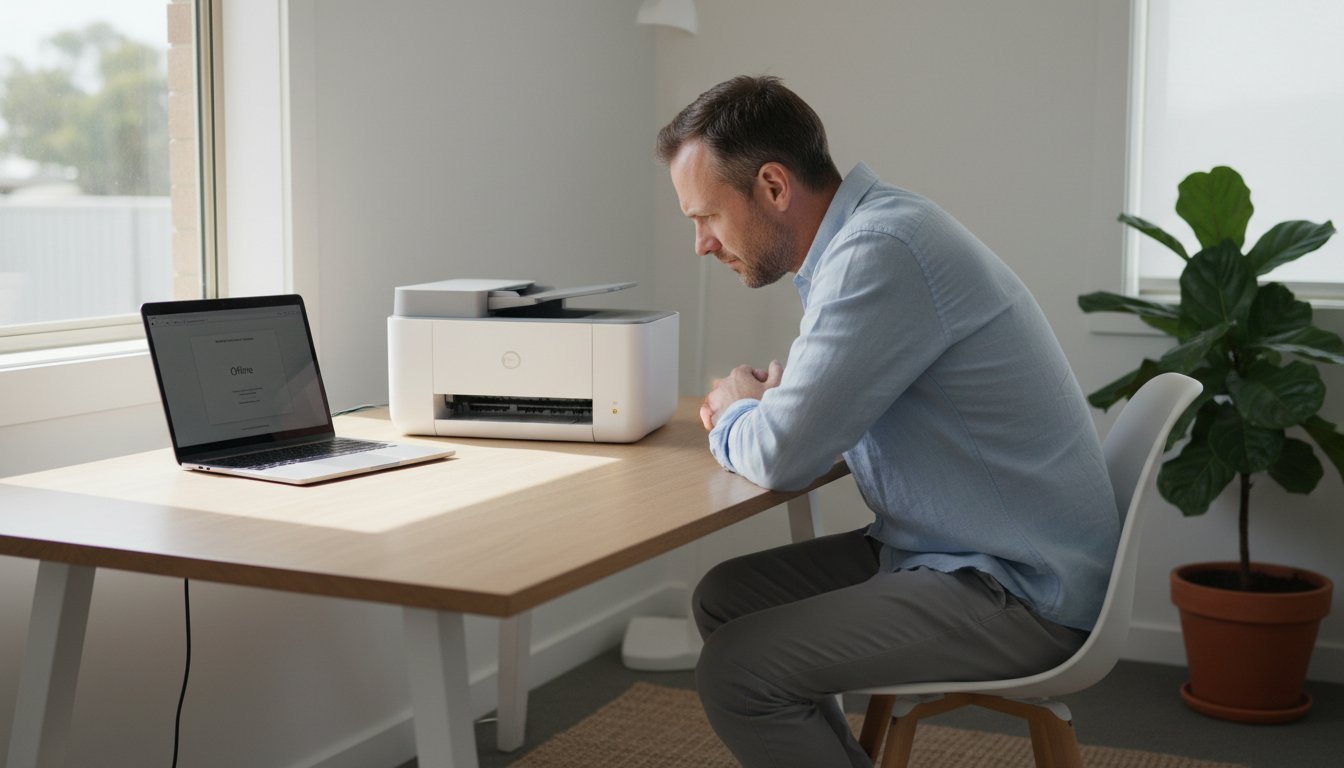
Is Repairing Your Computer Worth It? A Quick Guide

That sinking feeling is all too familiar: your computer suddenly slows to a crawl, freezes, or simply refuses to turn on. Immediately, your mind starts racing with questions. Is this going to cost a fortune? Will I lose all my precious photos and documents? Is the hassle of repairing your computer even worth it, or should I just buy a new one?

This uncertainty is frustrating, but don’t panic. Making a smart, cost-effective decision is simpler than you think when you know what to look for. This straightforward guide is designed to give you clarity and confidence, helping you navigate the choice between repair and replacement without the guesswork.

We’ll walk you through the key factors to consider-from the age and performance of your machine to typical repair costs here in Australia. By the end, you’ll have a clear understanding of your options and be able to choose the best path forward to protect your data and get you connected again.

Key Takeaways

  • Use the ‘50% Rule’ to quickly determine if repairing computer components is more cost-effective than buying a new one.
  • For recent computers with specific issues like a failed hard drive or a cracked screen, a professional fix is often the smartest financial move.
  • Recognise the key warning signs-such as an inability to run essential software-that mean a replacement is a better long-term investment.
  • Understand why a professional diagnosis is crucial to avoid common DIY mistakes that can turn a simple fix into a costly disaster.

The Core Question: A Checklist for Repair vs. Replace

Staring at a loading screen on a slow computer is one of modern life’s biggest frustrations. It leaves you with a tough question: is it time to invest in a repair, or should you cut your losses and buy a new machine? There’s no single right answer, but don’t worry. This simple checklist, based on four key factors, will help you make a confident and cost-effective decision for your situation.

To help you weigh your options, this video offers a great overview:

Factor 1: The Age of Your Computer

Most desktops and laptops have a practical lifespan of about 4-5 years. Beyond this point, you’ll find that older hardware often struggles to run the latest software and may no longer receive critical security updates. An ageing machine is also more prone to multiple component failures-fixing one part today might just lead to another problem tomorrow. While high-end custom PCs or beloved vintage models can be exceptions, age is a critical first consideration.

Factor 2: The Estimated Cost of Repair

A helpful guideline is the ‘50% Rule’. If the estimated cost of the repair is more than half the price of a comparable new computer, replacement is usually the smarter financial choice. For example, spending A$700 to fix a laptop you could replace for A$1,200 is rarely a good investment. To get an accurate estimate for repairing computer components, it’s essential to get a professional diagnosis first.

Factor 3: The Nature of the Problem

The type of fault is crucial. Problems can be broadly split into two categories: software and hardware. Software issues like viruses, malware, or a slow operating system are almost always worth fixing. Similarly, minor hardware upgrades like adding more RAM or replacing a battery are cost-effective. However, major hardware failures-such as a dead motherboard or a failed CPU-are often expensive. A qualified computer repair technician can accurately diagnose whether the issue is a simple software fix or a more serious hardware problem that may lean towards replacement.

When Repairing Your Computer is the Smartest Move

When your computer starts to lag, it’s easy to think the only solution is an expensive new model. But in many situations, that’s simply not the case. Before you start shopping, it’s worth considering the significant financial, practical, and environmental benefits of a targeted repair. Often, a strategic fix is all you need to restore your computer’s performance and save you hundreds, if not thousands, of dollars.

Cost-Effective Fixes for Common Issues

A sluggish computer doesn’t automatically signal the end of its life. Many of the most common performance bottlenecks can be resolved with straightforward and highly cost-effective repairs that breathe new life into your existing machine. These professional fixes can deliver a ‘like-new’ experience for a fraction of the cost of a replacement.

  • Virus and Malware Removal: Malicious software can cripple your system’s speed and compromise your security. A thorough clean-up restores performance and peace of mind.
  • Operating System Re-installation: Over time, software clutter and corruption can slow things down. A fresh OS installation gives you a clean slate without the need for new hardware.
  • Upgrading to a Solid State Drive (SSD): Swapping an old mechanical hard drive for a modern SSD is the single most effective upgrade for boosting boot times and application speed.
  • Adding More RAM: If you find your computer struggles when multitasking, a simple RAM upgrade allows it to handle more applications at once without slowing to a crawl.

Keeping Your Data, Settings, and Software

Perhaps the biggest overlooked advantage of repair is convenience. Setting up a new computer is a time-consuming project. You have to locate, transfer, and organise all your important documents, photos, and personal files. Then comes the tedious task of reinstalling all your programs-some of which you may have to repurchase. A professional repair preserves your familiar digital workspace, keeping all your data, software, and settings exactly where you left them. Our experts prioritise protecting your data during any repair.

The Environmental and Sustainable Choice

In Australia, electronic waste (e-waste) is one of the fastest-growing waste streams. Choosing to fix your device is a powerful, responsible decision. This principle of extending the life of essential equipment is a growing trend, with specialists like Mobility and You helping people service and maintain vital mobility aids. By extending the functional life of your machine, you directly help reduce the amount of complex and potentially hazardous materials heading to landfill. Furthermore, the process of repairing your computer has a much smaller carbon footprint than manufacturing a new one, saving the significant energy and raw materials involved in production and shipping. It’s a smart choice for your budget and a kinder choice for our environment.

Warning Signs: When It’s Time to Buy a New Computer

At Aspire Computing, our goal is to provide effective, long-lasting solutions. While we excel at fixing technology, our commitment to you includes providing honest advice. Sometimes, the most sensible and cost-effective solution isn’t a repair, but a replacement. Recognising when to retire an old machine can save you money, time, and a lot of frustration. Here are the key signs that it’s time to invest in a new computer.

The Repair Bill Exceeds 50% of Replacement Cost

A good rule of thumb is the 50% rule. If the cost of a repair is more than half the price of a comparable new computer, it’s usually not a wise investment. For example, spending A$600 on a major component failure for a machine you could replace with a faster, more reliable A$1000 model means you’re putting good money after bad. That A$600 is better invested in new technology that comes with a warranty, modern security features, and significantly better performance. It’s important to note that essential data recovery can be a separate, necessary cost to retrieve your files before decommissioning the old device.

Your Computer Can’t Run Necessary Software

Technology evolves quickly, and eventually, older hardware can’t keep up with the demands of modern software. You might find your computer no longer supports the latest operating system updates, leaving you vulnerable to security threats. Or perhaps it struggles to run essential programs for your work or hobbies, like video editing software or new games. No amount of hardware repair can fix this fundamental incompatibility. Upgrading ensures you can stay productive, secure, and get the most out of your software for years to come.

You’re Facing Frequent and Multiple Failures

Is your computer suffering from ‘death by a thousand cuts’? This happens when you fix one problem, only for another to appear a few weeks or months later. First, the power supply fails, then the hard drive starts making strange noises, and then it begins to overheat. This pattern indicates that the entire system is reaching the end of its operational life. The cumulative cost of repeatedly repairing computer components, not to mention the downtime and stress, can easily exceed the price of a new machine. It’s a clear sign that the system’s reliability is gone.

Is Repairing Your Computer Worth It? A Quick Guide

Understanding Repair Costs: A Realistic Breakdown

When your computer slows to a crawl, one of the first questions is, “How much will this cost to fix?” At Aspire Computing, we believe in transparency. The costs for repairing computer issues can vary, but we want to give you a realistic overview of what you might expect here in Toowoomba. Please remember, these are estimates; an accurate quote always requires a proper diagnosis to pinpoint the exact problem.

Software-Related Repairs

Often, a slow computer is suffering from a software problem, not a hardware failure. The good news is that these fixes don’t require expensive new parts. A professional virus or malware removal is typically a set service fee, often between A$100 and A$200. If your system is cluttered and slow, a complete Windows OS reinstall can restore it to factory-fresh speed for around A$150 to A$250. Services like data backup and transfer are also available, usually priced based on the time involved or the amount of data.

Common Hardware Replacements

If a physical component has failed or needs an upgrade, the cost will include the part itself plus the labour for installation. Here are a few common hardware jobs:

  • Hard Drive to SSD Upgrade: The single most effective speed boost for an older machine. Expect to pay between A$200 – A$400, which covers a quality solid-state drive and professional installation.
  • Laptop Screen Replacement: Costs vary widely depending on the screen size, type (e.g., touchscreen), and model, generally ranging from A$250 to A$500+.
  • RAM (Memory) Upgrade: A quick and affordable way to improve multitasking performance, often costing between A$100 – A$200.
  • Laptop Battery Replacement: The price depends heavily on whether the battery is external (cheaper) or internal (requires more labour to install).

The Importance of a Diagnostic Fee

To avoid guesswork, we start with a thorough diagnostic assessment. This fee covers our technician’s time and expertise to run tests and accurately identify the root cause of the slowdown. It ensures you only pay for the repair you actually need. In most cases, this diagnostic fee is waived if you decide to proceed with the recommended repair. It’s the first step in providing an honest and effective service.

Ready to find out exactly what’s slowing you down? Book a no-obligation assessment with Aspire Computing.

DIY vs. Professional Repair: Why an Expert Matters

With countless video tutorials and guides online, the temptation to fix a slow computer yourself is understandable. While a DIY approach can seem like a great way to save a few dollars, it often comes with hidden risks that can lead to bigger, more expensive problems. When it comes to the complex task of repairing computer hardware and software, entrusting your device to an expert is the safest, most reliable, and often more affordable long-term solution.

The Hidden Risks of DIY Computer Repair

Attempting a complex repair without experience can quickly go wrong. The most common pitfalls we see include:

  • Misdiagnosing the problem: You might spend A$150 on a new solid-state drive, only to discover the real issue was a faulty memory stick. An expert diagnosis prevents wasting money on the wrong parts.
  • Causing further damage: A single zap of static electricity can fry a motherboard, or a misplaced screw can short-circuit a component. These simple mistakes can turn a repairable issue into a terminal one.
  • Permanent data loss: Without professional backup procedures, one wrong click or a failed part replacement can mean losing your precious photos, documents, and files forever.
  • Lacking the right tools: Professionals use specialised diagnostic software and precision tools to safely open devices and identify the root cause of an issue, something a standard home toolkit cannot do.

Benefits of a Professional Technician

Choosing an experienced local technician provides more than just a fix; it delivers peace of mind. You gain the assurance of an accurate diagnosis that saves you time and money. Professionals have access to networks of quality part suppliers and provide warranties on their work, so you are protected if anything goes wrong. Most importantly, you can relax knowing your valuable device and irreplaceable data are in safe, experienced hands.

When to Call for Help in Toowoomba

While simple software updates are often manageable, you should always call for professional help if:

  • Your computer won’t turn on at all.
  • You suspect a hardware failure due to strange noises, a blank screen, or constant crashes.
  • You are not 100% confident in your technical skills to solve the problem safely.

Don’t risk your data or your device. Trust Toowoomba’s local experts since 1999. Contact Aspire Computing.

Your Next Step: Making a Smart Choice for Your PC

The decision between repair and replacement ultimately hinges on value. As we’ve explored, factors like your computer’s age, the specific problem, and the potential repair cost all play a crucial role. A newer machine with a faulty component is often a prime candidate for a fix, while the high cost of repairing computer hardware on an outdated model may not be a wise investment. The key is to weigh the short-term expense against the long-term performance and continuity you’ll receive.

You don’t have to navigate this complex choice on your own. Before you make a final decision, getting a professional diagnosis can provide the clarity you need. At Aspire Computing, we pride ourselves on offering personal, trustworthy service from local experts who have been serving Toowoomba and surrounds since 1999. We believe in providing honest advice to help you protect your investment and make the right call.

We stand behind our work with a full warranty on all parts and labour, giving you complete assurance. Don’t guess, get an expert opinion. Contact Aspire Computing today! Let us help you find the most practical and cost-effective solution to get you back up and running with confidence.

Frequently Asked Questions About Computer Repairs

How long do most computer repairs take?

Most software-related issues, such as virus removal or a system tune-up, are typically resolved within 1-2 business days. Hardware repairs, like a screen or hard drive replacement, may take 3-5 business days if we need to source a specific part. We always provide a clear and accurate timeline after our initial diagnosis and focus on a fast return, so you can get back to your work and life with minimal disruption.

Will my personal data be safe during the repair process?

Protecting your personal data is our highest priority. We follow strict privacy protocols and always recommend a full backup before any work begins, which we are happy to assist with. For most repairs, your data is not accessed or affected. In situations that require a system reset or hard drive replacement, we will discuss data backup and recovery options with you beforehand to ensure your important files, photos, and documents are completely safe.

Do you offer a warranty on your computer repairs?

Yes, absolutely. We stand by the quality of our work with a comprehensive warranty for your peace of mind. This includes a 3-month warranty on our labour and a 12-month warranty on any new hardware parts we install. This assurance means that if you experience the same issue within the warranty period, we will resolve it promptly at no additional cost to you. Quality and reliability are central to our service.

What’s the difference between repairing my computer and upgrading it?

Repairing a computer means fixing a specific fault to restore its original functionality-for example, replacing a broken keyboard or removing malware. An upgrade, however, enhances your computer’s performance beyond its original specifications. Common upgrades include installing a faster Solid-State Drive (SSD) to replace an old hard drive or adding more RAM to improve multitasking. We can help you decide which solution best fits your needs and budget.

Can you repair all brands of PCs and laptops, like Dell, HP, and Apple?

With over two decades of experience, we have the expertise to service and repair an extensive range of computer brands. We regularly work on popular PC manufacturers including Dell, HP, Lenovo, Acer, and ASUS, as well as Apple products like MacBooks and iMacs. Our technicians are skilled in diagnosing and fixing issues across different hardware and operating systems, from Windows to macOS, providing a reliable solution no matter your device.

Is it worth repairing a computer with water damage?

This depends on the extent of the damage. A minor spill might only require a keyboard replacement, which is often a cost-effective fix. However, significant liquid exposure that affects the main logic board can be expensive. We provide a thorough diagnostic service to assess the damage accurately. We will then give you an honest quote and a professional recommendation, helping you make an informed decision on whether the repair is a worthwhile investment.

My computer is just slow. Is that worth fixing?

Absolutely. A slow computer is one of the most common problems we address, and it is almost always worth fixing. The cause is often software-related, such as too many startup programs, malware, or a nearly full hard drive. A professional tune-up service or a simple hardware upgrade, like moving to a Solid-State Drive (SSD), can make your machine feel faster than new for a fraction of the cost of buying a replacement.

What is Computer Support? A Complete Guide for Homes & Businesses

That dreaded spinning wheel. The sudden error message. The sinking feeling that your important files might be gone for good. When your computer slows down or breaks, it can bring your entire day to a halt, leaving you frustrated, worried about your data, and confused by technical jargon. This is precisely where professional computer support becomes essential-it’s not just about a quick fix, but about restoring your peace of mind and protecting what matters most.

But what does that support actually look like, and how do you find an expert you can trust in Australia? In this complete guide, we’ll demystify the world of IT help. We’ll walk you through what computer support is, the different types available for your home or business, and the clear signs that it’s time to call in a professional. By the end, you’ll have the confidence to choose the right expert to solve your tech problems for good and keep your devices running securely and smoothly.

Key Takeaways

  • The most effective computer support doesn’t just fix problems-it prevents them from happening in the first place.
  • Recognise the early warning signs of tech trouble, like slowness or strange pop-ups, before they turn into major disasters.
  • Discover which type of service is right for your specific issue, from on-site hardware repairs to quick remote software fixes.
  • Learn a simple, safe checklist of troubleshooting steps you can try yourself before you need to call in a professional.

The Two Faces of Computer Support: Proactive vs. Reactive

When your technology falters, getting the right help is crucial. The term for this assistance is broad, covering everything from fixing a printer to securing an entire network. At its core, this field of Technical Support is all about maintaining and repairing your digital tools. But not all support is created equal. The most effective approach doesn’t just fix problems-it prevents them from happening in the first place. This is the fundamental difference between a proactive and a reactive strategy for your IT.

To better understand the role of a support specialist, this short video offers a helpful overview:

Think of it like managing traffic flow. A proactive approach involves careful planning to ensure everything runs smoothly, much like the services detailed at acquiredawareness.com.au. A reactive approach, on the other hand, is like dealing with a major accident after it’s already brought everything to a halt. One is about prevention; the other is about emergency response. Both have their place, but proactive IT support clearly leads to less stress and disruption.

Proactive Support: Keeping Your Systems Healthy

Proactive computer support is all about prevention. Instead of waiting for a disaster, this model focuses on maintaining the health of your systems to stop issues before they start. The goal is to maximise performance and ensure business continuity, protecting your valuable time and data. This typically includes services such as:

  • Regular system health checks and performance tuning.
  • Automated data backups to protect against data loss.
  • Scheduled software updates and security patching.
  • Continuous security monitoring and virus scans.

By investing in prevention, you significantly reduce the risk of catastrophic failures and costly downtime, saving you money and stress in the long run. For a clear example of how IT consulting firms package these preventative services, you can visit Nanotek.

Reactive Support: Fixing Problems as They Happen

Reactive support is the traditional ‘break-fix’ model. When something goes wrong-your computer gets a virus, a critical piece of hardware fails, or a software program crashes-you call for help. This service is essential for dealing with the unexpected emergencies that can bring your work to a sudden halt.

While necessary, relying solely on a reactive model means you are always on the back foot. The situation is often urgent, stressful, and can lead to significant downtime while you wait for a technician. It’s the digital equivalent of an emergency room visit: vital when you need it, but not a substitute for a healthy lifestyle.

Common Signs You Need Professional Computer Support

It’s easy to ignore a computer that’s running a little slower than usual or an application that occasionally crashes. We often hope these minor frustrations will resolve themselves. However, these small symptoms can be early warnings of more significant underlying problems. Ignoring them can lead to critical data loss, costly hardware failure, or serious security breaches. Recognising these signs early is the key to a quick, affordable solution.

This section will help you self-diagnose common issues. If you notice any of these problems, seeking professional computer support is the most effective way to protect your device and data. Experts, often known as Computer Support Specialists, are trained to diagnose these exact issues before they escalate, saving you time, money, and stress in the long run.

Performance and Software Issues

Your computer’s performance is a direct indicator of its health. When software and system files become corrupted or your system is overworked, you’ll notice a clear decline in speed and reliability. Keep an eye out for these red flags:

  • Your computer runs extremely slowly, freezes, or becomes unresponsive.
  • Applications frequently crash, refuse to open, or behave unpredictably.
  • You see strange error messages, pop-ups, or the infamous ‘Blue Screen of Death’.
  • Everyday tasks like opening files or browsing the web take much longer than they used to.

Hardware and Startup Failures

Physical components can wear out over time or fail suddenly. These issues often present themselves with physical symptoms like noise or a complete inability to start up. Don’t ignore these critical hardware warnings:

  • The computer fails to turn on, gets stuck in a boot loop, or shuts down randomly.
  • You hear unusual clicking, grinding, or whirring noises coming from inside the case.
  • Peripherals like your printer, webcam, or external drives are no longer recognised.
  • Your laptop battery drains very quickly or no longer holds a charge at all.

Security and Network Problems

A secure and stable connection is essential for both work and personal use. Threats like viruses and malware can compromise your data, while network faults can bring your productivity to a halt. Contact a professional if you experience:

  • A sudden increase in pop-up ads or your web browser redirecting to strange sites.
  • Your antivirus software has expired, or you receive a warning that you have a virus.
  • You are unable to connect to the Wi-Fi, or your internet connection is unusually slow.
  • Your files have become inaccessible and you see a message demanding payment (ransomware).

Types of Computer Support Services Explained

When your technology fails, knowing what kind of help you need is the first step toward a solution. The term “computer support” covers a wide range of services, and understanding the specifics can save you time and stress. The role of professional Computer Support Specialists is diverse, encompassing everything from physical repairs to digital security. Let’s break down the main categories so you can identify exactly what you’re facing.

Hardware Repair and Upgrades

This is the hands-on side of IT support, dealing with the physical components of your devices. If you can touch it, it probably falls under hardware. Our goal is to get your equipment running smoothly, whether it’s a quick fix or a performance-boosting upgrade.

  • Fixing or replacing broken laptop screens, keyboards, and failing hard drives.
  • Upgrading components like RAM or switching to a Solid State Drive (SSD) to dramatically improve speed.
  • Resolving issues with peripherals, including printers that won’t connect or print correctly.

Software Troubleshooting and Support

Software issues can be just as disruptive as hardware failures. This type of support focuses on the operating system and applications you use every day. We ensure your digital environment is stable, efficient, and free from frustrating glitches.

  • Resolving errors within your Windows operating system that cause crashes or slowdowns.
  • Installing, configuring, and updating essential software applications for you.
  • Diagnosing and fixing conflicts between different programs that prevent them from running properly.

Virus Removal and Cybersecurity

In today’s connected world, protecting your digital life is crucial. Cybersecurity services are designed to defend your devices and data from malicious threats. It’s about cleaning up existing infections and preventing future ones from happening.

  • Detecting and completely removing malware, spyware, and viruses from your system.
  • Installing and configuring quality antivirus and anti-malware software for active protection.
  • Providing expert advice on safe browsing habits, strong password management, and avoiding online scams.

Data Backup and Recovery

Your files, photos, and business documents are invaluable. Data services focus on safeguarding this information and recovering it if the worst happens. A solid backup strategy provides peace of mind and ensures business continuity.

  • Setting up automated, reliable backup solutions to protect your files without you having to think about it.
  • Attempting data recovery from a failed hard drive or after an accidental deletion.
  • Ensuring you can get back up and running quickly after a data loss event.

Many modern IT providers offer these services as part of a comprehensive package. For instance, SolaaS LTD specializes in creating tailored IT and telecommunications solutions that cover these critical areas for businesses.

What is Computer Support? A Complete Guide for Homes & Businesses

Choosing the Right Help: On-Site vs. Remote Support

Once you’ve decided on an IT service model, the next step is understanding how you’ll receive help. Modern computer support is delivered in two primary ways: an expert technician can visit you in person (on-site support) or connect to your device securely over the internet (remote support). Both methods are highly effective, and the best choice simply depends on the nature of your problem.

At Aspire Computing, we want to provide a solution that is not only effective but also convenient for you. We offer the flexibility of both on-site and remote assistance to ensure your issue is resolved with speed and precision, giving you complete peace of mind.

When is On-Site Support Best?

Sometimes, a problem requires a physical presence. On-site support is the traditional, hands-on approach that is essential for issues that can’t be diagnosed or fixed through a screen. It also provides a valuable opportunity for face-to-face interaction.

  • Hardware Problems: Ideal for issues like a computer that won’t turn on, a broken laptop screen, or internal component failures that need direct diagnosis.
  • Network and Connectivity: Necessary for setting up a new internet connection, troubleshooting Wi-Fi dead spots, or physically connecting devices to your network.
  • New Equipment Installation: Perfect for correctly setting up a new computer, printer, or other peripherals to ensure they work seamlessly from day one.

The Convenience of Remote Support

For many software-related issues, remote support is an incredibly fast and efficient solution. Using secure, encrypted software, our technicians can view your screen and control your mouse and keyboard as if they were sitting right beside you, allowing for a quick fix without a call-out fee.

  • Software and System Issues: Excellent for resolving software errors, removing viruses and malware, performing system tune-ups, and installing new applications.
  • Speed and Cost-Effectiveness: As no travel time is involved, remote sessions can often be started sooner and are generally more affordable.
  • Security and Privacy: Your privacy is our priority. The connection is fully secure, and you can see everything the technician is doing on your screen in real-time.

Whether you need hands-on help at your home or office, or a quick remote fix to get you back on track, Aspire Computing has you covered. We’ll help you determine the best approach to get your technology working perfectly again. Contact our experts today for quality computer support tailored to your needs.

DIY vs. Calling an Expert: How to Know Your Limits

When your computer starts acting up, the first instinct for many is to try and fix it themselves. We get it. Sometimes a quick fix is all you need, and resolving a minor issue on your own can be empowering. However, it’s crucial to know the difference between a safe DIY attempt and a situation that requires professional computer support to avoid turning a small problem into a major disaster.

This honest guide will help you know when to try a few simple steps and when it’s time to call for help.

Safe First Steps You Can Try

Before you panic, running through a few basic checks can often resolve common glitches. These steps are safe and won’t make the problem worse:

  • Turn it off and on again: It’s a classic for a reason. A full restart can clear temporary errors in your system’s memory and is often the quickest fix.
  • Check your cables: Ensure everything from your power cord to your monitor and network cables is plugged in securely at both ends.
  • Run a virus scan: Use your existing antivirus software to run a full system scan to check for malware that might be slowing things down.
  • Restart your modem and router: If your internet is the issue, unplug your modem and router for 60 seconds before plugging them back in.

When to Stop and Call for Help

While the steps above are helpful, some symptoms are clear red flags. If you encounter any of the following, stop immediately and call an expert to prevent further damage:

  • You hear physical noises: Any clicking, grinding, or loud whirring sounds from your computer often signal a failing hard drive or fan. Power it down to prevent data loss.
  • You suspect data has been lost: If you can’t find important files or have been hit by ransomware, do not attempt a DIY recovery. You could accidentally overwrite the data for good.
  • You’re about to open the case: Unless you are experienced with hardware, avoid opening your computer or buying replacement parts. It’s easy to misdiagnose a problem or cause damage with static electricity.
  • The problem keeps coming back: If a simple restart only fixes the issue temporarily, it points to a deeper hardware or software problem that needs an expert diagnosis.

This principle of hiring specialists for critical tasks extends beyond just repairs. For many entrepreneurs and startups, building a professional online presence is just as vital as having functional hardware. If you’re considering a unique website that stands out, you can visit WebAssICT to see what custom-built solutions look like.

Finding a Trustworthy Local Provider

When you do need professional help, choosing the right partner is crucial. Look for a provider with a proven track record and positive local reviews. A local business understands the specific needs of your community and can offer a level of personalised service that larger, remote companies simply can’t match. It’s about building a relationship with an expert you can trust for reliable advice and support. For business and home users who value that peace of mind, Aspire Computing has served Toowoomba since 1999.

Stay Connected with Expert Computer Support

Navigating the world of technology doesn’t have to be stressful. Understanding the difference between proactive and reactive care is the first step towards a healthier digital life, while knowing when to call a professional-instead of getting lost in a frustrating DIY attempt-is key to protecting your time and data.

For homes and businesses across Toowoomba and the Darling Downs, you don’t have to face these challenges alone. Since 1999, Aspire Computing has delivered personalised, expert computer support with a local touch. We believe in making help accessible and effective, offering both convenient remote assistance and on-site visits to solve your issues quickly and get you back on track.

So when a tech problem arises, don’t panic. Let our team restore your peace of mind. Talk to our friendly Toowoomba experts for fast computer support and let us help you protect and connect your digital world.

Frequently Asked Questions About Computer Support

What’s the difference between computer support and IT support?

While often used interchangeably, IT support is a broad term covering all business technology, including networks, servers, and cloud systems. Computer support is more specific, focusing on the health and performance of your individual desktop or laptop. At Aspire Computing, we handle the full spectrum of IT needs for businesses but also provide expert, hands-on support for personal computers, ensuring your device runs smoothly, securely, and efficiently for your day-to-day tasks.

How much does professional computer support typically cost?

In Australia, the cost depends on the service model. A ‘break-fix’ service, where you pay to resolve a specific issue, typically costs between A$100 and A$180 per hour. For proactive ‘managed services,’ which offer ongoing monitoring and maintenance to prevent problems, businesses usually pay a flat monthly fee. This provides peace of mind and can be more cost-effective in the long run by avoiding expensive downtime and emergency repairs.

How long will it take to fix my computer?

The repair timeframe depends on the complexity of the issue. Simple software fixes or a system tune-up can often be completed within an hour or two. However, hardware problems, such as a failing hard drive or motherboard, may take longer, especially if we need to source specific replacement parts. We always provide a clear diagnosis and an estimated completion time upfront, so you are fully informed throughout the process.

Do you offer support for both Mac and PC computers?

Yes, absolutely. Our technicians are highly experienced in servicing both Windows-based PCs and Apple’s macOS devices. Whether you use a desktop, laptop, or an all-in-one from any major brand, we have the technical expertise to diagnose and resolve your issue. We are committed to providing quality, reliable computer support for all our clients, regardless of the operating system or hardware they prefer to use.

Is my data safe and confidential during a repair?

Protecting your data is our top priority. We adhere to strict privacy and confidentiality standards, ensuring your personal and business information is always secure. Before starting any significant repair, we will recommend and can assist with a full data backup to prevent any potential loss. You can have complete assurance that your files and sensitive information will be handled with the utmost care and professionalism by our trusted experts.

Is it better to repair my old computer or buy a new one?

This decision depends on the age of the computer, the cost of the repair, and your specific needs. If a machine is over five years old and requires an expensive repair, investing that money in a new computer is often the more practical choice. However, if the fix is affordable-like a memory upgrade or software optimisation-a repair can be a very cost-effective way to extend the life of your current device. We will always provide honest, practical advice to help you decide.

7 Hard Drive Failure Signs You Can't Ignore (& What to Do Now)

That strange clicking sound. The sudden, frustrating slowdowns. The dreaded error message that appears out of nowhere. These aren’t just minor glitches your computer will ‘get over’-they are often critical hard drive failure signs warning you that something is seriously wrong. It’s a sinking feeling, one that brings an immediate rush of anxiety about all your irreplaceable photos, important documents, and business files stored inside.

But before you panic, take a deep breath. Recognising these warnings early is the key to protecting your data and preventing a catastrophe. In this guide, we’ll give you a clear checklist of the seven most common symptoms of a failing hard drive. More importantly, we’ll provide simple, actionable steps you can take right now to safeguard your files and understand your next move. It’s time to move from worry to a position of control.

Key Takeaways

  • Unusual slowdowns, frequent freezing, or strange noises are more than just annoyances; they are critical early warnings from your drive.
  • Learning to recognise common hard drive failure signs, such as corrupted files or folders suddenly disappearing, is the first step to preventing catastrophic data loss.
  • If you suspect your drive is failing, your immediate actions are crucial. Stop using the computer right away to maximise your chances of a successful data recovery.
  • Discover the proactive steps you can take to monitor your drive’s health and implement a reliable backup strategy, safeguarding your data from future disasters.

The Critical Signs: Is Your Hard Drive Trying to Tell You Something?

Your computer’s hard drive is its long-term memory, the place where your precious photos, important documents, and the entire operating system live. Whether you have a traditional Hard Disk Drive (HDD) with its spinning platters or a modern, silent Solid-State Drive (SSD), this component is critical for your computer’s continuity. The good news is that a drive rarely fails without warning. Learning to spot the early hard drive failure signs can give you the crucial time you need to protect your data before it’s too late.

To see what a physical failure can sound and look like, this short video provides a helpful explanation of a common issue.

A failing hard drive will often try to tell you something is wrong in three distinct ways: through physical sounds, a drop in performance, and errors with your data. Don’t panic, but do pay close attention to these warnings.

Physical Signs: The Audible and Sensory Warnings

These are often the most alarming warnings. Unusual noises like loud clicking, whirring, or grinding-often called the ‘Click of Death’-are a clear signal that the mechanical parts inside your HDD are failing. These sounds are a classic symptom of internal damage, a common cause of Hard disk drive failure. Remember, SSDs have no moving parts and are completely silent, so a lack of noise doesn’t guarantee good health.

Performance Signs: When Your Computer Slows to a Crawl

Is your computer suddenly taking ages to boot up? Does it frequently freeze or crash, perhaps showing you the dreaded Blue Screen of Death (BSOD)? These performance issues are common hard drive failure signs. They happen because your operating system is struggling to read or write data from the failing drive, causing system-wide instability and frustrating delays when opening simple files or applications.

Data Signs: The Digital Cries for Help

The most direct warnings come from your data itself. You might notice that files or even entire folders have vanished without a trace, or you receive an error message saying a file is ‘corrupted’ when you try to open it. Another critical sign is when your computer suddenly refuses to save new files, indicating the drive can no longer write data correctly. These are digital cries for help that should never be ignored.

A Deeper Dive into Performance-Based Red Flags

Beyond strange noises, some of the most telling hard drive failure signs are related to your computer’s performance. It’s easy to dismiss a slow-running machine as just being “old,” but a sudden or progressive decline in speed often points to a deeper mechanical issue. Understanding these red flags helps you distinguish between a minor software glitch and a critical hardware problem that requires immediate attention to protect your data.

The Slowdown: Why Basic Tasks Take Forever

One of the earliest symptoms is a dramatic slowdown. Opening a file, saving a document, or even booting up your computer takes far longer than it used to. This is often caused by ‘bad sectors’-tiny, damaged areas on the drive’s platters where data can no longer be reliably read. Think of it like a scratched CD; your computer’s read head repeatedly tries to access the data on these damaged spots, getting stuck in a loop before finally giving up. This constant ‘retry’ process is what grinds your system to a halt.

Frequent Crashing and the Blue Screen of Death (BSOD)

While many issues can trigger a system crash or the infamous Blue Screen of Death, a failing hard drive is a prime suspect. Your operating system’s most critical files are stored on the drive. If these files happen to reside on newly developed bad sectors, your computer can’t access its own instructions and will crash. If you experience a BSOD, try to note down the error code (like “UNMOUNTABLE_BOOT_VOLUME”). This information can provide valuable clues during diagnosis and is one of the more urgent Top Signs of Hard Drive Failure.

Failure to Boot: The Ultimate Sign of Trouble

This is the most critical performance-based warning. You turn on your computer, but instead of loading Windows or macOS, you’re met with a stark message like “No bootable device found.” This means your computer’s motherboard can’t locate the operating system on the hard drive. The connection might be lost, or the part of the drive containing the startup files may be completely unreadable. If you see this error, your window for data recovery is closing fast. It is crucial to stop trying to boot and seek professional help to preserve your files.

Understanding Data Corruption and File Errors

Strange things happening to your files can be one of the most unsettling computer problems. One moment a critical document is there, the next it’s gone or refuses to open. While it’s easy to assume a virus or software glitch, these issues are often direct symptoms of a physically failing hard drive. These tangible errors are some of the most serious hard drive failure signs, often appearing just before the drive stops working entirely. The good news? If you act quickly, seeing these warnings doesn’t mean your data is lost forever.

The Mystery of the Disappearing Files

Have you ever gone to open a folder only to find it empty, or searched for a file you know you saved, but it’s nowhere to be found? This happens when the drive’s file directory-the ‘map’ your computer uses to locate data-becomes damaged. The file itself may still exist on the drive, but the instructions to find it are broken. It’s crucial that you stop trying to save new files immediately. Doing so could overwrite the ‘lost’ data, making professional recovery much more difficult.

Decoding ‘File is Corrupt’ Messages

Seeing an error message like ‘The file is corrupt and cannot be opened’ is a clear red flag. Think of your hard drive as a book. This error is like trying to read a page where the ink has been smudged and smeared, making the words unreadable. It indicates that the physical surface of the drive’s platters, where your data is stored, is degrading. The drive is struggling to read the information from that specific spot, resulting in a corrupted file.

Bad Sectors: The Unseen Enemy

Behind many file errors are ‘bad sectors’-tiny, permanently damaged areas on your hard drive’s magnetic surface. Modern drives are designed to handle a few of these by automatically marking them as unusable. However, a sudden and rapid increase in bad sectors is one of the most definitive signs of drive failure. While software tools can scan for bad sectors, running these intensive scans can put extreme stress on an already failing drive, potentially causing a complete crash. It’s often safer to power down the device and seek expert advice to protect your data.

7 Hard Drive Failure Signs You Can't Ignore (& What to Do Now)

What to Do IMMEDIATELY if You Suspect Hard Drive Failure

If you’ve noticed any of the common hard drive failure signs, your next few actions are critical. Don’t panic, but it is absolutely essential to act fast. The steps you take right now will directly impact the chances of successfully recovering your precious files. What you don’t do is just as important as what you do.

Follow this three-step emergency procedure to protect your data and give it the best chance of survival.

Step 1: Power Down and Stop Using the Drive

This is the single most important thing you can do. Shut down your computer immediately. Every second a failing drive remains powered on, it risks further, often irreversible, damage. For traditional Hard Disk Drives (HDDs), the delicate read/write heads can crash into the magnetic platters, permanently scratching away your data. Powering it down stops this mechanical damage in its tracks and is the first step toward data preservation.

Step 2: Do NOT Run DIY Recovery Software or Repair Utilities

It’s tempting to download a “quick fix” utility, but this is often the worst mistake you can make. These programs can attempt to “repair” bad sectors by writing new information to the drive, potentially overwriting the very files you need to recover. Furthermore, running software forces a physically failing drive to work harder, which can accelerate its decline and lead to total failure. Using these tools can make professional recovery much harder, or even impossible.

Step 3: Contact a Professional Data Recovery Service

When your data is irreplaceable, you need an expert. Professional data recovery services use specialised hardware, software, and cleanroom environments to safely access and retrieve data from failing drives without causing more harm. They have the tools to diagnose the specific problem-be it mechanical, electronic, or logical-and apply the correct recovery technique. If your photos, documents, or business files are important, don’t risk them. Get an expert assessment from Aspire Computing. We have the experience and technology to provide the quality assurance you need.

HDD vs. SSD: Are the Failure Signs Different?

In modern computers, the type of storage drive you have significantly changes what you need to watch for. Many users are familiar with the classic signs of a failing hard drive, but these often don’t apply to newer technology. The key difference lies in how they are built: a traditional Hard Disk Drive (HDD) is mechanical with spinning platters, while a Solid-State Drive (SSD) uses flash memory with no moving parts. This difference is why the hard drive failure signs are not universal.

Understanding which type of drive you have is the first step in knowing what to look for. While both can fail, their warning symptoms are worlds apart.

Classic HDD Failure Signs to Watch For

Because HDDs rely on moving components, their failures are often physical and audible. The tell-tale clicking or grinding sounds we discussed earlier are the most obvious signs of a mechanical problem. You may also notice a gradual decline in performance, frequent system freezes, or an increasing number of corrupted files as the drive struggles to read and write data to failing sectors on its magnetic platters.

Modern SSD Failure Signs to Look For

SSDs fail silently. With no moving parts, you will never hear an SSD click, grind, or whir. Instead, the failure signs are electronic. A common symptom is your drive suddenly becoming “read-only,” preventing you from saving any new files. You might also experience files that disappear after a reboot or receive error messages related to the drive’s controller. Unfortunately, one of the most common SSD failure modes is sudden death-working perfectly one moment and completely inaccessible the next.

Here is a simple breakdown of the most common differences:

SymptomHard Disk Drive (HDD)Solid-State Drive (SSD)
Audible NoiseClicking, grinding, or whirring sounds.None. Failure is silent.
Data Access IssuesCorrupted files, bad sectors, slow access times.Files become read-only; data vanishes.
Failure TypeOften gradual, with performance degrading over time.Often sudden and complete, with little warning.

Whether you have an older HDD or a modern SSD, recognising these distinct hard drive failure signs is crucial for data protection. If your computer is exhibiting any of these behaviours, don’t wait for a complete failure. We recommend getting a professional diagnosis to ensure your valuable files are safe. For expert help with data recovery and drive replacement, feel free to contact the team at Aspire Computing.

Proactive Protection: How to Prevent a Future Data Disaster

Recognising the early hard drive failure signs is crucial, but the best strategy is to prevent a data disaster before it even begins. While we are always here to help with data recovery, we believe in empowering our clients with proactive habits. A few simple, consistent practices can provide peace of mind and ensure your valuable files are always safe. The best data recovery plan is, and always will be, a reliable backup.

The Unbreakable Rule: Regular, Automated Backups

Don’t leave your data’s safety to chance or memory. We strongly recommend the industry-standard 3-2-1 backup strategy. It’s a simple and robust way to protect your digital life.

  • 3 Copies of Your Data: Your original files plus at least two backups.
  • 2 Different Media Types: Keep your copies on two separate types of storage, like your computer’s internal drive and an external hard drive.
  • 1 Offsite Location: At least one copy should be stored in a different physical location. Cloud services like Google Drive or OneDrive are perfect for this.

The key is automation. Set your backup software to run automatically on a schedule so you never have to think about it again.

Monitor Your Drive’s Health with S.M.A.R.T.

Modern hard drives have a built-in diagnostic system called S.M.A.R.T. (Self-Monitoring, Analysis, and Reporting Technology). This technology constantly monitors various health indicators of your drive. You can use free tools to read this data, giving you an early warning system. If a S.M.A.R.T. check returns a ‘Caution’ or ‘Warning’ status, treat it as a clear signal to back up all your data immediately and plan for a replacement.

General Computer Health and Maintenance

A healthy computer is less prone to hardware failure. Ensure your PC or laptop has good airflow and that its cooling vents are not blocked by dust, as overheating is a common enemy of hard drives. Just like a car, your computer benefits from periodic professional servicing. Regular health checks, like our computer repair services in Toowoomba, can spot potential issues with your drive and other components long before they become critical problems.

At Aspire Computing, we aim to be your long-term IT partner, not just an emergency service. By adopting these proactive steps, you can protect your data and ensure business continuity. If you have any concerns about your computer’s health, don’t hesitate to talk to the experts.

Protect Your Data: Act on Hard Drive Failure Signs Today

Recognising the key hard drive failure signs-from strange clicking sounds and sluggish performance to corrupted files that suddenly won’t open-is the first critical step in preventing a total data disaster. Ignoring these warnings can mean the difference between a simple recovery and permanent data loss. The most crucial takeaway is to stop using the drive immediately to prevent further damage and seek professional advice.

When your valuable data is on the line, you need expert help you can trust. Since 1999, Aspire Computing has provided reassuring and professional IT support to the Toowoomba community. As your expert, local data recovery specialists, we have the tools and experience to diagnose the problem accurately and safely retrieve your files for both home and business systems.

Don’t wait for a potential failure to become a definite crisis. Suspect your hard drive is failing? Don’t risk your data. Contact our Toowoomba experts for a professional diagnosis. Let us help you protect what’s important and give you the peace of mind you deserve.

Frequently Asked Questions

Can a failing hard drive be repaired, or does it always need to be replaced?

In most cases, a physically failing hard drive cannot be repaired. The internal components are incredibly delicate and manufactured in a sterile environment. Attempting repairs is rarely cost-effective or successful. The best and safest course of action is to focus on recovering your important data and then replacing the failing drive with a new, reliable one. This ensures the long-term safety of your files and the performance of your computer.

How long does a typical hard drive or SSD last?

The lifespan of a drive varies. A traditional hard disk drive (HDD) typically lasts between three to five years under normal use. Solid-state drives (SSDs), which have no moving parts, generally last longer, often from five to ten years or more, depending on usage. However, factors like heat, usage intensity, and physical shock can shorten this lifespan considerably. Regular backups are your best protection against any unexpected failure, regardless of the drive’s age.

My external hard drive is clicking. What should I do?

A clicking sound is a serious warning of mechanical failure. The first and most important step is to immediately and safely disconnect the drive from your computer. Do not attempt to power it on again. Continuing to run a clicking drive can cause catastrophic damage to the internal platters, making data recovery much more difficult or even impossible. Please contact a professional data recovery expert right away to give you the best chance of saving your files.

Is data recovery from a failed hard drive always possible?

Unfortunately, data recovery is not always guaranteed. Success largely depends on the type of failure. Data from logical errors, like accidental deletion or formatting, is often highly recoverable. However, severe physical damage, such as a head crash or platter damage, can make recovery impossible. The key is to stop using the drive immediately when you suspect a problem and avoid DIY recovery software, as this can often make the situation worse. Professional assessment is crucial.

Will a computer tune-up or virus scan fix a slow, failing hard drive?

A computer tune-up or virus scan can resolve slowness caused by software issues, but it cannot fix a physically failing hard drive. If your computer is slow due to one of the physical hard drive failure signs, such as developing bad sectors or a degrading read/write head, software tools will be ineffective. The only reliable solution is to back up your data immediately and replace the hardware. We can help diagnose the true cause.

How can I tell if my computer is slow because of the hard drive or something else?

You can look for specific clues. Slowness from a failing hard drive often includes very long boot times, files taking ages to open, or programs freezing frequently. If you also hear unusual noises like clicking or grinding, the drive is the likely culprit. Slowness from other issues, like low RAM, typically appears when you have many applications open at once. A professional diagnostic test is the most accurate way to pinpoint the exact cause of the problem.

Disaster Recovery Plan: A Simple Guide for Small Businesses

What would happen if your server crashed tomorrow, taking all your client data with it? For many small business owners, the fear of a cyberattack or critical hardware failure is constant. The thought of creating a disaster recovery plan can feel overwhelming-too complicated, too expensive, and it’s hard to know where to even begin. This worry about downtime and lost revenue can be a heavy burden to carry, leaving you feeling vulnerable and unprepared for the unexpected.

But you don’t have to face it alone. This simple guide is designed to give you clarity and confidence. We will walk you through a practical, step-by-step process to build a plan that fits your business and your budget. You’ll learn how to identify key risks, safeguard your critical data, and put a strategy in place to get back up and running quickly. By the end, you’ll have the peace of mind that comes from knowing your hard work is protected, no matter what happens.

Key Takeaways

  • Understand why a simple roadmap is your business’s best defence against costly downtime after an IT disaster.
  • Discover a clear, 5-step process to build a practical disaster recovery plan without the technical overwhelm.
  • Identify the most common threats to Toowoomba businesses-from cyberattacks to local weather events-and how to prepare for them.
  • Learn why creating your plan is only the first step; regular testing is crucial to ensure it works when you need it most.

What is a Disaster Recovery Plan (and Why Your Business Needs One)

Imagine your business is hit by a sudden crisis-a cyberattack locks your files, a critical server fails, your office is affected by a flash flood, or a major power outage brings everything to a halt. How do you get back to work quickly and calmly? A disaster recovery plan is your detailed, step-by-step roadmap for restoring your IT systems and data after an unexpected incident. It removes the panic and guesswork, providing a clear path forward.

This short video explains the key differences between simply having a backup and having a full recovery plan:

For a small business in Australia, the cost of downtime is very real and can be crippling. It’s not just about the immediate loss of sales, which can amount to thousands of dollars per hour. It’s also about the long-term damage to your hard-earned reputation when you can’t deliver for your clients. Simply crossing your fingers and hoping for the best is not a viable business strategy. A well-structured plan ensures you can respond with confidence, minimising the financial and operational impact.

Backup vs. a Full Disaster Recovery Plan

It’s a common mistake to think that having a data backup is enough. While absolutely essential, a backup is just one piece of the puzzle. Your backup contains your data, but the comprehensive Disaster Recovery Plan is the instruction manual that tells your team exactly how to use it in a crisis. It answers critical questions: Who is in charge of the recovery? How do we communicate with staff and clients? How and where will we replace damaged hardware? Without this documented process, your backup could be useless when you need it most.

The Goal: Business Continuity

The ultimate objective of any recovery effort is business continuity. This is the overarching strategy to ensure your entire business-not just IT-can continue operating during and after a disaster. Your DRP is the critical, technology-focused component of that strategy. It’s what allows your essential functions to resume quickly, protecting your revenue stream, meeting your obligations, and maintaining the vital trust you’ve built with your customers. It’s a key part of how we help you Aspire to Protect and Connect.

A comprehensive business continuity plan also includes financial safeguards. While a DRP gets your systems running, the right insurance policy protects you from the financial fallout of downtime and hardware replacement. Consulting with experienced business insurance brokers qld can help you align your technical recovery plan with your financial protection strategy.

The Core Components of a Practical Disaster Recovery Plan

Creating a disaster recovery plan can feel overwhelming, but it doesn’t have to be a hundred-page document. For a small business, a practical plan is about clarity, not complexity. It’s a simple guide that tells you and your team exactly what to do when things go wrong. Before you start, remember the golden rule: create a physical copy to keep off-site and a secure digital copy in a separate cloud location. If your server fails, you’ll need to access your plan from somewhere else.

Risk Assessment & Business Impact Analysis

First, you need to understand what you’re protecting and what you’re protecting it from. This is the foundation of your entire plan. Start by identifying your most critical systems-the tools you cannot operate without. This process is a core part of building any effective IT Disaster Recovery Plan and helps you prioritise your efforts.

  • Critical Systems: This typically includes your email server, accounting software (e.g., MYOB, Xero), customer database or CRM, and your business website.
  • Biggest Threats: What could bring these systems down? Common culprits are hardware failure, ransomware attacks, extended power outages, or even accidental human error.

Once you know what’s at risk, analyse the impact. Ask yourself: what is the real cost if our main server is down for an hour versus an entire day? The answer will highlight just how vital a quick recovery is.

Recovery Objectives (RTO & RPO)

These two terms sound technical, but they are simple concepts that define your recovery goals.

  • Recovery Time Objective (RTO): Simply put, how fast do you need to be back online after a disaster?
  • Recovery Point Objective (RPO): This determines how much data you can afford to lose. Is it an hour’s worth of transactions? Or a full day’s work?

For example, a retail shop using a point-of-sale system needs a very low RTO-minutes, not hours-to avoid losing customers. An architect, however, might tolerate a longer RTO but needs a very low RPO, as losing even a few hours of detailed design work could be catastrophic.

Roles, Responsibilities, and Communications

When a crisis hits, confusion is the enemy. Your plan must clearly outline who does what. Designate a recovery team lead-the one person responsible for coordinating the response. Then, create a master contact list with up-to-date phone numbers for all staff, key suppliers (like your internet provider), and your IT support team. Most importantly, decide how you will communicate if your primary systems like email are down. A simple SMS group or a dedicated WhatsApp chat can be a lifesaver for keeping everyone informed.

How to Create Your DRP in 5 Simple Steps

Creating a formal disaster recovery plan can feel like a monumental task, but it doesn’t have to be. The key is to break it down into manageable steps. Remember, a simple, documented plan is infinitely better than having no plan at all. Even government bodies rely on structured approaches like the National Disaster Recovery Framework to guide their efforts, proving that a clear process is essential for effective recovery. Follow these five steps to build a solid foundation for your business continuity.

Step 1: Identify Risks and Critical Functions

Before you can plan your recovery, you need to know what you’re recovering from and what’s most important. Identify potential threats specific to your Toowoomba location-like floods, fires, or power outages-and digital threats like cyber-attacks. Then, determine which business functions are absolutely critical. Is it your point-of-sale system? Your customer database? Knowing your priorities helps focus your efforts where they matter most.

Step 2: Inventory Your Technology Assets

You can’t protect what you don’t know you have. Take a complete inventory of all the technology your business relies on. This provides a clear checklist for recovery and insurance purposes. Be sure to document:

  • Critical Hardware: List every server, PC, laptop, printer, and piece of network gear like routers and switches.
  • Essential Software: Note all crucial applications and, importantly, where their license keys are securely stored.
  • Data Locations: Map out exactly where your critical data lives, whether it’s on a local server, in the cloud, or on individual computers.

Step 3: Define Your Recovery Strategy

With your inventory complete, decide how you will get back up and running. This involves making key decisions before a crisis hits. Consider your options for a backup solution (cloud, local, or a hybrid model for the best of both worlds), how you will replace failed hardware quickly, and whether you need a plan for a temporary work location if your office is inaccessible.

Step 4: Document the Plan Clearly

A plan that only exists in your head isn’t a plan. Write down the step-by-step procedures for recovery in simple, clear language that anyone can follow in a high-stress situation. This document should be a complete guide, including your technology inventory, key contact lists, and vendor information. For expert help in documenting a robust and practical disaster recovery plan, contact Aspire Computing to ensure no detail is missed.

Step 5: Test, Review, and Update

Your business is always evolving, and your DRP should too. A plan is only effective if you know it works. Schedule time at least once a year to review and test your plan. This could involve a simple “tabletop” walkthrough or a full test of your data restoration process. Testing identifies gaps and ensures your plan remains relevant and ready to protect your business.

Disaster Recovery Plan: A Simple Guide for Small Businesses

Common Disasters for Toowoomba Businesses (And How to Prepare)

While every business has its unique challenges, those of us operating in Toowoomba and across the Darling Downs face a specific set of risks. From digital threats to our notorious storm season, a generic plan simply won’t suffice. A robust disaster recovery plan must be tailored to our local environment to truly protect your operations and ensure business continuity.

Cybersecurity Threats: Ransomware & Phishing

Globally, ransomware remains one of the most devastating threats to small businesses, and Toowoomba is no exception. A single malicious email can lock down your entire network, demanding a hefty payment. Your DRP must outline immediate steps, including how to isolate infected machines to prevent the attack from spreading. The most critical component is your ability to restore clean data from a recent, uninfected backup, making the ransom demand irrelevant. Prevention is also key, so your plan should include regular employee training on how to spot and avoid phishing attempts.

Hardware Failure & Data Loss

It’s an unfortunate reality that all hardware eventually fails. Ageing servers, workstations, and hard drives are ticking time bombs for data loss. Waiting for a critical piece of equipment to break down before you know who to call is a recipe for extended downtime and stress. A proactive plan identifies a trusted local partner for emergency support. At Aspire Computing, we provide fast, local computer repairs in Toowoomba, ensuring you have an expert on hand to diagnose the issue and work on data recovery, getting you back online with minimal delay.

Environmental Risks: Storms & Power Outages

As any Queenslander knows, our storm season can be severe, bringing with it the risk of power surges, brownouts, and prolonged outages. These events can damage sensitive electronics and halt your business in its tracks. A practical disaster recovery plan for a local business should include:

  • Surge Protectors: To shield critical equipment from damaging voltage spikes.
  • Uninterruptible Power Supplies (UPS): To provide battery backup, allowing for a safe shutdown of servers and computers during an outage.
  • Remote Work Strategy: A clear plan for how your team can continue working from home if the office is inaccessible due to power loss or storm damage.

Testing and Maintaining Your Disaster Recovery Plan

Creating your disaster recovery plan is a crucial first step, but the work doesn’t end there. Think of your plan not as a one-time project, but as a living document that must evolve with your business. A plan that sits untested on a shelf is likely to fail when you need it most, causing confusion and costly delays during a real crisis. Regular testing and maintenance build confidence, identify gaps in your strategy, and ensure your team is ready to act decisively.

The best way to ensure this happens is to schedule reviews and tests in your calendar, treating them with the same importance as any other critical business appointment.

How to Test Your Plan

Testing doesn’t have to be disruptive. There are several methods you can use to validate your plan, ranging from simple discussions to full-scale simulations. Consider these common approaches:

  • Tabletop Exercise: Gather your key team members and walk through a hypothetical disaster scenario, such as a ransomware attack or hardware failure. Talk through the steps in your plan to identify any confusion or gaps in responsibility.
  • Backup Restoration Test: This is a simple but vital check. Regularly attempt to restore a non-critical file or folder from your backup system to confirm that your data is being backed up correctly and is accessible.
  • Full Recovery Test: A controlled simulation of a major outage, this test involves bringing your systems online at a secondary location. It’s the most thorough way to validate your recovery timeline and procedures, and it’s best performed with expert help to avoid impacting your live operations.

When to Update Your Plan

Your business is constantly changing, from the technology you use to the people on your team. Your disaster recovery plan must be updated to reflect these changes to remain effective. We recommend a review schedule that includes:

  • Annual Reviews: At a minimum, review and update your entire plan once a year.
  • Technology Changes: Revise the plan whenever you add new critical hardware, software, or key service providers.
  • Staff Changes: Immediately update contact lists and role assignments whenever key personnel join, leave, or change roles.

An outdated plan can be a major liability. If you’re unsure whether your current strategy is robust enough or it’s been a while since its last review, it’s time for a professional assessment. Talk to the team at Aspire Computing for an expert review.

Secure Your Toowoomba Business with a Proactive Plan

In today’s unpredictable world, hoping for the best is not a strategy. The true key to business continuity is preparation. By identifying your critical assets, defining clear recovery procedures, and regularly testing your systems, you transform vulnerability into resilience. A comprehensive disaster recovery plan is your roadmap to navigating unexpected events, ensuring you can get back to business quickly with minimal disruption and financial loss.

Building this roadmap can feel overwhelming, but you don’t have to do it alone. At Aspire Computing, we provide proactive protection and peace of mind for local businesses. As Toowoomba’s trusted experts in data recovery and IT support since 1999, we help you create a robust plan tailored to your specific needs.

Don’t wait for a disaster. Contact Aspire Computing today for a professional review of your business’s recovery needs. Take the first step towards lasting security and connect with a team that is dedicated to protecting your hard work.

Frequently Asked Questions About Disaster Recovery

What is the difference between a Disaster Recovery Plan and a Business Continuity Plan?

Think of it this way: a Disaster Recovery Plan (DRP) is a core component of a broader Business Continuity Plan (BCP). The DRP is highly focused on restoring your IT systems, applications, and data after a disruptive event. A BCP, however, covers all aspects of keeping the business running, including managing staff, relocating to a temporary office, and handling customer communications. Your DRP gets your technology back online; your BCP keeps your business open.

How often should we test our disaster recovery plan?

We strongly recommend testing your disaster recovery plan at least once a year. For businesses that handle sensitive data or have recently made significant changes to their IT environment, testing every six months is even better. Testing ensures that your backups are working correctly, your team understands their roles, and the plan is effective. A simple “walk-through” test is good, but a simulated recovery provides the best assurance that you are truly prepared for an emergency.

Our business is small, do we really need a formal DRP?

Yes, absolutely. A disaster, whether it’s a cyber-attack, hardware failure, or natural event, can be even more damaging to a small business with fewer resources to absorb the impact. A formal DRP doesn’t need to be overly complex. It can be a clear, straightforward document that outlines your critical systems, backup locations, and the step-by-step process for recovery. This simple preparation can be the difference between a minor inconvenience and a business-ending event.

How much does it cost to create and implement a disaster recovery plan?

The cost varies depending on the size and complexity of your business. For a small business in Australia, setting up a basic but robust plan with automated cloud backups might start from a few hundred dollars for initial consultation and setup, plus ongoing subscription fees. More comprehensive plans for businesses with on-site servers and stricter recovery time objectives can cost several thousand dollars (A$). This investment is minor compared to the immense cost of lost revenue and data during an outage.

Can’t I just use a cloud backup service as my disaster recovery plan?

Using a cloud backup service is an excellent and vital component of recovery, but it is not a complete plan. A backup is simply a copy of your data stored elsewhere. A true disaster recovery plan is the documented process that details how to use that backup to restore your entire IT operation. It answers critical questions like who is in charge, which systems to restore first, and how to get your team working again. Your backup is the tool; the plan is the instruction manual.

What are the most important first steps to take right after a data disaster?

First, don’t panic. Avoid taking rushed actions, like rebooting servers repeatedly, which could cause more damage. The next critical step is to assess the situation to understand what has happened and what systems are affected. Immediately contact your trusted IT partner, like Aspire Computing, to get expert help. Finally, begin following the communication steps outlined in your plan to keep your staff and key stakeholders informed while the technical recovery gets underway.

What Is Phishing? A Simple Guide to Spotting and Avoiding Scams

Ever stared at an urgent email from a service like Australia Post or your bank and felt a knot of uncertainty? It looks official, it demands immediate action, but something just feels off. That feeling is your first line of defence against a common and costly threat. Scammers use these deceptive tactics to create panic, hoping you’ll make a mistake and give away sensitive information like passwords or financial details.

But what is phishing, and how can you confidently tell a fake message from a real one? Don’t worry, you don’t need to be a tech expert to stay safe. In this simple guide, we cut through the jargon to give you the clear, practical knowledge you need. We’ll show you exactly how to spot the red flags in a scam email, what to do with a suspicious message, and provide a calm action plan if you ever accidentally click a bad link. Our goal is to help you feel secure and in control, protecting what matters most.

Key Takeaways

  • Understanding what is phishing is the first step to protecting yourself. It’s a common scam where criminals use fake emails and messages to steal your sensitive information.
  • Learn to spot the 7 most common red flags in a phishing attempt. This guide gives you a simple checklist to quickly identify suspicious messages before you click.
  • Phishing attacks often impersonate familiar Australian organisations. We cover real-world examples so you can recognise the specific scams targeting our community.
  • Clicked on a suspicious link by mistake? Don’t panic. Follow our clear, step-by-step action plan to secure your accounts and minimise the risk right away.

What is Phishing? A Plain-English Explanation

Imagine a fisherman casting a line with a tempting piece of bait. The goal isn’t just to get a fish to look; it’s to get the fish to bite the hook. Phishing works in much the same way, but the “pond” is your email inbox, and you are the target.

At its core, phishing is a fraudulent attempt by cybercriminals to obtain your sensitive information. They send deceptive emails, text messages, or instant messages that appear to come from a legitimate source-like your bank, a government agency, or a well-known company. The fundamental principle of what is phishing is not sophisticated hacking but simple deception. These attackers are trying to trick you into willingly handing over valuable data like passwords, credit card numbers, or personal identification details. Don’t panic; understanding their methods is the first step to protecting yourself.

The Goal Behind the Deception

The primary motivation for most phishing attacks is financial gain. Criminals can use your stolen credit card details to make unauthorised purchases or sell your login credentials on the dark web. However, money isn’t the only goal. Attackers may also seek to commit identity theft, install malicious software (malware) like ransomware on your computer, or, in more targeted attacks against businesses, conduct corporate espionage to steal company secrets.

Phishing vs. Spam: What’s the Difference?

You might think phishing sounds a lot like spam, and you’re partly right. Both are unsolicited messages that clutter your inbox. However, there’s a crucial difference in their intent:

  • Spam is typically unsolicited commercial email. It’s often just junk mail-annoying advertisements for products or services you don’t want. While irritating, it’s usually harmless.
  • Phishing is always malicious. It is specifically designed to deceive you into taking a harmful action, such as clicking a dangerous link or revealing confidential information.

The easiest way to remember it is this: all phishing emails are a form of spam, but not all spam is a phishing attempt. Recognising this difference is key to knowing which emails to simply delete and which to treat as a serious security threat.

The Most Common Types of Phishing Attacks

When people ask ‘what is phishing?’, they often picture a suspicious email, but the reality is much broader. These digital scams have evolved, and cybercriminals now use multiple channels to reach you. The core technique behind all of them is social engineering-the art of manipulating people into giving up confidential information or performing actions they shouldn’t. By understanding the different forms these attacks take, you can build a stronger defence to protect your data.

Email Phishing: The Classic Scam

This is the method most people are familiar with. Scammers cast a wide net, sending millions of generic emails hoping a small percentage of people will take the bait. This classic method aligns with the authoritative definition of phishing as an attempt to deceive someone into revealing sensitive information. Common examples you might see in your inbox include urgent ‘password reset’ alerts from services like Netflix or fake invoices from accounting software like Xero. Another popular tactic is a fake shipping notification from Australia Post, urging you to click a malicious link to track a non-existent package.

SMS Phishing (Smishing) & Voice Phishing (Vishing)

Phishing attacks aren’t limited to your inbox. Smishing uses fraudulent text messages (SMS) to trick you. You may have received a text about a failed package delivery from ‘AusPost’ or an unpaid road toll from ‘Linkt’, complete with a link to a fake payment site. Vishing, or voice phishing, happens over the phone. A scammer might call you pretending to be from your bank’s fraud department or, more aggressively, from the Australian Taxation Office (ATO) threatening legal action if you don’t immediately pay a fake tax debt.

Spear Phishing & Whaling: The Targeted Attacks

Unlike the scattergun approach of general email phishing, spear phishing is highly targeted and personal. Attackers research a specific person or organisation, using details from social media or company websites to make their message incredibly convincing. Whaling is a specific type of spear phishing that aims for senior executives or other high-value targets within a company-the ‘big fish’. The goal is often to trick them into authorising large financial transfers or revealing sensitive company secrets.

How to Spot a Phishing Attempt: 7 Red Flags to Look For

Understanding what is phishing is the first step, but spotting a scam in your own inbox is the real skill. You don’t need to be a tech expert to stay safe. Scammers rely on you being too busy or stressed to notice the small details that give them away. By slowing down and using this practical checklist, you can confidently identify and delete fraudulent emails, protecting your valuable information.

1. Mismatched Sender Address and Domain

Always inspect the ‘From’ address, not just the display name. Cybercriminals can easily make an email look like it’s from a trusted source like PayPal or your bank, but the actual email address tells the true story. Look for subtle misspellings or unusual domain endings.

  • Legitimate: support@microsoft.com
  • Suspicious: support@microsft.co or security-microsoft@hotmail.com

2. Urgent, Threatening, or Unusual Language

Phishing emails often create a false sense of panic to rush you into making a mistake. They use threatening language to make you click without thinking. Be immediately suspicious of phrases like:

  • “Your account has been suspended.”
  • “Unusual login detected.”
  • “Urgent action required within 24 hours.”

Poor spelling and grammar are also major red flags that the email is not from a professional organisation.

3. Suspicious Links or Attachments

Never click a link or open an attachment without verifying it first. On a computer, you can use the “hover, don’t click” rule: rest your mouse cursor over the link to see the actual web address it leads to. If the destination URL looks strange or doesn’t match the company’s official website, it’s a scam. Avoid opening unexpected attachments, especially files ending in .zip, .exe, or .scr.

4. Generic Greetings like ‘Dear Customer’

Legitimate companies you do business with, like your bank or internet provider, will almost always address you by your name. A generic greeting like “Dear Valued Customer” or “Hello Account Holder” is a strong sign that the email is part of a mass phishing campaign sent to thousands of people. Be aware, however, that more targeted “spear phishing” attacks may use your real name.

5. Unexpected Requests for Personal Information

Your bank, the ATO, or other official bodies will never email you to ask for your password, PIN, credit card number, or other sensitive data directly. If an email asks you to “verify your account” by entering personal details, it is almost certainly a phishing attempt designed to steal your credentials.

6. Unprofessional Design or Layout

While some scams are sophisticated, many are not. Look for low-quality or distorted logos, inconsistent fonts, and a generally unprofessional layout. If the email’s design looks “off” compared to the legitimate communications you usually receive from that company, trust your instincts and treat it with suspicion.

7. An Offer That’s Too Good to Be True

Did you receive an email claiming you’ve won a new iPhone, a lottery you never entered, or an inheritance from a long-lost relative? These classic scams prey on our desire for a lucky break. If an offer seems too good to be true, it always is. Delete the email immediately.

What Is Phishing? A Simple Guide to Spotting and Avoiding Scams

Real-World Phishing Examples Targeting Australians

Cybercriminals are experts at using trusted, local names to make their scams seem legitimate. To truly understand what is phishing, it helps to see how these attacks are tailored to Australians, using brands we see and use every day. While the examples below are common, remember that scammers are always creating new tactics, so it’s vital to stay vigilant.

Fake Australia Post or Toll Delivery Notifications

Have you ever received an email or SMS about a ‘missed delivery’ or an ‘unpaid customs fee’ for a parcel? This is a classic phishing technique. The message urges you to click a link to track your package or settle a small fee. However, this link leads to a fake website designed to steal your personal information and credit card details.

  • What to do: Never click on tracking links in unsolicited messages. Instead, go directly to the official Australia Post or courier website and enter your tracking number manually.

Urgent myGov or ATO Alerts

Scammers frequently impersonate government agencies like myGov and the Australian Taxation Office (ATO). They send alarming messages about tax refunds you are owed, overdue debts, or problems with your account. These messages are designed to create a sense of urgency, pressuring you to act quickly. The goal is to get you to hand over your login credentials or financial details.

  • What to do: Remember, government bodies will never ask you to provide personal information or click links via email or SMS. To check for official messages, always log in directly to your myGov or ATO account through their official website.

Unexpected Bank Security Warnings

A message from your bank claiming an ‘unauthorised transaction’ has been detected on your account can be frightening. Scammers exploit this fear, prompting you to click a link to a fake internet banking portal to ‘verify your identity’ or ‘secure your account’. Once you enter your details, they have full access.

  • What to do: Do not click the link or call any phone number provided in the message. If you are concerned, contact your bank immediately using the phone number printed on the back of your debit or credit card.

These examples show how easily scammers can mimic trusted organisations. If you ever feel unsure about the legitimacy of a message, it’s always best to err on the side of caution. For professional advice on securing your devices and data, the team at Aspire Computing is here to help protect and connect you.

That sinking feeling in your stomach is a common reaction, but don’t panic. The most important thing you can do right now is to take a deep breath and act quickly and methodically. While knowing what is phishing helps you avoid future threats, taking the right steps immediately after a click can significantly reduce or even prevent any damage.

Follow this clear, step-by-step guide to protect your information and secure your device.

Step 1: Disconnect From the Internet

This is your first and most critical action. Disconnecting from the internet immediately contains the threat, preventing any malicious software from sending your personal data back to the scammers or spreading to other devices on your network. Unplug the ethernet cable from your computer or simply turn off the Wi-Fi on your device.

Step 2: Change Your Passwords Immediately

Using a separate, trusted device (like your phone, disconnected from your home Wi-Fi), start changing your passwords. Prioritise the account the phishing email was impersonating-if it looked like it was from your bank, change that password first. Follow that by changing the passwords for your primary email, other financial accounts, and any important services that may have used the same or a similar password.

Step 3: Scan for Viruses and Malware

Clicking a malicious link may have installed malware on your computer without you realising. Run a full, comprehensive system scan using a reputable antivirus and anti-malware program. This will help detect and quarantine any suspicious files that were downloaded. However, be aware that some sophisticated malware can be designed to hide from basic scans.

Step 4: When to Call for Professional Help

If your computer is running very slowly, crashing, or showing unusual pop-ups after the scan, it’s time to call an expert. These are signs of a deeper infection that standard software can miss. A professional has the advanced tools and experience to find and remove deep-rooted threats, ensuring your system is truly clean. For guaranteed peace of mind, our virus and malware removal services can secure your system and protect your data.

Aspire to Protect: Your Final Defence Against Phishing

Ultimately, understanding what is phishing is your most powerful defence. Cybercriminals rely on deception, but their tactics have clear warning signs. Remember to always approach unsolicited messages with caution, verify the sender’s identity before clicking any links, and be wary of any communication that creates a false sense of urgency. These simple acts of vigilance are your strongest shield against the online scams targeting Australians every day.

Even with the best preparation, mistakes happen. If you’re worried you’ve clicked a malicious link or that your computer is compromised, the most important thing is to act quickly but calmly. As Toowoomba’s trusted local IT experts since 1999, Aspire Computing provides reassuring, professional support for both homes and businesses. We specialise in thorough virus and malware removal, securing your data and giving you complete peace of mind.

Think your computer is compromised? Contact Aspire Computing for fast, expert help. Stay informed, stay alert, and you can continue to connect with confidence.

Frequently Asked Questions About Phishing

Can you get phished just by opening an email?

Generally, simply opening a modern email is low-risk, as most email clients block automatic scripts. The real danger comes from interacting with the email’s content. You can be phished by clicking a malicious link, downloading a compromised attachment, or replying with personal information. It is always safest to delete any email you suspect is a phishing attempt without clicking or downloading anything.

What’s the difference between phishing and malware?

Think of phishing as the lure and malware as the hook. Phishing is the deceptive method used to trick you into taking an action, like clicking a link or sharing a password. Malware, on the other hand, is the malicious software (like a virus or ransomware) that can be installed on your device if you fall for the phishing attempt. A phishing email is often the vehicle used to deliver malware.

Are phishing attacks illegal in Australia?

Yes, phishing attacks are illegal in Australia. They are considered a form of cybercrime and are covered under various laws, including the Criminal Code Act 1995. These activities can lead to charges of fraud, identity theft, and unauthorised access to or modification of data. The Australian government takes these threats seriously, and perpetrators can face severe penalties, including lengthy prison sentences.

How can I report a phishing attempt in Australia?

You should report all phishing attempts to help protect the community. The primary authority is the Australian Cyber Security Centre (ACSC) via their ReportCyber tool. You can also report it to Scamwatch, which is run by the ACCC. If the email impersonates a specific company, like a bank or government agency, be sure to report it directly to their fraud department as well.

Does my antivirus software fully protect me from phishing?

While good antivirus software is an essential security tool, it does not offer 100% protection against phishing. Many antivirus programs can block malicious websites or detect harmful attachments, but they cannot stop you from being tricked into volunteering your information. Phishing preys on human error, which is why your own vigilance and education are the most critical components of your defence.

Why do phishing emails get past my spam filter?

Cybercriminals constantly change their tactics to bypass spam filters. They might use newly created websites, send emails from compromised legitimate accounts, or use subtle tricks in the text and code that filters don’t recognise as suspicious. Understanding what is phishing and its warning signs is crucial, as it provides a final, human layer of security that technology can sometimes miss.

How to Recover Deleted Files: A Step-by-Step Guide

It’s a heart-stopping moment: the file you desperately need has vanished. Whether it’s precious family photos, a critical business report, or a university assignment you spent weeks on, that initial wave of panic can be overwhelming. Before you do anything else, the most important step is to stop and take a breath. Acting rashly can make the problem worse, but the good news is that data is rarely gone for good. With the right approach, you can often recover deleted files and restore your peace of mind.

This step-by-step guide is designed to cut through the confusion and give you a clear, safe plan of action. We will walk you through the essential first steps to prevent permanent data loss, explore reliable do-it-yourself software methods, and help you understand the critical signs that mean it’s time to call in a professional. Our goal at Aspire Computing is to put you back in control, providing the assurance you need to protect and retrieve your valuable information.

Key Takeaways

  • Acting quickly is crucial. Learn the first steps to take immediately after deleting a file to maximise your chance of a successful recovery.
  • While software can help you recover deleted files from simple errors, using it on a failing drive can cause permanent damage. Know the signs that mean it’s time to call a professional.
  • The type of storage in your computer (HDD vs. SSD) significantly impacts the recovery process. Understand how your hardware affects getting your data back.
  • A proactive backup strategy is the best way to avoid data loss. Discover simple methods to protect your important files for the future.

Don’t Panic: The First 3 Steps to Take Immediately

The moment a file disappears, it’s easy to feel a surge of panic. But take a deep breath. The most important thing you can do right now is act quickly and correctly. Your chances to successfully recover deleted files are highest in the first few moments, before the data is lost forever. These initial checks are your best first chance to find your file without needing advanced tools.

For a visual guide on one of the most common recovery methods, the video below is a great resource:

Step 1: Check Your Recycle Bin or Trash

This is always the first and most obvious place to look. Modern operating systems provide this safety net for a reason. Often, your “deleted” file is sitting right here, waiting to be restored.

  • On Windows: Double-click the Recycle Bin icon on your desktop. If you see your file, right-click on it and select Restore. The file will be returned to its original location.
  • On macOS: Click the Trash icon in your Dock. Find the missing file, right-click on it, and choose Put Back.

Step 2: Check Your Cloud Backups and File History

If the file isn’t in your local recycle bin, your next stop should be any automatic backup systems. Many cloud services like OneDrive, Google Drive, and Dropbox have their own online “trash” or “deleted items” folders that hold files for a period of time. It’s also worth checking built-in system tools like Windows File History or macOS Time Machine, which can often restore an entire folder to a previous state.

Step 3: STOP Using the Drive Immediately

This is the single most critical rule. When you delete a file, it isn’t immediately erased. Instead, the space it occupies on your hard drive is simply marked as ‘available’ for new data. Continuing to use your computer-saving documents, installing software, or even just browsing the internet-can write new data into that space, permanently destroying your file. This principle is the foundation of professional data recovery and is crucial for protecting your data. If the file was on your main system drive (usually C:), you should stop all activity on the computer right away.

DIY Recovery: Using Software to Find Lost Files

If you’ve checked the Recycle Bin and your file is nowhere to be found, don’t panic. The data is often still on your hard drive, just hidden from view. This is where specialised software comes in, offering a powerful way to recover deleted files. Before diving into third-party tools, it’s worth checking if you can recover deleted files using File History or other built-in Windows features. If those options aren’t available for you, dedicated software is your next best bet. However, it is absolutely crucial to use these tools correctly to avoid accidentally causing permanent data loss.

How File Recovery Software Works

When you delete a file, your computer doesn’t usually erase the data immediately. Instead, it removes the ‘pointer’ that tells the operating system where the file is located, marking that space as available for new data. Recovery software scans your drive for the digital signatures of these “lost” files and attempts to rebuild the pointers. The success of this process heavily depends on how much you’ve used the computer since the deletion. Every new file saved or program installed could overwrite the very data you’re trying to save.

Choosing the Right Software

You’ll find a wide range of options, from free tools like Recuva, which are great for simple cases, to professional-grade paid software with more advanced features. Always read recent reviews and download from the official developer’s website to avoid malware. The most important rule: never install recovery software onto the same drive you are trying to recover files from. Doing so could overwrite the data you hope to get back. Always install it on a separate drive, like a USB stick or an external hard drive.

Safe Steps for Using Recovery Software

To maximise your chances of a successful recovery and prevent further damage, follow these steps methodically:

  • Install on a Separate Drive: As mentioned, download and install your chosen program onto a portable USB drive or an external hard drive.
  • Run a ‘Quick Scan’ First: This initial scan is fast and is very effective at finding recently deleted files whose data structure is still mostly intact.
  • Perform a ‘Deep Scan’ if Needed: If the quick scan doesn’t find your file, run a ‘deep’ or ‘full’ scan. This takes much longer but thoroughly examines every part of your drive for file fragments.
  • Save to a Different Location: This is critical. When you find your files, always save them to a different drive-never back to the original one. Saving to the source drive can corrupt the recovery process.

When to Stop: Signs You Need Professional Data Recovery

While DIY data recovery software can be effective for simple cases, it’s crucial to know its limits. These tools are designed for logical issues-like an accidental deletion on a healthy drive-not physical hardware failure. Attempting to run software on a physically damaged or failing drive can make things much worse, potentially causing irreversible data loss. The most important step is to recognise the warning signs and power down your device immediately.

Physical Hard Drive Failure Symptoms

Physical failure means a component inside your hard drive or SSD has broken. If you notice any of these signs, stop what you are doing. Continuing to operate the drive will almost certainly cause more damage and make it harder to recover deleted files and other data.

  • Strange Noises: Any clicking, grinding, whirring, or “buzzing” sounds from your hard drive are a clear sign of mechanical failure.
  • Drive Not Detected: Your computer’s BIOS or operating system fails to recognise the drive when you boot up.
  • Extreme Slowness or Freezing: The computer takes an exceptionally long time to start, or files take minutes to open or save.
  • Physical Damage: The device has been dropped, exposed to water, fire, or an electrical surge.

Logical Failure and Severe Corruption Symptoms

Sometimes, the drive’s hardware is fine, but the data structure is severely damaged. While the first steps for file recovery can address minor issues, severe logical corruption requires professional tools.

  • Disappearing Files: Files and folders have vanished or appear as garbled, unreadable text.
  • Constant Error Messages: You repeatedly see errors like “Drive is not accessible” or “The file or directory is corrupted and unreadable.”
  • The Drive Asks to Be Formatted: When you connect the drive, Windows or macOS prompts you to format it before you can use it. Do not format it!

Why You Should Call an Expert

When you face these serious symptoms, your data is at risk. A professional data recovery service has the technology and expertise to handle these situations safely. Professionals use certified cleanrooms to open drives without contamination, specialised hardware to read failing media, and advanced software to reconstruct data from complex situations like RAID failures or firmware corruption. Don’t risk losing your irreplaceable photos, documents, or business records. Contact Aspire Computing for expert data recovery services.

How to Recover Deleted Files: A Step-by-Step Guide

Understanding the Difference: HDD vs. SSD Data Recovery

When you need to recover deleted files, the type of storage drive in your computer plays a significant role in your chances of success. Your PC or laptop will have either a traditional Hard Disk Drive (HDD) or a more modern Solid-State Drive (SSD). Understanding how they work differently is the first step in setting realistic expectations and choosing the right approach.

Recovery from Hard Disk Drives (HDDs)

Think of an HDD as a set of spinning magnetic platters, similar to a record player. When you delete a file, the computer doesn’t erase it immediately. Instead, it simply marks the space the file occupies as “available” for new data. The actual data remains on the platter until it is physically overwritten. This creates a crucial window of opportunity, making HDDs generally more forgiving and receptive to data recovery software, provided you act quickly and stop using the drive.

The Challenge of Solid-State Drives (SSDs)

SSDs are completely different. They use flash memory chips and have no moving parts, making them much faster. However, this speed comes with a major challenge for data recovery: a feature called TRIM. To maintain high performance, the TRIM command actively and permanently erases data from blocks that are no longer in use shortly after you delete a file. This process is automatic and means your deleted data could be gone for good within minutes, making recovery with standard software nearly impossible.

Because of the complexity of SSDs and the TRIM command, DIY recovery attempts often fail and can even reduce the chances of a successful professional recovery. If you’ve lost critical data from an SSD, your best course of action is to power down the device and seek expert help. Professional services have advanced techniques and specialised equipment that can sometimes retrieve data even when TRIM is active.

For expert advice and an assessment of your situation, don’t hesitate to talk to the experts at Aspire Computing. We can provide the quality assurance you need to protect your valuable data.

Prevention is Better Than Cure: How to Avoid Future Data Loss

Going through the stressful process of data recovery is something everyone wants to avoid. While the steps above can help you recover deleted files, the best strategy is to create a safety net that prevents catastrophic data loss from happening in the first place. A proactive approach not only provides peace of mind but also protects your precious memories and critical documents from being lost forever.

Implementing a simple but robust backup plan is the most effective way to safeguard your data. Combined with regular system maintenance, you can ensure the continuity of your digital life without the panic.

The 3-2-1 Backup Rule

For ultimate data protection, IT professionals rely on the proven 3-2-1 rule. It’s a simple concept that creates multiple layers of security for your most important files:

  • Keep at least 3 copies of your data. This includes the original file on your computer and two backups.
  • Store the copies on 2 different types of media. For example, you could use an external hard drive for one backup and a cloud service for the other.
  • Keep 1 copy off-site. This protects your data from local disasters like fire, flood, or theft. Your cloud backup automatically serves this purpose.

Automate Your Backups

The most reliable backup is one you don’t have to think about. By automating the process, you remove the risk of human error or forgetfulness. Set up cloud services like Google Drive, OneDrive, or Dropbox to automatically sync your key folders. For full system protection, configure your computer’s built-in tools like File History in Windows or Time Machine on a Mac. This ‘set it and forget it’ approach ensures your backup is always up to date.

Monitor Your Drive’s Health

Sometimes, data loss isn’t accidental-it’s the result of a failing hard drive. Most modern drives include a self-monitoring technology called S.M.A.R.T. (Self-Monitoring, Analysis and Reporting Technology). Using free tools to check your drive’s S.M.A.R.T. status can provide an early warning of potential hardware failure, giving you time to back up your data and replace the drive. For a full system health check, get in touch with our IT support team. We can help you spot problems before they lead to data loss.

Protect Your Data and Recover with Confidence

Losing important files is a stressful experience, but a calm and quick response is your best first defence. While DIY software can be effective in some cases, knowing when to stop is crucial to avoid permanent data loss. The key takeaway is that having a clear plan gives you the best chance to successfully recover deleted files and, more importantly, to protect your data from future mishaps through consistent backups.

If the situation feels overwhelming or your data is too valuable to risk, professional help is your safest bet. For those in the Toowoomba region, our team at Aspire Computing provides that assurance. As local experts established in 1999, we have decades of experience and offer both on-site and remote assistance to get you back on track quickly. If you’re in Toowoomba and need urgent help, don’t risk it. Talk to our data recovery experts today.

Data loss doesn’t have to be the end of the story. With the right approach and the right help, your files can often be saved.

Frequently Asked Questions About Data Recovery

Can files that were ‘permanently deleted’ from the Recycle Bin be recovered?

Yes, in many cases, it is possible. When you empty the Recycle Bin, the files aren’t immediately erased. Instead, the space they occupy on your hard drive is marked as available for new data. The original file data remains intact until it is overwritten. This is why it’s crucial to stop using the drive immediately to increase the chances of a successful recovery. Acting quickly gives us the best opportunity to retrieve your important information.

Is it safe to use free data recovery software I find online?

We advise extreme caution with free online software. While some tools are legitimate, many are ineffective, contain malware, or can accidentally overwrite the files you hope to recover. For critical or sentimental data, the risk is often too high. A failed attempt with free software can make professional recovery more difficult or even impossible. For peace of mind and the best results, it’s safer to consult with an experienced technician first to ensure your data is protected.

How much does professional data recovery cost?

The cost for professional data recovery in Australia can vary based on the complexity of the issue. For logical recovery (recovering deleted files from a working drive), you might expect costs to range from A$200 to A$800. More complex cases, such as recovery from a physically damaged drive, require cleanroom services and can cost A$800 or more. We always provide a clear, upfront quote after an initial diagnostic to assess the situation and ensure there are no surprises.

How long does it take to recover deleted files?

The time it takes to recover deleted files depends on the drive’s size, its speed, and the complexity of the recovery. A simple recovery from a small USB stick might take only a few hours. However, recovering data from a large, multi-terabyte hard drive could take a full day or longer. At Aspire Computing, we prioritise a fast return and will give you a more accurate time estimate after our initial assessment of your device so you know what to expect.

Can you recover files after a factory reset or formatting the drive?

Recovery after formatting a drive is challenging, but not always impossible. A ‘quick format’ often just erases the file index, leaving the data recoverable until it’s overwritten. However, a ‘full format’ or a factory reset that includes a secure wipe option will overwrite the data, making recovery highly unlikely. The chances of success depend heavily on the type of format performed and how much the drive has been used since. An immediate professional assessment is critical in these situations.

Will data recovery damage my computer or hard drive?

When performed by a professional, the data recovery process is completely safe and will not damage your hardware. We use a non-destructive method, creating an exact copy, or ‘image,’ of your drive first. All recovery attempts are performed on this image, ensuring your original drive is untouched and protected from any further risk. This professional method guarantees the integrity of your hardware while we work to retrieve your valuable data and give you peace of mind.

Why Is My Printer Offline? Your Step-by-Step Fix Guide

You have an important document ready to go, you click ‘Print,’ and then you see it: the frustrating “Printer is Offline” message. It’s a common tech headache that always seems to strike at the worst possible moment, leaving you to wonder if the fault lies with your computer, the printer itself, or your Wi-Fi connection.

Before you get overwhelmed, don’t panic. At Aspire Computing, we know that finding a reliable printer offline fix is often much simpler than it seems. That’s why we’ve created this easy-to-follow, step-by-step guide. We will walk you through a logical checklist, starting with the most basic checks before moving on to simple software solutions, all in plain English.

Our goal is to help you confidently identify the cause, get your printer back online quickly, and understand how to prevent the issue from recurring. Follow along to troubleshoot the problem and get that important document printed without delay.

Key Takeaways

  • Start with the basics: Most printer ‘offline’ errors are resolved in under a minute by checking simple physical connections and power.
  • Discover why the problem might be on your computer, not the printer, and learn which operating system settings to check first.
  • A reliable printer offline fix often involves updating drivers or restarting your router to solve common software and Wi-Fi connection issues.
  • Learn to recognise the signs that a problem is beyond a simple DIY fix and when it’s time to call in a professional for expert help.

Start Here: The 60-Second Checks for Printer Offline Errors

There’s nothing more frustrating than needing to print an important document, only to be met with a stubborn ‘Printer Offline’ message. Don’t panic! The good news is that this is one of the most common computer issues we see, and a quick printer offline fix is usually all that’s needed. Before diving into complex troubleshooting, it helps to remember the basics of what is a printer and how it connects to your computer. Most of the time, the problem is a simple communication breakdown that you can solve in less than a minute.

Start by taking a quick look at the printer itself. Check for any flashing amber or red lights, which often indicate a specific error like a paper jam or low ink. Ensure the power cord is securely plugged into both the printer and the wall socket. If you use a USB cable, confirm it’s firmly connected at both ends. For wireless printers, look for a solid blue or green Wi-Fi light, which shows it has a stable connection to your network.

For a clear visual guide on these initial steps, the following video is a great resource:

Power Cycle Everything (The ‘Have You Tried Turning It Off and On Again?’ Fix)

It might sound like a cliché, but restarting your devices is the single most effective first step. This process, known as a power cycle, clears out temporary memory glitches in both your computer and your printer that can disrupt their connection. Follow this exact sequence for the best results:

  • 1. Turn off your printer using its power button.
  • 2. Unplug the printer’s power cord from the wall socket and wait for at least 30 seconds.
  • 3. Restart your computer while the printer is still unplugged.
  • 4. Once your computer has fully rebooted, plug the printer back in and turn it on.

Check the ‘Use Printer Offline’ Setting in Windows

Sometimes, your computer can mistakenly think you want to use the printer offline, even when it’s connected and ready. This setting can be accidentally enabled, but it’s an easy printer offline fix. To check it, navigate to the Control Panel and find ‘Devices and Printers’ (or ‘Printers & scanners’ in Windows 10/11 Settings). Right-click your printer’s icon and select ‘See what’s printing’. In the new window that opens, click on the ‘Printer’ menu at the top. If there’s a tick next to ‘Use Printer Offline’, simply click it to uncheck the option. Your printer should come back online immediately.

Basic Software Troubleshooting on Your Computer

If you’ve confirmed your printer has power and is properly connected, but it still shows as offline, the issue often lies with your computer. A simple communication error between your PC and the printer can prevent jobs from being sent, even when all the hardware seems fine. The good news is that this is often a straightforward printer offline fix. The following steps work for most major brands, including HP, Canon, Brother, and Epson, and can quickly restore the connection.

Clear a Stuck Print Queue

Sometimes, a single failed or corrupted print job can get stuck in the queue, creating a digital roadblock that stops all subsequent documents from printing. Clearing this queue is a simple and effective first step.

  • Navigate to Settings > Bluetooth & devices > Printers & scanners.
  • Select your printer from the list and click Open print queue.
  • In the new window that appears, click the Printer menu at the top and select Cancel All Documents.
  • If the documents don’t disappear after a minute, simply restarting your computer will usually force the queue to clear.

Set the Correct Default Printer

Windows has a feature that tries to manage your default printer automatically, but this can sometimes cause it to select the wrong one, especially if you have multiple printers or PDF writers installed. Taking manual control ensures your print jobs are always sent to the right device.

  • Go back to Settings > Bluetooth & devices > Printers & scanners.
  • Scroll down and find the setting named Let Windows manage my default printer. Make sure this box is unticked.
  • Now, scroll back up to your list of printers, click on the correct one, and select the Set as default button.

Run the Windows Printer Troubleshooter

Before diving into more complex solutions, let Windows have a go at fixing the problem itself. The built-in troubleshooter is a diagnostic tool designed to automatically detect and resolve common printer issues. It’s a quick, automated check that can save you a lot of time.

You can find it by going to Settings > System > Troubleshoot > Other troubleshooters and clicking Run next to ‘Printer’. While it doesn’t solve every problem, it’s an excellent and often overlooked tool. If the troubleshooter can’t identify the issue, don’t be discouraged; there are many other proven fixes to get it back online that address deeper driver or network conflicts.

Diving Deeper: Drivers and Print Spooler Service

If the basic checks didn’t get your printer back online, it’s time to look at the software that manages it. Think of printer drivers as the translator between your computer and your printer; if the translator is using an old script or is corrupted, communication breaks down. Similarly, the ‘Print Spooler’ is a background service in Windows that organises your print jobs. A glitch here can stop everything. Don’t worry, these steps are more technical but still very manageable.

Restart the Print Spooler Service

This service can sometimes freeze or crash, causing your printer to appear offline even when it’s not. Restarting it is a quick and effective way to clear the jam. This is often a surprisingly simple printer offline fix.

  • Press the Windows key on your keyboard and type “Services”, then click on the Services app that appears.
  • Scroll down the list to find “Print Spooler”.
  • Right-click on “Print Spooler” and select “Restart”.
  • If “Restart” is greyed out, click “Stop”, wait a few seconds, then right-click again and choose “Start”.

Update Your Printer Drivers

An outdated or incorrect driver is a very common culprit. While third-party driver update tools can seem tempting, we strongly advise against them as they can install incorrect software. The safest method is to go directly to the source. Look for the model number on your printer (usually on a sticker on the front or back) and visit the manufacturer’s official website (e.g., HP, Canon, Brother) to download the latest driver for your specific model.

Reinstall the Printer from Scratch

When all else fails on the software side, a complete reinstallation can create a fresh, clean connection. This removes any corrupt configuration files that might be causing the offline error.

  1. Go to Settings > Bluetooth & devices > Printers & scanners.
  2. Select your printer, click “Remove device”, and confirm.
  3. Once removed, click the “Add a printer or scanner” button and follow the on-screen prompts to let Windows find and set up your printer again.

If you’ve reinstalled the printer and the issue persists, the problem may be more complex. At this point, it might be time for expert computer and printer support to diagnose the root cause efficiently.

Why Is My Printer Offline? Your Step-by-Step Fix Guide

Solving Wireless Printer Connectivity Problems

Wireless printers offer incredible convenience, but their connection is invisible, making it tricky to diagnose problems. When a Wi-Fi printer goes offline, the issue is often not with the printer itself, but with the network it relies on. Before trying more complex solutions, a few simple checks can often get you back to printing in minutes.

First, confirm that your computer and your printer are connected to the exact same Wi-Fi network. Many modern routers broadcast multiple networks (e.g., “MyNetwork” and “MyNetwork_5G”). If your devices are on different ones, they can’t communicate. Secondly, consider the signal strength. Thick walls or long distances can weaken the connection. As a quick test, try moving the printer closer to your router to see if it comes back online.

A Quick Reboot for Your Router

Your router is a mini-computer that can sometimes develop temporary glitches or IP address conflicts that prevent devices from talking to each other. Restarting it is a simple but highly effective way to clear these hidden errors. This is often the quickest printer offline fix you can perform.

  • Unplug your Wi-Fi router from the power outlet.
  • Wait a full 60 seconds. This allows the internal components to fully reset.
  • Plug the router back in and wait a few minutes for it to start up and for your devices to reconnect automatically.
  • Try printing again.

Is Your Security Software Blocking the Connection?

Security software like firewalls and VPNs work by managing network traffic to protect you from threats. Sometimes, they can be a little too cautious and mistakenly block the connection to your printer. To check if this is the cause, try temporarily disabling your firewall or disconnecting your VPN, and then attempt to print. If it works, you’ve found the culprit. Remember to re-enable your security immediately afterward. You will then need to go into the software’s settings and add an “exception” or “rule” to permanently allow your printer’s connection.

If these network steps don’t resolve the issue, the problem might be more complex. For expert help diagnosing persistent connectivity problems in the Toowoomba region, contact the team at Aspire Computing. We’re here to connect and protect your technology.

When to Call a Professional: Signs You Need Expert Help

You’ve patiently worked through all the steps-restarting devices, checking cables, and updating drivers. While many printer issues can be resolved with these troubleshooting methods, some problems are symptoms of a deeper, more complex issue. Trying to solve them without the right expertise can lead to even more frustration. Knowing when to stop and call for help is key to getting your printer back online for good.

If you’ve tried every DIY printer offline fix in the book and you’re still stuck, it might be time to let an expert take a look. Don’t worry; this is a common scenario.

Signs of a Deeper Problem

Sometimes, a persistent offline error points to a hardware or network fault that basic troubleshooting can’t resolve. If you recognise any of the following signs, it’s a strong indicator that you need professional assistance:

  • Constant Reoccurrence: The printer goes offline repeatedly, even just minutes after you’ve successfully reconnected it. This suggests an underlying instability in the network or the printer’s hardware.
  • Cryptic Error Codes: You are seeing specific error codes or flashing lights on the printer’s display that aren’t covered in the user manual or online support guides.
  • Wi-Fi Connection Failure: No matter how many times you re-enter the password, restart your router, or run the wireless setup wizard, the printer simply refuses to connect to your Wi-Fi network.
  • Suspected Hardware or Network Fault: You have a gut feeling the problem isn’t a simple setting but a more complex network conflict between devices or a physical fault within the printer itself.

Your Local Toowoomba Printer Experts

When you’ve reached the limit of your technical patience, it’s time to call in your local experts. For residents in and around Toowoomba, Aspire Computing is here to help. We’ve been solving these frustrating technology issues for our community since 1999, building a reputation for reliable and professional service.

We can quickly and accurately diagnose the root cause of the problem, whether it lies with your PC, your network configuration, or the printer hardware itself. Our goal is to provide a lasting solution, not just a temporary fix. For fast, reliable printer repair in Toowoomba, talk to our experts today.

Get Your Printer Back Online with Confidence

Navigating a ‘printer offline’ error can be frustrating, but most issues have a straightforward solution. We’ve covered the essential first steps, from checking physical cables and Wi-Fi connections to ensuring your device is set as the default printer. We also explored deeper software solutions, like restarting the Print Spooler service and updating drivers. For the vast majority of cases, working through these checks provides a successful printer offline fix, getting you back to printing without delay.

However, if you’ve exhausted these options and your printer remains stubbornly offline, it’s a sign that a more complex hardware or network conflict may be the cause. Don’t let tech troubles disrupt your day. As Toowoomba’s trusted, local experts in PC, laptop, and printer repairs since 1999, the team at Aspire Computing has the experience to accurately diagnose and solve the problem, providing quality assurance and a fast return to productivity.

Still stuck? Contact Aspire Computing for professional printer and IT support. With our help, you’ll be back to printing smoothly in no time.

Frequently Asked Questions About Printer Offline Errors

Why does my printer keep going offline randomly?

This is a common frustration, but don’t panic. Often, it’s due to a weak or unstable Wi-Fi connection where the printer momentarily loses its link to your router. Another frequent cause is the printer’s own power-saving or ‘sleep’ mode, which can disconnect it from the network to conserve energy. Outdated printer drivers or software on your computer can also cause these communication breakdowns, leading to the offline status. Checking these three areas usually solves the problem.

Can a new router or a change in my Wi-Fi password cause my printer to go offline?

Yes, absolutely. When you get a new router or change your Wi-Fi password, you’re essentially changing the ‘locks’ on your network. Your printer, which was configured with the old network name (SSID) and password, can no longer connect. It will appear offline because it can’t find the network it’s programmed to look for. You will need to run through your printer’s setup process again to connect it to the new network details.

Does ‘Printer Offline’ mean my printer is broken?

It’s highly unlikely. The ‘Printer Offline’ message almost always points to a communication problem, not a hardware failure. It simply means your computer cannot ‘talk’ to the printer over the network or USB cable. This could be due to network issues, driver conflicts, or a simple misconfiguration. Before worrying about a costly repair, it’s best to work through troubleshooting steps. A reliable printer offline fix usually involves software and connection settings, not hardware.

How do I find my printer’s IP address to check its network connection?

The easiest way is directly on the printer itself. Navigate the menu on your printer’s display screen, looking for ‘Network Settings,’ ‘Wireless Setup,’ or a similar option. Within that menu, you should find an option to ‘Print Network Configuration Page’ or ‘Print Status Sheet.’ This report will list all the key network details, including its current IP address (e.g., 192.168.1.55), which is crucial for diagnosing connection problems.

Is it better to connect my printer with a USB cable or use Wi-Fi?

This depends on your needs. A direct USB connection is generally more stable and reliable, as it isn’t affected by Wi-Fi signal strength or network changes. However, it means the printer can only be used by the computer it’s plugged into. Wi-Fi offers fantastic flexibility, allowing you to print from multiple devices like laptops and phones anywhere in your home or office. For ultimate reliability, USB is best; for convenience and multi-device access, Wi-Fi is the winner.

Your Guide to Choosing the Best Computer Shop in Toowoomba

That sinking feeling when your computer slows to a crawl or refuses to turn on is all too familiar. The search for a reliable computer shop in Toowoomba can feel just as stressful, with questions flooding your mind: Who can I trust with my precious data? Will I be hit with confusing jargon and a massive bill? And how long will I have to wait for a repair?

You deserve clear advice, transparent pricing, and the assurance that your tech is in safe, experienced hands. This guide is here to help you find just that. We’ll walk you through the essential qualities to look for in a local IT partner, from expert diagnostic skills and quality hardware to a commitment to genuine customer support. By the end, you’ll have the confidence to choose a trusted technician who can solve your problems quickly and effectively, protecting your digital life and connecting you back to what matters most.

Key Takeaways

  • A great local computer shop Toowoomba provides more than just sales; it offers expert diagnostics and repairs that can save you from buying a new machine unnecessarily.
  • Many common computer frustrations have simple fixes; a reliable computer shop Toowoomba can provide an expert diagnosis to save you time and money.
  • Learn to spot the key signs of a trustworthy provider, from their range of services and transparent pricing to genuine customer testimonials.
  • Understand when to visit a big box store for a simple purchase and when to rely on a local specialist for expert advice, custom builds, and complex repairs.

What to Expect From a Top-Tier Toowoomba Computer Shop

A great computer shop is more than just a place to buy a new laptop off the shelf. It should be a central hub for expert advice, professional repairs, and custom-built solutions tailored to your specific needs. When searching for a reliable computer shop Toowoomba residents can trust, it’s important to look for a partner who focuses on comprehensive service and long-term support, not just quick, impersonal sales. The goal is to find a team that can support your technology throughout its entire lifecycle, from purchase and setup to repairs and eventual upgrades.

To see what a dedicated local shop looks like in action, take a look at this short video:

Comprehensive Repair Services for PC & Laptop

When your device fails, you need fast, dependable help. A top-tier shop offers expert diagnosis for all major brands and models, ensuring they get to the root of the problem quickly. This goes far beyond just simple fixes; it’s a deep understanding of what a computer technician does, from complex hardware failures to frustrating software glitches.

  • Hardware Repairs: Cracked screens, faulty batteries, broken keyboards, and component failure.
  • Software Troubleshooting: System crashes, virus and malware removal, and operating system errors.
  • Data Recovery: Secure services to retrieve lost or inaccessible files.

Expert Advice and Custom Solutions

The right advice can save you time, money, and frustration. Instead of a high-pressure sales environment, expect a team that listens to your needs-whether you’re a student, a professional, or a gamer. We focus on finding the perfect fit for your budget and use case, providing clear, honest guidance on new purchases and helping you get everything set up correctly so you can be productive from day one.

Quality Parts and Hardware Upgrades

Is your computer running slower than it used to? Often, a strategic upgrade is a much more cost-effective solution than buying a new machine. We provide access to high-quality, reliable components to boost your computer’s performance and extend its lifespan. Our professional installation ensures everything works together seamlessly.

  • Solid-State Drive (SSD) Upgrades: Dramatically improve boot times and overall system speed.
  • RAM Upgrades: Enhance multitasking capabilities and run demanding applications smoothly.
  • Graphics Card Installations: Boost performance for gaming, video editing, and graphic design.

Common Problems a Local Computer Shop Can Fix

A slow, crashing, or unresponsive computer can bring your productivity to a grinding halt. While it’s tempting to assume the worst, don’t rush out to buy a new machine just yet. Many frustrating technology issues have straightforward solutions when handled by an expert. Before you give up, let a professional diagnose the problem-it could save you time, stress, and hundreds of dollars.

At our computer shop in Toowoomba, we provide fast, reliable solutions to get you back up and running. From minor annoyances to critical failures, we have the experience to fix it right.

Frustratingly Slow Performance and System Freezes

Is your computer taking forever to boot up or freezing mid-task? The cause could be anything from software bloat and viruses to failing hardware. Our PC tune-up service is designed to restore your computer’s speed and responsiveness. We’ll diagnose the root cause by optimising startup programs, cleaning out unnecessary files, and ensuring your system is running at its peak potential.

Virus, Malware, and Security Threats

Malicious software doesn’t just slow your computer down; it puts your personal data at serious risk. We provide thorough virus and malware removal to completely clean your system and protect your sensitive information. Afterwards, we’ll advise you on best practices for staying secure online and can install quality antivirus software to provide ongoing protection and peace of mind.

Hardware Failures and Physical Damage

Sometimes the problem is physical. We are equipped to handle a wide range of hardware issues for both desktops and laptops. Common repairs include:

  • Replacing failed components like hard drives, power supplies, and RAM.
  • Laptop-specific repairs such as broken screens, faulty keyboards, and battery replacement.
  • Troubleshooting and fixing unresponsive printers for home and office use.

Data Recovery for Seemingly Lost Files

The thought of losing precious photos, work documents, or financial records is terrifying. If your hard drive has failed or you’ve accidentally deleted files, stop using the device immediately to prevent the data from being overwritten. Attempting a DIY recovery can often make things worse. Knowing how to choose a technician with proven experience is crucial, as professional data recovery gives you the best chance of getting your valuable files back safely.

How to Choose the Right Computer Shop in Toowoomba

When your technology fails, finding a trustworthy expert can feel overwhelming. Not all computer repair services offer the same level of expertise, quality, or customer care. To ensure your devices are in safe hands, it’s essential to look for a provider with a proven track record of reliability and professionalism. Using a simple checklist can help you identify a dependable computer shop Toowoomba residents and businesses can rely on for quality service and peace of mind.

Check for Local Roots and Long-Standing Experience

A computer shop with deep roots in the Toowoomba community is more than just a business; it’s a neighbour. Decades of local operation demonstrate stability and a history of earning trust. A locally owned business is accountable to its community and understands the specific tech challenges faced by local homes and businesses. They are invested in building long-term relationships, not just making a quick fix.

Read Genuine Customer Reviews and Testimonials

Before committing to a service, take a few minutes to read what other customers have to say. Look for consistent, positive feedback on platforms like Google. Pay close attention to comments that mention:

  • Communication: Was the technician easy to understand and helpful?
  • Speed: Was the repair completed in a timely manner?
  • Pricing: Were the costs fair and transparent?

Genuine testimonials often reveal a shop’s core strengths and its commitment to customer satisfaction.

Evaluate Their Support Options: On-Site, In-Store & Remote

Flexibility is a key sign of a customer-focused service. A great computer shop offers multiple ways to get help. Can they provide on-site support for complex network issues at your home or office? Is there a physical storefront where you can drop off your device? Do they offer remote support for quick software fixes? The right provider offers a solution that fits your schedule and problem, ensuring convenience and efficiency.

Demand Clear Communication and Transparent Pricing

You should never feel confused or in the dark about your computer repairs. A professional technician will explain the problem in plain English, free from confusing jargon. They will provide a clear, upfront quote before any work begins, so you know exactly what to expect. Be cautious of any shop that is vague about costs or processes. Understanding the red flags is a key part of avoiding computer repair scams and ensuring you partner with a truly trustworthy expert.

Your Guide to Choosing the Best Computer Shop in Toowoomba

Big Box Retailer vs. Local Specialist: Which is Better?

When you need tech support or a new device in Toowoomba, you face a choice: head to a large retail chain or visit a local expert. While both have their place, the best option depends entirely on your needs. Are you making a simple, off-the-shelf purchase, or do you require a reliable solution, expert advice, and ongoing support? Understanding the difference is key to getting the best long-term value.

The Big Box Experience: Convenience vs. Expertise

Large retail stores offer the convenience of a wide selection of pre-packaged products and frequent sales. This can be great if you know exactly what you want and don’t need guidance. However, the staff are often trained in sales, not complex technical diagnostics. When it comes to repairs, your device is typically sent to a centralised, off-site service centre, leading to long wait times and a lack of direct communication with the technician.

The Local Specialist Advantage: Personalised Service and Trust

Visiting a local computer shop in Toowoomba provides a fundamentally different experience. You get direct access to the experienced technicians who will actually work on your machine. Our advice is tailored to your specific situation and budget, not driven by sales quotas. Over time, you build a relationship with a tech partner who understands your setup and your needs. As Toowoomba’s local experts, we pride ourselves on offering genuine, personalised IT support you can rely on.

When to Always Choose a Specialist

While a big box store might be fine for a new mouse, certain situations demand the skill and accountability of a true expert. We strongly recommend choosing a specialist for:

  • All Computer Repairs: From virus removal to fixing hardware failures, a specialist provides a more accurate diagnosis and a faster, more reliable fix.
  • Custom PC Builds & Upgrades: Get a machine built specifically for your needs-whether for gaming, business, or creative work-using quality, hand-picked components.
  • Critical Data Recovery: When precious photos or vital business documents are at risk, you need a trusted expert with the tools and experience to retrieve them safely.
  • Ongoing Business IT Support: A local partner provides the consistent, responsive support small businesses need to maintain productivity and security.

For a quick purchase, convenience can win. But for quality service, expert advice, and peace of mind, a local specialist is the clear choice. If you need a solution, not just a product, talk to the experts at Aspire Computing.

Why Aspire Computing is Toowoomba’s Trusted Choice Since 1999

When you need technical help, you want more than just a retail store; you need genuine, reliable expertise. At Aspire Computing, we bridge that gap. Unlike big box stores, we combine the comprehensive product range of a retail outlet with the dedicated, problem-solving skills of a professional IT firm. Led by owner Chaim Lee, our team brings decades of hands-on experience to every task. Our focus has always been on providing professional, reassuring service, making us the most trusted computer shop in Toowoomba for repairs, support, and quality hardware.

Decades of Proven Local Experience

Since 1999, Aspire Computing has been a cornerstone of the local tech community, proudly serving homes and businesses throughout Toowoomba, the Darling Downs, and the Lockyer Valley. This long-standing presence gives us a deep, practical understanding of the challenges our clients face-from optimising internet in regional areas to supporting the specific software used by local industries. Our longevity isn’t an accident; it’s built on a foundation of trust and consistent results that our community depends on.

A Full Suite of Services Under One Roof

We simplify your tech life by offering a complete range of solutions, so you only need to make one call. This integrated approach ensures every part of your system works together seamlessly. Our services include:

  • Urgent PC and laptop repairs for all major brands.
  • Advanced data recovery and thorough malware and virus removal.
  • Sourcing and professional installation of quality hardware and software.
  • Convenient on-site, remote, and in-store support to suit your schedule.

Our Simple, Reassuring Process

We know computer problems are stressful, so our process is designed for your peace of mind. It begins with us listening carefully to understand the issue from your perspective-no technical jargon required. We then perform a thorough diagnosis and provide a clear, transparent quote with no hidden fees. Our primary goal is a fast, effective turnaround to minimise your downtime and get you back up and running. Explore our full range of computer services in Toowoomba or visit us for a friendly consultation.

Your Trusted Partner for Tech Peace of Mind in Toowoomba

Choosing where to turn for computer help doesn’t have to be complicated. The key is to look beyond the big-box stores and find a local specialist who offers proven expertise and personalised service. When you select a partner with a long-standing reputation for quality work and customer care, you’re not just getting a quick fix-you’re gaining peace of mind. For a computer shop toowoomba residents have trusted for decades, that partner is Aspire Computing.

As a local, owner-operated business, we have proudly served our community since 1999. We understand the frustration that tech problems cause, which is why we offer flexible, professional support designed around you-whether it’s on-site, remote, or in-store. Our goal is to protect your data, connect your devices, and get you back up and running smoothly.

So when technology lets you down, remember there’s a local expert ready to help. Don’t panic! Talk to our Toowoomba computer experts today.

Frequently Asked Questions About Our Toowoomba Computer Services

Do you sell new computers and laptops at your Toowoomba shop?

Yes, we do. We offer a curated selection of high-quality new desktop computers and laptops from leading brands. Rather than just selling you a box, our expert team takes the time to understand your specific needs-whether for study, business, or gaming. We provide professional advice to ensure you purchase a device that offers the best performance and value for your budget, and we can even help with setup and data transfer from your old machine.

How long do most computer repairs take with Aspire Computing?

We pride ourselves on providing efficient and timely service. For common issues like virus removal, software troubleshooting, or standard hardware replacements (like RAM or hard drives), we typically aim for a turnaround of 1 to 2 business days. More complex jobs, such as data recovery or sourcing rare parts, may take longer. We always provide a clear time estimate after our initial diagnosis, so you know exactly what to expect from our computer shop in Toowoomba.

Is it more cost-effective to repair my old computer or buy a new one?

This is a great question, and the answer depends on the age of your computer and the cost of the repair. A simple, affordable upgrade like a Solid State Drive (SSD) for around A$150-A$250 can dramatically speed up a 3-5 year old machine, making it highly cost-effective. However, if a major component like the motherboard fails on an older device, a repair costing over A$500 may not be worthwhile. We provide honest, transparent advice to help you decide.

Can you provide IT support for my small business, not just my home computer?

Absolutely. We offer comprehensive and scalable IT support services specifically designed for small to medium-sized businesses in the Toowoomba region. Our expertise extends beyond simple repairs to include network setup and security, server maintenance, cloud integration, data backup solutions, and ongoing managed IT services. We work to ensure your business technology runs smoothly, securely, and efficiently, allowing you to focus on growth and continuity.

What areas in and around Toowoomba do you offer on-site service to?

Our team provides convenient on-site IT support and computer repairs across the entire Toowoomba area and its surrounding communities. This includes suburbs like Highfields, Westbrook, Wyreema, Cambooya, and Hodgson Vale, among others. If you’re unsure whether you fall within our service area, please don’t hesitate to give us a call. We are committed to delivering expert technical help directly to your home or office for maximum convenience.

Do you repair Apple Mac computers as well as Windows PCs?

Yes, we certainly do. Our technicians are highly experienced in servicing and repairing the full range of Apple products, including iMacs, MacBooks, MacBook Pros, and Mac Minis. Whether you’re dealing with a cracked screen, a failing battery, software problems, or need a hardware upgrade, we have the skills to get your Mac running perfectly again. We provide the same level of expert care for Apple devices as we do for all Windows-based PCs and laptops.

Small Business Cybersecurity: A Practical Guide for Toowoomba Businesses

As a small business owner in Toowoomba, you wear many hats. But when the topic of cybersecurity comes up, does it feel like one hat too many? It’s easy to feel overwhelmed by technical jargon, worried about scams, and convinced that proper protection is out of reach for a small budget. The fear of data loss or business downtime is real, but knowing where to even start can be the biggest challenge.

The good news is that effective small business cybersecurity doesn’t have to be complicated or break the bank. We believe every local business deserves to feel secure online, and our mission is to help you protect what you’ve built. This guide is designed specifically for you-the Toowoomba business owner who needs practical advice without the tech-speak.

Here, we’ll give you a clear, prioritised checklist of simple actions you can take today to defend against the most significant online threats. You’ll gain peace of mind knowing your business, your data, and your customers are protected with an affordable and manageable security plan.

Key Takeaways

  • Understand why Toowoomba small businesses are prime targets for cyberattacks and the real financial risks involved.
  • Discover the highest-impact, lowest-cost actions you can take immediately to build a strong foundation for your small business cybersecurity.
  • Learn how to create a simple, repeatable action plan that protects your business without becoming an overwhelming, technical document.
  • Recognise the limits of DIY security and know when partnering with a local expert is the smartest move for your business’s continuity.

Why Cybersecurity is Crucial for Your Small Business (Not Just Big Corporations)

One of the most dangerous myths in our industry is the idea that a business can be “too small to be a target.” In reality, cybercriminals actively seek out small businesses precisely because they often have fewer dedicated security resources than large corporations. This makes you an attractive and accessible target for financial theft, data extortion, or even as a gateway to attack your larger clients.

To better understand how modern threats are being tackled, this helpful video explains some of the key tools available:

The risks are very real. According to the Australian Cyber Security Centre (ACSC), a single cyber attack can cost a small business an average of A$39,000. This figure doesn’t just cover the immediate financial loss; it ripples outwards, causing operational downtime that halts your ability to serve customers and damaging the reputation you’ve worked so hard to build. A strong small business cybersecurity strategy isn’t just an IT issue; it’s a business continuity plan. It involves building the right foundational layers of protection to safeguard every aspect of your operations.

The Top 3 Risks Facing Toowoomba Businesses Today

For local businesses here in Toowoomba and the Darling Downs, we see three threats appear more frequently than any others. Being aware of them is the first step in protecting your livelihood.

  • Ransomware: Criminals encrypt your critical files-from client lists to financial records-and demand a hefty payment for their release, effectively holding your business hostage.
  • Phishing & Scams: Deceptive emails or messages cleverly designed to trick you or your staff into revealing passwords, bank details, or other sensitive data.
  • Data Breaches: The unauthorised access and theft of confidential information, such as customer data or internal financial records, leading to potential fines and a complete loss of trust.

Understanding the Cost of an Attack

The price of a cyber attack goes far beyond the initial ransom or theft. The total cost is a combination of direct and hidden expenses that can cripple a business long after the incident is over.

  • Direct Costs: The immediate financial hit from ransom payments, fees for professional data recovery services, and potential regulatory fines for data privacy violations.
  • Indirect Costs: Lost revenue from business downtime, the high cost of acquiring new customers after a data breach, and long-term damage to your brand’s reputation.

The key takeaway is simple: prevention is always more affordable than recovery. Investing in proactive small business cybersecurity isn’t an expense; it’s an investment that builds trust with your customers and gives you a powerful competitive advantage.

The Cybersecurity Starter Kit: 4 Foundational Layers of Protection

Thinking about cybersecurity can feel overwhelming, but it doesn’t have to be. The best approach to small business cybersecurity is a layered one, where each measure builds upon the last to create a strong defensive posture. Consider these foundational steps your business’s digital seatbelt-essential protection for navigating the online world. This approach, similar to the U.S. Small Business Administration’s Cybersecurity Starter Kit, focuses on the highest-impact actions you can take to protect your operations.

Layer 1: The Human Firewall (Your Team)

Your team is your first and most important line of defense. Cybercriminals often target employees because they know people can be tricked. Simple, regular training is key to building a strong “human firewall.” Teach your staff to spot common signs of phishing emails:

  • A sense of extreme urgency or threats.
  • Obvious spelling or grammar mistakes.
  • Suspicious links or unexpected attachments.

Furthermore, insist on strong, unique passwords for every service, managed easily and securely with a reputable password manager.

Layer 2: Securing Your Accounts (Access Control)

Multi-Factor Authentication (MFA) is one of the single most effective security measures available. In simple terms, it requires you to prove your identity in more than one way-typically with something you know (your password) and something you have (a code from your phone). Even if a criminal steals a password, MFA stops them from getting in. Enable it on all critical accounts, including email, banking, and cloud services like Microsoft 365 or Google Workspace.

Layer 3: Protecting Your Devices (Endpoints)

Your computers, laptops, and phones are primary targets. The simplest way to protect them is to keep all software updated. These updates aren’t just for new features; they often contain critical patches for security holes that hackers exploit. Always install updates promptly for your operating system (Windows, macOS) and browsers. A quality antivirus and anti-malware program provides another essential layer of automatic protection.

Layer 4: The Safety Net (Data Backups)

Even with the best defenses, things can go wrong. A reliable backup strategy is your ultimate safety net. We recommend the 3-2-1 rule for robust data protection: keep at least three copies of your data, on two different types of media, with one copy stored securely off-site (like in the cloud). Regular, tested backups make ransomware attacks survivable; instead of paying a ransom, you can restore your files and maintain business continuity.

Small Business Cybersecurity: A Practical Guide for Toowoomba Businesses

Developing a Simple Cybersecurity Action Plan

Moving beyond one-off security tasks is the key to long-term protection. A formal plan helps turn good intentions into a repeatable process. The good news? An effective plan isn’t a 100-page document collecting dust. It’s a straightforward guide that creates clarity for your entire team. The goal is simple: define what you need to protect and exactly what to do if something goes wrong. A clear plan for your small business cybersecurity empowers your staff to act correctly and confidently, reducing the risk of human error.

Step 1: Identify Your ‘Crown Jewels’

You can’t protect everything equally, so start by identifying what matters most. These are your business’s ‘crown jewels’-the data that would cause the most damage if lost, stolen, or compromised. Make a simple list of your most critical assets. This typically includes:

  • Customer information and contact lists
  • Financial records and banking details
  • Employee data
  • Unique intellectual property (IP) or trade secrets

Knowing what’s most valuable allows you to focus your security efforts where they’ll have the biggest impact.

Managing these financial records professionally is just as important as securing them. Services from accounting experts like ASAP Solutions can help ensure your financial data is organised and accurate, which simplifies the process of protecting it.

Step 2: Create Basic Security Policies

Policies are just simple, written rules that guide your team’s behaviour. They remove guesswork and establish a baseline for secure operations. Your policies don’t need to be complex. Start with a few essentials, such as a clear password policy (e.g., minimum length and complexity), a security checklist for onboarding new employees, and rules for using company devices and accessing sensitive data remotely.

Step 3: Know Who to Call When Things Go Wrong

When a security incident happens, the worst thing you can do is panic. The second worst is trying to fix it yourself without expertise, which can often make things worse. The most critical part of your response plan is knowing who to call for help. Have the contact number for a professional IT support partner readily available, because a fast response is invaluable. An experienced technician can help you safely assess the damage, contain the threat, and begin the recovery process. This expert guidance is a cornerstone of resilient small business cybersecurity. Learn about our IT support services and see how having a local expert on call provides true peace of mind.

Beyond DIY: When to Partner with a Local Cybersecurity Expert

As a small business owner, you’re used to wearing many hats. But when it comes to protecting your digital assets, the DIY approach can quickly become overwhelming. The threat landscape is always changing, and managing your small business cybersecurity effectively is a full-time job. Partnering with a professional gives you more than just technical support; it provides peace of mind and allows you to focus on what you do best-running your business.

Signs You’ve Outgrown DIY Security

It’s time to call in an expert when you find yourself in these situations:

  • Time is a luxury you don’t have. You’re struggling to keep up with essential software updates, security patches, and consistent data backups.
  • You handle sensitive data. If you store customer information, financial records, or patient details, you have a greater responsibility to protect it under Australian law, such as the Privacy Act.
  • Compliance is non-negotiable. Your industry may have specific data security regulations that require professional oversight to ensure you meet your obligations.
  • You need an expert watching your back. You want the assurance that a dedicated professional is actively monitoring your systems for threats, not just reacting after an incident occurs.

What to Look For in an IT Partner

Choosing the right partner is crucial. Look for a team that offers more than just a quick fix. A great IT partner should provide:

  • A local presence for fast, on-site assistance when you need it most.
  • A proven track record of supporting local businesses. We’ve been helping businesses in Toowoomba and the surrounding areas since 1999.
  • A proactive approach that focuses on preventing problems before they can disrupt your operations.
  • Clear communication that explains solutions in plain English, without confusing technical jargon.

How Aspire Computing Can Help

At Aspire Computing, we “Aspire to Protect and Connect.” We act as your dedicated IT department, handling all your security needs so you don’t have to. Our managed services include proactive monitoring, robust antivirus protection, and secure, automated backups to ensure your business continuity. We provide practical, honest advice tailored to your specific needs and budget. Let us give you the security and confidence to grow your business.

Ready to secure your peace of mind? Talk to our experts today for a free IT health check.

Your Partner in Protection: Securing Your Business’s Future

In today’s digital world, protecting your Toowoomba business from online threats is not a luxury-it is essential for survival and growth. As we’ve outlined, you can take powerful first steps by implementing foundational security layers and creating a simple action plan. This proactive approach is the first line of defence, but you don’t have to face the evolving challenges of small business cybersecurity on your own.

Having a trusted, local expert in your corner provides more than just technical solutions; it provides confidence. Aspire Computing has been dedicated to protecting businesses across Toowoomba, the Darling Downs, and the Lockyer Valley since 1999. Owner Chaim Lee is committed to delivering a personal, approachable service, ensuring you always know who to call when you need assurance.

Take the final and most important step towards securing your hard work. Protect your business. Contact Aspire Computing for expert local IT support. Your peace of mind is our priority.

Frequently Asked Questions About Small Business Cybersecurity

How much should a small business spend on cybersecurity?

There is no single magic number, as spending depends on your business’s size, industry, and the data you handle. A common guideline for Australian businesses is to allocate between 7% to 10% of your IT budget specifically to security. View this not as a cost, but as an essential investment in your business continuity and reputation. A professional risk assessment can help you identify your most critical needs and ensure you are investing your funds effectively to protect your assets.

Is free antivirus software good enough to protect my business?

While free antivirus is better than nothing for personal use, it is inadequate for a business environment. Paid, business-grade security suites offer critical features that free versions lack, such as centralised management, advanced ransomware protection, web filtering, and dedicated technical support. Investing in a professional solution provides a much higher level of assurance and is a foundational step in protecting your valuable business and client data from more sophisticated threats.

What is the single most important thing I can do to improve my security today?

The most effective action you can take right now is to enable Multi-Factor Authentication (MFA) on all critical accounts. This includes your email, cloud services, banking, and key software. MFA adds a vital second layer of security, requiring a code from your phone or another device in addition to your password. This simple step can block the vast majority of automated cyberattacks, even if a criminal manages to steal your password. It’s a quick, high-impact way to protect your business.

How can I train my employees about cybersecurity without a big budget?

Effective training doesn’t have to be expensive. You can start by using the high-quality, free resources available from the Australian Cyber Security Centre (ACSC). Regularly share practical tips in team meetings, focusing on topics like spotting phishing emails and using strong passwords. A strong culture of small business cybersecurity is built on consistent, simple reminders. Fostering an environment where staff feel safe reporting mistakes or suspicious activity is also crucial and costs nothing.

My business uses cloud services like Microsoft 365. Am I automatically secure?

Not completely. While services like Microsoft 365 have robust security for their own infrastructure, you are still responsible for securing your data and access *within* their platform. This is known as the ‘shared responsibility model’. It is your job to configure security settings correctly, enforce strong passwords and MFA, manage user access permissions, and ensure your data is backed up. Relying on default settings alone can leave your business vulnerable.

What do I do immediately if I think I’ve been hacked?

First, don’t panic. Immediately disconnect the affected device from the internet and your network to prevent the threat from spreading. Do not turn the device off, as this can destroy important evidence for analysis. From a separate, trusted computer, change the passwords for your most critical accounts, starting with your email. Your next step should be to contact a professional IT expert who can help you assess the damage, remove the threat, and restore your systems safely.

Notebook Repairs Near Me: Your Local Toowoomba Guide to Fast Fixes

The sudden black screen. The dreaded error message. That sinking feeling when your notebook simply won’t turn on. In that moment of panic, your important files, precious photos, and critical work can feel lost forever, sparking a frantic search for reliable notebook repairs near me. Before you worry about your data or the potential cost, take a calm breath. Finding a fast, trustworthy, and local solution right here in Toowoomba doesn’t have to add to the stress.

This guide is your first step toward a quick fix and complete peace of mind. We are here to help you understand common notebook problems, know what to look for in a quality repair service, and feel confident that your personal data will be protected. We’ll walk you through the process so you can find an experienced local technician, get a clear, upfront quote, and get back online as quickly as possible. Let’s get your notebook working again.

Key Takeaways

  • Learn simple self-diagnosis checks you can perform at home to potentially solve minor issues and save a trip to the repair shop.
  • Searching for “notebook repairs near me” is only the first step; discover what to look for in a local Toowoomba service to ensure quality work and trust.
  • Understand the typical repair process from start to finish, so you know exactly what to expect and can feel confident in your choice.
  • Get clear criteria to help you make the smart financial decision between repairing your current notebook or investing in a new one.

Is Your Notebook Really Broken? Common Problems & Simple Checks

When your notebook starts acting up, it’s easy to feel a sense of panic. But before you start searching for professional notebook repairs near me, taking a moment to perform a few simple checks can often save you time, money, and stress. Many frustrating issues are caused by simple software glitches, not critical hardware failures. Learning to spot the difference is the first step toward a quick solution.

To see what goes into more complex repairs, this video provides a fascinating look at the process:

Software Glitches vs. Hardware Failures

Understanding the type of problem you’re facing is key. Software issues often manifest as slow performance, unexpected pop-ups, applications crashing, or your web browser acting strangely. These are problems with the code and programs running on your machine. Often, a thorough virus and malware scan can resolve these issues by removing malicious programs that are draining your system’s resources. Hardware failures are physical problems with the components themselves. Telltale signs include your notebook not turning on, a cracked screen, strange grinding noises, or keys on the keyboard not working.

5-Minute Fixes You Can Try Right Now

If you suspect a software glitch, here are a few quick troubleshooting steps that solve a surprising number of common problems:

  • The Classic Reboot: Simply turning your notebook off and on again is the most effective quick fix. It clears the system’s temporary memory (RAM) and stops any background processes that may have been causing the problem.
  • Check Power Connections: Ensure the power adapter is firmly plugged into both the wall and your notebook. A loose connection can prevent charging or cause intermittent power.
  • Free Up Disk Space: A hard drive that is more than 90% full can seriously slow down your system. Try deleting old files or uninstalling unused programs to improve responsiveness.
  • Run System Updates: Make sure your operating system (like Windows or macOS) is up to date. Updates often include crucial security patches and bug fixes that can improve stability and performance.

Red Flags: When to Stop and Call an Expert

While DIY fixes are great, some symptoms signal a serious problem that requires professional attention. Attempting to fix these yourself can often lead to more damage or permanent data loss. These are serious symptoms that require a deep understanding of what a computer repair technician does to diagnose correctly. Look out for these red flags:

  • Clicking or Grinding Noises: These sounds almost always indicate a failing mechanical hard drive. Power down immediately to prevent further data loss and seek professional help.
  • No Power at All: If your notebook is completely dead and won’t turn on even after checking the charger, it could be a failed power supply, motherboard, or other internal component.
  • Visible Physical Damage: A cracked screen, broken charging port, or significant liquid spill needs expert hands to repair safely and effectively.
  • The ‘Blue Screen of Death’ (BSOD): If your notebook constantly crashes to a blue error screen, it points to a critical hardware or driver conflict that needs expert diagnosis.

Choosing the Right Notebook Repair Service in Toowoomba

When your laptop fails, a quick search for “notebook repairs near me” can return a daunting list of options. The immediate stress of a broken device is often followed by the confusion of choosing the right technician. Making the wrong choice can lead to overpriced services, lost data, or a repair that doesn’t last. This guide will help you cut through the noise and select a trustworthy, professional service in Toowoomba that puts your needs first.

The Value of a True Local Expert

While large national chains have a presence everywhere, they often lack the personal accountability and community focus of a local business. A true local expert offers a personalised service because their reputation depends on it. They understand the needs of the Toowoomba community and are invested in providing quality, long-term solutions, not generic quick fixes. For over 20 years, Aspire Computing has been a trusted local choice, building relationships with clients based on reliability and proven results.

Essential Qualities to Look For

Before handing over your device, look for clear signs of a professional and established business. A reputable repair service will proudly display its credentials and make it easy for you to verify their track record. Key indicators include:

  • Years in Business: A long history, like Aspire Computing’s establishment in 1999, demonstrates stability and experience.
  • Positive, Genuine Reviews: Check Google and other platforms for authentic feedback from past customers.
  • Clear Contact Information: A physical address and phone number show they are a legitimate local operation you can visit and hold accountable.
  • Willingness to Explain: A good technician will take the time to explain the problem and the proposed solution in simple, understandable terms.

Questions to Ask Before You Commit

To protect yourself and ensure there are no surprises, it’s vital to ask a few key questions before agreeing to any work. This empowers you as a consumer and sets clear expectations for the repair process. Don’t hesitate to ask:

  • Do you provide a clear, itemised quote before starting any work?
  • What kind of warranty do you offer on your repairs and the parts used? Knowing this is a key part of understanding your consumer rights for repairs.
  • How do you ensure the safety and privacy of my personal data during the repair?
  • What is the estimated timeframe for the repair?

A professional service will welcome these questions and provide confident, transparent answers, giving you the assurance you need to proceed.

Our Notebook Repair Process: From Diagnosis to Done

When your notebook stops working, the last thing you need is a complicated or confusing repair process. We believe in total transparency to eliminate stress and uncertainty. Our goal is simple: to get you back up and running with minimal downtime. We understand that your device holds valuable information, which is why we handle every notebook with the utmost care, prioritising the safety of your data from start to finish. Our straightforward, professional steps ensure a hassle-free experience when you need reliable notebook repairs near me.

Step 1: Initial Consultation & Diagnosis

The process begins the moment you contact us. Simply describe the issue you’re facing with your laptop, whether it’s a cracked screen, a slow system, or a device that won’t turn on. Based on your description, we provide an initial assessment and discuss potential solutions. To pinpoint the exact problem, we then perform a thorough diagnostic check. Once we find the root cause, you receive a clear, upfront quote with no hidden fees. We operate in full compliance with Australian consumer rights for repairs, ensuring you are fully informed before any work commences.

Step 2: The Repair & Quality Parts

Once you approve the quote, our expert technicians get to work. We believe a quality repair depends on quality components, which is why we use only high-grade, reliable replacement parts to ensure longevity and optimal performance. Our entire approach is built on trust and expert service, and we make it a priority to keep you informed of our progress along the way. You’ll never be left wondering about the status of your repair.

Step 3: Data Safety & Final Testing

Throughout the repair, we take every precaution to protect your valuable data. After the physical repair is complete, we don’t just hand the device back. We conduct a series of rigorous tests to ensure full functionality has been restored. Our technicians verify that the original problem is solved and that the entire system is stable, secure, and running smoothly. You are notified as soon as your notebook has passed our final quality assurance checks and is ready for collection.

Notebook Repairs Near Me: Your Local Toowoomba Guide to Fast Fixes

Comprehensive Notebook Repair Services We Offer

When your notebook stops working, it can bring your productivity to a sudden halt. We understand the frustration, which is why we offer a complete range of services to get you back up and running quickly. From accidental drops to mysterious software bugs, our experienced technicians handle it all. We service all major brands, including Apple, Dell, HP, Lenovo, Acer, and more. No problem is too big or too small for our team, making us the reliable choice when you search for notebook repairs near me.

Physical Damage Repairs

Accidents happen, but they don’t have to mean the end of your device. Our team is skilled in meticulous physical repairs that restore both the look and function of your notebook. We provide quality, fast-return services for:

  • Cracked, flickering, or malfunctioning screen replacements.
  • Keyboard repair for sticky, unresponsive, or missing keys.
  • Fixing broken charging ports, USB ports, and headphone jacks.
  • Repairing or replacing damaged outer casings, hinges, and frames.

Performance and Software Fixes

Is your notebook running slow, freezing, or behaving strangely? Software issues can be just as disruptive as physical damage. We can diagnose and resolve complex software problems to improve the performance and security of your computer, ensuring business continuity. Our services include:

  • Thorough virus, malware, and spyware removal to protect your data.
  • Operating system tune-ups and re-installations to fix sluggishness.
  • Resolving software conflicts and updating critical drivers.
  • System security audits and essential software updates.

Hardware Upgrades and Replacements

Sometimes a repair is an opportunity for an upgrade. If your notebook is struggling to keep up, a strategic hardware replacement can give it a new lease on life for a fraction of the cost of a new machine. We specialise in upgrades that deliver real-world results, such as:

  • New battery installation to restore portability and all-day power.
  • Upgrading to a Solid State Drive (SSD) for dramatic speed improvements.
  • Increasing RAM for smoother, more efficient multitasking.
  • Replacing failing hard drives, complete with data recovery and transfer.

Whatever issue you’re facing, our goal is to provide a dependable and professional solution. If you need expert advice or a quote for your repair, don’t hesitate to contact our friendly team today.

Repair or Replace? Making the Smart Financial Decision

It’s the most common question we hear: “Is my old notebook even worth the repair cost?” When you’re facing a cracked screen or a failing battery, it can be difficult to know whether to invest in a fix or put that money towards a new device. At Aspire Computing, we believe in providing honest advice to help you make the best choice for your budget and your needs. The right answer depends on several key factors, including the notebook’s age, its overall condition, and the cost of the repair.

When Repair is the Best Option

Opting for a repair is often the most cost-effective and practical solution. It makes perfect sense if:

  • The repair cost is less than 50% of a new, comparable notebook. Spending A$200 on a new keyboard for a laptop that would cost A$1,000 to replace is a smart investment.
  • Your notebook is relatively new (less than 3-4 years old). Modern devices are built to last, and a single repair can extend its life significantly.
  • The issue is common and affordable. Problems like battery replacements, RAM upgrades, or software fixes are quick, cost-effective, and can dramatically improve performance.
  • You have critical software or data that is difficult to migrate. The time and hassle of transferring files and reinstalling specialised programs can outweigh the cost of a repair.

Signs It Might Be Time for a New Notebook

While we are experts in providing quality notebook repairs near me, we will also be the first to tell you when it’s time to upgrade. It might be time for a new device if:

  • The notebook is too old to run modern software efficiently. If it can’t handle the latest operating system or the applications you need, a repair won’t solve the core problem.
  • The repair involves a critical, expensive part. A motherboard or major screen failure on an older machine can cost almost as much as a new notebook.
  • You need more performance than the hardware can provide. No repair can make an old processor fast enough for demanding tasks like video editing or gaming.
  • Multiple components are failing at once. This often signals that the device is nearing the end of its functional life.

Get an Honest Assessment from Us

Don’t get stuck trying to decide on your own. Our process is built on trust and transparency. We will perform a thorough diagnosis of your notebook and provide a clear, straightforward quote for any potential repairs. Our experienced team offers unbiased advice based on your specific situation and budget, helping you weigh the pros and cons without any pressure. We’re not just here to fix devices; we’re here to provide lasting solutions. Talk to our experts today for a professional and honest opinion.

Your Trusted Toowoomba Partner for Notebook Repairs

A malfunctioning notebook can bring your day to a grinding halt, but it doesn’t have to be a crisis. By running a few simple checks and understanding the key differences between a minor glitch and a major problem, you’re already one step ahead. Ultimately, making the smart financial decision between repair and replacement often comes down to getting an honest assessment from a qualified expert you can trust.

When your search for notebook repairs near me leads you to seek professional help in Toowoomba, you deserve a team with a proven track record. At Aspire Computing, we’ve been the community’s trusted choice since 1999. Our experienced, local technicians are committed to providing quality service you can depend on. We believe in complete transparency, which is why we offer clear, upfront pricing with no surprises, giving you the assurance you need to move forward.

Stop the frustration and get a clear solution. Don’t panic! Contact Aspire Computing for a fast, reliable notebook repair quote. Let us take the stress out of your tech troubles and get you back to work and life, fully connected and protected.

Frequently Asked Questions About Notebook Repairs

How much do notebook repairs typically cost in Toowoomba?

The cost of notebook repairs in Toowoomba varies depending on the issue. A basic diagnostic service to identify the problem typically starts around A$90. Simpler software fixes like virus removal can range from A$120 to A$200. Hardware repairs such as a screen or keyboard replacement can cost between A$250 and A$500+, depending on the model and part cost. We always provide a clear, upfront quote for your approval before any work begins.

How long will my notebook repair take?

Our goal is to provide a fast return to minimise your downtime. Software-related issues and common hardware replacements (like batteries or RAM) can often be completed within 1-2 business days, provided we have the parts in stock. More complex repairs, such as motherboard issues or parts that need to be ordered, may take longer. We will always give you an estimated timeframe when we provide your quote so you know exactly what to expect.

Do you guarantee the safety of my personal data during a repair?

Protecting your data is our top priority. While we strongly recommend you back up your important files before any repair, our technicians handle your device with the utmost care and follow strict privacy protocols. We work diligently to ensure your personal information remains secure and untouched throughout the repair process. Our mission is to protect and connect, and that begins with safeguarding your valuable data and privacy with professional assurance.

What brands of notebooks do you service (e.g., Dell, HP, Apple, Lenovo)?

We are experienced in servicing a wide range of notebook and laptop brands. Our technicians can expertly repair devices from all major manufacturers, including Apple (MacBook, MacBook Air, MacBook Pro), Dell, HP, Lenovo, Acer, ASUS, Toshiba, and Microsoft (Surface). If you have a different brand, don’t hesitate to contact us. With over two decades of experience, chances are we can provide a quality solution for your specific device.

Do you offer a warranty on your repair work and parts?

Yes, absolutely. We stand behind the quality of our work and the parts we use. All of our notebook repairs come with a comprehensive warranty for your peace of mind. This typically includes a 12-month warranty on all new hardware components we install and a 3-month guarantee on our labour. This commitment ensures you receive a reliable, long-lasting repair that you can trust to keep you connected and productive.

Can you help with issues other than hardware, like slow performance or viruses?

Certainly. Our expertise extends far beyond just physical hardware repairs. If your notebook is running slow, freezing, or infected with viruses or malware, we can diagnose and resolve the root cause. When you are looking for notebook repairs near me that cover software health, we offer tune-up services, virus removal, and operating system optimisations to restore your device’s speed and security, ensuring it runs as efficiently as possible.

Is it better to bring my notebook to you, or do you offer on-site service?

We offer both options to provide the most convenient service for you. Bringing your notebook to our workshop is often best for hardware repairs, as we have all the necessary diagnostic tools and parts on hand. However, our on-site service is ideal for troubleshooting software issues, network problems, or setting up new equipment in your home or office. We can help you decide which option is most efficient for your specific situation.