
That familiar, frustrating wait. You press the power button, go make a coffee, and come back to find your computer is still thinking about starting up. If you’re tired of applications taking forever to load and constantly worry that your old, noisy hard drive might fail, we have good news. The solution is often simpler and more affordable than you think, and it comes in the form of a Solid-State Drive, or SSD.
Don’t panic if you’re not a tech expert. In this guide, we’ll walk you through everything you need to know in simple, clear language. We will explain what an SSD is, how it dramatically improves your computer’s speed, and why it’s the best investment you can make for a faster, more reliable machine. We’ll even demystify the jargon, helping you understand the difference between types like SATA and NVMe. Get ready to discover how to protect your data and make your computer feel brand new again.
Key Takeaways
- Discover why an SSD is the single most effective upgrade for boosting your computer’s speed, from startup to opening applications.
- Navigate the different types of SSDs with confidence and learn how to choose the right one for your specific computer and budget.
- Understand the key steps in the upgrade process, helping you decide whether a DIY or professional installation is the best path for you.
- Explore the benefits beyond just speed, including greater durability, quieter operation, and a significantly improved gaming experience.
What is an SSD and How is it Different from a Hard Drive (HDD)?
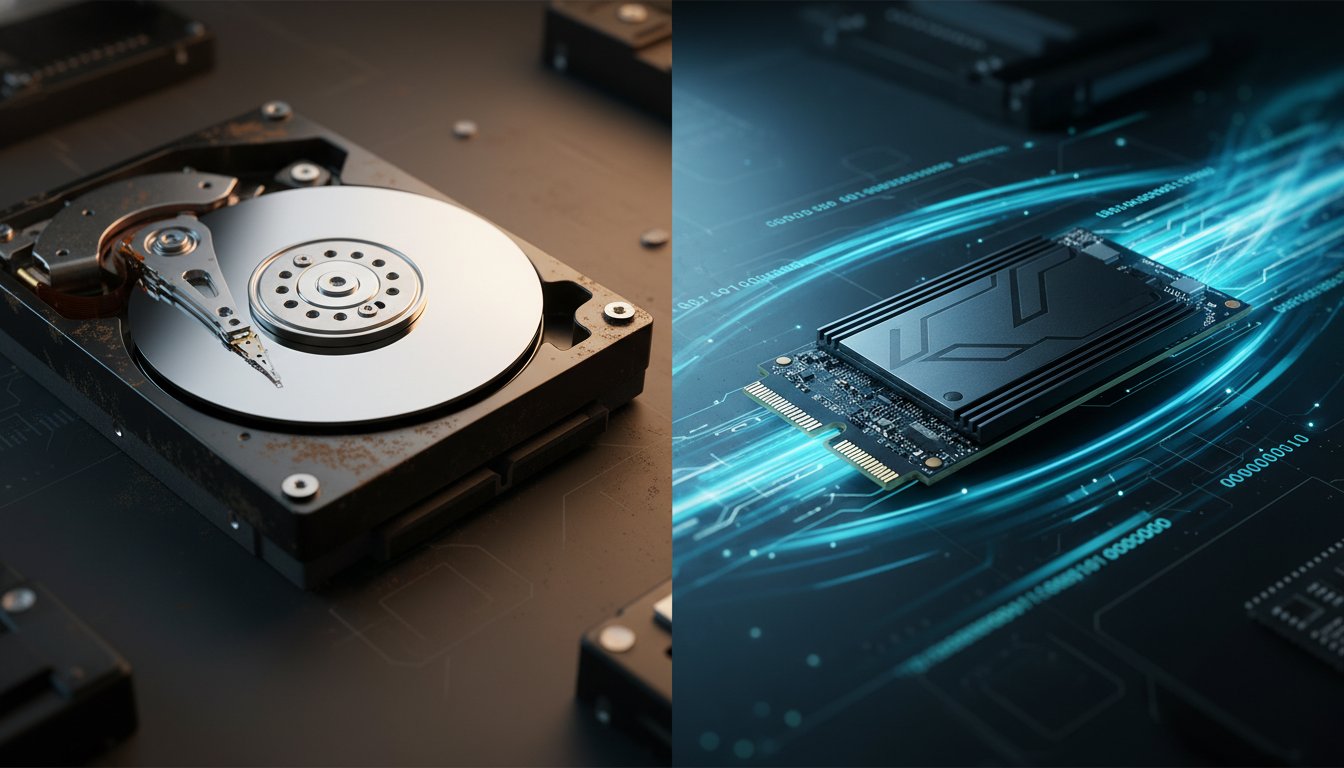
Think of your computer’s storage as a way of organising information. A traditional Hard Disk Drive (HDD) is like a large, mechanical filing cabinet. To find a file, a physical arm has to move and locate it on a spinning platter. It works, but it takes time. An SSD (Solid-State Drive), on the other hand, is like a modern digital bookshelf where every piece of information has a specific spot and can be accessed instantly, with no moving parts involved.
This core difference in technology is what makes upgrading to an SSD so transformative. To better understand this concept, watch this helpful video:
At its heart, a Solid-state drive uses flash-based memory to store data, similar to a high-performance USB stick. Because it has no moving components, it’s not just faster, but also more durable and efficient. This single technological shift delivers three core benefits that completely revitalise an older laptop.
The Speed Advantage: Instant Responsiveness
Because an SSD accesses data electronically, the delay associated with a mechanical HDD is eliminated. This results in a dramatic improvement in performance you can feel immediately. Your laptop’s operating system will boot up in seconds, not minutes. Applications and large files open almost instantly, and the entire system feels snappy and responsive, removing those frustrating lags and waiting times.
Built for Durability and Reliability
Laptops are designed to be portable, but this movement can be risky for a traditional HDD with its delicate moving parts. An SSD has no such vulnerability. With no spinning platters or read/write heads to damage, it is far more resistant to the shocks, bumps, and vibrations of daily use. This inherent durability provides greater peace of mind that your important files are safe and secure, wherever you go.
Energy Efficiency and Quiet Operation
The constant spinning of an HDD’s platters consumes a surprising amount of power. By operating without any moving parts, an SSD uses significantly less energy. For a laptop user, this translates directly into longer battery life, allowing you to work or browse for longer between charges. As a bonus, the absence of mechanical action means SSDs are completely silent, creating a cooler and quieter computing experience.
Key SSD Types Explained: Which One is Right for You?
Choosing a new Solid State Drive (SSD) can feel confusing with all the different acronyms, shapes, and connectors. Don’t worry – it’s simpler than it looks. The right choice depends on your computer’s age and motherboard, focusing on two things: the form factor (its physical shape) and the interface (how it connects). While there are various Key SSD Types Explained by manufacturers, for most users reviving an old laptop, the incredible speed boost over a traditional hard drive is the most important benefit, regardless of the specific type you choose.
SATA SSDs: The Universal Upgrade
This is the most common and versatile option, especially for older laptops and desktops. A SATA SSD looks like a small, 2.5-inch rectangular box and uses the same SATA connector as the traditional spinning hard disk drives (HDDs) it replaces. This makes it a straightforward, plug-and-play upgrade for the vast majority of computers, offering a massive and immediately noticeable improvement in boot times and overall system responsiveness.
NVMe M.2 SSDs: The Modern Speed Demon
Looking more like a small stick of RAM, an NVMe M.2 SSD represents the pinnacle of modern storage performance. It plugs directly into a dedicated M.2 slot on the motherboard, eliminating cables and allowing for breathtakingly fast data transfer speeds. However, this power comes with a crucial requirement: they are only compatible with newer computers that have the required M.2 slot. It’s an excellent choice for performance-heavy tasks, but you must confirm your motherboard supports it first.
How to Choose the Right Capacity (Storage Size)
Once you know which type of drive your computer needs, the next step is choosing the right amount of storage. Your decision should be based on how you use your computer. Here’s a simple guide:
- 250GB – 500GB: Ideal for basic use. This is plenty of space for your operating system, essential programs like Microsoft Office, and web browsing.
- 1TB: The sweet spot for most users. This capacity provides a great balance of price and space, comfortably holding your OS, programs, photos, and a good collection of documents and media.
- 2TB and above: Recommended for power users. If you’re a serious gamer, video editor, or content creator with large project files and media libraries, the extra space is a worthwhile investment.
If you’re still unsure what you need, don’t guess. Our expert computer repair team can assess your usage and recommend the perfect ssd upgrade to protect your data and connect you faster.

The Upgrade Process: DIY vs. Professional Installation
Upgrading your old laptop’s hard drive to a Solid-State Drive (SSD) is one of the single most impactful changes you can make to boost its performance. The process involves two key stages: migrating your operating system and personal data, and then physically installing the new drive. While it’s possible to tackle this as a DIY project, it comes with significant risks. Here, we’ll outline the steps and explain why a professional service is often the best choice for a seamless, frustration-free upgrade.
An Overview of the DIY Method
For the technically confident, a DIY upgrade involves a few critical steps. First, you must back up all your important data as a precaution. Next, you’ll need specialised software to “clone” your entire existing hard drive onto the new drive. Finally, you’ll open your laptop to physically swap the old drive for the new one.
However, this path has several potential pitfalls:
- Incompatible Software: Cloning software can fail or create errors, leading to an unbootable system.
- Physical Damage: Laptops contain delicate components that can be easily damaged by static electricity or improper handling.
- Complete Data Loss: A mistake during the cloning process can corrupt both the old and new drives, risking your precious files.
Why Choose a Professional SSD Upgrade Service?
Opting for a professional service eliminates the guesswork and risk. At Aspire Computing, we ensure a perfect, stress-free transition for your computer, giving you total peace of mind.
- Guaranteed Data Integrity: We use proven methods and commercial-grade tools to create a perfect clone of your system, ensuring all your files and programs are exactly where you left them.
- The Right Tools and Expertise: We have the specialised equipment and anti-static environment to safely perform the installation without risking damage to sensitive internal parts.
- Saves You Time and Stress: Avoid hours of troubleshooting complex software. We handle the entire process quickly and efficiently, getting your upgraded laptop back to you fast.
- Expert Advice: Unsure which ssd is right for your machine? We can recommend the best model for your specific laptop and budget, ensuring optimal performance and reliability.
Ready for a Faster PC Without the Hassle?
A professional upgrade is the safest, most reliable way to revitalise your computer. We handle everything from selecting the right components to the final performance testing. Your laptop will feel brand new-booting in seconds and loading applications instantly-with all your important data securely in place.
Let us provide a fast, reliable upgrade that protects your data and gets you back to work without the worry. Talk to the experts at Aspire Computing today.
Beyond Speed: Other Reasons to Switch to an SSD
While the incredible speed boost is the most celebrated benefit of an SSD upgrade, the advantages don’t stop there. A solid-state drive improves your computer’s performance in ways that enhance nearly everything you do, making it a powerful investment in your productivity and overall user experience.
A Better Experience for Gamers
For gamers, the difference is night and day. An ssd drastically cuts down on loading screens and the time it takes to transition between levels. In-game assets and textures load almost instantly, which significantly reduces stuttering and pop-in. This results in a smoother, more responsive, and far more immersive gaming experience, letting you focus on the action instead of the waiting.
A Boost for Professionals and Creatives
Creatives and professionals who work with large files will notice a massive improvement. Whether you’re editing high-resolution photos in Adobe Photoshop, rendering video in Premiere Pro, or managing complex design projects, a solid-state drive allows you to open, save, and export files with remarkable speed. You’ll spend less time watching progress bars and more time focused on your creative work.
Breathe New Life into an Old Computer
Perhaps the most practical benefit is the ability to revitalise an ageing computer. An SSD upgrade is often the single most cost-effective way to modernise an older laptop or PC in Australia. In many cases, a five-year-old machine with a new drive can feel more responsive than a brand-new computer still using a traditional hard drive. It’s an affordable way to postpone a costly full system replacement.
From smoother gaming to faster creative workflows and extending the life of your hardware, the benefits are clear. If you’re ready to unlock your computer’s true potential, the experts at Aspire Computing can help you choose and install the right drive for your needs.
Ready for a Faster, More Responsive PC?
Upgrading to a Solid State Drive is the single most effective way to breathe new life into a slow computer. As we’ve explored, these modern drives deliver incredible speed, enhance overall system responsiveness, and offer superior durability compared to older hard drives. The difference isn’t just about faster boot times; it’s about a smoother, more enjoyable experience every time you use your machine.
While the benefits are clear, choosing the right ssd and ensuring your valuable data is transferred safely requires expertise. That’s where we can help. As Toowoomba’s trusted local experts since 1999, Aspire Computing provides professional hardware upgrades with a focus on complete data protection. We offer a friendly, reassuring service for both home and business users, taking all the stress out of the process.
Ready to make your computer fast again? Contact Aspire Computing for a professional SSD upgrade! Don’t put up with frustrating delays-unlock the true performance of your computer today.
Frequently Asked Questions About SSD Upgrades
Will an SSD work in my old desktop or laptop computer?
In almost all cases, yes. The vast majority of older laptops and desktops use a standard connection called SATA, which is fully compatible with modern 2.5-inch SSDs. This makes an SSD upgrade one of the most effective and widely compatible ways to dramatically improve the performance of an aging computer. It provides a quality, noticeable boost in speed for boot times and opening programs, giving your trusted machine a new lease on life.
How long do SSDs last compared to traditional hard drives?
Modern SSDs are incredibly reliable and durable. Because they have no moving parts, they are resistant to shocks and drops that could easily damage a traditional hard disk drive (HDD). An SSD’s lifespan is measured in the total amount of data that can be written to it, which for a typical user translates to many years of service. In most scenarios, the SSD will comfortably outlast the other components in your laptop or computer.
Will I lose all my files and programs if I upgrade to an SSD?
No, you won’t lose anything. A key part of our professional upgrade service is a process called “cloning.” We create an exact, bit-for-bit copy of your old hard drive, including the operating system, all your programs, documents, photos, and settings. This entire image is then transferred to the new SSD. When you get your computer back, it will look and feel exactly the same, just significantly faster.
What’s the real difference between a SATA and an NVMe SSD for an average user?
Think of SATA as a standard highway and NVMe as a Formula 1 racetrack. While NVMe drives are technically much faster, a SATA SSD already provides a massive speed increase over a traditional hard drive. For everyday tasks like browsing the web, sending emails, and using office software, a SATA SSD delivers the performance boost you’re looking for. NVMe is typically beneficial for professionals who handle very large files, like video editors.
How much does a professional SSD upgrade cost in Toowoomba?
The total cost depends on the size of the SSD you choose. Generally, a professional installation service in Toowoomba, which includes cloning your existing data and fitting the new drive, ranges from A$150 to A$220 for labour. The cost of the SSD itself is additional, with a quality 500GB drive typically costing around A$80 to A$120. We can provide a precise quote based on your computer’s needs and desired storage capacity.
Can you install an SSD and keep my old hard drive for extra storage?
Absolutely. This is a very popular and practical solution. In a desktop computer, we can easily install the new SSD as the primary drive for your operating system and programs, while keeping your old hard drive inside as a secondary drive for storing large files like photos and videos. For a laptop, we can place your old hard drive into an external USB enclosure, turning it into a portable drive perfect for backups.

B.App.Sc., Cert. Computer Engineering PC Service and Repair
As the owner of Aspire Computing founded in 1999, Chaim Lee has been working for over 20 years as the Leading Computer Technician.
He has a life long interest in electronics, computing, science and technology. He has completed studies and gained qualifications in Applied Science, Computer Repair and Service, Microsoft Installation and Maintenance, Technical Writing, Workplace Training, and Technical Sales Training.

Write a Comment