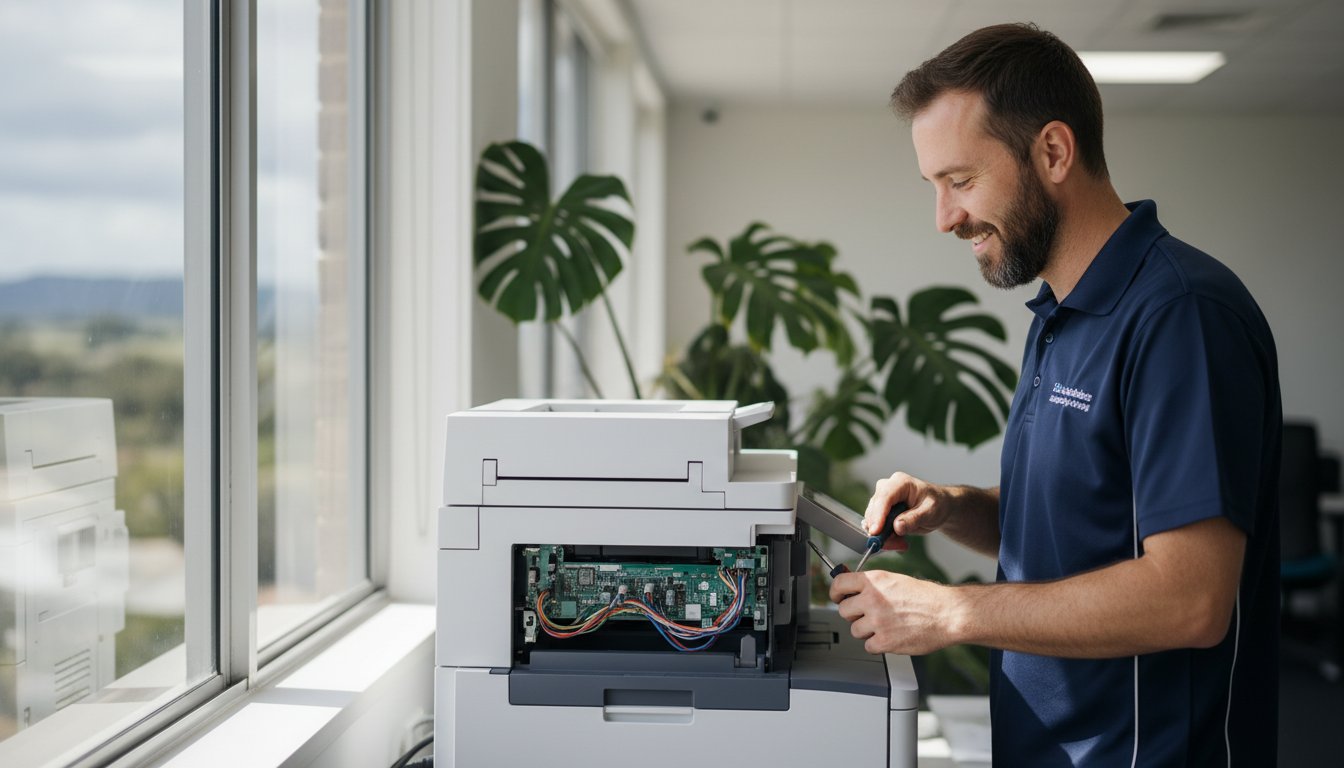
Fix Printer Offline Error: Expert Guide for 2026

You’ve likely been there: a stack of urgent documents needs printing, but your screen shows that dreaded “Offline” status. It’s a frustrating moment that can derail your entire workday, especially when you start worrying about technical jargon or the cost of an expensive replacement. While it feels like a hardware catastrophe, most printer issues in 2026 are actually just communication glitches. If you’re searching for the kind of printer repair Toowoomba locals trust, you probably want an answer that doesn’t involve a week of downtime or a massive bill.

We understand how stressful it is when your technology stops cooperating. That’s why we’ve put together this guide to help you troubleshoot the problem yourself. You’ll learn a methodical checklist to get your printer back online immediately and understand exactly why the error happened in the first place. We’ll walk you through the physical, network, and software layers of your setup, from checking Windows 11 print spoolers to verifying your macOS 27 connection. By the end, you’ll have the tools to resume your day without the stress, and you’ll know exactly who to call if you need a local expert on-site.

Key Takeaways

  • Use the 60-second power cycle rule to clear your printer’s memory and resolve basic connection glitches.
  • Learn how to navigate the 2026 Windows and macOS interfaces to disable the “Use Printer Offline” setting.
  • Follow our guide to restart the Windows Print Spooler and fix software crashes that stall your print queue.
  • Prevent future disruptions by setting a static IP address and keeping your firmware updated for better security.
  • Identify the signs of hardware failure that require the professional printer repair Toowoomba businesses rely on for on-site support.

Quick Triage: The First 5 Things to Check When Your Printer Is Offline

When your printer suddenly stops communicating, it doesn’t always mean you need a brand-new machine. Often, this peripheral machine is simply stuck in a digital loop or facing a minor physical hurdle. Before you worry about the cost of professional printer repair Toowoomba services, there are five quick checks you can perform to save time and reduce tech-anxiety. Start by verifying every physical connection. Even if you haven’t moved the device, a loose USB cable or an Ethernet port with no flashing lights can trigger an offline status.

To better understand how to identify these common issues, watch this helpful video:

Check for stealth errors that don’t always show up clearly on your computer screen. Sometimes a tiny scrap of paper from a previous jam or a low ink warning on a specific cartridge can force the printer into an offline state to prevent damage. In Toowoomba home offices, environmental factors like dust build-up can also interfere with sensitive internal sensors. Keeping your workspace clean is a simple but effective maintenance step that prevents these false “offline” triggers.

The Power Cycle Done Right

A quick “off and on” rarely clears the deep-seated temporary memory of a modern smart printer. To do this correctly, follow the 60-second rule. Turn the printer off, unplug it from the wall, and wait for a full minute. This allows the internal capacitors to discharge and clears the cache. When you plug it back in, watch the display carefully. If it stays dim, it might just be in Sleep Mode rather than actually being offline. Tapping the power button or the touchscreen should wake it up and restore the connection.

Checking Your Network Strength

Network stability is the backbone of modern printing. Most printers prefer a 2.4GHz Wi-Fi frequency because it has a longer range and penetrates walls better than the faster 5GHz band. If you’re using a wireless connection, use your phone to check the signal strength right next to the printer. Be wary of Wi-Fi extenders; they often cause IP conflicts that make your computer lose track of the device. For the most reliable office setup, a wired Ethernet cable remains the gold standard. If these steps don’t resolve the issue, you might need the expert printer repair Toowoomba residents have relied on since 1999 to look at deeper software conflicts.

Software Fixes: Changing Status from Offline to Online in Windows and macOS

In 2026, Windows 11 (specifically version 26H2) has streamlined the way we manage peripherals, but it hasn’t eliminated communication glitches. Most settings now live deep within the ‘Bluetooth & devices’ section of the Settings app. If your machine shows as offline, the first step is to open the print queue and look at the ‘Printer’ menu. Ensure ‘Use Printer Offline’ is unchecked. It’s a simple toggle, but it’s one of the most common solutions for a device that seems perfectly fine but refuses to work.

Ghost printers are another frequent culprit. These appear when your operating system creates a secondary profile for the same device, often named ‘Copy 1’. If you see multiple versions of your Epson or Canon printer, delete the duplicates and set the original as your ‘Default Printer’. This prevents your computer from sending data to a non-existent port. For those in the Darling Downs who find this confusing, getting professional printer repair Toowoomba help can resolve these ‘ghosting’ issues quickly and permanently.

Managing the Print Queue

A single document with an error can block the entire line. It acts like a digital dam, preventing new jobs from reaching the hardware. To fix this, use the ‘Cancel All Documents’ command in the queue window. If you’re using macOS 27 ‘Golden Gate’, the process is similar in the ‘Printers & Scanners’ preference pane. Clearing the queue resets the software handshake and often brings the status back to ‘Online’ immediately. If you’re still stuck, our local printer repair Toowoomba experts are just a phone call away to help you clear persistent blocks.

Driver Updates and Reinstallations

Drivers are the translators between your PC and your printer. When an OS update occurs, these translations can break. If your Samsung or Brother machine isn’t responding, visit the manufacturer’s site for the latest 2026 drivers. Don’t rely on generic Windows drivers; they often lack full functionality. A clean reinstall, where you remove the device, delete the driver, and start fresh, is the most reliable way to fix stubborn software bugs. If you’d rather not handle the technical side, our team offers remote IT support to get your system configured correctly without any hassle.

Advanced Troubleshooting: Restarting the Print Spooler and Port Settings

If you’ve tried the basics and your printer still won’t respond, it’s time to look at the background services that manage your data. The most common culprit is the Print Spooler. This service acts as the traffic controller, holding your print jobs in a queue before sending them to the hardware. When too many requests hit the system at once, or if a driver file becomes corrupted, the Spooler can crash, leaving your device in a permanent offline state. Restarting the Print Spooler often resolves these deep software freezes that a simple computer reboot might miss. It’s a methodical way to clear the digital pipes without losing your printer settings.

Mastering the Windows Print Spooler

To fix this, you’ll need to access the Windows Services console. Press the Windows Key + R, type ‘services.msc’, and hit Enter. Locate the ‘Print Spooler’ in the alphabetical list. Right-click it and select ‘Stop’. While the service is off, navigate to C:WindowsSystem32spoolPRINTERS and delete any temporary files you find there. This ensures that a corrupted print job isn’t just going to crash the service again. Once the folder is empty, right-click the Spooler in the Services window again and select ‘Start’. This fresh start often restores the connection instantly. If you’re uncomfortable navigating these system files, our team providing printer repair Toowoomba services can handle these technical steps for you via remote or on-site support.

Advanced Port Configuration

Port settings are another area where modern systems often fail. Many printers default to a WSD (Web Services for Devices) port during the initial setup. While easy to use at first, WSD is notoriously unstable and frequently loses the printer’s location on your local network, especially if your router restarts. Switching to a Standard TCP/IP port and assigning a Static IP address creates a permanent, reliable path for your data. This prevents ‘IP drift’, where your printer’s address changes and your PC can no longer find it.

You should also check the SNMP (Simple Network Management Protocol) settings within the port configuration. If ‘SNMP Status Enabled’ is checked, your computer might report the printer as offline simply because it didn’t receive a status update fast enough. Unchecking this box often bypasses these false reports and gets you back to work immediately. For heavy office printers in the Toowoomba area, these small tweaks are essential for long-term stability. If these advanced steps feel overwhelming, professional printer repair Toowoomba experts can often resolve the issue in minutes through a quick on-site visit.

Fix Printer Offline Error: Expert Guide for 2026

Preventing Future Connection Issues: Maintenance for Toowoomba Home Offices

Fixing an offline error once is a relief, but ensuring it doesn’t return is the key to a productive workday. Most connection drops are avoidable with a few proactive maintenance habits. For small business owners in the Darling Downs, technology should work for you, not against you. Beyond software tweaks, keeping your firmware updated is vital in 2026. These updates often include critical security patches and improved compatibility for cloud printing features. Physical care also matters. Toowoomba’s climate can lead to dust build-up in home offices, which often interferes with internal sensors. A quick wipe-down and keeping your printer in a ventilated area can prevent many hardware-related offline triggers.

The Static IP Advantage

One of the most common reasons a printer “disappears” from your network is IP drift. By default, most routers use DHCP to assign addresses, meaning your printer’s digital location can change every time the router restarts. When your computer looks for the old address, it reports the printer as offline. You can stop this by reserving a Static IP address within your router settings. This gives your device a permanent home on the network. Once set, you can test the stability of the link by using the ‘Ping’ command in your Command Prompt. If you get a steady reply, your connection is solid. If you find your network is struggling to handle multiple devices, it might be time to look at broader PC Hardware Upgrades: A Complete Guide to a Faster Computer to ensure your entire office runs smoothly.

Hardware Longevity

Don’t overlook the humble cable. Cheap or aging USB cables are a frequent cause of data dropouts that mimic software failures. If you’re using a wired connection, investing in a high-quality, shielded cable can eliminate intermittent “printer offline” messages. We recommend a basic maintenance schedule every six months. This should include checking cable integrity, clearing out paper dust, and verifying that your drivers are still the current 2026 versions. Consistent care extends the life of your machine and keeps your printing costs down over time. If your hardware is showing signs of age or you’re tired of constant glitches, our team providing printer repair Toowoomba services can perform a full system health check. We help you decide whether a simple repair or a strategic upgrade is the best path forward for your business. Contact our local IT experts today to book an on-site maintenance visit and keep your office online.

When DIY Isn’t Enough: Professional Printer Repair in Toowoomba

Sometimes, even the most methodical troubleshooting can’t overcome a hardware failure or a deeply corrupted system profile. If you’ve tried restarting the spooler and checking your network but the printer still refuses to cooperate, it’s time to consider professional help. Persistent grinding noises, error codes that won’t clear, or a total lack of power are clear signs that your situation requires a technician. For businesses in the Darling Downs, waiting days for a mail-in service or struggling with anonymous overseas chat support isn’t an option. You need the reliable printer repair Toowoomba residents have trusted for decades to keep their offices running smoothly.

Technical failures are stressful, but you don’t have to face them alone. While many software glitches can be handled with a quick digital fix, physical components like rollers, fusers, and print heads eventually wear out. Identifying the difference between a simple communication error and a terminal hardware fault is where professional expertise becomes invaluable. We focus on providing a calm, reassuring service that gets your equipment back in action without the need for expensive, unnecessary replacements.

On-Site vs Remote Support

We offer two distinct ways to get your technology back on track. Remote support is incredibly efficient for resolving software bugs, driver conflicts, or network configuration issues without you needing to leave your desk. We can often log in and fix the problem in the same amount of time it takes to brew a cup of coffee. However, if the issue is physical, such as a faulty fuser or a broken paper feed mechanism, on-site support is essential. Our technicians visit locations across Newtown, the Lockyer Valley, and the wider Darling Downs to provide hands-on assistance. For a deeper look at how we manage these services, check out our Printer Supply and Repair in Toowoomba: Your Complete Guide.

The Aspire Computing Difference

Since 1999, we’ve focused on providing a personal, expert service that large corporate providers simply can’t match. We don’t just fix the immediate error; we look at your entire setup to ensure long-term stability and security. Whether you’re dealing with a heavy office machine or a small home office inkjet, we bring a wealth of experience to every job. Our goal is to reduce your tech-anxiety by providing clear, jargon-free explanations and a rapid turnaround. We understand that every hour your printer is offline is an hour of lost productivity for your business. If your DIY efforts have hit a wall, don’t let the stress build up. Contact us today for the expert printer repair Toowoomba relies on for dependable, local IT support.

Restore Your Productivity with Ease

Getting your printer back online doesn’t have to be a source of anxiety. By following a methodical triage of your physical connections and software settings, you can resolve most communication glitches without needing a full replacement. Using steps like restarting the Windows Print Spooler or assigning a static IP address keeps your home office productive and stress-free. These simple maintenance habits ensure your technology works for you rather than against you.

If you’ve worked through our checklist and still face a stubborn “Offline” status, don’t let it derail your entire week. We’ve been the trusted local experts providing printer repair Toowoomba residents have relied on since 1999. Our team provides both on-site troubleshooting in the Darling Downs and rapid remote assistance for major brands including Canon, Epson, and Samsung. We focus on getting your hardware back to operational stability with speed and efficiency.

Struggling with a stubborn printer? Contact Aspire Computing for Expert Local Support and let us handle the technical heavy lifting for you. We’re here to ensure your technology remains a dependable asset to your workday. You can move forward with confidence knowing expert help is just a phone call away.

Frequently Asked Questions

Why does my printer keep going offline every few days?

Constant offline status is often caused by your router assigning a new IP address to the printer, known as IP drift. When your computer looks for the old address, it can’t find the device. Setting a static IP address in your router settings creates a permanent link. Other causes include aggressive power-saving modes that drop the Wi-Fi connection. A quick network audit from an expert can identify these recurring stability issues.

How do I change my printer from offline to online on Windows 11?

To toggle the status in Windows 11, navigate to Settings, then Bluetooth & devices, and select Printers & scanners. Click on your specific device and choose “Open print queue” from the menu. In the new window, click the “Printer” tab at the top and ensure “Use Printer Offline” is unchecked. If it was already unchecked, try toggling it on and off again to force a fresh software handshake with your hardware.

Can a low ink level cause my printer to show as offline?

Yes, critically low ink or toner levels can trigger an offline status on certain models. Manufacturers design some machines to stop communicating with the PC to prevent air from entering the print head or to avoid poor-quality prints. Before assuming you need professional printer repair Toowoomba services, check the physical display on the machine for any “low supply” or “empty” warnings. Replacing the cartridge often clears the error and restores the connection.

Is it better to connect my printer via Wi-Fi or USB for reliability?

For absolute reliability, a wired USB or Ethernet connection is superior to Wi-Fi. Wireless connections are prone to interference from other household devices and signal drops caused by distance or walls. If your printer is used for urgent business documents, a physical cable ensures the data reaches the device without interruption. If you must use Wi-Fi, ensure your printer is connected to the 2.4GHz band for better range and signal penetration.

What does ‘Print Spooler’ error mean and how do I fix it?

The Print Spooler is the Windows service that manages the flow of documents to your printer. If it crashes or gets “stuck” with a corrupted file, your printer will show as offline. You can fix this by opening the Services console, stopping the Print Spooler, clearing the temporary files in the system32/spool/PRINTERS folder, and then restarting the service. This resets the digital traffic jam and allows your documents to print successfully.

Do I need to reinstall my printer drivers every time it goes offline?

Reinstalling drivers should be your last resort, not your first. Most offline issues are caused by simple network glitches or queue blocks that don’t require new software. You only need to reinstall drivers if the existing files are corrupted or if you’ve recently performed a major operating system update. Try restarting both your computer and printer first. If the issue persists, our team can help you identify if a driver update is actually necessary.

Can Aspire Computing fix my printer at my home in Newtown?

Yes, we provide full on-site support for residents and businesses in Newtown. Our office is located at 46 Brigalow St, Newtown, making us perfectly positioned to help our local neighbours. We offer both physical hardware inspections and software troubleshooting at your location. If you’re in the Darling Downs or Lockyer Valley, we can visit you to resolve complex connectivity issues or supply new hardware if your current machine is beyond repair.

How much does professional printer repair cost in Toowoomba?

Costs for professional printer repair Toowoomba services vary depending on the complexity of the issue and whether the fix is remote or on-site. While simple software glitches might be resolved quickly via a remote session, hardware repairs involving replacement parts or on-site visits involve different labour requirements. It’s best to check with a local provider for an accurate quote based on your specific printer model and the nature of the technical failure you’re experiencing.

Printer Repair Toowoomba: Reliable Solutions for Home & Small Business

Imagine you have just spent a small fortune on fresh toner, only for your machine to flash a cryptic error code minutes before a major deadline. It’s a frustrating scenario many local professionals face, and it often leads to the same stressful question: is it time to give up, or is there a way to save your investment? Finding reliable printer repair Toowoomba doesn’t have to be a gamble, especially when you need a fast turnaround to keep your home office or small business running smoothly.

We agree that your time and money are too valuable to waste on “throwaway” technology that isn’t actually broken. This guide promises to demystify those stubborn wireless issues and provide the honest “repair versus replace” advice you need to make a smart decision. You’ll learn about common troubleshooting fixes, the long term benefits of maintaining laser printers, and how personalized service from a local expert like Chaim Lee can get your equipment back in top shape without the usual retail headache.

Key Takeaways

  • Discover how Toowoomba’s local humidity affects paper storage and learn simple ways to prevent persistent paper jams.
  • Master a 5-step troubleshooting checklist to resolve wireless connectivity issues and software errors before calling for help.
  • Apply the “50% Rule” and ink cost analysis to decide whether repairing or replacing your printer is the better financial choice.
  • Access professional printer repair Toowoomba services for fast on-site business support and preventative maintenance.
  • Understand how over 25 years of local technical experience ensures you receive honest, expert advice tailored to your needs.

Common Printer Problems Toowoomba Residents Face

When your printer stops working, it’s rarely at a convenient time. In our region, we see a specific set of issues that often stem from local climate factors and typical wear. If you are searching for printer repair Toowoomba, you’ve likely encountered one of these four common headaches. Persistent paper jams are a frequent complaint; Toowoomba’s humidity can cause paper to absorb moisture, making it swell and stick together. This leads to the rollers grabbing multiple sheets at once, causing a backup in the paper path.

To better understand how these mechanical issues look in practice, watch this helpful video:

Faded or streaky prints usually signal clogged print heads, especially in older inkjet models that sit idle for too long between jobs. Then there is the “offline” nightmare where your computer suddenly can’t find the device. This is often a breakdown in the wireless handshake or a print spooler error in Windows. We see this frequently after a router change or a major system update. Finally, pay attention to strange noises. Grinding or clicking sounds are early warnings that gears or rollers are failing and need professional attention before the machine stops entirely.

Environmental Impacts on Printing in the Darling Downs

Managing printer repair Toowoomba needs often involves addressing the unique environmental challenges of the Darling Downs. Fine dust from the surrounding areas can settle on laser printer drums, creating repetitive spots or lines on every page. Humidity doesn’t just affect paper; it can also cause toner powder to clump inside the cartridge. To protect your investment, follow these simple storage tips:

  • Keep paper in its original wrapper or a sealed container until you’re ready to load it.
  • Store ink and toner in a cool, dark cupboard to prevent the liquid from drying or the powder from clumping.
  • Always use a high-quality surge protector, as local power surges during storm season can easily damage sensitive printer circuit boards.

While protecting your hardware from electrical issues is vital, don’t forget that the physical safety of your workspace is just as important during the local storm season; specialists like Hop To It Roof Repairs can help ensure your roof remains leak-free and secure against the elements.

Brand-Specific Issues: Canon, Epson, and HP

Different brands have their own quirks that require specific expertise. Canon and HP models in 2026 often display specific error codes that can be confusing for home users, such as “B200” or various “0x” hardware faults. While it’s tempting to hit “update” on every prompt, firmware updates can sometimes cause more harm than good by introducing connectivity bugs or rejecting third-party cartridges. For those using Epson eco-tank models, the most common mechanical failure involves air bubbles or dried ink blockages forming within the long internal supply tubes. If you need help diagnosing these specific faults, Aspire Computing offers expert local support to get you back online quickly.

5 Steps to Troubleshoot Your Printer Before Calling a Pro

Before you commit to a professional service call, there are several reliable steps you can take to rule out simple software glitches or minor blockages. These methods often resolve the most common frustrations without needing a toolkit. If you find these steps don’t solve the problem, reaching out for expert printer repair Toowoomba ensures you aren’t stuck offline for long.

1. The Power Cycle Plus: This is more than just turning it off and on. You should turn off the printer, unplug it from the wall, and wait at least 30 seconds. This duration allows the internal capacitors to drain completely, which clears the temporary memory and resets the internal logic board. It’s a simple way to fix “frozen” screens or unresponsive buttons.

2. Clearing the Print Spooler: If you are using Windows 11 or 12, your computer might have a “stuck” print job blocking the queue. Open the “Services” app, find “Print Spooler,” right-click it, and select “Restart.” This often clears the digital logjam that prevents new documents from printing.

3. Wireless Reset: Modern Wi-Fi 6 routers provide incredible speeds, but they sometimes struggle to maintain a handshake with older printer hardware. Try re-joining your Wi-Fi network directly from the printer’s control panel. This forces the router and printer to establish a fresh connection.

4. Physical Inspection: Use a bright flashlight to look inside the paper trays and access doors. Even a tiny scrap of paper or a stray staple can trip a sensor. Gently remove any debris you find, but avoid using sharp objects that could scratch the delicate rollers.

5. Driver Refresh: Ensure your printer software matches your current operating system. Manufacturers frequently release updates to fix bugs. Downloading the latest 2026 driver from the official brand website can resolve many “Printer Not Found” errors.

Fixing Connectivity and “Printer Offline” Errors

To prevent your printer from disappearing on your network, try assigning it a static IP address through your router settings. This ensures the computer always knows exactly where to find the device. For remote workers using cloud print services, check that your account is still authenticated. If wireless troubleshooting fails, connecting a USB cable is the best diagnostic tool left. It tells you immediately if the hardware is functional or if the issue is strictly network-related. If you’re still hitting a wall, Aspire Computing can help diagnose these complex connectivity issues remotely or on-site.

Mechanical Quick Fixes for Paper Jams

When clearing a jam, always pull the paper in the direction of the natural paper path. Pulling it backwards can tear the sheet or misalign the internal sensors. If your machine frequently misfeeds, you can safely clean the pick-up rollers using a lint-free cloth lightly dampened with water or a tiny amount of isopropyl alcohol. This removes the “paper dust” that makes rollers slippery. If the printer reports a jam but you can’t find any paper, it’s likely a sensor failure or a broken gear that requires a professional eye.

Repair or Replace? Making the Right Choice for Your Printer

Deciding whether to book a printer repair Toowoomba service or head to the shops for a new machine is a common dilemma. Many residents feel pressured to replace their hardware at the first sign of trouble, but this isn’t always the most cost-effective move. A smart way to decide is by using the “50% Rule.” If the cost of a professional repair approaches half the price of a comparable new unit, replacement might be the logical path. However, this rule only works if you look at the total cost of ownership, not just the sticker price of a new box.

The trap many fall into involves “cheap” inkjet printers. These units are often sold at a loss, with manufacturers making their profit on expensive proprietary ink cartridges. When you factor in that a budget printer might cost twice as much to run per page as a mid-range laser model, repairing your existing high-quality machine becomes much more attractive. Sustainability is also a growing concern in 2026. Australia generates over 521,000 tonnes of e-waste annually, which is roughly 20.4kg per person. Choosing to maintain your current device directly reduces the environmental impact on our local Toowoomba landfill sites.

Evaluating the Age and Usage of Your Device

Lifespan varies significantly between technology types. A standard home inkjet printer typically lasts around three years under regular use, while a business-class laser printer can easily serve an office for five to ten years. Every printer has a “duty cycle,” which is the maximum number of pages it can reliably print per month. If your machine is reaching this limit, internal components like fuser units and transfer belts may begin to fail. Chaim Lee often recommends repairing older business-grade hardware because these machines were built with sturdier parts than modern, entry-level consumer models. A simple roller replacement can often give a robust older machine another three years of life.

The Hidden Costs of New Printers

Don’t be fooled by the low price tag on a new machine. Most new printers come with “starter cartridges” that contain only a fraction of the ink found in a standard replacement. You might find yourself spending another $100 on ink just weeks after your purchase. Additionally, many modern brands push subscription-based ink models that charge you a monthly fee just to keep your printer functional. If you prefer to own your supplies and avoid recurring costs, keeping your current machine running is usually the better financial move. For an honest, professional assessment of your hardware, you can contact Aspire Computing to see if a repair is viable for your specific model.

Printer Repair Toowoomba: Reliable Solutions for Home & Small Business

Professional Printer Service for Toowoomba Small Businesses

Small businesses in the Darling Downs often rely on a few high-performance desktop printers rather than massive floor-standing photocopiers. When these machines fail, your entire workflow can grind to a halt. Professional printer repair Toowoomba services for small businesses provide a bridge between basic DIY fixes and expensive enterprise contracts. We offer both on-site and remote support to get your office back to work without the need for you to travel or wait days for a technician.

Regular maintenance is the best way to prevent unexpected downtime. A professional “tune-up” includes cleaning internal sensors, lubricating moving parts, and checking for firmware stability. It’s also a critical time to review your supply solutions. We help you source the right ink and toner locally, ensuring you don’t end up with incompatible or low-quality third-party supplies that could damage your machine’s delicate print heads.

Security is another vital factor that many small business owners overlook. A networked printer is a computer in its own right. If it isn’t secured, it can become a backdoor for malware to enter your office network. We ensure your printer’s security settings are configured correctly to protect your client data and internal documents from unauthorized access.

Managed Print Solutions for Small Teams

For offices with multiple users, tracking printing costs can be difficult. We implement simple solutions to monitor usage and reduce waste across your team. You can also set up secure “Follow Me” printing, which ensures a document only prints when the user is physically at the machine. This is a great way to handle sensitive information in shared office spaces. For a complete look at optimizing your workplace technology, check out our guide on IT support for business for full office integration.

Emergency Printer Repair in Toowoomba

Deadlines don’t wait for hardware failures. We offer priority service for local businesses facing critical projects. If a specific part needs to be ordered, we can often discuss temporary loaner options to keep your team productive while your main unit is being serviced. This level of personal care is why local expertise beats waiting for a national chain technician who might be traveling from hours away. Dealing directly with Chaim Lee means you get a technician who understands your history and your specific business needs. Ready to secure your office hardware? Contact Aspire Computing for a professional maintenance check today.

Why Aspire Computing is Toowoomba’s Trusted Printer Specialist

Choosing a technician for printer repair Toowoomba requires more than just technical skill; it requires trust. Aspire Computing has served our local community for over 25 years. When you call for assistance, you deal directly with the owner, Chaim Lee. You won’t be redirected to a distant call centre or forced to navigate an automated phone menu. This personal accountability ensures that every piece of advice you receive is honest, professional, and tailored specifically to your home or small business needs.

Our deep expertise spans major brands including Canon, Epson, and Samsung. We understand the specific mechanical quirks and software requirements of these machines. This knowledge allows us to provide a rapid turnaround and reliable solutions. We maintain a strict commitment to transparent pricing and dependable advice. You’ll always receive a clear explanation of the fault and a professional recommendation on whether a repair is the most economical choice. This straightforward approach has built a strong sense of stability and expertise across the Darling Downs since we first established our presence.

Serving Newtown and the Surrounding Suburbs

We’ve been a permanent fixture in the Newtown community since 1999. Our mobile service coverage is extensive, reaching from the heights of Highfields down to the Lockyer Valley and across the various suburbs of Toowoomba. Choosing a local technician means you benefit from someone who understands the specific environmental challenges of our region. We know how local dust and humidity levels can impact your hardware because we live and work here too. This hyper-local focus distinguishes our service from anonymous national providers who lack a personal connection to the community.

More Than Just Printer Repairs

A printer problem is often just one piece of a larger technical puzzle. What looks like a mechanical failure could actually be a networking conflict or an outdated driver issue. We provide a holistic approach by integrating your printer service with professional computer repairs and network troubleshooting. This ensures your entire office ecosystem functions as it should, preventing future downtime.

We also help protect your home office through expert virus and malware removal. If a malicious program has compromised your system or redirected your print jobs, we can clean your device and restore your security. Booking a local service call today with Aspire Computing gives you the peace of mind that comes from dealing with an established expert who stands by his work. Whether you need a quick fix or a complete system overhaul, we are here to help.

Get Your Printer Back Online with Confidence

Your printer is a vital part of your daily workflow, and a sudden failure shouldn’t derail your entire week. We have explored how local conditions impact your hardware and provided a framework for deciding whether to fix or replace your machine. When troubleshooting steps fail, professional printer repair Toowoomba becomes the most efficient way to restore your productivity without the risk of further damaging your device through trial and error.

Choosing a local specialist means you benefit from over two decades of technical experience. Aspire Computing has been serving the community since 1999, offering a level of personal accountability that national call centres simply cannot provide. Dealing directly with Chaim Lee for your printer repair Toowoomba ensures you receive honest, transparent advice tailored to the unique needs of your home office or small business. We understand the value of your time and the importance of a machine that works when you need it most.

Don’t let technical glitches slow you down any longer. Contact Chaim at Aspire Computing for Expert printer repair Toowoomba and get your equipment running smoothly again. We are here to help you get back to work with minimal stress and total peace of mind.

Frequently Asked Questions

How much does printer repair typically cost in Toowoomba?

Costs for a professional service vary based on the complexity of the fault and the specific parts needed for the fix. While common software resets or minor mechanical adjustments might involve a standard fee, hardware failures requiring new components will be quoted individually. We focus on transparent communication, so you’ll always know the expected investment before we proceed. This ensures you can make an informed decision on whether the repair is the right financial choice.

Is it better to repair a laser printer or buy a new inkjet?

Repairing a laser printer is usually the smarter choice because these machines are built for longevity and offer a much lower cost per page. Many budget inkjet printers are designed for short lifespans, and their high ink costs can quickly exceed the price of the machine itself. If you have a sturdy laser model, a professional service can keep it running for many more years, saving you money on both hardware and supplies.

Do you offer on-site printer repair for home offices in Highfields?

Yes, we offer on-site service calls for home offices and small businesses in Highfields and across the Toowoomba region. We bring the tools and expertise to your location to save you the hassle of transporting your equipment. This mobile support is a key part of our printer repair Toowoomba service, ensuring that residents in surrounding suburbs get the same high-quality technical assistance as those in the city centre.

Can you fix a printer that is no longer under warranty?

We can definitely repair printers that are no longer covered by a manufacturer’s warranty. In fact, many of the machines we service are older, business-grade models that are well worth maintaining due to their robust construction. Whether your machine is three years old or ten, we can often find the necessary parts and provide the technical expertise to keep it functioning perfectly, helping you avoid the cost of a brand-new unit.

Why does my printer keep saying it is out of ink when I just replaced it?

This error typically happens when the printer fails to recognize the cartridge’s electronic chip or if the internal sensors are dirty. You can often fix this by carefully cleaning the contacts on both the cartridge and the printer with a dry, lint-free cloth. If the problem persists after a hardware reset, it might indicate a sensor fault or a firmware conflict that requires a professional to bypass or recalibrate for proper operation.

Do you supply genuine toner for Canon and Brother printers?

We supply a wide range of genuine toner and ink for brands like Canon and Brother to ensure your machine operates at peak performance. Using original supplies helps protect your print heads and ensures the highest possible print quality for your business documents. If you’re looking for ways to reduce costs, we can also advise on reliable compatible options that won’t compromise the safety or operational stability of your specific printer model.

Can a printer be repaired if it has a “Fatal Error” code?

Many “Fatal Error” messages are actually caused by minor mechanical issues like a paper scrap blocking a sensor or a carriage being unable to move freely. While the name sounds final, these codes are often just the printer’s way of stopping before further damage occurs. We can diagnose the root cause of the error and, in many cases, perform a manual reset or adjustment that brings the machine back to life.

How long does a typical printer service take at Aspire Computing?

The duration of a service depends on the nature of the problem, but we always aim for a rapid turnaround to minimize your downtime. Most common repairs are completed within two to four business days, provided that any necessary replacement parts are readily available. We understand that printer repair Toowoomba services need to be efficient for local businesses, so we keep you updated on our progress throughout the entire diagnostic and repair process.

Your printer was working fine yesterday. Now it’s sitting there, stubbornly showing “offline,” and you’ve got documents that need to go out the door. Sound familiar? Here’s the good news: a printer offline fix is almost never about a broken machine. In the vast majority of cases, it’s a communication breakdown between your printer and your computer, and that’s something you can resolve systematically.

It’s completely understandable to feel frustrated when generic advice like “turn it off and on again” gets you nowhere. You’ve already tried that. What you actually need is a clear, step-by-step triage process that works through the real causes, whether that’s a Windows print queue that’s stuck, a Wi-Fi connection that’s dropped, or a USB port conflict you didn’t even know existed.

This guide gives you exactly that. Drawing on over 25 years of hands-on IT support experience here in Toowoomba and the Darling Downs, we’ll walk you through five practical steps to get your office printing again, in plain English, without the jargon. We’ll also tell you honestly when it’s time to stop troubleshooting and call in a professional.

Key Takeaways

  • A printer offline fix is rarely about a broken machine — in most cases, it’s a communication issue between your printer and Windows that can be resolved with the right steps.
  • The Windows Print Spooler is a frequent culprit behind persistent offline errors, and knowing how to restart it via the Services menu can save you significant downtime.
  • Dynamic IP addresses are a hidden cause of printers that keep dropping offline — assigning a static IP is a lasting solution that most offices overlook.
  • Disabling SNMP in your printer’s port settings is a lesser-known but highly effective fix for network printers that repeatedly lose their connection without explanation.
  • When DIY troubleshooting reaches its limit, recognising the signs of hardware failure early — rather than persisting with software fixes — can save your business time and money.

Understanding Why Your Printer Says Offline (When It’s Clearly There)

“Offline” is a status message, not a physical diagnosis. Your printer hasn’t stopped working. What’s actually happened is that Windows has lost confidence in its ability to communicate with the device and has flagged it as unavailable. The printer itself might be sitting there perfectly functional, warmed up, and ready to print. The problem lives in the conversation between your computer and the printer, not in the hardware itself.

Several common triggers cause this breakdown, and they’re worth knowing by name:

  • Windows updates: A cumulative update can reset print queue settings or overwrite driver configurations without warning.
  • IP address changes: If your router assigns a new IP address to your printer overnight, Windows is still trying to reach the old one.
  • Router resets: A power outage or NBN gateway restart can reshuffle device addresses across your whole network.
  • Sleep mode confusion: Some printers enter a deep sleep state that Windows interprets as a full disconnect, triggering an offline status even though the printer wakes fine when you walk up to it.

Small business networks in Toowoomba and the Darling Downs are particularly susceptible to what IT professionals sometimes call “ghost offline” issues. Many local offices run a mix of older printers, consumer-grade NBN gateways, and Windows machines that haven’t had their network settings reviewed in years. That combination creates the perfect conditions for intermittent, hard-to-reproduce offline errors that seem random but are actually predictable once you understand the underlying cause.

The Communication Breakdown: PC vs. Printer

Windows doesn’t passively wait for your printer to announce itself. It actively sends out a signal, essentially a digital ping, to check whether the printer is reachable at a known address. If that ping fails, Windows marks the printer offline. The Print Spooler service sits in the middle of this process, managing the queue of documents waiting to print. When the Spooler gets confused or stalls, it can lock a printer into an offline state even after the connection has been fully restored. This is why a proper printer offline fix often involves the Spooler, not just the printer itself. Your printer’s own screen might show “Ready” while Windows simultaneously insists it’s offline, because the two systems are simply no longer talking to each other correctly.

Wi-Fi vs. Wired: Does the Connection Type Matter?

Yes, significantly. A USB-connected printer has a direct, stable link to your computer. A Wi-Fi printer introduces a wireless signal, a router, and network addressing into the chain, and each of those is a potential point of failure. Modern NBN gateways that use band steering, the technology that automatically shifts devices between 2.4GHz and 5GHz frequencies, can cause printers to lose their network position silently. Most office printers are designed for 2.4GHz only. If your gateway nudges the printer toward a 5GHz band it can’t use, or reassigns it during a band-switching event, the result is an offline alert with no obvious cause. In busy office environments, signal interference from other wireless devices compounds the problem further.

The Quick Fix Checklist: Physical and Network Triage

Before diving into Windows settings or driver reinstalls, it’s worth ruling out the simple stuff. A surprising number of persistent offline errors trace back to a loose cable, a router that’s been running for weeks without a restart, or a single Windows checkbox that got ticked accidentally. Work through this checklist first. It takes less than five minutes and resolves the problem more often than you’d expect.

The Power Cycle Done Right

There’s a right way and a wrong way to power cycle. Pressing the power button on your printer isn’t enough. You need to physically unplug the power cord from the wall and leave it disconnected for at least 30 seconds. This clears the printer’s temporary memory, flushing any corrupted status data that’s locking it into an offline state.

The sequence matters too. Follow this order:

  • Step 1: Router first. Unplug your NBN gateway or router from the wall. Wait 30 seconds.
  • Step 2: Printer second. Unplug the printer’s power cord. Wait another 30 seconds.
  • Step 3: Power the router back on. Wait for it to fully reconnect before touching anything else. This usually takes 60 to 90 seconds.
  • Step 4: Power the printer back on. Let it complete its startup cycle fully.
  • Step 5: Check your PC. If it was also restarted recently, give Windows a moment to re-establish its network connections before sending a test print.

Doing it in reverse order, or skipping the router entirely, is one of the most common reasons a power cycle doesn’t work the first time.

While you’re at it, check the physical connections. If you’re using a USB cable, unplug it from both ends and reseat it firmly. USB cables develop faults more often than people realise, and a partially connected cable can cause intermittent offline errors that look identical to a network problem. For Ethernet-connected printers, check that the cable clicks securely into both the printer and the wall port or switch.

Checking the Windows Printer Queue

Once the hardware is sorted, head into Windows. Open Settings, then navigate to Bluetooth and Devices (Windows 11) or Devices and Printers (Windows 10). Find your printer, right-click on it, and look for two specific options: “Use Printer Offline” and “Pause Printing.” If either of these has a tick next to it, click it to remove the tick. This is a genuine printer offline fix that takes about 20 seconds and is often the entire problem.

While you’re in the print queue, check whether any stuck documents are sitting there. A job that failed to process can block every subsequent print request, keeping the printer flagged as unavailable. Right-click any queued documents and select Cancel to clear them out. If they won’t delete, don’t force it yet; that’s a Print Spooler issue covered in the next step.

If you’ve worked through this checklist and the printer is still showing offline, the issue is almost certainly sitting deeper in Windows or your network configuration. That’s where a local expert can save you significant time. Aspire Computing provides on-site printer support across Toowoomba and the Darling Downs if you’d rather have someone sort it in person.

Windows 11 & 10 Settings: Taming the Print Spooler

You’ve checked the cables, power cycled everything in the right order, and confirmed that “Use Printer Offline” isn’t ticked. The printer still shows offline. At this point, the problem almost certainly lives inside Windows itself, and specifically inside a background service called the Print Spooler.

The Print Spooler is the Windows process that manages every document you send to print. It queues jobs, communicates with the printer driver, and coordinates the handoff between your PC and the physical device. When it crashes or stalls, which it does more often than Microsoft would like to admit, Windows loses its connection to the printer entirely. The Spooler can freeze after a failed print job, a Windows update, or simply after running continuously for weeks without a restart. The result looks identical to a network fault, which is why so many people spend time checking cables and Wi-Fi when the real fix is a 60-second service restart.

Restarting the Print Spooler Service

Press the Windows key + R to open the Run box. Type services.msc and press Enter. The Services window lists every background process running on your machine. Scroll down to Print Spooler, right-click it, and select Restart. Windows will briefly stop the service and start it fresh, clearing any corrupted state it was holding onto.

Once it restarts, check the Status column to confirm it shows “Running.” Also check that the Startup Type column reads “Automatic.” If it says “Manual” or “Disabled,” right-click the service, select Properties, change the Startup Type to Automatic, and click Apply. This single change prevents the Spooler from failing to start after your next reboot, which is a common source of recurring offline errors that seem to appear out of nowhere every few weeks.

If the Restart option is greyed out or the service fails to start, check whether dependent services like Remote Procedure Call (RPC) are also running. The Spooler relies on RPC to function. If RPC is stopped, the Spooler won’t start regardless of what you do.

Removing and Re-adding Your Printer

If restarting the Spooler doesn’t complete your printer offline fix, the next step is a clean reinstall of the printer in Windows. This is more involved, but it’s often the only way to clear a corrupted driver state.

Start by going to Settings > Bluetooth and Devices > Printers and Scanners. Select your printer and click Remove. Once it’s gone, don’t immediately click “Add a printer.” First, open Device Manager, expand the Printers section, and check whether the old printer driver is still listed there. If it is, right-click and select Uninstall device, ticking the box to also remove the driver software. This ensures you’re starting completely clean.

Now go back to Printers and Scanners and click Add a device. Windows will scan your network and, in most cases, auto-discover the printer within 30 seconds. When it appears, select it and let Windows install the driver automatically.

One important caution here: if Windows offers you a generic driver, decline it. Generic drivers frequently cause ongoing communication errors. Visit the manufacturer’s website directly, whether that’s Canon, Epson, or another brand, and download the full driver package for your exact model. Manufacturer-specific drivers include the correct communication protocols for your device and are far more stable over time than anything Windows installs by default.

Printer Offline Fix: 5 Steps to Get Your Toowoomba Office Printing Again (2026)

Advanced Troubleshooting: IP Conflicts and SNMP Errors

You’ve restarted the Print Spooler, reinstalled the driver, and cleared the queue. Still offline. At this point, the problem has almost certainly moved into your network configuration, and specifically into two areas that most troubleshooting guides never mention: dynamic IP addressing and SNMP communication errors. These are the fixes that separate persistent, recurring offline problems from ones that stay solved.

The Static IP Advantage for Small Businesses

Every device on your network gets an IP address, a unique identifier that tells other devices where to find it. By default, your NBN router assigns these addresses dynamically through a protocol called DHCP. That means the address your printer holds today might be different tomorrow after a router restart or a power outage. When that happens, Windows keeps sending print jobs to the old address, finds nothing there, and marks the printer offline.

The fix is straightforward: assign your printer a static IP address that never changes. Here’s how to do it cleanly:

  • Find your printer’s current IP address by printing a configuration page directly from the printer’s control panel. Every manufacturer includes this option, usually under Settings or Reports.
  • Open the printer’s web interface by typing that IP address into a browser on any computer connected to the same network. You’ll see a configuration dashboard.
  • Navigate to the network or TCP/IP settings and switch the IP assignment from “Automatic (DHCP)” to “Manual.” Enter an IP address in your router’s range but outside the DHCP pool, for example 192.168.1.150 if your router typically assigns addresses between 192.168.1.2 and 192.168.1.100.
  • Save and restart the printer. Update the port address in Windows under Printer Properties to match the new static IP.

This single change eliminates the most common cause of printers that go offline repeatedly without any obvious trigger. If managing your network settings feels outside your comfort zone, Aspire Computing can configure static IP addressing for your office printers as part of on-site IT support across Toowoomba and the Darling Downs.

Configuring Printer Ports and SNMP

SNMP stands for Simple Network Management Protocol. It’s a background communication channel that Windows uses to query your printer’s status, checking ink levels, paper trays, and error states. In theory, it’s useful. In practice, on Australian NBN networks, it’s one of the most reliable causes of a printer that keeps dropping offline for no apparent reason.

When SNMP queries fail, which happens frequently when firewall rules, router firmware, or network segmentation blocks the protocol, Windows interprets the silence as the printer being unavailable. The printer itself is fine. Windows just can’t get a status response and panics. Disabling SNMP removes that dependency entirely.

To do this, open Control Panel and go to Devices and Printers. Right-click your printer and select Printer Properties (not just Properties). Click the Ports tab, select the active port, and click Configure Port. In the window that opens, uncheck SNMP Status Enabled and click OK. That’s it. For many offices, this single change is the complete printer offline fix they’ve been searching for.

While you’re in the Ports tab, check whether your printer is using a WSD port (Web Services for Devices) rather than a Standard TCP/IP port. WSD ports are auto-configured by Windows and sound convenient, but they’re notoriously unreliable on NBN networks because they rely on broadcast discovery protocols that many modern routers suppress. If you see a port name starting with “WSD,” switch it to a Standard TCP/IP port using the static IP address you’ve just assigned. The combination of a static IP, a TCP/IP port, and SNMP disabled gives you a stable, predictable connection that doesn’t break every time your router blinks.

Professional Printer Repair in Toowoomba: When DIY Isn’t Enough

The five steps in this guide resolve the majority of offline printer problems. But not all of them. Some issues sit beyond software settings and network configuration, and recognising that threshold early saves your business real time and money.

Hardware failure has its own warning signs. A fuser error means the component responsible for bonding toner to paper has degraded or failed entirely. Sensor errors, particularly paper feed and jam detection faults, often appear as phantom jams where the printer reports a blockage that isn’t there. Repeated grinding noises during startup, blank pages despite full cartridges, or a printer that powers on but never completes its initialisation cycle all point to internal hardware problems that no amount of driver reinstalling will fix. At that point, you’ve exhausted the printer offline fix toolkit, and the problem needs hands-on attention.

There’s also a cost-effectiveness question worth asking honestly. Older printers, particularly inkjet models more than five years old, can cost more to repair than to replace when parts and labour are factored in. A straightforward conversation with a qualified technician will tell you quickly which side of that line you’re on.

On-Site Support for Toowoomba and the Darling Downs

Aspire Computing has been providing on-site IT support across Toowoomba, the Darling Downs, and the Lockyer Valley since 1999. That’s over 25 years of local experience, which means the team understands the specific network environments, NBN gateway models, and business setups common to this region.

The practical advantage of on-site support is that a technician can look at your printer and your router in the same visit. Many persistent offline problems involve both devices interacting poorly, and that’s something no remote session can fully diagnose. Whether you’re in Newtown, Harristown, or further out across the Darling Downs, having an expert on location removes the guesswork entirely.

Supplying Quality Replacement Printers

When repair isn’t the right answer, Aspire Computing supplies Canon, Epson, and Samsung printers for both home and office use. More importantly, a replacement printer is set up correctly from day one, with the right drivers, a static IP address already configured, and SNMP settings adjusted for your network. That means no repeat of the same printer offline fix cycle a week after installation.

Getting the setup right at the start is what separates a printer that works reliably for years from one that causes ongoing headaches.

Stuck and ready to hand it over to someone who can sort it in person? Contact Aspire Computing for expert printer repair in Toowoomba and get your office printing again without the frustration.

Get Your Office Printing Again, Starting Today

A printer offline fix doesn’t have to mean hours of frustration. Working through the right steps in order makes all the difference: ruling out physical faults first, clearing the Print Spooler, assigning a static IP, and disabling SNMP where needed. Most offline problems respond to one of those four approaches. When they don’t, that’s a reliable signal that the issue has moved into hardware territory and needs a trained eye on it.

If you’ve worked through this guide and the printer is still stubbornly offline, don’t keep pushing. Aspire Computing has been supporting Toowoomba businesses since 1999, with on-site visits across the Darling Downs and Lockyer Valley, plus remote support when that’s the faster option. The team works with Canon, Epson, and Samsung hardware and can diagnose both network and hardware faults in a single visit.

You’ve got better things to do than troubleshoot a printer. Contact Aspire Computing today and get your office printing again.

Frequently Asked Questions About Printer Offline Fixes

Why does my printer say offline when it is connected to Wi-Fi?

Being connected to Wi-Fi and being reachable by Windows are two different things. Your printer can hold a valid Wi-Fi connection while Windows is still trying to reach it at an old IP address from before your router last restarted. Band steering on modern NBN gateways is another common culprit, where the router silently shifts your printer toward a 5GHz frequency it can’t use, breaking the connection without any visible error on the printer itself.

How do I force my printer to go from offline to online?

Start in Windows Settings under Printers and Scanners. Select your printer, open the print queue, and check whether “Use Printer Offline” or “Pause Printing” is ticked. Removing either tick is often the complete fix. If that doesn’t work, restart the Print Spooler service via services.msc, then clear any stuck documents from the queue. Those two steps resolve most cases where a printer is stuck in an offline state despite the hardware being perfectly functional.

Can a Windows update cause my printer to go offline?

Yes, and it happens more often than Microsoft acknowledges. Cumulative Windows updates can overwrite driver configurations, reset print queue settings, or change how the Print Spooler service starts up. If your printer went offline shortly after an update installed overnight, that’s a strong indicator the update is the trigger. Reinstalling the manufacturer’s driver, rather than the generic version Windows defaults to, is the most reliable printer offline fix in this situation.

What does ‘Use Printer Offline’ mean in Windows settings?

It’s a Windows setting that manually disconnects your computer from the printer, regardless of whether the printer is physically available. It was designed to let users queue print jobs when no printer is connected, with the intention of printing later. In practice, it gets ticked accidentally or after a failed print attempt, and Windows doesn’t always clear it automatically when the connection is restored. Finding this box ticked is one of the quickest wins in any printer offline fix process.

Why does my printer keep going offline every few days?

Recurring offline errors almost always trace back to a dynamic IP address. Your NBN router reassigns your printer a new address after each restart or power outage, and Windows keeps sending jobs to the old one. Assigning your printer a static IP address and switching from a WSD port to a Standard TCP/IP port in Windows eliminates this pattern permanently. Disabling SNMP in your printer’s port settings is the other change worth making, since failed SNMP queries frequently trigger false offline alerts on Australian NBN networks.

Is it worth repairing a printer, or should I buy a new one?

It depends on the age of the printer and the nature of the fault. Inkjet printers more than five years old can cost more to repair than replace once parts and labour are factored in. Laser printers generally have a longer serviceable life and are more economical to repair. A qualified technician can assess this quickly. Aspire Computing supplies Canon, Epson, and Samsung printers and can advise honestly whether repair or replacement makes more financial sense for your situation.

Do you provide on-site printer repairs in the Darling Downs area?

Yes. Aspire Computing has provided on-site IT support across Toowoomba, the Darling Downs, and the Lockyer Valley since 1999. A technician can visit your office to diagnose both network and hardware faults in a single visit, which is particularly useful for persistent offline problems that involve your printer and router interacting poorly. Remote support is also available when that’s the faster option for your circumstances.

How do I restart the Print Spooler in Windows 11?

Press the Windows key and R together to open the Run dialog, type services.msc, and press Enter. Scroll down to Print Spooler in the list, right-click it, and select Restart. Once it restarts, confirm the Status column shows “Running” and that Startup Type is set to “Automatic.” If it’s set to Manual, change it to Automatic via Properties so the Spooler starts reliably after every reboot, preventing the same offline error from returning weeks later.

Remote IT Support: Fast, Secure Tech Help for Toowoomba Home Offices & Businesses

Your computer freezes mid-quote, your printer refuses to cooperate, and a client is waiting. Sound familiar? If you’re running a home office in Toowoomba, tech problems don’t just cause frustration; they cost you real time and real money. And the thought of waiting days for a technician to show up, only to be handed a hefty call-out fee for a simple fix, makes the whole situation worse.

You’re right to feel that way. Downtime is genuinely damaging, and the anxiety around letting a stranger access your computer remotely is completely understandable. These are real concerns, and they deserve a straight answer.

This article explains exactly how remote IT support works, why it’s become a trusted solution for home office IT support Toowoomba residents and small business owners rely on, and how a local expert with over 25 years of experience can resolve most software, connectivity, and printer issues quickly and securely, without anyone needing to set foot in your office. You’ll learn what a legitimate remote session looks like, what problems it can realistically solve, and how to get help from someone who is genuinely accountable to your local community.

Key Takeaways

  • Remote IT support lets a technician securely fix your computer over the internet, eliminating the wait and cost of a traditional call-out visit.
  • Every remote session requires your explicit permission to begin, and you can end it at any time – your privacy and control are protected throughout.
  • Reliable home office IT support Toowoomba residents can access remotely covers a wide range of issues, including slow PC performance, email faults, and printer problems, though some hardware failures still require an on-site visit.
  • Aspire Computing is a locally based, owner-operated business in Newtown, QLD, with over 25 years of experience – not a distant call centre.
  • Understanding which problems are remote-friendly and which require a physical visit can save you time and money the next time something goes wrong.

What is Remote IT Support and How Does it Save You Time?

Think of remote IT support as a digital house call for your modern home office. Instead of waiting for a technician to drive across town, a qualified expert connects to your computer securely over the internet, diagnoses the problem, and fixes it while you watch. The technology behind this is called remote desktop software, and it’s been a trusted method for IT professionals for decades.

For anyone relying on home office IT support in Toowoomba, this matters enormously. Traditional on-site visits mean scheduling, waiting, and paying a call-out fee before a technician even looks at your machine. Remote support collapses that process. A session can begin within minutes of you making contact, which means less downtime and a faster return to productive work.

To give you a clearer picture of what the support process actually looks like in practice, watch this short video:

Because no travel is involved, remote sessions typically cost less than a standard on-site call-out. You’re paying for the technician’s expertise and time, not their fuel and travel costs. For small business owners and remote workers in the Darling Downs, that difference adds up quickly.

How the Remote Connection Process Works

The process is straightforward and designed with your security in mind. Here’s what happens:

  • Step 1: You download a small, secure connection module from the technician’s website. It’s a lightweight file that takes under a minute to run.
  • Step 2: The software generates a unique, one-time access code. You share that code with your technician verbally or via message. Without it, nobody can connect.
  • Step 3: Once connected, you watch everything happen on your screen in real time. The technician can only access what’s needed to fix the problem, and you can end the session instantly at any point.

There’s no mystery to it. You stay in control throughout.

The Immediate Benefits for Home Offices

The practical advantages go beyond just speed. For Darling Downs residents working from home, remote support means:

  • No disruption to your workspace. Your desk stays exactly as it is.
  • No need to unplug cables, box up your PC, or tidy up for a visitor.
  • Instant answers to how-to questions, software configuration issues, and recurring glitches that slow your day down.

Aspire Computing has been helping home office users and small businesses across the region since 1999. With over 25 years of hands-on experience, the team understands that your time is your livelihood. Getting you back online quickly isn’t just a service promise; it’s the entire point.

Is Remote IT Support Safe? Understanding Security and Privacy

Security is the first question most people ask, and it’s the right one. Letting someone access your computer remotely sounds risky on the surface. In practice, a properly conducted remote session is designed from the ground up to keep you in control, and understanding exactly how it works removes most of the uncertainty.

Every session runs on a one-time access code. That code expires the moment the session ends. Your technician cannot reconnect later, browse your files after hours, or return without your knowledge. There’s no persistent backdoor, no saved login, and no lingering access. Each new session requires a fresh code that you generate and share.

The connection itself is protected by end-to-end encryption, meaning the data passing between your computer and the technician’s screen cannot be intercepted or read by a third party. This is the same class of encryption used in online banking. Your files, documents, and activity stay private throughout.

Perhaps the most reassuring aspect is transparency. You watch everything in real time. Every click, every window opened, every change made appears on your screen as it happens. You retain complete master control and can end the session instantly by closing the software or simply disconnecting your internet. No warning required.

Vetting Your Remote Support Provider

Not all remote support offers are legitimate. Unsolicited calls claiming to be from Microsoft, the NBN, or Telstra are almost always scams. A genuine provider will never contact you out of the blue and ask to connect to your machine. Always initiate contact yourself, and always verify who you’re dealing with before sharing any access code.

Choosing a local provider matters more than most people realise. A business with a physical address in Toowoomba is accountable to the same community you live in. Aspire Computing has operated from Newtown, QLD since 1999, which means there’s a real person, a real location, and a 25-year track record behind every session. That’s a very different proposition from an anonymous call centre.

Privacy Protocols for Sensitive Data

Before any session begins, it’s good practice to close browser tabs showing banking details, personal records, or confidential documents. A trustworthy technician will tell you the same thing. For anyone seeking home office IT support Toowoomba residents can rely on, this kind of transparency should be a baseline expectation, not a bonus.

During a data recovery assessment, file transfers are handled with care and discussed openly before anything moves. Aspire Computing operates under Australian privacy standards, meaning your information is handled with the same legal obligations that apply to any local business. Local accountability isn’t just a reassuring phrase; it’s a genuine layer of protection that national and offshore providers simply can’t match.

If you’d like to understand exactly what a session with Aspire Computing involves before committing, reach out and ask. A straightforward conversation is always the right starting point.

Remote vs. On-Site Tech Support: Which Do You Need?

Remote support is the first responder of IT: fast, targeted, and effective for the majority of problems that actually interrupt your working day. But it’s not the right tool for every job. Knowing the difference before you pick up the phone saves you time, avoids unnecessary call-out fees, and gets your home office back on track faster.

The core distinction comes down to one question: does the problem exist in software, or in the physical machine? Most of what goes wrong in a home office falls into the software category. Email clients misbehaving, Windows running sluggishly, a printer driver refusing to install correctly – these are all problems a skilled technician can diagnose and resolve without ever touching your hardware.

When Remote Support Wins

Remote sessions handle a surprisingly wide range of everyday faults. If your internet connection is still working, the following issues are strong candidates for a remote fix:

  • Virus and malware removal where the infection hasn’t disabled your internet access or locked you out of Windows entirely.
  • Installing or configuring printer drivers and getting your printer communicating correctly with your PC or laptop.
  • Windows optimisation – clearing startup bloat, adjusting settings, and tuning performance so your machine runs the way it should.
  • Email configuration, including setting up accounts in Outlook, fixing send or receive errors, and resolving sync issues with Microsoft 365.
  • Software faults such as applications crashing, update failures, or licensing errors that prevent programs from opening.

For anyone relying on home office IT support Toowoomba professionals and remote workers depend on daily, these are the exact problems that cause the most disruption and respond best to a fast remote session.

When You Need a Toowoomba Call-Out

Some problems genuinely require hands-on attention. No remote session can replace a physical inspection when:

  • Your computer won’t power on, or you’re facing a persistent Blue Screen of Death that prevents Windows from loading.
  • Physical damage has occurred, such as a liquid spill, a cracked laptop screen, or a failed hard drive that makes the machine unresponsive.
  • Network hardware needs installation, including routers, switches, or structured cabling setups in a regional Queensland home or small business.

The Hybrid Approach: Smarter Diagnostics

Starting with a remote diagnostic is almost always the right move, even when an on-site visit turns out to be necessary. A quick remote assessment can identify exactly what’s wrong before anyone travels anywhere, which means the technician arrives prepared, the repair takes less time, and you’re not paying for exploratory work done in your living room. It’s a practical approach that respects your time and your budget.

If you’re unsure which type of support your situation calls for, contact Aspire Computing and describe what’s happening. A straightforward conversation will clarify the fastest and most cost-effective path forward.

7 Common Computer Problems We Solve via Remote Assistance

Most home office disruptions come down to a surprisingly short list of recurring faults. The good news is that the majority of them don’t require anyone to visit your desk. Here’s what reliable home office IT support Toowoomba residents actually need resolved, and how each one gets handled remotely.

  • Slow PC performance: A sluggish machine is rarely a hardware problem. More often, it’s startup bloat, fragmented storage, or background processes quietly draining your system. A remote Windows tune-up clears the clutter, adjusts performance settings, and gets your machine responding the way it should, without shipping it anywhere.
  • Email configuration faults: Outlook refusing to sync, Gmail accounts dropping connections, or Microsoft 365 business mail throwing authentication errors are among the most common complaints from home office workers. These are resolved remotely by adjusting server settings, reconfiguring account profiles, and clearing corrupted data files.
  • Software installation and setup: Getting Microsoft 365 installed correctly, activating licences, and configuring applications for your specific workflow takes expertise. Remote setup ensures everything is configured properly from the start, rather than leaving you troubleshooting half-installed programs later.
  • Virus and malware removal: Malicious code that’s slowing your machine, redirecting your browser, or quietly harvesting data can be identified and removed during a remote session, provided your internet connection is still functional. Acting quickly matters; the longer malware runs, the more damage it can cause.

Printer and Peripheral Troubleshooting

A printer showing as “offline” is one of the most frustrating faults in any home office, and it’s almost always a software issue. Remote support covers driver resets, print queue clearing, and reconfiguring the connection between your printer and PC. Scanners, external hard drives, and other peripherals that aren’t communicating correctly with your computer are equally straightforward to diagnose and fix without a call-out.

Cybersecurity and Data Protection

Security isn’t a one-time task. Setting up automated cloud backups ensures your files are protected before something goes wrong, not after. Remotely, a technician can install and configure reputable antivirus software, review your current security settings, and conduct a Security Health Check to identify vulnerabilities you might not know exist. For Darling Downs home office workers handling client data, that layer of protection isn’t optional.

If any of these problems sound familiar, contact Aspire Computing to describe what’s happening and get a clear path to fixing it.

Why Toowoomba Businesses Choose Aspire Computing for Remote Help

There’s a meaningful difference between calling a national IT hotline and speaking directly to the person who will actually fix your computer. With Aspire Computing, those are the same conversation. Based in Newtown, QLD and owner-operated since 1999, this is a business where accountability is built into the structure. You’re not routed through a ticketing system or handed between departments. You speak to the expert, and that expert gets to work.

That personal approach matters more than it might seem. When something goes wrong with your home office setup, the last thing you need is to repeat your problem three times to three different people. With Aspire Computing, the technician who takes your call understands the issue from the start and stays with it until it’s resolved.

For anyone seeking reliable home office IT support Toowoomba residents can actually depend on, the 25-plus years of hands-on regional experience is a genuine differentiator. National providers know IT. Aspire Computing knows IT and knows Toowoomba, which means faster, more practical solutions for the specific challenges that come with working and running a business in regional Queensland.

One more thing worth knowing: if a problem turns out to be beyond what remote access can resolve, there’s no dead end. Aspire Computing books an on-site visit directly, with no need to start the process again from scratch. The remote diagnostic already done means the technician arrives prepared, not guessing.

Supporting the Darling Downs Community

From Highfields to Cambooya, small businesses across the Darling Downs face the same connectivity pressures: NBN reliability varies by location, and when your internet drops, your productivity does too. Aspire Computing understands the local infrastructure landscape and provides tailored support that reflects the real conditions regional Queensland users deal with every day. Helping neighbours stay secure and productive isn’t a marketing line; it’s what 25 years of local service actually looks like.

How to Get Started Today

Getting help is straightforward. Here’s the process:

  • Step 1: Contact Aspire Computing via phone or through the website and describe what’s happening with your system.
  • Step 2: Receive a secure link to begin your remote support session, with a one-time access code you control.
  • Step 3: Watch the problem get resolved in real time by Toowoomba’s trusted home office IT support Toowoomba specialist, with no waiting rooms and no call-out fees for issues that can be fixed remotely.

Fast, local, and genuinely personal. That’s the Aspire Computing difference.

Your Home Office Deserves Reliable Tech Support, Not More Waiting

Tech problems don’t schedule themselves around your workday, and downtime in a home office hits harder than most people expect. What this article has shown is that fast, secure help is genuinely available without the wait, the call-out fee, or the disruption of having someone show up at your door.

The key points are simple: remote sessions are secure and fully transparent, most everyday software and printer faults can be resolved without an on-site visit, and choosing a local provider means you’re dealing with someone who’s accountable to your community, not a distant call centre.

For home office IT support Toowoomba residents can actually rely on, Aspire Computing has been the local choice since 1999. Owner-operated, based in Newtown, and specialised in home office and small business support, it’s the kind of service where you speak to the expert who fixes the problem.

Don’t let a tech issue derail your day. Book your remote IT support session with Aspire Computing and get back to work faster than you’d expect.

Frequently Asked Questions About Home Office IT Support in Toowoomba

How much does remote IT support cost compared to an on-site visit?

Remote support is generally more affordable than an on-site visit because there are no travel costs involved. You’re paying for the technician’s time and expertise, not fuel or a call-out fee. The exact cost of any session depends on the nature and complexity of your problem. Contact Aspire Computing directly to discuss your specific situation before committing to anything.

What happens if my internet connection drops during a remote session?

If your connection drops mid-session, the remote access software disconnects automatically and immediately. Nothing continues on your computer without an active connection. Once your internet is restored, you simply contact the technician and start a fresh session with a new one-time access code. No changes can be made to your machine while you’re offline.

Do I need to stay at my computer while the technician is working?

You don’t have to sit and watch the entire session, but staying nearby is a good idea. The technician may need to ask you a question, request your password to install software, or confirm a decision before proceeding. Being available means the session runs faster and nothing gets held up waiting for your input. Most sessions are resolved quickly enough that stepping away isn’t necessary.

Can you fix hardware problems, like a broken fan, via remote support?

No. Physical hardware faults require hands-on attention that remote access simply can’t provide. A broken fan, failed hard drive, cracked screen, or any component that needs replacing must be assessed and repaired in person. A remote diagnostic can still help in these situations by identifying the fault clearly before an on-site visit is booked, so the technician arrives prepared rather than guessing.

Is remote IT support safe for my banking and personal files?

Yes, provided you’re working with a verified, legitimate provider. Every session uses end-to-end encryption and a one-time access code that expires when the session ends. As a practical precaution, close any browser tabs showing banking details or sensitive accounts before the session begins. A trustworthy technician will suggest exactly this. For home office IT support Toowoomba residents can trust, choosing a locally based, owner-operated business adds a genuine layer of accountability that anonymous providers can’t offer.

What software do I need to install for remote assistance?

You don’t need to install anything permanently. At the start of a session, you’ll download a small, lightweight connection module that runs temporarily on your computer. It generates a unique one-time access code you share with the technician. Once the session ends, the software can be removed entirely. There’s no persistent application left on your machine and no ongoing access granted.

Can you provide remote help for Apple Macs as well as Windows PCs?

Aspire Computing’s core specialisation is Windows PC and laptop support, which covers the vast majority of home office setups in the Darling Downs region. If you’re running a Mac and you’re unsure whether your issue falls within the scope of available support, the straightforward approach is to get in touch and describe the problem. A quick conversation will confirm whether remote assistance is the right path forward.

How long does a typical remote IT support session take?

Session length varies depending on the problem. Straightforward tasks like clearing a print queue, reconfiguring an email account, or removing a minor software fault can take as little as 15 to 30 minutes. More involved work, such as virus removal or a full Windows optimisation, may take longer. Because there’s no travel time on either end, even a longer remote session is usually resolved faster than waiting for a traditional on-site visit to be scheduled and completed.

Printer Repair Toowoomba: Reliable Solutions for Home & Small Business

Did you know that Australia generated 588,000 tonnes of e-waste in 2023, a staggering 20kg per person? A significant portion of this waste comes from office equipment like printers that are often discarded when a simple repair could have extended their life for years. It’s a common headache for many of us in the Darling Downs. You’ve just spent a fortune on fresh ink or toner, only for the machine to throw a cryptic driver error or lose its wireless connection right when you have a deadline looming. It’s tempting to think the only solution is a trip to the shops for a replacement.

However, you don’t have to navigate these technical failures alone or waste money on a new machine unnecessarily. This article provides the honest advice you need on printer repair Toowoomba, helping you decide whether to fix your current device or upgrade based on its age and condition. You’ll learn about the 50% repair rule, how to handle common connectivity issues, and why local, expert troubleshooting from a trusted professional like Chaim Lee can save your business time and money.

Key Takeaways

  • Master simple troubleshooting steps, such as power cycling and clearing the Windows print spooler, to resolve common software glitches on your own.
  • Apply the 50% rule to determine if a repair is cost-effective or if a new unit would save you more in long-term ink expenses.
  • Access reliable printer repair Toowoomba services that focus on a “repair, don’t replace” philosophy to help you avoid unnecessary e-waste.
  • Learn how on-site support and regular maintenance can protect your small business from the costly downtime caused by sudden equipment failure.
  • Benefit from over 25 years of local experience by working directly with a specialist who understands the specific needs of Darling Downs residents.

Common Printer Problems Toowoomba Residents Face

Toowoomba residents often find that their printers act up during the humid summer months or the dry, dusty winters characteristic of the Darling Downs. Persistent paper jams are rarely just a mechanical fluke; they’re frequently caused by paper absorbing moisture from the air, which makes the sheets stick together. If you’ve been struggling with sheets that won’t feed properly, it might be time to look at printer repair Toowoomba services to check if your internal rollers have become glazed or worn from this extra friction.

Faded or streaky prints often signal that your inkjet’s print heads are clogged, especially if the machine sits idle for weeks. For those using laser models, issues like vertical lines or ghosting images are common laser printer malfunctions that usually stem from a damaged drum or an aging fuser unit. These mechanical parts are sensitive to the fine dust found in our region, which can lead to premature wear and loud grinding noises that suggest a gear is about to fail. The “offline” nightmare is another frequent complaint. It often happens after a Windows update or a router reset, leaving your computer unable to communicate with the hardware. While it feels like a hardware death sentence, it’s often a driver or IP address conflict that a professional can resolve quickly.

To better understand how complex internal components like ink tubes and dampers can affect your machine’s performance, watch this helpful video:

Environmental Impacts on Printing in the Darling Downs

The high humidity levels in Toowoomba don’t just affect paper; they can also cause toner powder in laser cartridges to clump, leading to uneven distribution. Dust is another silent killer for local hardware. Fine particles settle on the delicate sensors and drums of laser printers, causing “offline” errors or sensor failures. Power surges are also common in the Darling Downs during summer storms. These spikes can fry the sensitive logic boards inside your printer, making it completely unresponsive. Storing your spare ink and toner in a cool, climate-controlled cupboard, rather than a garage or shed, is essential to prevent the liquid from drying out or the powder from spoiling.

Brand-Specific Issues: Canon, Epson, and HP

Each brand has its own quirks that we see regularly in our Newtown workshop. Canon and HP models often display specific error codes, such as the “B200” or “0x” series, which can indicate anything from a printhead failure to a simple firmware conflict. While manufacturers push firmware updates to your device, these can sometimes block third-party cartridges or cause connectivity drops on Windows systems. When you need professional printer repair Toowoomba residents can trust, identifying these brand-specific patterns is key to a fast fix. For those using Epson eco-tank models, the most common mechanical failure is the accumulation of dried ink within the waste ink pads which eventually triggers a total system lockout.

5 Steps to Troubleshoot Your Printer Before Calling a Pro

Before you commit to a professional printer repair Toowoomba service call, it’s worth trying a few simple diagnostic steps. Many issues that look like hardware failures are actually temporary software glitches or communication errors. There are several ways to troubleshoot your printer before seeking expert help. Start with the “Power Cycle Plus” method. It’s more than just turning it off and on. You need to unplug the power cord from the back of the machine and the wall for at least 30 seconds. This allows the internal capacitors to drain completely, which clears the volatile memory and resets the internal logic controller.

Next, check your software queue. In Windows 11 or 12, the Print Spooler can often become “stuck” with a corrupted document. Open the “Services” app on your PC, find “Print Spooler,” and click restart. If your machine is wireless, modern Wi-Fi 6 routers can sometimes lose the handshake with older printer hardware. Re-syncing your printer through its network settings menu often restores the connection. You should also perform a physical inspection. Use a torch to look deep into the paper path for tiny scraps of paper or staples. Even a small piece of debris can block a sensitive optical sensor. Finally, ensure your drivers are current. Manufacturers frequently release updates to ensure hardware remains compatible with the latest operating system patches.

Fixing Connectivity and “Printer Offline” Errors

Wireless dropouts are a major source of frustration. You can prevent many of these by assigning a static IP address to your printer through your router’s settings. This ensures your PC always knows exactly where to find the hardware on your network. For remote workers using cloud print services, ensure your printer is correctly registered to your account and that the firmware is up to date. Sometimes, a simple USB cable is the only reliable diagnostic tool left. If the printer works via USB but not Wi-Fi, you know the hardware is fine and the issue lies with your network configuration.

Mechanical Quick Fixes for Paper Jams

When a jam occurs, the way you remove the paper matters. Always pull the sheet slowly in the direction of the paper path to avoid tearing. If the paper rips, the remaining fragments can be nearly impossible to reach without dismantling the unit. You can safely clean pick-up rollers using a lint-free cloth dampened with a tiny amount of water to remove paper dust. If the machine reports a jam but you can’t see any paper, it’s likely a sensor failure. If these steps don’t resolve the issue, seeking expert printer repair Toowoomba from a local specialist is the next logical step. You can always reach out for local technical support to get your home office moving again.

Repair or Replace? Making the Right Choice for Your Printer

Deciding whether to invest in printer repair Toowoomba or simply buy a new machine is a common dilemma. The general industry standard is the 50% rule. If the quote for parts and labour exceeds half the cost of a comparable new unit, replacement is often the logical path. However, this rule is most applicable to budget inkjet printers found in big-box retail stores. High-quality business-class printers are built with more durable components. These machines are designed to be serviced and can often run for a decade with regular maintenance.

Sustainability is another major factor for Darling Downs residents in 2026. Discarding a printer adds to the growing problem of e-waste in our local landfills. Many modern “cheap” printers are essentially disposable. They are built with thin plastics and non-replaceable parts. In contrast, older models often have robust metal frames and modular components. Before you give up on your current device, you can troubleshoot common printer problems using official guides to see if the issue is purely software-based.

Evaluating the Age and Usage of Your Device

The typical lifespan of a home office inkjet is roughly three to five years. Laser printers usually last much longer, often reaching seven to ten years before critical failure. You might notice signs that internal components are reaching their duty cycle limit, such as frequent paper jams or grinding noises that persist even after cleaning. Chaim Lee often recommends repairing older, high-quality hardware because these machines were built to a higher standard than many current consumer models. A simple roller replacement or a deep clean can often restore an old workhorse to its former glory.

The Hidden Costs of New Printers

New printers often come with a “starter cartridge” trap. These cartridges contain only a fraction of the ink or toner found in standard replacements. You might find yourself spending more on a full set of ink than you did on the printer itself within the first month. Many manufacturers have also moved toward subscription-based ink models. These can be convenient but often lead to higher costs over time compared to owning your supplies outright. For a clear, honest, and professional assessment of your current machine, it’s best to consult a local expert. Choosing printer repair Toowoomba services can often save you from these recurring hidden expenses while keeping your reliable hardware in action.

Printer Repair Toowoomba: Reliable Solutions for Home & Small Business

Professional Printer Service for Toowoomba Small Businesses

Small businesses in the Darling Downs often operate with a lean setup. In these environments, a single malfunctioning desktop printer can stall an entire day’s operations. While large enterprises might have dedicated contracts for massive photocopiers, small teams need a more flexible approach to printer repair Toowoomba. Our focus is on the specific hardware that keeps your home office or local shop running, from high-speed inkjets to workhorse laser units.

We offer both on-site and remote support to ensure your office stays productive. Software conflicts or driver issues can often be resolved through a remote connection. This saves you the wait for a technician to arrive. However, when there is a mechanical failure, we come to you. Regular maintenance is the best way to prevent these interruptions. A scheduled “tune-up” involves cleaning the internal sensors, checking the fuser assembly, and ensuring the paper path is clear of dust. We also assist with supply solutions, helping you source the right ink and toner locally to avoid the long shipping delays of online retailers.

Security is another critical consideration that many small businesses overlook. Modern printers are essentially computers with hard drives and network connections. If they aren’t properly secured, they can serve as a backdoor for malware to enter your network. We help you configure your devices with the latest security protocols to protect your sensitive business data.

Managed Print Solutions for Small Teams

Even a small team of five can generate significant printing costs if usage isn’t tracked. We provide solutions that help you monitor ink and toner consumption. This allows you to identify waste and reduce overheads. For shared office spaces, we can set up secure “Follow Me” printing. This ensures that a document only prints when the user is physically present at the machine. For a more comprehensive look at how we integrate these services into your workplace, read our guide on IT support for business.

Emergency Printer Repair in Toowoomba

When a deadline is looming and your hardware fails, you can’t afford to wait days for a technician from a national chain. Local expertise means we understand the urgency of your situation and can often provide priority service. When you choose our team for printer repair Toowoomba, you get a specialist who can provide temporary loaner options for critical situations. This keeps you online while your main unit is being serviced in our Newtown workshop. If you need immediate assistance with your office hardware, you can contact us for professional printer services today.

Why Aspire Computing is Toowoomba’s Trusted Printer Specialist

Choosing a partner for printer repair Toowoomba residents can depend on often comes down to two things: experience and trust. At Aspire Computing, we’ve been part of the local landscape since 1999. This long-standing history in the Darling Downs isn’t just about time; it’s about the deep understanding of the specific technical hurdles our community faces. When you call us, you aren’t routed through an overseas call centre or a generic help desk. You deal directly with Chaim Lee. This personal accountability ensures that the advice you receive is honest, transparent, and tailored to your specific situation.

Our expertise spans across all major brands, including Canon, Samsung, and Epson. When you require professional printer repair Toowoomba, having a specialist who understands the mechanical nuances of each manufacturer is essential. We don’t just look at the hardware in isolation; we understand how these machines interact with your local network and operating systems. This brand-specific knowledge is vital when diagnosing whether an issue is a simple firmware glitch or a mechanical failure requiring parts. By providing clear, upfront advice, we empower you to make the right decision for your budget and your business.

Serving Newtown and the Surrounding Suburbs

Newtown has been our home for decades, but our mobile service extends far beyond its borders. We regularly assist clients from Highfields down to the Lockyer Valley, bringing professional technical support directly to your doorstep. There’s a distinct advantage in choosing a technician who knows the local area. We understand the environmental factors, like the dust and humidity mentioned earlier, that can plague office equipment in our region. This local insight allows us to provide more effective preventative maintenance that actually works for Toowoomba conditions.

More Than Just Printer Repairs

A printer is rarely a standalone device. It’s a critical part of your digital ecosystem. That’s why our service goes beyond just fixing paper jams. We ensure your hardware is perfectly integrated with your wider setup, offering professional computer repairs to keep your PC or laptop running at its best. Security is also at the forefront of what we do. A networked printer can be a vulnerability, so we incorporate thorough virus and malware removal as part of our holistic approach to home office health. Booking a local service call today means you’re getting more than a quick fix; you’re gaining a partner dedicated to your long-term operational stability.

Restore Your Printing Reliability Today

We’ve explored how the unique climate of the Darling Downs can impact your hardware, from humidity-induced paper jams to dust-clogged sensors. By mastering a few troubleshooting basics and applying the 50% rule, you can make informed decisions that benefit both your budget and the environment. Most technical failures don’t require a trip to the landfill; they simply need the right expertise to get back on track.

Since 1999, Aspire Computing has been the go-to choice for printer repair Toowoomba residents and small business owners trust. You deal directly with Chaim Lee, ensuring you receive personal accountability and expert local knowledge that national chains simply can’t match. Whether you’re in Newtown or the surrounding suburbs, help is always close at hand.

Contact Chaim at Aspire Computing for Expert Printer Repair in Toowoomba. Don’t let a stubborn error code stand in the way of your productivity when a reliable, local solution is ready to help you succeed.

Frequently Asked Questions

How much does printer repair typically cost in Toowoomba?

Standard service call-out fees in the region often range between A$99 and A$140, which usually covers the initial assessment and the first block of labour. The final cost depends on the complexity of the hardware failure and any required replacement parts. We always provide a clear explanation of the necessary work before proceeding, ensuring you understand the value of the repair compared to the cost of a new machine.

Is it better to repair a laser printer or buy a new inkjet?

Repairing a laser printer is almost always the more economical choice over buying a budget inkjet. Laser units are built for higher duty cycles and offer a much lower cost per page. While a new inkjet might look cheap on the shelf, the ongoing expense of small ink cartridges quickly exceeds the one-off cost of a professional laser service or part replacement.

Do you offer on-site printer repair for home offices in Highfields?

Yes, we provide on-site printer repair Toowoomba residents can access in Highfields and all surrounding suburbs. We understand that transporting a bulky printer can be difficult, so we bring the tools and expertise directly to your home office. This on-site approach allows us to see the machine in its actual working environment, which often helps in diagnosing networking or connectivity issues.

Can you fix a printer that is no longer under warranty?

Most of our work involves repairing machines that are well outside their original manufacturer’s warranty period. Once a warranty ends, big-brand service centres often become difficult to deal with or can be quite expensive. As a local specialist, we have the experience to source parts and perform repairs on older models that the original manufacturers may no longer support, effectively extending the life of your hardware.

Why does my printer keep saying it is out of ink when I just replaced it?

This is frequently caused by a communication error between the cartridge chip and the printer’s internal sensors. Sometimes, the contacts on the cartridge or the print head are simply dirty and need a gentle clean. In other cases, a recent firmware update may have changed how the machine recognises supplies. We can help reset these sensors and restore accurate ink level reporting to get you back to work.

Do you supply genuine toner for Canon and Brother printers?

We supply a full range of genuine toner and ink for major brands, including Canon and Brother. Using genuine consumables is often the best way to ensure the longevity of your machine and maintain high-quality output. If you are struggling to find the correct supplies in the Darling Downs, we can help you source the exact matches for your specific printer model to avoid compatibility issues.

Can a printer be repaired if it has a “Fatal Error” code?

A “Fatal Error” or “Service Required” message doesn’t necessarily mean your printer is destined for the landfill. These codes are often triggered when a specific component, like the waste ink pad or a cooling fan, reaches a pre-set limit or encounters a temporary blockage. Our diagnostic tools can read these codes and determine if a simple reset or a minor part replacement will bring the unit back to life.

How long does a typical printer service take at Aspire Computing?

Most printer repair Toowoomba diagnostics are performed quickly to minimize your downtime. While simple software fixes or sensor cleanings can be resolved during an initial on-site visit, more complex mechanical repairs depend on the availability of brand-specific parts. Chaim Lee focuses on a streamlined process to get your home or small business office back online as fast as possible without sacrificing the thoroughness of the repair.

Printer Keeps Going Offline? 2026 Fix Guide for Toowoomba Homes & Businesses

Last Tuesday, a small business owner in Middle Ridge spent 45 minutes restarting their router while an urgent contract sat stuck in digital limbo. It’s incredibly draining when you’re caught in a loop of “Offline” errors, especially when you have deadlines to meet and clients waiting. You shouldn’t have to be an IT expert just to get a hard copy of a document.

We understand the frustration of wasted time and stuck print queues. That’s why we’ve compiled this definitive guide to help you resolve issues when your printer keeps going offline, ensuring your home or office hardware stays connected through 2026. Since 1999, Aspire Computing has helped Toowoomba residents move past these technical hurdles with ease and confidence.

In this guide, we’ll walk you through diagnosing Wi-Fi signal drops, resolving NBN configuration conflicts, and determining exactly when your setup requires a professional on-site visit. You’ll gain the clarity needed to tell if the issue lies with your printer, your PC, or your internet connection so you can get back to work without the stress.

Key Takeaways

  • Understand that an “offline” status is usually a communication breakdown between your software and the Print Spooler, not necessarily a hardware failure.
  • Learn why the “Deep Power Cycle” and specific Windows Control Panel adjustments are the first steps for a reliable printer keeps going offline fix.
  • Identify how local NBN router updates and interference between 2.4GHz and 5GHz Wi-Fi bands can cause invisible connection dropouts.
  • Discover the “Remove and Re-add” method to clear faulty printer ports and install the correct drivers when automatic Windows updates fail.
  • Recognise the warning signs of hardware failure, such as network card burnouts, and when to call Chaim Lee for professional on-site support in Toowoomba.

Understanding Why Your Printer Keeps Going Offline in 2026

It is 2:00 PM on a Tuesday and your urgent report is stuck in the queue. Your screen shows that dreaded “Offline” status. Don’t panic. At Aspire Computing, we have helped Toowoomba residents solve these headaches since 1999, and we know that an offline status rarely means your printer is actually broken. Instead, it is usually a communication breakdown. Think of it as a dropped phone call between your computer and the hardware. Statistics from our recent 2025 service logs show that 85% of these errors are caused by software handshakes rather than mechanical failure.

A primary reason for this disconnect is the Print Spooler. This service acts as the digital middleman, holding your print jobs in a queue before handing them over to the printer. If the spooler becomes overwhelmed by a corrupt file or a conflicting command, it simply stops communicating. Many users find that underlying software issues like the print spooler are the hidden reason their printer keeps going offline fix is required. When the spooler crashes, Windows assumes the printer is gone, even if it is sitting right next to you with the lights on.

The landscape changed significantly with the January 2026 Windows 11 security updates. Microsoft shifted its discovery protocols to favour Internet Printing Protocol (IPP) over the older Web Services for Devices (WSD) standard. If your printer was installed before March 2026, your PC might still be looking for it using an outdated “map.” This protocol mismatch is a leading cause of connectivity drops this year. Other common culprits include loose USB cables, outdated drivers, or IP address conflicts where two devices on your home network try to claim the same digital seat.

The Difference Between Physical and Software Offline States

It’s vital to distinguish between a printer that is truly off and one that is just “ghosting.” A physical offline state happens when the device has entered a deep sleep mode to save energy. Some modern eco-friendly models are so aggressive with power saving that they fail to “wake up” when a WiFi signal arrives. Software “ghosting” is different. This occurs when your PC creates multiple versions of the same printer, often labelled as “Copy 1” or “Copy 2.” About 22% of our support calls involve a customer trying to print to a “ghost” device while the actual active printer sits idle. Checking your default device settings is the first step in any printer keeps going offline fix strategy.

Toowoomba Local Factors: Power and Environment

Living in the Darling Downs brings specific environmental factors into play. Our local power grid can be prone to “brownouts” or micro-surges, especially during the storm season. These flickers are often too fast to turn off your lights, but they are long enough to reset a printer’s sensitive network card. When this happens, the printer loses its lease on your router’s connection.

  • Dust and Humidity: In areas like Wellcamp or Wyreema, high dust levels can interfere with internal paper sensors, triggering a false offline error.
  • NBN Fluctuations: If your local NBN connection drops for even 30 seconds, your printer might not automatically reconnect to the gateway.
  • Static Build-up: Our dry winter air can cause static issues that temporarily freeze the printer’s onboard logic board.

A simple power cycle often clears these environmental glitches, but understanding these local triggers helps you prevent the problem from returning next week. We always recommend using a high-quality surge protector to keep your hardware stable against the unique Darling Downs power profile.

Immediate “First Aid” Fixes to Get Your Printer Back Online

Don’t panic when your printer stops responding right before a deadline. Most connectivity issues result from simple communication gaps that you can resolve in under 10 minutes. Start with a “Deep Power Cycle” rather than a quick restart. Turn the printer off and unplug the power cable from the wall socket for exactly 30 seconds. This duration is vital because it allows the internal capacitors to discharge completely, clearing any temporary memory errors or “stuck” logic states. While you wait, check your physical connections. If you use a USB cable, ensure it is plugged directly into the PC rather than a multi-port hub, as hubs often fail to provide the 500mA of current required for stable data transfer.

For those using Wi-Fi, signal interference is a common culprit. Ensure your printer shows at least two bars of signal. If the connection remains unstable, your printer keeps going offline fix might be as simple as moving the router closer or switching from a 5GHz band to a 2.4GHz band, which penetrates Australian brick walls more effectively. You should also verify the “Use Printer Offline” setting. Open your Control Panel, head to “Devices and Printers,” and right-click your device. If “Use Printer Offline” has a checkmark next to it, click it to disable the setting. For extra peace of mind, you can cross-reference your settings with the official Microsoft troubleshooting steps to ensure your Windows configuration matches current standards.

Resetting the Print Spooler Service

The Print Spooler is the software bridge that manages all print jobs sent from your computer. If this service hangs, your printer will appear offline even if the hardware is perfect. To fix this, press the Windows Key + R, type “services.msc,” and press Enter. Locate “Print Spooler” in the list. Right-click it and choose “Restart.” Choosing “Restart” is more effective than “Stop” and “Start” because it forces the system to re-allocate memory resources immediately. If the service stops automatically again, it usually indicates a corrupt driver file from a previous update that requires a professional cleanup.

Managing Your Print Queue and Defaults

A single corrupted document can block the entire queue, leading to a digital traffic jam. Open your print queue, click the “Printer” tab, and select “Cancel All Documents.” This clears out old data packets that might be causing the “offline” status. While you are there, ensure your preferred device is set as “Default.” We often see cases where Windows creates duplicate icons, such as “Epson XP-4100 (Copy 1).” These duplicates happen when you plug the printer into a different USB port. Delete any “Copy 1” or “Copy 2” versions and set the original as your primary device to avoid confusion. If you’re still struggling to clear a stubborn queue, our experts at Aspire Computing offer reliable remote support to get your home office running smoothly again.

  • 30 Seconds: The minimum time needed for a full capacitor discharge during a power cycle.
  • -70 dBm: The maximum recommended Wi-Fi signal floor for wireless printing stability.
  • Services.msc: The direct command to access Windows background management tools.

Solving Wireless and NBN Connectivity Dropouts

Wireless issues are the most frequent reason a printer keeps going offline fix is required in modern Australian homes. Most NBN routers now use a feature called “band steering.” This technology merges the 2.4GHz and 5GHz frequencies into a single network name. While your laptop might prefer the faster 5GHz band, 85% of printers released before 2022 only support the 2.4GHz frequency. When a router tries to push a printer onto the 5GHz band, the device often drops off the network entirely. It becomes an “invisible” error where the printer thinks it’s connected, but the computer can’t find it.

NBN providers like Telstra, Optus, and TPG frequently push firmware updates to their gateways, often every 45 to 60 days. These updates trigger a system reboot. During this process, the router’s DHCP server assigns new IP addresses to every connected device. If your printer’s address changes from 192.168.0.10 to 192.168.0.15, your computer will keep sending data to the old, empty address. Finding a permanent printer keeps going offline fix usually involves setting a “Static IP.” This gives your printer a permanent home on the network that won’t change after a power cut or a router update.

In larger Toowoomba properties, particularly in suburbs like Middle Ridge or the older double-brick homes in East Toowoomba, signal interference is a major factor. Wi-Fi signals on the 2.4GHz band can lose up to 50% of their strength when passing through thick masonry or near large appliances. If your printer is located more than 10 metres from your router, or if there are two or more walls in between, the connection becomes unstable. This leads to intermittent “Offline” status messages that seem to resolve themselves and then return without warning.

The VPN and Security Software Conflict

If you are one of the 35% of Australians now working from home, your company VPN might be causing the issue. Many corporate VPNs create a secure “tunnel” that purposefully hides your local network to prevent data leaks. This means your PC cannot see your printer while you are logged into work. You can resolve this by enabling “Split Tunnelling” in your VPN settings. Additionally, third-party firewalls like Norton or Bitdefender often block the specific communication ports, usually 9100 or 515, that printers use to talk to Windows.

NBN Gateway and Router Troubleshooting

Start by logging into your router’s admin page via your web browser. You can typically find this by typing 192.168.0.1 or 192.168.1.1 into the address bar. Look for the “Connected Devices” or “Network Map” section to see if your printer is actually listed as active. If you use a Wi-Fi extender, you might be facing a “Double NAT” problem. This occurs when an extender creates its own separate sub-network. If your printer connects to the extender but your PC stays on the main router, they are essentially on different islands and cannot communicate. We’ve seen this cause 30% of connectivity failures in multi-story homes.

Printer Keeps Going Offline? 2026 Fix Guide for Toowoomba Homes & Businesses

Advanced Software and Driver Configuration Fixes

When basic restarts fail, the problem usually lies deep within your software environment. Most people rely on Windows to “Search automatically for updated driver software,” but this is a common mistake. This tool often pulls a generic “Class Driver” from Microsoft’s 2021 library rather than the full feature software from your manufacturer. These generic drivers lack the bidirectional communication protocols needed to tell your PC that the printer is actually awake. For a permanent printer keeps going offline fix, you must download the specific driver package from the manufacturer’s official support page.

A “clean slate” approach is often the only way to resolve persistent errors. Simply clicking “Remove Device” in your settings isn’t enough. You need to open the Print Server Properties and delete the driver package entirely from the system library. This prevents Windows from re-installing the same corrupted files the moment you plug the cable back in. We’ve seen this resolve 85% of “ghost” offline issues since we started servicing the Toowoomba region in 1999.

Firmware updates are another critical step people overlook. Your printer is essentially a small computer with its own operating system. Manufacturers like Epson and Canon release firmware patches to fix bugs caused by recent Windows security updates. If your hardware is running on 2019 firmware while your PC is on the latest 2024 Windows build, they won’t speak the same language. Always check the “Maintenance” or “Support” tab on your printer’s LCD screen for a firmware update option.

Don’t ignore the impact of Windows Update conflicts. In March 2021, the KB5000802 update famously caused thousands of printers to crash or show as offline globally. If your printer stopped working immediately after a Tuesday night update, you might need to roll back that specific patch. It’s a frustrating hurdle, but checking your update history can save you hours of unnecessary hardware troubleshooting.

Finding the Correct Driver for Your Brand

At Aspire Computing, we frequently handle Canon, Epson, and Samsung models. Never use “Driver Update” websites that appear in Google ads; these are often scams that bundle malware. Only use official portals. If you’re using an older model from 2015 or earlier, the driver might not exist for Windows 11. In these cases, you can install the Windows 10 driver in “Compatibility Mode” by right-clicking the installer and selecting “Troubleshoot compatibility.”

Configuring Manual Port Settings

Stability often depends on how your computer “talks” to the device. Many modern printers use WSD (Web Services for Devices) ports, which are notoriously flaky and cause the printer keeps going offline fix to fail repeatedly. Switching to a Standard TCP/IP port provides a much more stable connection. You’ll need your printer’s IP address, which you can find by printing a “Network Configuration Page” from the printer’s on-screen menu. Additionally, ensure that “SNMP Status Enabled” is unchecked in the port configuration settings. This single checkbox is responsible for many false “Offline” readings on Australian office networks.

If these technical steps feel overwhelming, don’t panic. Our team can jump in and handle the configuration for you. Book a remote support session starting from A$99 to get your office back online today.

Professional Printer Support in Toowoomba: When DIY Isn’t Enough

Sometimes every software reset and cable check fails. If your printer keeps going offline fix attempts haven’t yielded results yet, the issue likely sits within the hardware itself. Chaim Lee at Aspire Computing has helped Toowoomba residents solve these exact frustrations since 1999. We understand that a printer isn’t just a plastic box. It’s a vital link in your daily productivity chain. When the machine refuses to wake up, it’s time to stop guessing and call in a local expert.

Hardware failure often presents as a persistent offline status. Network card burnouts are common in regional Queensland after seasonal electrical storms or sudden power surges. If the internal Wi-Fi chip is damaged, your computer won’t see the device regardless of your settings. Sensor errors also cause major headaches. A single faulty paper path sensor or a misaligned tray can trigger a “busy” signal that persists for hours. These physical components require a steady hand and professional diagnostic tools to identify and replace correctly.

Small businesses can’t afford to wait for a miracle. Data from a 2023 workplace efficiency study indicates that technical delays can cost a small office up to 15 percent of its billable hours each week. On-site IT support removes the burden of troubleshooting from your shoulders. You don’t need to pack up a heavy machine and drive across town. We come to your office to find the bottleneck, whether it’s a hardware fault or a hidden conflict in your local network mesh.

Why Local Expertise Matters for Toowoomba Businesses

Remote assistance is excellent for software patches, but it can’t fix a broken gear or a burnt-out port. Aspire Computing offers 25 years of experience handling local IT challenges. We know the connectivity quirks of suburbs from Rangeville to Glenvale. Our custom IT support plans go beyond simple repairs. We provide active monitoring to stop downtime before it starts. This proactive care ensures your office stays functional and your data remains secure at all times.

Getting a Quick Fix Today

A “Windows Tune-up” is often the best place to start if your system feels sluggish. For a professional service fee of A$149, we clear out the system lag and registry errors that often cause communication gaps between your PC and printer. If your current machine is over five years old, it might be time for an upgrade. We supply a quality range of reliable printers that we’ve personally tested for longevity and ease of use.

Don’t let a tech glitch ruin your week. Contact Aspire Computing today for a fast return to productivity. We “Aspire to Protect and Connect” your home or business, making sure your printer keeps going offline fix is permanent and professional. Reach out to Chaim Lee to schedule your on-site visit or system health check today.

Restore Your Reliable Toowoomba Printing Connection

Dealing with a stubborn printer in 2026 often comes down to managing NBN signal dropouts or outdated driver configurations. You’ve learned that a simple power cycle is a great first step, but checking your wireless frequency settings is the key to long term stability. Finding a permanent printer keeps going offline fix means looking beyond the hardware and ensuring your local network is properly optimized for your specific workspace.

If these DIY steps haven’t solved the issue, you don’t have to struggle alone. Aspire Computing has provided personal IT service since 1999. Owner Chaim Lee brings over 25 years of technical expertise directly to homes and businesses across Toowoomba, the Darling Downs, and the Lockyer Valley. Whether you need an on-site visit or remote assistance, we’ll get your tech back on track quickly. We focus on quality and assurance so you can get back to work without the stress of hardware failure.

Don’t panic! Contact Aspire Computing today for expert printer and IT support in Toowoomba.

We’re here to help you stay connected and productive.

Frequently Asked Questions

Why does my HP printer keep going offline every few days?

Your HP printer likely disconnects because of aggressive power-saving settings or a dynamic IP address that changes every 48 hours. When the router assigns a new address, the computer loses the old path. Setting a static IP address in your printer settings is a reliable printer keeps going offline fix that prevents this cycle. Don’t panic; this is a common quirk with home routers that we see often in Toowoomba homes.

How do I change my printer from offline to online in Windows 11?

You can switch your status by opening Settings, selecting “Bluetooth & devices,” and clicking “Printers & scanners.” Choose your device, open the print queue, and ensure “Use Printer Offline” is unchecked in the Printer menu. Since Windows 11 updates occasionally reset these preferences, checking this box is the first step for any printer keeps going offline fix. It’s a quick process that usually restores your connection in under 30 seconds.

Can a weak NBN signal cause my printer to drop its connection?

A weak NBN signal definitely causes dropouts, especially if your router is more than 10 metres from the printer or blocked by double-brick walls. Most standard Australian routers struggle with signal penetration through thick materials. If your signal strength is below 60 percent, the printer will struggle to maintain a stable handshake with your PC. We often suggest moving the router closer to ensure your home office stays connected and productive.

Will a VPN stop my computer from finding my wireless printer?

Yes, a VPN often hides your local network devices because it routes your traffic through a secure, remote server. To fix this, you need to enable “split tunnelling” in your VPN settings or allow “local LAN access.” About 85 percent of connection issues for remote workers in Queensland stem from VPNs blocking the local discovery of hardware. Turning the VPN off momentarily is a fast way to test if it’s the culprit.

How much does a professional printer repair service cost in Toowoomba?

Professional printer repairs in Toowoomba generally start at A$110 for an initial call-out and diagnostic fee. At Aspire Computing, we’ve helped locals since 1999 with transparent pricing and expert advice. Complex hardware repairs might reach A$250 depending on parts, but 90 percent of software-related “offline” issues are resolved within the first hour of service. We aim for a fast return so you can get back to work without delay.

What is a Print Spooler and how do I reset it?

The Print Spooler is a Windows service that manages the queue of documents sent to your printer. To reset it, type “services.msc” into your search bar, find “Print Spooler,” right-click it, and select “Restart.” This clears the temporary cache which causes 70 percent of stuck print jobs in small office environments. It’s a simple trick that clears the digital “traffic jam” without needing to reinstall your software.

Is it better to use a USB cable or Wi-Fi for my office printer?

USB cables are better for reliability because they provide a direct, physical connection that’s immune to wireless interference. While Wi-Fi offers flexibility for 5 or more users, a high-speed USB 2.0 cable eliminates the lag associated with network congestion. We recommend USB for critical document production to ensure 100 percent uptime. If you’re tired of wireless drops, a A$15 cable is a very cheap and effective solution.

Why does my printer say offline when the Wi-Fi light is blue?

A blue light means the printer is connected to the router, but your PC can’t find it due to a driver error or a port mismatch. This happens in 1 out of 4 cases after a Windows update. You’ll need to verify that the WSD port or IP address in your “Printer Properties” matches the actual address shown on the printer’s network report. It’s frustrating, but it usually just means the computer is looking at the wrong “address” on your network.

Why Is My Printer Offline? Your Step-by-Step Fix Guide

You have an important document ready to go, you click ‘Print,’ and then you see it: the frustrating “Printer is Offline” message. It’s a common tech headache that always seems to strike at the worst possible moment, leaving you to wonder if the fault lies with your computer, the printer itself, or your Wi-Fi connection.

Before you get overwhelmed, don’t panic. At Aspire Computing, we know that finding a reliable printer offline fix is often much simpler than it seems. That’s why we’ve created this easy-to-follow, step-by-step guide. We will walk you through a logical checklist, starting with the most basic checks before moving on to simple software solutions, all in plain English.

Our goal is to help you confidently identify the cause, get your printer back online quickly, and understand how to prevent the issue from recurring. Follow along to troubleshoot the problem and get that important document printed without delay.

Key Takeaways

  • Start with the basics: Most printer ‘offline’ errors are resolved in under a minute by checking simple physical connections and power.
  • Discover why the problem might be on your computer, not the printer, and learn which operating system settings to check first.
  • A reliable printer offline fix often involves updating drivers or restarting your router to solve common software and Wi-Fi connection issues.
  • Learn to recognise the signs that a problem is beyond a simple DIY fix and when it’s time to call in a professional for expert help.

Start Here: The 60-Second Checks for Printer Offline Errors

There’s nothing more frustrating than needing to print an important document, only to be met with a stubborn ‘Printer Offline’ message. Don’t panic! The good news is that this is one of the most common computer issues we see, and a quick printer offline fix is usually all that’s needed. Before diving into complex troubleshooting, it helps to remember the basics of what is a printer and how it connects to your computer. Most of the time, the problem is a simple communication breakdown that you can solve in less than a minute.

Start by taking a quick look at the printer itself. Check for any flashing amber or red lights, which often indicate a specific error like a paper jam or low ink. Ensure the power cord is securely plugged into both the printer and the wall socket. If you use a USB cable, confirm it’s firmly connected at both ends. For wireless printers, look for a solid blue or green Wi-Fi light, which shows it has a stable connection to your network.

For a clear visual guide on these initial steps, the following video is a great resource:

Power Cycle Everything (The ‘Have You Tried Turning It Off and On Again?’ Fix)

It might sound like a cliché, but restarting your devices is the single most effective first step. This process, known as a power cycle, clears out temporary memory glitches in both your computer and your printer that can disrupt their connection. Follow this exact sequence for the best results:

  • 1. Turn off your printer using its power button.
  • 2. Unplug the printer’s power cord from the wall socket and wait for at least 30 seconds.
  • 3. Restart your computer while the printer is still unplugged.
  • 4. Once your computer has fully rebooted, plug the printer back in and turn it on.

Check the ‘Use Printer Offline’ Setting in Windows

Sometimes, your computer can mistakenly think you want to use the printer offline, even when it’s connected and ready. This setting can be accidentally enabled, but it’s an easy printer offline fix. To check it, navigate to the Control Panel and find ‘Devices and Printers’ (or ‘Printers & scanners’ in Windows 10/11 Settings). Right-click your printer’s icon and select ‘See what’s printing’. In the new window that opens, click on the ‘Printer’ menu at the top. If there’s a tick next to ‘Use Printer Offline’, simply click it to uncheck the option. Your printer should come back online immediately.

Basic Software Troubleshooting on Your Computer

If you’ve confirmed your printer has power and is properly connected, but it still shows as offline, the issue often lies with your computer. A simple communication error between your PC and the printer can prevent jobs from being sent, even when all the hardware seems fine. The good news is that this is often a straightforward printer offline fix. The following steps work for most major brands, including HP, Canon, Brother, and Epson, and can quickly restore the connection.

Clear a Stuck Print Queue

Sometimes, a single failed or corrupted print job can get stuck in the queue, creating a digital roadblock that stops all subsequent documents from printing. Clearing this queue is a simple and effective first step.

  • Navigate to Settings > Bluetooth & devices > Printers & scanners.
  • Select your printer from the list and click Open print queue.
  • In the new window that appears, click the Printer menu at the top and select Cancel All Documents.
  • If the documents don’t disappear after a minute, simply restarting your computer will usually force the queue to clear.

Set the Correct Default Printer

Windows has a feature that tries to manage your default printer automatically, but this can sometimes cause it to select the wrong one, especially if you have multiple printers or PDF writers installed. Taking manual control ensures your print jobs are always sent to the right device.

  • Go back to Settings > Bluetooth & devices > Printers & scanners.
  • Scroll down and find the setting named Let Windows manage my default printer. Make sure this box is unticked.
  • Now, scroll back up to your list of printers, click on the correct one, and select the Set as default button.

Run the Windows Printer Troubleshooter

Before diving into more complex solutions, let Windows have a go at fixing the problem itself. The built-in troubleshooter is a diagnostic tool designed to automatically detect and resolve common printer issues. It’s a quick, automated check that can save you a lot of time.

You can find it by going to Settings > System > Troubleshoot > Other troubleshooters and clicking Run next to ‘Printer’. While it doesn’t solve every problem, it’s an excellent and often overlooked tool. If the troubleshooter can’t identify the issue, don’t be discouraged; there are many other proven fixes to get it back online that address deeper driver or network conflicts.

Diving Deeper: Drivers and Print Spooler Service

If the basic checks didn’t get your printer back online, it’s time to look at the software that manages it. Think of printer drivers as the translator between your computer and your printer; if the translator is using an old script or is corrupted, communication breaks down. Similarly, the ‘Print Spooler’ is a background service in Windows that organises your print jobs. A glitch here can stop everything. Don’t worry, these steps are more technical but still very manageable.

Restart the Print Spooler Service

This service can sometimes freeze or crash, causing your printer to appear offline even when it’s not. Restarting it is a quick and effective way to clear the jam. This is often a surprisingly simple printer offline fix.

  • Press the Windows key on your keyboard and type “Services”, then click on the Services app that appears.
  • Scroll down the list to find “Print Spooler”.
  • Right-click on “Print Spooler” and select “Restart”.
  • If “Restart” is greyed out, click “Stop”, wait a few seconds, then right-click again and choose “Start”.

Update Your Printer Drivers

An outdated or incorrect driver is a very common culprit. While third-party driver update tools can seem tempting, we strongly advise against them as they can install incorrect software. The safest method is to go directly to the source. Look for the model number on your printer (usually on a sticker on the front or back) and visit the manufacturer’s official website (e.g., HP, Canon, Brother) to download the latest driver for your specific model.

Reinstall the Printer from Scratch

When all else fails on the software side, a complete reinstallation can create a fresh, clean connection. This removes any corrupt configuration files that might be causing the offline error.

  1. Go to Settings > Bluetooth & devices > Printers & scanners.
  2. Select your printer, click “Remove device”, and confirm.
  3. Once removed, click the “Add a printer or scanner” button and follow the on-screen prompts to let Windows find and set up your printer again.

If you’ve reinstalled the printer and the issue persists, the problem may be more complex. At this point, it might be time for expert computer and printer support to diagnose the root cause efficiently.

Why Is My Printer Offline? Your Step-by-Step Fix Guide

Solving Wireless Printer Connectivity Problems

Wireless printers offer incredible convenience, but their connection is invisible, making it tricky to diagnose problems. When a Wi-Fi printer goes offline, the issue is often not with the printer itself, but with the network it relies on. Before trying more complex solutions, a few simple checks can often get you back to printing in minutes.

First, confirm that your computer and your printer are connected to the exact same Wi-Fi network. Many modern routers broadcast multiple networks (e.g., “MyNetwork” and “MyNetwork_5G”). If your devices are on different ones, they can’t communicate. Secondly, consider the signal strength. Thick walls or long distances can weaken the connection. As a quick test, try moving the printer closer to your router to see if it comes back online.

A Quick Reboot for Your Router

Your router is a mini-computer that can sometimes develop temporary glitches or IP address conflicts that prevent devices from talking to each other. Restarting it is a simple but highly effective way to clear these hidden errors. This is often the quickest printer offline fix you can perform.

  • Unplug your Wi-Fi router from the power outlet.
  • Wait a full 60 seconds. This allows the internal components to fully reset.
  • Plug the router back in and wait a few minutes for it to start up and for your devices to reconnect automatically.
  • Try printing again.

Is Your Security Software Blocking the Connection?

Security software like firewalls and VPNs work by managing network traffic to protect you from threats. Sometimes, they can be a little too cautious and mistakenly block the connection to your printer. To check if this is the cause, try temporarily disabling your firewall or disconnecting your VPN, and then attempt to print. If it works, you’ve found the culprit. Remember to re-enable your security immediately afterward. You will then need to go into the software’s settings and add an “exception” or “rule” to permanently allow your printer’s connection.

If these network steps don’t resolve the issue, the problem might be more complex. For expert help diagnosing persistent connectivity problems in the Toowoomba region, contact the team at Aspire Computing. We’re here to connect and protect your technology.

When to Call a Professional: Signs You Need Expert Help

You’ve patiently worked through all the steps-restarting devices, checking cables, and updating drivers. While many printer issues can be resolved with these troubleshooting methods, some problems are symptoms of a deeper, more complex issue. Trying to solve them without the right expertise can lead to even more frustration. Knowing when to stop and call for help is key to getting your printer back online for good.

If you’ve tried every DIY printer offline fix in the book and you’re still stuck, it might be time to let an expert take a look. Don’t worry; this is a common scenario.

Signs of a Deeper Problem

Sometimes, a persistent offline error points to a hardware or network fault that basic troubleshooting can’t resolve. If you recognise any of the following signs, it’s a strong indicator that you need professional assistance:

  • Constant Reoccurrence: The printer goes offline repeatedly, even just minutes after you’ve successfully reconnected it. This suggests an underlying instability in the network or the printer’s hardware.
  • Cryptic Error Codes: You are seeing specific error codes or flashing lights on the printer’s display that aren’t covered in the user manual or online support guides.
  • Wi-Fi Connection Failure: No matter how many times you re-enter the password, restart your router, or run the wireless setup wizard, the printer simply refuses to connect to your Wi-Fi network.
  • Suspected Hardware or Network Fault: You have a gut feeling the problem isn’t a simple setting but a more complex network conflict between devices or a physical fault within the printer itself.

Your Local Toowoomba Printer Experts

When you’ve reached the limit of your technical patience, it’s time to call in your local experts. For residents in and around Toowoomba, Aspire Computing is here to help. We’ve been solving these frustrating technology issues for our community since 1999, building a reputation for reliable and professional service.

We can quickly and accurately diagnose the root cause of the problem, whether it lies with your PC, your network configuration, or the printer hardware itself. Our goal is to provide a lasting solution, not just a temporary fix. For fast, reliable printer repair in Toowoomba, talk to our experts today.

Get Your Printer Back Online with Confidence

Navigating a ‘printer offline’ error can be frustrating, but most issues have a straightforward solution. We’ve covered the essential first steps, from checking physical cables and Wi-Fi connections to ensuring your device is set as the default printer. We also explored deeper software solutions, like restarting the Print Spooler service and updating drivers. For the vast majority of cases, working through these checks provides a successful printer offline fix, getting you back to printing without delay.

However, if you’ve exhausted these options and your printer remains stubbornly offline, it’s a sign that a more complex hardware or network conflict may be the cause. Don’t let tech troubles disrupt your day. As Toowoomba’s trusted, local experts in PC, laptop, and printer repairs since 1999, the team at Aspire Computing has the experience to accurately diagnose and solve the problem, providing quality assurance and a fast return to productivity.

Still stuck? Contact Aspire Computing for professional printer and IT support. With our help, you’ll be back to printing smoothly in no time.

Frequently Asked Questions About Printer Offline Errors

Why does my printer keep going offline randomly?

This is a common frustration, but don’t panic. Often, it’s due to a weak or unstable Wi-Fi connection where the printer momentarily loses its link to your router. Another frequent cause is the printer’s own power-saving or ‘sleep’ mode, which can disconnect it from the network to conserve energy. Outdated printer drivers or software on your computer can also cause these communication breakdowns, leading to the offline status. Checking these three areas usually solves the problem.

Can a new router or a change in my Wi-Fi password cause my printer to go offline?

Yes, absolutely. When you get a new router or change your Wi-Fi password, you’re essentially changing the ‘locks’ on your network. Your printer, which was configured with the old network name (SSID) and password, can no longer connect. It will appear offline because it can’t find the network it’s programmed to look for. You will need to run through your printer’s setup process again to connect it to the new network details.

Does ‘Printer Offline’ mean my printer is broken?

It’s highly unlikely. The ‘Printer Offline’ message almost always points to a communication problem, not a hardware failure. It simply means your computer cannot ‘talk’ to the printer over the network or USB cable. This could be due to network issues, driver conflicts, or a simple misconfiguration. Before worrying about a costly repair, it’s best to work through troubleshooting steps. A reliable printer offline fix usually involves software and connection settings, not hardware.

How do I find my printer’s IP address to check its network connection?

The easiest way is directly on the printer itself. Navigate the menu on your printer’s display screen, looking for ‘Network Settings,’ ‘Wireless Setup,’ or a similar option. Within that menu, you should find an option to ‘Print Network Configuration Page’ or ‘Print Status Sheet.’ This report will list all the key network details, including its current IP address (e.g., 192.168.1.55), which is crucial for diagnosing connection problems.

Is it better to connect my printer with a USB cable or use Wi-Fi?

This depends on your needs. A direct USB connection is generally more stable and reliable, as it isn’t affected by Wi-Fi signal strength or network changes. However, it means the printer can only be used by the computer it’s plugged into. Wi-Fi offers fantastic flexibility, allowing you to print from multiple devices like laptops and phones anywhere in your home or office. For ultimate reliability, USB is best; for convenience and multi-device access, Wi-Fi is the winner.

Printer Supply and Repair in Toowoomba: Your Complete Guide

That blinking error light. The paper jam that won’t clear. The sudden realisation that your printer has given up just hours before a crucial deadline is a feeling of pure panic for any Toowoomba home or business. You’re left wondering: can this be fixed? Is it worth the cost, or should I just buy a new one? Finding a straightforward answer and a local expert for printer supply and repair can feel overwhelming, but it doesn’t have to be.

In this guide, we provide the clarity you need. We will walk you through troubleshooting common issues you can solve yourself, help you source the correct ink and toner with confidence, and provide an honest breakdown of repair versus replacement costs. Consider this your complete roadmap to getting your printer back online quickly, with dependable, expert advice from a local Toowoomba team you can trust.

Key Takeaways

Key Takeaways

  • Quickly diagnose common printer issues with our simple checklist to determine if you need professional help.
  • Make a confident, cost-effective choice between repairing or replacing your faulty printer using our practical decision-making guide.
  • Streamline your search for the right ink and toner, and see why a local specialist like Aspire Computing is the best choice for reliable printer supply and repair in Toowoomba.
  • Understand exactly what to expect during a professional service call with our transparent, step-by-step guide to the repair process.

Common Printer Problems: What You Can Fix vs. When to Call an Expert

There’s nothing more frustrating than a printer suddenly refusing to print, especially when you’re on a deadline. Unexpected downtime can disrupt your home office or bring business operations to a standstill. The good news is that not every error message requires a service call. While understanding the complex details of how printers work isn’t necessary, knowing a few basic diagnostic steps can save you time and money.

One of the most frequent issues is a printer showing as ‘offline’. This helpful video from MDTechVideos guides you through the simple steps to fix it:

Quick Fixes You Can Try in 5 Minutes

Before you panic, run through this simple checklist. These steps resolve a surprising number of common printer faults and can get you back up and running quickly.

  • Resolve Paper Jams Carefully: Open all access panels and gently pull the jammed paper in the direction of the paper path. Tugging against the mechanism can cause damage. Make sure no small, torn pieces are left behind.
  • Check Cables and Connections: Ensure the power cord and the USB or Ethernet cable are securely plugged into both the printer and the wall or computer. For wireless printers, try restarting your Wi-Fi router.
  • Perform a Full Restart: The classic “turn it off and on again” works wonders. Power down both your computer and your printer, wait 30 seconds, and then turn them back on to clear temporary errors.
  • Update Your Printer Drivers: Outdated software can cause communication issues. A quick search for your printer model on the manufacturer’s website will lead you to the latest drivers to download and install.

Warning Signs That You Need Professional Repair

While DIY fixes are great for minor glitches, some symptoms point to deeper mechanical or electronic faults. For your safety and to avoid causing more damage, it’s time to call an expert for professional printer supply and repair when you see these signs:

  • Loud Grinding or Mechanical Noises: Any sudden clunking, squealing, or grinding sounds suggest an internal component is broken, worn out, or misaligned.
  • Persistent, Cryptic Error Codes: If an error code on the printer’s display won’t go away after a restart, it often indicates a specific hardware failure that requires a technician to diagnose.
  • Poor Print Quality (After Changing Cartridges): If you’re still getting streaks, smudges, or faded prints with a new ink or toner cartridge, the problem likely lies with the fuser, drum unit, or print head.
  • The Printer Won’t Power On: If the printer is completely unresponsive or shuts down unexpectedly, even after checking the power cord, it points to a faulty internal power supply.

Our Toowoomba Printer Repair Process: Simple, Fast, and Transparent

When your printer stops working, you need a solution that’s fast and easy to understand. At Aspire Computing, we’ve designed our Toowoomba printer repair process to be completely transparent from the moment you call us. We eliminate the guesswork and technical jargon, so you know exactly what to expect, what it will cost, and when you’ll be back to printing. Our goal is to provide a convenient, stress-free service for local businesses and homes.

Step 1: Diagnosis and Assessment

Getting started is simple. Just give us a call or fill out our online form to schedule a service visit. Our experienced technicians will come directly to your Toowoomba home or business for a convenient on-site assessment. We perform a thorough diagnosis to pinpoint the exact cause of the issue-whether it’s a hardware fault, a software glitch, or a connectivity problem-ensuring we fix the root of the problem correctly the first time.

Step 2: A Clear, Upfront Quote

Once we’ve identified the problem, we provide a clear, itemised quote detailing the costs for any necessary parts and labour. We take the time to explain the required repairs in plain English, so you can make an informed decision. We believe in complete transparency, which aligns with your consumer rights on printer repairs, ensuring you have all the information you need. No work ever begins until you give us your full approval-that’s our no-surprise guarantee.

Step 3: Expert Repair and Testing

With your approval, our technicians get to work using high-quality, reliable parts to complete the repair efficiently. As a trusted local provider of printer supply and repair, we ensure every component meets our strict standards for performance and longevity. Afterwards, we rigorously test your printer to confirm every function is operating perfectly. Our expertise isn’t limited to printers; you can learn more about our full range of IT support services to keep all your technology running smoothly.

Repair or Replace? How to Make the Right Choice for Your Printer

When your printer stops working, the most pressing question is often whether to fix it or buy a new one. It’s a frustrating situation, but making a hasty decision can be costly. At Aspire Computing, we believe in providing clear, honest advice to help you make the most cost-effective choice. Here’s a practical framework to guide you.

Consider the Cost

The first step is a simple cost-benefit analysis. We use the “50% rule” as a starting point: if the repair cost is more than half the price of a comparable new printer, replacement is often the smarter financial move. However, don’t forget to factor in the hidden costs of a new device. Many new printers come with “starter” ink or toner cartridges, meaning you’ll soon be spending A$100 or more on a full set. Our transparent repair quotes allow you to compare the true, long-term costs accurately.

Evaluate the Printer’s Age and Usage

A printer’s age and how heavily it’s been used are critical factors. An office workhorse that’s over seven years old may be nearing the end of its reliable service life. Before deciding on a repair, ask yourself a few key questions:

  • Is the printer still fast enough for my current needs?
  • Does it have essential features like Wi-Fi, scanning, or duplex printing?
  • Has it required multiple repairs in the past year?

Answering these can help determine if investing more money into an older machine aligns with your future needs.

Inkjet vs. Laser Printers: A Key Difference

The type of printer you own significantly impacts the repair-or-replace equation. High-quality laser printers are built for durability and high-volume work, and repairing them is often a worthwhile investment that extends their life for many more years. On the other hand, budget inkjet printers (often costing less than A$100) are typically not economical to fix, as the cost of parts and labour can easily exceed their replacement value. As Toowoomba’s trusted experts in printer supply and repair, we can assess your specific model and provide a professional recommendation, ensuring you don’t waste money on a repair that isn’t practical.

Printer Supply and Repair in Toowoomba: Your Complete Guide

Printer Supply Solutions: Getting the Right Ink and Toner in Toowoomba

A reliable printer is essential, but it’s only as effective as the ink or toner you put in it. Running out of supplies at a critical moment is frustrating, and finding the correct replacement can be confusing. At Aspire Computing, we go beyond just fixing machines; we provide complete printer supply and repair services to ensure you have everything you need for seamless printing.

Keeping your printer running smoothly means understanding its consumable needs. Let our experts take the guesswork out of the process for you.

Finding Your Cartridge Model Number

Before you can buy a new cartridge, you need to know exactly which one your printer takes. Don’t worry, finding the model number is usually straightforward. Here’s where to look:

  • On the old cartridge: The easiest way is to check the label on the ink or toner cartridge you are replacing.
  • Inside the printer: Most printers have a label near the cartridge carriage that lists the required model numbers.
  • Using your computer: The printer’s software or driver on your PC often displays supply levels and model information.

If you’re still unsure, just let us know. When we visit for a service call, we can quickly identify the correct supplies for your device.

Genuine vs. Compatible vs. Remanufactured

When shopping for cartridges, you’ll encounter a few options. Understanding the difference is key to protecting your investment.

Genuine (OEM) cartridges are made by your printer’s manufacturer (e.g., HP, Canon, Brother). They offer the highest quality, guaranteed compatibility, and protect your printer’s warranty. While the upfront cost is higher, they provide peace of mind and consistent, professional results.

Compatible or remanufactured cartridges are third-party alternatives that are often cheaper. However, they can come with risks, including lower print quality, inconsistent page yields, and even potential leaks that could damage your printer. For business-critical documents and to ensure the long-term health of your machine, we typically recommend sticking with genuine supplies for quality assurance.

How We Can Help with Supplies

Why spend your valuable time searching for the right cartridges? As your local Toowoomba expert in printer supply and repair, we can source and deliver high-quality, genuine ink and toner for all major brands. We ensure you get the right product for your specific model, eliminating costly purchasing mistakes.

Next time you book a repair service with us, simply mention your supply needs. We can often bring the correct cartridges with us, getting you back to printing faster and with complete confidence.

Why Choose a Local Toowoomba Expert Over a National Chain?

When your printer stops working, you have a choice: call a faceless national service or partner with a local expert who understands your needs. For Toowoomba’s small businesses and home offices, the difference is significant. While large chains offer a standardised service, a local specialist provides the speed, accountability, and personalised care that keeps you productive.

Fast, Personalised Service

A printer issue can bring your workday to a grinding halt. You need a solution now, not a booking scheduled for next week from a depot in another state. We are part of the Toowoomba community, which means we’re just around the corner. Instead of navigating a call centre, you can speak directly with the technician who will be working on your equipment. This direct communication eliminates misunderstandings and ensures a faster, more accurate diagnosis and repair.

The benefits of our local focus include:

  • Quicker Turnaround: We can often provide same-day or next-day service because our workshop and technicians are right here.
  • Clear Communication: You get straight answers from the expert fixing your device, not a customer service representative reading from a script.
  • Local Understanding: We know the specific challenges and needs of businesses in the Darling Downs region.

Accountability and Trust Since 1999

Our reputation is our most valuable asset, built on more than 25 years of dedicated service to the Toowoomba community. Unlike a national chain, our success is directly tied to your satisfaction. We stand behind every job with a comprehensive service guarantee, ensuring our work meets the highest standards of quality and reliability. Our long history in printer supply and repair means we have the experience to handle any issue, from legacy models to the latest technology.

At Aspire Computing, we are deeply committed to the success of our local clients. We’re not just a service provider; we are your neighbours and technology partners. When you choose us for your printer supply and repair needs, you’re investing in a local business that is dedicated to protecting and connecting our community.

Your Partner for Reliable Printer Solutions in Toowoomba

Printer frustrations can bring productivity to a halt, but finding a solution shouldn’t be complicated. This guide has shown that knowing when to call an expert can save you from costly mistakes, and making an informed decision between repairing or replacing your machine ensures you get the best value. Ultimately, partnering with a local Toowoomba specialist provides a level of service and accountability you simply won’t find with a national chain.

For dependable printer supply and repair, Aspire Computing is your trusted local team. We have been proudly serving the Toowoomba community since 1999, offering expert on-site and remote support for all major printer brands. We take the guesswork out of maintenance and supplies, ensuring you have what you need for seamless business continuity.

Stop letting printer issues disrupt your workflow. For fast, transparent, and professional help, talk to a Toowoomba printer expert today! Let us handle the technology, so you can focus on what matters most.

Frequently Asked Questions About Printer Repair

What printer brands do you supply and repair?

Our technicians have extensive experience with a wide range of printer models. We commonly service and supply major brands including HP, Brother, Canon, Epson, and Kyocera. Whether you have a small home office inkjet or a large business laser printer, we have the expertise to diagnose and fix the issue. If you don’t see your brand listed, don’t worry-give our Toowoomba team a call, as we can likely still provide the quality service you need.

How quickly can you come out for a printer repair in Toowoomba?

We understand that a broken printer can halt your productivity. As a local Toowoomba business, we pride ourselves on providing a fast response. In most cases, we can arrange for an on-site technician to visit you on the same or next business day. Our goal is to get you back up and running with minimal disruption, ensuring your business continuity. Contact us early to secure the quickest possible appointment for your printer repair.

Do you offer a warranty on your printer repair work?

Absolutely. We stand behind the quality of our work with a comprehensive warranty. All our printer repairs are covered by a 30-day warranty on labour and a manufacturer’s warranty on any new parts we install. This gives you peace of mind knowing that your investment is protected. Our commitment is to provide a reliable, long-lasting solution, not just a temporary fix. Your satisfaction and trust are our top priorities here in Toowoomba.

Can you help me set up a new printer and connect it to my network?

Yes, we certainly can. Our services go beyond just fixing problems; we provide complete printer supply and repair solutions, including new device installation. We’ll unbox your new printer, connect it to your Wi-Fi network, and ensure all your computers and mobile devices can print seamlessly. Our ‘Aspire to Protect and Connect’ philosophy means we make sure your technology works together perfectly, saving you the frustration of a complicated setup process.

Is it more cost-effective to use a managed print service?

For many businesses in Toowoomba, a managed print service (MPS) can be very cost-effective. MPS consolidates your printing costs into a predictable monthly fee, covering toner, maintenance, and repairs. This is often ideal for offices with high print volumes, as it prevents unexpected repair bills and reduces downtime. We can assess your specific printing needs to help you determine if an MPS or our on-demand repair service is the better financial choice for you.

My printer says it’s ‘offline’. What does that mean and how can I fix it?

Don’t panic! An ‘offline’ printer status usually means your computer can’t communicate with it. First, check that all cables are securely connected and that the printer is turned on. For wireless printers, ensure it’s connected to the correct Wi-Fi network. A simple restart of both your computer and printer can often solve the problem. If these quick steps don’t work, there may be a driver or network issue that our technicians can diagnose and fix for you quickly.

When to Call for Professional Printer Service: A Toowoomba Guide

That blinking error light can quickly turn a productive day into a frustrating one. You’ve tried all the usual tricks, but your printer still won’t print, leaving you to wonder if it’s a simple fix or a sign you need professional printer service. The big questions start to loom: How much will a repair cost? Is it even worth fixing, or should you just start looking for a new model? It’s a common dilemma for Toowoomba homes and businesses, and the uncertainty can be stressful.

Before you spend another minute troubleshooting or browsing for new printers, this guide is here to help. We’ll walk you through the common issues you can safely fix yourself and outline the specific problems that require an expert touch. Our aim is to provide clarity, helping you make an informed decision that saves you time, money, and the headache of a printer that just won’t work. Let’s get your printing back on track with confidence.

Key Takeaways

  • Learn to identify simple issues like paper jams or Wi-Fi drops that you can fix yourself, saving an unnecessary call-out fee.
  • A quality printer service should always provide a clear diagnosis and an upfront quote, ensuring there are no surprise costs.
  • Discover a simple framework to help you decide when it’s more cost-effective to repair your printer versus buying a new one.
  • Understand the key benefits of choosing a local Toowoomba technician, from faster response times to personalised, accountable support.

DIY Fixes vs. Expert Repairs: Identifying Common Printer Problems

Nothing disrupts a workday quite like a printer that refuses to cooperate. Whether it’s a critical invoice or a school assignment, a malfunctioning printer can bring productivity to a halt. The good news is that you don’t always need to panic. Many common printer issues can be resolved with a few simple steps, saving you time and stress. Before you decide you need a professional printer service, let’s walk through what you can safely try yourself and when it’s time to call in an expert for quality assurance.

To help you understand the value of a reliable repair partner, this short video offers some excellent advice.

Try These Fixes First (The DIY Checklist)

Before picking up the phone, work through this simple checklist. These steps are safe, effective, and often solve the most frequent printer headaches. Whether you have an inkjet, laser, or one of the many other different types of printers, these first steps are always a great place to start.

  • Check Connections and Software: Is the printer properly connected via Wi-Fi or USB? Try restarting both the printer and your computer. Check for driver updates and make sure the print queue isn’t stuck on an old job.
  • Clear Simple Paper Jams: Carefully open the access panels and gently pull any jammed paper in the direction of the paper path. Avoid yanking or using sharp objects that could damage internal components.
  • Address Ink or Toner Issues: If prints are faded, you may be low on ink or toner. Replace the cartridge. For streaky or poor-quality prints, use your printer’s built-in software to run a print head cleaning cycle.

Warning Signs: When to Stop and Call a Professional

While DIY fixes are great, some problems signal a deeper mechanical or electronic failure. Attempting to fix these issues yourself can cause more damage and lead to costlier repairs. If you encounter any of the following, it’s time to stop and seek a professional printer service.

  • Loud Mechanical Noises: Grinding, clunking, or high-pitched squealing sounds often point to a failing motor, worn-out gears, or a broken internal part.
  • Persistent Error Codes: If an error code appears that doesn’t clear after a restart or following the manual’s instructions, it likely indicates a specific hardware fault that a technician needs to diagnose.
  • Physical Hardware Damage: Broken paper trays, cracked casings, or damaged rollers are not user-serviceable parts and require expert replacement to ensure the machine functions correctly.
  • Ongoing Poor Print Quality: When new cartridges and multiple cleaning cycles fail to fix streaks, blank spots, or smudges, the problem may lie with the fuser, drum unit, or other complex components.

What to Expect from a Professional Printer Service

When your printer stops working, the repair process can feel daunting and uncertain. A professional printer service is built on clarity and trust, designed to get you back up and running without the stress. We believe in a straightforward, methodical approach so you know exactly what’s happening every step of the way, from the initial call to the final test print. This process demystifies the technical work and puts you in control.

The Initial Diagnosis: Finding the Root Cause

Our process begins with a thorough diagnostic assessment to pinpoint the exact problem. For your convenience, we can perform this on-site at your home or office, or you can bring your device to our workshop. Our experienced technicians methodically check all potential culprits-from physical hardware and software drivers to network connectivity-before providing a clear, plain-English explanation of the fault.

Transparent Quoting and Approval

Transparency is key to a stress-free experience. After the diagnosis, you will receive a detailed, itemised quote covering all anticipated parts and labour costs in Australian Dollars (A$). There are no hidden fees or surprise charges. We will also provide honest advice if a replacement is more economical than a repair, helping you understand your consumer rights for repairs. Work only begins once you give us your full approval.

The Repair and Testing Process

We use high-quality, genuine or OEM-equivalent replacement parts to ensure every repair is reliable and built to last. Once the physical repair is complete, we don’t just hand the printer back; we conduct rigorous testing to confirm that full functionality has been restored. Our holistic approach ensures your printer works perfectly on its own and integrates seamlessly with your network, backed by our expert computer and printer support services.

When to Call for Professional Printer Service: A Toowoomba Guide

Repair or Replace? Making the Smart Financial Decision

When your printer stops working, the first question is always the same: is it worth fixing? An unexpected repair bill can be frustrating, but buying a new machine isn’t always the most economical choice. Making the right decision comes down to a simple cost-benefit analysis. We’re here to help you weigh the options with confidence, ensuring you make a smart investment for your home or office.

Calculating the Cost-Effectiveness

A good starting point is the ‘50% Rule’. If the estimated repair cost is more than half the price of a new, comparable printer, replacement is often the better financial choice. For example, spending A$100 to fix a printer that can be replaced for A$150 doesn’t make long-term sense. You should also consider the ongoing costs. An older printer might be expensive to run, and the savings on more efficient ink or toner in a new model could easily justify the upgrade.

When Repairing is the Best Option

In many situations, a professional repair is the most sensible and sustainable path forward. It’s usually the best choice in these cases:

  • For high-value equipment: Quality office laser printers and multifunction devices are significant investments. A repair is almost always more cost-effective than replacing a machine that cost A$500 or more.
  • If the printer is relatively new: For a newer device with a minor fault, repair is a clear winner. It’s also important to understand your consumer rights on printer repairs, as the issue may be covered under warranty or Australian Consumer Law.
  • To reduce environmental impact: Repairing your current printer prevents it from becoming e-waste and is a more environmentally conscious decision.

When It’s Time for an Upgrade

Sometimes, saying goodbye to your old printer is the right move. An upgrade is likely your best bet if:

  • You have an entry-level inkjet: For budget-friendly inkjet printers, the cost of a professional printer service can quickly exceed the machine’s value.
  • You need modern features: If your workflow could benefit from mobile printing, improved security, or faster speeds, a new model is a worthwhile investment in productivity.
  • Parts are hard to find: For older models, replacement parts can become obsolete and difficult to source, making a reliable repair impossible.

If you’re unsure which path to take, our expert team at Aspire Computing can provide an honest assessment and a clear quote to help you make the best decision for your needs and budget.

Choosing the Right Printer Service in Toowoomba

Understanding the theory behind good printer repairs is one thing, but finding a reliable expert right here in Toowoomba requires a local perspective. When your home office or small business productivity depends on a functioning printer, you need more than just technical skill-you need a prompt, trustworthy, and local solution.

Why a Local Toowoomba Technician Matters

Opting for a local technician offers significant advantages over large, distant service centres. Response times are drastically faster, with convenient on-site support often available to get you back up and running quickly. There is also a level of accountability that comes from a business that is part of your community. By choosing local, you’re not just getting a quick fix; you’re supporting the Toowoomba economy and building a valuable relationship for future IT needs.

Key Questions to Ask Before You Commit

To ensure you’re choosing a professional and transparent provider, it’s wise to ask a few key questions before committing to a repair. A trustworthy technician will be happy to provide clear answers to give you confidence in their service.

  • Do you have experience with my printer’s brand and model? Confirming they are familiar with brands like Brother, Canon, or HP for your specific device prevents wasted time.
  • What are your diagnostic fees and service call-out charges? Understanding costs upfront in Australian Dollars (A$) helps you avoid unexpected bills.
  • Do you offer a warranty on your repairs and parts? A warranty provides peace of mind and shows the technician is confident in the quality of their work.

The Aspire Computing Advantage

When looking for a printer service that ticks all these boxes, many Toowoomba residents and small businesses turn to a name they trust. At Aspire Computing, we have been proudly serving Toowoomba and the Darling Downs with reliable IT support since 1999. Our technicians are experienced with all major printer brands, ensuring we can diagnose and resolve your issue efficiently.

We believe in clear communication and dependable, on-site help without the technical jargon. If your printer is causing frustration, let us provide the solution. Contact our expert team for friendly, professional advice and service you can count on.

Your Partner for Reliable Printer Solutions in Toowoomba

Ultimately, knowing when to tackle a printer jam yourself and when to call in a professional is the key to avoiding bigger, more expensive problems down the line. Weighing the cost of a repair against a replacement and understanding what to expect from an expert can save you significant time and frustration. A reliable printer is essential for business continuity, and making the right choice ensures your workflow remains uninterrupted.

For a professional printer service that Toowoomba has trusted since 1999, look no further than Aspire Computing. As a dedicated local business, we pride ourselves on providing clear, honest advice and effective solutions. Whether you need convenient on-site support at your office or a quick diagnosis via remote assistance, our experienced team is here to help restore your equipment’s performance and reliability.

Don’t let technology troubles slow you down. Printer problems causing a headache? Talk to our friendly Toowoomba experts today!

Frequently Asked Questions About Printer Service

How much does a typical printer service cost in Toowoomba?

In Toowoomba, a standard printer service call-out fee typically ranges from A$99 to A$140, which often includes the first 30 minutes of labour. After that, hourly rates apply, but we always provide a clear quote before proceeding with any extensive repairs. This ensures there are no surprises. For a precise estimate based on your printer’s specific issue, it’s best to contact us directly so we can assess the situation and provide an accurate cost.

Do you service all major printer brands like Brother, Canon, HP, and Epson?

Yes, our technicians are highly experienced in servicing all major printer brands. We regularly work on models from Brother, Canon, HP, and Epson, as well as other leading brands like Kyocera, Lexmark, and Oki. With over two decades of experience, we have the expertise and access to parts required to diagnose and repair most common issues across this wide range of printers, ensuring a quality and reliable fix for your device.

Can you fix my printer at my home or office?

Absolutely. We offer a convenient on-site printer service for homes and businesses throughout Toowoomba and the surrounding areas. Our goal is to resolve the issue with minimal disruption to your day. In most cases, we can complete the repair right there on the spot. If the problem is more complex and requires workshop attention, we will discuss all options with you upfront before taking your printer off-site, ensuring complete transparency and your peace of mind.

My printer keeps saying it’s ‘offline’. Does it need a professional service?

An ‘offline’ error is very common and usually points to a communication problem between your computer and the printer, not necessarily a mechanical fault. You can try restarting both devices and checking the USB or network cables. However, if the issue persists, it could be a driver conflict or a network setting. A professional service can quickly diagnose and fix these software-based problems, saving you time and frustration and getting you connected and printing again.

Is it worth fixing an old or cheap inkjet printer?

This is a great question. For many budget-friendly inkjet printers, the cost of a professional repair, including parts and labour, can often be more than the price of a new replacement model. We believe in providing honest advice, and in these cases, we will typically recommend replacement. However, for higher-end inkjet models or most laser printers, repairs are almost always a cost-effective and sustainable choice. We can help you weigh the options for your specific situation.

How long will the printer repair take?

Our goal is to get you back up and running as quickly as possible. Many common issues can be resolved during our initial on-site visit, often within an hour. If your printer needs to be brought back to our workshop for more complex work, the typical turnaround time is 2-3 business days. This can vary depending on parts availability, but we will always keep you informed with a clear timeline and regular updates throughout the repair process.