
Hard Drive Data Recovery Cost in Australia: A Complete Price Guide

That heart-stopping moment when a hard drive clicks, whirs, or simply goes silent is a feeling no one wants. Suddenly, years of irreplaceable family photos or critical business files are trapped, and the initial panic is followed by a daunting question: what will it cost to get them back? Navigating the world of data recovery can feel overwhelming, especially when you’re trying to understand the real hard drive data recovery cost Australia-wide. Many people worry that the price will be astronomical, or that they’ll be confused by technical jargon and hidden fees from a company they’re not sure they can trust.

Don’t panic. This complete guide is here to provide clarity and reassurance. We will break down the factors that genuinely influence the price, from the type of drive failure to the complexity of the work required. You will gain a realistic understanding of what you can expect to pay in Australian Dollars (A$), what you are actually paying for with a professional service, and how to identify a trustworthy expert who will protect your sensitive data. Our goal is to empower you with the knowledge to make a calm, informed decision and successfully recover your precious files without being overcharged.

Key Takeaways

  • Understand that data recovery pricing is based on the specific issue, from simple software problems to complex physical damage inside a cleanroom.
  • The average hard drive data recovery cost Australia falls into clear tiers, which we break down to help you budget and avoid overpaying.
  • Learn the risks of ‘cheap’ recovery services and DIY software, which can often lead to permanent data loss and higher future costs.
  • Use our expert checklist to confidently choose a reputable provider with a transparent process, free evaluation, and a “no data, no fee” policy.

Understanding the Key Factors That Determine Data Recovery Costs

When you’re faced with losing precious photos, critical business files, or years of work, one of the first questions is always about cost. The truth is, there is no ‘one-size-fits-all’ price for data recovery. The final invoice depends entirely on the specific problem with your drive. The overall hard drive data recovery cost Australia has a wide range because the work involved can vary from a simple software fix to a complex, cleanroom-based procedure.

To get a clearer picture of the pricing landscape, this video offers a helpful overview:

The only way to get an accurate quote is through a professional diagnosis. An expert can assess the drive and identify the root cause of the failure, which falls into one of two main categories.

Logical vs. Physical Hard Drive Failure

To understand the fundamentals of what is data recovery, it helps to know the two main types of drive failure. A logical failure means the drive’s hardware is working correctly, but the data is inaccessible due to software-level issues. These are often less expensive to resolve.

  • Common Examples: Accidental file deletion, formatting the wrong drive, file system corruption, or a virus infection.

A physical failure, on the other hand, means a mechanical or electronic component has failed. These cases are more complex and require specialised tools, often in a certified cleanroom environment, which increases the cost.

  • Common Examples: Clicking or grinding noises, a drive that won’t spin up, severe damage from being dropped (head crash), or exposure to water or fire.

Type of Storage Device

The device itself is a major factor in the final hard drive data recovery cost Australia. Traditional Hard Disk Drives (HDDs) have delicate moving parts, and recovering from a physical failure can involve sourcing compatible donor parts. Solid-State Drives (SSDs) have no moving parts but present unique challenges with their complex controllers and memory chips. Complex systems like RAID arrays or NAS devices involve multiple drives, significantly increasing the complexity and time required for a successful recovery.

Severity of Damage and Previous Recovery Attempts

The extent of the problem directly impacts the price. A simple undelete operation is far cheaper than recovering data from a drive with a severe head crash and platter damage. It’s also important to be cautious with DIY solutions. Using consumer recovery software on a physically failing drive can cause irreversible platter damage, making professional recovery more difficult and expensive, or even impossible. Similarly, if another service has attempted and failed a recovery, the process becomes more complicated for the next technician.

Typical Hard Drive Data Recovery Price Ranges in Australia

When you’re facing data loss, the last thing you need is a surprise bill. Understanding the typical hard drive data recovery cost Australia-wide can help set clear expectations. While a precise quote is only possible after a free, hands-on evaluation, recovery services generally fall into predictable tiers based on the complexity of the failure.

Reputable providers operate with transparency, often providing a ‘No Data, No Fee’ guarantee. It’s important to understand that this is a professional service, and knowing your consumer rights ensures you receive the quality and outcome you pay for. The table below outlines the general price brackets you can expect.

Recovery LevelCommon ScenariosEstimated Cost (AUD)
Level 1: Simple LogicalDeleted files, accidental format, minor corruption$200 – $500
Level 2: Complex Logical & Minor PhysicalFirmware issues, partition loss, PCB failure$500 – $1,200
Level 3: Severe PhysicalClicking noises, motor failure, platter damage$1,200 – $2,500+

Level 1: Simple Logical Recovery

Price Range: $200 – $500 AUD. This is the most straightforward type of recovery. It involves using specialised software to retrieve files that haven’t been physically damaged or overwritten. Common scenarios include accidentally emptying your Recycle Bin, a quick format of a drive, or minor file system errors. Because no physical repairs or cleanroom work is needed, it’s the most affordable tier.

Level 2: Complex Logical & Minor Physical Recovery

Price Range: $500 – $1,200 AUD. Here, the problem is more complex. Your drive might not be recognised by your computer due to firmware corruption, or the electronics on the circuit board (PCB) may have failed. This level requires advanced hardware and software tools to bypass the drive’s internal operating system or repair its electronics. It’s a significant step up from basic software recovery but doesn’t require opening the drive’s internal components.

Level 3: Severe Physical Recovery (Cleanroom Required)

Price Range: $1,200 – $2,500+ AUD. This is the most critical level of data recovery. If your hard drive is making clicking, grinding, or beeping sounds, it’s a sign of severe mechanical failure. This could be a crashed read/write head assembly or a seized motor. Recovery requires a certified Class 100 cleanroom environment to prevent dust contamination, plus sourcing compatible ‘donor’ parts, which significantly increases the overall hard drive data recovery cost Australia.

Emergency / Priority Service Fees

When time is critical, most data recovery labs offer an emergency or priority service. This places your drive at the front of the queue, with technicians often working around the clock to expedite the process. This premium service typically adds a fee of 50% to 100% on top of the standard recovery cost. For a precise, no-obligation quote based on your specific situation, contact our experts at Aspire Computing.

The Hidden Dangers of ‘Cheap’ Data Recovery & DIY Software

When faced with data loss, it’s completely understandable to look for the quickest and most affordable solution. The internet is full of “free” software and local repair shops offering surprisingly low prices. However, as data recovery experts, we must offer a serious word of caution: data recovery is a ‘get it right the first time’ service. A single failed attempt by an amateur or a piece of software can cause irreversible damage, turning a recoverable situation into permanent data loss.

Why Free Recovery Software Can Be a Costly Mistake

While tempting, DIY software is one of the most common causes of permanent data loss. These tools are not equipped to handle physically failing drives and often do more harm than good. Here’s why:

  • It can overwrite your files: To recover data, software often needs to write files to a drive. If used on the failing drive itself, it can permanently write over the very files you’re trying to save.
  • It can’t fix physical faults: If your drive is making clicking or grinding noises, it has a mechanical failure. Software cannot fix this and running it will stress the damaged components, potentially destroying the drive completely.
  • It causes further stress: Aggressive scanning functions can force a physically unstable drive to work harder, leading to catastrophic platter damage that makes professional recovery impossible.

The Risk of Permanent Damage from Unqualified Technicians

Many general computer repair shops are not equipped for professional data recovery. While they may be great at fixing software issues or replacing components, they lack the specialised environment and tools required for internal hard drive work. Opening a hard drive outside a certified cleanroom allows microscopic dust particles to settle on the platters, which will scratch the surface and destroy your data when the drive spins up. Using the wrong tools can have the same devastating effect.

Spotting a Scam: Red Flags to Watch For

When you’re comparing the hard drive data recovery cost Australia offers, be wary of deals that seem too good to be true. They often are. Watch for these red flags:

  • “100% Recovery” Guarantees: No professional can guarantee a full recovery before diagnosing the drive. This is an impossible and unethical promise.
  • Extremely Low Advertised Prices: Many scams lure you in with a low initial quote (e.g., “from A$99”), only to add hundreds or thousands in hidden fees for “parts” or “lab work.”
  • No Physical Address: A reputable lab will have a physical location with a proper cleanroom facility you can verify. Be suspicious of companies that only list a PO Box or a 1300 number.

Ultimately, investing in a professional service with a clear, upfront diagnostic process is the only way to ensure your precious data has the best possible chance of being recovered safely.

Hard Drive Data Recovery Cost in Australia: A Complete Price Guide

What to Expect: The Professional Data Recovery Process

Facing a failed hard drive is stressful, but the recovery process doesn’t have to be a mystery. A reputable, professional data recovery service in Australia operates with complete transparency, guiding you through a clear, methodical process from start to finish. Understanding these steps helps reduce anxiety and gives you full control over the decision-making and the final hard drive data recovery cost Australia.

Here is the typical four-step journey to getting your valuable data back safely.

  1. Step 1: Initial Consultation & Free Evaluation

    The process begins when you first contact our experts to describe the problem with your drive. We will then book it in for a free, no-obligation evaluation. Our engineers perform a safe, non-intrusive diagnosis in our lab to precisely identify the fault-whether it’s physical or logical-without risking any further damage to your data. This initial assessment is always complimentary.

  2. Step 2: The Formal Quote and Approval

    Once the diagnosis is complete, you receive a detailed report outlining the drive’s condition, the specific fault, and the likelihood of a successful recovery. Alongside this report, we provide a firm, fixed-price quote for the entire job. This ensures there are no hidden fees or surprises. No recovery work ever begins, and no fees are charged, until you give us your formal approval to proceed.

  3. Step 3: The Recovery Work

    After you approve the quote, our specialists get to work. For physical failures (like clicking sounds or motor issues), this often involves sourcing compatible donor parts and performing delicate repairs in a certified cleanroom environment. For logical issues, such as file corruption or accidental deletion, our engineers use advanced software and proprietary tools to reconstruct file systems and retrieve your data. This is the most technically intensive stage of the process.

  4. Step 4: Data Verification and Return

    We believe in quality assurance right to the end. Once the recovery is complete, we provide you with a secure file list so you can verify that all your critical documents, photos, and files have been successfully retrieved. After you confirm the results, we copy your data onto a brand new, healthy external hard drive. Your original failed drive is then securely returned to you or professionally destroyed, according to your preference.

How to Choose the Right Data Recovery Service in Australia

When you’re facing data loss, the pressure to act quickly can be immense. However, choosing the right recovery partner is the most critical decision you’ll make. While understanding the potential hard drive data recovery cost Australia-wide is important, selecting a trustworthy and competent service ensures you have the best possible chance of getting your valuable files back without hidden fees or further risk.

To help you make an informed choice, use this checklist of essential questions and considerations.

Essential Questions to Ask Any Provider

Before you hand over your device, a reputable provider should be able to answer these questions clearly and confidently. Their response is a direct reflection of their professionalism and transparency.

  • Do you offer a free evaluation and a fixed quote? You should know the exact cost upfront, with no obligation to proceed. This protects you from surprise fees later on.
  • Do you have a ‘No Data, No Fee’ policy? This is the industry standard for quality service. It guarantees that you only pay for a successful recovery, aligning the provider’s goals with yours.
  • What is your process for ensuring data security and privacy? Your hard drive contains sensitive information. Ask about their security protocols to ensure your privacy is protected throughout the process.
  • Do you have access to a professional cleanroom facility? For any physically damaged drive, recovery work must be done in a certified cleanroom to prevent dust particles from causing further, irreversible damage.

The Value of a Local, Trusted Expert

There is a significant difference between mailing your drive to a large, remote lab and entrusting it to a local specialist. The peace of mind that comes from speaking directly to the technician handling your irreplaceable data is invaluable. There is no risk of your device getting lost or damaged in the post. By choosing a local business, you are supporting an expert with a long-standing community reputation for service and accountability, like our team at Aspire Computing, which has served the Toowoomba region since 1999.

Check Online Reviews and Testimonials

A company’s track record is one of your most reliable indicators of quality. Look for consistent positive feedback on Google and other independent review platforms. Pay special attention to comments about communication, honesty about the hard drive data recovery cost Australia, and, most importantly, successful outcomes. These first-hand accounts provide genuine insight into the customer experience you can expect. As Toowoomba’s trusted experts, Aspire Computing offers a transparent evaluation to begin your recovery journey with confidence.

Your Data’s Worth: Making the Smart Recovery Choice

Understanding the factors behind data recovery pricing is the first step towards making an informed decision. As we’ve explored, the final price is dictated by the type and severity of the damage-not just the hard drive’s size-and chasing the lowest quote can often lead to irreversible data loss. The true hard drive data recovery cost Australia isn’t just a number; it’s an investment in the expertise, technology, and security required to successfully retrieve your precious files.

When your personal memories or critical business documents are at stake, you need a partner you can trust. Established in 1999, Aspire Computing has been the go-to expert for Toowoomba and the surrounding regions for over 25 years. We operate on a completely transparent ‘No Data, No Fee’ policy, so you only pay for successful results. You’ll receive personalised service from our local, accountable technicians who are committed to protecting your data.

Don’t risk your data. Talk to our experts for a free, no-obligation evaluation today. With the right professional help, your files can be saved.

Frequently Asked Questions About Hard Drive Recovery

Why is professional data recovery so expensive?

Professional data recovery involves more than just software. It requires highly specialised equipment, a certified dust-free “cleanroom” to prevent further damage, and hours of work by expert engineers. The cost also covers sourcing specific donor parts for physically damaged drives. This combination of advanced technology, a controlled environment, and deep technical expertise is what contributes to the price, ensuring the best possible chance of successfully retrieving your valuable data.

How long does hard drive data recovery usually take in Australia?

The timeframe for data recovery can vary significantly based on the drive’s condition. A standard recovery for logical issues might take 3-7 business days. However, severe physical damage, such as a head crash or platter damage, can extend this to several weeks, especially if rare donor parts are needed. We always provide a clear time estimate after our initial diagnostic assessment, so you know what to expect from the start.

Can you recover data from a hard drive that won’t turn on?

Absolutely. A hard drive that won’t power on often has a failed electronic component, like the Printed Circuit Board (PCB), rather than damage to the data platters themselves. Our technicians can diagnose the specific electrical fault and perform micro-soldering repairs or use a compatible donor board to access the drive. In most situations, your data remains intact and is fully recoverable once we bypass the power issue. Don’t assume it’s lost forever!

Is it possible to recover files that have been permanently deleted or overwritten?

Files that have been “permanently” deleted are often recoverable because the data isn’t immediately erased, only the reference to it is. However, if a file has been overwritten-meaning new data has been saved in its physical place on the drive-recovery is generally not possible. This is why it’s crucial to stop using the drive immediately after data loss to maximise the chances of a successful recovery.

How do I know my personal data will be kept confidential during the recovery process?

We understand that your data is private and sensitive. Our entire process is built on a foundation of strict confidentiality and security. All recovery work is performed in a secure, monitored lab, and our technicians adhere to a stringent privacy policy. We are happy to provide a Non-Disclosure Agreement (NDA) for your complete peace of mind, ensuring your personal and business information is always protected and handled with the utmost care.

Is it worth recovering data from an old hard drive?

The decision to recover an old drive depends entirely on the value of the data it holds. If it contains irreplaceable family photos, important documents, or business records, the recovery is often well worth it. While the hard drive data recovery cost Australia can seem significant, it’s a small price to pay for retrieving precious memories or critical information that cannot be recreated. We can assess the drive and provide a quote to help you make an informed decision.

Virus and Malware Removal: Your Complete Guide to a Secure PC

Is your computer suddenly crawling at a snail’s pace, bombarding you with strange pop-ups, and making you worry about the safety of your personal data? That sinking feeling is a clear signal that something isn’t right. You’re not alone in this frustration, and the good news is, you don’t have to panic. For many computer users across Australia, the process of virus and malware removal can feel overwhelming, leaving you wondering whether to tackle it yourself or call in an expert for a quality, assured fix.

This comprehensive guide is here to provide the clarity and confidence you need. We will walk you through how to identify the tell-tale signs of an infection, understand the different threats you might be facing, and discover the safest way to get your PC back to peak performance. Our goal is to empower you with the knowledge to not only solve the current problem but also to protect your devices in the future. Let’s get started on restoring your digital peace of mind and getting you securely connected again.

Key Takeaways

  • A slow computer, unexpected pop-ups, and frequent crashes are key warning signs that your PC may be infected. Identifying these symptoms is the first step towards a secure system.
  • Not all digital threats are the same. Learn to distinguish between viruses, spyware, and ransomware to understand what you’re up against and why the right removal approach matters.
  • While DIY software is an option, professional virus and malware removal ensures that hidden threats are completely eradicated without risking your personal data.
  • Beyond just removing the current threat, adopting a few simple online habits can significantly reduce your risk of future infections and keep your computer protected for the long term.

Is Your Computer Infected? 7 Common Warning Signs

That sinking feeling when your computer starts acting strangely is something we all dread. Is it a simple glitch, or something more sinister? Modern malicious software is often designed to be subtle, but it almost always leaves clues. Recognising these signs early is the first critical step toward protecting your personal information and restoring your computer’s health.

While some basic checks can be done at home, it’s important to understand the scope of the problem. This video provides a look at some manual techniques:

While these signs are concerning, they are also signals that it’s time to take action. Ignoring them can lead to much bigger problems, including data theft, financial loss, and identity fraud. For a deeper dive into the different types of threats, this guide to Understanding Malware is an excellent resource. Here are the most common symptoms to watch for.

Sudden Slowdowns and Performance Issues

One of the most frequent complaints is a computer that suddenly feels sluggish. This isn’t about the gradual slowdown of an older machine; it’s a noticeable and often frustrating drop in performance. Malware can consume system resources in the background, causing these issues.

  • Slow start-up: Your computer takes significantly longer than usual to boot up or load programs.
  • Frequent freezing or crashing: The system becomes unresponsive, or you experience the infamous ‘blue screen of death’.
  • Constant hard drive activity: You can hear your hard drive working overtime, even when you aren’t actively using the computer.

Unwanted Pop-ups, Ads, and Browser Changes

If your web browsing experience has been hijacked, adware is a likely culprit. This type of malware is designed to bombard you with advertisements and redirect your traffic to generate revenue for attackers. It’s not just annoying; it can lead to more dangerous infections.

  • Excessive pop-ups: You see ads appearing in places they never did before, even when you’re not browsing the internet.
  • Browser hijacking: Your default homepage or search engine changes without your permission to a site you don’t recognise.
  • Fake warnings: You receive scary messages about viruses or security threats, often demanding payment to “fix” the problem.

Suspicious Network Activity and Security Changes

Some of the most dangerous malware operates silently, aiming to steal your data or use your computer for criminal activities. A key sign is when the software designed to protect you is suddenly disabled. This is a major red flag that requires immediate attention and professional virus and malware removal.

  • Unusually slow internet: Your connection speed drops dramatically as malware uses your bandwidth to send data.
  • Strange messages: Friends or family report receiving emails or social media messages from you that you didn’t send.
  • Security software is disabled: Your antivirus or firewall has been turned off, and you are unable to re-enable it.

Understanding the Threats: Virus, Malware, Spyware, and Ransomware Explained

When your computer starts acting strangely, it’s easy to feel overwhelmed by technical jargon. Words like ‘virus’ and ‘malware’ are often used interchangeably, but they represent different types of digital threats, each with its own goal and solution. Understanding what you’re up against is the first and most critical step in effective virus and malware removal. Think of it as a doctor diagnosing an illness before prescribing a treatment.

Let’s break down the most common threats in simple terms, so you can feel confident and in control.

Viruses: The Classic Digital Sickness

Think of a computer virus like the common flu. It attaches itself to a clean, legitimate program or file. When you run that program, the virus activates and spreads to other files on your computer and potentially across your network. It can corrupt your data, display annoying messages, or slow your system to a crawl. Viruses are most often spread through infected email attachments and questionable software downloads.

Malware: The Catch-All Term for Malicious Software

Malware, short for “malicious software,” is the broad umbrella category for any software designed to cause harm. A virus is just one type of malware. This family also includes worms, trojans, spyware, and ransomware. If a piece of software was built with malicious intent-to disrupt your computer’s operation, steal data, or gain unauthorized access-it falls under the malware umbrella.

Spyware and Adware: The Annoying Intruders

These two are the pests of the digital world. Spyware is designed to secretly monitor your activity, logging your keystrokes to steal sensitive information like passwords and credit card details. Adware, on the other hand, bombards your screen with unwanted pop-up ads. While less destructive than a virus, both can severely degrade your computer’s performance and pose a significant risk to your privacy.

Ransomware: The Digital Hostage-Taker

Ransomware is one of the most dangerous and frightening threats facing Australian businesses and individuals today. This malicious software encrypts your personal files-photos, documents, and videos-making them completely inaccessible. The attackers then display a message demanding a ransom payment, usually in cryptocurrency, in exchange for the decryption key. Paying the ransom is risky, as there is no guarantee you will get your data back, which is why professional intervention for virus and malware removal is crucial in these cases.

Your Removal Options: DIY Software vs. Professional Service

When you discover a potential infection on your computer, you face a critical choice: attempt a do-it-yourself fix with consumer software, or call in a professional? While the temptation of a quick, low-cost solution is understandable, it’s vital to weigh the convenience against the potential risks to your data and device security. Making the right decision here is the key to a truly clean and secure system.

The DIY Approach: Using Antivirus Software

Running a scan with off-the-shelf antivirus software is often the first step people take. These tools can be effective for common, well-known threats and offer the immediate benefit of being free or low-cost. However, they come with significant limitations:

  • Incomplete Detection: Basic scanners often miss newer, more sophisticated threats like zero-day exploits and deeply embedded rootkits that are designed to hide from them.
  • Risk of System Damage: An aggressive scan can sometimes incorrectly identify critical system files as malicious, potentially damaging your operating system if they are removed.
  • Quarantine Isn’t Removal: Many programs will only “quarantine” a threat, isolating it without fully removing all its fragments. This leaves your system vulnerable to re-infection down the line.

The Risks of Incomplete Removal

A partial virus and malware removal can create a false sense of security. Simply deleting the obvious symptoms of an infection is like pulling the top off a weed but leaving the root system intact. Malicious fragments left behind can reactivate later, download other malware, or continue to silently steal your data in the background. You might fix the slow performance, but the underlying cause-the hidden malware-remains a threat to your privacy and security.

The Professional Service: A Guaranteed Clean

Engaging a professional service provides a level of assurance that DIY tools simply cannot match. IT experts don’t just run a single program; they use a multi-layered approach with advanced, commercial-grade tools that are not available to the public. This ensures every trace of the infection is found and eliminated.

A professional service offers a complete solution. Technicians can not only guarantee the full removal of all malicious files and rootkits but also repair the damage done to your operating system, restoring stability and performance. Don’t leave your digital safety to chance. For a guaranteed solution that restores your peace of mind and secures your data, trust Toowoomba’s local IT experts.

Virus and Malware Removal: Your Complete Guide to a Secure PC

Our Proven Virus Removal Process: What to Expect

Discovering your computer is infected can be stressful, but getting it cleaned shouldn’t be. At Aspire Computing, we believe in a transparent and thorough process that not only eliminates threats but also restores your peace of mind. Our methodical approach to virus and malware removal ensures we handle your device with the utmost care, making the service tangible and the results exceptional. We don’t just fix the problem; we improve your computer’s overall health and performance.

Here is a step-by-step look at our trusted process:

Step 1: Comprehensive Diagnosis

The first step is to understand the full extent of the infection while preventing any further damage. We take a careful, systematic approach to identify every threat lurking on your system.

  • Isolate and Protect: We immediately disconnect your device from the network to prevent the malware from spreading to other computers or compromising more of your data.
  • Advanced Threat Detection: Using specialised, professional-grade diagnostic tools, we perform a deep scan to uncover all types of malicious software, from common viruses to hidden rootkits and spyware.
  • Damage Assessment: We carefully assess any harm done to your operating system files, software, or personal documents to create a complete repair plan.

Step 2: Deep Cleaning and Threat Neutralisation

Once we have a complete picture, our technicians begin the meticulous process of decontamination. This goes far beyond what a standard antivirus program can do.

  • Manual Removal: We manually locate and eliminate the stubborn, malicious files and scripts that are specifically designed to evade automated software scans.
  • System Registry Scrub: All traces of the infection are removed from critical areas like the Windows Registry and startup processes, ensuring the malware cannot reactivate itself.
  • Seal Security Backdoors: We identify and close any security vulnerabilities or backdoors the malware may have created, locking down your system against future intrusion.

Step 3: System Repair and Tune-Up

Our commitment is to return your computer in better condition than before it was infected. The final step focuses on restoring performance and strengthening your defences.

  • Operating System Repair: We repair or replace any core system files that were corrupted by the infection, restoring your computer’s stability and functionality.
  • Performance Tune-Up: We perform a comprehensive system optimisation to clean out junk files, streamline your startup, and restore your computer’s original speed.
  • Security Updates: We ensure your operating system, web browsers, and other critical software are fully up-to-date with the latest security patches.

Ready for a clean and fast PC? Contact Aspire Computing today.

Prevention is Better Than Cure: 5 Tips to Stay Safe Online

After successfully cleaning your computer, the last thing you want is a repeat infection. Being proactive about your digital security is the best way to avoid the stress and disruption that comes with a full virus and malware removal process. At Aspire Computing, we believe in empowering you to stay safe. Here are five simple but powerful habits you can adopt to protect your devices and data.

1. Keep Your System and Software Updated

Think of software updates as free security upgrades. When developers find a weak spot in their programs, they release a ‘patch’ to fix it. Hackers actively search for computers running outdated software to exploit these known weaknesses. By enabling automatic updates for your operating system (like Windows), web browser, and other key programs, you close the door on these common threats.

2. Use a Reputable Security Suite

A quality security suite is your digital bodyguard. A reputable antivirus and firewall act as your first line of defence, actively scanning for threats and blocking unauthorised access. Ensure your security software is always running and set to update automatically. Be cautious of ‘free’ tools from unknown sources, as they can sometimes be malware in disguise. A trusted solution provides quality assurance and peace of mind.

3. Spot and Avoid Phishing Scams

Cybercriminals often try to trick you into giving them access. Be wary of emails that create a false sense of urgency, contain unexpected attachments, or ask for personal information. Always hover your mouse over a link to see the real web address before you click. If an email from your bank or another service seems suspicious, contact them directly through their official website instead of clicking links in the email.

4. Create Strong, Unique Passwords

A simple, common password is an open invitation for intruders. Avoid using easily guessable information like birthdays or pet names. A strong password is long and includes a mix of upper and lower-case letters, numbers, and symbols. For the best protection, use a different password for every account and consider using a password manager to keep track of them all securely.

5. Browse and Download with Caution

Your daily browsing habits are a critical part of your defence. Stick to secure websites-look for https:// at the start of the web address. Never download software from pop-up ads or untrustworthy websites. To get a new program, always go directly to the official developer’s site to ensure you are getting a safe, clean copy without any bundled adware or spyware.

By integrating these practices into your routine, you significantly reduce your risk of needing another virus and malware removal service. It’s all about building a strong foundation for your online safety. We Aspire to Protect and Connect, ensuring your technology works for you, safely and reliably. If you ever have questions about your security, the experts at Aspire Computing are here to help.

Your Path to a Secure and Protected PC

Navigating the world of digital threats can be stressful, but you’re now equipped with the essential knowledge to take back control of your digital security. Remember the key takeaways: always be vigilant for the common warning signs of an infection, prioritise preventative measures like safe browsing habits to stay protected, and understand the difference between a quick fix and a comprehensive solution. While DIY software has its place, it often can’t match the assurance of a professional clean-up that leaves no trace of malicious code behind.

If you’re facing a stubborn infection and need guaranteed results, the safest and most effective step is professional virus and malware removal. For residents and businesses in Toowoomba, Aspire Computing has been the trusted, local expert since 1999. Our experienced technicians provide friendly on-site and remote support to safely restore your computer’s health and protect your valuable data. Don’t panic! Contact Aspire Computing for expert virus removal in Toowoomba today.

Take the final step towards complete peace of mind and enjoy a faster, safer, and more reliable computing experience.

Frequently Asked Questions About Virus & Malware Removal

Can a virus be removed completely, or do I need a new computer?

In almost all cases, a virus can be completely removed by a professional. While modern malware can be complex, our expert technicians use advanced tools to find and eradicate all traces of the infection. Buying a new computer is a last resort, usually only necessary if the hardware is failing. Our goal is to restore your current computer to full health and performance, saving you the significant expense and hassle of replacement.

Will I lose my personal files and data during the removal process?

Protecting your personal data is our absolute priority. Before we begin any work, we perform a comprehensive backup of your important files, photos, and documents. While a virus can sometimes corrupt data before you bring it to us, our careful removal process is specifically designed to preserve your information. We take every precaution to ensure your critical data is safe and secure from start to finish, giving you complete peace of mind.

How much does professional virus and malware removal cost?

The cost for professional virus and malware removal in Australia depends on the severity of the infection. A standard service for most common threats typically ranges from A$150 to A$250. For more complex infections that have deeply integrated into the operating system, the cost may be higher. We always provide a clear, upfront quote after our initial diagnosis, so you’ll know the exact price before we proceed with any work.

How did my computer get infected in the first place?

Computers typically get infected through a few common ways. These include opening malicious attachments in emails, clicking on deceptive links (phishing), downloading software from untrustworthy websites, or even visiting a compromised site. Using an infected USB drive can also spread malware. Understanding these risks is the first step to better online safety, and we can help you secure your system to prevent future infections after we’ve cleaned it.

How long does it take to clean a virus from a computer?

The time required for a thorough clean varies with the infection’s complexity. A straightforward removal can often be completed within one to three hours. However, severe cases that require deeper system repairs may take longer, sometimes needing an overnight service in our workshop. We always aim for a fast and efficient return and will provide you with a clear time estimate after assessing the situation, getting you back online as quickly as possible.

Is my Mac or smartphone safe from viruses?

While Macs and smartphones have strong security features, they are not immune to threats. We are seeing a steady increase in malware specifically targeting macOS, Android, and iOS devices. These threats often appear as fake apps or are delivered through phishing text messages and emails. It is crucial to be just as cautious on your mobile devices and Mac as you are on a PC to keep your personal information protected across all platforms.

RAM Upgrade Guide: How to Boost Your PC and Laptop Speed

Is your computer lagging behind, struggling to keep up as you switch between browser tabs and applications? That frustrating slowdown is a common complaint, but the solution is often simpler and more affordable than a whole new machine. Often, the culprit is a lack of sufficient memory. A targeted ram upgrade is one of the most effective ways to breathe new life into your PC or laptop, dramatically improving its speed and multitasking capabilities.

But we understand the hesitation. Navigating terms like DDR4 vs DDR5 can be confusing, and the thought of buying the wrong part-or even opening your computer-can feel risky. Don’t worry, we’re here to help. In this guide, we’ll demystify the process, showing you exactly how to choose the right RAM for your computer. We’ll give you the knowledge to decide with confidence whether to install it yourself or call on a professional for a quality, guaranteed service.

Key Takeaways

  • Understand how RAM works like a digital workbench for your computer, allowing for smoother and faster multitasking when you have enough.
  • Choosing the right memory is critical; learn how to check your PC or laptop’s compatibility to ensure you buy the correct parts for your ram upgrade.
  • Weigh the benefits of a DIY installation against the assurance of a professional service to make a confident, risk-free decision for your computer.
  • Discover other key upgrades that work alongside more RAM to give your computer a complete and noticeable performance boost.

What is RAM and Why is it Slowing You Down?

Think of your computer’s RAM (Random Access Memory) as its digital workbench or short-term memory. It’s a high-speed component that temporarily holds all the data your PC needs for the tasks you are actively doing, whether that’s browsing the web, editing a document, or playing a game. For a deeper technical dive into what is RAM and its history, Wikipedia offers a comprehensive overview. The larger your “workbench,” the more projects you can have open at once without everything getting cluttered and slow.

When you have enough RAM, switching between applications is seamless. But when you run out, your computer is forced to temporarily move data to your much slower long-term storage (your hard drive or SSD) to make room. This constant shuffling is what causes that frustrating lag, especially when you’re multitasking.

To better understand this concept and the upgrade process, watch this helpful video:

Signs Your Computer is Begging for a RAM Upgrade

If your computer is struggling with insufficient memory, it will give you some clear warning signs. Don’t panic; these are common issues that often point to a straightforward solution. Look out for these symptoms:

  • Frequent Freezing: Programs regularly become unresponsive or your mouse cursor turns into a spinning wheel for long periods.
  • Slow Multitasking: Switching between open browser tabs or different applications is frustratingly slow and choppy.
  • System Warnings: You receive ‘low on memory’ or ‘out of memory’ error messages from your operating system.
  • Lagging on Simple Tasks: Everyday actions, like opening a file or a new browser window, take noticeably longer than they used to.

RAM vs. Storage (SSD/HDD): Clearing Up the Confusion

It’s essential to understand that RAM is different from your computer’s long-term storage (its Solid-State Drive or Hard Disk Drive). While RAM is the active workbench for current tasks, storage is the filing cabinet where you keep all your files, applications, and the operating system for the long term. A ram upgrade will not give you more space to save photos or documents. However, having enough RAM working in tandem with a fast SSD is the perfect combination for a snappy, responsive system.

Choosing the Right RAM: A Compatibility Checklist

Before you rush to buy new memory, it’s vital to check what your computer can actually support. This is the most critical step in any successful ram upgrade; getting it wrong means buying parts that simply won’t work. Don’t worry, we’ll guide you through it. A few simple checks now will give you the assurance you need to purchase with confidence and improve the performance of your computer.

DDR Generations: DDR3, DDR4, and DDR5 Explained

Random Access Memory comes in different generations, known as DDR (Double Data Rate). The most common types you’ll encounter are DDR3, DDR4, and the latest, DDR5. It’s crucial to understand that these are not interchangeable. A motherboard with DDR4 slots will not accept a DDR5 stick due to physical differences in the pin layout. The easiest way to check your system’s type in Windows is by opening Task Manager (Ctrl+Shift+Esc), clicking the “Performance” tab, and selecting “Memory.” The generation is usually listed in the top-right corner.

Form Factor: DIMM vs. SO-DIMM

Next, you need to identify the physical size, or ‘form factor’. There are two main types, and fitting the wrong one is physically impossible:

  • DIMM (Dual In-line Memory Module): These are the longer sticks of RAM used as standard in desktop PCs.
  • SO-DIMM (Small Outline DIMM): These are roughly half the length of DIMMs and are designed for laptops, all-in-one PCs, and some compact systems where space is tight.

Capacity and Speed: How Much Do You Really Need?

Finally, consider how much memory you need and how fast it should be. While more is often better, your motherboard has firm limits on both total capacity and maximum speed. Before purchasing, it’s essential to verify these specifications with your computer or motherboard manufacturer. This is a key part of the process for upgrading computer RAM and ensures you don’t overspend on memory your system can’t use. Here’s a general guide for 2026:

  • 8GB: The absolute minimum for web browsing and basic office tasks.
  • 16GB: The sweet spot for most users. Ideal for multitasking, smooth general use, and mainstream gaming.
  • 32GB+: Recommended for serious gamers, video editors, and professionals running demanding software.

A final word of advice: for optimal stability and performance, avoid mixing RAM sticks of different speeds or brands. While it can sometimes work, it often forces the faster module to slow down to match the weaker one, or worse, can cause system instability. Matching your existing RAM or replacing all modules at once is the safest path for a quality ram upgrade.

RAM Upgrade Guide: How to Boost Your PC and Laptop Speed

The Upgrade Process: DIY Installation vs. Professional Service

Once you’ve decided how much RAM your computer needs, the next step is getting it installed. This presents a common choice for many users: should you attempt it yourself or trust a professional? The answer often comes down to your comfort level with computer hardware and your tolerance for risk. While a DIY ram upgrade can be a rewarding project, a small mistake with sensitive components can lead to bigger problems.

A Quick Look at the DIY Method

For the tech-savvy and confident user, installing RAM is a relatively quick process. It involves opening your computer’s case and carefully handling its internal parts. Here’s a simplified overview of what’s involved to help you decide if it’s a task you want to tackle:

  1. Power Down Completely: Shut down your computer, switch it off at the wall, and unplug all cables to ensure there is no electrical charge.
  2. Ground Yourself: Before touching anything inside, touch an unpainted metal part of the computer case to safely discharge any static electricity from your body.
  3. Locate and Open Slots: Open the computer’s side panel and find the RAM slots on the motherboard. Push down the small clips at either end of the existing RAM sticks to eject them.
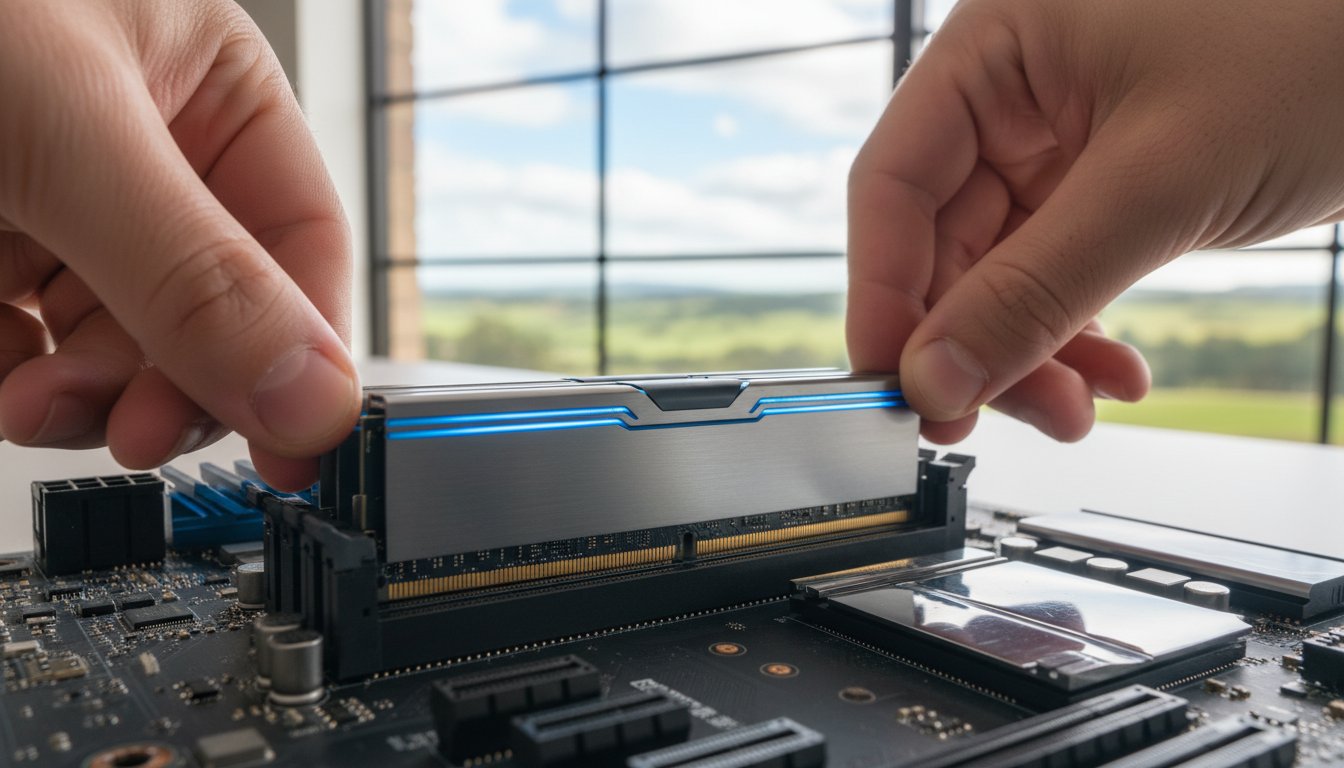
  4. Install the New RAM: Align the notch on your new RAM module with the ridge in the slot and press down firmly and evenly until the clips on both sides click securely into place.

Why Choose a Professional Upgrade Service?

If the steps above sound daunting, or if you simply want absolute peace of mind, a professional service is the safest and most reliable option. An expert handles the entire process, eliminating guesswork and preventing potential damage to your system. It’s the ideal choice for anyone who values their time and wants a guaranteed, hassle-free outcome.

  • Guaranteed Compatibility: We take the guesswork out of the equation. A professional will source the exact RAM type and speed that is fully compatible with your specific computer model.
  • Risk-Free Installation: Static discharge or improper installation can damage your motherboard. Our technicians handle your hardware with expert care, ensuring a safe and successful ram upgrade.
  • Time-Saving and Convenient: Skip the research and potential troubleshooting. We get the job done quickly and correctly, so you can enjoy a faster, more responsive computer.

For residents in and around Toowoomba, our expert computer repair service is here to help. We ensure your upgrade is handled professionally from start to finish, giving you the performance boost you need without the risk.

Beyond RAM: Other Upgrades to Consider for a Faster PC

While a ram upgrade is one of the most effective and affordable ways to breathe new life into a sluggish computer, it’s important to remember that RAM is just one part of a complex system. For a truly transformative performance boost, taking a holistic approach and considering other key components can make all the difference.

Think of your PC as a team-if one component is creating a bottleneck, the whole system suffers. Below are a few other high-impact upgrades that work alongside more memory to make your computer faster, more efficient, and more enjoyable to use.

Upgrading to a Solid-State Drive (SSD)

If your computer still uses a traditional mechanical hard drive (HDD), upgrading to a Solid-State Drive (SSD) is the single biggest speed boost you can give it. An SSD has no moving parts, allowing it to read and write data at incredible speeds. This translates to:

  • Dramatically reduced boot times (often from minutes to seconds).
  • Near-instant program and file loading.
  • A much snappier feel across your entire operating system.

Pairing a new SSD with a RAM upgrade is a powerful combination that can make an older machine feel brand new again.

Graphics Card (GPU) and Processor (CPU) Upgrades

While an SSD benefits almost everyone, GPU and CPU upgrades are more specialised and target specific performance bottlenecks. A new Graphics Card (GPU) is essential for gamers wanting smoother frame rates or creative professionals working with high-resolution video, graphic design, and 3D models. A Processor (CPU) upgrade provides a major boost in raw processing power for intensive tasks, but it’s a far more intricate procedure.

Both CPU and GPU upgrades have strict compatibility requirements with your motherboard and power supply. To ensure you get the best value and avoid costly mistakes, professional advice is highly recommended. We can assess your whole system and recommend the best value hardware upgrades for your specific needs and budget.

Ready for a Faster, More Responsive PC?

Navigating the world of computer hardware can feel complex, but as this guide has shown, upgrading your RAM is one of the most powerful and cost-effective ways to revitalise a sluggish PC or laptop. The key takeaways are simple: understanding what RAM does is the first step, ensuring you choose a compatible module is critical for success, and weighing the pros and cons of DIY versus professional installation will lead you to the best outcome for your needs.

If you’re ready to feel the difference but want to skip the technical hassle, our team is here to provide a professional, risk-free installation. At Aspire Computing, we’ve been the trusted local experts for Toowoomba and the surrounding areas since 1999. We pride ourselves on providing honest advice, ensuring you get the best value solution for your specific needs-whether that’s a simple ram upgrade or another targeted enhancement to boost your system’s performance.

Talk to our experts about a fast, reliable RAM upgrade today!

Don’t let a slow computer hold you back any longer. A faster, more efficient digital experience is just one simple step away.

Frequently Asked Questions

Can I mix different brands or sizes of RAM?

While you technically can mix brands and sizes, we strongly advise against it for optimal performance. Your system will always run at the speed of the slowest installed module. Mismatched sizes, such as an 8GB stick with a 16GB stick, can sometimes lead to system instability. For quality assurance and the best results, always use a matched set of RAM modules with the same capacity, speed, and brand to ensure perfect compatibility.

How much does a professional RAM upgrade cost?

In Australia, a professional RAM upgrade typically involves the cost of the parts and labour. The RAM itself can range from A$50 for a single 8GB module to over A$200 for a high-performance 32GB kit. Our professional installation service, which includes fitting and testing, generally costs between A$80 and A$150. This ensures the hardware is installed correctly and your system runs smoothly, giving you complete peace of mind.

Is 8GB of RAM still enough in 2025?

By 2025, 8GB of RAM is the bare minimum for light use like web browsing and email. You will likely notice slowdowns when multitasking or using modern software. For a smooth and responsive experience without frustrating lag, we recommend 16GB as the new standard for most everyday users. This provides enough memory for current operating systems and applications to run efficiently and ensures better performance for the years ahead.

Will upgrading RAM make my games run faster?

Upgrading your RAM can certainly improve your gaming experience, but not always by increasing frames-per-second (FPS). More RAM primarily helps by reducing stuttering, eliminating in-game lag, and speeding up loading times, especially if you’re upgrading from 8GB or less. It allows your computer to handle large game worlds and textures more effectively. For a direct boost in FPS, a graphics card upgrade is usually more impactful.

How do I check how much RAM I currently have?

Checking your installed RAM is straightforward. On a Windows PC, right-click the Start menu, select ‘System’, and look for the ‘Installed RAM’ entry. On a Mac, click the Apple logo in the top-left corner and choose ‘About This Mac’. The memory amount is listed on the overview screen. Knowing this is the first step in deciding if a ram upgrade is the right choice to improve your computer’s performance.

What happens if I install the wrong type of RAM?

Thankfully, installing the wrong generation of RAM (like DDR4 into a DDR5 slot) is physically prevented by different notches on the modules. However, if you install RAM that is technically the right type but has an incompatible speed or timing for your motherboard, your computer will likely fail to boot. In other cases, it may lead to frequent system crashes and instability. It is crucial to check compatibility before purchasing to protect your system.

Is Repairing Your Computer Worth It? A Quick Guide

That sinking feeling is all too familiar: your computer suddenly slows to a crawl, freezes, or simply refuses to turn on. Immediately, your mind starts racing with questions. Is this going to cost a fortune? Will I lose all my precious photos and documents? Is the hassle of repairing your computer even worth it, or should I just buy a new one?

This uncertainty is frustrating, but don’t panic. Making a smart, cost-effective decision is simpler than you think when you know what to look for. This straightforward guide is designed to give you clarity and confidence, helping you navigate the choice between repair and replacement without the guesswork.

We’ll walk you through the key factors to consider-from the age and performance of your machine to typical repair costs here in Australia. By the end, you’ll have a clear understanding of your options and be able to choose the best path forward to protect your data and get you connected again.

Key Takeaways

  • Use the ‘50% Rule’ to quickly determine if repairing computer components is more cost-effective than buying a new one.
  • For recent computers with specific issues like a failed hard drive or a cracked screen, a professional fix is often the smartest financial move.
  • Recognise the key warning signs-such as an inability to run essential software-that mean a replacement is a better long-term investment.
  • Understand why a professional diagnosis is crucial to avoid common DIY mistakes that can turn a simple fix into a costly disaster.

The Core Question: A Checklist for Repair vs. Replace

Staring at a loading screen on a slow computer is one of modern life’s biggest frustrations. It leaves you with a tough question: is it time to invest in a repair, or should you cut your losses and buy a new machine? There’s no single right answer, but don’t worry. This simple checklist, based on four key factors, will help you make a confident and cost-effective decision for your situation.

To help you weigh your options, this video offers a great overview:

Factor 1: The Age of Your Computer

Most desktops and laptops have a practical lifespan of about 4-5 years. Beyond this point, you’ll find that older hardware often struggles to run the latest software and may no longer receive critical security updates. An ageing machine is also more prone to multiple component failures-fixing one part today might just lead to another problem tomorrow. While high-end custom PCs or beloved vintage models can be exceptions, age is a critical first consideration.

Factor 2: The Estimated Cost of Repair

A helpful guideline is the ‘50% Rule’. If the estimated cost of the repair is more than half the price of a comparable new computer, replacement is usually the smarter financial choice. For example, spending A$700 to fix a laptop you could replace for A$1,200 is rarely a good investment. To get an accurate estimate for repairing computer components, it’s essential to get a professional diagnosis first.

Factor 3: The Nature of the Problem

The type of fault is crucial. Problems can be broadly split into two categories: software and hardware. Software issues like viruses, malware, or a slow operating system are almost always worth fixing. Similarly, minor hardware upgrades like adding more RAM or replacing a battery are cost-effective. However, major hardware failures-such as a dead motherboard or a failed CPU-are often expensive. A qualified computer repair technician can accurately diagnose whether the issue is a simple software fix or a more serious hardware problem that may lean towards replacement.

When Repairing Your Computer is the Smartest Move

When your computer starts to lag, it’s easy to think the only solution is an expensive new model. But in many situations, that’s simply not the case. Before you start shopping, it’s worth considering the significant financial, practical, and environmental benefits of a targeted repair. Often, a strategic fix is all you need to restore your computer’s performance and save you hundreds, if not thousands, of dollars.

Cost-Effective Fixes for Common Issues

A sluggish computer doesn’t automatically signal the end of its life. Many of the most common performance bottlenecks can be resolved with straightforward and highly cost-effective repairs that breathe new life into your existing machine. These professional fixes can deliver a ‘like-new’ experience for a fraction of the cost of a replacement.

  • Virus and Malware Removal: Malicious software can cripple your system’s speed and compromise your security. A thorough clean-up restores performance and peace of mind.
  • Operating System Re-installation: Over time, software clutter and corruption can slow things down. A fresh OS installation gives you a clean slate without the need for new hardware.
  • Upgrading to a Solid State Drive (SSD): Swapping an old mechanical hard drive for a modern SSD is the single most effective upgrade for boosting boot times and application speed.
  • Adding More RAM: If you find your computer struggles when multitasking, a simple RAM upgrade allows it to handle more applications at once without slowing to a crawl.

Keeping Your Data, Settings, and Software

Perhaps the biggest overlooked advantage of repair is convenience. Setting up a new computer is a time-consuming project. You have to locate, transfer, and organise all your important documents, photos, and personal files. Then comes the tedious task of reinstalling all your programs-some of which you may have to repurchase. A professional repair preserves your familiar digital workspace, keeping all your data, software, and settings exactly where you left them. Our experts prioritise protecting your data during any repair.

The Environmental and Sustainable Choice

In Australia, electronic waste (e-waste) is one of the fastest-growing waste streams. Choosing to fix your device is a powerful, responsible decision. This principle of extending the life of essential equipment is a growing trend, with specialists like Mobility and You helping people service and maintain vital mobility aids. By extending the functional life of your machine, you directly help reduce the amount of complex and potentially hazardous materials heading to landfill. Furthermore, the process of repairing your computer has a much smaller carbon footprint than manufacturing a new one, saving the significant energy and raw materials involved in production and shipping. It’s a smart choice for your budget and a kinder choice for our environment.

Warning Signs: When It’s Time to Buy a New Computer

At Aspire Computing, our goal is to provide effective, long-lasting solutions. While we excel at fixing technology, our commitment to you includes providing honest advice. Sometimes, the most sensible and cost-effective solution isn’t a repair, but a replacement. Recognising when to retire an old machine can save you money, time, and a lot of frustration. Here are the key signs that it’s time to invest in a new computer.

The Repair Bill Exceeds 50% of Replacement Cost

A good rule of thumb is the 50% rule. If the cost of a repair is more than half the price of a comparable new computer, it’s usually not a wise investment. For example, spending A$600 on a major component failure for a machine you could replace with a faster, more reliable A$1000 model means you’re putting good money after bad. That A$600 is better invested in new technology that comes with a warranty, modern security features, and significantly better performance. It’s important to note that essential data recovery can be a separate, necessary cost to retrieve your files before decommissioning the old device.

Your Computer Can’t Run Necessary Software

Technology evolves quickly, and eventually, older hardware can’t keep up with the demands of modern software. You might find your computer no longer supports the latest operating system updates, leaving you vulnerable to security threats. Or perhaps it struggles to run essential programs for your work or hobbies, like video editing software or new games. No amount of hardware repair can fix this fundamental incompatibility. Upgrading ensures you can stay productive, secure, and get the most out of your software for years to come.

You’re Facing Frequent and Multiple Failures

Is your computer suffering from ‘death by a thousand cuts’? This happens when you fix one problem, only for another to appear a few weeks or months later. First, the power supply fails, then the hard drive starts making strange noises, and then it begins to overheat. This pattern indicates that the entire system is reaching the end of its operational life. The cumulative cost of repeatedly repairing computer components, not to mention the downtime and stress, can easily exceed the price of a new machine. It’s a clear sign that the system’s reliability is gone.

Is Repairing Your Computer Worth It? A Quick Guide

Understanding Repair Costs: A Realistic Breakdown

When your computer slows to a crawl, one of the first questions is, “How much will this cost to fix?” At Aspire Computing, we believe in transparency. The costs for repairing computer issues can vary, but we want to give you a realistic overview of what you might expect here in Toowoomba. Please remember, these are estimates; an accurate quote always requires a proper diagnosis to pinpoint the exact problem.

Software-Related Repairs

Often, a slow computer is suffering from a software problem, not a hardware failure. The good news is that these fixes don’t require expensive new parts. A professional virus or malware removal is typically a set service fee, often between A$100 and A$200. If your system is cluttered and slow, a complete Windows OS reinstall can restore it to factory-fresh speed for around A$150 to A$250. Services like data backup and transfer are also available, usually priced based on the time involved or the amount of data.

Common Hardware Replacements

If a physical component has failed or needs an upgrade, the cost will include the part itself plus the labour for installation. Here are a few common hardware jobs:

  • Hard Drive to SSD Upgrade: The single most effective speed boost for an older machine. Expect to pay between A$200 – A$400, which covers a quality solid-state drive and professional installation.
  • Laptop Screen Replacement: Costs vary widely depending on the screen size, type (e.g., touchscreen), and model, generally ranging from A$250 to A$500+.
  • RAM (Memory) Upgrade: A quick and affordable way to improve multitasking performance, often costing between A$100 – A$200.
  • Laptop Battery Replacement: The price depends heavily on whether the battery is external (cheaper) or internal (requires more labour to install).

The Importance of a Diagnostic Fee

To avoid guesswork, we start with a thorough diagnostic assessment. This fee covers our technician’s time and expertise to run tests and accurately identify the root cause of the slowdown. It ensures you only pay for the repair you actually need. In most cases, this diagnostic fee is waived if you decide to proceed with the recommended repair. It’s the first step in providing an honest and effective service.

Ready to find out exactly what’s slowing you down? Book a no-obligation assessment with Aspire Computing.

DIY vs. Professional Repair: Why an Expert Matters

With countless video tutorials and guides online, the temptation to fix a slow computer yourself is understandable. While a DIY approach can seem like a great way to save a few dollars, it often comes with hidden risks that can lead to bigger, more expensive problems. When it comes to the complex task of repairing computer hardware and software, entrusting your device to an expert is the safest, most reliable, and often more affordable long-term solution.

The Hidden Risks of DIY Computer Repair

Attempting a complex repair without experience can quickly go wrong. The most common pitfalls we see include:

  • Misdiagnosing the problem: You might spend A$150 on a new solid-state drive, only to discover the real issue was a faulty memory stick. An expert diagnosis prevents wasting money on the wrong parts.
  • Causing further damage: A single zap of static electricity can fry a motherboard, or a misplaced screw can short-circuit a component. These simple mistakes can turn a repairable issue into a terminal one.
  • Permanent data loss: Without professional backup procedures, one wrong click or a failed part replacement can mean losing your precious photos, documents, and files forever.
  • Lacking the right tools: Professionals use specialised diagnostic software and precision tools to safely open devices and identify the root cause of an issue, something a standard home toolkit cannot do.

Benefits of a Professional Technician

Choosing an experienced local technician provides more than just a fix; it delivers peace of mind. You gain the assurance of an accurate diagnosis that saves you time and money. Professionals have access to networks of quality part suppliers and provide warranties on their work, so you are protected if anything goes wrong. Most importantly, you can relax knowing your valuable device and irreplaceable data are in safe, experienced hands.

When to Call for Help in Toowoomba

While simple software updates are often manageable, you should always call for professional help if:

  • Your computer won’t turn on at all.
  • You suspect a hardware failure due to strange noises, a blank screen, or constant crashes.
  • You are not 100% confident in your technical skills to solve the problem safely.

Don’t risk your data or your device. Trust Toowoomba’s local experts since 1999. Contact Aspire Computing.

Your Next Step: Making a Smart Choice for Your PC

The decision between repair and replacement ultimately hinges on value. As we’ve explored, factors like your computer’s age, the specific problem, and the potential repair cost all play a crucial role. A newer machine with a faulty component is often a prime candidate for a fix, while the high cost of repairing computer hardware on an outdated model may not be a wise investment. The key is to weigh the short-term expense against the long-term performance and continuity you’ll receive.

You don’t have to navigate this complex choice on your own. Before you make a final decision, getting a professional diagnosis can provide the clarity you need. At Aspire Computing, we pride ourselves on offering personal, trustworthy service from local experts who have been serving Toowoomba and surrounds since 1999. We believe in providing honest advice to help you protect your investment and make the right call.

We stand behind our work with a full warranty on all parts and labour, giving you complete assurance. Don’t guess, get an expert opinion. Contact Aspire Computing today! Let us help you find the most practical and cost-effective solution to get you back up and running with confidence.

Frequently Asked Questions About Computer Repairs

How long do most computer repairs take?

Most software-related issues, such as virus removal or a system tune-up, are typically resolved within 1-2 business days. Hardware repairs, like a screen or hard drive replacement, may take 3-5 business days if we need to source a specific part. We always provide a clear and accurate timeline after our initial diagnosis and focus on a fast return, so you can get back to your work and life with minimal disruption.

Will my personal data be safe during the repair process?

Protecting your personal data is our highest priority. We follow strict privacy protocols and always recommend a full backup before any work begins, which we are happy to assist with. For most repairs, your data is not accessed or affected. In situations that require a system reset or hard drive replacement, we will discuss data backup and recovery options with you beforehand to ensure your important files, photos, and documents are completely safe.

Do you offer a warranty on your computer repairs?

Yes, absolutely. We stand by the quality of our work with a comprehensive warranty for your peace of mind. This includes a 3-month warranty on our labour and a 12-month warranty on any new hardware parts we install. This assurance means that if you experience the same issue within the warranty period, we will resolve it promptly at no additional cost to you. Quality and reliability are central to our service.

What’s the difference between repairing my computer and upgrading it?

Repairing a computer means fixing a specific fault to restore its original functionality-for example, replacing a broken keyboard or removing malware. An upgrade, however, enhances your computer’s performance beyond its original specifications. Common upgrades include installing a faster Solid-State Drive (SSD) to replace an old hard drive or adding more RAM to improve multitasking. We can help you decide which solution best fits your needs and budget.

Can you repair all brands of PCs and laptops, like Dell, HP, and Apple?

With over two decades of experience, we have the expertise to service and repair an extensive range of computer brands. We regularly work on popular PC manufacturers including Dell, HP, Lenovo, Acer, and ASUS, as well as Apple products like MacBooks and iMacs. Our technicians are skilled in diagnosing and fixing issues across different hardware and operating systems, from Windows to macOS, providing a reliable solution no matter your device.

Is it worth repairing a computer with water damage?

This depends on the extent of the damage. A minor spill might only require a keyboard replacement, which is often a cost-effective fix. However, significant liquid exposure that affects the main logic board can be expensive. We provide a thorough diagnostic service to assess the damage accurately. We will then give you an honest quote and a professional recommendation, helping you make an informed decision on whether the repair is a worthwhile investment.

My computer is just slow. Is that worth fixing?

Absolutely. A slow computer is one of the most common problems we address, and it is almost always worth fixing. The cause is often software-related, such as too many startup programs, malware, or a nearly full hard drive. A professional tune-up service or a simple hardware upgrade, like moving to a Solid-State Drive (SSD), can make your machine feel faster than new for a fraction of the cost of buying a replacement.

What is Computer Support? A Complete Guide for Homes & Businesses

That dreaded spinning wheel. The sudden error message. The sinking feeling that your important files might be gone for good. When your computer slows down or breaks, it can bring your entire day to a halt, leaving you frustrated, worried about your data, and confused by technical jargon. This is precisely where professional computer support becomes essential-it’s not just about a quick fix, but about restoring your peace of mind and protecting what matters most.

But what does that support actually look like, and how do you find an expert you can trust in Australia? In this complete guide, we’ll demystify the world of IT help. We’ll walk you through what computer support is, the different types available for your home or business, and the clear signs that it’s time to call in a professional. By the end, you’ll have the confidence to choose the right expert to solve your tech problems for good and keep your devices running securely and smoothly.

Key Takeaways

  • The most effective computer support doesn’t just fix problems-it prevents them from happening in the first place.
  • Recognise the early warning signs of tech trouble, like slowness or strange pop-ups, before they turn into major disasters.
  • Discover which type of service is right for your specific issue, from on-site hardware repairs to quick remote software fixes.
  • Learn a simple, safe checklist of troubleshooting steps you can try yourself before you need to call in a professional.

The Two Faces of Computer Support: Proactive vs. Reactive

When your technology falters, getting the right help is crucial. The term for this assistance is broad, covering everything from fixing a printer to securing an entire network. At its core, this field of Technical Support is all about maintaining and repairing your digital tools. But not all support is created equal. The most effective approach doesn’t just fix problems-it prevents them from happening in the first place. This is the fundamental difference between a proactive and a reactive strategy for your IT.

To better understand the role of a support specialist, this short video offers a helpful overview:

Think of it like managing traffic flow. A proactive approach involves careful planning to ensure everything runs smoothly, much like the services detailed at acquiredawareness.com.au. A reactive approach, on the other hand, is like dealing with a major accident after it’s already brought everything to a halt. One is about prevention; the other is about emergency response. Both have their place, but proactive IT support clearly leads to less stress and disruption.

Proactive Support: Keeping Your Systems Healthy

Proactive computer support is all about prevention. Instead of waiting for a disaster, this model focuses on maintaining the health of your systems to stop issues before they start. The goal is to maximise performance and ensure business continuity, protecting your valuable time and data. This typically includes services such as:

  • Regular system health checks and performance tuning.
  • Automated data backups to protect against data loss.
  • Scheduled software updates and security patching.
  • Continuous security monitoring and virus scans.

By investing in prevention, you significantly reduce the risk of catastrophic failures and costly downtime, saving you money and stress in the long run. For a clear example of how IT consulting firms package these preventative services, you can visit Nanotek.

Reactive Support: Fixing Problems as They Happen

Reactive support is the traditional ‘break-fix’ model. When something goes wrong-your computer gets a virus, a critical piece of hardware fails, or a software program crashes-you call for help. This service is essential for dealing with the unexpected emergencies that can bring your work to a sudden halt.

While necessary, relying solely on a reactive model means you are always on the back foot. The situation is often urgent, stressful, and can lead to significant downtime while you wait for a technician. It’s the digital equivalent of an emergency room visit: vital when you need it, but not a substitute for a healthy lifestyle.

Common Signs You Need Professional Computer Support

It’s easy to ignore a computer that’s running a little slower than usual or an application that occasionally crashes. We often hope these minor frustrations will resolve themselves. However, these small symptoms can be early warnings of more significant underlying problems. Ignoring them can lead to critical data loss, costly hardware failure, or serious security breaches. Recognising these signs early is the key to a quick, affordable solution.

This section will help you self-diagnose common issues. If you notice any of these problems, seeking professional computer support is the most effective way to protect your device and data. Experts, often known as Computer Support Specialists, are trained to diagnose these exact issues before they escalate, saving you time, money, and stress in the long run.

Performance and Software Issues

Your computer’s performance is a direct indicator of its health. When software and system files become corrupted or your system is overworked, you’ll notice a clear decline in speed and reliability. Keep an eye out for these red flags:

  • Your computer runs extremely slowly, freezes, or becomes unresponsive.
  • Applications frequently crash, refuse to open, or behave unpredictably.
  • You see strange error messages, pop-ups, or the infamous ‘Blue Screen of Death’.
  • Everyday tasks like opening files or browsing the web take much longer than they used to.

Hardware and Startup Failures

Physical components can wear out over time or fail suddenly. These issues often present themselves with physical symptoms like noise or a complete inability to start up. Don’t ignore these critical hardware warnings:

  • The computer fails to turn on, gets stuck in a boot loop, or shuts down randomly.
  • You hear unusual clicking, grinding, or whirring noises coming from inside the case.
  • Peripherals like your printer, webcam, or external drives are no longer recognised.
  • Your laptop battery drains very quickly or no longer holds a charge at all.

Security and Network Problems

A secure and stable connection is essential for both work and personal use. Threats like viruses and malware can compromise your data, while network faults can bring your productivity to a halt. Contact a professional if you experience:

  • A sudden increase in pop-up ads or your web browser redirecting to strange sites.
  • Your antivirus software has expired, or you receive a warning that you have a virus.
  • You are unable to connect to the Wi-Fi, or your internet connection is unusually slow.
  • Your files have become inaccessible and you see a message demanding payment (ransomware).

Types of Computer Support Services Explained

When your technology fails, knowing what kind of help you need is the first step toward a solution. The term “computer support” covers a wide range of services, and understanding the specifics can save you time and stress. The role of professional Computer Support Specialists is diverse, encompassing everything from physical repairs to digital security. Let’s break down the main categories so you can identify exactly what you’re facing.

Hardware Repair and Upgrades

This is the hands-on side of IT support, dealing with the physical components of your devices. If you can touch it, it probably falls under hardware. Our goal is to get your equipment running smoothly, whether it’s a quick fix or a performance-boosting upgrade.

  • Fixing or replacing broken laptop screens, keyboards, and failing hard drives.
  • Upgrading components like RAM or switching to a Solid State Drive (SSD) to dramatically improve speed.
  • Resolving issues with peripherals, including printers that won’t connect or print correctly.

Software Troubleshooting and Support

Software issues can be just as disruptive as hardware failures. This type of support focuses on the operating system and applications you use every day. We ensure your digital environment is stable, efficient, and free from frustrating glitches.

  • Resolving errors within your Windows operating system that cause crashes or slowdowns.
  • Installing, configuring, and updating essential software applications for you.
  • Diagnosing and fixing conflicts between different programs that prevent them from running properly.

Virus Removal and Cybersecurity

In today’s connected world, protecting your digital life is crucial. Cybersecurity services are designed to defend your devices and data from malicious threats. It’s about cleaning up existing infections and preventing future ones from happening.

  • Detecting and completely removing malware, spyware, and viruses from your system.
  • Installing and configuring quality antivirus and anti-malware software for active protection.
  • Providing expert advice on safe browsing habits, strong password management, and avoiding online scams.

Data Backup and Recovery

Your files, photos, and business documents are invaluable. Data services focus on safeguarding this information and recovering it if the worst happens. A solid backup strategy provides peace of mind and ensures business continuity.

  • Setting up automated, reliable backup solutions to protect your files without you having to think about it.
  • Attempting data recovery from a failed hard drive or after an accidental deletion.
  • Ensuring you can get back up and running quickly after a data loss event.

Many modern IT providers offer these services as part of a comprehensive package. For instance, SolaaS LTD specializes in creating tailored IT and telecommunications solutions that cover these critical areas for businesses.

What is Computer Support? A Complete Guide for Homes & Businesses

Choosing the Right Help: On-Site vs. Remote Support

Once you’ve decided on an IT service model, the next step is understanding how you’ll receive help. Modern computer support is delivered in two primary ways: an expert technician can visit you in person (on-site support) or connect to your device securely over the internet (remote support). Both methods are highly effective, and the best choice simply depends on the nature of your problem.

At Aspire Computing, we want to provide a solution that is not only effective but also convenient for you. We offer the flexibility of both on-site and remote assistance to ensure your issue is resolved with speed and precision, giving you complete peace of mind.

When is On-Site Support Best?

Sometimes, a problem requires a physical presence. On-site support is the traditional, hands-on approach that is essential for issues that can’t be diagnosed or fixed through a screen. It also provides a valuable opportunity for face-to-face interaction.

  • Hardware Problems: Ideal for issues like a computer that won’t turn on, a broken laptop screen, or internal component failures that need direct diagnosis.
  • Network and Connectivity: Necessary for setting up a new internet connection, troubleshooting Wi-Fi dead spots, or physically connecting devices to your network.
  • New Equipment Installation: Perfect for correctly setting up a new computer, printer, or other peripherals to ensure they work seamlessly from day one.

The Convenience of Remote Support

For many software-related issues, remote support is an incredibly fast and efficient solution. Using secure, encrypted software, our technicians can view your screen and control your mouse and keyboard as if they were sitting right beside you, allowing for a quick fix without a call-out fee.

  • Software and System Issues: Excellent for resolving software errors, removing viruses and malware, performing system tune-ups, and installing new applications.
  • Speed and Cost-Effectiveness: As no travel time is involved, remote sessions can often be started sooner and are generally more affordable.
  • Security and Privacy: Your privacy is our priority. The connection is fully secure, and you can see everything the technician is doing on your screen in real-time.

Whether you need hands-on help at your home or office, or a quick remote fix to get you back on track, Aspire Computing has you covered. We’ll help you determine the best approach to get your technology working perfectly again. Contact our experts today for quality computer support tailored to your needs.

DIY vs. Calling an Expert: How to Know Your Limits

When your computer starts acting up, the first instinct for many is to try and fix it themselves. We get it. Sometimes a quick fix is all you need, and resolving a minor issue on your own can be empowering. However, it’s crucial to know the difference between a safe DIY attempt and a situation that requires professional computer support to avoid turning a small problem into a major disaster.

This honest guide will help you know when to try a few simple steps and when it’s time to call for help.

Safe First Steps You Can Try

Before you panic, running through a few basic checks can often resolve common glitches. These steps are safe and won’t make the problem worse:

  • Turn it off and on again: It’s a classic for a reason. A full restart can clear temporary errors in your system’s memory and is often the quickest fix.
  • Check your cables: Ensure everything from your power cord to your monitor and network cables is plugged in securely at both ends.
  • Run a virus scan: Use your existing antivirus software to run a full system scan to check for malware that might be slowing things down.
  • Restart your modem and router: If your internet is the issue, unplug your modem and router for 60 seconds before plugging them back in.

When to Stop and Call for Help

While the steps above are helpful, some symptoms are clear red flags. If you encounter any of the following, stop immediately and call an expert to prevent further damage:

  • You hear physical noises: Any clicking, grinding, or loud whirring sounds from your computer often signal a failing hard drive or fan. Power it down to prevent data loss.
  • You suspect data has been lost: If you can’t find important files or have been hit by ransomware, do not attempt a DIY recovery. You could accidentally overwrite the data for good.
  • You’re about to open the case: Unless you are experienced with hardware, avoid opening your computer or buying replacement parts. It’s easy to misdiagnose a problem or cause damage with static electricity.
  • The problem keeps coming back: If a simple restart only fixes the issue temporarily, it points to a deeper hardware or software problem that needs an expert diagnosis.

This principle of hiring specialists for critical tasks extends beyond just repairs. For many entrepreneurs and startups, building a professional online presence is just as vital as having functional hardware. If you’re considering a unique website that stands out, you can visit WebAssICT to see what custom-built solutions look like.

Finding a Trustworthy Local Provider

When you do need professional help, choosing the right partner is crucial. Look for a provider with a proven track record and positive local reviews. A local business understands the specific needs of your community and can offer a level of personalised service that larger, remote companies simply can’t match. It’s about building a relationship with an expert you can trust for reliable advice and support. For business and home users who value that peace of mind, Aspire Computing has served Toowoomba since 1999.

Stay Connected with Expert Computer Support

Navigating the world of technology doesn’t have to be stressful. Understanding the difference between proactive and reactive care is the first step towards a healthier digital life, while knowing when to call a professional-instead of getting lost in a frustrating DIY attempt-is key to protecting your time and data.

For homes and businesses across Toowoomba and the Darling Downs, you don’t have to face these challenges alone. Since 1999, Aspire Computing has delivered personalised, expert computer support with a local touch. We believe in making help accessible and effective, offering both convenient remote assistance and on-site visits to solve your issues quickly and get you back on track.

So when a tech problem arises, don’t panic. Let our team restore your peace of mind. Talk to our friendly Toowoomba experts for fast computer support and let us help you protect and connect your digital world.

Frequently Asked Questions About Computer Support

What’s the difference between computer support and IT support?

While often used interchangeably, IT support is a broad term covering all business technology, including networks, servers, and cloud systems. Computer support is more specific, focusing on the health and performance of your individual desktop or laptop. At Aspire Computing, we handle the full spectrum of IT needs for businesses but also provide expert, hands-on support for personal computers, ensuring your device runs smoothly, securely, and efficiently for your day-to-day tasks.

How much does professional computer support typically cost?

In Australia, the cost depends on the service model. A ‘break-fix’ service, where you pay to resolve a specific issue, typically costs between A$100 and A$180 per hour. For proactive ‘managed services,’ which offer ongoing monitoring and maintenance to prevent problems, businesses usually pay a flat monthly fee. This provides peace of mind and can be more cost-effective in the long run by avoiding expensive downtime and emergency repairs.

How long will it take to fix my computer?

The repair timeframe depends on the complexity of the issue. Simple software fixes or a system tune-up can often be completed within an hour or two. However, hardware problems, such as a failing hard drive or motherboard, may take longer, especially if we need to source specific replacement parts. We always provide a clear diagnosis and an estimated completion time upfront, so you are fully informed throughout the process.

Do you offer support for both Mac and PC computers?

Yes, absolutely. Our technicians are highly experienced in servicing both Windows-based PCs and Apple’s macOS devices. Whether you use a desktop, laptop, or an all-in-one from any major brand, we have the technical expertise to diagnose and resolve your issue. We are committed to providing quality, reliable computer support for all our clients, regardless of the operating system or hardware they prefer to use.

Is my data safe and confidential during a repair?

Protecting your data is our top priority. We adhere to strict privacy and confidentiality standards, ensuring your personal and business information is always secure. Before starting any significant repair, we will recommend and can assist with a full data backup to prevent any potential loss. You can have complete assurance that your files and sensitive information will be handled with the utmost care and professionalism by our trusted experts.

Is it better to repair my old computer or buy a new one?

This decision depends on the age of the computer, the cost of the repair, and your specific needs. If a machine is over five years old and requires an expensive repair, investing that money in a new computer is often the more practical choice. However, if the fix is affordable-like a memory upgrade or software optimisation-a repair can be a very cost-effective way to extend the life of your current device. We will always provide honest, practical advice to help you decide.

7 Hard Drive Failure Signs You Can't Ignore (& What to Do Now)

That strange clicking sound. The sudden, frustrating slowdowns. The dreaded error message that appears out of nowhere. These aren’t just minor glitches your computer will ‘get over’-they are often critical hard drive failure signs warning you that something is seriously wrong. It’s a sinking feeling, one that brings an immediate rush of anxiety about all your irreplaceable photos, important documents, and business files stored inside.

But before you panic, take a deep breath. Recognising these warnings early is the key to protecting your data and preventing a catastrophe. In this guide, we’ll give you a clear checklist of the seven most common symptoms of a failing hard drive. More importantly, we’ll provide simple, actionable steps you can take right now to safeguard your files and understand your next move. It’s time to move from worry to a position of control.

Key Takeaways

  • Unusual slowdowns, frequent freezing, or strange noises are more than just annoyances; they are critical early warnings from your drive.
  • Learning to recognise common hard drive failure signs, such as corrupted files or folders suddenly disappearing, is the first step to preventing catastrophic data loss.
  • If you suspect your drive is failing, your immediate actions are crucial. Stop using the computer right away to maximise your chances of a successful data recovery.
  • Discover the proactive steps you can take to monitor your drive’s health and implement a reliable backup strategy, safeguarding your data from future disasters.

The Critical Signs: Is Your Hard Drive Trying to Tell You Something?

Your computer’s hard drive is its long-term memory, the place where your precious photos, important documents, and the entire operating system live. Whether you have a traditional Hard Disk Drive (HDD) with its spinning platters or a modern, silent Solid-State Drive (SSD), this component is critical for your computer’s continuity. The good news is that a drive rarely fails without warning. Learning to spot the early hard drive failure signs can give you the crucial time you need to protect your data before it’s too late.

To see what a physical failure can sound and look like, this short video provides a helpful explanation of a common issue.

A failing hard drive will often try to tell you something is wrong in three distinct ways: through physical sounds, a drop in performance, and errors with your data. Don’t panic, but do pay close attention to these warnings.

Physical Signs: The Audible and Sensory Warnings

These are often the most alarming warnings. Unusual noises like loud clicking, whirring, or grinding-often called the ‘Click of Death’-are a clear signal that the mechanical parts inside your HDD are failing. These sounds are a classic symptom of internal damage, a common cause of Hard disk drive failure. Remember, SSDs have no moving parts and are completely silent, so a lack of noise doesn’t guarantee good health.

Performance Signs: When Your Computer Slows to a Crawl

Is your computer suddenly taking ages to boot up? Does it frequently freeze or crash, perhaps showing you the dreaded Blue Screen of Death (BSOD)? These performance issues are common hard drive failure signs. They happen because your operating system is struggling to read or write data from the failing drive, causing system-wide instability and frustrating delays when opening simple files or applications.

Data Signs: The Digital Cries for Help

The most direct warnings come from your data itself. You might notice that files or even entire folders have vanished without a trace, or you receive an error message saying a file is ‘corrupted’ when you try to open it. Another critical sign is when your computer suddenly refuses to save new files, indicating the drive can no longer write data correctly. These are digital cries for help that should never be ignored.

A Deeper Dive into Performance-Based Red Flags

Beyond strange noises, some of the most telling hard drive failure signs are related to your computer’s performance. It’s easy to dismiss a slow-running machine as just being “old,” but a sudden or progressive decline in speed often points to a deeper mechanical issue. Understanding these red flags helps you distinguish between a minor software glitch and a critical hardware problem that requires immediate attention to protect your data.

The Slowdown: Why Basic Tasks Take Forever

One of the earliest symptoms is a dramatic slowdown. Opening a file, saving a document, or even booting up your computer takes far longer than it used to. This is often caused by ‘bad sectors’-tiny, damaged areas on the drive’s platters where data can no longer be reliably read. Think of it like a scratched CD; your computer’s read head repeatedly tries to access the data on these damaged spots, getting stuck in a loop before finally giving up. This constant ‘retry’ process is what grinds your system to a halt.

Frequent Crashing and the Blue Screen of Death (BSOD)

While many issues can trigger a system crash or the infamous Blue Screen of Death, a failing hard drive is a prime suspect. Your operating system’s most critical files are stored on the drive. If these files happen to reside on newly developed bad sectors, your computer can’t access its own instructions and will crash. If you experience a BSOD, try to note down the error code (like “UNMOUNTABLE_BOOT_VOLUME”). This information can provide valuable clues during diagnosis and is one of the more urgent Top Signs of Hard Drive Failure.

Failure to Boot: The Ultimate Sign of Trouble

This is the most critical performance-based warning. You turn on your computer, but instead of loading Windows or macOS, you’re met with a stark message like “No bootable device found.” This means your computer’s motherboard can’t locate the operating system on the hard drive. The connection might be lost, or the part of the drive containing the startup files may be completely unreadable. If you see this error, your window for data recovery is closing fast. It is crucial to stop trying to boot and seek professional help to preserve your files.

Understanding Data Corruption and File Errors

Strange things happening to your files can be one of the most unsettling computer problems. One moment a critical document is there, the next it’s gone or refuses to open. While it’s easy to assume a virus or software glitch, these issues are often direct symptoms of a physically failing hard drive. These tangible errors are some of the most serious hard drive failure signs, often appearing just before the drive stops working entirely. The good news? If you act quickly, seeing these warnings doesn’t mean your data is lost forever.

The Mystery of the Disappearing Files

Have you ever gone to open a folder only to find it empty, or searched for a file you know you saved, but it’s nowhere to be found? This happens when the drive’s file directory-the ‘map’ your computer uses to locate data-becomes damaged. The file itself may still exist on the drive, but the instructions to find it are broken. It’s crucial that you stop trying to save new files immediately. Doing so could overwrite the ‘lost’ data, making professional recovery much more difficult.

Decoding ‘File is Corrupt’ Messages

Seeing an error message like ‘The file is corrupt and cannot be opened’ is a clear red flag. Think of your hard drive as a book. This error is like trying to read a page where the ink has been smudged and smeared, making the words unreadable. It indicates that the physical surface of the drive’s platters, where your data is stored, is degrading. The drive is struggling to read the information from that specific spot, resulting in a corrupted file.

Bad Sectors: The Unseen Enemy

Behind many file errors are ‘bad sectors’-tiny, permanently damaged areas on your hard drive’s magnetic surface. Modern drives are designed to handle a few of these by automatically marking them as unusable. However, a sudden and rapid increase in bad sectors is one of the most definitive signs of drive failure. While software tools can scan for bad sectors, running these intensive scans can put extreme stress on an already failing drive, potentially causing a complete crash. It’s often safer to power down the device and seek expert advice to protect your data.

7 Hard Drive Failure Signs You Can't Ignore (& What to Do Now)

What to Do IMMEDIATELY if You Suspect Hard Drive Failure

If you’ve noticed any of the common hard drive failure signs, your next few actions are critical. Don’t panic, but it is absolutely essential to act fast. The steps you take right now will directly impact the chances of successfully recovering your precious files. What you don’t do is just as important as what you do.

Follow this three-step emergency procedure to protect your data and give it the best chance of survival.

Step 1: Power Down and Stop Using the Drive

This is the single most important thing you can do. Shut down your computer immediately. Every second a failing drive remains powered on, it risks further, often irreversible, damage. For traditional Hard Disk Drives (HDDs), the delicate read/write heads can crash into the magnetic platters, permanently scratching away your data. Powering it down stops this mechanical damage in its tracks and is the first step toward data preservation.

Step 2: Do NOT Run DIY Recovery Software or Repair Utilities

It’s tempting to download a “quick fix” utility, but this is often the worst mistake you can make. These programs can attempt to “repair” bad sectors by writing new information to the drive, potentially overwriting the very files you need to recover. Furthermore, running software forces a physically failing drive to work harder, which can accelerate its decline and lead to total failure. Using these tools can make professional recovery much harder, or even impossible.

Step 3: Contact a Professional Data Recovery Service

When your data is irreplaceable, you need an expert. Professional data recovery services use specialised hardware, software, and cleanroom environments to safely access and retrieve data from failing drives without causing more harm. They have the tools to diagnose the specific problem-be it mechanical, electronic, or logical-and apply the correct recovery technique. If your photos, documents, or business files are important, don’t risk them. Get an expert assessment from Aspire Computing. We have the experience and technology to provide the quality assurance you need.

HDD vs. SSD: Are the Failure Signs Different?

In modern computers, the type of storage drive you have significantly changes what you need to watch for. Many users are familiar with the classic signs of a failing hard drive, but these often don’t apply to newer technology. The key difference lies in how they are built: a traditional Hard Disk Drive (HDD) is mechanical with spinning platters, while a Solid-State Drive (SSD) uses flash memory with no moving parts. This difference is why the hard drive failure signs are not universal.

Understanding which type of drive you have is the first step in knowing what to look for. While both can fail, their warning symptoms are worlds apart.

Classic HDD Failure Signs to Watch For

Because HDDs rely on moving components, their failures are often physical and audible. The tell-tale clicking or grinding sounds we discussed earlier are the most obvious signs of a mechanical problem. You may also notice a gradual decline in performance, frequent system freezes, or an increasing number of corrupted files as the drive struggles to read and write data to failing sectors on its magnetic platters.

Modern SSD Failure Signs to Look For

SSDs fail silently. With no moving parts, you will never hear an SSD click, grind, or whir. Instead, the failure signs are electronic. A common symptom is your drive suddenly becoming “read-only,” preventing you from saving any new files. You might also experience files that disappear after a reboot or receive error messages related to the drive’s controller. Unfortunately, one of the most common SSD failure modes is sudden death-working perfectly one moment and completely inaccessible the next.

Here is a simple breakdown of the most common differences:

SymptomHard Disk Drive (HDD)Solid-State Drive (SSD)
Audible NoiseClicking, grinding, or whirring sounds.None. Failure is silent.
Data Access IssuesCorrupted files, bad sectors, slow access times.Files become read-only; data vanishes.
Failure TypeOften gradual, with performance degrading over time.Often sudden and complete, with little warning.

Whether you have an older HDD or a modern SSD, recognising these distinct hard drive failure signs is crucial for data protection. If your computer is exhibiting any of these behaviours, don’t wait for a complete failure. We recommend getting a professional diagnosis to ensure your valuable files are safe. For expert help with data recovery and drive replacement, feel free to contact the team at Aspire Computing.

Proactive Protection: How to Prevent a Future Data Disaster

Recognising the early hard drive failure signs is crucial, but the best strategy is to prevent a data disaster before it even begins. While we are always here to help with data recovery, we believe in empowering our clients with proactive habits. A few simple, consistent practices can provide peace of mind and ensure your valuable files are always safe. The best data recovery plan is, and always will be, a reliable backup.

The Unbreakable Rule: Regular, Automated Backups

Don’t leave your data’s safety to chance or memory. We strongly recommend the industry-standard 3-2-1 backup strategy. It’s a simple and robust way to protect your digital life.

  • 3 Copies of Your Data: Your original files plus at least two backups.
  • 2 Different Media Types: Keep your copies on two separate types of storage, like your computer’s internal drive and an external hard drive.
  • 1 Offsite Location: At least one copy should be stored in a different physical location. Cloud services like Google Drive or OneDrive are perfect for this.

The key is automation. Set your backup software to run automatically on a schedule so you never have to think about it again.

Monitor Your Drive’s Health with S.M.A.R.T.

Modern hard drives have a built-in diagnostic system called S.M.A.R.T. (Self-Monitoring, Analysis, and Reporting Technology). This technology constantly monitors various health indicators of your drive. You can use free tools to read this data, giving you an early warning system. If a S.M.A.R.T. check returns a ‘Caution’ or ‘Warning’ status, treat it as a clear signal to back up all your data immediately and plan for a replacement.

General Computer Health and Maintenance

A healthy computer is less prone to hardware failure. Ensure your PC or laptop has good airflow and that its cooling vents are not blocked by dust, as overheating is a common enemy of hard drives. Just like a car, your computer benefits from periodic professional servicing. Regular health checks, like our computer repair services in Toowoomba, can spot potential issues with your drive and other components long before they become critical problems.

At Aspire Computing, we aim to be your long-term IT partner, not just an emergency service. By adopting these proactive steps, you can protect your data and ensure business continuity. If you have any concerns about your computer’s health, don’t hesitate to talk to the experts.

Protect Your Data: Act on Hard Drive Failure Signs Today

Recognising the key hard drive failure signs-from strange clicking sounds and sluggish performance to corrupted files that suddenly won’t open-is the first critical step in preventing a total data disaster. Ignoring these warnings can mean the difference between a simple recovery and permanent data loss. The most crucial takeaway is to stop using the drive immediately to prevent further damage and seek professional advice.

When your valuable data is on the line, you need expert help you can trust. Since 1999, Aspire Computing has provided reassuring and professional IT support to the Toowoomba community. As your expert, local data recovery specialists, we have the tools and experience to diagnose the problem accurately and safely retrieve your files for both home and business systems.

Don’t wait for a potential failure to become a definite crisis. Suspect your hard drive is failing? Don’t risk your data. Contact our Toowoomba experts for a professional diagnosis. Let us help you protect what’s important and give you the peace of mind you deserve.

Frequently Asked Questions

Can a failing hard drive be repaired, or does it always need to be replaced?

In most cases, a physically failing hard drive cannot be repaired. The internal components are incredibly delicate and manufactured in a sterile environment. Attempting repairs is rarely cost-effective or successful. The best and safest course of action is to focus on recovering your important data and then replacing the failing drive with a new, reliable one. This ensures the long-term safety of your files and the performance of your computer.

How long does a typical hard drive or SSD last?

The lifespan of a drive varies. A traditional hard disk drive (HDD) typically lasts between three to five years under normal use. Solid-state drives (SSDs), which have no moving parts, generally last longer, often from five to ten years or more, depending on usage. However, factors like heat, usage intensity, and physical shock can shorten this lifespan considerably. Regular backups are your best protection against any unexpected failure, regardless of the drive’s age.

My external hard drive is clicking. What should I do?

A clicking sound is a serious warning of mechanical failure. The first and most important step is to immediately and safely disconnect the drive from your computer. Do not attempt to power it on again. Continuing to run a clicking drive can cause catastrophic damage to the internal platters, making data recovery much more difficult or even impossible. Please contact a professional data recovery expert right away to give you the best chance of saving your files.

Is data recovery from a failed hard drive always possible?

Unfortunately, data recovery is not always guaranteed. Success largely depends on the type of failure. Data from logical errors, like accidental deletion or formatting, is often highly recoverable. However, severe physical damage, such as a head crash or platter damage, can make recovery impossible. The key is to stop using the drive immediately when you suspect a problem and avoid DIY recovery software, as this can often make the situation worse. Professional assessment is crucial.

Will a computer tune-up or virus scan fix a slow, failing hard drive?

A computer tune-up or virus scan can resolve slowness caused by software issues, but it cannot fix a physically failing hard drive. If your computer is slow due to one of the physical hard drive failure signs, such as developing bad sectors or a degrading read/write head, software tools will be ineffective. The only reliable solution is to back up your data immediately and replace the hardware. We can help diagnose the true cause.

How can I tell if my computer is slow because of the hard drive or something else?

You can look for specific clues. Slowness from a failing hard drive often includes very long boot times, files taking ages to open, or programs freezing frequently. If you also hear unusual noises like clicking or grinding, the drive is the likely culprit. Slowness from other issues, like low RAM, typically appears when you have many applications open at once. A professional diagnostic test is the most accurate way to pinpoint the exact cause of the problem.

Disaster Recovery Plan: A Simple Guide for Small Businesses

What would happen if your server crashed tomorrow, taking all your client data with it? For many small business owners, the fear of a cyberattack or critical hardware failure is constant. The thought of creating a disaster recovery plan can feel overwhelming-too complicated, too expensive, and it’s hard to know where to even begin. This worry about downtime and lost revenue can be a heavy burden to carry, leaving you feeling vulnerable and unprepared for the unexpected.

But you don’t have to face it alone. This simple guide is designed to give you clarity and confidence. We will walk you through a practical, step-by-step process to build a plan that fits your business and your budget. You’ll learn how to identify key risks, safeguard your critical data, and put a strategy in place to get back up and running quickly. By the end, you’ll have the peace of mind that comes from knowing your hard work is protected, no matter what happens.

Key Takeaways

  • Understand why a simple roadmap is your business’s best defence against costly downtime after an IT disaster.
  • Discover a clear, 5-step process to build a practical disaster recovery plan without the technical overwhelm.
  • Identify the most common threats to Toowoomba businesses-from cyberattacks to local weather events-and how to prepare for them.
  • Learn why creating your plan is only the first step; regular testing is crucial to ensure it works when you need it most.

What is a Disaster Recovery Plan (and Why Your Business Needs One)

Imagine your business is hit by a sudden crisis-a cyberattack locks your files, a critical server fails, your office is affected by a flash flood, or a major power outage brings everything to a halt. How do you get back to work quickly and calmly? A disaster recovery plan is your detailed, step-by-step roadmap for restoring your IT systems and data after an unexpected incident. It removes the panic and guesswork, providing a clear path forward.

This short video explains the key differences between simply having a backup and having a full recovery plan:

For a small business in Australia, the cost of downtime is very real and can be crippling. It’s not just about the immediate loss of sales, which can amount to thousands of dollars per hour. It’s also about the long-term damage to your hard-earned reputation when you can’t deliver for your clients. Simply crossing your fingers and hoping for the best is not a viable business strategy. A well-structured plan ensures you can respond with confidence, minimising the financial and operational impact.

Backup vs. a Full Disaster Recovery Plan

It’s a common mistake to think that having a data backup is enough. While absolutely essential, a backup is just one piece of the puzzle. Your backup contains your data, but the comprehensive Disaster Recovery Plan is the instruction manual that tells your team exactly how to use it in a crisis. It answers critical questions: Who is in charge of the recovery? How do we communicate with staff and clients? How and where will we replace damaged hardware? Without this documented process, your backup could be useless when you need it most.

The Goal: Business Continuity

The ultimate objective of any recovery effort is business continuity. This is the overarching strategy to ensure your entire business-not just IT-can continue operating during and after a disaster. Your DRP is the critical, technology-focused component of that strategy. It’s what allows your essential functions to resume quickly, protecting your revenue stream, meeting your obligations, and maintaining the vital trust you’ve built with your customers. It’s a key part of how we help you Aspire to Protect and Connect.

A comprehensive business continuity plan also includes financial safeguards. While a DRP gets your systems running, the right insurance policy protects you from the financial fallout of downtime and hardware replacement. Consulting with experienced business insurance brokers qld can help you align your technical recovery plan with your financial protection strategy.

The Core Components of a Practical Disaster Recovery Plan

Creating a disaster recovery plan can feel overwhelming, but it doesn’t have to be a hundred-page document. For a small business, a practical plan is about clarity, not complexity. It’s a simple guide that tells you and your team exactly what to do when things go wrong. Before you start, remember the golden rule: create a physical copy to keep off-site and a secure digital copy in a separate cloud location. If your server fails, you’ll need to access your plan from somewhere else.

Risk Assessment & Business Impact Analysis

First, you need to understand what you’re protecting and what you’re protecting it from. This is the foundation of your entire plan. Start by identifying your most critical systems-the tools you cannot operate without. This process is a core part of building any effective IT Disaster Recovery Plan and helps you prioritise your efforts.

  • Critical Systems: This typically includes your email server, accounting software (e.g., MYOB, Xero), customer database or CRM, and your business website.
  • Biggest Threats: What could bring these systems down? Common culprits are hardware failure, ransomware attacks, extended power outages, or even accidental human error.

Once you know what’s at risk, analyse the impact. Ask yourself: what is the real cost if our main server is down for an hour versus an entire day? The answer will highlight just how vital a quick recovery is.

Recovery Objectives (RTO & RPO)

These two terms sound technical, but they are simple concepts that define your recovery goals.

  • Recovery Time Objective (RTO): Simply put, how fast do you need to be back online after a disaster?
  • Recovery Point Objective (RPO): This determines how much data you can afford to lose. Is it an hour’s worth of transactions? Or a full day’s work?

For example, a retail shop using a point-of-sale system needs a very low RTO-minutes, not hours-to avoid losing customers. An architect, however, might tolerate a longer RTO but needs a very low RPO, as losing even a few hours of detailed design work could be catastrophic.

Roles, Responsibilities, and Communications

When a crisis hits, confusion is the enemy. Your plan must clearly outline who does what. Designate a recovery team lead-the one person responsible for coordinating the response. Then, create a master contact list with up-to-date phone numbers for all staff, key suppliers (like your internet provider), and your IT support team. Most importantly, decide how you will communicate if your primary systems like email are down. A simple SMS group or a dedicated WhatsApp chat can be a lifesaver for keeping everyone informed.

How to Create Your DRP in 5 Simple Steps

Creating a formal disaster recovery plan can feel like a monumental task, but it doesn’t have to be. The key is to break it down into manageable steps. Remember, a simple, documented plan is infinitely better than having no plan at all. Even government bodies rely on structured approaches like the National Disaster Recovery Framework to guide their efforts, proving that a clear process is essential for effective recovery. Follow these five steps to build a solid foundation for your business continuity.

Step 1: Identify Risks and Critical Functions

Before you can plan your recovery, you need to know what you’re recovering from and what’s most important. Identify potential threats specific to your Toowoomba location-like floods, fires, or power outages-and digital threats like cyber-attacks. Then, determine which business functions are absolutely critical. Is it your point-of-sale system? Your customer database? Knowing your priorities helps focus your efforts where they matter most.

Step 2: Inventory Your Technology Assets

You can’t protect what you don’t know you have. Take a complete inventory of all the technology your business relies on. This provides a clear checklist for recovery and insurance purposes. Be sure to document:

  • Critical Hardware: List every server, PC, laptop, printer, and piece of network gear like routers and switches.
  • Essential Software: Note all crucial applications and, importantly, where their license keys are securely stored.
  • Data Locations: Map out exactly where your critical data lives, whether it’s on a local server, in the cloud, or on individual computers.

Step 3: Define Your Recovery Strategy

With your inventory complete, decide how you will get back up and running. This involves making key decisions before a crisis hits. Consider your options for a backup solution (cloud, local, or a hybrid model for the best of both worlds), how you will replace failed hardware quickly, and whether you need a plan for a temporary work location if your office is inaccessible.

Step 4: Document the Plan Clearly

A plan that only exists in your head isn’t a plan. Write down the step-by-step procedures for recovery in simple, clear language that anyone can follow in a high-stress situation. This document should be a complete guide, including your technology inventory, key contact lists, and vendor information. For expert help in documenting a robust and practical disaster recovery plan, contact Aspire Computing to ensure no detail is missed.

Step 5: Test, Review, and Update

Your business is always evolving, and your DRP should too. A plan is only effective if you know it works. Schedule time at least once a year to review and test your plan. This could involve a simple “tabletop” walkthrough or a full test of your data restoration process. Testing identifies gaps and ensures your plan remains relevant and ready to protect your business.

Disaster Recovery Plan: A Simple Guide for Small Businesses

Common Disasters for Toowoomba Businesses (And How to Prepare)

While every business has its unique challenges, those of us operating in Toowoomba and across the Darling Downs face a specific set of risks. From digital threats to our notorious storm season, a generic plan simply won’t suffice. A robust disaster recovery plan must be tailored to our local environment to truly protect your operations and ensure business continuity.

Cybersecurity Threats: Ransomware & Phishing

Globally, ransomware remains one of the most devastating threats to small businesses, and Toowoomba is no exception. A single malicious email can lock down your entire network, demanding a hefty payment. Your DRP must outline immediate steps, including how to isolate infected machines to prevent the attack from spreading. The most critical component is your ability to restore clean data from a recent, uninfected backup, making the ransom demand irrelevant. Prevention is also key, so your plan should include regular employee training on how to spot and avoid phishing attempts.

Hardware Failure & Data Loss

It’s an unfortunate reality that all hardware eventually fails. Ageing servers, workstations, and hard drives are ticking time bombs for data loss. Waiting for a critical piece of equipment to break down before you know who to call is a recipe for extended downtime and stress. A proactive plan identifies a trusted local partner for emergency support. At Aspire Computing, we provide fast, local computer repairs in Toowoomba, ensuring you have an expert on hand to diagnose the issue and work on data recovery, getting you back online with minimal delay.

Environmental Risks: Storms & Power Outages

As any Queenslander knows, our storm season can be severe, bringing with it the risk of power surges, brownouts, and prolonged outages. These events can damage sensitive electronics and halt your business in its tracks. A practical disaster recovery plan for a local business should include:

  • Surge Protectors: To shield critical equipment from damaging voltage spikes.
  • Uninterruptible Power Supplies (UPS): To provide battery backup, allowing for a safe shutdown of servers and computers during an outage.
  • Remote Work Strategy: A clear plan for how your team can continue working from home if the office is inaccessible due to power loss or storm damage.

Testing and Maintaining Your Disaster Recovery Plan

Creating your disaster recovery plan is a crucial first step, but the work doesn’t end there. Think of your plan not as a one-time project, but as a living document that must evolve with your business. A plan that sits untested on a shelf is likely to fail when you need it most, causing confusion and costly delays during a real crisis. Regular testing and maintenance build confidence, identify gaps in your strategy, and ensure your team is ready to act decisively.

The best way to ensure this happens is to schedule reviews and tests in your calendar, treating them with the same importance as any other critical business appointment.

How to Test Your Plan

Testing doesn’t have to be disruptive. There are several methods you can use to validate your plan, ranging from simple discussions to full-scale simulations. Consider these common approaches:

  • Tabletop Exercise: Gather your key team members and walk through a hypothetical disaster scenario, such as a ransomware attack or hardware failure. Talk through the steps in your plan to identify any confusion or gaps in responsibility.
  • Backup Restoration Test: This is a simple but vital check. Regularly attempt to restore a non-critical file or folder from your backup system to confirm that your data is being backed up correctly and is accessible.
  • Full Recovery Test: A controlled simulation of a major outage, this test involves bringing your systems online at a secondary location. It’s the most thorough way to validate your recovery timeline and procedures, and it’s best performed with expert help to avoid impacting your live operations.

When to Update Your Plan

Your business is constantly changing, from the technology you use to the people on your team. Your disaster recovery plan must be updated to reflect these changes to remain effective. We recommend a review schedule that includes:

  • Annual Reviews: At a minimum, review and update your entire plan once a year.
  • Technology Changes: Revise the plan whenever you add new critical hardware, software, or key service providers.
  • Staff Changes: Immediately update contact lists and role assignments whenever key personnel join, leave, or change roles.

An outdated plan can be a major liability. If you’re unsure whether your current strategy is robust enough or it’s been a while since its last review, it’s time for a professional assessment. Talk to the team at Aspire Computing for an expert review.

Secure Your Toowoomba Business with a Proactive Plan

In today’s unpredictable world, hoping for the best is not a strategy. The true key to business continuity is preparation. By identifying your critical assets, defining clear recovery procedures, and regularly testing your systems, you transform vulnerability into resilience. A comprehensive disaster recovery plan is your roadmap to navigating unexpected events, ensuring you can get back to business quickly with minimal disruption and financial loss.

Building this roadmap can feel overwhelming, but you don’t have to do it alone. At Aspire Computing, we provide proactive protection and peace of mind for local businesses. As Toowoomba’s trusted experts in data recovery and IT support since 1999, we help you create a robust plan tailored to your specific needs.

Don’t wait for a disaster. Contact Aspire Computing today for a professional review of your business’s recovery needs. Take the first step towards lasting security and connect with a team that is dedicated to protecting your hard work.

Frequently Asked Questions About Disaster Recovery

What is the difference between a Disaster Recovery Plan and a Business Continuity Plan?

Think of it this way: a Disaster Recovery Plan (DRP) is a core component of a broader Business Continuity Plan (BCP). The DRP is highly focused on restoring your IT systems, applications, and data after a disruptive event. A BCP, however, covers all aspects of keeping the business running, including managing staff, relocating to a temporary office, and handling customer communications. Your DRP gets your technology back online; your BCP keeps your business open.

How often should we test our disaster recovery plan?

We strongly recommend testing your disaster recovery plan at least once a year. For businesses that handle sensitive data or have recently made significant changes to their IT environment, testing every six months is even better. Testing ensures that your backups are working correctly, your team understands their roles, and the plan is effective. A simple “walk-through” test is good, but a simulated recovery provides the best assurance that you are truly prepared for an emergency.

Our business is small, do we really need a formal DRP?

Yes, absolutely. A disaster, whether it’s a cyber-attack, hardware failure, or natural event, can be even more damaging to a small business with fewer resources to absorb the impact. A formal DRP doesn’t need to be overly complex. It can be a clear, straightforward document that outlines your critical systems, backup locations, and the step-by-step process for recovery. This simple preparation can be the difference between a minor inconvenience and a business-ending event.

How much does it cost to create and implement a disaster recovery plan?

The cost varies depending on the size and complexity of your business. For a small business in Australia, setting up a basic but robust plan with automated cloud backups might start from a few hundred dollars for initial consultation and setup, plus ongoing subscription fees. More comprehensive plans for businesses with on-site servers and stricter recovery time objectives can cost several thousand dollars (A$). This investment is minor compared to the immense cost of lost revenue and data during an outage.

Can’t I just use a cloud backup service as my disaster recovery plan?

Using a cloud backup service is an excellent and vital component of recovery, but it is not a complete plan. A backup is simply a copy of your data stored elsewhere. A true disaster recovery plan is the documented process that details how to use that backup to restore your entire IT operation. It answers critical questions like who is in charge, which systems to restore first, and how to get your team working again. Your backup is the tool; the plan is the instruction manual.

What are the most important first steps to take right after a data disaster?

First, don’t panic. Avoid taking rushed actions, like rebooting servers repeatedly, which could cause more damage. The next critical step is to assess the situation to understand what has happened and what systems are affected. Immediately contact your trusted IT partner, like Aspire Computing, to get expert help. Finally, begin following the communication steps outlined in your plan to keep your staff and key stakeholders informed while the technical recovery gets underway.

What Is Phishing? A Simple Guide to Spotting and Avoiding Scams

Ever stared at an urgent email from a service like Australia Post or your bank and felt a knot of uncertainty? It looks official, it demands immediate action, but something just feels off. That feeling is your first line of defence against a common and costly threat. Scammers use these deceptive tactics to create panic, hoping you’ll make a mistake and give away sensitive information like passwords or financial details.

But what is phishing, and how can you confidently tell a fake message from a real one? Don’t worry, you don’t need to be a tech expert to stay safe. In this simple guide, we cut through the jargon to give you the clear, practical knowledge you need. We’ll show you exactly how to spot the red flags in a scam email, what to do with a suspicious message, and provide a calm action plan if you ever accidentally click a bad link. Our goal is to help you feel secure and in control, protecting what matters most.

Key Takeaways

  • Understanding what is phishing is the first step to protecting yourself. It’s a common scam where criminals use fake emails and messages to steal your sensitive information.
  • Learn to spot the 7 most common red flags in a phishing attempt. This guide gives you a simple checklist to quickly identify suspicious messages before you click.
  • Phishing attacks often impersonate familiar Australian organisations. We cover real-world examples so you can recognise the specific scams targeting our community.
  • Clicked on a suspicious link by mistake? Don’t panic. Follow our clear, step-by-step action plan to secure your accounts and minimise the risk right away.

What is Phishing? A Plain-English Explanation

Imagine a fisherman casting a line with a tempting piece of bait. The goal isn’t just to get a fish to look; it’s to get the fish to bite the hook. Phishing works in much the same way, but the “pond” is your email inbox, and you are the target.

At its core, phishing is a fraudulent attempt by cybercriminals to obtain your sensitive information. They send deceptive emails, text messages, or instant messages that appear to come from a legitimate source-like your bank, a government agency, or a well-known company. The fundamental principle of what is phishing is not sophisticated hacking but simple deception. These attackers are trying to trick you into willingly handing over valuable data like passwords, credit card numbers, or personal identification details. Don’t panic; understanding their methods is the first step to protecting yourself.

The Goal Behind the Deception

The primary motivation for most phishing attacks is financial gain. Criminals can use your stolen credit card details to make unauthorised purchases or sell your login credentials on the dark web. However, money isn’t the only goal. Attackers may also seek to commit identity theft, install malicious software (malware) like ransomware on your computer, or, in more targeted attacks against businesses, conduct corporate espionage to steal company secrets.

Phishing vs. Spam: What’s the Difference?

You might think phishing sounds a lot like spam, and you’re partly right. Both are unsolicited messages that clutter your inbox. However, there’s a crucial difference in their intent:

  • Spam is typically unsolicited commercial email. It’s often just junk mail-annoying advertisements for products or services you don’t want. While irritating, it’s usually harmless.
  • Phishing is always malicious. It is specifically designed to deceive you into taking a harmful action, such as clicking a dangerous link or revealing confidential information.

The easiest way to remember it is this: all phishing emails are a form of spam, but not all spam is a phishing attempt. Recognising this difference is key to knowing which emails to simply delete and which to treat as a serious security threat.

The Most Common Types of Phishing Attacks

When people ask ‘what is phishing?’, they often picture a suspicious email, but the reality is much broader. These digital scams have evolved, and cybercriminals now use multiple channels to reach you. The core technique behind all of them is social engineering-the art of manipulating people into giving up confidential information or performing actions they shouldn’t. By understanding the different forms these attacks take, you can build a stronger defence to protect your data.

Email Phishing: The Classic Scam

This is the method most people are familiar with. Scammers cast a wide net, sending millions of generic emails hoping a small percentage of people will take the bait. This classic method aligns with the authoritative definition of phishing as an attempt to deceive someone into revealing sensitive information. Common examples you might see in your inbox include urgent ‘password reset’ alerts from services like Netflix or fake invoices from accounting software like Xero. Another popular tactic is a fake shipping notification from Australia Post, urging you to click a malicious link to track a non-existent package.

SMS Phishing (Smishing) & Voice Phishing (Vishing)

Phishing attacks aren’t limited to your inbox. Smishing uses fraudulent text messages (SMS) to trick you. You may have received a text about a failed package delivery from ‘AusPost’ or an unpaid road toll from ‘Linkt’, complete with a link to a fake payment site. Vishing, or voice phishing, happens over the phone. A scammer might call you pretending to be from your bank’s fraud department or, more aggressively, from the Australian Taxation Office (ATO) threatening legal action if you don’t immediately pay a fake tax debt.

Spear Phishing & Whaling: The Targeted Attacks

Unlike the scattergun approach of general email phishing, spear phishing is highly targeted and personal. Attackers research a specific person or organisation, using details from social media or company websites to make their message incredibly convincing. Whaling is a specific type of spear phishing that aims for senior executives or other high-value targets within a company-the ‘big fish’. The goal is often to trick them into authorising large financial transfers or revealing sensitive company secrets.

How to Spot a Phishing Attempt: 7 Red Flags to Look For

Understanding what is phishing is the first step, but spotting a scam in your own inbox is the real skill. You don’t need to be a tech expert to stay safe. Scammers rely on you being too busy or stressed to notice the small details that give them away. By slowing down and using this practical checklist, you can confidently identify and delete fraudulent emails, protecting your valuable information.

1. Mismatched Sender Address and Domain

Always inspect the ‘From’ address, not just the display name. Cybercriminals can easily make an email look like it’s from a trusted source like PayPal or your bank, but the actual email address tells the true story. Look for subtle misspellings or unusual domain endings.

  • Legitimate: support@microsoft.com
  • Suspicious: support@microsft.co or security-microsoft@hotmail.com

2. Urgent, Threatening, or Unusual Language

Phishing emails often create a false sense of panic to rush you into making a mistake. They use threatening language to make you click without thinking. Be immediately suspicious of phrases like:

  • “Your account has been suspended.”
  • “Unusual login detected.”
  • “Urgent action required within 24 hours.”

Poor spelling and grammar are also major red flags that the email is not from a professional organisation.

3. Suspicious Links or Attachments

Never click a link or open an attachment without verifying it first. On a computer, you can use the “hover, don’t click” rule: rest your mouse cursor over the link to see the actual web address it leads to. If the destination URL looks strange or doesn’t match the company’s official website, it’s a scam. Avoid opening unexpected attachments, especially files ending in .zip, .exe, or .scr.

4. Generic Greetings like ‘Dear Customer’

Legitimate companies you do business with, like your bank or internet provider, will almost always address you by your name. A generic greeting like “Dear Valued Customer” or “Hello Account Holder” is a strong sign that the email is part of a mass phishing campaign sent to thousands of people. Be aware, however, that more targeted “spear phishing” attacks may use your real name.

5. Unexpected Requests for Personal Information

Your bank, the ATO, or other official bodies will never email you to ask for your password, PIN, credit card number, or other sensitive data directly. If an email asks you to “verify your account” by entering personal details, it is almost certainly a phishing attempt designed to steal your credentials.

6. Unprofessional Design or Layout

While some scams are sophisticated, many are not. Look for low-quality or distorted logos, inconsistent fonts, and a generally unprofessional layout. If the email’s design looks “off” compared to the legitimate communications you usually receive from that company, trust your instincts and treat it with suspicion.

7. An Offer That’s Too Good to Be True

Did you receive an email claiming you’ve won a new iPhone, a lottery you never entered, or an inheritance from a long-lost relative? These classic scams prey on our desire for a lucky break. If an offer seems too good to be true, it always is. Delete the email immediately.

What Is Phishing? A Simple Guide to Spotting and Avoiding Scams

Real-World Phishing Examples Targeting Australians

Cybercriminals are experts at using trusted, local names to make their scams seem legitimate. To truly understand what is phishing, it helps to see how these attacks are tailored to Australians, using brands we see and use every day. While the examples below are common, remember that scammers are always creating new tactics, so it’s vital to stay vigilant.

Fake Australia Post or Toll Delivery Notifications

Have you ever received an email or SMS about a ‘missed delivery’ or an ‘unpaid customs fee’ for a parcel? This is a classic phishing technique. The message urges you to click a link to track your package or settle a small fee. However, this link leads to a fake website designed to steal your personal information and credit card details.

  • What to do: Never click on tracking links in unsolicited messages. Instead, go directly to the official Australia Post or courier website and enter your tracking number manually.

Urgent myGov or ATO Alerts

Scammers frequently impersonate government agencies like myGov and the Australian Taxation Office (ATO). They send alarming messages about tax refunds you are owed, overdue debts, or problems with your account. These messages are designed to create a sense of urgency, pressuring you to act quickly. The goal is to get you to hand over your login credentials or financial details.

  • What to do: Remember, government bodies will never ask you to provide personal information or click links via email or SMS. To check for official messages, always log in directly to your myGov or ATO account through their official website.

Unexpected Bank Security Warnings

A message from your bank claiming an ‘unauthorised transaction’ has been detected on your account can be frightening. Scammers exploit this fear, prompting you to click a link to a fake internet banking portal to ‘verify your identity’ or ‘secure your account’. Once you enter your details, they have full access.

  • What to do: Do not click the link or call any phone number provided in the message. If you are concerned, contact your bank immediately using the phone number printed on the back of your debit or credit card.

These examples show how easily scammers can mimic trusted organisations. If you ever feel unsure about the legitimacy of a message, it’s always best to err on the side of caution. For professional advice on securing your devices and data, the team at Aspire Computing is here to help protect and connect you.

That sinking feeling in your stomach is a common reaction, but don’t panic. The most important thing you can do right now is to take a deep breath and act quickly and methodically. While knowing what is phishing helps you avoid future threats, taking the right steps immediately after a click can significantly reduce or even prevent any damage.

Follow this clear, step-by-step guide to protect your information and secure your device.

Step 1: Disconnect From the Internet

This is your first and most critical action. Disconnecting from the internet immediately contains the threat, preventing any malicious software from sending your personal data back to the scammers or spreading to other devices on your network. Unplug the ethernet cable from your computer or simply turn off the Wi-Fi on your device.

Step 2: Change Your Passwords Immediately

Using a separate, trusted device (like your phone, disconnected from your home Wi-Fi), start changing your passwords. Prioritise the account the phishing email was impersonating-if it looked like it was from your bank, change that password first. Follow that by changing the passwords for your primary email, other financial accounts, and any important services that may have used the same or a similar password.

Step 3: Scan for Viruses and Malware

Clicking a malicious link may have installed malware on your computer without you realising. Run a full, comprehensive system scan using a reputable antivirus and anti-malware program. This will help detect and quarantine any suspicious files that were downloaded. However, be aware that some sophisticated malware can be designed to hide from basic scans.

Step 4: When to Call for Professional Help

If your computer is running very slowly, crashing, or showing unusual pop-ups after the scan, it’s time to call an expert. These are signs of a deeper infection that standard software can miss. A professional has the advanced tools and experience to find and remove deep-rooted threats, ensuring your system is truly clean. For guaranteed peace of mind, our virus and malware removal services can secure your system and protect your data.

Aspire to Protect: Your Final Defence Against Phishing

Ultimately, understanding what is phishing is your most powerful defence. Cybercriminals rely on deception, but their tactics have clear warning signs. Remember to always approach unsolicited messages with caution, verify the sender’s identity before clicking any links, and be wary of any communication that creates a false sense of urgency. These simple acts of vigilance are your strongest shield against the online scams targeting Australians every day.

Even with the best preparation, mistakes happen. If you’re worried you’ve clicked a malicious link or that your computer is compromised, the most important thing is to act quickly but calmly. As Toowoomba’s trusted local IT experts since 1999, Aspire Computing provides reassuring, professional support for both homes and businesses. We specialise in thorough virus and malware removal, securing your data and giving you complete peace of mind.

Think your computer is compromised? Contact Aspire Computing for fast, expert help. Stay informed, stay alert, and you can continue to connect with confidence.

Frequently Asked Questions About Phishing

Can you get phished just by opening an email?

Generally, simply opening a modern email is low-risk, as most email clients block automatic scripts. The real danger comes from interacting with the email’s content. You can be phished by clicking a malicious link, downloading a compromised attachment, or replying with personal information. It is always safest to delete any email you suspect is a phishing attempt without clicking or downloading anything.

What’s the difference between phishing and malware?

Think of phishing as the lure and malware as the hook. Phishing is the deceptive method used to trick you into taking an action, like clicking a link or sharing a password. Malware, on the other hand, is the malicious software (like a virus or ransomware) that can be installed on your device if you fall for the phishing attempt. A phishing email is often the vehicle used to deliver malware.

Are phishing attacks illegal in Australia?

Yes, phishing attacks are illegal in Australia. They are considered a form of cybercrime and are covered under various laws, including the Criminal Code Act 1995. These activities can lead to charges of fraud, identity theft, and unauthorised access to or modification of data. The Australian government takes these threats seriously, and perpetrators can face severe penalties, including lengthy prison sentences.

How can I report a phishing attempt in Australia?

You should report all phishing attempts to help protect the community. The primary authority is the Australian Cyber Security Centre (ACSC) via their ReportCyber tool. You can also report it to Scamwatch, which is run by the ACCC. If the email impersonates a specific company, like a bank or government agency, be sure to report it directly to their fraud department as well.

Does my antivirus software fully protect me from phishing?

While good antivirus software is an essential security tool, it does not offer 100% protection against phishing. Many antivirus programs can block malicious websites or detect harmful attachments, but they cannot stop you from being tricked into volunteering your information. Phishing preys on human error, which is why your own vigilance and education are the most critical components of your defence.

Why do phishing emails get past my spam filter?

Cybercriminals constantly change their tactics to bypass spam filters. They might use newly created websites, send emails from compromised legitimate accounts, or use subtle tricks in the text and code that filters don’t recognise as suspicious. Understanding what is phishing and its warning signs is crucial, as it provides a final, human layer of security that technology can sometimes miss.

How to Recover Deleted Files: A Step-by-Step Guide

It’s a heart-stopping moment: the file you desperately need has vanished. Whether it’s precious family photos, a critical business report, or a university assignment you spent weeks on, that initial wave of panic can be overwhelming. Before you do anything else, the most important step is to stop and take a breath. Acting rashly can make the problem worse, but the good news is that data is rarely gone for good. With the right approach, you can often recover deleted files and restore your peace of mind.

This step-by-step guide is designed to cut through the confusion and give you a clear, safe plan of action. We will walk you through the essential first steps to prevent permanent data loss, explore reliable do-it-yourself software methods, and help you understand the critical signs that mean it’s time to call in a professional. Our goal at Aspire Computing is to put you back in control, providing the assurance you need to protect and retrieve your valuable information.

Key Takeaways

  • Acting quickly is crucial. Learn the first steps to take immediately after deleting a file to maximise your chance of a successful recovery.
  • While software can help you recover deleted files from simple errors, using it on a failing drive can cause permanent damage. Know the signs that mean it’s time to call a professional.
  • The type of storage in your computer (HDD vs. SSD) significantly impacts the recovery process. Understand how your hardware affects getting your data back.
  • A proactive backup strategy is the best way to avoid data loss. Discover simple methods to protect your important files for the future.

Don’t Panic: The First 3 Steps to Take Immediately

The moment a file disappears, it’s easy to feel a surge of panic. But take a deep breath. The most important thing you can do right now is act quickly and correctly. Your chances to successfully recover deleted files are highest in the first few moments, before the data is lost forever. These initial checks are your best first chance to find your file without needing advanced tools.

For a visual guide on one of the most common recovery methods, the video below is a great resource:

Step 1: Check Your Recycle Bin or Trash

This is always the first and most obvious place to look. Modern operating systems provide this safety net for a reason. Often, your “deleted” file is sitting right here, waiting to be restored.

  • On Windows: Double-click the Recycle Bin icon on your desktop. If you see your file, right-click on it and select Restore. The file will be returned to its original location.
  • On macOS: Click the Trash icon in your Dock. Find the missing file, right-click on it, and choose Put Back.

Step 2: Check Your Cloud Backups and File History

If the file isn’t in your local recycle bin, your next stop should be any automatic backup systems. Many cloud services like OneDrive, Google Drive, and Dropbox have their own online “trash” or “deleted items” folders that hold files for a period of time. It’s also worth checking built-in system tools like Windows File History or macOS Time Machine, which can often restore an entire folder to a previous state.

Step 3: STOP Using the Drive Immediately

This is the single most critical rule. When you delete a file, it isn’t immediately erased. Instead, the space it occupies on your hard drive is simply marked as ‘available’ for new data. Continuing to use your computer-saving documents, installing software, or even just browsing the internet-can write new data into that space, permanently destroying your file. This principle is the foundation of professional data recovery and is crucial for protecting your data. If the file was on your main system drive (usually C:), you should stop all activity on the computer right away.

DIY Recovery: Using Software to Find Lost Files

If you’ve checked the Recycle Bin and your file is nowhere to be found, don’t panic. The data is often still on your hard drive, just hidden from view. This is where specialised software comes in, offering a powerful way to recover deleted files. Before diving into third-party tools, it’s worth checking if you can recover deleted files using File History or other built-in Windows features. If those options aren’t available for you, dedicated software is your next best bet. However, it is absolutely crucial to use these tools correctly to avoid accidentally causing permanent data loss.

How File Recovery Software Works

When you delete a file, your computer doesn’t usually erase the data immediately. Instead, it removes the ‘pointer’ that tells the operating system where the file is located, marking that space as available for new data. Recovery software scans your drive for the digital signatures of these “lost” files and attempts to rebuild the pointers. The success of this process heavily depends on how much you’ve used the computer since the deletion. Every new file saved or program installed could overwrite the very data you’re trying to save.

Choosing the Right Software

You’ll find a wide range of options, from free tools like Recuva, which are great for simple cases, to professional-grade paid software with more advanced features. Always read recent reviews and download from the official developer’s website to avoid malware. The most important rule: never install recovery software onto the same drive you are trying to recover files from. Doing so could overwrite the data you hope to get back. Always install it on a separate drive, like a USB stick or an external hard drive.

Safe Steps for Using Recovery Software

To maximise your chances of a successful recovery and prevent further damage, follow these steps methodically:

  • Install on a Separate Drive: As mentioned, download and install your chosen program onto a portable USB drive or an external hard drive.
  • Run a ‘Quick Scan’ First: This initial scan is fast and is very effective at finding recently deleted files whose data structure is still mostly intact.
  • Perform a ‘Deep Scan’ if Needed: If the quick scan doesn’t find your file, run a ‘deep’ or ‘full’ scan. This takes much longer but thoroughly examines every part of your drive for file fragments.
  • Save to a Different Location: This is critical. When you find your files, always save them to a different drive-never back to the original one. Saving to the source drive can corrupt the recovery process.

When to Stop: Signs You Need Professional Data Recovery

While DIY data recovery software can be effective for simple cases, it’s crucial to know its limits. These tools are designed for logical issues-like an accidental deletion on a healthy drive-not physical hardware failure. Attempting to run software on a physically damaged or failing drive can make things much worse, potentially causing irreversible data loss. The most important step is to recognise the warning signs and power down your device immediately.

Physical Hard Drive Failure Symptoms

Physical failure means a component inside your hard drive or SSD has broken. If you notice any of these signs, stop what you are doing. Continuing to operate the drive will almost certainly cause more damage and make it harder to recover deleted files and other data.

  • Strange Noises: Any clicking, grinding, whirring, or “buzzing” sounds from your hard drive are a clear sign of mechanical failure.
  • Drive Not Detected: Your computer’s BIOS or operating system fails to recognise the drive when you boot up.
  • Extreme Slowness or Freezing: The computer takes an exceptionally long time to start, or files take minutes to open or save.
  • Physical Damage: The device has been dropped, exposed to water, fire, or an electrical surge.

Logical Failure and Severe Corruption Symptoms

Sometimes, the drive’s hardware is fine, but the data structure is severely damaged. While the first steps for file recovery can address minor issues, severe logical corruption requires professional tools.

  • Disappearing Files: Files and folders have vanished or appear as garbled, unreadable text.
  • Constant Error Messages: You repeatedly see errors like “Drive is not accessible” or “The file or directory is corrupted and unreadable.”
  • The Drive Asks to Be Formatted: When you connect the drive, Windows or macOS prompts you to format it before you can use it. Do not format it!

Why You Should Call an Expert

When you face these serious symptoms, your data is at risk. A professional data recovery service has the technology and expertise to handle these situations safely. Professionals use certified cleanrooms to open drives without contamination, specialised hardware to read failing media, and advanced software to reconstruct data from complex situations like RAID failures or firmware corruption. Don’t risk losing your irreplaceable photos, documents, or business records. Contact Aspire Computing for expert data recovery services.

How to Recover Deleted Files: A Step-by-Step Guide

Understanding the Difference: HDD vs. SSD Data Recovery

When you need to recover deleted files, the type of storage drive in your computer plays a significant role in your chances of success. Your PC or laptop will have either a traditional Hard Disk Drive (HDD) or a more modern Solid-State Drive (SSD). Understanding how they work differently is the first step in setting realistic expectations and choosing the right approach.

Recovery from Hard Disk Drives (HDDs)

Think of an HDD as a set of spinning magnetic platters, similar to a record player. When you delete a file, the computer doesn’t erase it immediately. Instead, it simply marks the space the file occupies as “available” for new data. The actual data remains on the platter until it is physically overwritten. This creates a crucial window of opportunity, making HDDs generally more forgiving and receptive to data recovery software, provided you act quickly and stop using the drive.

The Challenge of Solid-State Drives (SSDs)

SSDs are completely different. They use flash memory chips and have no moving parts, making them much faster. However, this speed comes with a major challenge for data recovery: a feature called TRIM. To maintain high performance, the TRIM command actively and permanently erases data from blocks that are no longer in use shortly after you delete a file. This process is automatic and means your deleted data could be gone for good within minutes, making recovery with standard software nearly impossible.

Because of the complexity of SSDs and the TRIM command, DIY recovery attempts often fail and can even reduce the chances of a successful professional recovery. If you’ve lost critical data from an SSD, your best course of action is to power down the device and seek expert help. Professional services have advanced techniques and specialised equipment that can sometimes retrieve data even when TRIM is active.

For expert advice and an assessment of your situation, don’t hesitate to talk to the experts at Aspire Computing. We can provide the quality assurance you need to protect your valuable data.

Prevention is Better Than Cure: How to Avoid Future Data Loss

Going through the stressful process of data recovery is something everyone wants to avoid. While the steps above can help you recover deleted files, the best strategy is to create a safety net that prevents catastrophic data loss from happening in the first place. A proactive approach not only provides peace of mind but also protects your precious memories and critical documents from being lost forever.

Implementing a simple but robust backup plan is the most effective way to safeguard your data. Combined with regular system maintenance, you can ensure the continuity of your digital life without the panic.

The 3-2-1 Backup Rule

For ultimate data protection, IT professionals rely on the proven 3-2-1 rule. It’s a simple concept that creates multiple layers of security for your most important files:

  • Keep at least 3 copies of your data. This includes the original file on your computer and two backups.
  • Store the copies on 2 different types of media. For example, you could use an external hard drive for one backup and a cloud service for the other.
  • Keep 1 copy off-site. This protects your data from local disasters like fire, flood, or theft. Your cloud backup automatically serves this purpose.

Automate Your Backups

The most reliable backup is one you don’t have to think about. By automating the process, you remove the risk of human error or forgetfulness. Set up cloud services like Google Drive, OneDrive, or Dropbox to automatically sync your key folders. For full system protection, configure your computer’s built-in tools like File History in Windows or Time Machine on a Mac. This ‘set it and forget it’ approach ensures your backup is always up to date.

Monitor Your Drive’s Health

Sometimes, data loss isn’t accidental-it’s the result of a failing hard drive. Most modern drives include a self-monitoring technology called S.M.A.R.T. (Self-Monitoring, Analysis and Reporting Technology). Using free tools to check your drive’s S.M.A.R.T. status can provide an early warning of potential hardware failure, giving you time to back up your data and replace the drive. For a full system health check, get in touch with our IT support team. We can help you spot problems before they lead to data loss.

Protect Your Data and Recover with Confidence

Losing important files is a stressful experience, but a calm and quick response is your best first defence. While DIY software can be effective in some cases, knowing when to stop is crucial to avoid permanent data loss. The key takeaway is that having a clear plan gives you the best chance to successfully recover deleted files and, more importantly, to protect your data from future mishaps through consistent backups.

If the situation feels overwhelming or your data is too valuable to risk, professional help is your safest bet. For those in the Toowoomba region, our team at Aspire Computing provides that assurance. As local experts established in 1999, we have decades of experience and offer both on-site and remote assistance to get you back on track quickly. If you’re in Toowoomba and need urgent help, don’t risk it. Talk to our data recovery experts today.

Data loss doesn’t have to be the end of the story. With the right approach and the right help, your files can often be saved.

Frequently Asked Questions About Data Recovery

Can files that were ‘permanently deleted’ from the Recycle Bin be recovered?

Yes, in many cases, it is possible. When you empty the Recycle Bin, the files aren’t immediately erased. Instead, the space they occupy on your hard drive is marked as available for new data. The original file data remains intact until it is overwritten. This is why it’s crucial to stop using the drive immediately to increase the chances of a successful recovery. Acting quickly gives us the best opportunity to retrieve your important information.

Is it safe to use free data recovery software I find online?

We advise extreme caution with free online software. While some tools are legitimate, many are ineffective, contain malware, or can accidentally overwrite the files you hope to recover. For critical or sentimental data, the risk is often too high. A failed attempt with free software can make professional recovery more difficult or even impossible. For peace of mind and the best results, it’s safer to consult with an experienced technician first to ensure your data is protected.

How much does professional data recovery cost?

The cost for professional data recovery in Australia can vary based on the complexity of the issue. For logical recovery (recovering deleted files from a working drive), you might expect costs to range from A$200 to A$800. More complex cases, such as recovery from a physically damaged drive, require cleanroom services and can cost A$800 or more. We always provide a clear, upfront quote after an initial diagnostic to assess the situation and ensure there are no surprises.

How long does it take to recover deleted files?

The time it takes to recover deleted files depends on the drive’s size, its speed, and the complexity of the recovery. A simple recovery from a small USB stick might take only a few hours. However, recovering data from a large, multi-terabyte hard drive could take a full day or longer. At Aspire Computing, we prioritise a fast return and will give you a more accurate time estimate after our initial assessment of your device so you know what to expect.

Can you recover files after a factory reset or formatting the drive?

Recovery after formatting a drive is challenging, but not always impossible. A ‘quick format’ often just erases the file index, leaving the data recoverable until it’s overwritten. However, a ‘full format’ or a factory reset that includes a secure wipe option will overwrite the data, making recovery highly unlikely. The chances of success depend heavily on the type of format performed and how much the drive has been used since. An immediate professional assessment is critical in these situations.

Will data recovery damage my computer or hard drive?

When performed by a professional, the data recovery process is completely safe and will not damage your hardware. We use a non-destructive method, creating an exact copy, or ‘image,’ of your drive first. All recovery attempts are performed on this image, ensuring your original drive is untouched and protected from any further risk. This professional method guarantees the integrity of your hardware while we work to retrieve your valuable data and give you peace of mind.

Why Is My Printer Offline? Your Step-by-Step Fix Guide

You have an important document ready to go, you click ‘Print,’ and then you see it: the frustrating “Printer is Offline” message. It’s a common tech headache that always seems to strike at the worst possible moment, leaving you to wonder if the fault lies with your computer, the printer itself, or your Wi-Fi connection.

Before you get overwhelmed, don’t panic. At Aspire Computing, we know that finding a reliable printer offline fix is often much simpler than it seems. That’s why we’ve created this easy-to-follow, step-by-step guide. We will walk you through a logical checklist, starting with the most basic checks before moving on to simple software solutions, all in plain English.

Our goal is to help you confidently identify the cause, get your printer back online quickly, and understand how to prevent the issue from recurring. Follow along to troubleshoot the problem and get that important document printed without delay.

Key Takeaways

  • Start with the basics: Most printer ‘offline’ errors are resolved in under a minute by checking simple physical connections and power.
  • Discover why the problem might be on your computer, not the printer, and learn which operating system settings to check first.
  • A reliable printer offline fix often involves updating drivers or restarting your router to solve common software and Wi-Fi connection issues.
  • Learn to recognise the signs that a problem is beyond a simple DIY fix and when it’s time to call in a professional for expert help.

Start Here: The 60-Second Checks for Printer Offline Errors

There’s nothing more frustrating than needing to print an important document, only to be met with a stubborn ‘Printer Offline’ message. Don’t panic! The good news is that this is one of the most common computer issues we see, and a quick printer offline fix is usually all that’s needed. Before diving into complex troubleshooting, it helps to remember the basics of what is a printer and how it connects to your computer. Most of the time, the problem is a simple communication breakdown that you can solve in less than a minute.

Start by taking a quick look at the printer itself. Check for any flashing amber or red lights, which often indicate a specific error like a paper jam or low ink. Ensure the power cord is securely plugged into both the printer and the wall socket. If you use a USB cable, confirm it’s firmly connected at both ends. For wireless printers, look for a solid blue or green Wi-Fi light, which shows it has a stable connection to your network.

For a clear visual guide on these initial steps, the following video is a great resource:

Power Cycle Everything (The ‘Have You Tried Turning It Off and On Again?’ Fix)

It might sound like a cliché, but restarting your devices is the single most effective first step. This process, known as a power cycle, clears out temporary memory glitches in both your computer and your printer that can disrupt their connection. Follow this exact sequence for the best results:

  • 1. Turn off your printer using its power button.
  • 2. Unplug the printer’s power cord from the wall socket and wait for at least 30 seconds.
  • 3. Restart your computer while the printer is still unplugged.
  • 4. Once your computer has fully rebooted, plug the printer back in and turn it on.

Check the ‘Use Printer Offline’ Setting in Windows

Sometimes, your computer can mistakenly think you want to use the printer offline, even when it’s connected and ready. This setting can be accidentally enabled, but it’s an easy printer offline fix. To check it, navigate to the Control Panel and find ‘Devices and Printers’ (or ‘Printers & scanners’ in Windows 10/11 Settings). Right-click your printer’s icon and select ‘See what’s printing’. In the new window that opens, click on the ‘Printer’ menu at the top. If there’s a tick next to ‘Use Printer Offline’, simply click it to uncheck the option. Your printer should come back online immediately.

Basic Software Troubleshooting on Your Computer

If you’ve confirmed your printer has power and is properly connected, but it still shows as offline, the issue often lies with your computer. A simple communication error between your PC and the printer can prevent jobs from being sent, even when all the hardware seems fine. The good news is that this is often a straightforward printer offline fix. The following steps work for most major brands, including HP, Canon, Brother, and Epson, and can quickly restore the connection.

Clear a Stuck Print Queue

Sometimes, a single failed or corrupted print job can get stuck in the queue, creating a digital roadblock that stops all subsequent documents from printing. Clearing this queue is a simple and effective first step.

  • Navigate to Settings > Bluetooth & devices > Printers & scanners.
  • Select your printer from the list and click Open print queue.
  • In the new window that appears, click the Printer menu at the top and select Cancel All Documents.
  • If the documents don’t disappear after a minute, simply restarting your computer will usually force the queue to clear.

Set the Correct Default Printer

Windows has a feature that tries to manage your default printer automatically, but this can sometimes cause it to select the wrong one, especially if you have multiple printers or PDF writers installed. Taking manual control ensures your print jobs are always sent to the right device.

  • Go back to Settings > Bluetooth & devices > Printers & scanners.
  • Scroll down and find the setting named Let Windows manage my default printer. Make sure this box is unticked.
  • Now, scroll back up to your list of printers, click on the correct one, and select the Set as default button.

Run the Windows Printer Troubleshooter

Before diving into more complex solutions, let Windows have a go at fixing the problem itself. The built-in troubleshooter is a diagnostic tool designed to automatically detect and resolve common printer issues. It’s a quick, automated check that can save you a lot of time.

You can find it by going to Settings > System > Troubleshoot > Other troubleshooters and clicking Run next to ‘Printer’. While it doesn’t solve every problem, it’s an excellent and often overlooked tool. If the troubleshooter can’t identify the issue, don’t be discouraged; there are many other proven fixes to get it back online that address deeper driver or network conflicts.

Diving Deeper: Drivers and Print Spooler Service

If the basic checks didn’t get your printer back online, it’s time to look at the software that manages it. Think of printer drivers as the translator between your computer and your printer; if the translator is using an old script or is corrupted, communication breaks down. Similarly, the ‘Print Spooler’ is a background service in Windows that organises your print jobs. A glitch here can stop everything. Don’t worry, these steps are more technical but still very manageable.

Restart the Print Spooler Service

This service can sometimes freeze or crash, causing your printer to appear offline even when it’s not. Restarting it is a quick and effective way to clear the jam. This is often a surprisingly simple printer offline fix.

  • Press the Windows key on your keyboard and type “Services”, then click on the Services app that appears.
  • Scroll down the list to find “Print Spooler”.
  • Right-click on “Print Spooler” and select “Restart”.
  • If “Restart” is greyed out, click “Stop”, wait a few seconds, then right-click again and choose “Start”.

Update Your Printer Drivers

An outdated or incorrect driver is a very common culprit. While third-party driver update tools can seem tempting, we strongly advise against them as they can install incorrect software. The safest method is to go directly to the source. Look for the model number on your printer (usually on a sticker on the front or back) and visit the manufacturer’s official website (e.g., HP, Canon, Brother) to download the latest driver for your specific model.

Reinstall the Printer from Scratch

When all else fails on the software side, a complete reinstallation can create a fresh, clean connection. This removes any corrupt configuration files that might be causing the offline error.

  1. Go to Settings > Bluetooth & devices > Printers & scanners.
  2. Select your printer, click “Remove device”, and confirm.
  3. Once removed, click the “Add a printer or scanner” button and follow the on-screen prompts to let Windows find and set up your printer again.

If you’ve reinstalled the printer and the issue persists, the problem may be more complex. At this point, it might be time for expert computer and printer support to diagnose the root cause efficiently.

Why Is My Printer Offline? Your Step-by-Step Fix Guide

Solving Wireless Printer Connectivity Problems

Wireless printers offer incredible convenience, but their connection is invisible, making it tricky to diagnose problems. When a Wi-Fi printer goes offline, the issue is often not with the printer itself, but with the network it relies on. Before trying more complex solutions, a few simple checks can often get you back to printing in minutes.

First, confirm that your computer and your printer are connected to the exact same Wi-Fi network. Many modern routers broadcast multiple networks (e.g., “MyNetwork” and “MyNetwork_5G”). If your devices are on different ones, they can’t communicate. Secondly, consider the signal strength. Thick walls or long distances can weaken the connection. As a quick test, try moving the printer closer to your router to see if it comes back online.

A Quick Reboot for Your Router

Your router is a mini-computer that can sometimes develop temporary glitches or IP address conflicts that prevent devices from talking to each other. Restarting it is a simple but highly effective way to clear these hidden errors. This is often the quickest printer offline fix you can perform.

  • Unplug your Wi-Fi router from the power outlet.
  • Wait a full 60 seconds. This allows the internal components to fully reset.
  • Plug the router back in and wait a few minutes for it to start up and for your devices to reconnect automatically.
  • Try printing again.

Is Your Security Software Blocking the Connection?

Security software like firewalls and VPNs work by managing network traffic to protect you from threats. Sometimes, they can be a little too cautious and mistakenly block the connection to your printer. To check if this is the cause, try temporarily disabling your firewall or disconnecting your VPN, and then attempt to print. If it works, you’ve found the culprit. Remember to re-enable your security immediately afterward. You will then need to go into the software’s settings and add an “exception” or “rule” to permanently allow your printer’s connection.

If these network steps don’t resolve the issue, the problem might be more complex. For expert help diagnosing persistent connectivity problems in the Toowoomba region, contact the team at Aspire Computing. We’re here to connect and protect your technology.

When to Call a Professional: Signs You Need Expert Help

You’ve patiently worked through all the steps-restarting devices, checking cables, and updating drivers. While many printer issues can be resolved with these troubleshooting methods, some problems are symptoms of a deeper, more complex issue. Trying to solve them without the right expertise can lead to even more frustration. Knowing when to stop and call for help is key to getting your printer back online for good.

If you’ve tried every DIY printer offline fix in the book and you’re still stuck, it might be time to let an expert take a look. Don’t worry; this is a common scenario.

Signs of a Deeper Problem

Sometimes, a persistent offline error points to a hardware or network fault that basic troubleshooting can’t resolve. If you recognise any of the following signs, it’s a strong indicator that you need professional assistance:

  • Constant Reoccurrence: The printer goes offline repeatedly, even just minutes after you’ve successfully reconnected it. This suggests an underlying instability in the network or the printer’s hardware.
  • Cryptic Error Codes: You are seeing specific error codes or flashing lights on the printer’s display that aren’t covered in the user manual or online support guides.
  • Wi-Fi Connection Failure: No matter how many times you re-enter the password, restart your router, or run the wireless setup wizard, the printer simply refuses to connect to your Wi-Fi network.
  • Suspected Hardware or Network Fault: You have a gut feeling the problem isn’t a simple setting but a more complex network conflict between devices or a physical fault within the printer itself.

Your Local Toowoomba Printer Experts

When you’ve reached the limit of your technical patience, it’s time to call in your local experts. For residents in and around Toowoomba, Aspire Computing is here to help. We’ve been solving these frustrating technology issues for our community since 1999, building a reputation for reliable and professional service.

We can quickly and accurately diagnose the root cause of the problem, whether it lies with your PC, your network configuration, or the printer hardware itself. Our goal is to provide a lasting solution, not just a temporary fix. For fast, reliable printer repair in Toowoomba, talk to our experts today.

Get Your Printer Back Online with Confidence

Navigating a ‘printer offline’ error can be frustrating, but most issues have a straightforward solution. We’ve covered the essential first steps, from checking physical cables and Wi-Fi connections to ensuring your device is set as the default printer. We also explored deeper software solutions, like restarting the Print Spooler service and updating drivers. For the vast majority of cases, working through these checks provides a successful printer offline fix, getting you back to printing without delay.

However, if you’ve exhausted these options and your printer remains stubbornly offline, it’s a sign that a more complex hardware or network conflict may be the cause. Don’t let tech troubles disrupt your day. As Toowoomba’s trusted, local experts in PC, laptop, and printer repairs since 1999, the team at Aspire Computing has the experience to accurately diagnose and solve the problem, providing quality assurance and a fast return to productivity.

Still stuck? Contact Aspire Computing for professional printer and IT support. With our help, you’ll be back to printing smoothly in no time.

Frequently Asked Questions About Printer Offline Errors

Why does my printer keep going offline randomly?

This is a common frustration, but don’t panic. Often, it’s due to a weak or unstable Wi-Fi connection where the printer momentarily loses its link to your router. Another frequent cause is the printer’s own power-saving or ‘sleep’ mode, which can disconnect it from the network to conserve energy. Outdated printer drivers or software on your computer can also cause these communication breakdowns, leading to the offline status. Checking these three areas usually solves the problem.

Can a new router or a change in my Wi-Fi password cause my printer to go offline?

Yes, absolutely. When you get a new router or change your Wi-Fi password, you’re essentially changing the ‘locks’ on your network. Your printer, which was configured with the old network name (SSID) and password, can no longer connect. It will appear offline because it can’t find the network it’s programmed to look for. You will need to run through your printer’s setup process again to connect it to the new network details.

Does ‘Printer Offline’ mean my printer is broken?

It’s highly unlikely. The ‘Printer Offline’ message almost always points to a communication problem, not a hardware failure. It simply means your computer cannot ‘talk’ to the printer over the network or USB cable. This could be due to network issues, driver conflicts, or a simple misconfiguration. Before worrying about a costly repair, it’s best to work through troubleshooting steps. A reliable printer offline fix usually involves software and connection settings, not hardware.

How do I find my printer’s IP address to check its network connection?

The easiest way is directly on the printer itself. Navigate the menu on your printer’s display screen, looking for ‘Network Settings,’ ‘Wireless Setup,’ or a similar option. Within that menu, you should find an option to ‘Print Network Configuration Page’ or ‘Print Status Sheet.’ This report will list all the key network details, including its current IP address (e.g., 192.168.1.55), which is crucial for diagnosing connection problems.

Is it better to connect my printer with a USB cable or use Wi-Fi?

This depends on your needs. A direct USB connection is generally more stable and reliable, as it isn’t affected by Wi-Fi signal strength or network changes. However, it means the printer can only be used by the computer it’s plugged into. Wi-Fi offers fantastic flexibility, allowing you to print from multiple devices like laptops and phones anywhere in your home or office. For ultimate reliability, USB is best; for convenience and multi-device access, Wi-Fi is the winner.