RAM Upgrade Guide 2026: The Fastest Way to Boost Your PC Performance

What if the reason your computer feels like it’s wading through treacle isn’t a virus or a dying processor, but simply a lack of “thinking space” for modern AI and web apps? It’s a common frustration for many of my clients here in Toowoomba. You’re trying to work, but every new tab causes a lag, and startup feels like it takes an eternity. You might even hesitate to fix it yourself, fearing that one wrong move inside the case could break everything.

I understand that anxiety completely. The good news is that a professional ram upgrade is often the fastest and most affordable way to restore that “new computer” feel to your current PC or laptop. By giving your system the memory it needs to handle 2026 software demands, you can eliminate those irritating pauses and get back to a smooth, lag-free experience.

In this guide, I’ll explain how to tell if your device is a candidate for more memory and help you understand the technical shift from DDR4 to DDR5. We will also look at why having a local expert handle the hardware installation can save you time and prevent costly mistakes, ensuring your machine stays stable and secure.

Key Takeaways

  • Understand the “desk analogy” to see why more memory directly translates to faster multitasking and smoother app performance.
  • Identify the specific warning signs that your computer is starving for memory rather than suffering from a virus or malware.
  • Learn how to check compatibility between DDR4 and DDR5 modules to ensure you purchase the correct hardware for your specific PC or laptop.
  • Discover why a professional ram upgrade is the safest way to avoid static electricity damage and ensure your new hardware is configured correctly.
  • Find out how local experts in Toowoomba and the Darling Downs provide convenient, on-site installation to get your system running at peak speed.

What is a RAM Upgrade and Why Does Your Computer Need It?

Random Access Memory, or RAM, is your computer’s high-speed workspace. It holds the data your processor needs to access immediately. Imagine your computer is a home office. Your RAM is the size of the desk you’re sitting at, while your hard drive is the filing cabinet in the corner. If you have a tiny desk, you can only work on one document at a time. Every time you need to look at something else, you have to put the first document back in the cabinet and fetch a new one. This constant back-and-forth is what makes your computer feel sluggish. A ram upgrade simply gives you a much larger desk. You can have your email, twenty browser tabs, and your accounting software all spread out and ready to use at the same moment.

It’s helpful to distinguish this from other hardware upgrades. While a new SSD makes your “filing cabinet” faster to open, adding memory ensures you don’t have to visit that cabinet nearly as often. For many of the systems I see in Toowoomba, the bottleneck isn’t the storage speed; it’s the fact that the “desk” is simply too small for modern work.

The Role of RAM in 2026 Computing

By 2026, the demands on our hardware have shifted. Modern operating systems now integrate local AI features that run in the background to help with everything from search to image editing. These tools are incredibly useful, but they’re also memory-hungry. Browser “bloat” is another factor. Every website you visit today is more complex than it was five years ago. If you’re the type of person who keeps multiple tabs open while you work, your system is likely gasping for air. In the current climate, 8GB of memory has become the new “unusable” for professional use. I now recommend 16GB as the absolute minimum, with 32GB being the sweet spot for anyone doing more than just basic typing.

Benefits of Increasing Your Memory

The benefits of adding memory go beyond just speed. You’ll notice an immediate reduction in system freezes and the “spinning blue wheel of death” that occurs when your PC runs out of room to think. Multitasking becomes seamless. You can jump from a heavy Excel spreadsheet to a video call without the computer stuttering. For many of my clients, the biggest win is the financial one. A professional ram upgrade can delay the need for a A$1,500 laptop replacement by several years. It’s a sustainable way to keep your existing hardware fast, reliable, and capable of handling whatever software comes next.

Signs Your PC or Laptop is Starving for More Memory

It’s a frustrating feeling when your computer stops keeping up with your thoughts. You click a button and wait. You type a sentence and watch the letters trickle onto the screen seconds later. These performance hiccups often lead people to fear the worst. Many of my clients in Toowoomba initially worry their machine has been infected with a virus. While keeping your security software up to date is vital, these specific slowdowns are frequently caused by a simple hardware limitation. A professional diagnosis from Aspire Computing can provide peace of mind by identifying whether you need a deep malware cleanup or a ram upgrade to handle your daily workload.

Common Symptoms of Low RAM

Your computer will usually tell you when it’s struggling. You just need to know what to look for. One of the most telling signs is “delayed typing.” This happens when the communication between your keyboard and the processor gets stuck in a queue because the memory is full. Another classic symptom is the need for frequent restarts. If your PC feels fast at 9:00 AM but becomes unusable by lunchtime, it’s likely that your open apps have consumed all the available “workspace” we discussed earlier. You might also notice that switching between programs, like moving from a web browser to a Word document, takes several seconds of waiting while the screen flickers or stays white.

Using Task Manager to Diagnose the Bottleneck

You don’t need to be a technician to see how your memory is performing. Windows provides a built-in tool that shows you exactly what’s happening under the hood. To access it, press Ctrl+Shift+Esc on your keyboard. Once the window opens, click on the Performance tab and select Memory. This screen displays a graph of your usage in real time.

  • In Use: This is the amount of memory currently occupied by your open apps and the Windows operating system.
  • Available: This is your remaining headroom. If this number is consistently below 1GB or 2GB, your system is starving.
  • Compressed: You might see a value here if Windows is trying to “shrink” data to fit it into your limited RAM. This is a clear sign that your hardware is working overtime just to stay functional.

If you see that your memory usage is constantly sitting above 80%, your productivity is being held back. In these cases, a ram upgrade is the most effective way to eliminate those annoying pauses. If you’re unsure about what these numbers mean for your specific device, feel free to reach out for a quick hardware health check to see if your memory is truly the bottleneck.

Understanding RAM Compatibility: DDR4, DDR5, and Beyond

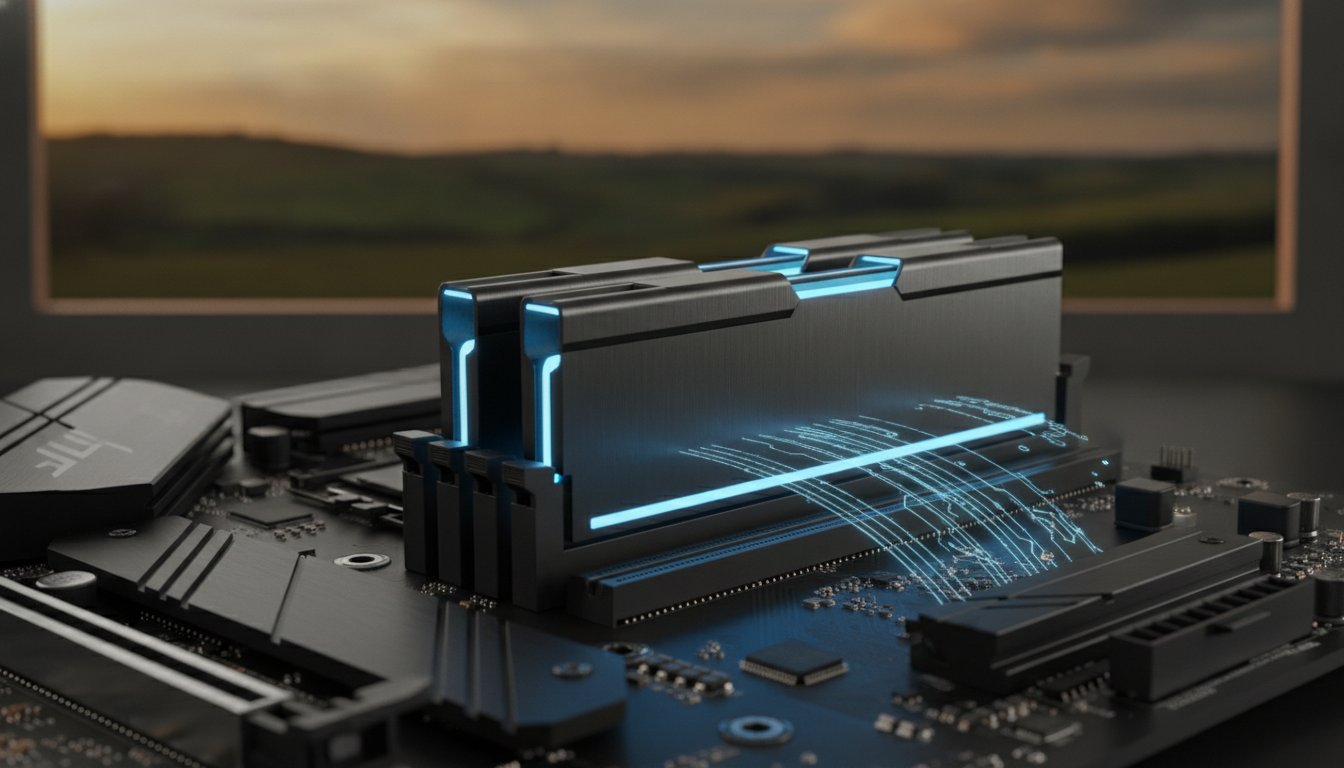
Choosing the right parts for your ram upgrade can feel like solving a puzzle where the pieces all look identical but don’t actually fit together. Memory is not a one-size-fits-all component. Your computer’s motherboard dictates exactly what type of memory it can accept. If you buy a module that isn’t compatible, it physically won’t fit into the slot, or worse, it could cause your system to fail to boot. Beyond the generation of the memory, we also have to consider voltage and latency. These terms simply refer to how much power the stick draws and how quickly it responds to requests. While these details are vital for stability, the most important thing to know is that your hardware must be a perfect match for your system’s specifications.

DDR5 is the 2026 standard for high-speed data transfer. Most new computers sold in Australia today utilize this technology to handle the heavy data loads required by modern software. However, many reliable machines built just a few years ago still rely on DDR4. Knowing which one you have is the first step in any successful performance boost.

DDR4 vs. DDR5: Can You Mix Them?

The short answer is no. You cannot mix different generations of memory in the same computer. Each stick of RAM has a small physical “notch” on the bottom edge. The position of this notch changes with every generation. This design feature prevents you from accidentally forcing a DDR4 stick into a DDR5 slot, which would cause electrical damage. Your motherboard is designed for one specific type. For a standard home office in Toowoomba, DDR4 is often still quite capable. However, if you are building a new system or looking for the best possible future-proofing, DDR5 offers a significant performance gap that justifies its place in modern setups.

Laptop vs. Desktop Upgrades

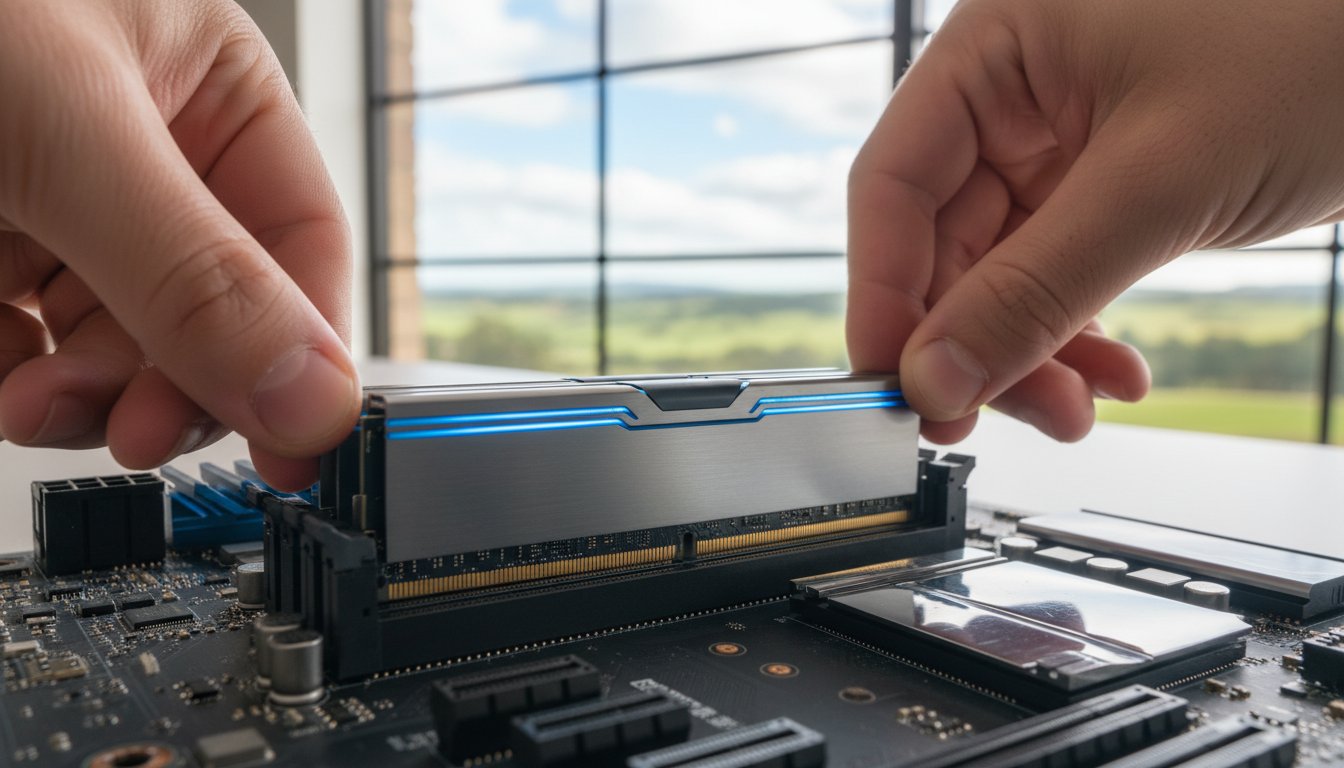
The physical size of the memory stick depends on the type of computer you own. Desktop towers use DIMM sticks, which are long and slender. Laptops use SO-DIMM sticks, which are much shorter to fit into compact cases. Be aware that some modern “ultra-thin” laptops have moved away from removable sticks entirely. In these devices, the memory is soldered directly to the motherboard, meaning a ram upgrade is unfortunately impossible.

For systems that can be upgraded, I always recommend using “matching pairs.” This means installing two identical sticks of the same capacity and speed. Most modern processors use a feature called dual-channel memory. When you use matching pairs, the computer can talk to both sticks at once, effectively doubling the speed at which data moves. This small detail can make a noticeable difference in how snappy your computer feels during a busy workday.

RAM Upgrade Guide 2026: The Fastest Way to Boost Your PC Performance

The RAM Upgrade Process: DIY vs. Professional Installation

Opening your computer case for the first time is often a daunting experience. You might fear touching the wrong thing or snapping a delicate component. While online tutorials make a ram upgrade look like a five-minute task, modern hardware is often quite fragile. Choosing between a DIY approach and professional installation comes down to your comfort level and the value of your time.

How a Professional Installs RAM

When I handle an installation at Aspire Computing, it’s never just about popping in a new stick of memory. Every service includes a comprehensive computer repair health check to ensure your entire system is running at its peak. I want you to leave with a machine that feels completely refreshed, not just slightly faster.

I start by performing a complete system backup. While memory upgrades are generally safe, protecting your personal data and photos is always my top priority. It’s a safety net that many home users forget to set up before they begin tinkering with internal parts.

The next step involves a thorough internal dust cleaning. Over time, fans and heat sinks in Toowoomba homes can collect significant debris. This causes overheating and can shorten the life of your new hardware. By clearing this out, I help your computer stay cool and quiet.

Once the RAM is seated, I verify the BIOS settings. This technical step ensures the computer recognizes the new capacity and is running it at the correct speed. Without this check, you might not even be getting the full performance you paid for.

Why DIY Can Be Risky for Modern Devices

Modern laptops in 2026 are thinner and more complex than ever. Many manufacturers now use hidden adhesive or very tight plastic clips instead of standard screws. If you aren’t careful, you can easily crack the chassis or snap a ribbon cable. These small mistakes can turn a simple boost into a very expensive repair bill.

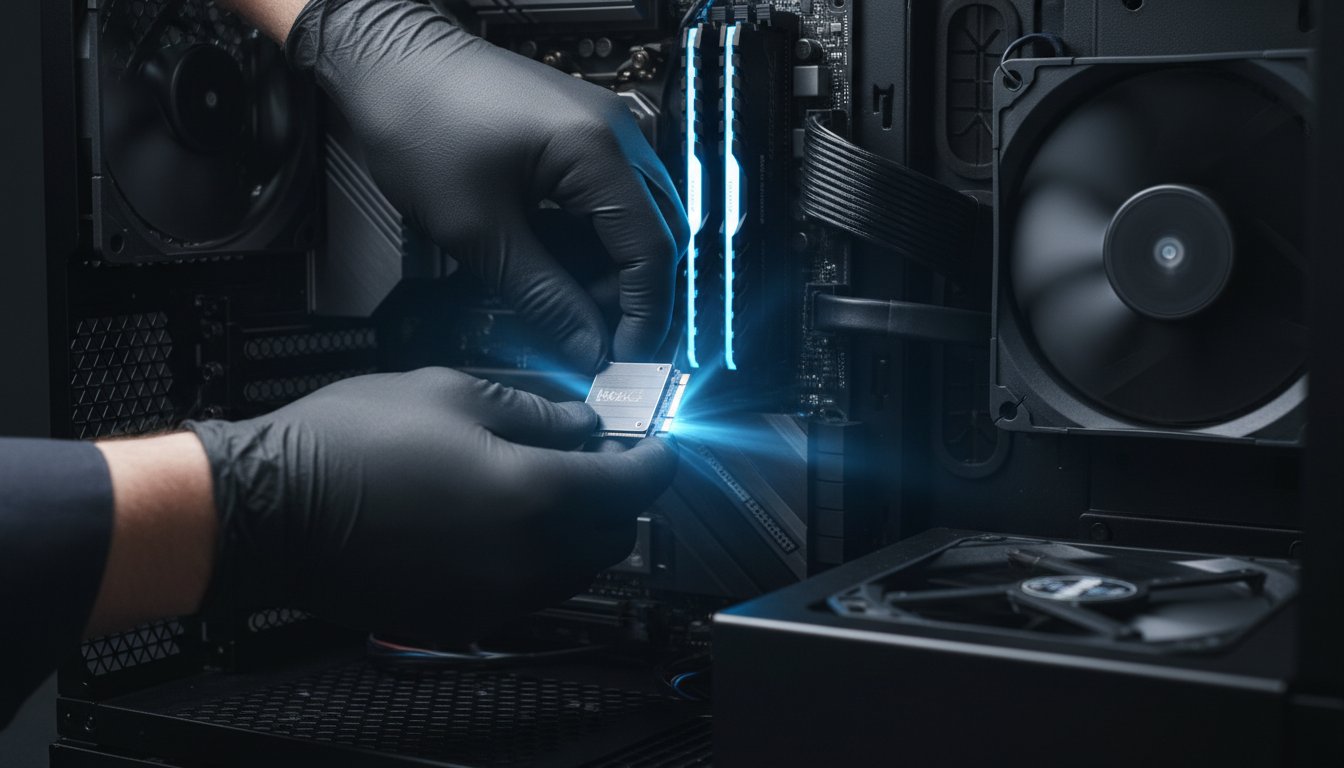
Another hidden danger is Electrostatic Discharge (ESD). You might not even feel the spark, but a tiny bit of static from your carpet can permanently fry a motherboard. I use specialized anti-static mats and wrist straps to keep your hardware safe from these invisible threats. It’s a level of protection that’s hard to replicate at a kitchen table.

Finally, consider your warranty. Some brands will void your protection if they see evidence of an unauthorized entry. If you’d rather have the peace of mind that comes with 25 years of industry experience, you can book a professional hardware upgrade to ensure the job is done right the first time.

Professional Hardware Upgrades in Toowoomba

When your computer starts failing, it’s easy to feel a sense of panic. You might worry about losing your work or the high cost of a brand-new machine. At Aspire Computing, I’ve spent over 25 years providing a calm, professional alternative to that stress. Since 1999, I’ve been the local face of technical support for residents and business owners throughout Toowoomba. Whether you need a simple performance boost or a complex ram upgrade, my goal is to provide a service that is both competent and convenient. You don’t have to navigate a distant corporate helpdesk. Instead, you can speak directly with an expert who understands the local community and takes personal accountability for every job.

On-Site Service for Toowoomba Small Businesses

For many small businesses in the region, taking a computer “into the shop” simply isn’t an option. Downtime means lost revenue. I provide on-site hardware services that bring the solution directly to your office or home. I regularly serve a wide range of locations, including:

  • Newtown and all inner Toowoomba suburbs
  • The Darling Downs regional area
  • The Lockyer Valley and surrounding townships

Often, a ram upgrade is just one part of a wider IT support session. While I’m there, I can perform a Windows tune-up, check your security settings, and ensure your backup systems are functional. This methodical approach ensures your technology serves your business goals rather than hindering them. My “No Panic” philosophy means I focus on finding the most efficient, cost-effective path to getting your system back to peak performance.

The Aspire Computing Guarantee

When you choose Aspire Computing, you’re getting a personal commitment to quality. I, Cam, lead every service and personally handle your hardware. I only supply memory modules from trusted, industry-standard brands to ensure your machine remains stable for years to come. My mission is to provide a dual focus on security and functional utility. This means that during any upgrade, your data safety is my primary concern. I follow strict protocols to protect your files and personal information while the case is open. It’s this blend of technical specificity and approachable, local service that has made me a trusted partner for Toowoomba’s computing needs for over two decades. You can expect a rapid turnaround and a process designed to get you back to work without the headache.

Ready for a Faster, More Reliable Computer?

A simple ram upgrade is often the difference between a frustratingly slow machine and a system that keeps up with your busiest work days. By expanding your digital workspace, you can handle the heavy demands of 2026 software and background AI features without the constant lag. We’ve seen how identifying the right hardware and ensuring compatibility is the first step toward a stable, long-lasting device. Whether you are using a reliable older desktop or a newer laptop, professional installation takes the guesswork and the physical risk out of the equation.

I’ve been helping the Toowoomba community with dependable hardware solutions since 1999. At Aspire Computing, I provide the personal expert service you need to ensure your data is safe and your hardware is configured perfectly. Whether you prefer on-site assistance at your home or office or remote support, I’m here to help you get the most out of your technology. My focus is always on providing a smooth, stress-free experience that gets you back to work quickly.

Don’t let a slow PC hold you back any longer. Contact Aspire Computing for a Fast Hardware Upgrade today. Let’s get your computer running like new again.

Frequently Asked Questions

How much RAM do I really need for Windows 11 in 2026?

You should aim for at least 16GB of memory for a smooth experience with Windows 11 today. While 8GB was once the standard, modern background features and web browser demands now consume most of that space before you even open your own apps. If you handle large spreadsheets or use creative software, 32GB is the ideal sweet spot to ensure your system remains snappy and responsive for years to come.

Will a RAM upgrade fix a computer that is freezing?

Yes, it will fix the issue if the freezing is caused by your system running out of “thinking space.” When your PC hits its memory limit, it starts swapping data to the much slower hard drive, which causes those frustrating pauses and hangs. If your computer freezes specifically when you have multiple tabs or programs open, a memory boost is likely the solution. I can run a quick diagnostic to confirm this before we proceed.

Can I add more RAM to my laptop myself?

You can certainly try, but modern laptops are increasingly difficult to open without specialized tools. Many newer models use hidden plastic clips or adhesive that can snap if handled incorrectly. There is also the risk of static electricity damaging the delicate internal circuitry. For most people, having a professional handle the installation is a safer way to protect their investment. Experienced providers like Flashy Bee Computers also advocate for professional handling to ensure the new hardware is recognized correctly by the system without risking permanent damage.

What is the difference between RAM and a Hard Drive?

RAM is your computer’s short-term workspace, while a hard drive or SSD is the long-term storage for your files. Think of RAM as the surface of your desk where you keep things you’re currently working on. The hard drive is the filing cabinet where you store things away. A ram upgrade makes your “desk” larger so you can have more documents open at once without having to constantly go back to the cabinet.

How much does a professional RAM upgrade cost in Toowoomba?

The total cost depends entirely on the type of memory your computer requires and the current market price for those specific modules. Different machines use different generations of technology, such as DDR4 or DDR5, which vary in price. I provide a transparent quote that includes the high-quality hardware and my professional installation service. Contact me directly with your computer’s model number, and I can give you an accurate price for your specific device.

Will adding more RAM delete my files?

No, adding memory will not affect your photos, documents, or personal data in any way. RAM is temporary storage that clears itself every time you turn the computer off. Your permanent files live on your hard drive or SSD, which remains untouched during the physical installation process. It’s a hardware improvement that changes how fast your computer thinks, not what it remembers long-term, though I always perform a safety backup as part of my professional service.

How do I know if my computer is compatible with DDR5?

You can check this by looking at your system information or opening the Windows Task Manager. Most computers manufactured before 2022 use the older DDR4 standard. DDR5 is a newer, faster technology that requires a specific type of motherboard. Because the two types are physically different and have notches in different places, they aren’t interchangeable. If you aren’t sure which one your machine needs, I can quickly identify the correct parts for you.

Is it better to upgrade RAM or buy a new computer?

It is often much more cost-effective to perform a ram upgrade if your current processor is still performing well. If your only complaint is that the computer feels sluggish during multitasking, a memory boost can extend your machine’s life by several years. This saves you the significant expense of a new A$1,500 laptop and the hassle of moving all your data to a new system. I always give honest advice on whether an upgrade is a smart investment for your specific PC.

Last Tuesday, Sarah from Toowoomba sat staring at a frozen screen as her desktop struggled to handle a simple video call and three open browser tabs. It’s a common frustration in June 2026, especially since 32GB of memory has officially become the baseline for smooth performance. If you’re tired of the lag and constant spinning wheels, you’re likely researching the best way of upgrading RAM in my PC 2026 to reclaim your productivity.

We understand the hesitation. You might be worried about the current A$210 average price for high-speed DDR5 kits or feel confused about whether your older motherboard even supports the latest modules. The fear of snapping a delicate clip or causing a static discharge is enough to make anyone nervous. At Aspire Computing, we’ve helped locals since 1999, and we know that a little bit of expert guidance goes a long way to stop the panic.

This guide promises to give you the confidence to choose the right parts without overspending. You’ll learn how to identify your specific hardware needs and follow a safe, step-by-step installation process. We’re going to cover current market trends, compatibility checks, and the exact physical steps to ensure your DIY upgrade is a total success.

Key Takeaways

  • Understand why increasing your “short-term memory” is the smartest performance boost in 2026, even with current A$ price shifts in the Australian market.
  • Master the essential technical checks needed for upgrading RAM in my PC 2026, from verifying motherboard capacity to using free diagnostic tools.
  • Learn the “don’t panic” approach to physical installation, including safe ways to handle static electricity and seat your new modules correctly.
  • Discover how to enter your BIOS and enable XMP or EXPO profiles to ensure your system is running at the maximum speed you paid for.
  • Find out how the experts at Aspire Computing in Toowoomba can provide a professional, guaranteed installation if you would prefer a local expert to handle the hardware.

Why Upgrading Your RAM is the Smartest Move in 2026

Think of Random Access Memory (RAM) as your computer’s digital workbench. It is the short-term memory that holds every open tab, document, and background process you are currently using. When you consider upgrading RAM in my PC 2026, you are essentially giving your processor more room to work. Without enough space on this workbench, your system has to swap data to your storage drive. This process is significantly slower and leads to the frustrating lag we all want to avoid.

The memory market has shifted recently. Due to massive AI server demands that peaked in late 2025, consumer memory prices in Australia have climbed. A standard 32GB DDR5 kit that cost A$165 last year might now sit closer to A$215. While prices are higher than usual, a memory boost remains the most cost-effective way to extend your computer’s life without buying a whole new machine. It’s about maintaining continuity and performance in a demanding digital environment.

In 2026, 16GB of RAM has become the absolute minimum for a reliable Windows experience. Modern operating systems and essential security suites now consume nearly 7GB just to stay active. If you try to run a web browser and a video call on an 8GB system, you will hit a performance wall immediately. Moving to 32GB is now the “sweet spot” for most home and office users who want a seamless experience.

The 2026 Memory Landscape: DDR4 vs. DDR5

Most new systems sold over the last two years use DDR5 memory, which offers significantly higher bandwidth than its predecessor. However, many reliable machines built between 2020 and 2023 still rely on DDR4. It’s vital to know that you cannot mix DDR4 and DDR5 modules in the same machine. The physical slots on your motherboard are keyed differently to prevent this. If you feel stuck, Aspire Computing can help you identify exactly which generation your motherboard supports.

Signs Your Computer Needs a Tune-Up

Don’t panic if your machine feels sluggish; your PC usually provides clear warnings when it’s crying out for more memory. Identifying these signs early can save you from a total system freeze during an important task. When upgrading RAM in my PC 2026, look for these specific red flags:

  • Web browsers like Chrome or Edge frequently displaying “Out of Memory” or “Result_Code_Hung” errors.
  • A noticeable delay of two or three seconds when switching between office applications.
  • Stuttering audio or frozen frames during Zoom or Microsoft Teams calls.
  • High-definition streaming video buffering even when your NBN connection is performing perfectly.

These issues are usually not caused by a virus or a broken hard drive. They are simply signs that your current RAM cannot keep up with your daily workload. A quick hardware refresh is often all it takes to get your productivity back on track.

Choosing the Right Memory: Capacity and Compatibility

Before you spend a single dollar, you need to know what your system can actually handle. Successfully upgrading RAM in my PC 2026 requires more than just picking the fastest stick off the shelf. You first need to identify your form factor. Desktop computers use long DIMM modules, while laptops and small form factor PCs use shorter SO-DIMM sticks. These are not interchangeable, so check your physical space first.

Download a free tool like CPU-Z to see your current configuration. It identifies your existing memory type, speed, and how many slots are occupied. If you have two slots and both are full, you’ll need to replace the old sticks rather than adding to them. Always aim for matching pairs to enable dual-channel performance. This allows your processor to access two sticks simultaneously. In memory-heavy tasks, this can boost data throughput by 10% to 15% compared to a single stick of the same total capacity.

How Much RAM Do You Really Need?

By 2026, software demands have shifted significantly. Here is how to gauge your needs:

  • 8GB: The legacy tier. This is barely enough for basic web browsing. It will likely cause stuttering if you have more than ten browser tabs and a word processor open at once.
  • 16GB: The standard for 2026. It’s ideal for home offices, general use, and moderate multitasking without system lag.
  • 32GB+: The power user choice. If you’re running local AI models, editing 4K video, or playing demanding titles, 32GB provides the headroom needed for stability.

Checking Compatibility Before You Buy

Check your motherboard manufacturer’s website for the Qualified Vendor List (QVL). This list confirms which specific brands and models have been tested for 100% stability with your board. Don’t just chase the highest clock speed, often measured in MHz or MT/s. If your CPU only supports 5200MHz, buying 7200MHz RAM is a waste of money because the system will downclock it to the lower speed.

The principle of using a specialist supplier is key for any technical project, ensuring you get the right advice and components. This is true whether you’re upgrading a PC or sourcing specific marine electrical parts; for the latter, you can visit BIVO for their expertise.

Physical space is a practical concern that many overlook. If you use a large air cooler, high-profile RAM with tall heat spreaders might not fit underneath the fan. Measure the millimetre clearance between your motherboard and the cooler before ordering. If you feel stuck or worried about damaging your components, talk to the experts at Aspire Computing. We’ve been helping locals with hardware upgrades since 1999 and can ensure your system is protected and connected properly. Upgrading RAM in my PC 2026 should be a smooth process that results in a faster, more reliable machine.

Step-by-Step: How to Install RAM in Your PC

Before you touch any hardware, shut down your system and unplug the power cable from the wall. This is the most vital safety step to protect both you and your components. Don’t panic; opening your computer is a standard procedure and won’t break anything if you’re patient. To manage static electricity, you don’t necessarily need a specialized anti-static wrist strap. Simply touching a bare metal part of your PC case is usually enough to discharge any static build-up from your body. You will find the RAM slots located directly next to the CPU cooler on your motherboard. When upgrading RAM in my PC 2026, identifying these long, narrow slots is your first objective.

The most important part of the physical installation is the “click” factor. Modern RAM modules require a specific amount of force to seat properly. You’ll know the module is installed correctly when the locking clips on the side of the slot snap into place on their own. If the clips haven’t moved, the RAM isn’t fully connected, and your PC won’t boot. This tactile feedback is your best indicator of a job well done.

Installing RAM in a Desktop PC

Remove the side panel of your case to access the motherboard. Locate the RAM slots and push the plastic clips at the ends outward to the “open” position. Look at the gold contacts on your new RAM stick and find the small “notch” or gap. This notch is offset, meaning the stick only fits into the slot in one specific direction. Line up the notch with the ridge in the slot and apply firm, even pressure on both ends of the stick. You should hear a clear click as the tabs lock the memory in place. If you’re upgrading RAM in my PC 2026 for a high-performance build, ensure you’re using the correct slots for dual-channel memory as specified in your manual.

Upgrading a Laptop or Small Form Factor PC

Laptops often have a single access panel on the bottom held by 5 to 10 tiny screws. Use a magnetic tray to ensure these don’t go missing. Unlike desktops, laptop RAM (SO-DIMM) is installed at a 45-degree angle. Slide the module into the slot firmly, then press the top edge down toward the motherboard until the metal arms on the side snap into the notches. Be aware that as of 2026, approximately 65% of ultra-thin laptops now use soldered memory that cannot be upgraded. If you’re unsure about your specific model, feel free to contact us at Aspire Computing for a quick compatibility check.

Post-Installation: Verifying Your Speed and Stability

You’ve clicked the modules into place and closed the case. Now comes the moment of truth. When you press the power button, don’t panic if the screen stays black for 30 to 60 seconds. Modern DDR5 systems often perform “memory training” during the first boot after upgrading RAM in my PC 2026. The motherboard is busy testing the new timings and voltages to ensure your system remains stable. Once the logo appears, your first stop shouldn’t be the desktop, but the BIOS.

Most high-performance RAM won’t run at its advertised speed out of the box. It defaults to a safe, slower “JEDEC” speed. To get the performance you paid for, tap the Delete or F2 key during startup to enter the BIOS. Look for a setting called XMP (for Intel) or EXPO (for AMD). Enabling this profile tells the motherboard to use the specific high-speed settings printed on your RAM’s packaging. It’s a 10-second change that can boost your memory bandwidth by 20% or more.

Checking Your Work in Windows

Once you’re back in Windows, you need to confirm everything is working as intended. Open Task Manager by pressing Ctrl+Shift+Esc and click the Performance tab, then select Memory. You should see your new total capacity, such as 32GB or 64GB, displayed in the top right corner. Check the “Speed” section below the graph. If you bought 6000MT/s modules and it shows 4800MT/s, your XMP/EXPO profile didn’t save correctly.

Watch out for the “Hardware Reserved” figure. If you installed 32GB but Windows says 16.1GB is hardware reserved, it means the system detects the stick but can’t use it. This usually happens if a module is slightly loose or if there’s a tiny speck of dust in the slot. It’s a common hurdle when upgrading RAM in my PC 2026, but it’s easily fixed with a quick re-seat.

Troubleshooting Common Upgrade Issues

If your PC fails to turn on or emits a series of rhythmic beeps, don’t worry. This is the motherboard’s way of telling you there’s a connection problem. The “re-seat” trick solves 90% of installation failures. Simply remove the sticks and push them back into the slots until you hear a firm click from the locking tabs. Since Chaim Lee started Aspire Computing in 1999, we’ve found that even a half-millimetre of misalignment can prevent a successful boot.

  • No Boot: Try booting with only one stick at a time to identify a faulty module.
  • Blue Screens: Run the Windows Memory Diagnostic tool to check for internal errors.
  • Incompatibility: Check your motherboard manufacturer’s website for a BIOS update. A 2025 or 2026 firmware update often adds support for newer, high-density RAM chips.

If your system still won’t recognise the new hardware, talk to the experts at Aspire Computing for a professional diagnostic and setup.

Expert Hardware Upgrades in Toowoomba: When to Call Aspire

Opening your computer case can be a nerve-wracking experience. If the thought of handling delicate circuitry makes you feel uneasy, don’t panic. We are here to help. Aspire Computing provides a professional installation service that guarantees 100% component compatibility. We take the guesswork out of the process by ensuring your new memory modules work perfectly with your specific motherboard and processor architecture. While we have your machine on the bench, we often suggest SSD upgrades to provide a total speed boost. Combining fresh memory with a high-speed drive can make a five-year-old PC feel like a brand-new workstation. We’ve been a staple of the local community, serving Toowoomba, Newtown, and the Darling Downs since 1999.

Why Choose Professional Installation?

Handling these components requires a level of precision similar to other skilled trades focused on valuable, intricate items. To get an idea of the meticulous work involved in a different but related field of expertise, you can learn more about Atoz Watch And Jewellery Repairs. Just as you’d trust a specialist with a family heirloom, trusting a tech expert with your PC prevents costly mistakes.

Modern 2026 motherboards feature incredibly dense, sensitive circuitry. A single discharge of static electricity during the process of upgrading RAM in my PC 2026 can result in a A$500 repair bill. Chaim Lee and our technical team use professional anti-static environments to eliminate this risk entirely. When you book an upgrade, we can perform a full ‘Windows Tune-Up’ simultaneously. This service removes background bloatware and optimises your registry to ensure your new hardware reaches its full potential. We only supply quality parts from verified Australian distributors. This protects you from the ‘RAM crisis’ scams and counterfeit modules that have appeared on various discount marketplaces recently.

Contact Aspire Computing Today

We make tech support convenient by offering on-site service in suburbs like Middle Ridge, Rangeville, and Highfields. Our ‘Don’t Panic’ approach to tech repairs means we explain everything in plain English without the confusing jargon. Whether you are upgrading RAM in my PC 2026 for gaming or professional video editing, we focus on quick turnarounds and reliable results. Most of our hardware installations are completed within 24 hours of receiving the parts. Don’t risk your expensive equipment on a DIY mistake. Talk to the experts at Aspire Computing today to book your upgrade and protect your technology investment.

Boost Your PC Performance for the Years Ahead

Boosting your computer’s speed doesn’t have to be a stressful experience. By 2026, most modern applications and operating systems require at least 32GB of memory to run smoothly without lag. Upgrading RAM in my PC 2026 is the most cost-effective way to extend the life of your current machine by 3 to 4 years without the A$1,500 expense of a brand-new desktop. Whether you’re following our step-by-step guide or need a professional touch, ensuring your memory is compatible and correctly seated is vital for long-term stability.

Since 1999, Aspire Computing has helped Toowoomba residents solve complex technical issues with ease. Our owner-operator, Chaim Lee, provides expert on-site and remote IT support to get your system running at its peak potential. If the thought of opening your case makes you feel uneasy, don’t worry. We’re here to handle the technical details so you can focus on your work or gaming. Aspire to Protect and Connect: Book Your Hardware Upgrade Today. Your faster, more reliable computer is just a quick phone call away.

Frequently Asked Questions

Can I mix different brands of RAM in my PC?

You can mix different brands of RAM, but it is not the ideal setup for system stability. Your motherboard will automatically default all modules to the speed of the slowest stick installed. If you pair a 3200MHz module with a 5600MHz one, both will run at 3200MHz. We recommend using matching kits to ensure the best performance when upgrading RAM in my PC 2026.

Will upgrading my RAM void my manufacturer’s warranty?

Upgrading your RAM usually won’t void your warranty in Australia under Australian Consumer Law. Most major brands like Dell, HP, and Lenovo consider RAM a customer replaceable unit. However, if you cause physical damage to the motherboard during the process, that specific repair won’t be covered. Always check your 2026 warranty documents, as some ultra-thin laptops use stickers to discourage opening the chassis.

How do I know if my laptop RAM is upgradeable or soldered?

You can check your RAM status by opening Task Manager and clicking the Performance tab. Look at the “Slots used” section; if it says “0 of 0” or “Soldered,” the memory cannot be replaced. In 2026, approximately 75 percent of ultrabooks use soldered memory to maintain a slim profile. If you see “1 of 2 slots used,” you have a physical slot available for an upgrade.

Is 16GB of RAM enough for gaming and office work in 2026?

16GB is the absolute minimum for basic tasks in 2026, but 32GB is now the recommended standard for gaming and professional work. Modern web browsers and background applications often consume 8GB of memory before you even launch a game. If you run intensive titles or edit 4K video, 16GB will lead to significant performance drops. Upgrading to 32GB ensures your system stays responsive during heavy multitasking.

What happens if I install RAM that is faster than my motherboard supports?

Your PC will still boot and function, but the RAM will only run at the maximum speed your motherboard or CPU allows. If you install 6400MHz DDR5 into a board that caps at 5200MHz, the system downclocks the memory automatically. You won’t damage your hardware, but you are paying a premium for speed you cannot use. Always check your motherboard manual for its specific MHz limitations.

Do I need to reinstall Windows after a RAM upgrade?

You don’t need to reinstall Windows or any of your software after upgrading RAM in my PC 2026. Windows 11 and the latest Windows 12 builds detect the new capacity the moment you press the power button. The only extra step is entering the BIOS to enable the XMP or EXPO profile. This ensures your new memory runs at its advertised speed rather than the basic factory default.

Why is my PC only showing half the RAM I installed?

This problem usually happens because a RAM stick isn’t fully seated in the slot. Even if the side clips are closed, the pins might not have a solid connection with the motherboard. Another cause is using an old 32-bit version of Windows, which limits you to 4GB of usable memory. Ensure you’re using a 64-bit operating system and try re-seating the modules until you hear a firm click.

Can Aspire Computing come to my home in Toowoomba to install RAM?

Yes, Aspire Computing provides on-site RAM installation and technical support across Toowoomba and the surrounding Darling Downs region. Chaim Lee has been helping the local community with hardware since 1999, so you don’t have to worry about disconnecting your cables and transporting a heavy desktop. We can come directly to your home or office to ensure your upgrade is handled professionally and works perfectly.

RAM Upgrade Guide: How to Boost Your PC and Laptop Speed

Is your computer lagging behind, struggling to keep up as you switch between browser tabs and applications? That frustrating slowdown is a common complaint, but the solution is often simpler and more affordable than a whole new machine. Often, the culprit is a lack of sufficient memory. A targeted ram upgrade is one of the most effective ways to breathe new life into your PC or laptop, dramatically improving its speed and multitasking capabilities.

But we understand the hesitation. Navigating terms like DDR4 vs DDR5 can be confusing, and the thought of buying the wrong part-or even opening your computer-can feel risky. Don’t worry, we’re here to help. In this guide, we’ll demystify the process, showing you exactly how to choose the right RAM for your computer. We’ll give you the knowledge to decide with confidence whether to install it yourself or call on a professional for a quality, guaranteed service.

Key Takeaways

  • Understand how RAM works like a digital workbench for your computer, allowing for smoother and faster multitasking when you have enough.
  • Choosing the right memory is critical; learn how to check your PC or laptop’s compatibility to ensure you buy the correct parts for your ram upgrade.
  • Weigh the benefits of a DIY installation against the assurance of a professional service to make a confident, risk-free decision for your computer.
  • Discover other key upgrades that work alongside more RAM to give your computer a complete and noticeable performance boost.

What is RAM and Why is it Slowing You Down?

Think of your computer’s RAM (Random Access Memory) as its digital workbench or short-term memory. It’s a high-speed component that temporarily holds all the data your PC needs for the tasks you are actively doing, whether that’s browsing the web, editing a document, or playing a game. For a deeper technical dive into what is RAM and its history, Wikipedia offers a comprehensive overview. The larger your “workbench,” the more projects you can have open at once without everything getting cluttered and slow.

When you have enough RAM, switching between applications is seamless. But when you run out, your computer is forced to temporarily move data to your much slower long-term storage (your hard drive or SSD) to make room. This constant shuffling is what causes that frustrating lag, especially when you’re multitasking.

To better understand this concept and the upgrade process, watch this helpful video:

Signs Your Computer is Begging for a RAM Upgrade

If your computer is struggling with insufficient memory, it will give you some clear warning signs. Don’t panic; these are common issues that often point to a straightforward solution. Look out for these symptoms:

  • Frequent Freezing: Programs regularly become unresponsive or your mouse cursor turns into a spinning wheel for long periods.
  • Slow Multitasking: Switching between open browser tabs or different applications is frustratingly slow and choppy.
  • System Warnings: You receive ‘low on memory’ or ‘out of memory’ error messages from your operating system.
  • Lagging on Simple Tasks: Everyday actions, like opening a file or a new browser window, take noticeably longer than they used to.

RAM vs. Storage (SSD/HDD): Clearing Up the Confusion

It’s essential to understand that RAM is different from your computer’s long-term storage (its Solid-State Drive or Hard Disk Drive). While RAM is the active workbench for current tasks, storage is the filing cabinet where you keep all your files, applications, and the operating system for the long term. A ram upgrade will not give you more space to save photos or documents. However, having enough RAM working in tandem with a fast SSD is the perfect combination for a snappy, responsive system.

Choosing the Right RAM: A Compatibility Checklist

Before you rush to buy new memory, it’s vital to check what your computer can actually support. This is the most critical step in any successful ram upgrade; getting it wrong means buying parts that simply won’t work. Don’t worry, we’ll guide you through it. A few simple checks now will give you the assurance you need to purchase with confidence and improve the performance of your computer.

DDR Generations: DDR3, DDR4, and DDR5 Explained

Random Access Memory comes in different generations, known as DDR (Double Data Rate). The most common types you’ll encounter are DDR3, DDR4, and the latest, DDR5. It’s crucial to understand that these are not interchangeable. A motherboard with DDR4 slots will not accept a DDR5 stick due to physical differences in the pin layout. The easiest way to check your system’s type in Windows is by opening Task Manager (Ctrl+Shift+Esc), clicking the “Performance” tab, and selecting “Memory.” The generation is usually listed in the top-right corner.

Form Factor: DIMM vs. SO-DIMM

Next, you need to identify the physical size, or ‘form factor’. There are two main types, and fitting the wrong one is physically impossible:

  • DIMM (Dual In-line Memory Module): These are the longer sticks of RAM used as standard in desktop PCs.
  • SO-DIMM (Small Outline DIMM): These are roughly half the length of DIMMs and are designed for laptops, all-in-one PCs, and some compact systems where space is tight.

Capacity and Speed: How Much Do You Really Need?

Finally, consider how much memory you need and how fast it should be. While more is often better, your motherboard has firm limits on both total capacity and maximum speed. Before purchasing, it’s essential to verify these specifications with your computer or motherboard manufacturer. This is a key part of the process for upgrading computer RAM and ensures you don’t overspend on memory your system can’t use. Here’s a general guide for 2026:

  • 8GB: The absolute minimum for web browsing and basic office tasks.
  • 16GB: The sweet spot for most users. Ideal for multitasking, smooth general use, and mainstream gaming.
  • 32GB+: Recommended for serious gamers, video editors, and professionals running demanding software.

A final word of advice: for optimal stability and performance, avoid mixing RAM sticks of different speeds or brands. While it can sometimes work, it often forces the faster module to slow down to match the weaker one, or worse, can cause system instability. Matching your existing RAM or replacing all modules at once is the safest path for a quality ram upgrade.

RAM Upgrade Guide: How to Boost Your PC and Laptop Speed

The Upgrade Process: DIY Installation vs. Professional Service

Once you’ve decided how much RAM your computer needs, the next step is getting it installed. This presents a common choice for many users: should you attempt it yourself or trust a professional? The answer often comes down to your comfort level with computer hardware and your tolerance for risk. While a DIY ram upgrade can be a rewarding project, a small mistake with sensitive components can lead to bigger problems.

A Quick Look at the DIY Method

For the tech-savvy and confident user, installing RAM is a relatively quick process. It involves opening your computer’s case and carefully handling its internal parts. Here’s a simplified overview of what’s involved to help you decide if it’s a task you want to tackle:

  1. Power Down Completely: Shut down your computer, switch it off at the wall, and unplug all cables to ensure there is no electrical charge.
  2. Ground Yourself: Before touching anything inside, touch an unpainted metal part of the computer case to safely discharge any static electricity from your body.
  3. Locate and Open Slots: Open the computer’s side panel and find the RAM slots on the motherboard. Push down the small clips at either end of the existing RAM sticks to eject them.
  4. Install the New RAM: Align the notch on your new RAM module with the ridge in the slot and press down firmly and evenly until the clips on both sides click securely into place.

Why Choose a Professional Upgrade Service?

If the steps above sound daunting, or if you simply want absolute peace of mind, a professional service is the safest and most reliable option. An expert handles the entire process, eliminating guesswork and preventing potential damage to your system. It’s the ideal choice for anyone who values their time and wants a guaranteed, hassle-free outcome.

  • Guaranteed Compatibility: We take the guesswork out of the equation. A professional will source the exact RAM type and speed that is fully compatible with your specific computer model.
  • Risk-Free Installation: Static discharge or improper installation can damage your motherboard. Our technicians handle your hardware with expert care, ensuring a safe and successful ram upgrade.
  • Time-Saving and Convenient: Skip the research and potential troubleshooting. We get the job done quickly and correctly, so you can enjoy a faster, more responsive computer.

For residents in and around Toowoomba, our expert computer repair service is here to help. We ensure your upgrade is handled professionally from start to finish, giving you the performance boost you need without the risk.

Beyond RAM: Other Upgrades to Consider for a Faster PC

While a ram upgrade is one of the most effective and affordable ways to breathe new life into a sluggish computer, it’s important to remember that RAM is just one part of a complex system. For a truly transformative performance boost, taking a holistic approach and considering other key components can make all the difference.

Think of your PC as a team-if one component is creating a bottleneck, the whole system suffers. Below are a few other high-impact upgrades that work alongside more memory to make your computer faster, more efficient, and more enjoyable to use.

Upgrading to a Solid-State Drive (SSD)

If your computer still uses a traditional mechanical hard drive (HDD), upgrading to a Solid-State Drive (SSD) is the single biggest speed boost you can give it. An SSD has no moving parts, allowing it to read and write data at incredible speeds. This translates to:

  • Dramatically reduced boot times (often from minutes to seconds).
  • Near-instant program and file loading.
  • A much snappier feel across your entire operating system.

Pairing a new SSD with a RAM upgrade is a powerful combination that can make an older machine feel brand new again.

Graphics Card (GPU) and Processor (CPU) Upgrades

While an SSD benefits almost everyone, GPU and CPU upgrades are more specialised and target specific performance bottlenecks. A new Graphics Card (GPU) is essential for gamers wanting smoother frame rates or creative professionals working with high-resolution video, graphic design, and 3D models. A Processor (CPU) upgrade provides a major boost in raw processing power for intensive tasks, but it’s a far more intricate procedure.

Both CPU and GPU upgrades have strict compatibility requirements with your motherboard and power supply. To ensure you get the best value and avoid costly mistakes, professional advice is highly recommended. We can assess your whole system and recommend the best value hardware upgrades for your specific needs and budget.

Ready for a Faster, More Responsive PC?

Navigating the world of computer hardware can feel complex, but as this guide has shown, upgrading your RAM is one of the most powerful and cost-effective ways to revitalise a sluggish PC or laptop. The key takeaways are simple: understanding what RAM does is the first step, ensuring you choose a compatible module is critical for success, and weighing the pros and cons of DIY versus professional installation will lead you to the best outcome for your needs.

If you’re ready to feel the difference but want to skip the technical hassle, our team is here to provide a professional, risk-free installation. At Aspire Computing, we’ve been the trusted local experts for Toowoomba and the surrounding areas since 1999. We pride ourselves on providing honest advice, ensuring you get the best value solution for your specific needs-whether that’s a simple ram upgrade or another targeted enhancement to boost your system’s performance.

Talk to our experts about a fast, reliable RAM upgrade today!

Don’t let a slow computer hold you back any longer. A faster, more efficient digital experience is just one simple step away.

Frequently Asked Questions

Can I mix different brands or sizes of RAM?

While you technically can mix brands and sizes, we strongly advise against it for optimal performance. Your system will always run at the speed of the slowest installed module. Mismatched sizes, such as an 8GB stick with a 16GB stick, can sometimes lead to system instability. For quality assurance and the best results, always use a matched set of RAM modules with the same capacity, speed, and brand to ensure perfect compatibility.

How much does a professional RAM upgrade cost?

In Australia, a professional RAM upgrade typically involves the cost of the parts and labour. The RAM itself can range from A$50 for a single 8GB module to over A$200 for a high-performance 32GB kit. Our professional installation service, which includes fitting and testing, generally costs between A$80 and A$150. This ensures the hardware is installed correctly and your system runs smoothly, giving you complete peace of mind.

Is 8GB of RAM still enough in 2025?

By 2025, 8GB of RAM is the bare minimum for light use like web browsing and email. You will likely notice slowdowns when multitasking or using modern software. For a smooth and responsive experience without frustrating lag, we recommend 16GB as the new standard for most everyday users. This provides enough memory for current operating systems and applications to run efficiently and ensures better performance for the years ahead.

Will upgrading RAM make my games run faster?

Upgrading your RAM can certainly improve your gaming experience, but not always by increasing frames-per-second (FPS). More RAM primarily helps by reducing stuttering, eliminating in-game lag, and speeding up loading times, especially if you’re upgrading from 8GB or less. It allows your computer to handle large game worlds and textures more effectively. For a direct boost in FPS, a graphics card upgrade is usually more impactful.

How do I check how much RAM I currently have?

Checking your installed RAM is straightforward. On a Windows PC, right-click the Start menu, select ‘System’, and look for the ‘Installed RAM’ entry. On a Mac, click the Apple logo in the top-left corner and choose ‘About This Mac’. The memory amount is listed on the overview screen. Knowing this is the first step in deciding if a ram upgrade is the right choice to improve your computer’s performance.

What happens if I install the wrong type of RAM?

Thankfully, installing the wrong generation of RAM (like DDR4 into a DDR5 slot) is physically prevented by different notches on the modules. However, if you install RAM that is technically the right type but has an incompatible speed or timing for your motherboard, your computer will likely fail to boot. In other cases, it may lead to frequent system crashes and instability. It is crucial to check compatibility before purchasing to protect your system.

PC Hardware Upgrades: A Complete Guide to a Faster Computer

Is that spinning loading icon becoming a familiar, frustrating sight? When your once-speedy PC or laptop starts to lag, it can feel like you’re stuck in the digital slow lane. You know it needs a fix, but the world of computer components can be confusing. You might be wondering if it’s time for a costly new machine, or if a few smart hardware upgrades could bring it back to life. The good news is that a targeted upgrade is often the most cost-effective way to get a significant performance boost.

But where do you start? And how do you avoid buying an incompatible part? Don’t panic. In this complete guide, we’ll demystify the process. We’ll walk you through the most impactful upgrades-from speedy solid-state drives (SSDs) to extra RAM-that deliver the biggest bang for your buck. You will learn how to identify the real bottleneck in your system and make an informed, confident decision, revitalising your computer’s performance without the hefty price tag of a brand-new machine.

Key Takeaways

  • Understand when it’s more cost-effective to upgrade your existing PC rather than buying a new one, potentially saving you hundreds of dollars.
  • Identify the three key hardware upgrades that provide the most significant performance boost, solving common slowdown issues for most users.
  • Recognise the signs that indicate you need more advanced upgrades and why supporting components are vital for long-term system stability.
  • Learn how a professional assessment takes the guesswork out of upgrading, ensuring you get the right parts for your needs and budget in Toowoomba.

Is It Worth Upgrading Your Computer in 2026?

As your PC starts to feel sluggish, the big question arises: should you upgrade it or replace it entirely? For many people in Australia, targeted hardware upgrades are the most cost-effective way to get a significant performance boost. Instead of spending over A$1,000 on a new machine, a strategic A$200-$400 investment in the right component can make your old computer feel new again. The key is to identify the “bottleneck”-the specific piece of your computer hardware that is slowing everything else down. Think of it like a traffic jam; clearing the one blockage gets everything moving smoothly again.

To help you visualise the process, this video from PC Builder provides a great overview of common upgrades:

Key Signs It’s Time for an Upgrade

If your computer is showing its age, don’t panic! You may not need a whole new system. If you’re experiencing any of the following frustrations, a component upgrade is likely the most direct and affordable solution to improve performance.

  • Slow startup and loading: Your computer takes several minutes to boot up, and applications open at a snail’s pace. This often points to an old hard drive.
  • Difficulty multitasking: Switching between browser tabs, a document, and another app causes freezing or stuttering. This is a classic sign you need more RAM.
  • Poor performance in demanding tasks: You notice low frame rates in modern games or long rendering times when editing videos, suggesting your graphics card or CPU is struggling.
  • Running out of storage: You constantly see “low disk space” warnings and can’t install new programs. A larger, faster storage drive is an easy fix.

When Buying a New PC Makes More Sense

While strategic hardware upgrades offer great value, sometimes a fresh start is the more practical choice. A new machine is a smarter long-term investment if your situation matches one of these points:

  • Your technology is obsolete: If your PC uses very old standards, like DDR2 or DDR3 RAM, finding compatible parts is difficult and not cost-effective. The performance gains will be minimal.
  • The costs add up: If you need a new processor, motherboard, and RAM, the total cost could easily exceed A$800. At that point, a modern pre-built PC offers better value and a full warranty.
  • You need modern features: Your current motherboard may lack support for faster storage (like NVMe SSDs), Wi-Fi 6, or the latest USB ports that you need for new peripherals.
  • Repairs are too extensive: If the computer has multiple failing components, a faulty power supply, or significant physical damage, a full replacement is often safer and more reliable.

Once you’ve decided to replace your old machine, the next question is what to do with it. Proper disposal is crucial for both data security and environmental responsibility. For a comprehensive overview of how to handle old equipment, the guide on IT asset disposition at surplustechnologysolution.com offers valuable insights for businesses and individuals alike.

The 3 Most Impactful Hardware Upgrades for a Slow PC

If your computer is grinding to a halt, don’t panic. You often don’t need a brand-new machine. For most slow PCs, a targeted component replacement can make it feel fast and responsive again. These three hardware upgrades deliver the most noticeable performance boost, and chances are, one of them is the perfect solution for you.

Upgrade 1: Solid State Drive (SSD) – The Single Best Speed Boost

This is, without a doubt, the most effective upgrade for almost any slow computer. A traditional Hard Disk Drive (HDD) is like a record player, with a physical arm that moves to find your data. An SSD, on the other hand, is all-digital, like a bank of light switches, accessing data instantly. The real-world benefits are dramatic:

  • Lightning-Fast Boot Times: Your PC will start up in seconds, not minutes.
  • Instant Application Loading: Programs like your web browser, Microsoft Office, or photo software will open almost immediately.

Even a basic SATA SSD will transform your user experience. For newer systems, an even faster NVMe SSD can offer another leap in performance.

Upgrade 2: More RAM – For a Smooth Multitasking Experience

Think of RAM (Random Access Memory) as your computer’s desk space. The more RAM you have, the more programs and browser tabs you can have open at once without everything slowing down. If your PC struggles when you multitask, you’re likely running out of “desk space.” Here are some simple guidelines:

  • 8GB: Suitable for light, everyday use like browsing and email.
  • 16GB: The “sweet spot” for most people, allowing for smooth multitasking with many tabs and applications open.
  • 32GB: Recommended for serious gamers, video editors, and professionals running memory-intensive software.

It’s crucial to ensure the new RAM is compatible with your computer’s motherboard.

Upgrade 3: Graphics Card (GPU) – Essential for Gaming and Creative Work

This upgrade isn’t for everyone. If you use your computer for web browsing, office tasks, and watching videos, your PC’s built-in graphics are likely sufficient. However, a dedicated Graphics Card (GPU) is a game-changer for:

  • Gamers: A better GPU means smoother gameplay at higher resolutions and visual quality settings.
  • Creative Professionals: Video editors, graphic designers, and 3D artists will experience much faster rendering and processing times.

Keep in mind that powerful GPUs can draw a lot of power, so this upgrade may also require a check of your Power Supply Unit (PSU).

PC Hardware Upgrades: A Complete Guide to a Faster Computer

Deeper Upgrades: When to Consider a New CPU or Motherboard

If you’ve already upgraded your RAM and storage but your PC still feels sluggish, it might be time for a deeper dive into its core components. Think of the Central Processing Unit (CPU) as the ‘brain’ and the motherboard as the ‘nervous system’ of your computer. They work hand-in-hand to manage every task you perform. Tackling these more advanced hardware upgrades provides a fundamental performance uplift that can make an old PC feel brand new. However, this is a significant step up in complexity from simpler installs, and they are often performed together.

Upgrading Your CPU (The Brain)

Your CPU is the engine of your PC, processing millions of calculations every second to run your operating system and applications. A faster, more powerful CPU means everything from opening programs to editing videos and browsing the web happens more quickly and smoothly. This upgrade is ideal when you feel a general slowness across your entire system, not just in one specific task. It’s important to know that a CPU upgrade is limited by your motherboard’s ‘socket type’-you can’t just fit any new processor into an older board. Navigating compatibility can be tricky, so if you’re unsure, it’s always best to get professional advice to ensure a worthwhile investment.

Upgrading Your Motherboard (The Foundation)

A motherboard upgrade is usually necessary to support a new generation of CPU, but its benefits go much further. As the foundation of your PC, a modern motherboard unlocks access to the latest technology, future-proofing your machine and improving overall system responsiveness. Key advantages include:

  • Support for faster and more efficient RAM (e.g., DDR5)
  • Newer connection standards for graphics cards and ultra-fast SSDs (e.g., PCIe 5.0)
  • More high-speed USB ports and improved onboard Wi-Fi and audio.

Replacing a motherboard is one of the most involved hardware upgrades you can perform, as it requires a near-complete disassembly and rebuild of your computer. This complex task requires expert hands to ensure every component is compatible and correctly installed for stable, long-term performance.

Essential Supporting Upgrades: Power Supply and Cooling

When planning to speed up your PC, it’s easy to focus on the flashy components like a new processor or graphics card. However, the unsung heroes of any stable, high-performance computer are its power supply and cooling system. These crucial parts ensure your new investments run correctly and safely.

Ignoring them after major hardware upgrades can lead to frustrating instability, random crashes, and even permanent damage to your components. A small investment in a quality power supply and effective cooling is a smart move that protects your PC and guarantees its long-term reliability.

Power Supply Unit (PSU): The Heart of Your PC

The Power Supply Unit, or PSU, is the heart of your PC. It draws power from your wall outlet and delivers the precise voltage needed for every single component to function. When you install a more powerful graphics card or CPU, you also increase your system’s power demand.

An old or underpowered PSU can’t keep up, leading to system crashes, especially under heavy load. A quality PSU not only provides enough wattage but also delivers clean, stable power that protects your sensitive electronics from damaging fluctuations. If you’re unsure what your system needs, our experts can help you choose the right unit to power your machine safely.

Cooling Systems: Keeping Your Components from Overheating

High-performance parts generate more heat-it’s a simple fact. If that heat isn’t efficiently removed from the case, your components will automatically slow down (a process called “thermal throttling”) to protect themselves, which defeats the purpose of your upgrade. Proper cooling is crucial for maintaining peak performance.

Watch for these common signs of poor cooling:

  • Your PC’s fans are constantly spinning loudly.
  • The computer case feels unusually hot to the touch.
  • Your system suddenly shuts down during intensive tasks like gaming.
  • Performance seems to drop after the PC has been on for a while.

Solutions can be as simple as installing better case fans for improved airflow or upgrading to a more capable CPU cooler. These supporting hardware upgrades ensure your components run at their best, stay reliable, and last longer.

Our Professional Hardware Upgrade Process in Toowoomba

Understanding which components to upgrade is one thing, but installing them correctly is another. While a DIY approach can be tempting, professional hardware upgrades take the guesswork and risk out of the equation, guaranteeing compatibility and performance. At Aspire Computing, we’ve refined a straightforward process to give your PC the speed boost it needs with complete peace of mind, right here in Toowoomba.

Step 1: Diagnosis and Consultation

Every great upgrade starts with a clear understanding of the problem. We don’t just sell you parts; we find the right solution. Our process begins by listening to the issues you’re facing and what you want to achieve with your computer.

  • Our experts perform a full diagnostic check to pinpoint the exact performance bottleneck.
  • We assess your system’s architecture to determine which upgrades are possible and will be most effective.
  • This ensures our recommendations are tailored to give you the best performance boost for your budget.

Step 2: Clear Recommendations and Quoting

We believe in total transparency. Once we’ve identified the ideal upgrade path, we explain our findings in simple, jargon-free language so you know exactly what’s needed and why. You’ll receive a detailed, no-obligation quote covering both quality parts and labour.

  • We only recommend and source reliable components from trusted brands like Kingston, Samsung, and Western Digital.
  • Your quote will be clear and transparent, with no hidden fees.
  • The friendly team at Aspire Computing is always here to answer any questions you have.

Step 3: Professional Installation and Testing

This is where our experience makes all the difference. Our technicians handle the physical installation with meticulous care, ensuring every component is seated, connected, and configured correctly within your system. We treat your computer as if it were our own.

  • All work is carried out by experienced technicians in a static-safe environment.
  • After installation, we run a series of stress tests to ensure system stability and performance gains.
  • You get your computer back faster, more reliable, and ready to handle your tasks with ease.

Don’t let a slow computer frustrate you. If you’re ready to unlock your PC’s true potential, talk to our Toowoomba experts for a professional hardware upgrade service you can trust.

Unlock Your PC’s True Potential with Expert Guidance

Breathing new life into a slow computer doesn’t always mean buying a brand new one. As we’ve explored, strategic upgrades can deliver a massive performance boost for a fraction of the cost. Focusing on high-impact components like a Solid-State Drive (SSD) and additional RAM can solve most common slowdowns, while more complex changes to your CPU and motherboard unlock even greater potential.

Navigating the world of PC hardware upgrades can feel complex, but you don’t have to do it alone. At Aspire Computing, our local, trusted Toowoomba technicians have been helping people speed up their computers since 1999. We take the guesswork out of the process, providing expert advice and professional installation, with both on-site and remote support available to ensure a seamless experience.

Ready to experience a faster, more responsive computer? Talk to our Toowoomba experts about a hardware upgrade today! Let us help you unlock the performance you deserve.

Hardware Upgrades: Your Questions Answered

How much do typical hardware upgrades cost?

The cost of hardware upgrades in Australia can vary depending on the component. For example, a RAM upgrade to improve multitasking might range from A$100 to A$250, including the part and our professional installation. Upgrading to a much faster Solid-State Drive (SSD) typically costs between A$150 and A$400. At Aspire Computing, we provide a clear, upfront quote to help you make an informed decision for your computer’s performance.

Can my laptop be upgraded, or just desktop PCs?

While desktop PCs offer the most flexibility, many laptops can also receive significant performance boosts. The most common and effective laptop upgrades are increasing the RAM (memory) and replacing an old hard drive with a modern Solid-State Drive (SSD). Components like the processor or graphics card are often permanent, but we can assess your specific model to see what quality improvements are possible to speed it up.

How long will a hardware upgrade take?

We pride ourselves on a fast and efficient service. A straightforward upgrade like installing new RAM can often be completed in under an hour. A more involved process, such as upgrading to an SSD which includes cloning your data, typically takes a few hours to complete thoroughly. Our goal is to ensure a smooth transition and get your improved computer back to you with minimal downtime.

Will upgrading void my computer’s warranty?

This is a common concern. Generally, under Australian Consumer Law, user-serviceable upgrades like adding RAM or a new storage drive should not void your entire warranty. However, any damage caused during the installation would not be covered. Using an experienced professional provides assurance that the job is done correctly, protecting your investment and minimising any risk to your warranty coverage.

Do I need to back up my data before an upgrade?

Absolutely, yes. While we take the utmost care with your device, backing up your data is a critical safety step before any hardware is changed. Think of it as essential insurance for your photos, documents, and important files. As part of our mission to “Aspire to Protect and Connect,” we can assist with a secure data backup as part of the upgrade service, giving you complete peace of mind.

What’s the difference between upgrading hardware and just tuning up my software?

A software tune-up optimises your current system by cleaning out unnecessary files and adjusting settings for better efficiency. In contrast, hardware upgrades involve physically replacing components like your RAM or hard drive with newer, faster parts. While a tune-up can help, a hardware upgrade provides a much more significant and lasting boost to your PC’s overall speed, power, and capability for modern tasks.

Graphics Card Upgrade: Your Complete Guide to a Faster PC

Is stuttering gameplay turning your favourite titles into a slideshow? Are slow video renders and sluggish creative software holding you back? This kind of frustration is a clear signal that your PC is due for a performance boost. For many, a graphics card upgrade is the single most effective way to breathe new life into their machine. However, the path to a faster PC can seem filled with technical hurdles, from choosing a compatible card to understanding power requirements and the fear of making a costly mistake during installation.

Don’t worry, we’re here to help. This guide is designed to give you complete confidence in your upgrade. We will walk you through how to choose the perfect graphics card for your needs and budget, how to check compatibility with your system, and the step-by-step process for a safe and successful installation. You’ll gain the knowledge to do it yourself or recognise when calling on our experts is the best choice for a flawless result. Let’s get your PC running faster than ever.

Is It Time for a Graphics Card Upgrade? Key Signs to Look For

Before investing in new hardware, it’s essential to confirm that your graphics card is the true performance bottleneck in your system. The Graphics Processing Unit (GPU) is the dedicated engine that handles everything from gaming visuals to complex design rendering. If you’re unfamiliar with the component, understanding what a graphics card is provides a helpful foundation. A powerful GPU can dramatically improve your computer’s capabilities, but how do you know if you need one? If you’re experiencing any of the following issues, it might be time for a graphics card upgrade.

To check if your GPU is the cause, you can monitor its usage during demanding tasks. On Windows, simply open Task Manager (Ctrl+Shift+Esc), go to the “Performance” tab, and select your GPU. If its usage is consistently at 99-100% while your CPU is lower, it’s a clear sign your graphics card is holding you back.

Poor Gaming Performance

For PC gamers, the graphics card is the heart of the experience. An underpowered GPU will quickly become apparent. Key symptoms include:

  • Low Frame Rates (FPS): Modern games feel choppy, stutter, or are simply unplayable at your monitor’s native resolution.
  • Reduced Quality Settings: You have to turn down textures, shadows, and resolution just to achieve a smooth frame rate, sacrificing visual quality.
  • Visual Glitches & Crashes: You may see strange visual errors, known as “artifacts” (e.g., odd colours or distorted shapes), or the game might crash to the desktop frequently.

Slow Creative & Professional Software

A graphics card upgrade isn’t just for gamers. Professionals and creators rely on GPU acceleration for a smooth and efficient workflow. Watch for these signs:

  • Long Rendering Times: Exporting videos in software like Adobe Premiere Pro or DaVinci Resolve takes an excessively long time.
  • Laggy Viewport Performance: Navigating complex 3D models in programs like Blender, AutoCAD, or SolidWorks is slow and unresponsive.
  • Slow AI Processing: Machine learning or AI-driven tasks that leverage the GPU take far too long to complete, hindering your productivity.

System & Hardware Limitations

Sometimes, the need for an upgrade comes from other changes to your setup or the age of the card itself. Consider these factors:

  • Lack of Modern Features: Your current card doesn’t support new technologies like Ray Tracing for realistic lighting or DLSS/FSR for AI-powered performance boosts.
  • Failing Hardware: The graphics card fan is constantly running at maximum speed, making excessive noise, or has stopped spinning altogether, leading to overheating.
  • New High-Resolution Monitor: You’ve upgraded your display to 1440p or 4K, but your old GPU can’t deliver a smooth experience at that higher resolution.

Before You Buy: The Essential 4-Point Compatibility Check

The excitement of a new graphics card is often followed by a nagging question: “Will it actually work with my PC?” It’s the most common fear, and for good reason-an incompatible part can turn an exciting upgrade into a costly mistake. Don’t panic! This simple 4-point check is designed to give you peace of mind. Taking a few minutes to confirm these details ensures your chosen graphics card upgrade will be a perfect fit for your system.

Power Supply Unit (PSU): Do You Have Enough Wattage?

Modern graphics cards are powerful, and they need plenty of electricity to perform at their best. Your Power Supply Unit (PSU) is the engine that provides this power. To check its capacity, you’ll need to power down your PC, unplug it, and open the side panel. The PSU is the boxy component where the power cord connects, and it will have a large sticker detailing its maximum wattage (e.g., 550W, 750W). Compare this number to the “recommended PSU wattage” on the new card’s specification sheet. Also, check that you have the correct power cables, typically one or two 8-pin PCIe connectors.

Physical Size: Will the New Card Fit in Your Case?

Graphics cards have grown significantly over the years. Before you buy, grab a tape measure. You need to measure the internal clearance inside your case, from the rear expansion slots where the card is installed to the front of the case where fans or hard drive cages might be. Compare this measurement to the new card’s dimensions (Length, Height, and Width), which are always listed on the manufacturer’s website. Also, check how many slots it occupies (e.g., a “2-slot” or “3-slot” card) to ensure you have enough room.

Motherboard & CPU: Avoiding Bottlenecks

Nearly all modern motherboards have the required PCIe x16 slot for a graphics card, but it’s worth a quick check. More importantly, you need to consider balance. A “CPU bottleneck” occurs when a powerful new GPU is paired with a much older, slower processor. Think of it like putting a V8 engine in a car with bicycle wheels-you have all that power, but the rest of the system can’t keep up. To get the full value from your graphics card upgrade, your CPU should be reasonably modern.

Feeling Overwhelmed? Let Us Check for You

We understand that checking technical specifications can feel a bit daunting. If you’re not confident about opening your PC or just want a professional second opinion, we’re here to help. The team at Aspire Computing can quickly assess your system’s compatibility and recommend the perfect upgrade for your needs and budget. Bring your PC in for a quick compatibility check!

The Upgrade Process: A Safe, Step-by-Step Installation Guide

You’ve chosen your new component, and now it’s time for the most hands-on part of the process. Don’t worry, this isn’t as complex as it sounds. By following these steps methodically, you can ensure your graphics card upgrade is a safe and successful one. We have broken the installation down into three simple stages: software prep, the physical swap, and final testing.

Step 1: Software Preparation (Before You Open the Case)

A clean start is the key to avoiding driver conflicts. Before you touch any hardware, prepare your system on the software side. This ensures a smooth transition and prevents performance issues down the line.

  • Download New Drivers: Go to the manufacturer’s website (NVIDIA, AMD, or Intel) and download the latest driver for your new card. Save it to your desktop for easy access later.
  • Uninstall Old Drivers: We highly recommend using a free tool called Display Driver Uninstaller (DDU). It completely removes all traces of old drivers. Run it in Safe Mode for the best results.
  • Power Down: Once the old drivers are gone, shut down your PC completely. Switch off the power supply at the back and unplug the power cable from the wall outlet.

Step 2: The Physical Swap (Handling with Care)

With the PC powered off, it’s time to open the case. Your main enemy here is static electricity, which can damage sensitive components. Always handle parts by their edges and avoid touching the gold connectors or circuitry.

IMPORTANT: Before you touch anything inside, ground yourself by touching a large metal part of the computer case for a few seconds. This discharges any static buildup. Now, locate your old graphics card. It’s a long circuit board plugged into a slot on your motherboard.

  1. Unplug any power cables connected to the card.
  2. Unscrew the metal bracket holding the card to the back of the case.
  3. Press down on the small plastic clip at the end of the motherboard slot (the PCIe slot) to release the card.
  4. Gently pull the old card straight out.
  5. Align your new card with the slot and press it in firmly until you hear and feel it click into place. The clip will lock automatically.
  6. Screw the new card’s bracket to the case and plug in the required power cables from your power supply.

Step 3: Final Setup and Testing

You’re on the home stretch! Close up your computer case and move to the final software setup. A common mistake here can prevent your PC from displaying anything, so pay close attention to where you plug in your monitor.

  • Connect Your Monitor: Plug your monitor cable directly into one of the ports on your new graphics card, not the ports on your motherboard.
  • Install Drivers: Plug the power cable back in, turn on the PC, and boot into Windows. Your resolution might look low, which is normal. Find the driver file you downloaded earlier and run the installer.
  • Restart and Test: Follow the on-screen prompts and restart your computer when the installation is complete. To confirm everything is working perfectly, run your favourite game or a free benchmarking tool like FurMark to test for stability and performance.

Graphics Card Upgrade: Your Complete Guide to a Faster PC

Common Problems After Upgrading and How to Fix Them

You’ve installed your new hardware, and you’re ready for a superior gaming or creative experience. But what happens when your PC doesn’t cooperate? Don’t panic. Most issues that pop up after a graphics card upgrade are common and can be solved with a few simple checks. This guide will walk you through the most frequent problems and how to get your system running smoothly.

My PC Won’t Turn On or Has No Display

That moment of silence when you press the power button and nothing happens can be stressful, but the fix is often straightforward. Before assuming the worst, run through these essential checks:

  • Check Power Connections: Modern graphics cards require dedicated power. Ensure all 6-pin or 8-pin PCIe power cables are firmly and securely connected from your power supply to the graphics card. You should hear a ‘click’ as they lock in.
  • Confirm Proper Seating: Make sure the graphics card is fully seated in the motherboard’s PCIe slot. The locking tab at the end of the slot should be engaged. Sometimes it takes a bit of firm, even pressure.
  • Verify Monitor Cable: This is a classic mistake. Your monitor’s display cable (HDMI or DisplayPort) must be plugged into a port on your new graphics card, not the motherboard’s built-in video outputs.

My Computer is Crashing or Unstable

If your computer boots up but then crashes during games or demanding tasks, it points to an instability issue. This is usually related to power, heat, or software conflicts. Here’s what to investigate:

  • Insufficient Power Supply (PSU): Your previous power supply might not have enough wattage to handle the new card. Check the recommended PSU wattage for your specific GPU model and ensure yours meets or exceeds it.
  • Overheating: A new, powerful card generates more heat. Check that your case fans are spinning and that airflow isn’t blocked. You can use monitoring software to watch your GPU temperatures.
  • Driver Conflicts: Old graphics drivers can cause major conflicts. It’s best to perform a clean driver installation. Use a tool like Display Driver Uninstaller (DDU) to completely remove old drivers before installing the new ones from the manufacturer’s website.

Performance is Not as Good as Expected

Sometimes the system runs fine, but the performance boost you paid for just isn’t there. A successful graphics card upgrade depends on the whole system working together. If your frame rates are disappointing, consider these factors:

  • CPU Bottleneck: If you’ve paired a high-end GPU with an older, slower CPU, your processor may not be able to keep up, limiting the graphics card’s potential.
  • Check Your RAM Speed: Ensure you have enabled XMP (or DOCP for AMD systems) in your computer’s BIOS. Without it, your RAM may be running at a much slower default speed, holding back performance.
  • Optimise Game Settings: Dive into the in-game graphics settings. Make sure the resolution is set correctly and that features like ray tracing or higher texture quality are enabled to take advantage of your new hardware.

If you’ve worked through these steps and are still facing issues, don’t hesitate to seek professional help. Sometimes a problem requires an expert eye. For quality assurance and expert hardware support, talk to the experts at Aspire Computing to get your system protected and connected.

When to Call a Professional for Your Graphics Card Upgrade

While a DIY installation can be a rewarding project, a graphics card upgrade isn’t always straightforward. For a process that is safe, efficient, and guaranteed to work, calling a professional is often the smartest move. At Aspire Computing, we ensure your investment is protected and your PC is running at its peak potential, saving you time and preventing costly mistakes.

If You’re Not Confident Opening Your PC

It’s perfectly understandable to be hesitant about opening up your computer. PC components are delicate and sensitive to static electricity, and a simple slip can lead to damage. A professional service eliminates that risk. We handle the entire process for you-from recommending the best card for your system and budget to the final driver installation and performance testing. You get all the benefits of the upgrade with complete peace of mind.

If You Have a Complex or Custom-Built PC

Specialised builds require expert handling. If your computer has any of the following, we highly recommend professional installation:

  • Custom water-cooling loops: These systems must be carefully drained and refilled to avoid leaks and damage.
  • Small form-factor (SFF) cases: Working in tight spaces with intricate cable routing requires patience and experience to ensure proper airflow and prevent components from overheating.

Our technicians have extensive experience with all types of PC builds, ensuring your unique system is treated with the care it deserves.

If You’ve Tried and Run Into Problems

You’ve installed the new card, but your screen is blank, the PC won’t boot, or games keep crashing. Don’t waste hours battling frustrating driver conflicts or troubleshooting cryptic error messages. Our team uses professional diagnostic tools to quickly identify the root cause, whether it’s a power supply limitation, a software conflict, or an incorrect BIOS setting. We can turn a frustrating afternoon into a fast, successful fix. Talk to our experts in Toowoomba for a hassle-free upgrade.

Since 1999, Aspire Computing has provided trusted hardware support in the Toowoomba region. A professional graphics card upgrade from our team saves you time and guarantees a perfect result, letting you get back to what you love doing.

Unlock Your PC’s Full Potential

Armed with this guide, you now understand the key signs that it’s time for an upgrade and the crucial compatibility checks to perform before you buy. Following the step-by-step installation process is the final piece of the puzzle to boosting your PC’s performance for gaming, creating, and everything in between.

While a DIY approach is rewarding, we understand it’s not for everyone. If you want to ensure your graphics card upgrade is handled with expert care, don’t hesitate to reach out. At Aspire Computing, we provide friendly, local, and professional service, backed by our experience serving Toowoomba and the Darling Downs since 1999. We handle the expert diagnostics and hardware installation so you can get back to what you love, faster. Need help with your graphics card upgrade? Contact Aspire Computing today!

Get ready to enjoy smoother frame rates and a faster, more responsive PC!

Frequently Asked Questions About Graphics Card Upgrades

Do I need to reinstall Windows after a graphics card upgrade?

In most cases, no. After a graphics card upgrade, you do not need to reinstall your entire operating system. The correct procedure is to completely uninstall the old graphics drivers from your system before you physically remove the old card. Once the new card is installed, you can then install the latest drivers for it. This ensures a clean transition and prevents software conflicts, helping your new hardware perform at its best from the start.

Can I put any graphics card in any computer?

No, compatibility is crucial when choosing a new graphics card. You must check three key factors: physical size (will it fit in your PC case?), power supply unit (does it provide enough wattage and have the necessary connectors?), and motherboard compatibility (does it have a free PCIe x16 slot?). We always recommend measuring your case and checking your power supply’s specifications before making a purchase to ensure a successful and stress-free installation.

How much does it cost to have a graphics card professionally installed?

In Australia, the cost for a professional graphics card installation typically ranges from A$80 to A$150. This service usually includes the physical installation of the card, connecting the power cables correctly, and installing the necessary drivers to ensure everything runs smoothly. The final price can depend on your location and the complexity of your computer’s build, but it provides peace of mind that the job is done right.

Will upgrading my graphics card void my PC’s warranty?

Upgrading a component like a graphics card in a pre-built PC generally does not void the entire system’s warranty, thanks to Australian Consumer Law. However, if you cause damage to another part of the computer during the installation, that specific damage will not be covered. Your new graphics card will come with its own manufacturer’s warranty, separate from the warranty of your original PC.

How long should a modern graphics card last?

A modern graphics card can physically function for over five years, but its useful lifespan for gaming is different. A high-end card might handle the latest games at maximum settings for 2-3 years before you need to lower them. A mid-range card may need settings adjusted sooner. For general productivity, video, and non-demanding tasks, a quality card can easily last until you decide it’s time for a major system overhaul.

Is it better to buy a new NVIDIA or AMD graphics card?

Both NVIDIA and AMD produce excellent graphics cards, and the best choice depends on your budget and primary use. NVIDIA often leads in high-end performance and features like ray tracing and DLSS. AMD is highly competitive, frequently offering great value and performance with its own upscaling technology, FSR. We recommend checking current benchmarks and reviews for cards within your specific price range to see which offers the best performance for the games you play.