Computer Repairs Toowoomba: Fast, Local Fixes for PC & Laptops

That dreaded blue screen. A laptop that refuses to turn on. That sinking feeling as you worry about losing years of precious photos, university assignments, or critical work files. When technology fails, the stress is immediate. You need a fast, effective solution, but finding trustworthy computer repairs in Toowoomba can add another layer of anxiety. Who can you rely on with your personal information and get your device back without long delays?

Don’t panic. With over 25 years of experience helping the Toowoomba community, we understand your concerns. This guide will walk you through our straightforward and reliable repair process, designed to give you complete peace of mind. You’ll learn how we provide clear, upfront quotes, guarantee the safety of your important data, and get your PC or laptop running smoothly again-fast. It’s time to connect with a local expert you can depend on for quality, assurance, and a stress-free fix.

What Computer Problems Do We Fix in Toowoomba?

When your computer suddenly stops working, the feeling of panic is immediate. Don’t worry. We are the go-to experts for fast and reliable computer repairs Toowoomba residents and small businesses depend on. Whether you’re dealing with a sluggish PC, a broken laptop, or a complex software issue, we handle it all. Our technicians are experienced with all major brands-including Dell, HP, Lenovo, and Apple-as well as custom-built machines, ensuring your home office or business setup gets back to full strength quickly.

Slow Performance, Crashing & Freezing

Is your computer taking ages to start or constantly freezing? These are common symptoms with various root causes, from software bloat and viruses to failing hardware. Our comprehensive diagnostic process pinpoints the exact issue. We then perform a thorough tune-up to clean out unnecessary files, optimise your system, and resolve frustrating problems like the ‘blue screen of death’ or random shutdowns, restoring your computer’s original speed and stability.

Virus, Malware & Scam Removal

A virus or malware infection can compromise your personal data and bring your work to a halt. Our technicians are experts at safely removing all types of malicious software-including spyware, adware, and ransomware-without losing your important files. We don’t just remove the threat; we also secure your system with quality protection to prevent future infections and offer practical advice on identifying and avoiding common online scams.

Hardware Failures & Upgrades

From a dead power supply to a failing hard drive, hardware failures can be daunting. We specialise in sourcing and installing quality replacement components like RAM, power supplies, and motherboards. We also believe in the right to repair, giving you cost-effective options instead of forcing a replacement. Ready for a speed boost? We can upgrade your system with a Solid State Drive (SSD) or fix physical damage like cracked laptop screens and broken keyboards.

Data Recovery & Backup Solutions

Losing precious photos, documents, or business files is devastating. We offer professional data recovery services to retrieve files from failing hard drives, corrupted storage, or accidental deletion. To prevent future disasters, we can also design and implement a reliable, automated backup solution tailored to your needs. When it’s time for a new computer, we ensure a seamless transition by transferring all your data safely and completely.

Our Simple & Stress-Free Toowoomba Repair Process

When your computer fails, the last thing you need is a complicated and confusing repair experience. We understand the frustration, which is why we’ve designed our process to be clear, straightforward, and focused on you. From the first call to the final handover, we keep you informed and in control, ensuring a hassle-free solution for your tech troubles.

Step 1: Contact Us for a Diagnosis

Getting started is easy. Simply give us a call or fill out our online contact form to describe the problem you’re facing. We take the time to listen carefully, whether it’s a slow laptop, a virus infection, or a hardware failure. This initial conversation allows us to perform a preliminary diagnosis and understand exactly what’s going wrong with your device so we can find the right solution.

Step 2: Receive a Clear, Upfront Quote

Transparency is at the core of our service. After diagnosing the issue, we provide you with a clear, detailed quote with no hidden fees. This quote explains the required work and all associated costs in plain English. We believe in honest communication, a principle that aligns with your rights under the Australian Consumer Law. We will never proceed with a repair until you give us your full approval.

Step 3: Expert Repair (On-Site or Workshop)

We offer flexible options to suit your needs. For many issues, our technicians can perform on-site computer repairs Toowoomba wide, at your home or office for maximum convenience. For more complex jobs that require specialised equipment, we can securely transport your device to our fully equipped workshop. In either case, we use high-quality parts and industry-leading techniques to ensure a lasting fix.

Step 4: Your Device is Returned, Fixed & Guaranteed

We’ll notify you the moment your computer is ready. Upon its return, we’ll walk you through the repairs we performed and offer practical advice to help you avoid similar issues in the future. We stand behind our work, and all our repairs are backed by a satisfaction guarantee, giving you complete peace of mind that your device is in reliable hands.

Why Choose a Local Expert Over a National Chain?

When your computer fails, you have a choice: a faceless national chain or a dedicated local expert. While large corporations often default to costly replacements, a local specialist focuses on providing effective and affordable solutions. Opting for a repair isn’t just better for your wallet; it’s a sustainable choice that reduces electronic waste. This approach supports broader environmental goals, like those in Australia’s National Waste Policy Action Plan, by extending the life of your technology. With a local business, you get a partner invested in our community’s success, not just a transaction.

25+ Years of Experience in Toowoomba

Since 1999, Aspire Computing has been the trusted name for computer repairs Toowoomba residents rely on. This long history gives us a deep understanding of the common tech issues faced by local homes and businesses. Our track record is built on more than two decades of satisfied, repeat customers who trust us to get the job done right the first time. We’ve seen it all, and we know how to provide lasting solutions.

Personal Service from a Business Owner

With us, you’re not just another job number. You’ll deal directly with our owner and lead technician, Chaim Lee, an expert who genuinely cares about his reputation and your satisfaction. We provide tailored advice specific to your needs, not a one-size-fits-all script from a corporate playbook. Our success is measured by your positive outcome, not by meeting impersonal sales targets.

Fast Turnaround for Local Residents

Being a local business means we prioritise our Toowoomba region customers. You won’t have to endure long waits for parts to be shipped from an interstate warehouse or for your device to be sent away. We perform diagnostics and repairs right here, ensuring a much faster turnaround time. Our goal is to minimise your downtime and get you back up and running as quickly as possible.

Supporting Toowoomba’s Small Businesses

We are a small business ourselves, so we understand the unique technology challenges that local enterprises face. We specialise in providing responsive and practical IT support for small and home-based businesses across the region, ensuring your technology works for you, not against you. We offer proactive solutions to protect your data and maintain business continuity. Learn more about our business IT support services.

Computer Repairs Toowoomba: Fast, Local Fixes for PC & Laptops

PC, Laptop & Printer Repairs for All Major Brands

When your technology fails, it doesn’t matter what logo is on the case-you just need a solution you can trust. At Aspire Computing, we have extensive experience working with a vast range of devices from all major manufacturers. Whether you rely on a Windows PC, a MacBook, or a custom-built machine, our technicians have the skills and knowledge to diagnose the problem and provide a reliable fix, ensuring you get back online with minimal fuss.

Windows PC & Laptop Specialists

We are Toowoomba’s go-to experts for Windows-based systems. Our team provides comprehensive hardware and software support for popular brands like Dell, HP, Lenovo, Acer, and ASUS. From troubleshooting the latest version of Windows 11 to resolving issues on older systems, we handle everything from slow performance and virus removal to hardware failures and data recovery. Your Windows device is in safe, experienced hands.

Printer & Peripheral Support

A malfunctioning printer can bring your home or office productivity to a halt. Don’t let frustrating paper jams or network connection errors waste your day. We offer expert support for printers, scanners, and other peripherals to keep your workflow smooth. Our services include:

  • Fixing common printer issues like paper jams, poor print quality, and connectivity problems.
  • Professional setup and configuration for new printers and scanners.
  • Honest advice on the best printer models to suit your specific needs and budget.

Custom-Built PC & Gaming Rig Repairs

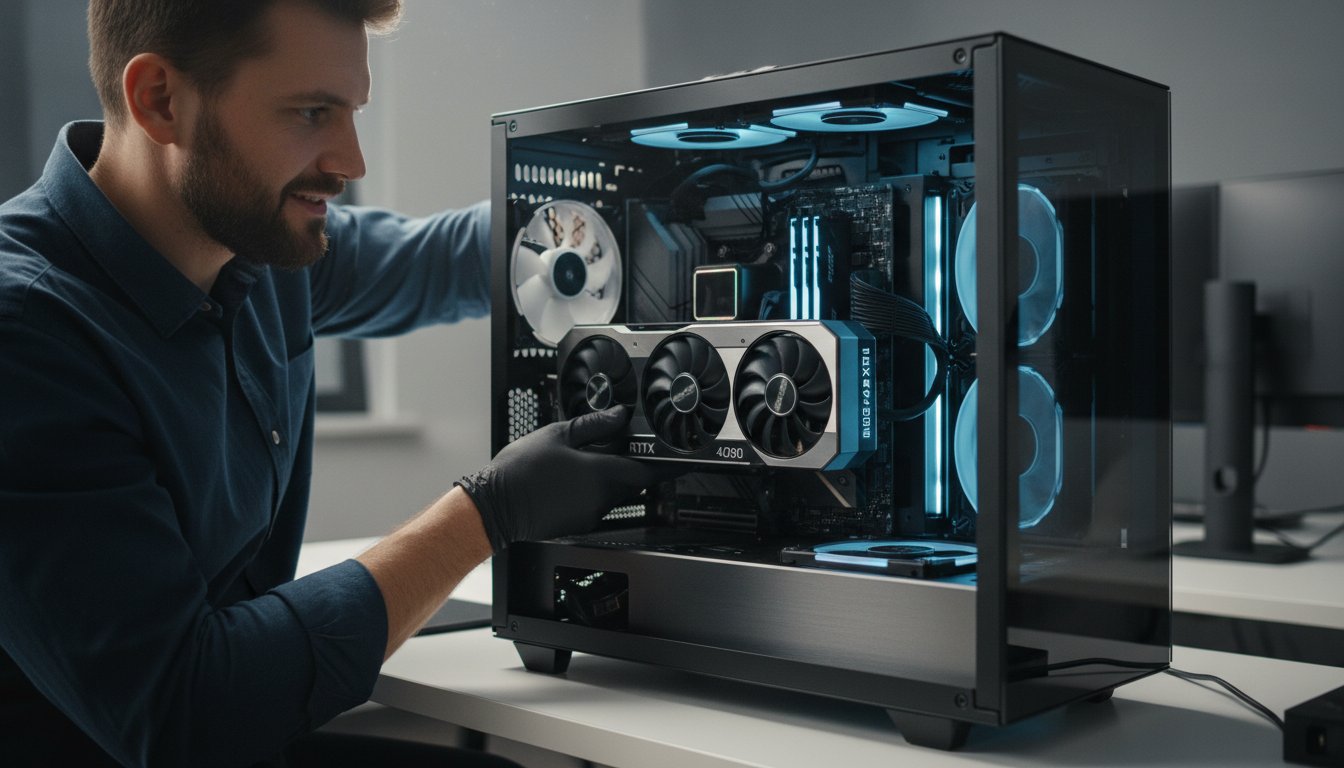
High-performance custom PCs and gaming rigs require a specialised level of expertise. Our technicians understand the complexities of custom configurations, from intricate cooling systems to overclocked components. We offer advanced diagnostics to pinpoint performance bottlenecks, perform component-level repairs and upgrades, and solve the complex software conflicts that can plague these powerful machines.

No matter the device, our commitment is to provide the highest quality computer repairs Toowoomba residents can rely on. We combine technical skill with a dedication to clear communication, so you always know what’s happening with your repair. If your computer, laptop, or printer needs professional attention, talk to the experts at Aspire Computing today.

Upfront Pricing: Is It Worth Repairing Your Computer?

One of the biggest questions we hear from customers is, “Is my computer even worth fixing?” It’s a valid concern, and the last thing you need when you’re stressed about a broken device is a surprise bill. At Aspire Computing, we believe in complete transparency. We provide clear, upfront information so you can make an informed decision that’s right for your budget and your needs.

Our commitment is to provide honest advice and real value, ensuring you feel confident in your choice for computer repairs Toowoomba.

Our Transparent Pricing Model

We eliminate the guesswork and anxiety around repair costs. Our process is designed to be straightforward and fair from the very beginning:

  • Fixed Diagnostic Fee: We start with a fixed, flat fee to thoroughly diagnose the problem. This allows us to give you a precise and accurate quote for the full repair.
  • No-Obligation Quotes: You will always receive a comprehensive quote detailing parts and labour before we proceed with any work. You are in complete control.
  • Honest Work, Honest Price: We believe in building long-term relationships based on trust. You’ll never find hidden fees or surprise charges on our invoices.

When to Repair vs. When to Replace

Sometimes, a new computer is the more sensible long-term investment. We’re not here to push a repair that doesn’t make financial sense. Our technicians will give you practical, honest advice based on a few key factors:

  • Age of the Device: If a computer is more than 5-7 years old, sourcing parts can become difficult and costly.
  • Cost of Repair: A good rule of thumb is if the repair cost is more than 50% of the price of a new, comparable machine, replacement might be the better option.
  • Your Needs: Is your current device still meeting your performance needs, or were you already considering an upgrade?

If replacement is the best path forward, we’ll tell you. We can even help you securely transfer all your important files, photos, and settings to your new machine to ensure a seamless transition.

Our Service Guarantee

We stand proudly behind the quality of our work and the integrity of our advice. Our goal is to find the best possible outcome for every customer. We guarantee that we will always communicate openly and honestly with you. In the rare case that a repair is not viable or cost-effective, we will discuss all available options with you fairly. Your satisfaction is our top priority.

For a clear assessment and an honest quote, talk to our experts today. We’re here to help you protect and connect.

Your Trusted Local Partner for Toowoomba Computer Repairs

When your PC, laptop, or printer fails, you need a solution that is fast, reliable, and straightforward. As we’ve explored, the benefits of choosing a local expert over a large chain are clear: you get a simple, stress-free process, upfront pricing with no surprises, and personalised service from someone who understands the Toowoomba community. It’s about getting your technology working again without the headache.

For professional computer repairs Toowoomba residents have trusted for over two decades, Aspire Computing is here to help. Since 1999, our owner-operated business has been dedicated to providing quality fixes for all major brands. Whether you need convenient on-site support at your home or business, or fast remote assistance to solve an issue, our focus is on protecting your data and reconnecting you to your digital world.

Stop letting tech troubles slow you down. Get the expert, local support you deserve and enjoy the peace of mind that comes with a job done right. Don’t Panic! Talk to a Toowoomba Expert About Your Computer Today.

Frequently Asked Questions

How long will my computer repair take?

We understand you need your computer back quickly. Many common software issues, like virus removal or system tune-ups, can often be completed on the same day. For hardware replacements, the timeline depends on parts availability, but we use reliable suppliers to minimise delays. After our initial diagnostic, we will provide you with a clear and honest time estimate for your specific repair. Our goal is always to get you up and running again as fast as possible.

Do you offer on-site computer repairs in Toowoomba and the Darling Downs?

Yes, we certainly do. We provide convenient on-site computer repairs in Toowoomba and throughout the surrounding Darling Downs region. Our mobile service is perfect for troubleshooting network problems, setting up new equipment, or resolving issues where it’s easier for us to come to you. For more complex hardware repairs that require specialised tools, we may recommend bringing your device to our workshop to ensure a thorough and efficient fix. Just give us a call to discuss the best option for you.

Is my personal data safe with you during the repair?

Absolutely. Protecting your personal data is our highest priority. We treat your files and information with the strictest confidentiality and follow best practices to ensure their security. Before beginning any major repair, we can assist with backing up your data to prevent any potential loss. You can have complete peace of mind knowing your privacy is respected and your data is in safe, experienced hands with our professional technicians.

What kind of warranty do you provide on your repairs and parts?

We stand behind the quality of our work with a comprehensive warranty for your assurance. All new hardware components we install are covered by a 12-month manufacturer’s warranty. Furthermore, we provide a 30-day guarantee on our labour for the specific repair performed. If you experience the same issue again within that period, we will address it promptly at no additional cost. We believe in providing reliable solutions that last.

Can you help me if I bought my computer from a major retailer like JB Hi-Fi or Harvey Norman?

Of course. We service and repair all major brands of PCs and laptops, including those purchased from retailers like JB Hi-Fi, Harvey Norman, and The Good Guys. Whether your device is in or out of warranty, we can provide expert diagnostics and repairs. Many clients find our local, personalised service to be a faster and more direct solution than navigating a large retailer’s support system. We’re here to offer expert help, no matter where you bought your computer.

What are your opening hours and where is your workshop located?

Our workshop is conveniently located at Unit 3, 15 Technology Drive, Toowoomba, QLD 4350. We are open Monday to Friday from 9:00 AM to 5:00 PM. While walk-ins are welcome, we recommend giving us a quick call beforehand to ensure one of our technicians is immediately available to assist you. This helps us provide the prompt and dedicated service our clients expect and deserve.

How to Back Up Your Computer: A Beginner's Guide to Protecting Your Files

Imagine for a moment that your computer suddenly fails. That sinking feeling in your stomach-are your irreplaceable family photos, vital business documents, and years of memories gone for good? If the thought of setting up a backup feels overwhelming, you are not alone. Technical terms like ‘cloud,’ ‘NAS,’ and ‘image backup’ can make the process seem too complicated and time-consuming, leaving your most important files at risk.

At Aspire Computing, we believe in making technology straightforward and secure. This guide is designed to cut through the confusion and give you a simple, clear plan on how to back up computer files. We will walk you through the essential methods for both Windows PCs and Macs, explain the gold-standard 3-2-1 rule that professionals trust, and help you create a ‘set it and forget it’ system. By the end, you’ll have the assurance and peace of mind that comes from knowing your digital life is protected.

Why Backing Up Your Computer is Non-Negotiable

It’s a feeling every computer user in Toowoomba dreads. You press the power button, and… nothing. A blank screen. That sudden, cold panic is the moment you realise everything-your photos, your documents, your life’s work-might be gone. This is precisely why learning how to back up computer files isn’t just a good idea; it’s essential.

At its core, a computer data backup is simply a second copy of your important files stored in a separate, safe location. Think of it not as a chore, but as your digital insurance policy-a small investment of time that provides complete peace of mind and protects you from disaster.

The Top 5 Data Loss Disasters

Here at Aspire Computing, we’ve seen it all. Data loss can strike without warning, and these are the most common culprits we encounter across the Darling Downs:

  • Hardware Failure: Hard drives and Solid-State Drives (SSDs) have a limited lifespan. When they fail, it’s often sudden and without any warning signs.
  • Accidental Deletion: It happens to the best of us. A slip of the finger can send a critical file or an entire folder into the digital void forever.
  • Software Corruption: A system update that goes wrong or a buggy piece of software can corrupt your operating system or essential files, making them unreadable.
  • Theft or Physical Damage: A dropped laptop, a spilled coffee, or a break-in can mean the physical loss of your device and all the data on it.
  • Cybersecurity Threats: Malicious attacks like ransomware can encrypt your files, holding them hostage. A secure backup is your best and often only line of defence.

What You Stand to Lose: More Than Just Files

The consequences of data loss go far beyond the digital. The real cost is measured in what you can’t replace, and it highlights why knowing how to back up computer data is so important:

  • Irreplaceable Memories: Years of family photos, videos of your children’s first steps, and precious holiday moments can be lost in an instant.
  • Critical Information: Financial records, tax documents, university assignments, and vital business files can disappear, causing immense stress and disruption.
  • Time and Money: The effort to recreate lost work can be staggering. Professional data recovery services can also cost hundreds or even thousands of Australian dollars (A$), with no guarantee of success.

The Core Backup Methods Explained in Simple Terms

Understanding how to back up computer files doesn’t need to be complicated. Think of it like this: you can make a copy of your front door key, or you can copy the entire blueprint for your house. Both are copies, but they serve very different purposes. Your backup strategy will likely involve a mix of methods, which fall into two main categories: local (a physical copy you keep) and off-site (a copy stored elsewhere, like the cloud).

Let’s break down the three most reliable methods to protect your valuable data.

Method 1: Local Backup to an External Drive

This is the most common and straightforward way to start. It involves connecting a physical device, like an external hard drive (HDD) or a faster solid-state drive (SSD), to your computer and copying your files onto it. You can do this manually or set up software to do it automatically.

  • Pros: It’s fast, completely private, and involves a one-time cost for the drive (often starting from around A$80). You also don’t need an internet connection to restore your files.
  • Cons: Its biggest weakness is being in the same physical location as your computer. It is vulnerable to local disasters like fire, flood, or theft.

Method 2: Off-Site Backup to the Cloud

Cloud backup involves storing an encrypted copy of your files on secure, remote servers over the internet. It’s important to distinguish this from cloud syncing services like Dropbox, which are designed for file access across devices. A true backup service (like Backblaze or Carbonite) is built for disaster recovery, automatically protecting everything in the background.

  • Pros: This method provides excellent protection against local disasters. Your data is safe and accessible from anywhere with an internet connection.
  • Cons: It requires a good internet connection, especially for the initial backup which can be slow. It typically involves an ongoing monthly or yearly subscription fee.

Method 3: Full System Image (Disk Imaging)

This is the ‘full blueprint’ approach. A system image is a complete snapshot of your entire hard drive, including your operating system (Windows or macOS), settings, programs, and all your files. If your computer’s main drive fails, you can restore this image to a new drive and get back to work almost instantly. Both operating systems have built-in tools for this; for example, Microsoft offers a detailed guide for Backing Up on Windows.

  • Pros: It allows for a complete, identical restoration of your system, saving you hours of re-installing software and configuring settings.
  • Cons: Image files are very large, requiring significant storage space. The process can also be more complex for beginners.

Your Step-by-Step Guide: Backing Up on Windows and Mac

Now for the practical part. Learning how to back up computer files doesn’t have to be a complex technical task. Both Windows and Mac operating systems come with excellent, free tools designed to make the process straightforward. Our guide focuses on the most reliable starting point: backing up your important files to an external hard drive.

(In the final article, these steps will be accompanied by helpful screenshots to guide you at every stage.)

For Windows 10 & 11 Users: Using File History

File History is Microsoft’s built-in solution that automatically saves copies of your files to an external drive. It’s a simple and effective way to protect your documents, photos, and more. Here’s how to set it up:

  • Step 1: Connect your external hard drive. Plug your drive into a USB port on your computer. Windows should automatically detect it.
  • Step 2: Open Backup settings. Click the Start menu, go to Settings > Update & Security > Backup. (On Windows 11, you can also search for “File History” from the Start menu to find it quickly).
  • Step 3: Add your drive and activate. Under ‘Back up using File History’, click ‘Add a drive’ and select your connected external drive. The ‘Automatically back up my files’ switch will then turn on.

By default, File History backs up your main user folders. To customise this, click ‘More options’ to add or remove specific folders from the backup plan, giving you full control over what you protect.

For Mac Users: Using Time Machine

Apple’s Time Machine is a famously simple and robust backup tool. Once configured, it works silently in the background to give you complete peace of mind. Follow these steps:

  • Step 1: Connect your external hard drive. When you plug in a new drive, your Mac may ask if you want to use it with Time Machine. If so, simply agree!
  • Step 2: Open Time Machine settings. If not prompted, go to the Apple menu and open System Settings > General > Time Machine. (On older macOS versions, this is located directly in System Preferences).
  • Step 3: Select your backup disk. Click the ‘+’ button (or ‘Add Backup Disk’), choose your external drive from the list, and follow the prompts. Time Machine will begin its first full backup, which may take some time.

After the initial setup, Time Machine automatically creates hourly, daily, and weekly backups, so you can restore your Mac to any recent point in time if needed.

Taking it to the Next Level: Cloud Backup Services

For ultimate data protection, we recommend complementing your local backup with a secure cloud backup service. This protects your files from physical threats like fire, flood, or theft. Services like Backblaze are popular in Australia for their simplicity and unlimited storage. You just install the software, sign in, and it quietly backs up your entire computer to the cloud for a small monthly fee.

Feeling overwhelmed by the options? Don’t worry. Aspire Computing can set up the perfect backup for you. We’ll help you build a reliable strategy to ensure your precious data is always safe and secure.

How to Back Up Your Computer: A Beginner's Guide to Protecting Your Files

The 3-2-1 Strategy: The Gold Standard for Data Protection

If you want to move beyond basic backups and protect your files like an IT professional, it’s time to embrace the industry’s gold standard: the 3-2-1 backup strategy. This isn’t just a random set of numbers; it’s a simple, powerful, and time-tested framework designed to provide near-total assurance that your data will survive almost any disaster. It’s the definitive answer to the question of how to back up computer files for maximum safety and peace of mind.

What is the 3-2-1 Backup Rule?

The rule is brilliantly simple and easy to remember. It provides a clear roadmap to creating a resilient and redundant backup system. At its core, the strategy is about diversification-not putting all your digital eggs in one basket.

  • 3: Keep at least THREE copies of your data. This includes your original working file and two backups.
  • 2: Store your copies on TWO different types of media. For example, your computer’s internal drive and an external hard drive.
  • 1: Keep ONE of these copies off-site. This is your safeguard against a localised disaster like fire, flood, or theft.

A Practical 3-2-1 Example for Home Users

This professional strategy is surprisingly easy to implement at home. Here’s a typical and highly effective setup:

  • Copy 1 (The Original): Your files as they live on your computer’s internal hard drive or SSD.
  • Copy 2 (Local Backup): An automated backup to an external hard drive connected to your computer. Tools like Windows File History or Apple’s Time Machine are perfect for this.
  • Copy 3 (Off-site Backup): A secure, automated backup to a cloud backup service.

Why This Simple Rule is So Powerful

Following the 3-2-1 rule protects you from a wide range of potential data loss scenarios. Multiple copies guard against a single file becoming corrupt. Using different storage media protects you if one type of device fails (like a faulty batch of hard drives). Finally, the off-site copy is your ultimate insurance policy, ensuring your precious photos, documents, and memories are safe even if your home or office is compromised.

Implementing a robust backup strategy provides true data continuity. If you need expert help designing or setting up a foolproof backup system for your home or business, contact Aspire Computing today.

What to Do When You Have No Backup and Disaster Strikes

We’ve spent this guide discussing prevention, but sometimes disaster strikes before a solid backup plan is in place. It’s a sinking feeling to realise your precious photos, critical business files, or years of work have vanished. But before you panic, take a deep breath. There may still be hope for recovery.

While learning how to back up computer files is the best defence, this section is about the cure. What you do in the next few minutes is absolutely critical and can mean the difference between getting your data back and losing it forever.

The Most Important First Step: Stop Using the Drive

Immediately stop using the computer or external drive that has lost data. Continued operation, even just browsing the web, can write new information over the very files you hope to retrieve, making them permanently unrecoverable. Power down the computer completely. It is also vital that you do not install any data recovery software onto the failing drive itself, as this action can overwrite your lost data.

When to Call a Data Recovery Professional

While some DIY software exists for simple cases of accidental deletion, attempting to recover from a physically failing drive can cause irreversible damage. You absolutely need professional help if you notice any of the following signs:

  • The drive is making unusual clicking, whirring, or grinding noises.
  • Your computer fails to recognise the drive or says it needs to be formatted.
  • The data is irreplaceable, such as critical business documents or precious family photos.
  • The device has been dropped or exposed to physical damage from a flood or fire.

How Aspire Computing Helps Toowoomba and Darling Downs

At Aspire Computing, we understand the stress of data loss. We use specialised, industry-leading data recovery tools and techniques to retrieve files from failing hard drives, SSDs, and other storage media. As a local business serving Toowoomba and the Darling Downs since 1999, we have built a reputation for trusted, professional, and effective service. We can help you navigate this crisis and, once your data is safe, help you implement a robust strategy for how to back up computer data properly in the future.

Lost your data? Don’t risk making it worse. Contact our Toowoomba data recovery experts now.

Don’t Wait for Disaster: Secure Your Files Today

Learning how to back up computer files is one of the most important steps you can take to protect your digital life. It’s not just for businesses; it’s for everyone with precious photos, important documents, and irreplaceable memories. By understanding the core backup methods and aiming for the gold-standard 3-2-1 strategy, you can build a powerful defence against hardware failure, theft, or cyberattacks, ensuring your data is always safe.

Feeling a bit overwhelmed? You don’t have to do it alone. Since 1999, Aspire Computing has been the friendly, local team Toowoomba trusts for data protection. As professional Data Recovery Specialists, we can help you implement a foolproof backup strategy tailored to your needs, with both on-site and remote support available.

Protect your precious files today. Talk to our Toowoomba IT experts for help with your backup strategy! Taking this simple step now provides priceless peace of mind for the future.

Frequently Asked Questions About Backing Up Your Computer

How often should I back up my computer?

For most home users, a weekly backup provides a good level of protection for your files. However, if you work with important documents daily, such as for a business, we strongly recommend a daily backup schedule. The best approach is an automated one that runs in the background. This ensures your data is consistently protected without you having to remember, giving you peace of mind and excellent data continuity.

What size external hard drive do I need for backups?

A good rule of thumb is to choose a drive that is at least double the capacity of the data you need to back up. For example, if you have 250GB of files, a 1TB external drive is a safe and practical choice. This extra space allows for future file growth and multiple backup versions. A quality 1TB drive can typically be purchased in Australia from major retailers for around A$80-A$100.

Is it safe to store my backups in the cloud?

Yes, storing backups with a reputable cloud service is very safe. Major providers use strong encryption to protect your data both while it’s being transferred and while it’s stored on their servers. The key benefit is that your files are kept off-site, safe from local disasters like fire, flood, or theft. This provides an excellent layer of assurance that your most important information is secure and accessible when you need it.

Can I just use a USB flash drive to back up my computer?

While USB flash drives are convenient for moving a few files, we don’t recommend them as your main backup solution. They generally have smaller capacities, are very easy to lose, and have a higher failure rate than dedicated external hard drives. For a reliable strategy on how to back up computer files, a proper external drive or a cloud service offers far greater security and storage space, ensuring your data is truly protected.

How long does it take to back up a computer for the first time?

The initial backup is always the longest, as it must copy every file you’ve selected. The time depends on the amount of data and your connection speed (e.g., USB 3.0 is much faster than older ports). Backing up 500GB of data for the first time could take anywhere from 2 to 8 hours. The good news is that subsequent backups are much quicker, often taking only a few minutes to save new or changed files.

Does a backup save my programs and applications, or just my files?

This depends on the type of backup. A standard file backup, which is the most common method, saves your personal data-documents, photos, music, and videos. It does not save your installed programs. To save everything, including your operating system and applications, you need to create a “system image.” This is a more advanced process, but it allows for a complete restoration of your computer to its exact state at the time of the backup.

Graphics Card Upgrade: Your Complete Guide to a Faster PC

Is stuttering gameplay turning your favourite titles into a slideshow? Are slow video renders and sluggish creative software holding you back? This kind of frustration is a clear signal that your PC is due for a performance boost. For many, a graphics card upgrade is the single most effective way to breathe new life into their machine. However, the path to a faster PC can seem filled with technical hurdles, from choosing a compatible card to understanding power requirements and the fear of making a costly mistake during installation.

Don’t worry, we’re here to help. This guide is designed to give you complete confidence in your upgrade. We will walk you through how to choose the perfect graphics card for your needs and budget, how to check compatibility with your system, and the step-by-step process for a safe and successful installation. You’ll gain the knowledge to do it yourself or recognise when calling on our experts is the best choice for a flawless result. Let’s get your PC running faster than ever.

Is It Time for a Graphics Card Upgrade? Key Signs to Look For

Before investing in new hardware, it’s essential to confirm that your graphics card is the true performance bottleneck in your system. The Graphics Processing Unit (GPU) is the dedicated engine that handles everything from gaming visuals to complex design rendering. If you’re unfamiliar with the component, understanding what a graphics card is provides a helpful foundation. A powerful GPU can dramatically improve your computer’s capabilities, but how do you know if you need one? If you’re experiencing any of the following issues, it might be time for a graphics card upgrade.

To check if your GPU is the cause, you can monitor its usage during demanding tasks. On Windows, simply open Task Manager (Ctrl+Shift+Esc), go to the “Performance” tab, and select your GPU. If its usage is consistently at 99-100% while your CPU is lower, it’s a clear sign your graphics card is holding you back.

Poor Gaming Performance

For PC gamers, the graphics card is the heart of the experience. An underpowered GPU will quickly become apparent. Key symptoms include:

  • Low Frame Rates (FPS): Modern games feel choppy, stutter, or are simply unplayable at your monitor’s native resolution.
  • Reduced Quality Settings: You have to turn down textures, shadows, and resolution just to achieve a smooth frame rate, sacrificing visual quality.
  • Visual Glitches & Crashes: You may see strange visual errors, known as “artifacts” (e.g., odd colours or distorted shapes), or the game might crash to the desktop frequently.

Slow Creative & Professional Software

A graphics card upgrade isn’t just for gamers. Professionals and creators rely on GPU acceleration for a smooth and efficient workflow. Watch for these signs:

  • Long Rendering Times: Exporting videos in software like Adobe Premiere Pro or DaVinci Resolve takes an excessively long time.
  • Laggy Viewport Performance: Navigating complex 3D models in programs like Blender, AutoCAD, or SolidWorks is slow and unresponsive.
  • Slow AI Processing: Machine learning or AI-driven tasks that leverage the GPU take far too long to complete, hindering your productivity.

System & Hardware Limitations

Sometimes, the need for an upgrade comes from other changes to your setup or the age of the card itself. Consider these factors:

  • Lack of Modern Features: Your current card doesn’t support new technologies like Ray Tracing for realistic lighting or DLSS/FSR for AI-powered performance boosts.
  • Failing Hardware: The graphics card fan is constantly running at maximum speed, making excessive noise, or has stopped spinning altogether, leading to overheating.
  • New High-Resolution Monitor: You’ve upgraded your display to 1440p or 4K, but your old GPU can’t deliver a smooth experience at that higher resolution.

Before You Buy: The Essential 4-Point Compatibility Check

The excitement of a new graphics card is often followed by a nagging question: “Will it actually work with my PC?” It’s the most common fear, and for good reason-an incompatible part can turn an exciting upgrade into a costly mistake. Don’t panic! This simple 4-point check is designed to give you peace of mind. Taking a few minutes to confirm these details ensures your chosen graphics card upgrade will be a perfect fit for your system.

Power Supply Unit (PSU): Do You Have Enough Wattage?

Modern graphics cards are powerful, and they need plenty of electricity to perform at their best. Your Power Supply Unit (PSU) is the engine that provides this power. To check its capacity, you’ll need to power down your PC, unplug it, and open the side panel. The PSU is the boxy component where the power cord connects, and it will have a large sticker detailing its maximum wattage (e.g., 550W, 750W). Compare this number to the “recommended PSU wattage” on the new card’s specification sheet. Also, check that you have the correct power cables, typically one or two 8-pin PCIe connectors.

Physical Size: Will the New Card Fit in Your Case?

Graphics cards have grown significantly over the years. Before you buy, grab a tape measure. You need to measure the internal clearance inside your case, from the rear expansion slots where the card is installed to the front of the case where fans or hard drive cages might be. Compare this measurement to the new card’s dimensions (Length, Height, and Width), which are always listed on the manufacturer’s website. Also, check how many slots it occupies (e.g., a “2-slot” or “3-slot” card) to ensure you have enough room.

Motherboard & CPU: Avoiding Bottlenecks

Nearly all modern motherboards have the required PCIe x16 slot for a graphics card, but it’s worth a quick check. More importantly, you need to consider balance. A “CPU bottleneck” occurs when a powerful new GPU is paired with a much older, slower processor. Think of it like putting a V8 engine in a car with bicycle wheels-you have all that power, but the rest of the system can’t keep up. To get the full value from your graphics card upgrade, your CPU should be reasonably modern.

Feeling Overwhelmed? Let Us Check for You

We understand that checking technical specifications can feel a bit daunting. If you’re not confident about opening your PC or just want a professional second opinion, we’re here to help. The team at Aspire Computing can quickly assess your system’s compatibility and recommend the perfect upgrade for your needs and budget. Bring your PC in for a quick compatibility check!

The Upgrade Process: A Safe, Step-by-Step Installation Guide

You’ve chosen your new component, and now it’s time for the most hands-on part of the process. Don’t worry, this isn’t as complex as it sounds. By following these steps methodically, you can ensure your graphics card upgrade is a safe and successful one. We have broken the installation down into three simple stages: software prep, the physical swap, and final testing.

Step 1: Software Preparation (Before You Open the Case)

A clean start is the key to avoiding driver conflicts. Before you touch any hardware, prepare your system on the software side. This ensures a smooth transition and prevents performance issues down the line.

  • Download New Drivers: Go to the manufacturer’s website (NVIDIA, AMD, or Intel) and download the latest driver for your new card. Save it to your desktop for easy access later.
  • Uninstall Old Drivers: We highly recommend using a free tool called Display Driver Uninstaller (DDU). It completely removes all traces of old drivers. Run it in Safe Mode for the best results.
  • Power Down: Once the old drivers are gone, shut down your PC completely. Switch off the power supply at the back and unplug the power cable from the wall outlet.

Step 2: The Physical Swap (Handling with Care)

With the PC powered off, it’s time to open the case. Your main enemy here is static electricity, which can damage sensitive components. Always handle parts by their edges and avoid touching the gold connectors or circuitry.

IMPORTANT: Before you touch anything inside, ground yourself by touching a large metal part of the computer case for a few seconds. This discharges any static buildup. Now, locate your old graphics card. It’s a long circuit board plugged into a slot on your motherboard.

  1. Unplug any power cables connected to the card.
  2. Unscrew the metal bracket holding the card to the back of the case.
  3. Press down on the small plastic clip at the end of the motherboard slot (the PCIe slot) to release the card.
  4. Gently pull the old card straight out.
  5. Align your new card with the slot and press it in firmly until you hear and feel it click into place. The clip will lock automatically.
  6. Screw the new card’s bracket to the case and plug in the required power cables from your power supply.

Step 3: Final Setup and Testing

You’re on the home stretch! Close up your computer case and move to the final software setup. A common mistake here can prevent your PC from displaying anything, so pay close attention to where you plug in your monitor.

  • Connect Your Monitor: Plug your monitor cable directly into one of the ports on your new graphics card, not the ports on your motherboard.
  • Install Drivers: Plug the power cable back in, turn on the PC, and boot into Windows. Your resolution might look low, which is normal. Find the driver file you downloaded earlier and run the installer.
  • Restart and Test: Follow the on-screen prompts and restart your computer when the installation is complete. To confirm everything is working perfectly, run your favourite game or a free benchmarking tool like FurMark to test for stability and performance.

Graphics Card Upgrade: Your Complete Guide to a Faster PC

Common Problems After Upgrading and How to Fix Them

You’ve installed your new hardware, and you’re ready for a superior gaming or creative experience. But what happens when your PC doesn’t cooperate? Don’t panic. Most issues that pop up after a graphics card upgrade are common and can be solved with a few simple checks. This guide will walk you through the most frequent problems and how to get your system running smoothly.

My PC Won’t Turn On or Has No Display

That moment of silence when you press the power button and nothing happens can be stressful, but the fix is often straightforward. Before assuming the worst, run through these essential checks:

  • Check Power Connections: Modern graphics cards require dedicated power. Ensure all 6-pin or 8-pin PCIe power cables are firmly and securely connected from your power supply to the graphics card. You should hear a ‘click’ as they lock in.
  • Confirm Proper Seating: Make sure the graphics card is fully seated in the motherboard’s PCIe slot. The locking tab at the end of the slot should be engaged. Sometimes it takes a bit of firm, even pressure.
  • Verify Monitor Cable: This is a classic mistake. Your monitor’s display cable (HDMI or DisplayPort) must be plugged into a port on your new graphics card, not the motherboard’s built-in video outputs.

My Computer is Crashing or Unstable

If your computer boots up but then crashes during games or demanding tasks, it points to an instability issue. This is usually related to power, heat, or software conflicts. Here’s what to investigate:

  • Insufficient Power Supply (PSU): Your previous power supply might not have enough wattage to handle the new card. Check the recommended PSU wattage for your specific GPU model and ensure yours meets or exceeds it.
  • Overheating: A new, powerful card generates more heat. Check that your case fans are spinning and that airflow isn’t blocked. You can use monitoring software to watch your GPU temperatures.
  • Driver Conflicts: Old graphics drivers can cause major conflicts. It’s best to perform a clean driver installation. Use a tool like Display Driver Uninstaller (DDU) to completely remove old drivers before installing the new ones from the manufacturer’s website.

Performance is Not as Good as Expected

Sometimes the system runs fine, but the performance boost you paid for just isn’t there. A successful graphics card upgrade depends on the whole system working together. If your frame rates are disappointing, consider these factors:

  • CPU Bottleneck: If you’ve paired a high-end GPU with an older, slower CPU, your processor may not be able to keep up, limiting the graphics card’s potential.
  • Check Your RAM Speed: Ensure you have enabled XMP (or DOCP for AMD systems) in your computer’s BIOS. Without it, your RAM may be running at a much slower default speed, holding back performance.
  • Optimise Game Settings: Dive into the in-game graphics settings. Make sure the resolution is set correctly and that features like ray tracing or higher texture quality are enabled to take advantage of your new hardware.

If you’ve worked through these steps and are still facing issues, don’t hesitate to seek professional help. Sometimes a problem requires an expert eye. For quality assurance and expert hardware support, talk to the experts at Aspire Computing to get your system protected and connected.

When to Call a Professional for Your Graphics Card Upgrade

While a DIY installation can be a rewarding project, a graphics card upgrade isn’t always straightforward. For a process that is safe, efficient, and guaranteed to work, calling a professional is often the smartest move. At Aspire Computing, we ensure your investment is protected and your PC is running at its peak potential, saving you time and preventing costly mistakes.

If You’re Not Confident Opening Your PC

It’s perfectly understandable to be hesitant about opening up your computer. PC components are delicate and sensitive to static electricity, and a simple slip can lead to damage. A professional service eliminates that risk. We handle the entire process for you-from recommending the best card for your system and budget to the final driver installation and performance testing. You get all the benefits of the upgrade with complete peace of mind.

If You Have a Complex or Custom-Built PC

Specialised builds require expert handling. If your computer has any of the following, we highly recommend professional installation:

  • Custom water-cooling loops: These systems must be carefully drained and refilled to avoid leaks and damage.
  • Small form-factor (SFF) cases: Working in tight spaces with intricate cable routing requires patience and experience to ensure proper airflow and prevent components from overheating.

Our technicians have extensive experience with all types of PC builds, ensuring your unique system is treated with the care it deserves.

If You’ve Tried and Run Into Problems

You’ve installed the new card, but your screen is blank, the PC won’t boot, or games keep crashing. Don’t waste hours battling frustrating driver conflicts or troubleshooting cryptic error messages. Our team uses professional diagnostic tools to quickly identify the root cause, whether it’s a power supply limitation, a software conflict, or an incorrect BIOS setting. We can turn a frustrating afternoon into a fast, successful fix. Talk to our experts in Toowoomba for a hassle-free upgrade.

Since 1999, Aspire Computing has provided trusted hardware support in the Toowoomba region. A professional graphics card upgrade from our team saves you time and guarantees a perfect result, letting you get back to what you love doing.

Unlock Your PC’s Full Potential

Armed with this guide, you now understand the key signs that it’s time for an upgrade and the crucial compatibility checks to perform before you buy. Following the step-by-step installation process is the final piece of the puzzle to boosting your PC’s performance for gaming, creating, and everything in between.

While a DIY approach is rewarding, we understand it’s not for everyone. If you want to ensure your graphics card upgrade is handled with expert care, don’t hesitate to reach out. At Aspire Computing, we provide friendly, local, and professional service, backed by our experience serving Toowoomba and the Darling Downs since 1999. We handle the expert diagnostics and hardware installation so you can get back to what you love, faster. Need help with your graphics card upgrade? Contact Aspire Computing today!

Get ready to enjoy smoother frame rates and a faster, more responsive PC!

Frequently Asked Questions About Graphics Card Upgrades

Do I need to reinstall Windows after a graphics card upgrade?

In most cases, no. After a graphics card upgrade, you do not need to reinstall your entire operating system. The correct procedure is to completely uninstall the old graphics drivers from your system before you physically remove the old card. Once the new card is installed, you can then install the latest drivers for it. This ensures a clean transition and prevents software conflicts, helping your new hardware perform at its best from the start.

Can I put any graphics card in any computer?

No, compatibility is crucial when choosing a new graphics card. You must check three key factors: physical size (will it fit in your PC case?), power supply unit (does it provide enough wattage and have the necessary connectors?), and motherboard compatibility (does it have a free PCIe x16 slot?). We always recommend measuring your case and checking your power supply’s specifications before making a purchase to ensure a successful and stress-free installation.

How much does it cost to have a graphics card professionally installed?

In Australia, the cost for a professional graphics card installation typically ranges from A$80 to A$150. This service usually includes the physical installation of the card, connecting the power cables correctly, and installing the necessary drivers to ensure everything runs smoothly. The final price can depend on your location and the complexity of your computer’s build, but it provides peace of mind that the job is done right.

Will upgrading my graphics card void my PC’s warranty?

Upgrading a component like a graphics card in a pre-built PC generally does not void the entire system’s warranty, thanks to Australian Consumer Law. However, if you cause damage to another part of the computer during the installation, that specific damage will not be covered. Your new graphics card will come with its own manufacturer’s warranty, separate from the warranty of your original PC.

How long should a modern graphics card last?

A modern graphics card can physically function for over five years, but its useful lifespan for gaming is different. A high-end card might handle the latest games at maximum settings for 2-3 years before you need to lower them. A mid-range card may need settings adjusted sooner. For general productivity, video, and non-demanding tasks, a quality card can easily last until you decide it’s time for a major system overhaul.

Is it better to buy a new NVIDIA or AMD graphics card?

Both NVIDIA and AMD produce excellent graphics cards, and the best choice depends on your budget and primary use. NVIDIA often leads in high-end performance and features like ray tracing and DLSS. AMD is highly competitive, frequently offering great value and performance with its own upscaling technology, FSR. We recommend checking current benchmarks and reviews for cards within your specific price range to see which offers the best performance for the games you play.