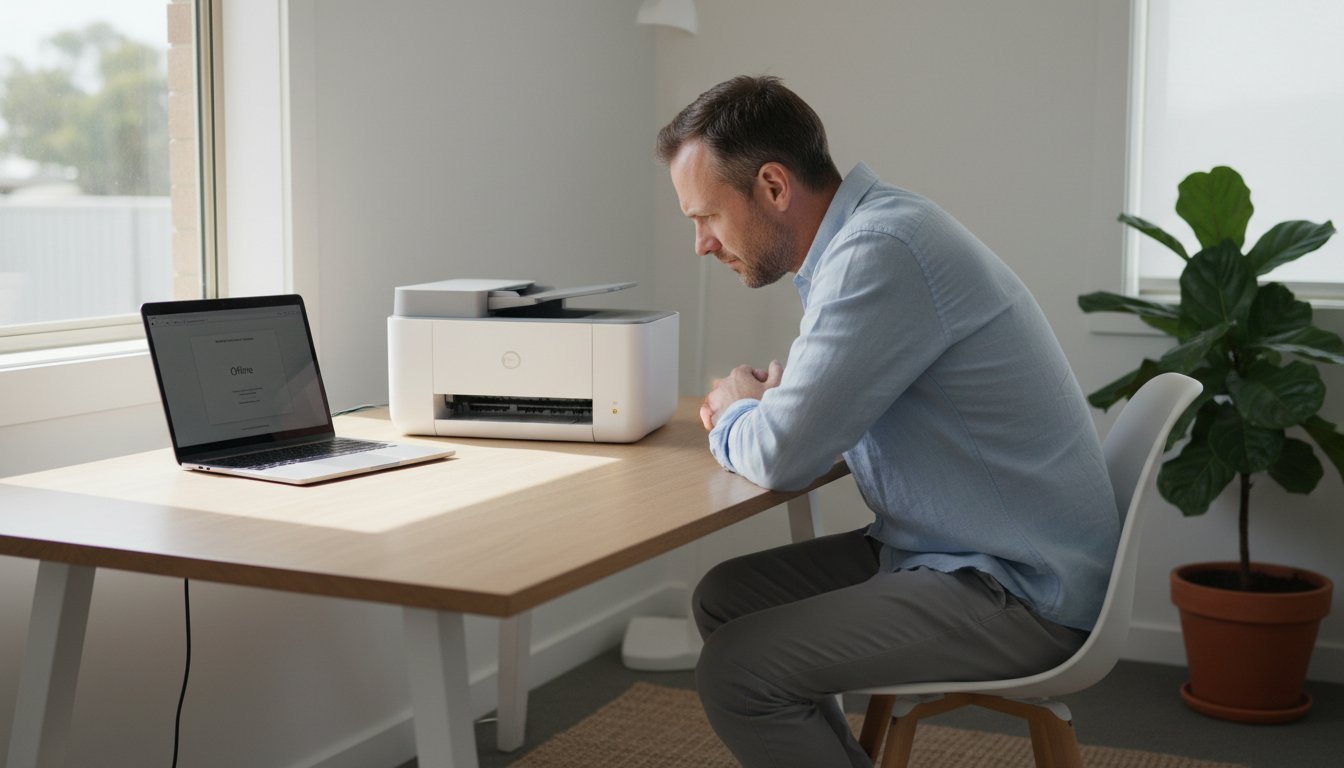
What to Do When You Lose Important Files: A Step-by-Step Recovery Guide

Imagine the moment you realize a folder is empty or a hard drive refuses to spin. That sudden sinking feeling is something 85% of organizations experienced last year; for a local family or business owner, it feels like the world has stopped. You need to know exactly what to do when you lose important files before a simple mistake makes the loss permanent. Whether it is irreplaceable family photos or critical financial records, the panic you are feeling is completely normal.

We understand the anxiety of business downtime and the confusion surrounding which recovery tools are actually safe to use. This guide provides the immediate actions you need to take, and more importantly, what you must avoid to maximize your chances of success. You will learn the crucial differences between a logical software glitch and a physical hardware failure. We will walk you through the recovery process step by step, ensuring you have the information needed to find a trusted expert right here in Toowoomba to help you get your digital life back on track.

Key Takeaways

  • Stop using your device the second you notice data is missing to prevent background processes from permanently overwriting your files.
  • Discover what to do when you lose important files by distinguishing between simple software glitches and serious physical hardware failures.
  • Evaluate the risks of DIY recovery software and learn why professional services are necessary for drives making unusual noises.
  • Gain peace of mind by understanding the professional recovery process, including how a diagnostic file list ensures you only pay for successful results.
  • Secure your future data with the 3-2-1 Backup Rule, the gold standard for protecting both home memories and local business continuity.

Stop Everything: The Critical First Steps After Losing Important Files

The moment you realize a file is gone, your instinct is to search, download software, or restart. Don’t. Every second the device remains active, the risk of permanent loss increases. Knowing what to do when you lose important files starts with one simple rule: stop using the device immediately. This isn’t just a suggestion; it’s the single most important factor in whether your data can be saved.

Modern operating systems are constantly writing data in the background. Even if you aren’t actively saving a document, your computer is updating logs, downloading updates, or caching web data. These invisible processes can overwrite the very sectors where your “deleted” data still sits. If you are using an external drive or SD card, safely eject it right now to freeze its current state and prevent the system from making further changes.

To better understand this concept and how to protect your information, watch this helpful video:

The “Golden Rule” of Data Recovery

When you delete a file, the computer doesn’t actually erase the data from the drive immediately. Instead, it marks that space as “available.” Think of it like a library book being removed from the catalog while the physical book stays on the shelf. The data remains there until new information is written over it. Data recovery is the process of retrieving this “invisible” information before the system reuses that space. Overwriting is the primary cause of permanent data loss. This is why browsing the web to find a solution on the affected computer is dangerous; the browser cache alone could destroy your files.

Emergency Shutdown Protocol

If you hear unusual noises, the rules change. A clicking, grinding, or whirring sound indicates a mechanical failure. In these cases, a standard “soft” shutdown via the Start menu can be harmful because the drive continues to spin while the OS closes programs. For a desktop PC making noise, pull the power cord directly. For laptops, hold the power button until the screen goes black. This stops the physical movement that could be carving permanent scratches into your data platters.

Avoid the temptation to restart your computer repeatedly. Hardware malfunctions are the leading technical cause of data loss, accounting for 40-44% of incidents according to industry data. If a drive has a physical fault, every reboot is like running a car engine with no oil. You might cause a “head crash,” where the internal components physically damage the storage surface. If you’re in Toowoomba and unsure if your drive is failing physically, it’s safer to bring it to a professional at Aspire Computing for a safe diagnostic check.

Evaluating Your Recovery Options: DIY Software vs. Professional Services

Many people’s first reaction after a data loss is to search for a quick fix online. It’s a natural response. You want your files back immediately. However, deciding between a software download and professional help is the most critical choice you’ll make. Understanding what to do when you lose important files requires a calm assessment of the drive’s health. If you accidentally deleted a file from a healthy, working hard drive, DIY software might be a viable path. It’s important to remember that software is a tool, not a miracle worker.

Resources like Forbes provide general advice on how to recover deleted files, but these methods have limits. Consumer-grade apps are designed for “logical” issues, like accidental formatting or emptied Recycle Bins. They cannot fix a mechanical problem. If your drive is making any noise or isn’t being recognized by the computer, running a DIY scan is dangerous. The software forces the drive to read every single sector. This can lead to a total head crash on a failing unit, making future recovery impossible.

The Danger of “Free” Recovery Tools

The internet is full of “free” data recovery software, but many of these downloads carry hidden risks. Malware often hides inside these tools, preying on people in a state of panic. You might also encounter the “trial version” trap. These apps scan your drive for free and show you a list of your files, giving you hope. Then, they demand a payment before you can actually save or export the recovered data. Most importantly, installing this software directly onto the affected drive is a mistake. It overwrites the very space where your lost files reside, as we discussed in the previous section.

Professional Recovery: What Happens Behind the Scenes

Professional Data Recovery Services use a vastly different approach than home software. Instead of working on the original drive, experts create a bit-for-bit clone, or “image,” of the device. This preserves the original state and allows the recovery work to happen on a safe copy. Specialised hardware tools can bypass bad sectors that standard Windows or Mac operating systems simply cannot read. This significantly increases the success rate compared to consumer apps.

Professional labs also use “clean room” environments for physical repairs. When a drive has a failed motor or damaged read/write heads, opening it in a normal room would destroy the data instantly. Microscopic dust particles can ruin the platters. Experts can also perform firmware repairs on modern SSDs and HDDs, fixing the internal “brain” of the drive that consumer apps cannot reach. Getting expert advice is the best way to know exactly what to do when you lose important files without risking further damage.

Identifying the Cause: Is Your Data Loss Logical or Physical?

Diagnosis is the fork in the road for any recovery attempt. If you’re searching for what to do when you lose important files, you must first identify if your problem lies in the software or the hardware. A logical failure means your hard drive is physically healthy, but the data has been deleted, formatted, or scrambled by software. Physical failure means the device itself is broken. Hardware malfunctions account for roughly 40% to 44% of all data loss incidents, making them a common hurdle for many users.

In Toowoomba, our local environment plays a significant role in hardware longevity. The Darling Downs region is known for intense summer storms and frequent power surges. These electrical spikes can fry the delicate circuit boards on external drives and desktop PCs instantly. Additionally, our high humidity can contribute to internal component corrosion over time. Understanding these local risks helps you better protect your equipment from the elements.

Signs of Logical Corruption

Logical issues often present as confusing error messages. You might see a pop-up stating “Drive needs to be formatted before use” or “File system not recognized.” This happens when the “map” your computer uses to find files is damaged. You might also notice disappearing folders or files that open as a jumble of strange symbols. While these situations are stressful, the recovery success rate is generally higher because the hardware is still operational. If you encounter these errors, do not click “Format,” as this will make the recovery much more difficult.

Warning Signs of Physical Failure

Physical failure is a mechanical emergency. The most famous sign is the “Click of Death,” a rhythmic ticking sound caused by the read/write heads struggling to find their position. If you smell something burning or feel excessive heat coming from your laptop or external drive, shut it down immediately. Physical failure often causes the entire computer to freeze or become extremely slow as it tries repeatedly to read a damaged sector. These are signs of a device that is literally wearing itself out.

Traditional Hard Disk Drives (HDDs) usually give you these audible warnings. Solid State Drives (SSDs), however, often fail silently. An SSD might work perfectly one minute and be completely invisible to the system the next. Because SSDs use complex encryption and NAND flash memory, they require specialized lab tools for recovery. If you suspect your drive is physically failing, contact Aspire Computing for a professional assessment before the damage becomes irreversible.

What to Do When You Lose Important Files: A Step-by-Step Recovery Guide

What to Expect During the Professional Data Recovery Process

Handing over a drive containing your life’s work or family memories requires a high level of trust. Once you’ve moved past the initial panic and decided to seek help, the process should be transparent and methodical. Knowing what to do when you lose important files often leads you to a local expert who can handle the technical heavy lifting while keeping you informed. A professional recovery isn’t a “black box” operation; it’s a structured service designed to provide certainty in an uncertain situation.

When you drop off your device in Toowoomba, the first priority is a professional assessment. Reputable shops handle your sensitive information with strict privacy protocols, ensuring that your financial records or private photos remain secure throughout the process. Depending on the complexity of the failure, the timeline can range from a few business days for logical issues to longer periods if specialized parts are required for a mechanical repair. We aim for a streamlined process that balances thoroughness with the need for a rapid turnaround.

The Diagnostic and Quote Phase

A professional should never offer a “flat fee” over the phone without seeing the drive first. Every data loss event is unique. A diagnostic phase is essential to determine the “recoverability” of the data and the specific steps required. During this stage, it’s helpful to prioritize which files you need back first. If you only need a specific database for your business to resume operations, the technician can focus their efforts there to speed up your recovery. Many experts in the industry operate on a “No Data, No Fee” policy, which means you only pay for the service if the required data is successfully retrieved. This approach ensures personal accountability and reduces the financial risk for the customer.

If you are currently facing a data emergency, the best way to move forward is with an expert evaluation. Our team at Aspire Computing provides clear, professional Data Recovery Services to help you understand exactly what can be saved.

Receiving Your Recovered Data

Transparent communication is a hallmark of a quality service. Before you pay for the full recovery, you should receive a file list. This allows you to verify that the critical documents or photos you lost are actually present and recoverable. Once confirmed, your data is usually returned on a new, healthy external drive. We don’t put recovered data back onto the original failing device because that hardware is no longer reliable. When you receive your new drive, the final step is integrating that data back into your home or business workflow. This is also the perfect moment to verify the integrity of the files, ensuring they open correctly and aren’t corrupted. This methodical approach guides you logically from the identification of a problem to a functional, long-term solution.

Securing Your Future: How to Prevent Data Loss from Happening Again

Recovering from a data disaster is a relief, but the goal is to never experience that panic again. Once you understand what to do when you lose important files, the logical next step is to build a system that makes data loss impossible. Prevention is always more cost effective and less stressful than recovery. By setting up a robust redundancy plan, you can ensure your family photos and business records remain safe regardless of hardware failure or accidental deletion.

Automation is the key to a successful long-term strategy. Relying on your memory to “press save” or manually copy files to a thumb drive is a recipe for gaps in your history. Modern backup hardware and software can handle these tasks in the background, allowing you to focus on your work or family while your data stays protected in real time. For Toowoomba residents, this also means choosing hardware that can withstand our local environmental challenges, such as power surges during storm season.

Implementing the 3-2-1 Strategy

The 3-2-1 Backup Rule is the gold standard for data redundancy used by IT professionals worldwide. It’s a simple framework that ensures your data exists in multiple places at once. You should maintain three copies of your data: the original on your computer and two backups. These backups should be stored on two different types of media, such as an external hard drive and a cloud service. Finally, keep one of those copies off-site to protect against physical threats like fire or theft.

Combining a local external drive with a secure Australian-based cloud storage provider offers the best balance of speed and security. Local drives allow for rapid recovery of large files, while the cloud provides a safety net if your home or office is damaged. A synced folder, such as Dropbox or OneDrive, is not a true backup because any accidental deletion or corruption on your computer is instantly mirrored in the cloud. True backups keep “point-in-time” versions of your files, allowing you to roll back to a version from yesterday or last week.

Expert Local Support in Toowoomba

Choosing a local partner for your IT needs provides a level of security that anonymous online services can’t match. Aspire Computing helps local residents and small businesses navigate the complexities of Data Recovery Services and long-term data security. The benefit of a local Toowoomba shop is clear: there are no shipping risks, and you receive face-to-face updates from a technician who understands your specific needs. We take personal accountability for your data, treating every drive as if it were our own.

Proactive maintenance is another powerful tool in your arsenal. Regular “Windows tune-ups” allow us to monitor your drive’s health and spot early warning signs of failure before a crash occurs. We can check for bad sectors, monitor internal temperatures, and ensure your backup software is actually doing its job. Don’t wait for a clicking sound or a blue screen to think about your digital safety. Contact Aspire Computing today for a professional assessment of your device and let us help you build a backup plan that keeps your important files exactly where they belong.

Take Control of Your Digital Recovery Today

Losing files is a high-stress event, but following a structured plan completely changes the outcome. You now know the importance of stopping all device activity immediately and the critical differences between logical software errors and physical hardware failures. Understanding what to do when you lose important files is the first step toward a successful recovery and long-term data security. It’s about moving from panic to a methodical solution that protects your irreplaceable information.

Aspire Computing has been serving the Toowoomba and Darling Downs community since 1999. As local small business specialists, we provide personalised service and deep expertise in both PC and Laptop hardware repair. You don’t have to navigate this technical challenge alone or risk mailing your precious data to an anonymous lab. We offer the dependable, experienced assistance you need to recover what matters most. Don’t risk your data; Contact Aspire Computing in Toowoomba for expert recovery help. We are here to help you get your digital life back on track with confidence, professional care, and a focus on your total peace of mind.

Frequently Asked Questions

Is it possible to recover files from a formatted hard drive?

Yes, it is usually possible to recover files from a formatted drive. Formatting typically clears the address book of your data but leaves the actual files on the platters or chips. If you stop using the drive immediately, we can use professional tools to rebuild the file structure. This is a common logical recovery scenario that we handle frequently for both home and business users.

How much does professional data recovery cost in Australia?

Data recovery costs depend entirely on the type of damage your device has sustained. Logical issues like accidental deletion are simpler and generally less costly to resolve. Physical damage, such as a failed motor or damaged read heads, requires specialized lab equipment and replacement parts. We provide a clear diagnostic assessment first so you understand the scope of work required before we begin the recovery process.

Can files be recovered from a physically broken USB stick or SD card?

Yes, we can often retrieve data from physically broken USB sticks or SD cards. Even if the connector is snapped or the casing is crushed, the internal memory chip might still be intact. Our technicians use advanced techniques to read the data directly from the memory chip. This process bypasses the broken physical components to save your important documents and photos.

What is the “Click of Death” and can my data be saved if I hear it?

The “Click of Death” signals a mechanical failure of the read/write heads, but your data can often be saved. You must power down the device the second you hear rhythmic ticking or clicking. Continuing to run a clicking drive allows the broken heads to scrape the data platters. If you act fast, we can often replace the internal components in a clean room to recover your files.

How long does the data recovery process typically take?

The data recovery process typically takes between two and five business days. Simple logical recoveries might be finished sooner, while physical repairs that require sourcing specific donor parts can take longer. We prioritize clear communication and will give you a specific timeline after our initial diagnostic check. Our goal is always a rapid turnaround to minimize your downtime and anxiety.

Is it safe to use free data recovery software I found online?

Free software is only safe to use if your drive is physically healthy and you only need to recover an accidentally deleted file. If the drive is making noise or failing to mount, free software will likely destroy your data. These tools stress the drive by reading every sector repeatedly. This often leads to a permanent mechanical crash on a device that was already struggling.

Does a “No Data, No Fee” policy really mean I won’t pay if the recovery fails?

Yes, a “No Data, No Fee” policy means you don’t pay the recovery service fee if your critical files cannot be retrieved. This policy ensures that we are held accountable for the results we deliver. It is a reassuring way to figure out what to do when you lose important files because it removes the financial risk of paying for an unsuccessful attempt. You only pay for successful outcomes.

Can Aspire Computing recover data from a laptop that won’t turn on?

Aspire Computing can definitely recover data from a laptop that won’t power on. We remove the hard drive or SSD from the faulty machine and connect it to our specialized recovery hardware. This allows us to access your files even if the laptop has a dead motherboard, broken screen, or liquid damage. Your data is often perfectly safe even when the computer itself is beyond repair.

PC Repair Near Me: The 2026 Guide to Fast Fixes in Toowoomba & Darling Downs

That sinking feeling when your computer suddenly freezes or flashes an error message is all too familiar. Your productivity stops, and the immediate search for reliable PC repair near me begins, often filled with anxiety. Will your personal data be safe? Can you trust a backyard technician with your valuable equipment? And how do you cut through the confusing tech jargon to get a straight answer and a fair price?

Don’t panic. This 2026 guide is your clear, straightforward roadmap to finding fast and trustworthy computer fixes right here in Toowoomba and the Darling Downs. We’ll help you understand current repair pricing in A$, choose between the convenience of on-site service or the speed of remote support, and give you the confidence to select a professional who will protect your data and get you back online. It’s time to find a solution you can count on for today’s issue and any future IT needs.

Key Takeaways

  • Learn how to assess your computer issue calmly, ensuring you can clearly explain the problem for a faster and more accurate repair quote.
  • Determine whether your issue is hardware or software-related to choose the most effective support option for your situation, whether on-site or remote.
  • Uncover the key factors that influence 2026 repair costs in the Darling Downs, helping you decide if it’s more cost-effective to fix or replace your PC.
  • Master the essential questions to ask when searching for “PC repair near me” to ensure you find a trustworthy, accountable local technician.

Finding Reliable PC Repair Near Me in Toowoomba and Darling Downs

When your computer suddenly stops working, the first reaction is often panic. Whether it’s a critical business server in Highfields or a home office PC in Newtown, a system failure disrupts your productivity and peace of mind. The most important first step is not to panic. A calm assessment can prevent further issues. Before searching for a solution, take a moment to note any error messages or unusual sounds. This information is invaluable when you seek professional help.

To help you make an informed choice, this video offers some excellent tips on selecting the right computer repair service.

Why Local Expertise Beats Big-Box Retailers

Choosing a local technician means you speak directly to the expert, not a sales clerk. We understand the specific challenges faced by Darling Downs small businesses and agricultural operations. With a reputation established in 1999, we offer stability and accountability that transient big-box services can’t match. You get continuity of care from someone who knows the local tech landscape, from Toowoomba City to the Lockyer Valley.

Common Computer Issues We See in the Region

Our team handles a wide range of issues daily. Many problems fall under the umbrella of professional Technical Support, but some are particularly common in our area:

  • Slow Performance: Often, a comprehensive “Windows Tune-up” is all that’s needed to restore speed and efficiency, improving the performance of your computer.
  • Hardware Failures: We diagnose and repair everything from unresponsive laptops and broken screens to printers that refuse to cooperate.
  • NBN Connectivity Issues: For many in regional Queensland, a stable internet connection is vital. We troubleshoot and resolve frustrating NBN dropouts and speed problems.

It’s tempting to opt for a “quick fix,” but this often only addresses the symptom, not the cause. A professional system restoration ensures the problem is solved correctly the first time, protecting your data and saving you money in the long run. When you need dependable PC repair near me, choosing an experienced local provider guarantees quality assurance and a fast, reliable return to work.

Understanding the Different Types of Computer Repair Services

When your computer starts acting up, it’s easy to feel overwhelmed. But professional PC repair is about much more than just fixing a cracked screen or replacing a dead battery. A true expert diagnoses the root of the problem, determining whether the issue lies with your physical hardware or the complex software running on it. This distinction is key to a fast, effective, and lasting solution.

At its core, computer repair falls into two main categories: fixing the physical components and resolving issues with the operating system and programs.

Hardware Repairs and Performance Upgrades

This is the physical side of PC care, focused on the components you can see and touch. A technician can breathe new life into an aging machine or fix accidental damage, ensuring your equipment works for you. Common hardware services include:

  • SSD Upgrades: The single most effective way to boost an old computer’s speed, making it feel brand new for a fraction of the cost of a replacement.
  • Laptop Screen & Keyboard Replacements: Essential for mobile professionals who can’t afford downtime due to a damaged device.
  • Printer Supply & Repair: We keep your home office running smoothly with expert printer diagnostics and maintenance to ensure continuity.

Software Troubleshooting and System Optimisation

Often, the problem isn’t a broken part but a digital glitch. Software issues can slow your system to a crawl, compromise your security, and even lead to data loss. Our expertise is designed to protect your digital life:

  • Windows 10 & 11 Tune-ups: We clean out unnecessary files and optimise settings for peak performance and stability.
  • Virus & Malware Removal: We don’t just remove threats; we secure your system to help prevent future infections, restoring your digital safety.
  • Data Recovery: If you think your files are lost forever, don’t panic. We have specialised tools to help recover precious data from failing drives.

The best approach to technology issues is prevention. Proactive maintenance, like a regular system tune-up, can identify and resolve small problems before they become major emergencies. When you’re searching for reliable PC repair near me, look for a provider who offers ongoing support to protect your investment.

Finally, any modern repair must be security-first. A quality technician ensures your system is patched and protected against future attacks. A reputable service will be transparent about costs and your options, aligning with Australian consumer rights for repairs. This commitment to both protection and clear communication is the hallmark of a trustworthy local expert.

On-Site vs. Remote IT Support: Which is Right for Your Situation?

Technology has transformed how we get help. Gone are the days when every computer issue meant packing up your machine for a trip to the shop. Today, secure remote support tools allow technicians to solve many problems from afar. But how do you choose? Understanding the difference helps you get the right help, right when you need it. The best choice depends on the urgency and nature of your problem, balancing immediate convenience with the need for a thorough, hands-on diagnosis.

When you look for professional PC repair near me, you’ll find that having both options ensures the most efficient and effective solution for your situation.

The Benefits of On-Site Computer Repairs

For certain issues, nothing beats having an expert physically present. An on-site visit provides a level of service and assurance that remote support simply can’t match, especially for complex hardware or connectivity problems.

  • Total Convenience: There’s no need to unplug a tangled web of cables or transport a heavy desktop tower. The technician comes directly to your home or office.
  • Complete Transparency: You can watch the diagnostic and repair process happen in real-time, ask questions, and gain peace of mind knowing the job is being done properly.
  • Solving Your Whole Setup: On-site visits are perfect for issues beyond the PC itself, like troubleshooting a faulty printer, setting up a new network, or eliminating Wi-Fi dead zones.

When Remote Support is the Fastest Solution

When speed is essential and the problem is software-related, remote IT support is an incredibly efficient and cost-effective option. It’s designed to get you back to work with minimal disruption, providing a “quick fix” for many common digital frustrations.

  • Instant Assistance: A technician can securely access your computer (with your permission) to fix software glitches, resolve email configuration errors, or remove malware.
  • Cost-Effective Troubleshooting: Because there are no travel costs involved, remote support is often a more affordable choice for minor performance tune-ups and software issues.
  • Ideal for Home Offices: If you’re working from home and hit a technical snag, remote support provides a fast return to productivity without you ever having to leave your desk.

PC Repair Near Me: The 2026 Guide to Fast Fixes in Toowoomba & Darling Downs

Calculating Costs: What to Expect for PC Repair in 2026

Understanding the potential cost of a computer repair can be stressful, but it doesn’t have to be. In 2026, the decision to repair versus replace is more nuanced than ever. A simple A$200 repair for a five-year-old machine struggling with modern software might not be the best long-term investment. A professional technician will help you weigh the cost of the fix against the value and expected lifespan of your current hardware, ensuring you make a smart financial decision.

When you search for PC repair near me, it’s tempting to choose the lowest price. However, the cheapest quote often leads to the most expensive mistakes, such as using low-quality replacement parts that fail quickly or entrusting your device to an inexperienced technician. At Aspire Computing, we believe in transparent pricing. We provide clear, upfront quotes with no hidden fees, so you understand exactly what you are paying for and why.

Understanding Hourly Rates vs. Fixed Fee Services

Most professional PC repairs in Australia fall into two categories. Simple, well-defined jobs like a screen replacement or software installation are often a fixed fee, typically ranging from A$120 to A$300 including parts. More complex issues that require diagnostics are usually billed at an hourly rate (around A$90-A$150/hr). Specialised tasks like advanced data recovery have a different structure due to the unique tools and clean-room environments required. Always ask your technician: “Is this a fixed quote or an estimate?”

Protecting Your Data Before the Repair

Your data is your most valuable asset. If your computer still turns on, take immediate action to back up your most important files to an external hard drive or a cloud service like OneDrive or Google Drive. A professional technician will always prioritise the integrity of your files. This is why we created our “Aspire to Protect” guarantee. It’s our promise to you that we handle your personal and business information with the utmost confidentiality and care throughout the entire repair process.

Ultimately, the cost of a quality PC repair near me isn’t just about the invoice. It’s about the value of your time, the security of your data, and the peace of mind that comes from a job done right. Talk to our experts for a clear, honest assessment of your repair needs.

Aspire Computing: Toowoomba’s Local Technology Partner Since 1999

When technology fails, you need more than just a quick fix-you need a trusted partner. For over two decades, Aspire Computing has been that partner for the Toowoomba, Darling Downs, and Lockyer Valley communities. At the heart of our service is owner Chaim Lee, who brings over 25 years of hands-on expertise directly to your home or office. Our work is guided by a simple but powerful philosophy: to Aspire to Protect and Connect. This means we don’t just resolve the immediate issue; we ensure your systems are secure, reliable, and perfectly aligned with your needs, moving beyond simple fixes to offer total business continuity and cyber security solutions.

Personalized Service You Won’t Find at a Franchise

Unlike large chain stores, when you call Aspire Computing, you speak directly with the expert fixing your machine. This personal approach allows us to provide tailored solutions for small businesses and home offices that generic services can’t match. For decades, residents in suburbs like Newtown have relied on our honest advice and unwavering commitment to quality. It’s this history of trust that makes us a true local technology partner.

Ready to Fix Your Tech? How to Get Started

Getting your computer back on track is a straightforward process. If you’re looking for reliable PC repair near me, we offer both on-site and convenient remote sessions to get you productive again, fast.

  • Step 1: Describe Your Issue. Reach out via phone or our online form to tell us what’s wrong. The more detail, the better!
  • Step 2: Prepare for Your Technician. Please have any relevant passwords, software licenses, or error messages ready for our visit. This helps us deliver a faster, more efficient repair.
  • Step 3: Book Your Session. We’ll schedule a time that works for you to diagnose and resolve the problem, keeping you informed every step of the way.

Don’t let technical frustrations slow you down. For a fast return to productivity, contact Aspire Computing today and experience the difference that dedicated, local expertise makes.

Your Local Solution for Fast, Reliable PC Repair

Facing a computer crisis is stressful, but finding a solution in Toowoomba and the Darling Downs doesn’t have to be. As this guide shows, the key is choosing a technician with proven experience, transparent service options, and a deep understanding of local needs. When you search for PC repair near me, you’re not just looking for a quick fix; you’re looking for a technology partner you can trust to get you back online securely and efficiently.

For over two decades, Aspire Computing has been that trusted partner. Since 1999, owner Chaim Lee has provided personalised, expert support for PCs, laptops, and printers across the region. We don’t just fix problems; we build relationships based on quality service and genuine care. We truly Aspire to Protect and Connect our community.

Don’t let tech troubles slow you down. For a professional and reassuring solution, Talk to the Experts at Aspire Computing today and get your technology back on track.

Frequently Asked Questions About PC Repair

How long does a typical computer repair take in Toowoomba?

The time needed for a repair depends on the issue. Many software-related problems, like virus removal or system tune-ups, can often be resolved the same day or within 24 hours. Hardware repairs that require specific parts to be ordered may take a few business days. We always provide a clear and honest time estimate upfront so you know exactly what to expect for a fast return.

Is it better to repair an old laptop or buy a new one in 2026?

This often comes down to cost and performance needs. As a general rule, if the repair cost is less than half the price of a comparable new laptop (e.g., a A$350 repair vs. a A$900 new device), a repair is a great option. However, for laptops over five years old, a replacement may offer better security and speed. We can provide a professional assessment to help you make the most cost-effective choice.

Do you offer computer repairs for small businesses on-site?

Yes, absolutely. We understand that business continuity is critical, which is why we offer prompt and reliable on-site computer repair services for small businesses across the Toowoomba region. Our technicians come directly to your office to diagnose and fix issues with workstations, networks, and servers, ensuring your operations get back up and running with minimal disruption.

Can you recover data from a computer that won’t turn on?

In most cases, yes. A computer failing to power on is often due to a faulty power supply or motherboard, while the hard drive containing your precious data remains safe. Our technicians can expertly remove the drive and use specialised equipment to recover your files, photos, and important documents. We always advise you to stop trying to power it on and contact us for a professional data recovery assessment.

What is included in a Windows tune-up service?

Our comprehensive Windows tune-up service is designed to restore your computer’s speed and efficiency. It includes removing unnecessary junk files, optimising startup programs, updating critical drivers and software, scanning for and removing malware, and defragmenting your hard drive. The goal is to improve performance, enhance security, and give you a faster, more reliable computing experience.

Are your computer repair services available in the Lockyer Valley?

Yes, we are proud to serve our neighbours in the Lockyer Valley. We provide both on-site and remote support to clients in Gatton, Laidley, Plainland, and the surrounding areas. If you’re looking for quality PC repair near me and live in the Lockyer Valley, you can depend on our experienced team to provide the same professional and reassuring service we offer in Toowoomba.

Do I need to back up my data before a technician arrives?

If you are able to, we always recommend backing up your important data before any repair work. It is the best way to provide complete assurance for your files. However, we understand that the problem itself may prevent you from doing so. If this is the case, please let our technician know. We prioritise data protection and can perform a backup for you before proceeding with the repair.

What brands of PCs and laptops do you service?

With decades of experience, our team is equipped to service nearly all major PC and laptop brands. We regularly work on devices from Dell, HP, Lenovo, Acer, ASUS, Toshiba, and Microsoft Surface, among others. We also have extensive experience with custom-built desktop PCs. Whatever make or model you have, you can feel confident that we have the expertise to provide a quality solution.

Why Is My Printer Offline? Your Step-by-Step Fix Guide

You have an important document ready to go, you click ‘Print,’ and then you see it: the frustrating “Printer is Offline” message. It’s a common tech headache that always seems to strike at the worst possible moment, leaving you to wonder if the fault lies with your computer, the printer itself, or your Wi-Fi connection.

Before you get overwhelmed, don’t panic. At Aspire Computing, we know that finding a reliable printer offline fix is often much simpler than it seems. That’s why we’ve created this easy-to-follow, step-by-step guide. We will walk you through a logical checklist, starting with the most basic checks before moving on to simple software solutions, all in plain English.

Our goal is to help you confidently identify the cause, get your printer back online quickly, and understand how to prevent the issue from recurring. Follow along to troubleshoot the problem and get that important document printed without delay.

Key Takeaways

  • Start with the basics: Most printer ‘offline’ errors are resolved in under a minute by checking simple physical connections and power.
  • Discover why the problem might be on your computer, not the printer, and learn which operating system settings to check first.
  • A reliable printer offline fix often involves updating drivers or restarting your router to solve common software and Wi-Fi connection issues.
  • Learn to recognise the signs that a problem is beyond a simple DIY fix and when it’s time to call in a professional for expert help.

Start Here: The 60-Second Checks for Printer Offline Errors

There’s nothing more frustrating than needing to print an important document, only to be met with a stubborn ‘Printer Offline’ message. Don’t panic! The good news is that this is one of the most common computer issues we see, and a quick printer offline fix is usually all that’s needed. Before diving into complex troubleshooting, it helps to remember the basics of what is a printer and how it connects to your computer. Most of the time, the problem is a simple communication breakdown that you can solve in less than a minute.

Start by taking a quick look at the printer itself. Check for any flashing amber or red lights, which often indicate a specific error like a paper jam or low ink. Ensure the power cord is securely plugged into both the printer and the wall socket. If you use a USB cable, confirm it’s firmly connected at both ends. For wireless printers, look for a solid blue or green Wi-Fi light, which shows it has a stable connection to your network.

For a clear visual guide on these initial steps, the following video is a great resource:

Power Cycle Everything (The ‘Have You Tried Turning It Off and On Again?’ Fix)

It might sound like a cliché, but restarting your devices is the single most effective first step. This process, known as a power cycle, clears out temporary memory glitches in both your computer and your printer that can disrupt their connection. Follow this exact sequence for the best results:

  • 1. Turn off your printer using its power button.
  • 2. Unplug the printer’s power cord from the wall socket and wait for at least 30 seconds.
  • 3. Restart your computer while the printer is still unplugged.
  • 4. Once your computer has fully rebooted, plug the printer back in and turn it on.

Check the ‘Use Printer Offline’ Setting in Windows

Sometimes, your computer can mistakenly think you want to use the printer offline, even when it’s connected and ready. This setting can be accidentally enabled, but it’s an easy printer offline fix. To check it, navigate to the Control Panel and find ‘Devices and Printers’ (or ‘Printers & scanners’ in Windows 10/11 Settings). Right-click your printer’s icon and select ‘See what’s printing’. In the new window that opens, click on the ‘Printer’ menu at the top. If there’s a tick next to ‘Use Printer Offline’, simply click it to uncheck the option. Your printer should come back online immediately.

Basic Software Troubleshooting on Your Computer

If you’ve confirmed your printer has power and is properly connected, but it still shows as offline, the issue often lies with your computer. A simple communication error between your PC and the printer can prevent jobs from being sent, even when all the hardware seems fine. The good news is that this is often a straightforward printer offline fix. The following steps work for most major brands, including HP, Canon, Brother, and Epson, and can quickly restore the connection.

Clear a Stuck Print Queue

Sometimes, a single failed or corrupted print job can get stuck in the queue, creating a digital roadblock that stops all subsequent documents from printing. Clearing this queue is a simple and effective first step.

  • Navigate to Settings > Bluetooth & devices > Printers & scanners.
  • Select your printer from the list and click Open print queue.
  • In the new window that appears, click the Printer menu at the top and select Cancel All Documents.
  • If the documents don’t disappear after a minute, simply restarting your computer will usually force the queue to clear.

Set the Correct Default Printer

Windows has a feature that tries to manage your default printer automatically, but this can sometimes cause it to select the wrong one, especially if you have multiple printers or PDF writers installed. Taking manual control ensures your print jobs are always sent to the right device.

  • Go back to Settings > Bluetooth & devices > Printers & scanners.
  • Scroll down and find the setting named Let Windows manage my default printer. Make sure this box is unticked.
  • Now, scroll back up to your list of printers, click on the correct one, and select the Set as default button.

Run the Windows Printer Troubleshooter

Before diving into more complex solutions, let Windows have a go at fixing the problem itself. The built-in troubleshooter is a diagnostic tool designed to automatically detect and resolve common printer issues. It’s a quick, automated check that can save you a lot of time.

You can find it by going to Settings > System > Troubleshoot > Other troubleshooters and clicking Run next to ‘Printer’. While it doesn’t solve every problem, it’s an excellent and often overlooked tool. If the troubleshooter can’t identify the issue, don’t be discouraged; there are many other proven fixes to get it back online that address deeper driver or network conflicts.

Diving Deeper: Drivers and Print Spooler Service

If the basic checks didn’t get your printer back online, it’s time to look at the software that manages it. Think of printer drivers as the translator between your computer and your printer; if the translator is using an old script or is corrupted, communication breaks down. Similarly, the ‘Print Spooler’ is a background service in Windows that organises your print jobs. A glitch here can stop everything. Don’t worry, these steps are more technical but still very manageable.

Restart the Print Spooler Service

This service can sometimes freeze or crash, causing your printer to appear offline even when it’s not. Restarting it is a quick and effective way to clear the jam. This is often a surprisingly simple printer offline fix.

  • Press the Windows key on your keyboard and type “Services”, then click on the Services app that appears.
  • Scroll down the list to find “Print Spooler”.
  • Right-click on “Print Spooler” and select “Restart”.
  • If “Restart” is greyed out, click “Stop”, wait a few seconds, then right-click again and choose “Start”.

Update Your Printer Drivers

An outdated or incorrect driver is a very common culprit. While third-party driver update tools can seem tempting, we strongly advise against them as they can install incorrect software. The safest method is to go directly to the source. Look for the model number on your printer (usually on a sticker on the front or back) and visit the manufacturer’s official website (e.g., HP, Canon, Brother) to download the latest driver for your specific model.

Reinstall the Printer from Scratch

When all else fails on the software side, a complete reinstallation can create a fresh, clean connection. This removes any corrupt configuration files that might be causing the offline error.

  1. Go to Settings > Bluetooth & devices > Printers & scanners.
  2. Select your printer, click “Remove device”, and confirm.
  3. Once removed, click the “Add a printer or scanner” button and follow the on-screen prompts to let Windows find and set up your printer again.

If you’ve reinstalled the printer and the issue persists, the problem may be more complex. At this point, it might be time for expert computer and printer support to diagnose the root cause efficiently.

Why Is My Printer Offline? Your Step-by-Step Fix Guide

Solving Wireless Printer Connectivity Problems

Wireless printers offer incredible convenience, but their connection is invisible, making it tricky to diagnose problems. When a Wi-Fi printer goes offline, the issue is often not with the printer itself, but with the network it relies on. Before trying more complex solutions, a few simple checks can often get you back to printing in minutes.

First, confirm that your computer and your printer are connected to the exact same Wi-Fi network. Many modern routers broadcast multiple networks (e.g., “MyNetwork” and “MyNetwork_5G”). If your devices are on different ones, they can’t communicate. Secondly, consider the signal strength. Thick walls or long distances can weaken the connection. As a quick test, try moving the printer closer to your router to see if it comes back online.

A Quick Reboot for Your Router

Your router is a mini-computer that can sometimes develop temporary glitches or IP address conflicts that prevent devices from talking to each other. Restarting it is a simple but highly effective way to clear these hidden errors. This is often the quickest printer offline fix you can perform.

  • Unplug your Wi-Fi router from the power outlet.
  • Wait a full 60 seconds. This allows the internal components to fully reset.
  • Plug the router back in and wait a few minutes for it to start up and for your devices to reconnect automatically.
  • Try printing again.

Is Your Security Software Blocking the Connection?

Security software like firewalls and VPNs work by managing network traffic to protect you from threats. Sometimes, they can be a little too cautious and mistakenly block the connection to your printer. To check if this is the cause, try temporarily disabling your firewall or disconnecting your VPN, and then attempt to print. If it works, you’ve found the culprit. Remember to re-enable your security immediately afterward. You will then need to go into the software’s settings and add an “exception” or “rule” to permanently allow your printer’s connection.

If these network steps don’t resolve the issue, the problem might be more complex. For expert help diagnosing persistent connectivity problems in the Toowoomba region, contact the team at Aspire Computing. We’re here to connect and protect your technology.

When to Call a Professional: Signs You Need Expert Help

You’ve patiently worked through all the steps-restarting devices, checking cables, and updating drivers. While many printer issues can be resolved with these troubleshooting methods, some problems are symptoms of a deeper, more complex issue. Trying to solve them without the right expertise can lead to even more frustration. Knowing when to stop and call for help is key to getting your printer back online for good.

If you’ve tried every DIY printer offline fix in the book and you’re still stuck, it might be time to let an expert take a look. Don’t worry; this is a common scenario.

Signs of a Deeper Problem

Sometimes, a persistent offline error points to a hardware or network fault that basic troubleshooting can’t resolve. If you recognise any of the following signs, it’s a strong indicator that you need professional assistance:

  • Constant Reoccurrence: The printer goes offline repeatedly, even just minutes after you’ve successfully reconnected it. This suggests an underlying instability in the network or the printer’s hardware.
  • Cryptic Error Codes: You are seeing specific error codes or flashing lights on the printer’s display that aren’t covered in the user manual or online support guides.
  • Wi-Fi Connection Failure: No matter how many times you re-enter the password, restart your router, or run the wireless setup wizard, the printer simply refuses to connect to your Wi-Fi network.
  • Suspected Hardware or Network Fault: You have a gut feeling the problem isn’t a simple setting but a more complex network conflict between devices or a physical fault within the printer itself.

Your Local Toowoomba Printer Experts

When you’ve reached the limit of your technical patience, it’s time to call in your local experts. For residents in and around Toowoomba, Aspire Computing is here to help. We’ve been solving these frustrating technology issues for our community since 1999, building a reputation for reliable and professional service.

We can quickly and accurately diagnose the root cause of the problem, whether it lies with your PC, your network configuration, or the printer hardware itself. Our goal is to provide a lasting solution, not just a temporary fix. For fast, reliable printer repair in Toowoomba, talk to our experts today.

Get Your Printer Back Online with Confidence

Navigating a ‘printer offline’ error can be frustrating, but most issues have a straightforward solution. We’ve covered the essential first steps, from checking physical cables and Wi-Fi connections to ensuring your device is set as the default printer. We also explored deeper software solutions, like restarting the Print Spooler service and updating drivers. For the vast majority of cases, working through these checks provides a successful printer offline fix, getting you back to printing without delay.

However, if you’ve exhausted these options and your printer remains stubbornly offline, it’s a sign that a more complex hardware or network conflict may be the cause. Don’t let tech troubles disrupt your day. As Toowoomba’s trusted, local experts in PC, laptop, and printer repairs since 1999, the team at Aspire Computing has the experience to accurately diagnose and solve the problem, providing quality assurance and a fast return to productivity.

Still stuck? Contact Aspire Computing for professional printer and IT support. With our help, you’ll be back to printing smoothly in no time.

Frequently Asked Questions About Printer Offline Errors

Why does my printer keep going offline randomly?

This is a common frustration, but don’t panic. Often, it’s due to a weak or unstable Wi-Fi connection where the printer momentarily loses its link to your router. Another frequent cause is the printer’s own power-saving or ‘sleep’ mode, which can disconnect it from the network to conserve energy. Outdated printer drivers or software on your computer can also cause these communication breakdowns, leading to the offline status. Checking these three areas usually solves the problem.

Can a new router or a change in my Wi-Fi password cause my printer to go offline?

Yes, absolutely. When you get a new router or change your Wi-Fi password, you’re essentially changing the ‘locks’ on your network. Your printer, which was configured with the old network name (SSID) and password, can no longer connect. It will appear offline because it can’t find the network it’s programmed to look for. You will need to run through your printer’s setup process again to connect it to the new network details.

Does ‘Printer Offline’ mean my printer is broken?

It’s highly unlikely. The ‘Printer Offline’ message almost always points to a communication problem, not a hardware failure. It simply means your computer cannot ‘talk’ to the printer over the network or USB cable. This could be due to network issues, driver conflicts, or a simple misconfiguration. Before worrying about a costly repair, it’s best to work through troubleshooting steps. A reliable printer offline fix usually involves software and connection settings, not hardware.

How do I find my printer’s IP address to check its network connection?

The easiest way is directly on the printer itself. Navigate the menu on your printer’s display screen, looking for ‘Network Settings,’ ‘Wireless Setup,’ or a similar option. Within that menu, you should find an option to ‘Print Network Configuration Page’ or ‘Print Status Sheet.’ This report will list all the key network details, including its current IP address (e.g., 192.168.1.55), which is crucial for diagnosing connection problems.

Is it better to connect my printer with a USB cable or use Wi-Fi?

This depends on your needs. A direct USB connection is generally more stable and reliable, as it isn’t affected by Wi-Fi signal strength or network changes. However, it means the printer can only be used by the computer it’s plugged into. Wi-Fi offers fantastic flexibility, allowing you to print from multiple devices like laptops and phones anywhere in your home or office. For ultimate reliability, USB is best; for convenience and multi-device access, Wi-Fi is the winner.