How to Recover Data from a Broken Laptop: The 2026 Toowoomba Guide

Imagine you are sitting in your home office in Newtown, staring at a laptop screen that refuses to flicker to life. The panic sets in when you realize your tax documents or those irreplaceable photos from last year’s Carnival of Flowers are trapped inside. It feels like a digital disaster, but a dark screen doesn’t mean your files are gone forever. In fact, most people can successfully recover data from a broken laptop even when the hardware seems completely dead. Whether it is a failed battery, a broken hinge, or a smashed screen, the information on your drive is often still perfectly intact and waiting to be rescued.

We understand how stressful it is to lose access to your digital life. You might be worried about the potential cost of professional services or feel confused about whether the fault lies with your SSD or a simple power issue. This 2026 guide will show you exactly how to identify the problem and the safe steps you can take to get your files back. We will walk through simple DIY hardware tricks you can try at home and explain when it is time to bring your device to our local workshop for expert assistance.

Key Takeaways

  • Learn why you should stop trying to boot your device immediately if you hear clicking sounds to avoid permanent damage.
  • Discover how to safely recover data from broken laptop hardware using a simple external drive enclosure.
  • Understand the critical differences between SSD and HDD recovery, including how the TRIM command affects your success.
  • Get a step-by-step overview of using tools like Windows File Recovery for logical failures and corrupted drives.
  • Identify the warning signs that indicate it is time to call a professional Toowoomba-based expert to save your files.

Stop! Immediate Actions to Preserve Your Data

When your laptop fails, the natural reaction is to keep pressing the power button. This is the “panic phase.” You must resist it. Every forced reboot attempt risks making it much harder to recover data from broken laptop hardware. If you hear clicking, grinding, or high-pitched whirring, follow the Golden Rule: stop immediately. These sounds often indicate a mechanical failure. In these cases, the reading head might be physically scratching the storage platters. Every second the drive spins, more of your data could be turned into dust.

If you have suffered a liquid spill, the rules change. Power the device down and unplug it from the wall. Do not use a hairdryer. The concentrated heat can melt internal connectors or create static electricity that fries the motherboard. Avoid the “rice” trick too; it’s mostly a myth and can leave dust inside ports. Just leave it to air dry and seek professional help from a local expert who understands the data recovery process for water-damaged electronics.

Be wary of “DIY fixes” found on social media. The freezer myth is particularly dangerous. While some believe it can shrink metal parts to unstick a drive, it actually creates condensation. This moisture leads to corrosion once the drive warms up. Similarly, you should never open the drive casing yourself. Physical hardware issues must be addressed in a professional cleanroom. A single dust particle is huge compared to the gap between the drive head and the platter. Opening a drive in a normal room usually results in permanent data loss.

Is it Really a Dead Laptop or Just a Dead Screen?

Sometimes the computer is functioning perfectly, but the display has failed. Look for “signs of life” like glowing keyboard lights, a humming fan, or the “caps lock” light toggling on and off. You can test this by plugging the laptop into a TV or external monitor using an HDMI cable. If your desktop appears on the second screen, your data is safe. This is the best-case scenario for any laptop repair because you can simply copy your files to a USB drive.

Preventing Data Overwriting

Data overwriting is the primary cause of permanent loss where new information is written over the space where your old files are stored. It’s a silent killer of deleted files. Never download or install recovery software onto the same drive you are trying to rescue. It’s also smart to disconnect from the internet. Background updates or cloud syncs can trigger writes to the disk without you knowing, potentially destroying the very files you want to save. At Aspire Computing, we always recommend slaving the drive to another machine to prevent this risk entirely.

Scenario 1: Recovering Data When the Laptop Won’t Boot

If your laptop refuses to turn on at all, the problem is often a dead motherboard or a failed power circuit rather than a failed storage drive. This is actually good news for your files. In this scenario, your data sits on a healthy drive that is simply trapped inside a broken shell. To recover data from broken laptop hardware like this, you need to physically remove the drive and connect it to a working computer using a second, healthy PC as your workstation.

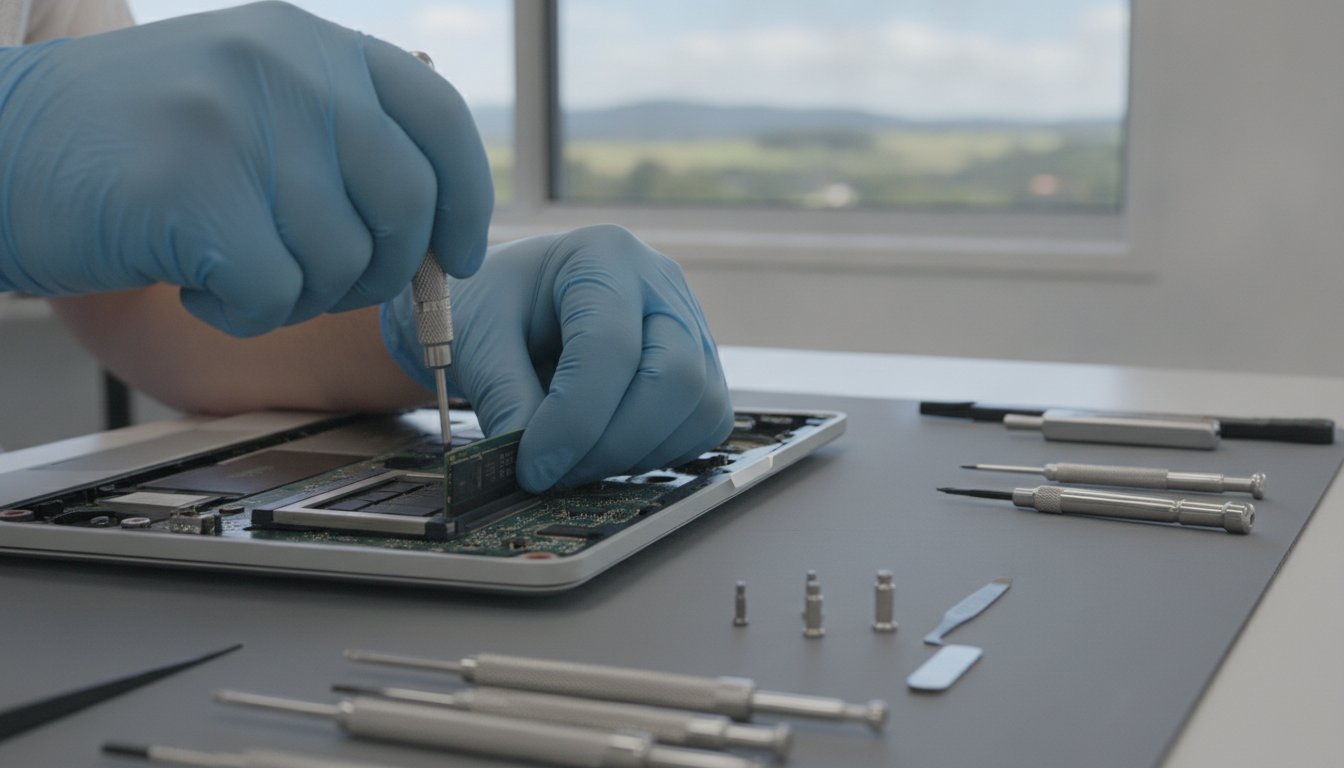
Before you begin, you need the right tools. A precision screwdriver set is essential since laptop manufacturers use very small screws, sometimes including specialized Torx or Pentalobe heads. You also need a compatible external drive enclosure or a USB adapter. It is vital to identify your drive type first. Older laptops usually contain a 2.5-inch SATA hard drive or SSD. Modern, thinner laptops use M.2 NVMe sticks, which look like a small piece of chewing gum. You must buy an enclosure that matches your specific drive type, as a SATA enclosure will not work with an NVMe drive.

The External Enclosure Method

To start, flip your laptop over and remove the base plate. Once you locate the drive, unscrew its mounting bracket and gently slide it out of its slot. Place the drive into your new USB enclosure and secure it. When you plug this into a working computer, it should appear as a new “D:” or “E:” drive in File Explorer. If you see an “Access Denied” message when clicking on your old user folder, don’t panic. This is a standard Windows security feature. You will usually need to click “Continue” to permanently grant yourself access, or manually “take ownership” of the folder through the security tab in the folder’s properties.

Using Bootable Recovery Media

If the laptop still powers on but Windows won’t load, you can use bootable recovery media. This involves creating a Linux Live USB or a WinPE environment on a working PC. By plugging this into your broken laptop and tapping the boot menu key, usually F12, F2, or Esc, you can bypass the corrupted Windows install entirely. Once the temporary operating system loads, you can browse your internal drive and copy files directly to an external backup drive. If you aren’t comfortable opening your device or handling delicate electronics, our team at Aspire Computing can safely extract your drive and transfer your files for you in our Newtown workshop.

Scenario 2: Software Tools for Logical Failures

If your laptop still powers on but your files have vanished or become corrupted, you are likely dealing with a logical failure. This means the physical hardware is often fine, but the internal data structure is broken. To recover data from broken laptop software systems, you can use specialized tools designed to piece these digital fragments back together. It is a methodical process that requires patience, but it often yields great results for home users and small business owners in Toowoomba.

You must follow the “Second Drive” rule during any software recovery attempt. Never save your recovered files back onto the same drive you are currently scanning. If you do, you will overwrite the very data you are trying to rescue, leading to permanent loss. Always use a separate USB stick, an external hard drive, or a network folder as your destination. This keeps the source drive “read-only” and preserves the integrity of your remaining data while you work.

Be extremely careful with “cracked” or pirated recovery software found on unofficial websites. These downloads are often bundled with malware that can encrypt your files for ransom or steal your banking details. Stick to official tools or consult a professional if the free options don’t work. The risk of a total system infection or identity theft is never worth the price of a software license.

Using Windows File Recovery (WinFR)

Windows File Recovery is a powerful, free tool available directly from the Microsoft Store. While it uses a command-line interface, it isn’t as intimidating as it looks. You simply type a short command to tell the program which drive to scan and where to save the results. Regular Mode is perfect for recently deleted files on a healthy NTFS drive. Extensive Mode is a sector-by-sector search for file signatures, making it the superior choice for drives that have been corrupted or accidentally formatted. When trying to recover data from broken laptop drives that are still spinning, this tool is often your first line of defense.

Leveraging Cloud Safety Nets

Before you dive into complex recovery steps, check your cloud safety nets. Many people don’t realize their “Documents” or “Desktop” folders are automatically syncing to OneDrive, Dropbox, or Google Drive. Log in to your cloud account from a different computer or a tablet to see what has been backed up. These services also offer a version history feature. This allows you to revert a corrupted file to a previous, healthy state from a few days ago, saving you hours of recovery work. If you find your files there, you’ve saved yourself the cost and stress of a manual recovery.

How to Recover Data from a Broken Laptop: The 2026 Toowoomba Guide

SSDs vs. HDDs: Why Your Hardware Dictates Success

Traditional hard drives (HDDs) and modern Solid State Drives (SSDs) are built differently. This means your plan to recover data from broken laptop systems must change based on what’s inside. HDDs use spinning magnetic platters and a moving mechanical arm to read data. SSDs use flash memory chips, similar to a giant USB stick. While SSDs are much faster and more durable against physical drops, they present a unique set of challenges when they finally fail or become inaccessible.

A major hurdle with modern laptops, especially ultrabooks and MacBooks, is soldered storage. In many 2026 models, the storage chips are part of the motherboard itself. You cannot simply unscrew the drive and put it in an enclosure as we discussed in Scenario 1. If the motherboard is dead on one of these machines, recovery requires specialized microsoldering or “chip-off” techniques. These processes go far beyond standard DIY methods and require professional equipment to bypass the failed circuitry.

The SSD Recovery Challenge

Time is your worst enemy with SSDs because of a feature called TRIM. This command tells the drive to permanently wipe blocks of data that are no longer in use to keep the drive running at peak speed. Unlike an old HDD where “deleted” data stays on the platter until it is overwritten, an SSD might actively erase your files in the background while the laptop is simply sitting idle. If you suspect a failure, power the device down immediately. This stops the TRIM command from finishing its job and gives you a much better chance of a successful recovery.

Physical Failure vs. Logical Error

You can often hear a traditional hard drive failing. Clicking, beeping, or a repetitive whirring sound usually means the read/write head has physically touched the platter. If you hear this, no software scan will ever work. Running a scan will only cause the head to scrape more data off the disk. Modern SSDs usually fail silently, often showing up as a “Drive Not Formatted” error or simply disappearing from the system. If your hardware is physically damaged, stop searching for YouTube fixes like the freezer myth. These “hacks” often cause more harm than good by introducing moisture to delicate components. For complex hardware issues, it is safer to trust a professional data recovery service to handle the delicate extraction process.

Professional Data Recovery in Toowoomba

There comes a moment in every data rescue attempt where the risk of continuing outweighs the chance of success. If you have tried the basic software steps and your files still won’t appear, you have reached the point of no return. Continuing to stress a failing drive can cause the read/write heads to crash permanently. When you need to recover data from broken laptop hardware that contains high-value business files or precious family memories, professional intervention is the safest path forward. We have seen many cases where a few extra minutes of DIY “testing” turned a recoverable drive into a permanent paperweight.

Choosing local Toowoomba support offers several advantages over sending your device to a capital city. Shipping a damaged hard drive via courier exposes it to vibrations and temperature changes that can worsen physical faults. By bringing your laptop directly to our workshop in Newtown, you ensure it stays in expert hands from start to finish. We provide a faster turnaround because your device doesn’t spend days in a sorting facility. You also get the peace of mind that comes from dealing with a local business owner who is personally accountable for your results.

At Aspire Computing, we use professional hardware imagers that far exceed the capabilities of consumer-grade software. These tools allow us to bypass bad sectors and communicate directly with the drive’s firmware. While standard recovery apps might freeze or crash when they hit a corrupted block, our equipment can skip these areas and return to them later. This methodical approach ensures we extract every possible byte of data without causing further wear on the drive. It is a level of precision that simply isn’t possible with a home PC and a USB cable.

Our Recovery Process at Aspire Computing

We begin every case with a detailed diagnostic to see if the failure is logical or physical. Once we understand the fault, we use specialized hardware to create a bit-for-bit clone of your drive. We never work on your original data directly; this protects your files from accidental damage during the recovery attempt. Your privacy is our priority. We handle all data with strict confidentiality, ensuring your personal information remains secure throughout the entire process. Our long-standing history in the Darling Downs region is built on this foundation of trust and technical expertise.

Next Steps for Darling Downs Residents

If you are ready to rescue your files, transport your laptop carefully. Use a padded bag and avoid leaving the device in a hot car. You can find us at 46 Brigalow St, Newtown, where we have been serving the community since 1999. For more information on what we can do, check out our Data Recovery Services in Toowoomba. If you want to get your machine back in working order after the data is safe, we also offer comprehensive Computer Repairs Toowoomba residents trust. Don’t leave your data to chance when a local expert is just a short drive away.

Get Your Digital Life Back on Track

Dealing with a dead device is stressful, but you now have a roadmap to navigate the crisis. Remember that the first few minutes are critical. By powering down and avoiding risky “freezer hacks,” you’ve already increased your chances of success. Whether you’re dealing with a simple broken screen or a complex logical failure on a modern SSD, there’s almost always a way to recover data from broken laptop drives if you follow the right steps. Most files stay intact even when the computer itself won’t boot.

Sometimes the safest choice is to step away from the screwdriver and let a specialist handle the delicate work. Since 1999, we’ve been the trusted local experts for the Darling Downs community. We use specialised hardware in our Newtown workshop to bypass bad sectors and physical damage that consumer software simply can’t handle. Don’t risk your irreplaceable files; contact Aspire Computing for expert Data Recovery in Toowoomba today. We’re here to provide the calm, professional service you need to rescue your photos and documents safely. You don’t have to face a hardware failure alone.

Frequently Asked Questions

Can I recover data from a laptop that won’t turn on at all?

Yes, you can usually retrieve your files even if the device has no power. Most laptops store data on a hard drive or SSD that remains healthy even when the motherboard or battery fails. We can extract the drive and connect it to a specialised workstation to access your folders. This is a common way to recover data from broken laptop hardware safely without needing the original machine to boot.

Is it possible to recover files from a liquid-damaged laptop?

Recovery is often possible after a spill if you act quickly and keep the power off. Liquid causes corrosion and short circuits, but the data on the storage chips is frequently salvageable. You shouldn’t try to turn the laptop on or use a hairdryer to dry it out. Professional cleaning and chip-level extraction are the most reliable methods for saving files from water-damaged devices.

How much does professional data recovery cost in Toowoomba?

Costs depend entirely on whether the failure is logical or physical. Simple software-based recoveries are generally more affordable, while physical hardware failures requiring a cleanroom or part replacement sit at a higher price point. Most reputable local services will provide an initial assessment to give you an accurate quote before any work begins. This ensures you know exactly what to expect before committing to the service.

Can I recover data if the laptop has a soldered SSD?

Yes, but this is a complex task that requires advanced technical skills and equipment. Since the storage chips are part of the motherboard, we can’t simply remove the drive and plug it into another PC. Instead, we must repair the motherboard’s power rails or use specialised tools to read the flash memory chips directly. It’s a difficult process, but it’s often successful for modern ultrabooks and MacBooks.

Does a broken screen mean my data is lost?

A broken screen has no impact on the safety of your data. Your files are stored on the internal drive, which is separate from the display panel. You can often access your files immediately by plugging the laptop into an external monitor or TV using an HDMI cable. If the rest of the hardware is fine, you can simply copy your files to a USB stick or cloud storage.

How long does the data recovery process usually take?

Most standard recoveries are completed within 24 to 72 hours in our workshop. Logical issues like accidental deletion are often faster than physical failures that require drive cloning or component repair. We aim for a rapid turnaround to get your files back as quickly as possible. We’ll keep you updated throughout the process so you aren’t left wondering about your data’s status.

Can I recover files that were deleted and then the laptop broke?

Recovery is possible if the deleted files haven’t been overwritten by new data. When a file is deleted, it isn’t immediately erased; the system just marks the space as available. If the laptop broke shortly after the deletion, those files are likely still sitting on the drive. This is another situation where you can recover data from broken laptop storage using professional imaging tools that scan for hidden file signatures.

How can I prevent data loss from happening again?

The best protection is a robust backup strategy following the 3-2-1 rule. Keep three copies of your data on two different types of media, with one copy stored off-site in the cloud. Automated services like OneDrive or Google Drive can handle this in the background. Regularly checking that your backups are actually running ensures you’ll never have to worry about a sudden hardware failure again.

Data Recovery Toowoomba: Professional Help to Get Your Files Back

Imagine the moment your laptop screen stays black or your external drive begins making a strange clicking sound. That sinking feeling in your stomach is something we see often, and it’s completely understandable. Whether it’s a decade of irreplaceable family photos or the spreadsheets your business needs to survive, losing data feels like a genuine crisis. You might be staring at your device wondering if an SSD is different from an HDD, or if those files are truly gone forever.

We agree that your digital life is too important to leave to chance or complex DIY software that might make things worse. This guide will show you how to secure professional data recovery Toowoomba services to get your files back safely. You’ll discover how a local, face-to-face diagnosis at our Newtown location can provide the clarity you need. We’ll also preview the recovery process and explain how 25 years of local expertise can help you move from panic to a successful restoration of your critical data.

Key Takeaways

  • Learn the difference between logical software errors and physical hardware damage to understand the best path for your file retrieval.
  • Understand why most hard drives fail after three to five years and how to spot the common causes of data loss before they become permanent.
  • Discover the safety benefits of choosing local data recovery Toowoomba services over the risks of mailing fragile devices to national centers.
  • Identify the immediate steps you should take after a crash to stop your data from being overwritten or further damaged.
  • See how 25 years of local expertise and specialized tools can help restore your irreplaceable family photos and critical business spreadsheets.

What is Professional Data Recovery and How Does it Work?

When your computer stops responding, the first question is usually whether your files are gone forever. What is data recovery in a professional sense? It is a highly technical process used to retrieve inaccessible, lost, or deleted information from storage media like hard drives and SSDs. For those looking for data recovery Toowoomba, this service provides a bridge between a total loss and getting your business documents or family photos back safely.

To better understand how this technical process works, watch this helpful video:

Simple software tools often promise a quick fix, but they rarely handle the complexities of a failing drive. If your hardware is physically damaged, running a basic scan can actually cause permanent data loss by stressing the weakened components. A local expert assessment at Aspire Computing ensures that we identify the root cause before any recovery attempts begin.

Logical Data Loss vs. Physical Hardware Failure

Logical errors occur when your hardware is fine, but the software structure is broken. This includes accidental formatting or file system corruption where the data is still on the disk but the computer can’t find it. Physical failure is much more serious. You might hear clicking, grinding, or notice the drive has no power at all. These situations require specialized hardware tools and a controlled environment to prevent dust from ruining the delicate internal platters.

The Reality of Modern Storage: SSDs and USB Drives

Modern Solid-State Drives (SSDs) and USB sticks don’t have moving parts, but that doesn’t make them invincible. In 2026, we see many flash-based devices fail due to controller errors or electronic wear. Recovering data from an SSD is often more difficult than a traditional hard drive because of how the drive constantly moves data around internally. Flash memory is a type of electronic storage that retains data without a power source, but its complex internal management systems mean that once it fails, you need professional intervention to reconstruct the file fragments. Whether it’s a tiny SD card or a high-capacity SSD, our data recovery Toowoomba workshop has the specialized equipment to handle these modern challenges.

Common Causes of Data Loss for Toowoomba Residents

Data loss isn’t always a dramatic event. Sometimes it’s a simple mistake. You might delete a folder of family photos while trying to clear space, or a staff member could overwrite a critical business spreadsheet. In other cases, the hardware simply gives up. Most traditional hard drives have a reliable lifespan of about three to five years. If your computer is approaching that age, the risk of a failure increases significantly, often without any warning signs.

Our local climate in Queensland adds extra pressure to your hardware. High humidity and intense summer heat can cause internal components to expand and contract, leading to micro-cracks in circuit boards. Sudden power surges during Toowoomba’s storm season are another common culprit. These surges can fry the delicate electronics in your drive, making your files instantly inaccessible. It’s vital to know what to do Immediately After You Lose Data to avoid making the situation worse.

Small businesses are also increasingly targeted by sophisticated malware and ransomware attacks. These threats don’t just steal information; they often encrypt your entire database, making it impossible to operate. Professional data recovery Toowoomba services are often the only way to bypass this encryption and restore your operational stability after a breach.

Hard Drive Clicking and Physical Wear

If you hear a repetitive “click-click-click” sound, stop what you’re doing. This is often the sound of the read/write heads struggling to find their position or, worse, physically scratching the platters where your data is stored. This is known as a head crash. Continued use can shave the magnetic coating off the disk, making data recovery Toowoomba much more difficult. Turn the power off immediately to protect your files from permanent physical destruction.

Corrupted Files and Software Glitches

Not all data loss involves strange noises. Sometimes your files are visible, but they simply won’t open. This often happens after a forced Windows update or a sudden power cut that interrupts a file being saved. If you suspect your files are locked or damaged by a digital threat, our guide on virus and malware removal explains how to identify these infections. If you’re worried about a missing file, bringing your device to our Newtown workshop for a professional assessment is the safest next step.

Local Toowoomba Support vs. National Mail-In Services

Many large data firms suggest mailing your damaged drive to a lab in Brisbane or Sydney. While these companies often have significant marketing budgets, they don’t always account for the physical risks of the journey. When you opt for data recovery Toowoomba, you eliminate the uncertainty of the postal system and the delay of interstate transit. Choosing a local expert means your device stays in safe hands from the moment you hand it over at our Newtown workshop.

The technical standards of professional digital forensic services emphasize that the environment and handling of a device are critical to a successful outcome. By keeping your hardware local, you ensure it is treated with the precision it requires without the added stress of courier handling. This local approach also supports the Toowoomba business community, keeping expertise and accountability right here in the Darling Downs.

Why Shipping Fragile Media is a Risk

Hard drives are precision instruments with internal components that move at thousands of revolutions per minute. The gap between the read head and the data platter is microscopic. Even if you pack a drive well, the vibrations in a delivery truck or the extreme temperature changes in a sorting warehouse can worsen existing physical damage. There is also the simple anxiety of sending your only copy of irreplaceable files into an anonymous mail system. A local drop-off is the only way to guarantee your drive doesn’t suffer further mechanical trauma during transit.

The Personal Touch: Talking to Your Technician

When you visit Aspire Computing, you aren’t just a support ticket in a database. You can speak directly to the specialist who will be performing the recovery. This face-to-face consultation allows you to explain exactly what happened before the failure. Did the laptop fall? Was there a power surge during a storm? These details help us provide a faster, more accurate diagnosis.

I have been serving the Toowoomba and Lockyer Valley regions since 1999. This 25-year history provides a level of personal accountability that national franchises simply cannot match. You get the peace of mind that comes from knowing exactly who is working on your data and where it is being stored. Because we don’t have to wait for couriers, our turnaround times are often much faster, getting you back to work or reuniting you with your photos without unnecessary delays.

Data Recovery Toowoomba: Professional Help to Get Your Files Back

What to Do Immediately After You Lose Data

The moment you realize files are missing, your first instinct is likely to keep searching or try various “fixes” to bring them back. Don’t. Every second the device stays powered on, your computer is writing temporary files, system logs, and background data to the drive. Stop using the device immediately to prevent data overwriting. Overwriting occurs when the operating system marks the space occupied by your “deleted” files as available and saves new information directly on top of them, which makes professional recovery physically impossible.

Shut down the computer properly through the standard menu if the system is still responsive. Do not just pull the power plug unless you hear the mechanical clicking or grinding sounds we discussed earlier. A sudden power cut during a software-based failure can corrupt the file system even further. Once the machine is off, leave it off. Keeping the device in a cool, dry place until you can get it to an expert is the best way to protect the internal electronics from environmental stress.

The Danger of DIY Recovery Attempts

It is tempting to download “free” recovery tools found through a quick search. However, these programs often do more harm than good. Running an intensive scan on a failing drive puts immense pressure on the hardware. If the drive has an underlying mechanical issue, this stress can cause a total head crash, where the internal components physically collide and destroy the data surfaces forever. Additionally, many free tools are bundled with malware or hidden risks that can compromise your overall cyber security. Professional data recovery Toowoomba requires specialized hardware that clones your drive safely before any recovery work begins.

Preparing Your Device for Professional Assessment

Before you bring your device to us, take a moment to think about which files are your highest priority. Knowing that you specifically need a “2024 Tax” folder or “Baby Photos” helps us focus our efforts on the most critical sectors of the disk first. This targeted approach often leads to a faster and more successful result. When handling external hard drives or laptops, hold them firmly by the edges and avoid any unnecessary movement or vibration.

If you’re in the Darling Downs or Lockyer Valley, you don’t have to navigate this crisis alone. For the best chance of a full file retrieval, visit the Aspire Computing homepage to find our contact details and secure expert data recovery Toowoomba. We’ll provide a clear diagnosis and a methodical plan to get your important documents and memories back where they belong.

Professional Data Recovery at Aspire Computing

At Aspire Computing, I recognize that your data represents years of hard work or a lifetime of irreplaceable memories. Since 1999, I’ve provided a steady hand to help residents through the stress of digital loss. My workshop in Newtown is equipped with the specialized tools needed to handle complex recoveries that standard repair shops simply can’t manage. I prioritize personal accountability, which means you’ll always deal directly with me throughout the entire process. This transparent communication ensures you’re never left wondering about the status of your critical files.

I focus on providing data recovery Toowoomba services that are both methodical and effective. Whether you’re a home user or a small business owner in the Darling Downs, my goal is to reduce your downtime and restore your operational stability. We don’t just treat the symptoms; we follow a professional protocol to ensure the highest possible chance of a successful file retrieval.

Our Proven Recovery Process

Every recovery follows a clear path designed to protect your information from further damage. We start with a detailed diagnosis to see exactly why the hardware failed. If the drive is stable enough, we perform a bit-level clone. This imaging process is vital because it allows us to work on a digital replica rather than the original, fragile disk. Working on a copy prevents further mechanical degradation of your drive during the intensive recovery phase. Once the data is extracted, we perform a final verification to ensure your files are actually usable. We then transfer your recovered data onto a fresh, reliable device for you to take home.

Preventing Future Loss: Secure Backup Solutions

The best way to handle data loss is to ensure it never causes a crisis in the first place. I help local businesses and families implement the 3-2-1 backup rule. You should have three copies of your important data. Two of these should be on different media types, such as your computer’s internal drive and a dedicated external USB. The third copy must be stored offsite, ideally in a secure cloud environment. This redundancy is your best defense against hardware failure, theft, or local environmental disasters.

Setting up automated systems takes the guesswork out of protection. You won’t have to remember to plug in a drive every Friday if the software handles it for you. For more detailed advice on building a resilient system, you can explore my data recovery services pillar. Whether you need an emergency retrieval or a better backup plan, I’m here to ensure your digital life remains stable. My data recovery Toowoomba expertise is built on 25 years of local service, giving you a reliable partner when technology lets you down.

Restore Your Digital Peace of Mind Today

Discovering that your files are missing is incredibly stressful, but it doesn’t have to be the end of your data. By choosing to power down your device immediately and avoiding risky DIY software, you’ve already taken the most important steps toward a successful retrieval. We’ve explored how local expertise in Newtown provides a safer, faster alternative to national mailing services, especially when dealing with fragile hardware that can’t handle the vibrations of interstate transit.

Since 1999, I’ve specialized in helping the local community with professional data recovery Toowoomba for HDDs, SSDs, and USB media. Whether it’s a clicking hard drive or a corrupted business spreadsheet, my Newtown workshop is equipped to provide the clear diagnosis and methodical care your files deserve. My focus is on getting your digital life back to normal as quickly and safely as possible through personalized, face-to-face service.

Don’t risk your data—contact Aspire Computing for local Toowoomba recovery help. Let’s work together to bring your irreplaceable family photos and critical business documents back home where they belong.

Frequently Asked Questions

Is it possible to recover data from a clicking hard drive?

Yes, it is often possible to recover data from a clicking drive, but you must stop using it immediately. The clicking sound usually indicates a mechanical failure where the read/write heads are struggling to find their position. Continued use can cause the heads to physically scratch the internal platters, which leads to permanent data loss. Professional intervention is required to safely stabilize the hardware and extract your files.

How much does professional data recovery cost in Toowoomba?

The cost of recovery is determined by the complexity of the failure rather than the volume of data. Simple logical recoveries, such as retrieving accidentally deleted files from a healthy drive, are the most cost-effective. More complex physical failures that require donor parts or specialized hardware tools involve a higher level of technical work. We provide a clear diagnosis after an initial assessment of your device.

Can you recover files that were deleted and then the bin was emptied?

Yes, deleted files can usually be retrieved if the space they occupied hasn’t been used for new information yet. When you empty the recycle bin, the operating system simply marks that space as available for new data. If you stop using the computer right away, we can often find and restore those original files. If you continue to save new documents or browse the web, the old data will eventually be overwritten and lost forever.

How long does the data recovery process usually take?

Most data recovery Toowoomba cases are completed within two to five business days. Simple software-based recoveries are often finished faster, while hardware failures that require deep imaging or component replacement can take longer. We understand that your data is critical, so we work methodically to ensure a safe and efficient turnaround. We will keep you updated throughout each stage of the process.

Is my data kept private and secure during the recovery process?

Yes, your privacy and data security are our highest priorities. As a local business owner with 25 years of experience, I handle your data recovery Toowoomba personally at my Newtown workshop. We follow strict security protocols to ensure that your sensitive business documents and private family photos are never exposed. Your recovered data is returned to you on a secure device, and we do not keep copies once the job is finalized.

Can you recover data from a water-damaged laptop or phone?

We provide specialized recovery for water-damaged laptops and external drives, though we do not offer mobile phone data recovery. If you require specialized hardware assistance for your handheld devices, SIMSIM Repairs offers expert support for mobile and computer hardware. Liquid causes rapid corrosion and short circuits on internal circuit boards. It is vital that you do not try to power on a wet laptop or dry it with a hairdryer. We carefully clean the internal components and stabilize the hardware before attempting a data extraction to prevent further damage.

Do I need to bring my whole computer in, or just the hard drive?

Bringing the entire computer or laptop is usually the best approach for a full diagnosis. Sometimes the data loss isn’t caused by a failing drive, but by a faulty cable, power supply, or motherboard component. If we have the whole machine, we can test every part of the system to find the root cause. However, if you have already removed the hard drive or are using an external portable drive, you can just bring the media itself.

What happens if my data cannot be recovered?

We will provide you with a detailed technical explanation if your data is found to be unrecoverable. While our success rate is high, severe physical damage such as a “head crash” that destroys the magnetic coating on the platters can sometimes make retrieval impossible. We maintain a transparent process so you understand exactly what challenges were encountered. We can also help you set up a robust backup system to protect your future data.

How Long Does Data Recovery Take? A Realistic 2026 Timeline

Imagine sitting at your desk in Toowoomba, staring at a blank screen where your most important files used to be. Whether it’s a clicking hard drive or a corrupted SSD, the first question on your mind is always: how long does data recovery take? That knot in your stomach is real because every hour of downtime feels like a lifetime when your business records or personal memories are on the line. I’ve helped many locals through these exact moments, and I know that the silence of a failed drive is often the loudest sound in the room.

You’re likely worried that your data is gone for good or that you’ll be waiting weeks for a solution. It’s completely normal to feel overwhelmed by technical jargon and uncertain timelines. I want to help you understand the specific factors that dictate recovery speed in 2026, from simple software glitches to complex physical repairs. This article provides a realistic look at what to expect during the restoration process. You’ll gain the clarity you need to plan your next steps with confidence, knowing exactly how we get your digital life back on track.

Key Takeaways

  • Learn why logical issues like deleted files are often resolved within 24 to 48 hours, while physical hardware failures may require up to 10 business days.
  • Understand how long does data recovery take based on your specific storage media, including the speed differences between traditional hard drives and modern NVMe SSDs.
  • Discover the importance of the initial 24-hour diagnostic window, which provides a clear roadmap for the safety and success of your file restoration.
  • Identify the hidden risks of consumer-grade recovery software and how a simple DIY mistake can turn a minor issue into a permanent data loss scenario.
  • See how choosing a local service in Toowoomba eliminates shipping transit times, allowing for immediate triage and direct communication with your technician.

The Factors That Determine Data Recovery Speed in 2026

When you call me to ask how long does data recovery take, I’ll usually start by asking about your specific device. The landscape has changed significantly. In 2026, we see a huge variety of hardware coming through our Toowoomba workshop, from old mechanical hard drives to the latest NVMe SSDs. Each technology has its own recovery rhythm. Data recovery is a methodical process. We prioritize the safety of your information over rushing the job. One wrong move on a failing drive can make the data unrecoverable forever.

To better understand this concept, watch this helpful video:

The type of media you use plays a massive role in the timeline. Traditional Hard Disk Drives (HDDs) are mechanical, using spinning platters and moving heads. If these fail, we’re looking at a physical repair. Modern Solid State Drives (SSDs) and NVMe drives are much faster during normal use, but their failures are often logical or related to complex controller chips. While an SSD might transfer data faster once it’s stable, diagnosing a dead chip is a complex puzzle that requires extra time. We generally look at four main pillars during our initial assessment:

  • Physical size: The total capacity of the drive.
  • Data volume: How much actual data needs to be moved.
  • Damage severity: Whether the issue is software corruption or broken hardware.
  • Parts availability: How quickly we can source donor components for rare models.

Capacity vs. Velocity: Why Size Matters

Size isn’t just a number; it’s a physical limitation. Even a healthy 10TB drive takes several hours to read from start to finish under perfect conditions. Modern high-density platters in 2026 drives pack data so tightly that even tiny physical imperfections create massive delays. This creates a bottleneck. If your drive has damaged sectors, our hardware has to slow down to “nibble” at the data safely. We do this to prevent further damage while trying to pull every possible byte from the surface.

Drive Health: The “Stability” Variable

Stability changes everything. A clicking drive is a mechanical emergency. It requires a slower, more delicate approach than a simple deleted file. This is why the question of how long does data recovery take is rarely answered with a single number. I often spend the first few hours on firmware repair. This is essential to get the drive to communicate with our systems again. Sometimes we need to make three or four passes to get a clean read. If your hardware is rare or older, we also have to account for the time it takes to find donor parts from our inventory or global partners.

Logical vs. Physical Recovery: Comparing Timeframes

The first step in answering how long does data recovery take is identifying the nature of the failure. I categorize these into two main groups: logical and physical. A logical failure means the hardware is healthy, but the data is inaccessible due to corruption or accidental deletion. A physical failure means the drive has suffered mechanical or electrical damage. The evaluation phase usually happens within the first 4 to 24 hours. This initial window is critical because it’s when I determine the path forward and provide you with a specific estimate. For my business clients, this stage is essential for meeting an authoritative explanation of enterprise data recovery concepts like recovery time objectives.

If your drive uses modern security like BitLocker or FileVault, please be prepared for extra time. Encryption adds a significant layer of complexity. Even after we stabilize the drive, the decryption phase can take several additional hours or even a full day depending on the volume of data. It’s a slow but necessary process to ensure your files remain secure while being restored.

Logical Failures: The “Software” Hunt

Logical recovery typically takes 24 to 48 hours to complete. During this time, I perform deep scans for file signatures and work on rebuilding the directory structure. While consumer-grade “quick scans” might take minutes, they often miss fragmented data or files with damaged headers. I prefer a methodical approach that ensures we find everything. Once the scan is done, I manually verify the integrity of the recovered files. It’s no use giving you back a folder full of files that won’t open.

Physical Failures: The “Surgical” Requirement

Physical recovery is much more intensive and usually takes 5 to 10 business days. This timeframe covers issues like failed motors, head crashes, or damaged circuit boards. I often need to source exact donor parts from suppliers across the Darling Downs or national networks to match your drive’s firmware and model. Replacing a head stack is precision work that requires a steady hand and a clean environment. We also image these drives at significantly lower speeds than normal to prevent further platter damage. If you suspect your drive has a mechanical fault, you can speak with us at Aspire Computing to get a professional assessment started immediately.

The Step-by-Step Data Recovery Timeline

Many people assume that data recovery is a single, long scan performed by a piece of software. In reality, professional recovery is a controlled sequence of events designed to protect your files from further harm. We follow rigorous standards, similar to the NIST data recovery guidelines, to ensure data integrity is maintained at every step. This isn’t just about running a program. It’s about engineering a safe environment for your data to be extracted. When you ask how long does data recovery take, you’re really asking about the duration of these four distinct phases:

  • Phase 1: Initial Consultation and Triage (1-2 hours). We assess the immediate health of the drive.
  • Phase 2: Diagnostic Evaluation and Imaging (4-24 hours). We identify the failure and create a working clone.
  • Phase 3: Data Extraction and Reconstruction (1-3 days). We rebuild the file system and pull the raw data.
  • Phase 4: Quality Assurance and Transfer (4-8 hours). We verify the files and move them to your new device.

Triage and Diagnostics: Setting the Clock

First, we triage. This involves checking for electrical shorts or mechanical grinding. It’s a safety check. Powering on a damaged drive can cause immediate, permanent data loss. We identify the specific failure point early to avoid unnecessary labour and costs. Once the assessment is complete, I provide you with a “Likelihood of Success” report. This gives you a clear picture of what can be saved before we commit to the longer imaging process. It’s about transparency and helping you make an informed decision quickly.

Imaging and Extraction: The Heavy Lifting

This is where we address the gap between “cloning time” and “engineering time.” A healthy 2TB drive might clone in six hours. However, a failing drive requires constant engineering oversight. We never work on your original hardware. We create a bit-for-bit clone to work from. If the drive hits a damaged sector, we have to manage retries and read errors manually. This prevents the drive from “thrashing” and dying mid-process. While some online forums suggest you “just run Recuva and wait,” this is dangerous advice for a failing drive. Professional tools allow us to reassemble complex RAID arrays or damaged file systems that consumer software simply cannot see. This phase is the most variable part of the timeline because it depends entirely on how well the hardware cooperates.

Once the extraction is done, we don’t just hand you a drive and hope for the best. We verify that the recovered files actually open and aren’t just empty placeholders. This methodical approach is why professional recovery takes longer than a DIY attempt, but it’s also why our success rates are much higher. We value your data too much to take shortcuts.

How Long Does Data Recovery Take? A Realistic 2026 Timeline

Speed vs. Safety: Why DIY Recovery Often Takes Longer

It is tempting to think that downloading a free tool from the internet will provide the fastest solution. When you are staring at a “drive not found” error, the question of how long does data recovery take often leads people to try DIY software first. However, I have seen many 2-hour DIY mistakes turn into 2-week professional nightmares. The reality is that the first recovery attempt is always your best shot. Every time you power on a failing drive, you are using up its remaining life. If a DIY tool fails, it often leaves the hardware in a much worse state for a professional to handle.

Professional equipment can read data that Windows or macOS simply cannot see. Standard operating systems are designed to communicate with healthy drives. When they encounter a fault, they often get stuck in a “retry loop,” trying to read the same damaged sector over and over. This is called thrashing. It generates heat and can cause the internal heads to physically scrape the data off the platters. My workshop uses specialized hardware that bypasses these OS limitations, allowing us to target healthy data first while ignoring the “landmines” of damaged sectors.

The Danger of “Scanning” a Failing Drive

Physical damage spreads quickly. If your drive has a small scratch or a failing head, keeping it powered on for a software scan is like driving a car with a broken engine. It might work for a few minutes, but the damage will eventually become catastrophic. Free recovery software is often a false economy. These programs are usually “read-write,” meaning they might attempt to fix the file system while scanning. This writes new data to the drive, which can overwrite the very files you are trying to save. In my Toowoomba lab, I use hardware write-blockers to ensure your drive remains in a “read-only” state, preserving the data exactly as it is.

When to Stop and Call a Toowoomba Expert

You need to know when to walk away from the computer. If you hear clicking, grinding, or see the “Blue Screen of Death” repeatedly, stop everything. Power the device down immediately. These are signs of mechanical failure that software cannot fix. Continued use at this stage is the fastest way to make your data permanently unrecoverable. I handle local emergencies every day and can provide a rapid triage to see what is actually happening under the hood. If you are worried about your files, the safest step is to contact us for professional data recovery services before more damage occurs. We prioritize data integrity over shortcuts, ensuring you have the best possible chance of getting your files back safely.

Local Data Recovery in Toowoomba: The Aspire Computing Advantage

Choosing a local provider changes the entire experience. When you’re stressed about lost files, you don’t want to worry about your drive being lost in the mail or sitting in a warehouse in another state. By bringing your device to our workshop at Newtown QLD 4350, you ensure the recovery process starts the moment you walk through the door. This local access is the best way to reduce the overall time it takes to get your files back. It eliminates the transit days that often bloat the schedules of larger, anonymous firms. When you ask how long does data recovery take, the answer is often “days faster” simply because you skipped the courier.

I have served the Toowoomba region since 1999, building a reputation for reliability and technical expertise. My approach is personal and accountable. I understand that these aren’t just files; they are your business records, your family photos, and your hard work. You can call me and get a direct update on the progress of your recovery without navigating a complex phone menu or waiting on a ticket system. This direct line of communication is essential for reducing the anxiety that comes with data loss. You’re talking to the person actually doing the work, not a middleman.

Serving Toowoomba and Surrounding Regions

Our service extends far beyond the city centre. We regularly assist clients in Highfields, Glenvale, and Middle Ridge. Local business owners often prefer a face-to-face IT partner because it builds trust that a distant corporation cannot match. For instance, if a local business in Middle Ridge suffers a critical drive failure, we can provide immediate triage. We also offer on-site support for larger systems or remote assistance for logical issues that don’t require physical handling. This flexibility ensures we can adapt to your specific needs and timeline, getting your operations back on track without unnecessary delays.

Getting Started with Aspire Computing

If you need help, the first step is to book an emergency evaluation. You can bring the drive directly to us. Please remember to bring any original cables and, if possible, a spare drive with enough capacity to hold the recovered data. Having a destination drive ready can shave several hours off the final delivery phase. For a deeper look at the process and our methods, read our Data Recovery Services guide. It provides a complete overview of how we handle your most sensitive information.

When you’re trying to figure out how long does data recovery take, remember that local expertise is your fastest path to success. We combine professional-grade tools with the care and attention that only a local business can provide. We’ve been part of the Darling Downs community for over two decades, and we’re here to help you get back to work quickly and safely. Don’t leave your data to chance when a local expert is just around the corner.

Take the First Step Toward File Restoration

Gaining clarity on your timeline is the most effective way to reduce the stress of a technical failure. We’ve explored how logical issues often resolve within 48 hours, while complex physical repairs may require a full business week. The ultimate answer to how long does data recovery take depends on the stability of your media and the care taken during the first attempt. Choosing a professional path over a risky DIY scan ensures your data has the best chance of returning home safely without further damage.

I have spent over 25 years serving the Toowoomba community, providing expert local knowledge of the Darling Downs landscape. My focus has always been on small business IT and data safety, offering a reliable hand when technology fails. You can trust that your hardware is being handled by a local expert who values your privacy and your time.

Don’t wait until it’s too late—Contact Aspire Computing for a Data Recovery Evaluation

We are here to support you through this process and help you reclaim your important files with confidence.

Frequently Asked Questions

Can data recovery be done in one day?

Data recovery can be completed within a single day if the issue is strictly logical, such as an accidental deletion or a minor software glitch. If the drive is healthy and we only need to perform a targeted scan, a rapid turnaround is very common. However, if the hardware shows signs of physical failure, we need more time to ensure the data is cloned safely without causing permanent damage to the platters.

Does a larger hard drive always take longer to recover?

A larger drive capacity almost always extends the timeline because of the sheer volume of data being moved. When considering how long does data recovery take, we have to account for the bit-for-bit cloning process. A 12TB drive takes significantly longer to image than a 500GB drive, even under perfect conditions. If the drive has damaged sectors, the process slows down even further to protect your information.

What is the fastest way to get my files back?

The fastest way to restore your files is to immediately power down the device and drop it off at our Toowoomba workshop. This avoids the transit delays associated with shipping drives to capital cities. By providing us with a spare “destination” drive at the start, you also skip the time it takes to source new hardware for the final data transfer. Local service is always the quickest path to success.

Is remote data recovery faster than on-site service?

Remote support is faster for minor software glitches or simple file system repairs, but it is not an option for physical failures. If your drive is clicking, grinding, or not appearing in Windows, remote tools cannot help. In these cases, our workshop service is faster because it allows us to use specialized hardware tools that bypass your operating system to communicate directly with the failing drive.

Why does my external hard drive take so long to scan?

External drives often take longer because they rely on slower connection interfaces like USB 3.0 or older standards. Additionally, if the drive is failing, your computer’s operating system gets stuck in “retry loops” as it tries to read damaged sectors. This makes a standard scan feel like it is crawling. Our professional equipment handles these errors much more efficiently, significantly reducing the time spent on the imaging phase.

Can you speed up the recovery process for business emergencies?

We understand that business downtime is costly, so we offer priority triage for emergency cases. While we cannot change the physical speed of data transfer, we can move your drive to the front of our diagnostic queue. This ensures that the evaluation and imaging phases begin immediately. We focus on getting your most critical files back first to help you resume operations as quickly as possible.

What happens if the data recovery takes longer than expected?

If a recovery takes longer than our initial estimate, it is usually due to unexpected hardware instability. Some drives appear healthy during the first hour but become difficult to read as the imaging progresses. I will always call you with a direct update if the timeline changes. We prioritize a successful, safe recovery over a rushed attempt that might result in permanent data loss.

Will I be charged if the recovery takes a long time but fails?

We maintain a transparent policy regarding our professional time and the final outcome. When we discuss how long does data recovery take during your initial consultation, we also explain our fee structure for attempts and successful recoveries. You will always know the potential costs before we begin the intensive work. Our goal is to provide a service that is both fair and professional for our Darling Downs clients.

Data Recovery from a Dead Laptop: A Complete Guide to Getting Your Files Back

Your laptop screen is black, the fans are silent, and it won’t respond to the power button. It’s easy to assume your files vanished with the hardware, but a dead laptop is usually a power problem rather than a data problem. In fact, data recovery from a dead laptop is often very successful because the storage drive itself is frequently still in perfect health. I understand the sinking feeling that comes with a sudden technical failure, especially when years of photos and documents are on the line.

I’m here to help you lower the stress and find a clear path forward. You’ll learn how to identify your specific drive type, whether it’s a common SATA SSD or a newer NVMe model, and which tools you need to access your files safely. We’ll also cover the warning signs of physical drive damage so you don’t accidentally make things worse. By the end of this guide, you’ll know exactly how to attempt a DIY recovery or when it’s smarter to bring your device to a trusted Toowoomba professional for a specialized assessment.

Key Takeaways

  • Understand that a laptop failing to power on usually doesn’t mean your files are gone. It’s often just a power issue rather than a drive failure.
  • Learn how to identify if your drive is a SATA or NVMe model. This is the most critical step before you buy any recovery tools or adapters.
  • Discover how to perform data recovery from a dead laptop using an external enclosure to safely transfer your files to a working computer.
  • Recognize the risks of static electricity and physical damage so you know when it’s safer to call a professional.
  • Find out how a local Toowoomba expert can diagnose your device to see if the laptop itself can be saved instead of just harvested for parts.

Is Your Data Truly Gone? Understanding Why Laptops “Die”

When your laptop refuses to turn on, your first thought is likely about the files trapped inside. It feels like a total loss, but there’s a vital distinction you need to understand: a dead laptop is rarely the same thing as a dead drive. Most of the time, the failure happens in the components that provide power or manage the display, leaving the storage component untouched. This makes data recovery from a dead laptop a highly successful process in the majority of cases.

Think of your laptop like a car. If the engine won’t start, it doesn’t mean the luggage in the boot is destroyed. Your photos, documents, and spreadsheets live on a specific piece of hardware called a hard drive or SSD. This part is physically separate from the motherboard, screen, and keyboard. Unless the drive itself has suffered a major electrical surge or physical impact, the process of data recovery is often as simple as moving that drive to a new “home” where it can be read.

To better understand this concept, watch this helpful video:

Common causes of laptop failure include:

  • Motherboard circuit failure, often caused by age or heat.
  • Liquid spills that short out the power delivery system.
  • Broken charging ports or dead internal batteries.
  • Damaged display cables or cracked LCD panels.

The “Black Screen” vs. “No Power” Diagnostic

Before you start taking screws out, check if the laptop is actually “dead” or just “blind.” Listen closely for the hum of a fan or look for small indicator lights on the side of the chassis. If you hear noise but the screen is black, try plugging the laptop into an external monitor or your TV using an HDMI cable. This simple step often reveals that the computer is working fine, and you can copy your files to a USB stick immediately without any technical surgery. If there’s no noise at all, you’re likely dealing with a power or motherboard issue, which means data recovery from a dead laptop will require accessing the drive directly.

When to Stop: Identifying Physical Drive Failure

There are times when DIY attempts become risky. If you hear clicking, grinding, or a rhythmic beeping sound coming from inside the case, stop immediately. These are signs of mechanical failure within a traditional hard drive. Trying to force a damaged drive to run can cause the internal heads to scratch the data platters, leading to permanent loss. Physical clicking or grinding requires professional clean-room intervention to recover any information safely.

Step 1: Identifying Your Storage Type (SATA vs. NVMe)

Before you spend money on adapters or enclosures, you must know what’s inside your machine. Many generic online guides suggest buying a standard SATA-to-USB cable, but this advice is outdated for modern hardware. If you’re attempting data recovery from a dead laptop made in the last five years, there’s a high chance a standard cable won’t fit your drive at all. Identifying the drive type is the most critical step in the entire process.

The industry has shifted rapidly from bulky 2.5-inch spinning hard drives to slim “gum stick” style SSDs. While enterprise data recovery often deals with massive server arrays, your home recovery depends on matching one of three main physical formats. It’s also vital to check if your laptop has soldered storage. Most modern MacBooks and some ultra-thin Windows tablets have the storage chips welded directly to the motherboard. If that’s your situation, the drive cannot be removed, and you’ll need professional help to bypass the power failure.

2.5-inch SATA Hard Drives and SSDs

These are common in older laptops or larger “budget” models. Despite the shift to newer tech, SATA interfaces are projected to hold a 58.81% market share in the SSD market in 2026 because they’re reliable and affordable. You can identify these by their rectangular shape, roughly the size of a small notebook. The connector features two distinct “L-shaped” plastic notches. To remove these, you’ll typically need a small Phillips head screwdriver and perhaps a plastic spudger to pry the laptop’s bottom case open without scratching the finish.

M.2 NVMe and SATA SSDs

Modern Ultrabooks use M.2 drives, which look like a stick of chewing gum. Here’s where it gets tricky: M.2 is just the shape, not the speed. Some M.2 drives use the older SATA protocol, while others use the much faster NVMe protocol. They often look identical, but an “NVMe-only” enclosure will not read a “SATA M.2” drive. Always read the label on the drive itself before ordering a part. If the technical jargon feels overwhelming, Aspire Computing can help identify your hardware and perform the extraction for you.

The BitLocker Hurdle: Encryption Keys

Even if you have the right adapter, you might hit a digital wall. Windows 10 and 11 often enable BitLocker encryption by default. When you plug your old drive into a new computer, it will ask for a 48-digit recovery key. You can usually find this by logging into your Microsoft account on another device. Without this key, data recovery from a dead laptop becomes nearly impossible for a DIYer, as the data is scrambled for security. Ensure you have this key ready before you begin the hardware swap.

DIY Recovery vs. Professional Data Recovery Services

Choosing between a DIY attempt and professional help depends on the value of your files and your comfort with tiny hardware. A basic external enclosure typically costs around $30, making it an attractive first step for data recovery from a dead laptop. However, this low cost comes with a trade off in risk. If you’re working with a healthy drive from a laptop that simply has a broken screen or a dead battery, the DIY path is often straightforward. If the drive itself is failing, every minute you spend tinkering could bring it closer to permanent failure.

One invisible threat many home users overlook is Electrostatic Discharge (ESD). You don’t need to see a spark to damage a circuit board. A tiny amount of static electricity from your clothes or carpet can fry the controller on an SSD instantly. Professional labs use grounded mats and anti-static tools to prevent this. They also use specialized software that can read around bad sectors on a drive, something standard Windows or Mac file explorers can’t do. Most reputable experts operate on a “no data, no fee” policy, which provides a safety net that DIY projects lack.

You also need a second, healthy computer to perform the recovery. You cannot simply fix the files on the dead laptop. You’ll need enough free space on a host machine or an extra external drive to hold everything you rescue. If you don’t have a spare PC with the right ports, your DIY costs will quickly rise beyond that initial $30 enclosure.

When DIY is the Right Choice

DIY is a great option if your laptop is already out of warranty and you don’t want to pay for a repair on an old machine. If you have a steady hand and a set of precision screwdrivers, following a guide to recover data from a dead computer can be a rewarding way to save money. This path is best when the data is important but not life altering if a mistake happens during the extraction.

When to Call a Toowoomba Expert

If your laptop suffered a liquid spill, you should skip the DIY step entirely. Moisture can linger under the chips on a drive for days. Applying power to a damp drive via a USB adapter can cause a short circuit that kills the data forever. You should also seek help if the drive makes any clicking or rhythmic beeping noises. For these high risk situations, using Aspire Computing’s data recovery services ensures your hardware is handled with the right diagnostic tools for a high success outcome. We’re right here in Toowoomba to help when the situation feels overwhelming.

Data Recovery from a Dead Laptop: A Complete Guide to Getting Your Files Back

The External Enclosure Method: A Practical Recovery Guide

If you’ve decided to proceed with a DIY attempt, the external enclosure method is the most reliable way to handle data recovery from a dead laptop. This process involves physically removing your storage drive and turning it into a temporary external hard drive. It’s a methodical process that requires patience and a gentle touch. Follow these steps to extract your data safely.

  • Step 1: Disconnect all power sources. If your laptop has a removable battery, take it out immediately. This prevents accidental short circuits while you work on the internal components.
  • Step 2: Carefully open the laptop casing. Use a plastic spudger to pry the edges apart. Start at the corners and move slowly to avoid snapping the plastic clips or scratching the chassis.
  • Step 3: Locate the storage drive. For older models, look for the 2.5-inch rectangular drive. For modern laptops, find the M.2 “gum stick” SSD. Remove the securing screws and pull the drive gently from its slot at a slight angle.
  • Step 4: Slide the drive into your purchased USB enclosure. Ensure the pins align perfectly with the connector before applying light pressure. Secure the enclosure with its included screws or clips.
  • Step 5: Connect the enclosure to a working PC using the USB cable. Wait a few moments for the system to recognize the hardware and mount the drive in File Explorer.

If you encounter any resistance during the physical removal or if the drive doesn’t appear when plugged in, contact Aspire Computing for expert assistance before continuing.

Bypassing “Access Denied” Folder Permissions

When you plug your old drive into a different computer, Windows might prevent you from opening your personal folders. It’s common to see an “Access Denied” error message. This happens because the folder’s security settings are still linked to the user account from your dead laptop. To fix this, you must “Take Ownership” of the folder. Right click the folder, select Properties, and navigate to the Security tab. Click Advanced, then Change next to the Owner field, and enter your current username. You must have administrative rights on the working computer to bypass these user folder locks.

Transferring Files Safely

Once you gain access, prioritize the “Users” folder. This is where your Desktop, Documents, and Photos are stored. Always use the “Copy” command rather than “Move” when transferring files. If the connection drops or the old drive fails during the process, a “Move” command can leave your files in a corrupted state between the two locations. Don’t forget to check the “Downloads” folder for recent files or the “AppData” folder if you need to rescue browser bookmarks and local email archives. Taking it one folder at a time ensures a higher success rate for data recovery from a dead laptop.

Professional Data Recovery in Toowoomba: How Aspire Computing Helps

While DIY methods can work, many residents in Newtown and across the Darling Downs prefer the peace of mind that comes with a local expert. At Aspire Computing, I provide data recovery from a dead laptop directly at your home or office. My mobile service means you don’t have to worry about unplugging cables, finding a park, or driving across town. I’m right here to help. I understand that your data is private and often contains sensitive personal or financial information. That’s why I follow strict security protocols during every step of the recovery. Your family photos or business spreadsheets stay secure and confidential throughout the entire process.

A professional diagnostic is the most valuable step you can take when a device fails. Instead of just harvesting the drive and throwing the rest away, I look at the whole machine. Sometimes the failure is simpler than you think. A dead laptop might just have a failed power jack, a faulty internal cable, or a motherboard component that can be replaced. If I can fix the laptop, you save the cost of a replacement and get your data back in its original environment. It’s a more sustainable and often more affordable approach than buying a new device and trying to migrate everything manually.

Beyond Recovery: Repairing the “Dead” Laptop

Sometimes, a laptop that appears completely dead is actually a candidate for a straightforward fix. I’ve seen many cases where a simple battery replacement or a new power port brought a machine back to life. Aspire Computing evaluates every device to see if a repair is more cost-effective than a new purchase. You can explore my laptop repair services in Toowoomba to see how I help locals get back to work without the expense of a brand new computer. I take personal accountability for every job, ensuring you get the best advice for your specific situation.

Preventing Future Loss: The 3-2-1 Backup Rule

Once we’ve successfully performed data recovery from a dead laptop, I help you ensure it never happens again. I’m a big believer in education and prevention. I recommend the 3-2-1 backup rule: keep three copies of your data, on two different media types, with one copy stored off-site. For small businesses in Toowoomba, I can implement professional business continuity plans that automate this process. This means your work is safe even if the hardware fails tomorrow. Most data is recoverable if you act quickly and use the right approach. You can rest easy knowing your digital life is in good hands with a local expert who cares about your results.

Take Control of Your Digital Life Today

A laptop that won’t power on is a stressful situation, but it doesn’t have to be a permanent loss. By identifying your storage type and understanding the difference between a power failure and a drive failure, you’ve already taken the most important steps toward recovery. Successfully managing data recovery from a dead laptop is about moving methodically and knowing when to stop if you hear unusual noises or suspect liquid damage.

If the DIY process feels risky or if you simply don’t have the time to tinker with hardware, I’m here to help. Serving Toowoomba and the Darling Downs since 1999, I provide the expertise needed for complex hardware repairs and secure file retrieval. Whether you need on-site support at your home or remote assistance for your local business, you can count on professional, reliable service. Don’t risk your data; contact Aspire Computing for expert Data Recovery in Toowoomba today. Your files are likely still safe on that drive, and together we can get them back where they belong.

Frequently Asked Questions

Can I recover data from a laptop that won’t turn on without taking it apart?

You can only retrieve files without disassembly if the issue is a failed display rather than a total power failure. Try connecting your laptop to an external monitor or TV using an HDMI cable to see if your desktop appears. If the laptop remains completely silent and unresponsive, data recovery from a dead laptop will require you to physically remove the drive and use an external adapter.

How much does professional data recovery cost in Toowoomba?

The cost depends entirely on whether your drive has a simple software glitch or a major physical hardware failure. Most local experts provide a free assessment to determine the complexity of the job before you commit to any work. This process ensures you receive an accurate quote based on the specific tools and time required to save your files, often backed by a “no data, no fee” policy.

What if my hard drive is encrypted with BitLocker?

You’ll need your 48-digit BitLocker recovery key to access your files on another computer. Windows often enables this encryption by default for security, and the key is typically stored in your Microsoft account online. Without this specific code, the data on the drive remains scrambled and unreadable, even if the hardware itself is in perfect health.

Can I plug a laptop hard drive into a desktop computer?

Yes, you can connect a laptop drive to a desktop as long as you have the right interface. Older 2.5-inch SATA drives use the same connectors as desktop hard drives, allowing you to plug them directly into the motherboard. Modern M.2 SSDs require a compatible slot on the desktop motherboard or a specific USB adapter to bridge the connection.

Will taking my hard drive out void my laptop warranty?

Opening your laptop case can sometimes void the manufacturer’s warranty, especially if you have to break a factory seal to reach the drive. It’s important to check your specific warranty terms before you start. If your device is still under a protection plan, you might want to contact the manufacturer first, though they rarely include data recovery as part of their standard repair service.

How do I know if my hard drive is an SSD or an HDD?

Physical size and sound are the most obvious indicators. Traditional HDDs are heavier, rectangular boxes that make a faint spinning or humming noise when they’re powered on. SSDs are silent and much lighter; they either look like a slim plastic case or a small, thin circuit board similar to a stick of chewing gum.

What tools do I need to open a modern laptop for data recovery?

You’ll generally need a precision screwdriver set that includes small Phillips, Torx, and Pentalobe bits. Most modern laptops use tiny screws that are easily stripped with standard household tools. A plastic prying tool, or spudger, is also essential for popping the clips on the laptop’s casing without scratching the finish or damaging the internal components.

Is it possible to recover files from a water-damaged laptop?

Recovery is often successful, but you must act quickly and never try to power the device on. Liquid causes immediate corrosion on the drive’s controller board, which can lead to a permanent short circuit. For data recovery from a dead laptop that has been submerged, a professional needs to clean the components with specialized chemicals to stop the oxidation process before attempting to read the data.

Is My Data Recoverable After a Format? Your Guide to File Retrieval

Imagine the sinking feeling when you realize you’ve just formatted the drive containing a decade of family photos or your business’s tax records. You’re likely staring at an empty folder and asking yourself: is my data recoverable after a format, or did I just delete my history? It’s a moment of pure panic that many of my clients have faced, and it’s completely natural to feel overwhelmed by technical terms like NTFS or file system journaling.

I understand the anxiety of potentially losing irreplaceable documents. The good news is that formatting is often just a “map change” rather than a “book burning.” Your files might still be there, waiting to be found. In this guide, I’ll show you exactly how formatting works and provide the specific steps you can take to recover your data safely. We’ll look at the vital difference between a Quick Format and a Full Format, how modern SSDs handle deleted data, and when it’s best to stop the DIY attempts to ensure you don’t make the problem worse.

Key Takeaways

  • Understand the “Library Index” analogy to see how your data often remains on the drive even after the file index is wiped.
  • Learn the technical factors that determine if is my data recoverable after a format, including the crucial difference between Quick and Full formatting.
  • Discover why modern SSD technology and the TRIM command create unique challenges for file retrieval compared to traditional hard drives.
  • Identify the two most critical immediate actions you must take to prevent your lost files from being overwritten or permanently erased.
  • Know exactly when to stop using DIY recovery tools and contact a professional to ensure your irreplaceable documents are handled safely.

Understanding Disk Formatting: Is Your Data Truly Deleted?

When you format a hard drive or USB stick, you aren’t actually scrubbing the individual bits of data off the platter or flash chip. Think of formatting as the process of preparing a storage device so your operating system can talk to it. It sets up a new structure, but it doesn’t necessarily erase what was already there. One of the most common questions I hear from worried customers in Toowoomba is: is my data recoverable after a format? The answer is often a reassuring yes, provided you act quickly.

To understand why, use the “Library Index” analogy. Imagine a massive library filled with thousands of books. Disk formatting is like tearing the index cards out of the cabinet and throwing them away. The books (your data) are still sitting on the shelves, but the librarian (your computer) no longer knows where they are. Until someone comes along and places a new book on that exact spot on the shelf, your original information remains intact but invisible to the operating system. This is a core part of the data recovery process, where specialists use software to find those “books” without needing the index.

To better understand this concept, watch this helpful video:

Logical vs. Physical Data Loss

Data loss generally falls into two categories. Physical loss happens when the hardware itself fails, perhaps you hear clicking, grinding, or the drive isn’t recognized at all. Logical loss is different. This is when the hardware works perfectly, but the file system is wiped, corrupted, or formatted. Because a formatted drive is usually a logical issue, the success rate for recovery is remarkably high. As long as you haven’t overwritten the old files with new ones, a professional can often piece the “books” back together. This is why is my data recoverable after a format is usually met with a positive outlook if the drive is still healthy.

The Role of File Systems (NTFS, FAT32, exFAT)

Different file systems handle the “deletion” process in their own way. Windows usually uses NTFS, which is quite robust and often keeps better remnants of file metadata after a format. Older systems like FAT32 or the exFAT used on many SD cards are simpler. While they are less “forgiving,” recovery is still very possible. At Aspire Computing, I handle all major file system recoveries. I use specialized tools to scan the raw sectors of your drive to identify file signatures, bypass the missing index, and bring your documents back to life. Time is your biggest enemy here; the more you use the drive, the higher the risk that the computer will “shelve” new data over your old files.

Quick Format vs. Full Format: Which One Allows for Data Recovery?

When you initiated the format, you likely saw a small checkbox labelled “Quick Format.” Whether that box was ticked or not determines the answer to the question: is my data recoverable after a format? A Quick Format is essentially a logical reset that leaves data clusters intact on the drive. It simply wipes the partition table, which is the system’s way of knowing where files begin and end. Because the actual data isn’t touched, professional recovery tools can often scan the drive and rebuild the entire directory structure. Quick Format is a logical reset that leaves data clusters intact.

A Full Format is a different beast entirely. It doesn’t just clear the file list; it performs a deep scan of the drive for bad sectors to ensure the hardware is healthy. If you are using Windows 10 or Windows 11, a Full Format also “zeros out” the data. This means the system replaces every bit of your information with a zero. This distinction is vital because it sets the expectations for whether is my data recoverable after a format or if the information has been permanently overwritten. If you aren’t sure which one you chose, think back to how long it took. A Quick Format usually finishes in seconds, while a Full Format can take several hours depending on the size of the drive.

The Quick Format Advantage

If your format was finished before you could even finish a cup of coffee, you’re in the best-case scenario for recovery. Since the data clusters remain untouched, I can often use specialized hardware and software to locate your files. These tools look for “file signatures,” which are unique patterns that identify a JPEG, a PDF, or a Word document, even without the original file names. This methodical approach allows us to piece your digital life back together. If you’ve realized you made a mistake during a quick format, it’s best to contact a local expert immediately to assess the drive before any new data overwrites those hidden files.

Why Full Formats are Different Now

In older versions of Windows, like XP, a Full Format didn’t actually erase data; it just checked for disk errors. However, Microsoft changed this behavior to improve security. Modern versions now use a process called “Zero Filling” during a Full Format. This makes professional file retrieval nearly impossible because the original data has been replaced by empty values. While this is devastating if done by accident, it is the correct choice if you are selling a computer or disposing of an old drive. It ensures your private information doesn’t end up in the wrong hands. For accidental formats, however, the “Full” option is usually the point of no return for your files.

The SSD Challenge: How Modern Technology Impacts File Retrieval

Most modern laptops and PCs now use Solid State Drives (SSDs) because of their incredible speed. While this makes your computer feel snappy, it complicates the question: is my data recoverable after a format? Traditional Hard Disk Drives (HDDs) store data on spinning magnetic platters. On those older drives, data remains until it’s physically overwritten by a new file. SSDs, however, use flash memory and a specific management system that prioritizes efficiency over data retention.

The biggest hurdle in modern recovery is a command called TRIM. This is a silent background process that helps the SSD maintain its speed over time. When you format an SSD, the operating system tells the drive that all the space previously occupied by your files is now “free.” Unlike an HDD, which just waits, an SSD uses TRIM to proactively clear those blocks of data. This “cleaning” happens internally and can be triggered almost immediately after the format is complete. This makes formatting an SSD often more permanent than formatting an old-school spinning drive.

How TRIM Changes the Recovery Game

Speed is everything when dealing with flash storage. TRIM can execute within minutes or even seconds of a format, making the data physically unrecoverable once the process finishes. This is why the “Power Off” rule is so critical. If you leave an SSD powered on, even if you aren’t using it, the drive controller will continue its background maintenance. This includes executing pending TRIM commands that destroy your files. By cutting the power immediately, you stop the controller in its tracks. At Aspire Computing, I use specialized hardware tools that communicate directly with the drive controller to bypass standard operating system commands. This gives us a fighting chance to pull the data before the drive wipes itself.

External SSDs and USB Flash Drives

You might have better luck if your lost files were on an external device. Whether an external SSD uses TRIM depends on the connection type and the controller inside the case. Many USB-to-SATA adapters don’t support TRIM, which inadvertently protects your data from being wiped after a format. USB flash drives, or “thumb drives,” almost never use TRIM because their controllers are much simpler. External storage often lacks the aggressive background cleaning of internal drives. If you’ve accidentally formatted a USB stick or portable drive, keep it unplugged. Every second it’s connected to a computer is a second the system could be trying to “clean” or overwrite your lost files. Knowing is my data recoverable after a format often comes down to how quickly you can isolate the drive from power.

Is My Data Recoverable After a Format? Your Guide to File Retrieval

Your Step-by-Step Recovery Checklist: Maximising Your Success Rate

If you’ve just realized your mistake, don’t panic. The steps you take in the next few minutes will determine the answer to the question: is my data recoverable after a format? Following a strict protocol is the best way to protect what’s left of your files and avoid making a bad situation worse. I’ve seen many cases where data was perfectly salvageable until the user tried to fix it themselves without a plan.

  • Step 1: Immediate Power Down. Stop all activity right now. If you’re using an SSD, the TRIM command is already working to wipe your data. If it’s a traditional hard drive, the operating system might write background files that overwrite your lost documents. Pull the plug or hold the power button down.
  • Step 2: Do Not Install Software on the Target Drive. This is the most common mistake people make. They download a recovery tool and install it directly onto the formatted drive. This action physically overwrites the very files they are trying to save.
  • Step 3: Assess the Value. Ask yourself if this data is “nice to have” or “business-critical.” If you’re looking for irreplaceable wedding photos or financial records, the risk of a DIY failure is likely too high.
  • Step 4: Choose Your Path. Decide between using DIY software on a different computer or calling a local expert in Toowoomba. Professional recovery is always the safest route for critical files.
  • Step 5: Create a Sector-by-Sector Image. This is the professional standard. I never work directly on your original drive. Instead, I create a bit-for-bit clone and perform the recovery on that copy to ensure your original hardware stays in its current state.

The Dangers of DIY Recovery Software

While some tools are helpful, “free” software can be dangerous. Many of these programs are poorly coded and may write temporary files to your drive during the scan, which destroys your data. You should also watch out for “scamware.” These programs often show you a promising list of your “found” files but demand a high fee before you can actually save them. Even worse, if your drive has a hidden hardware fault, running a DIY scan for several hours can cause the drive to fail completely, making professional recovery impossible.

When to Call a Professional Immediately

You should stop all DIY attempts and contact me for professional data recovery services if you notice any of these red flags. If your drive is making unusual noises like clicking, buzzing, or grinding, it’s a sign of physical failure that software cannot fix. You should also seek professional help if the data belongs to a small business or contains essential tax records. Finally, if you have already tried one software tool and it failed to find your files, continuing to scan the drive will only decrease the chances of a successful recovery.

Expert Data Recovery Services in Toowoomba: When Your Files Are Critical

The uncertainty of asking is my data recoverable after a format can be exhausting. While DIY tools offer a glimmer of hope, they often lack the precision needed for complex file systems or modern SSDs. If you have tried software and it failed, or if the files are too important to risk, professional intervention is the next logical step. At Aspire Computing, I provide specialized data recovery services designed to handle these exact scenarios. Unlike large, anonymous labs, you’ll speak directly with the expert who will be opening your drive and rebuilding your data. This personal accountability ensures your files are treated with the care they deserve.

Choosing a local Toowoomba service offers practical advantages that go beyond technical skill. Sending your drive to a facility in Brisbane or Sydney via courier introduces unnecessary risks. Transit vibrations or accidental drops can turn a simple logical recovery into a complex physical one. By keeping the drive local, you eliminate these shipping hazards. My process begins with a thorough diagnostic to determine exactly what can be salvaged. Once we have a clear path, I perform a secure sector-by-sector clone and work on that copy to protect your original hardware throughout the recovery. Whether you are asking is my data recoverable after a format because of a simple mistake or a system crash, I provide the technical clarity you need.

Why Local Expertise Matters for Small Businesses

For small businesses and home offices in suburbs like Newtown, the Darling Downs, and the Lockyer Valley, downtime is expensive. You need to know exactly where your sensitive financial records or client data are at all times. My local presence means I can offer faster turnaround times and a level of security that remote services can’t match. Whether you’re a sole trader or a growing business, I provide the IT support needed to get your operations back on track without the stress of losing your hardware to a distant city for weeks at a time.

Preventing Future Loss: Backups and Cyber Security

Recovering data is a vital reactive step, but building resilience is the long-term goal. I help my clients set up “set and forget” backup systems that ensure a future accidental format never causes panic again. A robust strategy often includes both local and cloud-based redundancies to protect against different types of failure. Maintaining your system’s overall health is also crucial, as malware can sometimes trigger unintended drive errors or corruption. My expertise in Virus and Malware Removal ensures your PC remains secure and stable after the recovery is complete.

Contact Aspire Computing today for a professional data recovery assessment.

Get Your Files Back with Confidence

You now know that a format doesn’t always mean your files are gone forever. Whether you performed a Quick Format on an old hard drive or you’re fighting the TRIM command on a modern SSD, the first few minutes after the mistake are the most important. By powering down your device immediately and avoiding the temptation to install DIY software on the target drive, you’ve already significantly increased your chances of a successful recovery.

If you’re still feeling anxious and asking is my data recoverable after a format, it’s time to let a professional take a look. Aspire Computing has been a trusted part of the Toowoomba community since 1999. I specialize in helping small businesses and home offices recover their most critical documents from my local workshop. Don’t risk your data—Contact Aspire Computing for Expert Data Recovery in Toowoomba. I take personal accountability for every drive that comes through my doors, ensuring your sensitive data is handled with the highest level of care.

Losing data is a stressful experience, but you don’t have to face it alone. With the right steps and expert assistance, those “lost” photos and business records are often just a few technical steps away from being restored to safety.

Frequently Asked Questions

Can I recover files from a formatted hard drive for free?

Yes, you can use free tools like Recuva or the trial versions of professional software to retrieve files. These tools work well for simple cases where you have formatted a traditional hard drive and haven’t written new data to it yet. However, free versions often have strict data limits, sometimes as low as 500MB or 2GB, which won’t be enough for large photo libraries or video collections. For critical data, free tools can sometimes be less effective than professional hardware-based recovery.

What is the best software for recovering a formatted drive?

The “best” software depends on your specific situation, but Disk Drill, EaseUS Data Recovery Wizard, and R-Studio are highly regarded in 2026. R-Studio is a favorite among professionals because it handles complex file system reconstruction very well. If you are a Mac user, Disk Drill offers excellent compatibility with the latest macOS versions. Always remember to install and run these programs from a separate drive or USB stick so you don’t accidentally overwrite the files you are trying to save.

How long does professional data recovery take in Toowoomba?

Most logical recoveries at my Toowoomba workshop are completed within 24 to 48 hours. The timeframe depends on the size of the drive and the speed of the hardware. If a drive is large or has developing bad sectors, it can take longer to create a safe sector-by-sector clone. I focus on a rapid turnaround to help my local clients get back to work, but I never rush the process at the expense of your data’s safety.

Is it possible to recover data after a Full Format in Windows 11?

Recovering data after a Full Format in Windows 11 is nearly impossible because the operating system “zeros out” the data. Unlike a Quick Format, which only deletes the file index, a Full Format overwrites every sector on the drive with empty values. This process is designed for security and permanent erasure. If you are asking is my data recoverable after a format and you know the process took a long time to finish, the files have likely been permanently replaced by zeros.

Can I recover my photos if I formatted my SD card by mistake?

Yes, SD card photo recovery has a very high success rate because these cards usually don’t use the aggressive TRIM command found in internal SSDs. When you format an SD card in a camera or PC, the photo data usually stays on the card until you take new pictures. It is vital that you stop using the card immediately. If you continue to take photos, the camera will write the new images over the old ones, making the original files unrecoverable.

Will formatting a drive remove a virus, and can I still get my files back?

Formatting a drive will remove most viruses and malware by wiping the active operating system, but it also hides your files. You can still recover your data after this, but there is a risk that you might also recover the infected files. When I handle these cases, I perform the recovery in a sandbox environment and scan the restored files for threats. This ensures that when I hand your data back to you, it’s clean and safe to use on your repaired system.

Why can’t I see my files even though the recovery software says they are there?

This usually happens when the file metadata is damaged, or the files have been partially overwritten. The software might find a “ghost” of the file name in the index, but the actual data clusters on the disk are gone or corrupted. It can also happen if the drive has physical bad sectors that prevent the software from reading the actual content. If you can see file names but can’t open the recovered files, the data itself is likely incomplete or damaged.

Does Aspire Computing offer on-site data recovery in Toowoomba?

I provide on-site IT support across Toowoomba, but I perform data recovery in my specialized workshop. Recovery scans can take many hours and require a stable, controlled environment to prevent further drive damage. Working in the workshop allows me to use dedicated hardware that isn’t portable. I can certainly collect your drive from your home or office in suburbs like Newtown or Darling Downs and return it to you once your files are safely recovered.

How to Recover Deleted Files: A Step-by-Step Guide

It’s a heart-stopping moment: the file you desperately need has vanished. Whether it’s precious family photos, a critical business report, or a university assignment you spent weeks on, that initial wave of panic can be overwhelming. Before you do anything else, the most important step is to stop and take a breath. Acting rashly can make the problem worse, but the good news is that data is rarely gone for good. With the right approach, you can often recover deleted files and restore your peace of mind.

This step-by-step guide is designed to cut through the confusion and give you a clear, safe plan of action. We will walk you through the essential first steps to prevent permanent data loss, explore reliable do-it-yourself software methods, and help you understand the critical signs that mean it’s time to call in a professional. Our goal at Aspire Computing is to put you back in control, providing the assurance you need to protect and retrieve your valuable information.

Key Takeaways

  • Acting quickly is crucial. Learn the first steps to take immediately after deleting a file to maximise your chance of a successful recovery.
  • While software can help you recover deleted files from simple errors, using it on a failing drive can cause permanent damage. Know the signs that mean it’s time to call a professional.
  • The type of storage in your computer (HDD vs. SSD) significantly impacts the recovery process. Understand how your hardware affects getting your data back.
  • A proactive backup strategy is the best way to avoid data loss. Discover simple methods to protect your important files for the future.

Don’t Panic: The First 3 Steps to Take Immediately

The moment a file disappears, it’s easy to feel a surge of panic. But take a deep breath. The most important thing you can do right now is act quickly and correctly. Your chances to successfully recover deleted files are highest in the first few moments, before the data is lost forever. These initial checks are your best first chance to find your file without needing advanced tools.

For a visual guide on one of the most common recovery methods, the video below is a great resource:

Step 1: Check Your Recycle Bin or Trash

This is always the first and most obvious place to look. Modern operating systems provide this safety net for a reason. Often, your “deleted” file is sitting right here, waiting to be restored.

  • On Windows: Double-click the Recycle Bin icon on your desktop. If you see your file, right-click on it and select Restore. The file will be returned to its original location.
  • On macOS: Click the Trash icon in your Dock. Find the missing file, right-click on it, and choose Put Back.

Step 2: Check Your Cloud Backups and File History

If the file isn’t in your local recycle bin, your next stop should be any automatic backup systems. Many cloud services like OneDrive, Google Drive, and Dropbox have their own online “trash” or “deleted items” folders that hold files for a period of time. It’s also worth checking built-in system tools like Windows File History or macOS Time Machine, which can often restore an entire folder to a previous state.

Step 3: STOP Using the Drive Immediately

This is the single most critical rule. When you delete a file, it isn’t immediately erased. Instead, the space it occupies on your hard drive is simply marked as ‘available’ for new data. Continuing to use your computer-saving documents, installing software, or even just browsing the internet-can write new data into that space, permanently destroying your file. This principle is the foundation of professional data recovery and is crucial for protecting your data. If the file was on your main system drive (usually C:), you should stop all activity on the computer right away.

DIY Recovery: Using Software to Find Lost Files

If you’ve checked the Recycle Bin and your file is nowhere to be found, don’t panic. The data is often still on your hard drive, just hidden from view. This is where specialised software comes in, offering a powerful way to recover deleted files. Before diving into third-party tools, it’s worth checking if you can recover deleted files using File History or other built-in Windows features. If those options aren’t available for you, dedicated software is your next best bet. However, it is absolutely crucial to use these tools correctly to avoid accidentally causing permanent data loss.

How File Recovery Software Works

When you delete a file, your computer doesn’t usually erase the data immediately. Instead, it removes the ‘pointer’ that tells the operating system where the file is located, marking that space as available for new data. Recovery software scans your drive for the digital signatures of these “lost” files and attempts to rebuild the pointers. The success of this process heavily depends on how much you’ve used the computer since the deletion. Every new file saved or program installed could overwrite the very data you’re trying to save.

Choosing the Right Software

You’ll find a wide range of options, from free tools like Recuva, which are great for simple cases, to professional-grade paid software with more advanced features. Always read recent reviews and download from the official developer’s website to avoid malware. The most important rule: never install recovery software onto the same drive you are trying to recover files from. Doing so could overwrite the data you hope to get back. Always install it on a separate drive, like a USB stick or an external hard drive.

Safe Steps for Using Recovery Software

To maximise your chances of a successful recovery and prevent further damage, follow these steps methodically:

  • Install on a Separate Drive: As mentioned, download and install your chosen program onto a portable USB drive or an external hard drive.
  • Run a ‘Quick Scan’ First: This initial scan is fast and is very effective at finding recently deleted files whose data structure is still mostly intact.
  • Perform a ‘Deep Scan’ if Needed: If the quick scan doesn’t find your file, run a ‘deep’ or ‘full’ scan. This takes much longer but thoroughly examines every part of your drive for file fragments.
  • Save to a Different Location: This is critical. When you find your files, always save them to a different drive-never back to the original one. Saving to the source drive can corrupt the recovery process.

When to Stop: Signs You Need Professional Data Recovery

While DIY data recovery software can be effective for simple cases, it’s crucial to know its limits. These tools are designed for logical issues-like an accidental deletion on a healthy drive-not physical hardware failure. Attempting to run software on a physically damaged or failing drive can make things much worse, potentially causing irreversible data loss. The most important step is to recognise the warning signs and power down your device immediately.

Physical Hard Drive Failure Symptoms

Physical failure means a component inside your hard drive or SSD has broken. If you notice any of these signs, stop what you are doing. Continuing to operate the drive will almost certainly cause more damage and make it harder to recover deleted files and other data.

  • Strange Noises: Any clicking, grinding, whirring, or “buzzing” sounds from your hard drive are a clear sign of mechanical failure.
  • Drive Not Detected: Your computer’s BIOS or operating system fails to recognise the drive when you boot up.
  • Extreme Slowness or Freezing: The computer takes an exceptionally long time to start, or files take minutes to open or save.
  • Physical Damage: The device has been dropped, exposed to water, fire, or an electrical surge.

Logical Failure and Severe Corruption Symptoms

Sometimes, the drive’s hardware is fine, but the data structure is severely damaged. While the first steps for file recovery can address minor issues, severe logical corruption requires professional tools.

  • Disappearing Files: Files and folders have vanished or appear as garbled, unreadable text.
  • Constant Error Messages: You repeatedly see errors like “Drive is not accessible” or “The file or directory is corrupted and unreadable.”
  • The Drive Asks to Be Formatted: When you connect the drive, Windows or macOS prompts you to format it before you can use it. Do not format it!

Why You Should Call an Expert

When you face these serious symptoms, your data is at risk. A professional data recovery service has the technology and expertise to handle these situations safely. Professionals use certified cleanrooms to open drives without contamination, specialised hardware to read failing media, and advanced software to reconstruct data from complex situations like RAID failures or firmware corruption. Don’t risk losing your irreplaceable photos, documents, or business records. Contact Aspire Computing for expert data recovery services.

How to Recover Deleted Files: A Step-by-Step Guide

Understanding the Difference: HDD vs. SSD Data Recovery

When you need to recover deleted files, the type of storage drive in your computer plays a significant role in your chances of success. Your PC or laptop will have either a traditional Hard Disk Drive (HDD) or a more modern Solid-State Drive (SSD). Understanding how they work differently is the first step in setting realistic expectations and choosing the right approach.

Recovery from Hard Disk Drives (HDDs)

Think of an HDD as a set of spinning magnetic platters, similar to a record player. When you delete a file, the computer doesn’t erase it immediately. Instead, it simply marks the space the file occupies as “available” for new data. The actual data remains on the platter until it is physically overwritten. This creates a crucial window of opportunity, making HDDs generally more forgiving and receptive to data recovery software, provided you act quickly and stop using the drive.

The Challenge of Solid-State Drives (SSDs)

SSDs are completely different. They use flash memory chips and have no moving parts, making them much faster. However, this speed comes with a major challenge for data recovery: a feature called TRIM. To maintain high performance, the TRIM command actively and permanently erases data from blocks that are no longer in use shortly after you delete a file. This process is automatic and means your deleted data could be gone for good within minutes, making recovery with standard software nearly impossible.

Because of the complexity of SSDs and the TRIM command, DIY recovery attempts often fail and can even reduce the chances of a successful professional recovery. If you’ve lost critical data from an SSD, your best course of action is to power down the device and seek expert help. Professional services have advanced techniques and specialised equipment that can sometimes retrieve data even when TRIM is active.

For expert advice and an assessment of your situation, don’t hesitate to talk to the experts at Aspire Computing. We can provide the quality assurance you need to protect your valuable data.

Prevention is Better Than Cure: How to Avoid Future Data Loss

Going through the stressful process of data recovery is something everyone wants to avoid. While the steps above can help you recover deleted files, the best strategy is to create a safety net that prevents catastrophic data loss from happening in the first place. A proactive approach not only provides peace of mind but also protects your precious memories and critical documents from being lost forever.

Implementing a simple but robust backup plan is the most effective way to safeguard your data. Combined with regular system maintenance, you can ensure the continuity of your digital life without the panic.

The 3-2-1 Backup Rule

For ultimate data protection, IT professionals rely on the proven 3-2-1 rule. It’s a simple concept that creates multiple layers of security for your most important files:

  • Keep at least 3 copies of your data. This includes the original file on your computer and two backups.
  • Store the copies on 2 different types of media. For example, you could use an external hard drive for one backup and a cloud service for the other.
  • Keep 1 copy off-site. This protects your data from local disasters like fire, flood, or theft. Your cloud backup automatically serves this purpose.

Automate Your Backups

The most reliable backup is one you don’t have to think about. By automating the process, you remove the risk of human error or forgetfulness. Set up cloud services like Google Drive, OneDrive, or Dropbox to automatically sync your key folders. For full system protection, configure your computer’s built-in tools like File History in Windows or Time Machine on a Mac. This ‘set it and forget it’ approach ensures your backup is always up to date.

Monitor Your Drive’s Health

Sometimes, data loss isn’t accidental-it’s the result of a failing hard drive. Most modern drives include a self-monitoring technology called S.M.A.R.T. (Self-Monitoring, Analysis and Reporting Technology). Using free tools to check your drive’s S.M.A.R.T. status can provide an early warning of potential hardware failure, giving you time to back up your data and replace the drive. For a full system health check, get in touch with our IT support team. We can help you spot problems before they lead to data loss.

Protect Your Data and Recover with Confidence

Losing important files is a stressful experience, but a calm and quick response is your best first defence. While DIY software can be effective in some cases, knowing when to stop is crucial to avoid permanent data loss. The key takeaway is that having a clear plan gives you the best chance to successfully recover deleted files and, more importantly, to protect your data from future mishaps through consistent backups.

If the situation feels overwhelming or your data is too valuable to risk, professional help is your safest bet. For those in the Toowoomba region, our team at Aspire Computing provides that assurance. As local experts established in 1999, we have decades of experience and offer both on-site and remote assistance to get you back on track quickly. If you’re in Toowoomba and need urgent help, don’t risk it. Talk to our data recovery experts today.

Data loss doesn’t have to be the end of the story. With the right approach and the right help, your files can often be saved.

Frequently Asked Questions About Data Recovery

Can files that were ‘permanently deleted’ from the Recycle Bin be recovered?

Yes, in many cases, it is possible. When you empty the Recycle Bin, the files aren’t immediately erased. Instead, the space they occupy on your hard drive is marked as available for new data. The original file data remains intact until it is overwritten. This is why it’s crucial to stop using the drive immediately to increase the chances of a successful recovery. Acting quickly gives us the best opportunity to retrieve your important information.

Is it safe to use free data recovery software I find online?

We advise extreme caution with free online software. While some tools are legitimate, many are ineffective, contain malware, or can accidentally overwrite the files you hope to recover. For critical or sentimental data, the risk is often too high. A failed attempt with free software can make professional recovery more difficult or even impossible. For peace of mind and the best results, it’s safer to consult with an experienced technician first to ensure your data is protected.

How much does professional data recovery cost?

The cost for professional data recovery in Australia can vary based on the complexity of the issue. For logical recovery (recovering deleted files from a working drive), you might expect costs to range from A$200 to A$800. More complex cases, such as recovery from a physically damaged drive, require cleanroom services and can cost A$800 or more. We always provide a clear, upfront quote after an initial diagnostic to assess the situation and ensure there are no surprises.

How long does it take to recover deleted files?

The time it takes to recover deleted files depends on the drive’s size, its speed, and the complexity of the recovery. A simple recovery from a small USB stick might take only a few hours. However, recovering data from a large, multi-terabyte hard drive could take a full day or longer. At Aspire Computing, we prioritise a fast return and will give you a more accurate time estimate after our initial assessment of your device so you know what to expect.

Can you recover files after a factory reset or formatting the drive?

Recovery after formatting a drive is challenging, but not always impossible. A ‘quick format’ often just erases the file index, leaving the data recoverable until it’s overwritten. However, a ‘full format’ or a factory reset that includes a secure wipe option will overwrite the data, making recovery highly unlikely. The chances of success depend heavily on the type of format performed and how much the drive has been used since. An immediate professional assessment is critical in these situations.

Will data recovery damage my computer or hard drive?

When performed by a professional, the data recovery process is completely safe and will not damage your hardware. We use a non-destructive method, creating an exact copy, or ‘image,’ of your drive first. All recovery attempts are performed on this image, ensuring your original drive is untouched and protected from any further risk. This professional method guarantees the integrity of your hardware while we work to retrieve your valuable data and give you peace of mind.