
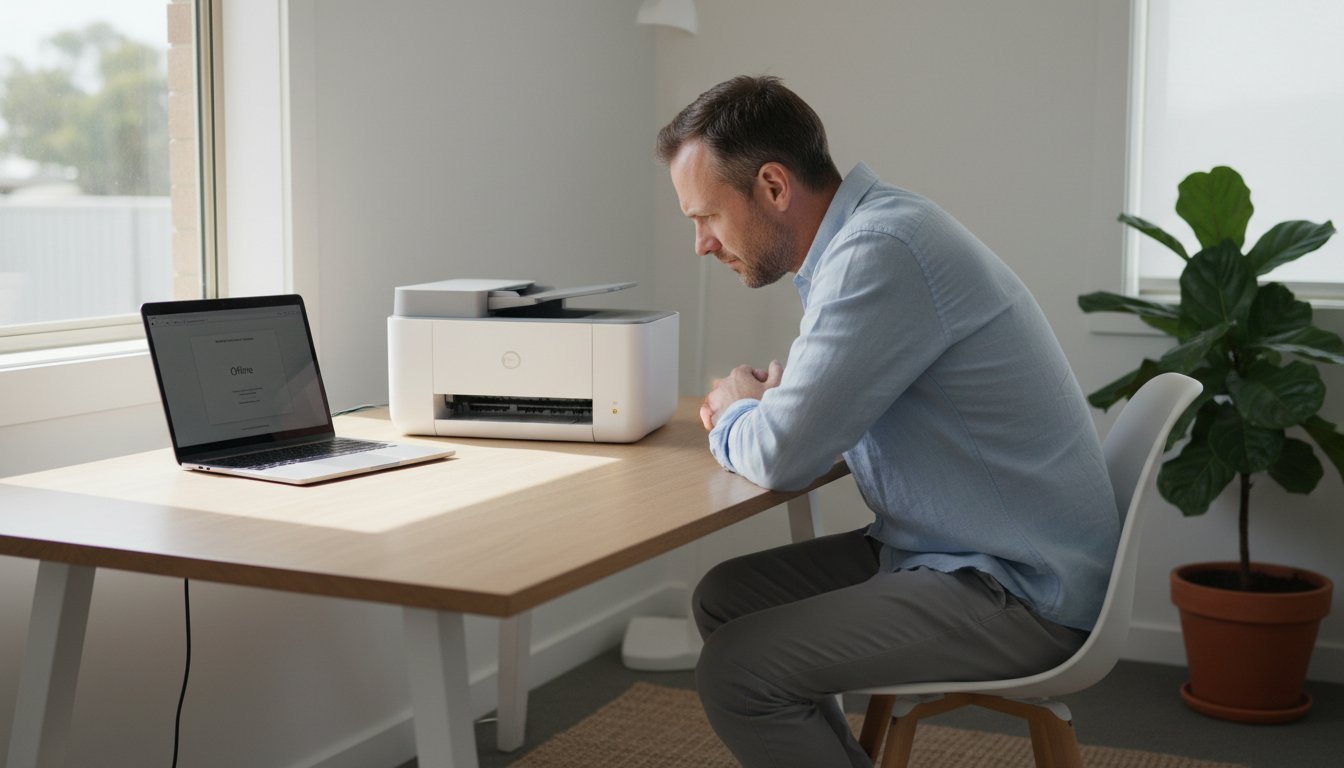
You have an important document ready to go, you click ‘Print,’ and then you see it: the frustrating “Printer is Offline” message. It’s a common tech headache that always seems to strike at the worst possible moment, leaving you to wonder if the fault lies with your computer, the printer itself, or your Wi-Fi connection.
Before you get overwhelmed, don’t panic. At Aspire Computing, we know that finding a reliable printer offline fix is often much simpler than it seems. That’s why we’ve created this easy-to-follow, step-by-step guide. We will walk you through a logical checklist, starting with the most basic checks before moving on to simple software solutions, all in plain English.
Our goal is to help you confidently identify the cause, get your printer back online quickly, and understand how to prevent the issue from recurring. Follow along to troubleshoot the problem and get that important document printed without delay.
Key Takeaways
- Start with the basics: Most printer ‘offline’ errors are resolved in under a minute by checking simple physical connections and power.
- Discover why the problem might be on your computer, not the printer, and learn which operating system settings to check first.
- A reliable printer offline fix often involves updating drivers or restarting your router to solve common software and Wi-Fi connection issues.
- Learn to recognise the signs that a problem is beyond a simple DIY fix and when it’s time to call in a professional for expert help.
Start Here: The 60-Second Checks for Printer Offline Errors
There’s nothing more frustrating than needing to print an important document, only to be met with a stubborn ‘Printer Offline’ message. Don’t panic! The good news is that this is one of the most common computer issues we see, and a quick printer offline fix is usually all that’s needed. Before diving into complex troubleshooting, it helps to remember the basics of what is a printer and how it connects to your computer. Most of the time, the problem is a simple communication breakdown that you can solve in less than a minute.
Start by taking a quick look at the printer itself. Check for any flashing amber or red lights, which often indicate a specific error like a paper jam or low ink. Ensure the power cord is securely plugged into both the printer and the wall socket. If you use a USB cable, confirm it’s firmly connected at both ends. For wireless printers, look for a solid blue or green Wi-Fi light, which shows it has a stable connection to your network.
For a clear visual guide on these initial steps, the following video is a great resource:
Power Cycle Everything (The ‘Have You Tried Turning It Off and On Again?’ Fix)
It might sound like a cliché, but restarting your devices is the single most effective first step. This process, known as a power cycle, clears out temporary memory glitches in both your computer and your printer that can disrupt their connection. Follow this exact sequence for the best results:
- 1. Turn off your printer using its power button.
- 2. Unplug the printer’s power cord from the wall socket and wait for at least 30 seconds.
- 3. Restart your computer while the printer is still unplugged.
- 4. Once your computer has fully rebooted, plug the printer back in and turn it on.
Check the ‘Use Printer Offline’ Setting in Windows
Sometimes, your computer can mistakenly think you want to use the printer offline, even when it’s connected and ready. This setting can be accidentally enabled, but it’s an easy printer offline fix. To check it, navigate to the Control Panel and find ‘Devices and Printers’ (or ‘Printers & scanners’ in Windows 10/11 Settings). Right-click your printer’s icon and select ‘See what’s printing’. In the new window that opens, click on the ‘Printer’ menu at the top. If there’s a tick next to ‘Use Printer Offline’, simply click it to uncheck the option. Your printer should come back online immediately.
Basic Software Troubleshooting on Your Computer
If you’ve confirmed your printer has power and is properly connected, but it still shows as offline, the issue often lies with your computer. A simple communication error between your PC and the printer can prevent jobs from being sent, even when all the hardware seems fine. The good news is that this is often a straightforward printer offline fix. The following steps work for most major brands, including HP, Canon, Brother, and Epson, and can quickly restore the connection.
Clear a Stuck Print Queue
Sometimes, a single failed or corrupted print job can get stuck in the queue, creating a digital roadblock that stops all subsequent documents from printing. Clearing this queue is a simple and effective first step.
- Navigate to Settings > Bluetooth & devices > Printers & scanners.
- Select your printer from the list and click Open print queue.
- In the new window that appears, click the Printer menu at the top and select Cancel All Documents.
- If the documents don’t disappear after a minute, simply restarting your computer will usually force the queue to clear.
Set the Correct Default Printer
Windows has a feature that tries to manage your default printer automatically, but this can sometimes cause it to select the wrong one, especially if you have multiple printers or PDF writers installed. Taking manual control ensures your print jobs are always sent to the right device.
- Go back to Settings > Bluetooth & devices > Printers & scanners.
- Scroll down and find the setting named Let Windows manage my default printer. Make sure this box is unticked.
- Now, scroll back up to your list of printers, click on the correct one, and select the Set as default button.
Run the Windows Printer Troubleshooter
Before diving into more complex solutions, let Windows have a go at fixing the problem itself. The built-in troubleshooter is a diagnostic tool designed to automatically detect and resolve common printer issues. It’s a quick, automated check that can save you a lot of time.
You can find it by going to Settings > System > Troubleshoot > Other troubleshooters and clicking Run next to ‘Printer’. While it doesn’t solve every problem, it’s an excellent and often overlooked tool. If the troubleshooter can’t identify the issue, don’t be discouraged; there are many other proven fixes to get it back online that address deeper driver or network conflicts.
Diving Deeper: Drivers and Print Spooler Service
If the basic checks didn’t get your printer back online, it’s time to look at the software that manages it. Think of printer drivers as the translator between your computer and your printer; if the translator is using an old script or is corrupted, communication breaks down. Similarly, the ‘Print Spooler’ is a background service in Windows that organises your print jobs. A glitch here can stop everything. Don’t worry, these steps are more technical but still very manageable.
Restart the Print Spooler Service
This service can sometimes freeze or crash, causing your printer to appear offline even when it’s not. Restarting it is a quick and effective way to clear the jam. This is often a surprisingly simple printer offline fix.
- Press the Windows key on your keyboard and type “Services”, then click on the Services app that appears.
- Scroll down the list to find “Print Spooler”.
- Right-click on “Print Spooler” and select “Restart”.
- If “Restart” is greyed out, click “Stop”, wait a few seconds, then right-click again and choose “Start”.
Update Your Printer Drivers
An outdated or incorrect driver is a very common culprit. While third-party driver update tools can seem tempting, we strongly advise against them as they can install incorrect software. The safest method is to go directly to the source. Look for the model number on your printer (usually on a sticker on the front or back) and visit the manufacturer’s official website (e.g., HP, Canon, Brother) to download the latest driver for your specific model.
Reinstall the Printer from Scratch
When all else fails on the software side, a complete reinstallation can create a fresh, clean connection. This removes any corrupt configuration files that might be causing the offline error.
- Go to Settings > Bluetooth & devices > Printers & scanners.
- Select your printer, click “Remove device”, and confirm.
- Once removed, click the “Add a printer or scanner” button and follow the on-screen prompts to let Windows find and set up your printer again.
If you’ve reinstalled the printer and the issue persists, the problem may be more complex. At this point, it might be time for expert computer and printer support to diagnose the root cause efficiently.

Solving Wireless Printer Connectivity Problems
Wireless printers offer incredible convenience, but their connection is invisible, making it tricky to diagnose problems. When a Wi-Fi printer goes offline, the issue is often not with the printer itself, but with the network it relies on. Before trying more complex solutions, a few simple checks can often get you back to printing in minutes.
First, confirm that your computer and your printer are connected to the exact same Wi-Fi network. Many modern routers broadcast multiple networks (e.g., “MyNetwork” and “MyNetwork_5G”). If your devices are on different ones, they can’t communicate. Secondly, consider the signal strength. Thick walls or long distances can weaken the connection. As a quick test, try moving the printer closer to your router to see if it comes back online.
A Quick Reboot for Your Router
Your router is a mini-computer that can sometimes develop temporary glitches or IP address conflicts that prevent devices from talking to each other. Restarting it is a simple but highly effective way to clear these hidden errors. This is often the quickest printer offline fix you can perform.
- Unplug your Wi-Fi router from the power outlet.
- Wait a full 60 seconds. This allows the internal components to fully reset.
- Plug the router back in and wait a few minutes for it to start up and for your devices to reconnect automatically.
- Try printing again.
Is Your Security Software Blocking the Connection?
Security software like firewalls and VPNs work by managing network traffic to protect you from threats. Sometimes, they can be a little too cautious and mistakenly block the connection to your printer. To check if this is the cause, try temporarily disabling your firewall or disconnecting your VPN, and then attempt to print. If it works, you’ve found the culprit. Remember to re-enable your security immediately afterward. You will then need to go into the software’s settings and add an “exception” or “rule” to permanently allow your printer’s connection.
If these network steps don’t resolve the issue, the problem might be more complex. For expert help diagnosing persistent connectivity problems in the Toowoomba region, contact the team at Aspire Computing. We’re here to connect and protect your technology.
When to Call a Professional: Signs You Need Expert Help
You’ve patiently worked through all the steps-restarting devices, checking cables, and updating drivers. While many printer issues can be resolved with these troubleshooting methods, some problems are symptoms of a deeper, more complex issue. Trying to solve them without the right expertise can lead to even more frustration. Knowing when to stop and call for help is key to getting your printer back online for good.
If you’ve tried every DIY printer offline fix in the book and you’re still stuck, it might be time to let an expert take a look. Don’t worry; this is a common scenario.
Signs of a Deeper Problem
Sometimes, a persistent offline error points to a hardware or network fault that basic troubleshooting can’t resolve. If you recognise any of the following signs, it’s a strong indicator that you need professional assistance:
- Constant Reoccurrence: The printer goes offline repeatedly, even just minutes after you’ve successfully reconnected it. This suggests an underlying instability in the network or the printer’s hardware.
- Cryptic Error Codes: You are seeing specific error codes or flashing lights on the printer’s display that aren’t covered in the user manual or online support guides.
- Wi-Fi Connection Failure: No matter how many times you re-enter the password, restart your router, or run the wireless setup wizard, the printer simply refuses to connect to your Wi-Fi network.
- Suspected Hardware or Network Fault: You have a gut feeling the problem isn’t a simple setting but a more complex network conflict between devices or a physical fault within the printer itself.
Your Local Toowoomba Printer Experts
When you’ve reached the limit of your technical patience, it’s time to call in your local experts. For residents in and around Toowoomba, Aspire Computing is here to help. We’ve been solving these frustrating technology issues for our community since 1999, building a reputation for reliable and professional service.
We can quickly and accurately diagnose the root cause of the problem, whether it lies with your PC, your network configuration, or the printer hardware itself. Our goal is to provide a lasting solution, not just a temporary fix. For fast, reliable printer repair in Toowoomba, talk to our experts today.
Get Your Printer Back Online with Confidence
Navigating a ‘printer offline’ error can be frustrating, but most issues have a straightforward solution. We’ve covered the essential first steps, from checking physical cables and Wi-Fi connections to ensuring your device is set as the default printer. We also explored deeper software solutions, like restarting the Print Spooler service and updating drivers. For the vast majority of cases, working through these checks provides a successful printer offline fix, getting you back to printing without delay.
However, if you’ve exhausted these options and your printer remains stubbornly offline, it’s a sign that a more complex hardware or network conflict may be the cause. Don’t let tech troubles disrupt your day. As Toowoomba’s trusted, local experts in PC, laptop, and printer repairs since 1999, the team at Aspire Computing has the experience to accurately diagnose and solve the problem, providing quality assurance and a fast return to productivity.
Still stuck? Contact Aspire Computing for professional printer and IT support. With our help, you’ll be back to printing smoothly in no time.
Frequently Asked Questions About Printer Offline Errors
Why does my printer keep going offline randomly?
This is a common frustration, but don’t panic. Often, it’s due to a weak or unstable Wi-Fi connection where the printer momentarily loses its link to your router. Another frequent cause is the printer’s own power-saving or ‘sleep’ mode, which can disconnect it from the network to conserve energy. Outdated printer drivers or software on your computer can also cause these communication breakdowns, leading to the offline status. Checking these three areas usually solves the problem.
Can a new router or a change in my Wi-Fi password cause my printer to go offline?
Yes, absolutely. When you get a new router or change your Wi-Fi password, you’re essentially changing the ‘locks’ on your network. Your printer, which was configured with the old network name (SSID) and password, can no longer connect. It will appear offline because it can’t find the network it’s programmed to look for. You will need to run through your printer’s setup process again to connect it to the new network details.
Does ‘Printer Offline’ mean my printer is broken?
It’s highly unlikely. The ‘Printer Offline’ message almost always points to a communication problem, not a hardware failure. It simply means your computer cannot ‘talk’ to the printer over the network or USB cable. This could be due to network issues, driver conflicts, or a simple misconfiguration. Before worrying about a costly repair, it’s best to work through troubleshooting steps. A reliable printer offline fix usually involves software and connection settings, not hardware.
How do I find my printer’s IP address to check its network connection?
The easiest way is directly on the printer itself. Navigate the menu on your printer’s display screen, looking for ‘Network Settings,’ ‘Wireless Setup,’ or a similar option. Within that menu, you should find an option to ‘Print Network Configuration Page’ or ‘Print Status Sheet.’ This report will list all the key network details, including its current IP address (e.g., 192.168.1.55), which is crucial for diagnosing connection problems.
Is it better to connect my printer with a USB cable or use Wi-Fi?
This depends on your needs. A direct USB connection is generally more stable and reliable, as it isn’t affected by Wi-Fi signal strength or network changes. However, it means the printer can only be used by the computer it’s plugged into. Wi-Fi offers fantastic flexibility, allowing you to print from multiple devices like laptops and phones anywhere in your home or office. For ultimate reliability, USB is best; for convenience and multi-device access, Wi-Fi is the winner.

B.App.Sc., Cert. Computer Engineering PC Service and Repair
As the owner of Aspire Computing founded in 1999, Chaim Lee has been working for over 20 years as the Leading Computer Technician.
He has a life long interest in electronics, computing, science and technology. He has completed studies and gained qualifications in Applied Science, Computer Repair and Service, Microsoft Installation and Maintenance, Technical Writing, Workplace Training, and Technical Sales Training.

Write a Comment