What if the reason your computer feels like it’s wading through treacle isn’t a virus or a dying processor, but simply a lack of “thinking space” for modern AI and web apps? It’s a common frustration for many of my clients here in Toowoomba. You’re trying to work, but every new tab causes a lag, and startup feels like it takes an eternity. You might even hesitate to fix it yourself, fearing that one wrong move inside the case could break everything.
I understand that anxiety completely. The good news is that a professional ram upgrade is often the fastest and most affordable way to restore that “new computer” feel to your current PC or laptop. By giving your system the memory it needs to handle 2026 software demands, you can eliminate those irritating pauses and get back to a smooth, lag-free experience.
In this guide, I’ll explain how to tell if your device is a candidate for more memory and help you understand the technical shift from DDR4 to DDR5. We will also look at why having a local expert handle the hardware installation can save you time and prevent costly mistakes, ensuring your machine stays stable and secure.
Key Takeaways
- Understand the “desk analogy” to see why more memory directly translates to faster multitasking and smoother app performance.
- Identify the specific warning signs that your computer is starving for memory rather than suffering from a virus or malware.
- Learn how to check compatibility between DDR4 and DDR5 modules to ensure you purchase the correct hardware for your specific PC or laptop.
- Discover why a professional ram upgrade is the safest way to avoid static electricity damage and ensure your new hardware is configured correctly.
- Find out how local experts in Toowoomba and the Darling Downs provide convenient, on-site installation to get your system running at peak speed.
What is a RAM Upgrade and Why Does Your Computer Need It?
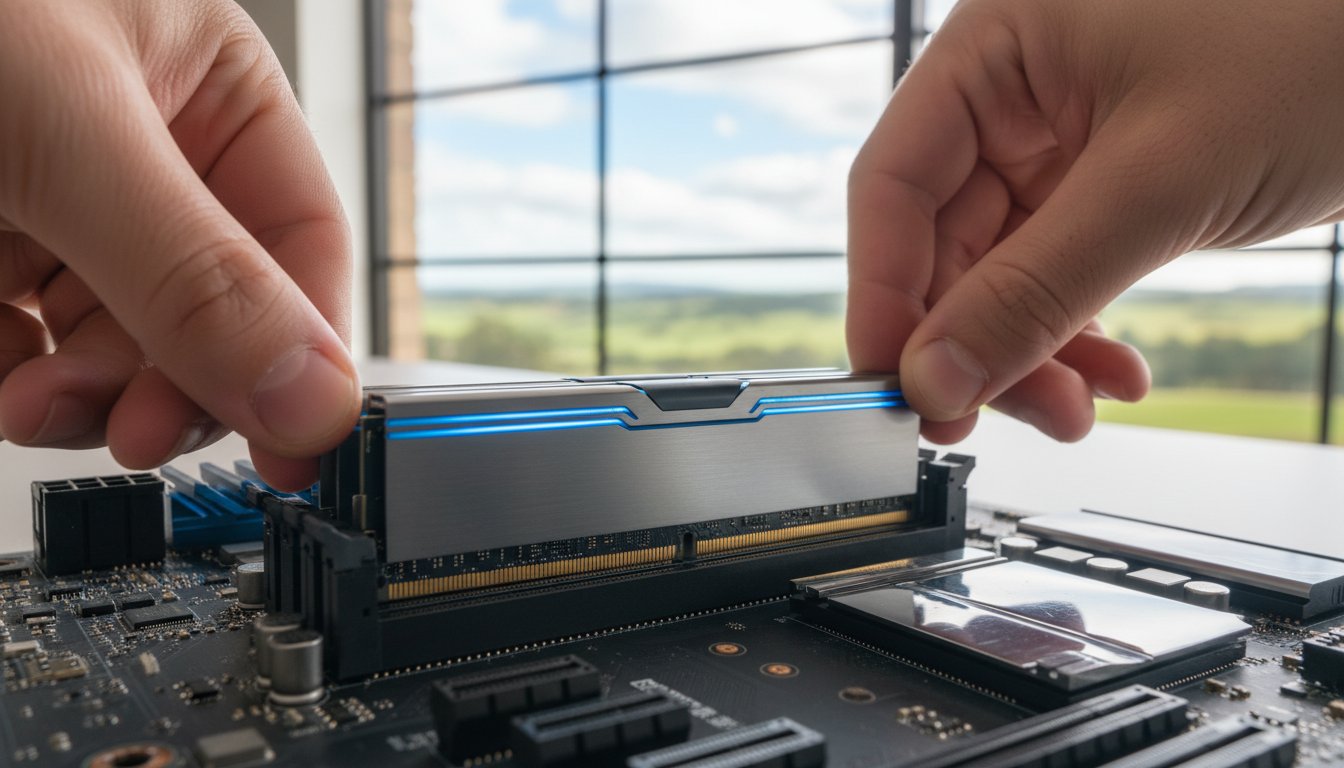
Random Access Memory, or RAM, is your computer’s high-speed workspace. It holds the data your processor needs to access immediately. Imagine your computer is a home office. Your RAM is the size of the desk you’re sitting at, while your hard drive is the filing cabinet in the corner. If you have a tiny desk, you can only work on one document at a time. Every time you need to look at something else, you have to put the first document back in the cabinet and fetch a new one. This constant back-and-forth is what makes your computer feel sluggish. A ram upgrade simply gives you a much larger desk. You can have your email, twenty browser tabs, and your accounting software all spread out and ready to use at the same moment.
It’s helpful to distinguish this from other hardware upgrades. While a new SSD makes your “filing cabinet” faster to open, adding memory ensures you don’t have to visit that cabinet nearly as often. For many of the systems I see in Toowoomba, the bottleneck isn’t the storage speed; it’s the fact that the “desk” is simply too small for modern work.
The Role of RAM in 2026 Computing
By 2026, the demands on our hardware have shifted. Modern operating systems now integrate local AI features that run in the background to help with everything from search to image editing. These tools are incredibly useful, but they’re also memory-hungry. Browser “bloat” is another factor. Every website you visit today is more complex than it was five years ago. If you’re the type of person who keeps multiple tabs open while you work, your system is likely gasping for air. In the current climate, 8GB of memory has become the new “unusable” for professional use. I now recommend 16GB as the absolute minimum, with 32GB being the sweet spot for anyone doing more than just basic typing.
Benefits of Increasing Your Memory
The benefits of adding memory go beyond just speed. You’ll notice an immediate reduction in system freezes and the “spinning blue wheel of death” that occurs when your PC runs out of room to think. Multitasking becomes seamless. You can jump from a heavy Excel spreadsheet to a video call without the computer stuttering. For many of my clients, the biggest win is the financial one. A professional ram upgrade can delay the need for a A$1,500 laptop replacement by several years. It’s a sustainable way to keep your existing hardware fast, reliable, and capable of handling whatever software comes next.
Signs Your PC or Laptop is Starving for More Memory
It’s a frustrating feeling when your computer stops keeping up with your thoughts. You click a button and wait. You type a sentence and watch the letters trickle onto the screen seconds later. These performance hiccups often lead people to fear the worst. Many of my clients in Toowoomba initially worry their machine has been infected with a virus. While keeping your security software up to date is vital, these specific slowdowns are frequently caused by a simple hardware limitation. A professional diagnosis from Aspire Computing can provide peace of mind by identifying whether you need a deep malware cleanup or a ram upgrade to handle your daily workload.
Common Symptoms of Low RAM
Your computer will usually tell you when it’s struggling. You just need to know what to look for. One of the most telling signs is “delayed typing.” This happens when the communication between your keyboard and the processor gets stuck in a queue because the memory is full. Another classic symptom is the need for frequent restarts. If your PC feels fast at 9:00 AM but becomes unusable by lunchtime, it’s likely that your open apps have consumed all the available “workspace” we discussed earlier. You might also notice that switching between programs, like moving from a web browser to a Word document, takes several seconds of waiting while the screen flickers or stays white.
Using Task Manager to Diagnose the Bottleneck
You don’t need to be a technician to see how your memory is performing. Windows provides a built-in tool that shows you exactly what’s happening under the hood. To access it, press Ctrl+Shift+Esc on your keyboard. Once the window opens, click on the Performance tab and select Memory. This screen displays a graph of your usage in real time.
- In Use: This is the amount of memory currently occupied by your open apps and the Windows operating system.
- Available: This is your remaining headroom. If this number is consistently below 1GB or 2GB, your system is starving.
- Compressed: You might see a value here if Windows is trying to “shrink” data to fit it into your limited RAM. This is a clear sign that your hardware is working overtime just to stay functional.
If you see that your memory usage is constantly sitting above 80%, your productivity is being held back. In these cases, a ram upgrade is the most effective way to eliminate those annoying pauses. If you’re unsure about what these numbers mean for your specific device, feel free to reach out for a quick hardware health check to see if your memory is truly the bottleneck.
Understanding RAM Compatibility: DDR4, DDR5, and Beyond
Choosing the right parts for your ram upgrade can feel like solving a puzzle where the pieces all look identical but don’t actually fit together. Memory is not a one-size-fits-all component. Your computer’s motherboard dictates exactly what type of memory it can accept. If you buy a module that isn’t compatible, it physically won’t fit into the slot, or worse, it could cause your system to fail to boot. Beyond the generation of the memory, we also have to consider voltage and latency. These terms simply refer to how much power the stick draws and how quickly it responds to requests. While these details are vital for stability, the most important thing to know is that your hardware must be a perfect match for your system’s specifications.
DDR5 is the 2026 standard for high-speed data transfer. Most new computers sold in Australia today utilize this technology to handle the heavy data loads required by modern software. However, many reliable machines built just a few years ago still rely on DDR4. Knowing which one you have is the first step in any successful performance boost.
DDR4 vs. DDR5: Can You Mix Them?
The short answer is no. You cannot mix different generations of memory in the same computer. Each stick of RAM has a small physical “notch” on the bottom edge. The position of this notch changes with every generation. This design feature prevents you from accidentally forcing a DDR4 stick into a DDR5 slot, which would cause electrical damage. Your motherboard is designed for one specific type. For a standard home office in Toowoomba, DDR4 is often still quite capable. However, if you are building a new system or looking for the best possible future-proofing, DDR5 offers a significant performance gap that justifies its place in modern setups.
Laptop vs. Desktop Upgrades
The physical size of the memory stick depends on the type of computer you own. Desktop towers use DIMM sticks, which are long and slender. Laptops use SO-DIMM sticks, which are much shorter to fit into compact cases. Be aware that some modern “ultra-thin” laptops have moved away from removable sticks entirely. In these devices, the memory is soldered directly to the motherboard, meaning a ram upgrade is unfortunately impossible.
For systems that can be upgraded, I always recommend using “matching pairs.” This means installing two identical sticks of the same capacity and speed. Most modern processors use a feature called dual-channel memory. When you use matching pairs, the computer can talk to both sticks at once, effectively doubling the speed at which data moves. This small detail can make a noticeable difference in how snappy your computer feels during a busy workday.

The RAM Upgrade Process: DIY vs. Professional Installation
Opening your computer case for the first time is often a daunting experience. You might fear touching the wrong thing or snapping a delicate component. While online tutorials make a ram upgrade look like a five-minute task, modern hardware is often quite fragile. Choosing between a DIY approach and professional installation comes down to your comfort level and the value of your time.
How a Professional Installs RAM
When I handle an installation at Aspire Computing, it’s never just about popping in a new stick of memory. Every service includes a comprehensive computer repair health check to ensure your entire system is running at its peak. I want you to leave with a machine that feels completely refreshed, not just slightly faster.
I start by performing a complete system backup. While memory upgrades are generally safe, protecting your personal data and photos is always my top priority. It’s a safety net that many home users forget to set up before they begin tinkering with internal parts.
The next step involves a thorough internal dust cleaning. Over time, fans and heat sinks in Toowoomba homes can collect significant debris. This causes overheating and can shorten the life of your new hardware. By clearing this out, I help your computer stay cool and quiet.
Once the RAM is seated, I verify the BIOS settings. This technical step ensures the computer recognizes the new capacity and is running it at the correct speed. Without this check, you might not even be getting the full performance you paid for.
Why DIY Can Be Risky for Modern Devices
Modern laptops in 2026 are thinner and more complex than ever. Many manufacturers now use hidden adhesive or very tight plastic clips instead of standard screws. If you aren’t careful, you can easily crack the chassis or snap a ribbon cable. These small mistakes can turn a simple boost into a very expensive repair bill.
Another hidden danger is Electrostatic Discharge (ESD). You might not even feel the spark, but a tiny bit of static from your carpet can permanently fry a motherboard. I use specialized anti-static mats and wrist straps to keep your hardware safe from these invisible threats. It’s a level of protection that’s hard to replicate at a kitchen table.
Finally, consider your warranty. Some brands will void your protection if they see evidence of an unauthorized entry. If you’d rather have the peace of mind that comes with 25 years of industry experience, you can book a professional hardware upgrade to ensure the job is done right the first time.
Professional Hardware Upgrades in Toowoomba
When your computer starts failing, it’s easy to feel a sense of panic. You might worry about losing your work or the high cost of a brand-new machine. At Aspire Computing, I’ve spent over 25 years providing a calm, professional alternative to that stress. Since 1999, I’ve been the local face of technical support for residents and business owners throughout Toowoomba. Whether you need a simple performance boost or a complex ram upgrade, my goal is to provide a service that is both competent and convenient. You don’t have to navigate a distant corporate helpdesk. Instead, you can speak directly with an expert who understands the local community and takes personal accountability for every job.
On-Site Service for Toowoomba Small Businesses
For many small businesses in the region, taking a computer “into the shop” simply isn’t an option. Downtime means lost revenue. I provide on-site hardware services that bring the solution directly to your office or home. I regularly serve a wide range of locations, including:
- Newtown and all inner Toowoomba suburbs
- The Darling Downs regional area
- The Lockyer Valley and surrounding townships
Often, a ram upgrade is just one part of a wider IT support session. While I’m there, I can perform a Windows tune-up, check your security settings, and ensure your backup systems are functional. This methodical approach ensures your technology serves your business goals rather than hindering them. My “No Panic” philosophy means I focus on finding the most efficient, cost-effective path to getting your system back to peak performance.
The Aspire Computing Guarantee
When you choose Aspire Computing, you’re getting a personal commitment to quality. I, Cam, lead every service and personally handle your hardware. I only supply memory modules from trusted, industry-standard brands to ensure your machine remains stable for years to come. My mission is to provide a dual focus on security and functional utility. This means that during any upgrade, your data safety is my primary concern. I follow strict protocols to protect your files and personal information while the case is open. It’s this blend of technical specificity and approachable, local service that has made me a trusted partner for Toowoomba’s computing needs for over two decades. You can expect a rapid turnaround and a process designed to get you back to work without the headache.
Ready for a Faster, More Reliable Computer?
A simple ram upgrade is often the difference between a frustratingly slow machine and a system that keeps up with your busiest work days. By expanding your digital workspace, you can handle the heavy demands of 2026 software and background AI features without the constant lag. We’ve seen how identifying the right hardware and ensuring compatibility is the first step toward a stable, long-lasting device. Whether you are using a reliable older desktop or a newer laptop, professional installation takes the guesswork and the physical risk out of the equation.
I’ve been helping the Toowoomba community with dependable hardware solutions since 1999. At Aspire Computing, I provide the personal expert service you need to ensure your data is safe and your hardware is configured perfectly. Whether you prefer on-site assistance at your home or office or remote support, I’m here to help you get the most out of your technology. My focus is always on providing a smooth, stress-free experience that gets you back to work quickly.
Don’t let a slow PC hold you back any longer. Contact Aspire Computing for a Fast Hardware Upgrade today. Let’s get your computer running like new again.
Frequently Asked Questions
How much RAM do I really need for Windows 11 in 2026?
You should aim for at least 16GB of memory for a smooth experience with Windows 11 today. While 8GB was once the standard, modern background features and web browser demands now consume most of that space before you even open your own apps. If you handle large spreadsheets or use creative software, 32GB is the ideal sweet spot to ensure your system remains snappy and responsive for years to come.
Will a RAM upgrade fix a computer that is freezing?
Yes, it will fix the issue if the freezing is caused by your system running out of “thinking space.” When your PC hits its memory limit, it starts swapping data to the much slower hard drive, which causes those frustrating pauses and hangs. If your computer freezes specifically when you have multiple tabs or programs open, a memory boost is likely the solution. I can run a quick diagnostic to confirm this before we proceed.
Can I add more RAM to my laptop myself?
You can certainly try, but modern laptops are increasingly difficult to open without specialized tools. Many newer models use hidden plastic clips or adhesive that can snap if handled incorrectly. There is also the risk of static electricity damaging the delicate internal circuitry. For most people, having a professional handle the installation is a safer way to protect their investment. Experienced providers like Flashy Bee Computers also advocate for professional handling to ensure the new hardware is recognized correctly by the system without risking permanent damage.
What is the difference between RAM and a Hard Drive?
RAM is your computer’s short-term workspace, while a hard drive or SSD is the long-term storage for your files. Think of RAM as the surface of your desk where you keep things you’re currently working on. The hard drive is the filing cabinet where you store things away. A ram upgrade makes your “desk” larger so you can have more documents open at once without having to constantly go back to the cabinet.
How much does a professional RAM upgrade cost in Toowoomba?
The total cost depends entirely on the type of memory your computer requires and the current market price for those specific modules. Different machines use different generations of technology, such as DDR4 or DDR5, which vary in price. I provide a transparent quote that includes the high-quality hardware and my professional installation service. Contact me directly with your computer’s model number, and I can give you an accurate price for your specific device.
Will adding more RAM delete my files?
No, adding memory will not affect your photos, documents, or personal data in any way. RAM is temporary storage that clears itself every time you turn the computer off. Your permanent files live on your hard drive or SSD, which remains untouched during the physical installation process. It’s a hardware improvement that changes how fast your computer thinks, not what it remembers long-term, though I always perform a safety backup as part of my professional service.
How do I know if my computer is compatible with DDR5?
You can check this by looking at your system information or opening the Windows Task Manager. Most computers manufactured before 2022 use the older DDR4 standard. DDR5 is a newer, faster technology that requires a specific type of motherboard. Because the two types are physically different and have notches in different places, they aren’t interchangeable. If you aren’t sure which one your machine needs, I can quickly identify the correct parts for you.
Is it better to upgrade RAM or buy a new computer?
It is often much more cost-effective to perform a ram upgrade if your current processor is still performing well. If your only complaint is that the computer feels sluggish during multitasking, a memory boost can extend your machine’s life by several years. This saves you the significant expense of a new A$1,500 laptop and the hassle of moving all your data to a new system. I always give honest advice on whether an upgrade is a smart investment for your specific PC.

B.App.Sc., Cert. Computer Engineering PC Service and Repair
As the owner of Aspire Computing founded in 1999, Chaim Lee has been working for over 20 years as the Leading Computer Technician.
He has a life long interest in electronics, computing, science and technology. He has completed studies and gained qualifications in Applied Science, Computer Repair and Service, Microsoft Installation and Maintenance, Technical Writing, Workplace Training, and Technical Sales Training.