
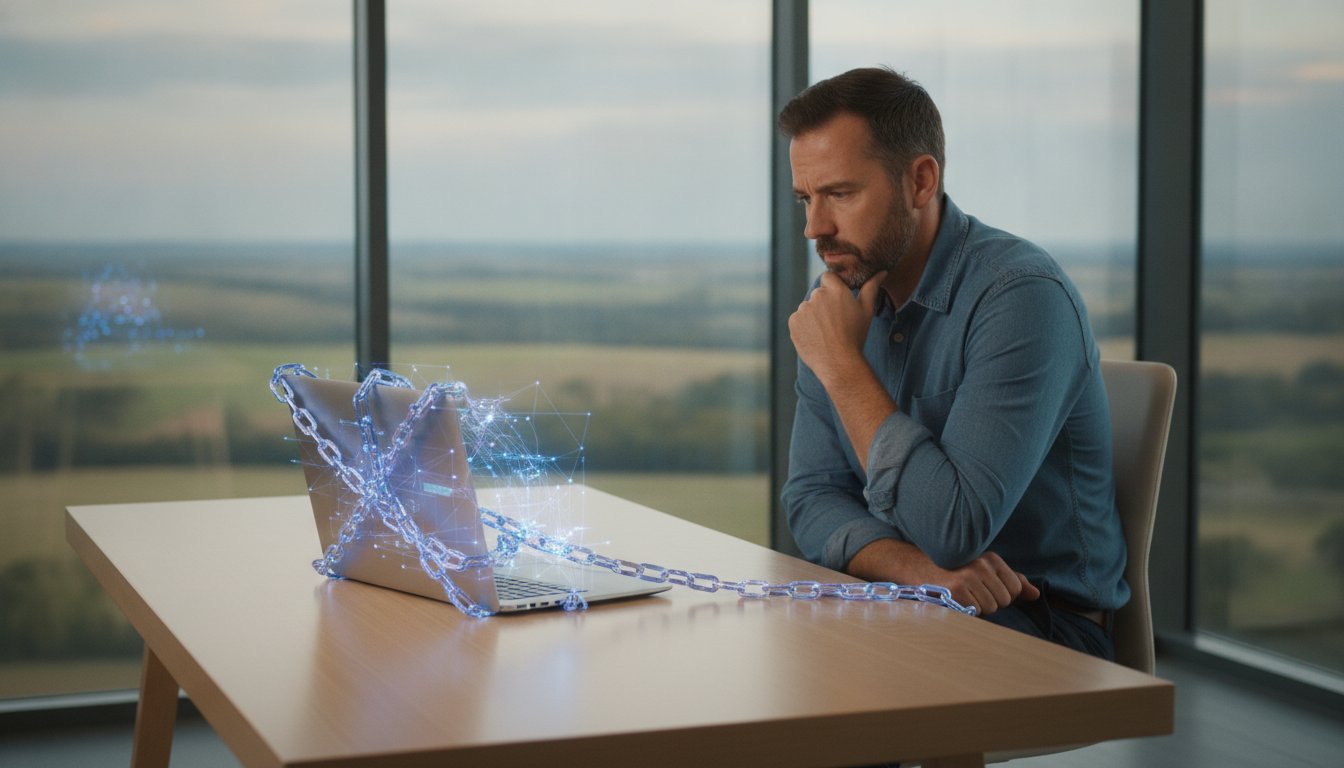
What if the most powerful computer you’ve ever owned was intentionally held back the moment you took it out of the box? It’s a common frustration to unbox a premium machine only to find it sluggish and unresponsive. You’ve likely spent a significant amount of money and feel worried that the hardware might be defective. I understand how stressful it is to face technical hurdles when you just want to get to work. You’re probably asking yourself, why is my new computer so slow when it should be the fastest thing in the house? It’s a valid concern, and in most cases, your hardware is perfectly fine.
The truth is that a new PC is rarely “ready” for peak performance on day one. Manufacturers often pack systems with background processes and apps like Microsoft 365 Copilot or Clipchamp that drain resources. In this guide, you’ll discover exactly why your brand-new PC is lagging and learn the steps to unlock the speed you paid for. We’ll explore the common bottlenecks found in Windows 11 and macOS 26 Tahoe, providing you with a clear path to smooth multitasking. By the end, you’ll know how to get your apps opening instantly and whether your system needs a professional tune-up to reach its full potential.
Key Takeaways
- Understand why “factory fresh” hardware often requires software optimization before it reaches its true potential.
- Learn how to identify and safely remove pre-installed bloatware that consumes vital system resources.
- Discover the temporary impact of initial cloud syncing and security scans on your system’s responsiveness.
- Find out why is my new computer so slow and how adjusting power settings can provide an immediate performance boost.
- Recognize when a professional tune-up is necessary to resolve hidden software conflicts or potential hardware defects.
The New PC Paradox: Why Your Fast Machine Feels Slow Out of the Box
You’ve just spent a small fortune on a high-end machine, yet it’s struggling to open a basic browser window. This is the New PC Paradox. It happens because there’s a massive gap between a “factory fresh” device and one that is truly “performance ready.” While your hardware is technically superior to your old setup, the software is unoptimised and overwhelmed by initial configuration tasks. You might even notice that your old computer feels more responsive for simple tasks. This is because your old system finished its heavy lifting years ago, whereas your new one is just beginning a very busy first 48 hours.
To better understand this concept and see how it impacts your daily use, watch this helpful video:
I often hear from clients asking, why is my new computer so slow when it has the latest processor? The answer usually lies in what is happening behind the scenes. Your computer isn’t just waiting for your commands; it’s fighting for resources against its own operating system and manufacturer settings.
Initial Background Tasks: The Hidden Resource Hogs
When you first log in to a new Windows 11 or macOS 26 Tahoe system, a process called Search Indexing begins. Your PC is building a massive database of every file and folder so that your future searches are instant. During this time, your CPU and hard drive are working overtime. Simultaneously, telemetry and data collection settings are constantly phoning home to the manufacturer. These background tasks cause the “hiccups” and stuttering you feel. If these issues persist beyond the first few days, seeking PC and Laptop Repair can help you disable these unnecessary background services safely.
The Windows Update Backlog
Most computers sit in a warehouse or on a retail shelf for months before they reach your hands. By the time you unbox it, the operating system is often several versions behind. For example, as of July 2026, a new PC might be trying to catch up on the latest Windows 11 security updates for versions 25H2 and 24H2 all at once. This simultaneous downloading and installing of patches puts a massive load on your system. Your computer might feel sluggish simply because it’s waiting for a restart to apply these critical changes. Until that backlog is cleared, you won’t see the true speed of your new hardware.
The “Bloatware” Problem: Identifying and Removing Manufacturer Clutter
A major reason your experience might feel sluggish is the presence of bloatware. These are pre-installed applications that manufacturers include on your hard drive before you even open the box. While you might expect a clean slate, companies often include trial versions of antivirus software and productivity tools. They do this because software developers pay manufacturers to include these “samples,” which helps keep the retail price of the hardware lower. However, the cost to you is system performance.
When ten or more of these trial apps attempt to start every time you boot up, the cumulative effect is massive. Your processor and memory are busy launching programs you’ll likely never use instead of the apps you actually need. Identifying what is safe to remove can be tricky. Generally, anything labeled as a “Trial,” “Game,” or “Promotion” is fair game. However, you must be careful not to touch critical drivers that manage your Wi-Fi, audio, or graphics card. If you’re worried about deleting something important, getting professional PC and Laptop Repair can ensure your system is stripped of junk without losing functionality.
Identifying Common Pre-installed Culprits
Trial antivirus programs like McAfee or Norton are the most notorious resource hogs. They often run deep system scans the moment you connect to the internet. Manufacturer “Support Assistants” are another common issue. These tools frequently ping servers to check for updates you don’t need yet. You’ll also find pre-installed games like the Microsoft Solitaire Collection or social media apps like TikTok and Instagram. These often run background processes that consume data and CPU cycles, contributing to why is my new computer so slow during your first week of ownership.
Managing Startup Impact
You don’t always have to uninstall an app to stop it from slowing you down. Open your Task Manager (Ctrl+Shift+Esc) and head to the “Startup apps” tab. Here, Windows 11 provides “Startup Impact” ratings. If you see an app labeled as “High Impact” that you don’t recognize, it’s likely a prime candidate for disabling. Disabling an app simply prevents it from launching automatically when you turn on the PC. For a deeper diagnostic, you can perform a “clean boot.” This starts Windows with only the most essential drivers, allowing you to see exactly how fast your computer could be without the manufacturer clutter.
Software Bottlenecks: Cloud Syncing and Security Scans
After you’ve cleared the initial updates and removed the obvious manufacturer clutter, you might still find your system dragging. This is often due to active services designed to protect or sync your data. These tools provide essential security and functional utility, but they can be incredibly aggressive during the first few days of use. If you are still asking why is my new computer so slow after cleaning up the desktop, the culprit is likely a service running in the background. Modern systems also face a hardware challenge. Many new laptops feature stunning 4K displays, yet entry-level graphics chips can struggle to render high-resolution interfaces while heavy background tasks are running. This creates a noticeable stutter that feels like a hardware failure, even though the components are working as intended.
OneDrive and Cloud Syncing Lag
OneDrive is a core part of the Windows 11 experience, and it immediately attempts to back up your entire Desktop, Documents, and Pictures folder to the cloud. If you have moved hundreds of gigabytes of data from an old machine, your internet connection and CPU will be pinned at 100% capacity for hours. This constant data transfer is a major reason why is my new computer so slow during the initial setup phase. You can manage this by right-clicking the OneDrive icon in your taskbar and selecting “Pause syncing” during intensive work sessions. I also recommend enabling “Files On-Demand.” This setting keeps your files in the cloud until you actually need to open them, which saves local disk space and reduces the processing power required for constant synchronization.
Security Software Overload
Security is vital for operational stability, but too much of it can create a massive bottleneck. Most new PCs come with a trial antivirus like McAfee or Norton that conflicts with the built-in Windows Defender. Having two active real-time scanners is like having two security guards trying to check the same ID at the same time; they get in each other’s way. This conflict consumes a significant portion of your RAM and CPU cycles. To fix this, choose one primary security solution. If you don’t plan to pay for the trial subscription, remove it entirely and let Windows Defender take over. You should also schedule deep system scans for times when you aren’t using the computer, such as late at night. This ensures your active work hours remain smooth and responsive for multitasking.

Actionable Performance Fixes You Can Try Today
If you’ve cleared out the bloatware and waited for updates but still find yourself asking why is my new computer so slow, it’s time to look at your system settings. Many manufacturers ship computers with conservative settings to prioritize battery life or quiet operation. While this keeps the fans silent, it often caps your hardware’s potential. You can reclaim this speed by making a few intentional adjustments to how Windows handles your resources.
Optimising Power and Performance Settings
Windows 11 features a power mode slider that is often set to “Balanced” by default. To change this, go to Settings > System > Power & battery. Locate the “Power mode” dropdown and select Best performance. This tells your CPU to run at its maximum clock speed whenever possible. If you’re using a laptop with a dedicated graphics card, ensure your high-demand apps are actually using it by checking Settings > System > Display > Graphics. Power Throttling is a hardware management feature that limits the energy sent to your processor to save battery life, which often results in a significant reduction in processing speed. While “Best performance” mode provides the snappiness you expect, remember that it will drain your battery faster when you aren’t plugged into a wall outlet.
Visual Adjustments for Instant Snappiness
Modern operating systems use transparency and animations to look sleek, but these effects require constant GPU cycles. You can reduce this load by going to Settings > Accessibility > Visual effects and turning off “Transparency effects.” For an even bigger boost, search for “Adjust the appearance and performance of Windows” in the Start menu. Select Adjust for best performance to disable all window animations. This makes the interface feel much faster because windows snap open instantly rather than sliding or fading. I also recommend disabling “Tips and Suggestions” in your notification settings. This prevents Windows from constantly monitoring your activity to offer pop-ups, which can cause noticeable lag during typing or browsing.
You should also check for manufacturer-specific drivers that Windows Update often misses, especially for your chipset and storage controllers. If these manual tweaks don’t provide the speed you paid for, your system might benefit from a professional Hardware Upgrade or a deep system optimization to ensure every component is configured correctly for your specific needs.
When “New” Needs a Professional Tune-Up: Expert Help in Toowoomba
Sometimes, despite your best efforts with settings and software, your machine remains sluggish. I understand the frustration of unboxing a high-cost purchase only to have it underperform. If you have followed the previous steps and are still asking why is my new computer so slow, there is a possibility that the hardware itself is the issue. Occasionally, new PCs arrive with DOA (Dead on Arrival) components, such as a faulty memory module or a struggling storage drive. In these cases, no amount of software tweaking will provide the speed you paid for. A professional assessment can determine if your machine needs a warranty claim or a specific technical adjustment.
Aspire Computing uses advanced diagnostic tools to identify bottlenecks that the standard Windows Task Manager often misses. We look deep into system logs and hardware thermal performance to see why your “fast” machine is lagging. Our goal is to provide a calm, dependable solution that removes the anxiety of a technical failure. We believe your technology should work for you, not against you.
The Value of a Professional Setup
A professional setup goes beyond simply turning on the machine. We ensure your security software is correctly configured to protect you without the heavy resource drain of bloatware. If you have opted for hardware upgrades, we verify that these components are working as intended and are fully compatible with your system architecture. Our expert driver installation service also fixes common “new PC” annoyances like mouse hiccups, flickering screens, and laggy window resizing. This methodical approach transforms a factory-standard box into a streamlined tool tailored for your specific tasks.
Getting Local Help from Aspire Computing
With over 25 years of experience in computer repairs in Toowoomba, I have seen every type of system failure imaginable. We project a service-oriented personality that focuses on the local community. We offer on-site visits to Newtown and surrounding suburbs for both home users and small businesses across the Darling Downs. This convenience means you don’t have to pack up your setup and drive across town; we bring the expertise to your door.
You can book a “New PC Health Check” to ensure your 2026 tech investment starts on the right foot. We will strip away the junk, optimize your registry, and ensure your hardware is operating at peak efficiency. Don’t settle for a lagging system when the speed you paid for is just a few clicks away. Book your computer tune-up with Aspire Computing today and experience the difference a professional touch makes.
Unlock the True Speed of Your New Machine Today
You shouldn’t have to wait for your technology to catch up with your workflow. Most performance issues on a brand-new device stem from unoptimized software and aggressive background tasks rather than actual hardware failure. By managing your startup apps, clearing the update backlog, and adjusting your power settings, you can often see an immediate improvement in responsiveness. If you’re still wondering why is my new computer so slow after trying these fixes, it’s likely time for a deeper look at your system configuration.
I’ve been serving the Toowoomba community since 1999, helping home users and businesses get the most out of their technology investment. My expertise in Windows 10 and 11 performance optimization ensures that your machine isn’t held back by hidden bottlenecks or manufacturer clutter. Whether you require convenient on-site assistance or rapid remote IT support, I’m committed to providing a dependable and professional solution. You can contact Aspire Computing for a professional New PC Tune-Up to ensure your machine is running exactly as you expected. It’s time to enjoy the smooth, fast experience you deserve.
Frequently Asked Questions
Is it normal for a brand-new computer to be slow for the first few days?
Yes, it is perfectly normal for a new machine to experience some lag during the first 48 to 72 hours of use. During this window, the operating system is busy indexing files for search, downloading a backlog of security patches, and syncing cloud data. These processes consume significant CPU and disk resources, which often leads users to ask why is my new computer so slow. Once these initial tasks finish, performance usually stabilizes.
Should I uninstall the antivirus that came with my new computer?
You should uninstall the trial antivirus if you don’t intend to purchase a full subscription. Most new PCs ship with trial versions of McAfee or Norton that can conflict with the built-in Windows Defender. Having two security scanners active at once creates a massive bottleneck that slows down your system. Removing the trial version allows Windows Defender to protect your machine efficiently without the unnecessary resource drain.
How can I tell if my new PC is slow because of a hardware fault?
A hardware fault typically manifests as sudden blue screen errors, random restarts, or audible grinding noises from the cooling fans. If your computer freezes completely even when you aren’t running heavy apps, it could indicate a defective memory module or storage drive. While software is the usual culprit, persistent instability that survives a fresh Windows installation often points toward a hardware defect that requires a professional diagnosis.
Does disabling startup programs void my manufacturer warranty?
Disabling startup programs does not void your manufacturer warranty because it is a standard software configuration change. You aren’t opening the case or modifying the physical components of the machine. Managing these apps through the Task Manager is a safe way to improve boot times and system responsiveness. It is a highly recommended step for anyone trying to figure out why is my new computer so slow without risking their warranty coverage.
Why is my new laptop slower when it is not plugged into the charger?
Most laptops are configured to “throttle” or slow down the processor when running on battery to extend your usage time. This power-saving mode reduces the clock speed of the CPU and might even disable the dedicated graphics card to conserve energy. You can change this behavior in the Windows Power and battery settings by selecting the “Best performance” mode. Just be aware that this will cause your battery to drain much faster.
Can a slow internet connection make my new computer feel slow?
What is Windows 11 S-Mode, and is it making my PC lag?
Windows 11 S-Mode is a version of the operating system that only allows apps from the Microsoft Store to be installed. While it is designed for security and stability, it can feel restrictive and sometimes unresponsive if you are trying to run resource-heavy store apps on entry-level hardware. Switching out of S-Mode is a one-way process that allows you to install any software, which often provides more flexibility for performance-focused tools.
How much RAM should a new computer have in 2026 to avoid slowing down?
In 2026, a new computer should have at least 16GB of RAM to ensure smooth multitasking and long-term stability. While 8GB is still common in entry-level laptops, modern operating systems and web browsers consume memory quickly. If you plan on doing video editing, gaming, or keeping dozens of browser tabs open, opting for 32GB will provide the best experience and prevent the system from slowing down as software demands grow over time.

B.App.Sc., Cert. Computer Engineering PC Service and Repair
As the owner of Aspire Computing founded in 1999, Chaim Lee has been working for over 20 years as the Leading Computer Technician.
He has a life long interest in electronics, computing, science and technology. He has completed studies and gained qualifications in Applied Science, Computer Repair and Service, Microsoft Installation and Maintenance, Technical Writing, Workplace Training, and Technical Sales Training.

Write a Comment