
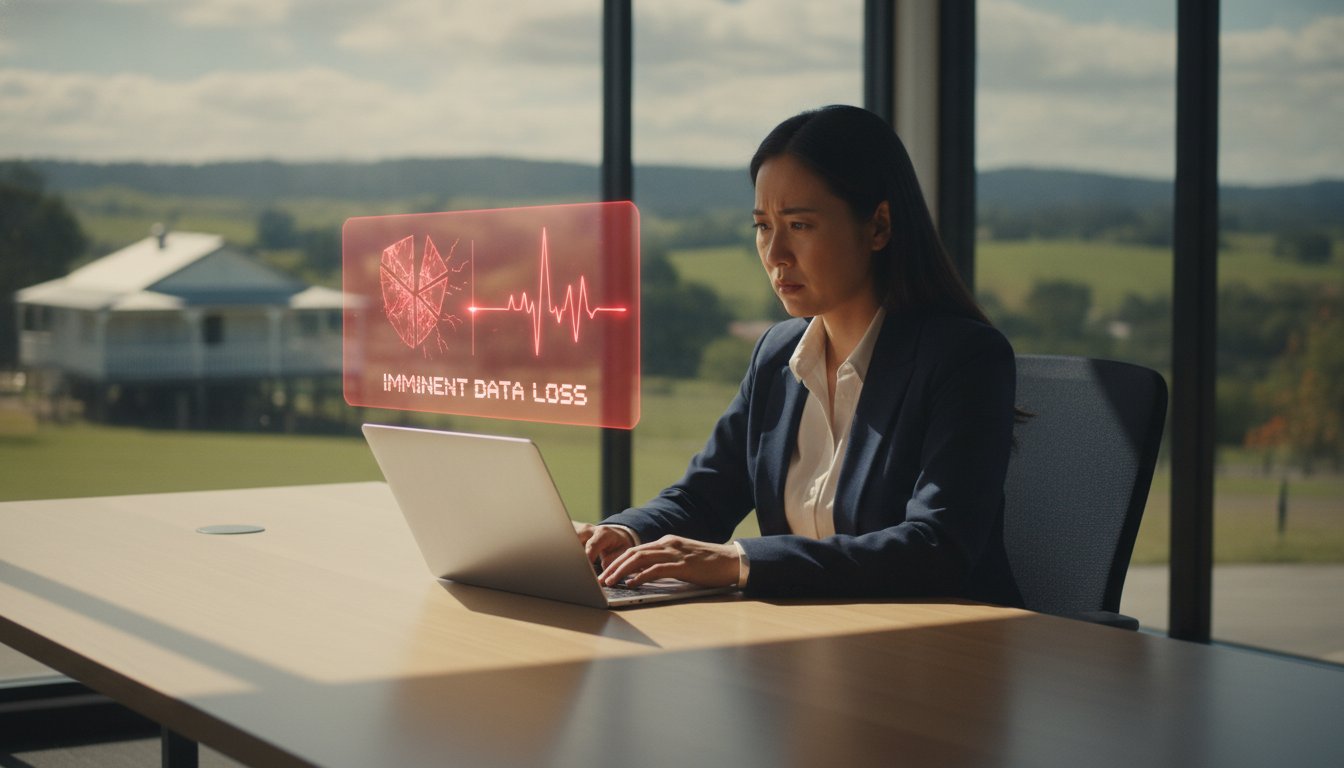
Did you know that nearly half of all hard drives fail within their first year of operation? A 2026 study of over 5,000 failed drives found that a staggering 49.8% didn’t even make it to their first birthday. For many of us in Toowoomba, this isn’t just a statistic; it represents the potential loss of priceless family memories or critical business data. It’s a heavy burden to worry about when your computer starts making a strange clicking sound or feels a bit sluggish. Learning how to prevent hard drive failure is the best way to ensure your digital life stays intact without needing to be a tech expert.
I understand the anxiety that comes with technical glitches, especially since 30.5% of drives fail without any prior SMART warnings. I’m here to help you protect your hardware through simple, proactive steps. You’ll discover how to decode the “silent” warnings your hardware sends before it’s too late. We will explore the seven most common warning signs, demystify technical jargon, and outline a reliable backup strategy tailored for our local climate. By the end of this guide, you’ll know exactly how to extend your drive’s life and precisely when it’s time to call in a professional for help.
Key Takeaways
- Learn how Toowoomba’s unique humidity and summer heat impact your hardware and what you can do to mitigate these environmental risks.
- Discover practical steps on how to prevent hard drive failure by maintaining optimal airflow and using high-quality surge protectors.
- Identify the critical differences between the noisy “death rattle” of traditional hard drives and the silent failure modes of modern SSDs.
- Master the immediate “Emergency Triage” steps to take the moment you suspect a drive is failing to maximize your chances of successful data recovery.
- Understand how to use SMART technology to monitor your drive’s health and catch potential issues before they lead to permanent data loss.
Why Hard Drives Fail: Understanding Mechanical and Digital Risks
Living on the Range in Toowoomba brings specific challenges for our technology. While we might enjoy the seasonal changes, our computers often struggle with the shifting environment. Understanding the fundamentals of hard disk drive failure is essential for anyone looking to secure their data. In 2026, storage devices are smaller and faster than ever, but this compact design makes them increasingly sensitive to physical movement and heat.
The Darling Downs region is known for its summer humidity and occasional power instability. These factors play a major role in how local hardware degrades over time. Whether you use a traditional mechanical drive or a modern flash-based system, knowing the risks helps you understand how to prevent hard drive failure before a total crash occurs. High-density 2026 hardware is particularly vulnerable to physical shock, meaning even a small bump to your laptop can have serious consequences.
Mechanical Wear vs. Electronic Failure
Hard Disk Drives (HDDs) rely on physical platters spinning at thousands of revolutions per minute. A tiny read/write head hovers just nanometres above these surfaces. Any physical shock can cause a “head crash,” where the head touches the platter and destroys data. Because these drives have moving parts, they eventually wear out through simple friction and mechanical fatigue. Solid State Drives (SSDs) are different. They have no moving parts but possess a finite “write life.” Every time you save a file, the electronic cells degrade slightly until they can no longer hold a charge.
In many Toowoomba home offices, dust and poor ventilation are the primary culprits for early hardware death. Our local dust can quickly clog intake fans; this forces the drive to operate at higher temperatures, which significantly shortens the lifespan of both HDDs and SSDs. Maintaining a clean, cool environment is a simple but effective strategy for any computer user.
The Silent Killer: Logical Data Corruption
Not every failure is physical. Logical corruption happens when the drive’s hardware is fine, but the file system becomes scrambled. This often occurs during sudden power loss. Our regional grid can experience brownouts or surges during storm season. If your system loses power while installing a Windows update, the data can become “orphaned” or corrupted. This mimics the symptoms of a hardware crash, such as being unable to boot into your operating system.
It’s a common mistake to try and fix these issues with software “tune-up” tools. If the underlying cause is actually a physical component failing, running intensive repair software can make the damage worse. If your computer is acting up, Aspire Computing can help determine if the issue is a simple software fix or a sign of a dying drive. Remember, you can’t fix a broken motor with a software patch.
Proactive Prevention: How to Extend Your Drive’s Lifespan
Preventing data loss isn’t just about luck; it’s about consistent habits. While modern drives are faster than their predecessors, they remain delicate pieces of engineering. Understanding how to prevent hard drive failure starts with controlling your machine’s physical environment. Small changes in how you handle your computer can mean the difference between a drive that lasts five years and one that fails in its first 362 days, which was the median lifespan found in a 2026 study of failed drives.
Heat is the primary enemy of all computer hardware. In the Darling Downs, our summer temperatures can easily push internal components past their safe operating limits. When a drive runs too hot, the lubricants in mechanical HDDs can thin out, and the delicate electronic cells in SSDs can degrade faster. To stay ahead of potential issues, you should regularly Check Your Hard Drive’s Health using diagnostic tools to ensure your cooling system is doing its job effectively.
Power stability is another critical factor for Queensland residents. Our region is prone to sudden storms and power surges that can fry sensitive circuitry instantly. A high-quality surge protector is a basic requirement, but it isn’t always enough. If you’re using a desktop or a small business server, an Uninterruptible Power Supply (UPS) provides a much-needed buffer. It gives your system enough battery life to shut down safely during a blackout, preventing the logical corruption that occurs when power is cut mid-write.
Environmental Controls for Toowoomba Users
Humidity and dust management are essential for anyone living on the Range. High humidity can lead to subtle corrosion on internal connectors over time, while dust acts as an insulator that traps heat. I recommend cleaning your computer’s dust filters at least every three months. This prevents thermal throttling, where your computer slows down to protect itself from melting. For small businesses, keeping servers in a climate-controlled room is the gold standard for hardware longevity.
Digital Hygiene Practices
Your software habits also impact your hardware’s physical health. For example, an overfilled SSD will wear out faster because the drive has fewer empty cells to rotate data through, a process known as wear-levelling. Aim to keep at least 20% of your drive empty. Additionally, keeping your system free of malicious software is vital. Regular Virus and Malware Removal prevents background processes from overworking your drive and causing unnecessary wear. These habits are the foundation of how to prevent hard drive failure over the long term. If you’re unsure about your current setup, a quick consultation with Aspire Computing can provide peace of mind and help you establish a better protection plan.
SSD vs. HDD: How Warning Signs Differ for Modern Drives
Many computer users assume all drives give a clear warning before they stop working. While a traditional Hard Disk Drive (HDD) might click or grind, a Solid State Drive (SSD) often fails in total silence. Understanding these distinct symptoms is a vital part of learning how to prevent hard drive failure. Because modern laptops and desktops almost exclusively use NVMe or SATA SSDs, you can no longer rely on your ears to detect a problem. You need to watch for digital cues instead.
Most storage devices manufactured in 2026 include SMART (Self-Monitoring, Analysis, and Reporting Technology). This internal system tracks performance metrics and error rates. However, it isn’t a perfect safety net. A July 2026 study revealed that 30.5% of failed drives had zero pending sector counts, meaning they died without any prior SMART warnings. This is why I always recommend a combination of software monitoring and physical observation. If your system feels “off,” it’s better to investigate early.
If a failure does occur, the recovery process differs greatly between the two technologies. Traditional HDDs are often mechanical puzzles where we might replace a motor or a read/write head. In contrast, SSD data recovery is significantly more complex. These drives use sophisticated encryption and wear-levelling algorithms that scramble data across chips. If the controller chip fails, the data remains trapped in a digital jigsaw puzzle that requires specialist tools to solve. For complex cases, Aspire Computing provides specialised data recovery services to help Toowoomba residents retrieve their lost files.
The SSD Warning Checklist
SSDs are incredibly fast, but they have a finite lifespan based on how much data you write to them. Watch for these three specific red flags:
- Read-only mode: Your drive suddenly prevents you from saving or deleting files but still lets you open them. This is a final safety measure the drive takes when it reaches its write-cycle limit.
- Frequent Bad Block errors: You might see system logs mentioning “bad blocks” or notice that certain applications take a long time to load or frequently freeze.
- BIOS/UEFI disappearance: Your computer may occasionally fail to boot, showing a “No Boot Device Found” screen. This often happens as the controller chip begins to fail intermittently.
HDD-Specific Mechanical Red Flags
Mechanical drives are much more vocal about their problems. You might notice increasingly long boot times as the motor struggles to spin the internal platters up to their required speed. During heavy file transfers, listen for grinding or rhythmic clicking sounds, often called the “death rattle.” Hard Disk Drives often provide a grace period of noise before total failure, giving you a small window of time to secure your data.

The 7 Most Critical Hard Drive Failure Signs to Watch For
Recognising the early symptoms of a hardware crash can be the difference between a simple upgrade and a total data disaster. While our previous sections focused on long-term maintenance, this checklist helps you spot immediate threats. If you notice these signs, your window for learning how to prevent hard drive failure has likely closed, and your focus must shift to immediate data protection. Reacting quickly to these warnings is your final line of defence against permanent loss.
Strange noises are the most obvious red flags for mechanical drives. If you hear rhythmic clicking, grinding, or whirring, it’s often the “death rattle” of a failing motor or head assembly. Beyond sounds, pay attention to frequent system crashes. The Blue Screen of Death (BSOD) is often blamed on software, but it’s frequently triggered by the operating system being unable to read a critical file from a failing sector. Similarly, if files or folders suddenly disappear or show corrupted characters, your drive’s internal index is likely crumbling. Understanding how to prevent hard drive failure involves knowing when the hardware is past the point of no return.
Extremely slow performance is another subtle sign. When a drive is dying, it spends more time retrying failed read operations. This causes the entire system to freeze during simple tasks like opening a PDF or browsing the web. Don’t assume it’s just “old age” or a simple virus. If your computer feels like it’s wading through treacle, the hardware itself might be the bottleneck.
Audible and Physical Warning Signs
- The Click of Death: In traditional HDDs, this sound indicates the read/write head is struggling to find its home position. It’s a clear signal that the drive is physically failing.
- Excessive Heat: If your laptop casing feels unusually hot to the touch near the storage bay, the drive’s internal components may be overworking or suffering from excessive friction.
- Vibrations: A computer tower that vibrates more than usual can indicate an unbalanced spinning platter. This is a sign of imminent mechanical collapse for HDD owners.
System Behaviour and Error Messages
Watch for “Operating System Not Found” or “No Boot Device” errors when you turn your computer on. These suggest the hardware is no longer communicating with the motherboard. Frequent “chkdsk” prompts on startup are another warning; Windows is trying to repair file system errors that keep reappearing due to physical damage. Finally, the “spinning wheel of death” during file transfers often indicates a hardware bottleneck where the drive simply cannot keep up with data requests. If your computer is showing any of these seven critical signs, don’t wait for a total crash. I recommend you stop using the device immediately to prevent further damage. You can contact Aspire Computing for an expert assessment and professional data recovery services before your memories or business records are lost for good.
Emergency Triage: What to Do When Failure is Detected
If you’ve spotted the red flags I mentioned earlier, the next few minutes are critical. Your primary goal is to preserve the data still on the drive. While we’ve discussed how to prevent hard drive failure through long-term care, sometimes hardware simply reaches its limit. When this happens, follow these triage steps immediately. Don’t panic; taking a methodical approach gives you the best chance of a positive outcome.
First, stop using the computer. Shut it down properly and leave it off. Every second a failing drive spins, the read/write head could be scraping across the platter, turning your data into unrecoverable dust. Second, verify your backups from a different, healthy device. Check your cloud storage accounts or plug your external backup drive into another machine to see exactly what has been saved. Knowing what is already secure will reduce your anxiety during the recovery process.
Third, never run a defrag or a “stress test” on a suspect drive. These processes are incredibly intensive and will likely finish off a dying component before you can get your files off. Finally, if your data isn’t backed up and the files are important, seek professional Data Recovery Services here in Toowoomba. Expert intervention is much safer than any home remedy, especially when dealing with physical mechanical issues.
The Dangers of DIY Fixes
I’ve seen many people try the “freezer trick” after reading about it on old internet forums. Please don’t do this. Putting a drive in the freezer causes moisture to condense inside the housing when it warms up, which can permanently destroy the delicate electronics. Similarly, avoid running “free” recovery software on a drive that is making noise. These tools often work the drive hard, overwriting the very files you’re trying to save. Opening a hard drive yourself is also a major risk. Even a single speck of dust can cause a head crash, which is why professionals use certified clean room environments.
Securing Your Future Data
Once your data is safe, it’s time to look forward. A proactive PC Hardware Upgrade to a high-quality SSD is the best way to avoid mechanical failures in the future. For Toowoomba small businesses, I recommend setting up automated, redundant backup systems. This typically involves the 3-2-1 rule: three copies of your data, on two different media types, with one copy off-site. Regular health checks are essential for Darling Downs home offices to catch issues before they become emergencies. This total approach is the ultimate answer to how to prevent hard drive failure and ensure your digital life remains secure.
Secure Your Digital Legacy with Proactive Care
Protecting your data from the unique environmental challenges of the Darling Downs doesn’t have to be overwhelming. By managing heat and dust, monitoring for the “death rattle” of mechanical drives, and understanding the silent failure modes of modern SSDs, you’ve taken the first steps in learning how to prevent hard drive failure. Remember that 30.5% of drives fail without any SMART warnings; this makes a robust backup strategy your most valuable asset.
If your computer is already showing signs of distress or you need a professional health check, I’m here to help. Since 1999, I’ve provided specialised hardware diagnostics and data recovery for home offices and small businesses across our community. Whether you need on-site support or a high-performance hardware upgrade, getting expert assistance early can save years of memories and critical records.
Contact Aspire Computing for Expert Data Recovery and Repairs in Toowoomba. Your peace of mind is just a conversation away, and I’m committed to keeping your technology running reliably.
Frequently Asked Questions
Can a failing hard drive be fixed or repaired?
A failing hard drive cannot typically be repaired for continued use. While technicians can replace internal components like the read/write head or motor to retrieve your files, the drive’s physical integrity is permanently compromised. Once a drive starts showing signs of failure, it’s safer to recover the data and replace the unit. Attempting to “fix” it with software often causes more damage to the delicate platters inside the housing.
How long do hard drives and SSDs usually last in 2026?
In 2026, drive longevity depends heavily on the specific technology used. While enterprise-grade SSDs are more durable, a recent study of failed consumer drives found an average lifespan of 807 days. This marks a significant 23.2% decrease in reliability compared to three years ago. High-capacity drives over 20TB are becoming more common but require careful handling. Most users can expect a well-maintained SSD to serve them reliably for five to seven years in a stable environment.
What does a clicking hard drive sound like?
A clicking hard drive produces a rhythmic, mechanical sound often referred to as the “Click of Death.” It sounds like a tiny metallic tapping or a repetitive “tick-tick-tick” as the read/write head struggles to find its position on the platter. If you hear this, it indicates a severe mechanical fault. You should shut down your computer immediately to avoid scratching the internal disks, which can make professional data recovery much more difficult.
Will my computer still turn on if the hard drive has failed?
Yes, your computer will usually still turn on, but it won’t load your operating system. You’ll likely see a black screen with an error message like “No Boot Device Found” or “Operating System Not Found.” The motherboard is still functional, but it cannot access the files needed to start Windows. If this happens, don’t keep restarting the machine. Repeatedly trying to boot a failed drive can cause permanent physical damage to the storage media.
Is it better to repair a hard drive or replace it with an SSD?
It’s almost always better to replace a failing hard drive with a Solid State Drive (SSD). SSDs have no moving parts, making them much more resistant to physical shock and the vibrations that kill traditional hard drives. They also offer a massive speed boost for your system. While we can perform specialised data recovery on your old drive, we recommend a hardware upgrade to an SSD to ensure your computer remains reliable for years to come.
Can Toowoombas heat cause my hard drive to fail faster?
Toowoomba’s summer heat and high humidity definitely accelerate hardware degradation. High temperatures cause the mechanical parts in hard drives to expand and lubricants to thin, leading to increased friction. Humidity can also lead to subtle corrosion on internal electronic contacts. Maintaining good airflow in your home office and using a dehumidifier during the wet season are practical ways to help protect your equipment and learn how to prevent hard drive failure in our local climate.
What is SMART data and how do I check it?
SMART stands for Self-Monitoring, Analysis, and Reporting Technology. It tracks internal metrics like reallocated sectors and power-on hours to predict potential crashes. You can check these values using free utilities like CrystalDiskInfo. However, don’t rely on it exclusively. Since nearly a third of drives fail without any SMART warning, I recommend using these tools as just one part of your broader strategy for how to prevent hard drive failure and data loss.
Does a Blue Screen of Death always mean my hard drive is failing?
A Blue Screen of Death (BSOD) is a general error indicating a system-level crash. While it can be caused by faulty RAM or driver conflicts, it often points to a drive that can’t read a critical system file. If your BSOD is accompanied by slow performance or disappearing folders, the hardware is likely the culprit. I recommend a professional diagnostic to rule out simple software bugs before assuming your storage hardware has reached its end of life.

B.App.Sc., Cert. Computer Engineering PC Service and Repair
As the owner of Aspire Computing founded in 1999, Chaim Lee has been working for over 20 years as the Leading Computer Technician.
He has a life long interest in electronics, computing, science and technology. He has completed studies and gained qualifications in Applied Science, Computer Repair and Service, Microsoft Installation and Maintenance, Technical Writing, Workplace Training, and Technical Sales Training.
