Is your home office PC starting to feel like it’s stuck in the past while software demands keep moving forward? It’s a common frustration when your system lags during a critical meeting or refuses to install the latest security updates. You might be considering a motherboard upgrade to breathe new life into your hardware, but the fear of losing important business files or making a costly technical mistake often stands in the way.
We understand that your computer is the backbone of your professional life here in Toowoomba. You want a machine that works as hard as you do without the constant threat of a system crash. In this guide, you’ll discover whether a motherboard upgrade is the right strategic move for your specific setup or if investing in a new system is the smarter financial choice for 2026. Since 1999, we’ve helped locals navigate these technical crossroads with confidence and ease.
We’ll explore the vital role this component plays in your PC’s stability and provide a clear framework to help you make a confident decision. From understanding modern connectivity to finding local expert support in Newtown, you’ll gain the clarity needed to ensure your technology supports your business goals rather than hindering them.
Key Takeaways
- Learn why a motherboard upgrade is the essential first step for accessing the latest high-speed processors and DDR5 memory in 2026.
- Use the “50% Rule” to determine if upgrading your current system is a sound investment or if a full replacement offers better value for your home office.
- Understand the technical complexities of CPU socket compatibility and RAM types to avoid purchasing incompatible hardware.
- Discover how to protect your business data and manage Windows licensing issues that often arise during major hardware changes.
- See how local on-site support across Toowoomba and Newtown can eliminate the risks of a DIY installation and keep your system stable.
What is a Motherboard Upgrade and Why Consider it in 2026?
Think of your computer as a house. The motherboard is both the foundation and the electrical wiring. To understand what a motherboard is, you should view it as the central nervous system that allows your processor, memory, and storage to talk to each other. In 2026, a motherboard upgrade isn’t just about chasing speed. It’s often a necessity to meet the strict security standards of modern operating systems like Windows 11 or the newer Windows 12.
Modern boards include integrated security features and firmware that older hardware lacks. Without these, your system might be blocked from receiving critical updates, which puts your business data at risk. Beyond security, a foundation refresh allows you to use the latest PCIe 6.0 standards and USB 4.0 ports. These technologies move data at speeds that were impossible a few years ago. If you’re managing a home office in Newtown or anywhere in Toowoomba, these efficiencies can save you hours of frustration every week.
The Core Benefits of a Foundation Refresh
A motherboard upgrade serves as the gateway to better performance across your entire system. By installing a modern board, you unlock support for the latest CPU generations that offer more cores and better power efficiency. This shift leads to improved system stability and a significant reduction in “Blue Screen of Death” errors that plague ageing hardware. You also gain access to next-generation connectivity like Wi-Fi 7 and high-speed Ethernet, ensuring your internet connection actually reaches the speeds you pay for.
Signs Your Current Motherboard is Obsolete
It’s often hard to tell if your hardware has reached its limit, but certain red flags are hard to ignore. At Aspire Computing, we’ve helped Toowoomba residents identify these issues since 1999. Watch for these common signs:
- Your system is blocked from installing Windows 11 or 12 because of TPM 2.0 or CPU requirements.
- Physical components like USB ports, audio jacks, or Ethernet ports are working intermittently.
- You cannot add more RAM because your board has reached its maximum capacity or doesn’t support modern DDR5 modules.
- Your PC frequently crashes or freezes during standard multitasking.
If you’re experiencing these symptoms, your hardware is likely struggling to keep up with modern software demands. Upgrading this core component can often be more cost-effective than replacing the entire machine, provided your other parts are still in good health.
Understanding Compatibility: The “Big Three” Technical Hurdles
The most stressful part of a motherboard upgrade is the fear that your new parts won’t actually fit together. It’s a valid concern because hardware standards change rapidly. If you buy a board that doesn’t match your existing components, you face extra costs and frustrating delays. We often see local Toowoomba residents struggle with these technical mismatches, but these hurdles are manageable with the right roadmap.
RAM compatibility is a frequent sticking point in 2026. You cannot put DDR5 memory into a DDR4 motherboard because the physical notches are in different positions. If your current PC uses DDR4, you’ll likely need to buy new RAM modules alongside your board. Additionally, you must consider the “Form Factor.” This refers to the physical size of the board. An ATX board offers more expansion slots but won’t fit inside a smaller Micro-ATX case. Always check your case dimensions before committing to a purchase.
CPU Sockets and Chipsets Explained
A CPU socket is the physical interface on the board that must match your processor’s pin layout exactly. In 2026, we primarily work with AMD’s AM5 socket and Intel’s LGA 1700 or the newer LGA 1851 interfaces. If the pins don’t line up, the system simply won’t work. Chipsets act as the traffic controller for your data. They determine how many high-speed NVMe drives or external peripherals you can connect at once. Choosing a modern chipset is vital for “future-proofing” your system, ensuring it remains stable and compatible with new software for the next five years.
Power Supply and Thermal Considerations
Modern motherboards often require more power than older models. You need to check if your current Power Supply Unit (PSU) has the correct 8-pin or 12-pin connectors required for a 2026-era board. Heat management is another critical factor. Newer chipsets run hotter, so modern boards feature larger integrated heatsinks to maintain stability. Don’t forget your CPU cooler. The mounting hardware that worked on your old board might not fit the height or hole pattern of a new socket. If these technical details feel daunting, our team can handle the hardware upgrade process for you at your Newtown home or office to ensure total compatibility.
The Upgrade vs. Replace Dilemma: Making a Smart Investment
Deciding between a motherboard upgrade and a full system replacement is often a financial calculation rather than a technical one. We suggest applying the “50% Rule” to your decision. If the combined cost of the new board, any required parts like RAM or a CPU, and the professional labour exceeds half the price of a brand new, equivalent PC, it’s usually wiser to replace the entire unit. This framework helps you avoid “throwing good money after bad” on a system that might still have ageing components ready to fail.
Evaluating the “bones” of your current setup is the next step. If you own a high-quality case, a reliable power supply, and modern storage drives, keeping them makes sense. Not only does this save you money, but it also significantly reduces e-waste across the Darling Downs region. However, you must account for hidden costs. A new PC often includes a Windows license and a warranty, whereas a component swap might lead to licensing reactivation hurdles or data migration time that you hadn’t budgeted for.
When a Motherboard Upgrade Makes Sense
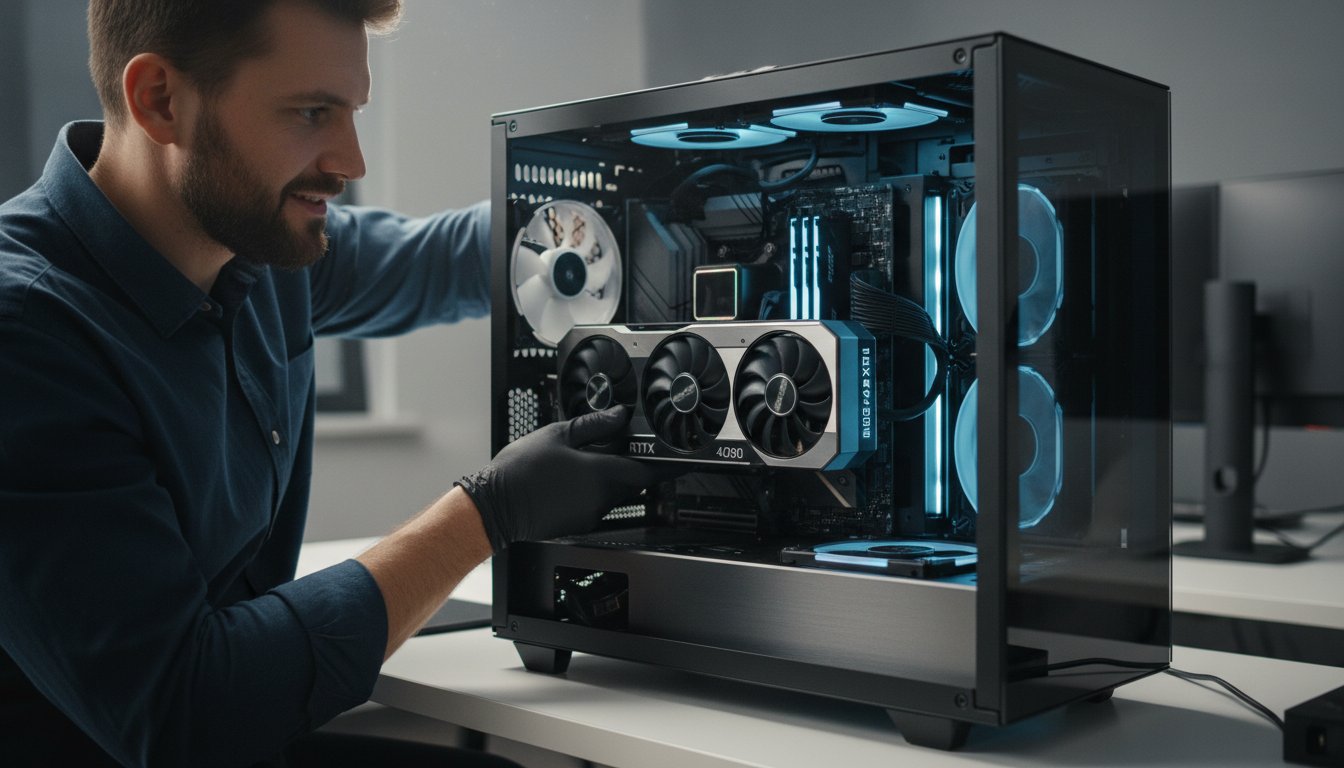
A motherboard upgrade is a brilliant move if your current processor is still powerful enough for your daily tasks but lacks modern features. Perhaps you need extra M.2 slots for faster business data storage or a Thunderbolt port for high-speed peripherals. If you’ve previously invested in premium parts like a high-end graphics card or a silent cooling system, a foundation refresh allows you to keep those assets while gaining modern connectivity. It’s a targeted way to boost performance without the expense of a whole new tower.
When It is Time to Buy a New PC
If your computer is more than six years old, it likely uses obsolete RAM standards and older power architectures. In these cases, the cost of a new CPU, compatible memory, and the motherboard itself often approaches the price of a modern pre-built system. When the gap in price is small, the benefit of a full system warranty and a “fresh start” with software usually outweighs the savings of an upgrade. For more help with this choice, you can read our guide on Is Repairing Your Computer Worth It? to see how we weigh these factors for our clients at Aspire Computing.

Common Upgrade Pitfalls and How to Avoid Them
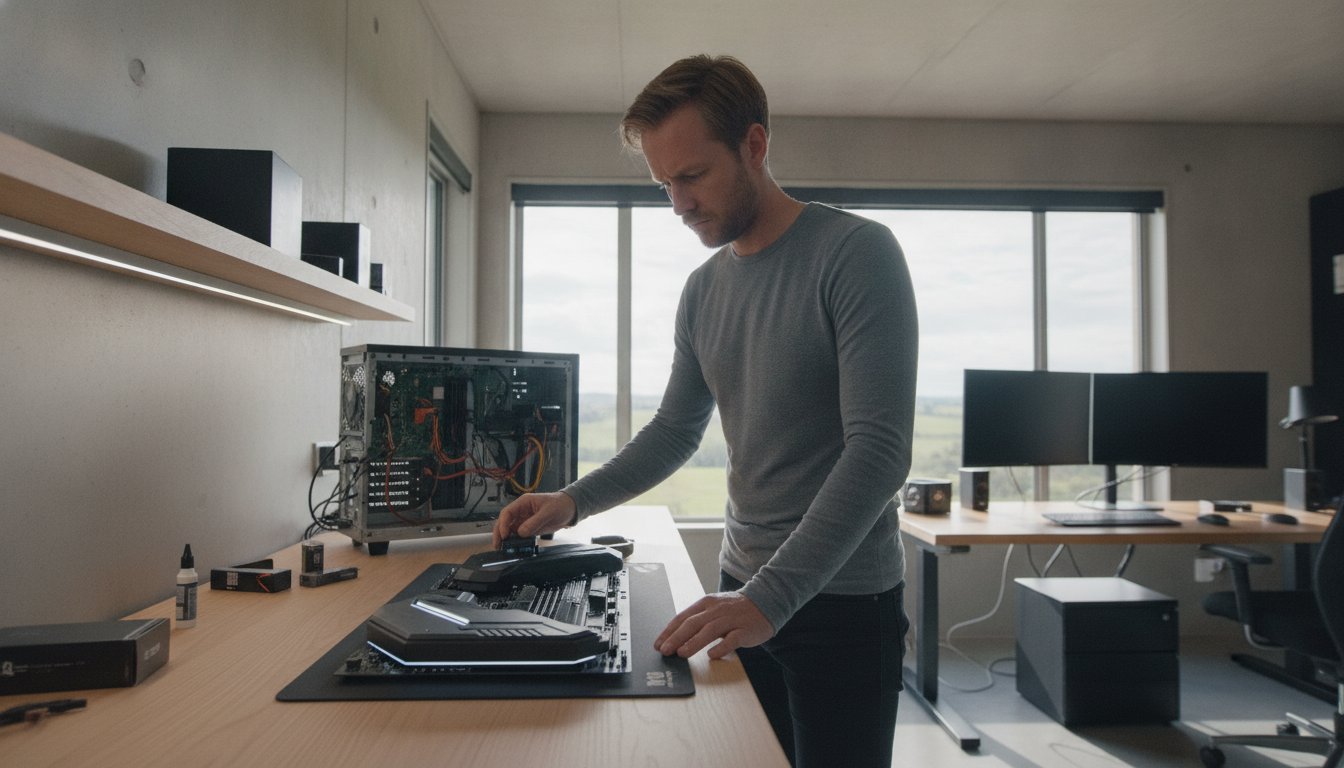
A motherboard upgrade is essentially open-heart surgery for your PC. While it’s an exciting way to modernise your tech, several traps can turn a weekend project into a costly nightmare. One major issue is the “bottleneck” effect. Installing a high-speed 2026 chipset won’t magically fix the slowness of an old mechanical hard drive. If your storage can’t keep up with the new board’s data lanes, you won’t see the performance gains you expect.
Software licensing is another frequent headache. Windows usually ties its activation to your specific motherboard ID. When you perform a motherboard upgrade, the operating system often assumes it’s on a completely new machine and deactivates itself. You’ll need to ensure your license is linked to a Microsoft account or have your product key ready to avoid being locked out of your own system.
Physical risks are just as significant. Static electricity is a silent killer that can fry delicate circuits before you even press the power button. Even more dangerous is the risk of bent pins in the CPU socket. Modern Intel and AMD sockets have hundreds of tiny, fragile pins. A single slip during installation can ruin an A$400 motherboard instantly, leaving you with an expensive paperweight.
Data Safety and Software Prep
Adopting a professional data recovery mindset is essential before you even pick up a screwdriver. Always back up your business files to an external drive or cloud service first. You should also check for BIOS or UEFI updates for your new board and have your hardware drivers downloaded on a USB stick. This prevents boot loops and ensures your system recognises the new hardware immediately.
Physical Installation Risks
Standoffs are the small brass spacers that prevent your motherboard from short-circuiting against the metal case. Forgetting even one of these can lead to a total hardware failure the moment you turn it on. Use anti-static wrist straps and work on a non-conductive surface to stay safe. Finally, don’t ignore cable clutter. Managing your wires ensures proper airflow, which is critical for keeping modern, high-performance components cool during long workdays in Newtown. If these risks sound overwhelming, our team at Aspire Computing can handle your hardware installation on-site, giving you total peace of mind.
Professional Motherboard Upgrades in Toowoomba
Attempting a motherboard upgrade on your own can be a daunting prospect, especially when your livelihood depends on your computer’s stability. Since 1999, Aspire Computing has been the trusted name for hardware solutions in the local region. We provide a calm, professional alternative to the anxiety of DIY technical failures. Our team understands that you don’t just need new parts; you need a system that works reliably from the moment you turn it on. With over 25 years of experience, we’ve seen every generation of hardware and know exactly how to handle the latest 2026 standards.
Our “No-Stress” process is designed to take the technical weight off your shoulders. We don’t just tell you what to buy. We source the high-quality components your specific system requires, handle the intricate physical installation, and meticulously verify your data to ensure nothing is lost during the transition. Once the hardware is in place, we perform essential post-upgrade tuning. This includes optimizing your security settings and performing a thorough virus and malware removal check to ensure your refreshed PC is as clean and secure as it is fast.
Why Toowoomba Residents Trust Aspire Computing
Choosing a local expert means you get personal accountability that a “Big Box” retailer simply cannot offer. You won’t have to deal with generic advice or long wait times at a distant service desk. We provide on-site service in Newtown and across the wider Toowoomba area, coming directly to your home or office to minimize your downtime. This personal approach is the core of our business. Our expertise isn’t limited to just the tower either. We offer comprehensive support for your printers, scanners, and networking gear to ensure your entire home office ecosystem remains stable and productive.
Get a Performance Health Check Today
We proudly serve the Darling Downs and Lockyer Valley, helping small business owners make informed decisions about their technology investments. Before you commit to a motherboard upgrade, a professional diagnostic can often reveal if a simpler, more cost-effective fix might solve your lag issues. This health check can save you hundreds of dollars in unnecessary part purchases by identifying the true source of your system’s performance bottlenecks. We believe in functional utility and security above all else. If you’re ready to unlock your computer’s potential without the risk of a DIY disaster, Contact Aspire Computing today for a professional hardware consultation.
Secure Your PC’s Future with the Right Foundation
A motherboard upgrade is more than just a part swap; it’s a strategic investment in your computer’s longevity and security. By now, you understand how this core component unlocks modern speeds and ensures your home office remains compatible with the latest software updates. Whether you choose to refresh your current system or invest in a new machine, making an informed decision today prevents costly technical failures tomorrow. We’ve helped Toowoomba residents navigate these complex hardware choices since 1999. Our team specializes in providing on-site support for small businesses and home offices in Newtown and across the Darling Downs.
We take the stress out of hardware changes by handling the technical details and verifying your data safety every step of the way. If you’re unsure which path is right for your budget, we’re here to help you find the most reliable solution. Book a Hardware Upgrade Consultation in Toowoomba to get expert advice tailored to your specific needs. Let’s make sure your technology works as hard as you do.
Frequently Asked Questions
Will a motherboard upgrade make my internet faster?
A new board can improve your connection speeds if your current hardware is outdated. Modern motherboards often feature Wi-Fi 7 and 2.5Gbps or 10Gbps Ethernet ports, which handle high-speed data much better than older standards. While this won’t change the speed provided by your NBN plan, it ensures your PC isn’t the bottleneck. You’ll experience more stable connections and faster file transfers across your local home office network.
Do I need to reinstall Windows after a motherboard upgrade?
It’s highly recommended to perform a clean Windows installation. While your system might boot with the old installation, hidden driver conflicts can lead to “Blue Screen” errors and general instability. Since Windows licenses are often tied to the motherboard’s unique ID, you may also need to reactivate your software. Linking your license to a Microsoft account before the motherboard upgrade makes this transition much smoother and less stressful.
Can I upgrade the motherboard in my laptop?
No, you generally cannot upgrade a laptop’s motherboard. Laptop boards are custom-engineered to fit a specific chassis and often have the processor and memory soldered directly to the circuits. If your laptop is struggling with modern software or lacks essential ports, a full system replacement is the only practical solution. We can help you select a new machine and migrate your business data so you don’t lose any important files.
How long does a professional motherboard installation take?
A professional installation usually takes between two to four hours. This time allows for the physical component swap, meticulous cable management, and a BIOS update to the latest stable version. We also verify that your operating system boots correctly and that all hardware drivers are functioning. Our on-site service in Newtown ensures your computer is back in action quickly, allowing you to focus on your work without technical distractions.
Will a new motherboard improve my gaming performance?
A motherboard upgrade provides minimal direct gains in frame rates, but it enables the use of faster supporting hardware. By moving to a modern board, you gain support for powerful new CPUs and high-speed DDR5 memory. It also offers PCIe 5.0 or 6.0 slots, which provide the maximum possible bandwidth for your graphics card. These improvements combined create a much smoother and more responsive experience during high-demand tasks or gaming.
How do I know which motherboard is compatible with my CPU?
You must match the CPU’s socket type with the motherboard’s physical socket. For example, AMD Ryzen 9000 series chips require an AM5 socket, while recent Intel processors use LGA 1700 or LGA 1851. You also need to confirm the chipset supports your specific processor generation. Checking the manufacturer’s “CPU Support List” is the only way to be certain. If you’re unsure, our Toowoomba experts can verify compatibility for you before you buy.
Is it cheaper to upgrade my motherboard or buy a new PC?
Upgrading is often more affordable if your existing case, power supply, and storage are still in good condition. However, the costs can add up if you also need a new CPU and RAM to match the board. We suggest the “50% Rule” mentioned earlier in this guide. If the total cost of parts and labour exceeds half the price of a new system, investing in a fresh PC is usually the smarter financial move.
What happens to my files when I change the motherboard?
Your files remain safe on your storage drive, but they might be difficult to access if the system doesn’t boot properly. A motherboard upgrade doesn’t delete your data, but driver mismatches can prevent the operating system from loading. We always perform a full backup before starting any hardware work. Our team ensures your business documents and personal photos are verified and accessible once the new board is installed and configured.

B.App.Sc., Cert. Computer Engineering PC Service and Repair
As the owner of Aspire Computing founded in 1999, Chaim Lee has been working for over 20 years as the Leading Computer Technician.
He has a life long interest in electronics, computing, science and technology. He has completed studies and gained qualifications in Applied Science, Computer Repair and Service, Microsoft Installation and Maintenance, Technical Writing, Workplace Training, and Technical Sales Training.