
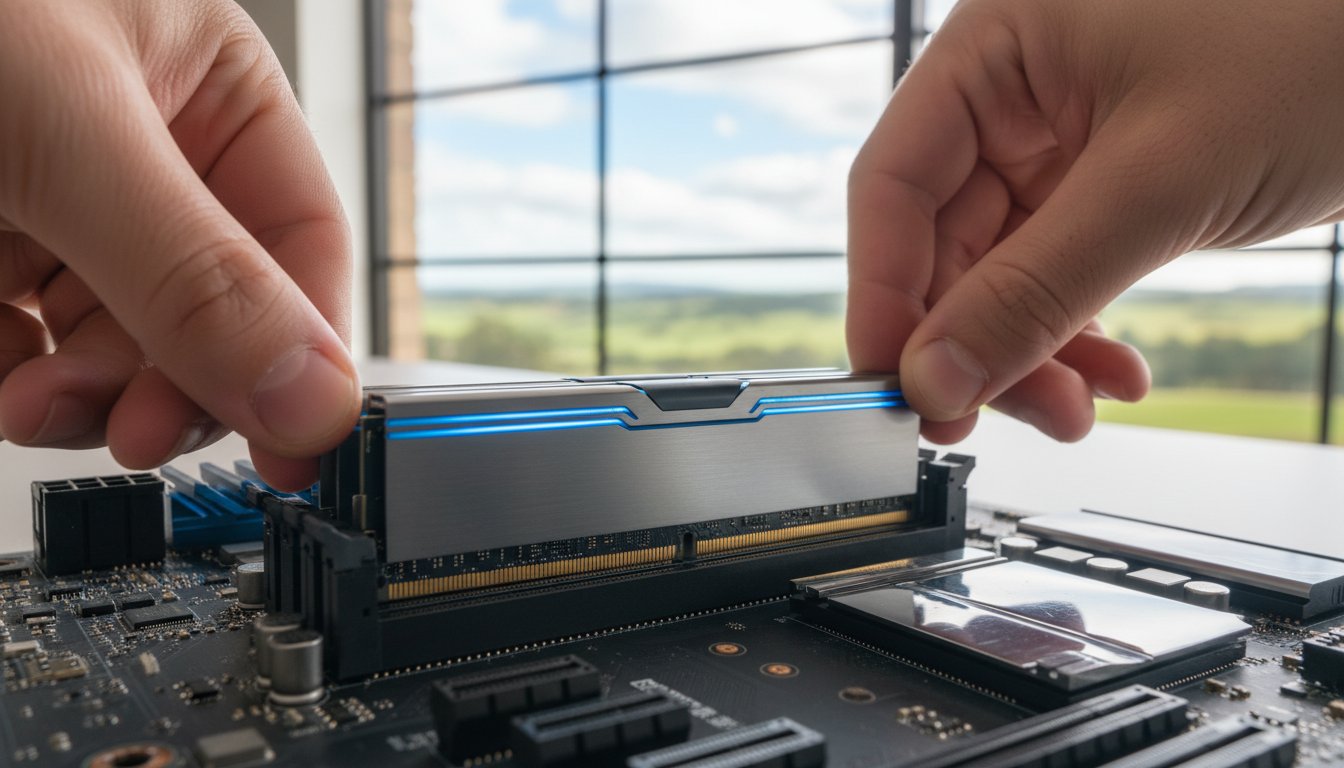
Is your computer lagging behind, struggling to keep up as you switch between browser tabs and applications? That frustrating slowdown is a common complaint, but the solution is often simpler and more affordable than a whole new machine. Often, the culprit is a lack of sufficient memory. A targeted ram upgrade is one of the most effective ways to breathe new life into your PC or laptop, dramatically improving its speed and multitasking capabilities.
But we understand the hesitation. Navigating terms like DDR4 vs DDR5 can be confusing, and the thought of buying the wrong part-or even opening your computer-can feel risky. Don’t worry, we’re here to help. In this guide, we’ll demystify the process, showing you exactly how to choose the right RAM for your computer. We’ll give you the knowledge to decide with confidence whether to install it yourself or call on a professional for a quality, guaranteed service.
Key Takeaways
- Understand how RAM works like a digital workbench for your computer, allowing for smoother and faster multitasking when you have enough.
- Choosing the right memory is critical; learn how to check your PC or laptop’s compatibility to ensure you buy the correct parts for your ram upgrade.
- Weigh the benefits of a DIY installation against the assurance of a professional service to make a confident, risk-free decision for your computer.
- Discover other key upgrades that work alongside more RAM to give your computer a complete and noticeable performance boost.
What is RAM and Why is it Slowing You Down?
Think of your computer’s RAM (Random Access Memory) as its digital workbench or short-term memory. It’s a high-speed component that temporarily holds all the data your PC needs for the tasks you are actively doing, whether that’s browsing the web, editing a document, or playing a game. For a deeper technical dive into what is RAM and its history, Wikipedia offers a comprehensive overview. The larger your “workbench,” the more projects you can have open at once without everything getting cluttered and slow.
When you have enough RAM, switching between applications is seamless. But when you run out, your computer is forced to temporarily move data to your much slower long-term storage (your hard drive or SSD) to make room. This constant shuffling is what causes that frustrating lag, especially when you’re multitasking.
To better understand this concept and the upgrade process, watch this helpful video:
Signs Your Computer is Begging for a RAM Upgrade
If your computer is struggling with insufficient memory, it will give you some clear warning signs. Don’t panic; these are common issues that often point to a straightforward solution. Look out for these symptoms:
- Frequent Freezing: Programs regularly become unresponsive or your mouse cursor turns into a spinning wheel for long periods.
- Slow Multitasking: Switching between open browser tabs or different applications is frustratingly slow and choppy.
- System Warnings: You receive ‘low on memory’ or ‘out of memory’ error messages from your operating system.
- Lagging on Simple Tasks: Everyday actions, like opening a file or a new browser window, take noticeably longer than they used to.
RAM vs. Storage (SSD/HDD): Clearing Up the Confusion
It’s essential to understand that RAM is different from your computer’s long-term storage (its Solid-State Drive or Hard Disk Drive). While RAM is the active workbench for current tasks, storage is the filing cabinet where you keep all your files, applications, and the operating system for the long term. A ram upgrade will not give you more space to save photos or documents. However, having enough RAM working in tandem with a fast SSD is the perfect combination for a snappy, responsive system.
Choosing the Right RAM: A Compatibility Checklist
Before you rush to buy new memory, it’s vital to check what your computer can actually support. This is the most critical step in any successful ram upgrade; getting it wrong means buying parts that simply won’t work. Don’t worry, we’ll guide you through it. A few simple checks now will give you the assurance you need to purchase with confidence and improve the performance of your computer.
DDR Generations: DDR3, DDR4, and DDR5 Explained
Random Access Memory comes in different generations, known as DDR (Double Data Rate). The most common types you’ll encounter are DDR3, DDR4, and the latest, DDR5. It’s crucial to understand that these are not interchangeable. A motherboard with DDR4 slots will not accept a DDR5 stick due to physical differences in the pin layout. The easiest way to check your system’s type in Windows is by opening Task Manager (Ctrl+Shift+Esc), clicking the “Performance” tab, and selecting “Memory.” The generation is usually listed in the top-right corner.
Form Factor: DIMM vs. SO-DIMM
Next, you need to identify the physical size, or ‘form factor’. There are two main types, and fitting the wrong one is physically impossible:
- DIMM (Dual In-line Memory Module): These are the longer sticks of RAM used as standard in desktop PCs.
- SO-DIMM (Small Outline DIMM): These are roughly half the length of DIMMs and are designed for laptops, all-in-one PCs, and some compact systems where space is tight.
Capacity and Speed: How Much Do You Really Need?
Finally, consider how much memory you need and how fast it should be. While more is often better, your motherboard has firm limits on both total capacity and maximum speed. Before purchasing, it’s essential to verify these specifications with your computer or motherboard manufacturer. This is a key part of the process for upgrading computer RAM and ensures you don’t overspend on memory your system can’t use. Here’s a general guide for 2026:
- 8GB: The absolute minimum for web browsing and basic office tasks.
- 16GB: The sweet spot for most users. Ideal for multitasking, smooth general use, and mainstream gaming.
- 32GB+: Recommended for serious gamers, video editors, and professionals running demanding software.
A final word of advice: for optimal stability and performance, avoid mixing RAM sticks of different speeds or brands. While it can sometimes work, it often forces the faster module to slow down to match the weaker one, or worse, can cause system instability. Matching your existing RAM or replacing all modules at once is the safest path for a quality ram upgrade.

The Upgrade Process: DIY Installation vs. Professional Service
Once you’ve decided how much RAM your computer needs, the next step is getting it installed. This presents a common choice for many users: should you attempt it yourself or trust a professional? The answer often comes down to your comfort level with computer hardware and your tolerance for risk. While a DIY ram upgrade can be a rewarding project, a small mistake with sensitive components can lead to bigger problems.
A Quick Look at the DIY Method
For the tech-savvy and confident user, installing RAM is a relatively quick process. It involves opening your computer’s case and carefully handling its internal parts. Here’s a simplified overview of what’s involved to help you decide if it’s a task you want to tackle:
- Power Down Completely: Shut down your computer, switch it off at the wall, and unplug all cables to ensure there is no electrical charge.
- Ground Yourself: Before touching anything inside, touch an unpainted metal part of the computer case to safely discharge any static electricity from your body.
- Locate and Open Slots: Open the computer’s side panel and find the RAM slots on the motherboard. Push down the small clips at either end of the existing RAM sticks to eject them.
- Install the New RAM: Align the notch on your new RAM module with the ridge in the slot and press down firmly and evenly until the clips on both sides click securely into place.
Why Choose a Professional Upgrade Service?
If the steps above sound daunting, or if you simply want absolute peace of mind, a professional service is the safest and most reliable option. An expert handles the entire process, eliminating guesswork and preventing potential damage to your system. It’s the ideal choice for anyone who values their time and wants a guaranteed, hassle-free outcome.
- Guaranteed Compatibility: We take the guesswork out of the equation. A professional will source the exact RAM type and speed that is fully compatible with your specific computer model.
- Risk-Free Installation: Static discharge or improper installation can damage your motherboard. Our technicians handle your hardware with expert care, ensuring a safe and successful ram upgrade.
- Time-Saving and Convenient: Skip the research and potential troubleshooting. We get the job done quickly and correctly, so you can enjoy a faster, more responsive computer.
For residents in and around Toowoomba, our expert computer repair service is here to help. We ensure your upgrade is handled professionally from start to finish, giving you the performance boost you need without the risk.
Beyond RAM: Other Upgrades to Consider for a Faster PC
While a ram upgrade is one of the most effective and affordable ways to breathe new life into a sluggish computer, it’s important to remember that RAM is just one part of a complex system. For a truly transformative performance boost, taking a holistic approach and considering other key components can make all the difference.
Think of your PC as a team-if one component is creating a bottleneck, the whole system suffers. Below are a few other high-impact upgrades that work alongside more memory to make your computer faster, more efficient, and more enjoyable to use.
Upgrading to a Solid-State Drive (SSD)
If your computer still uses a traditional mechanical hard drive (HDD), upgrading to a Solid-State Drive (SSD) is the single biggest speed boost you can give it. An SSD has no moving parts, allowing it to read and write data at incredible speeds. This translates to:
- Dramatically reduced boot times (often from minutes to seconds).
- Near-instant program and file loading.
- A much snappier feel across your entire operating system.
Pairing a new SSD with a RAM upgrade is a powerful combination that can make an older machine feel brand new again.
Graphics Card (GPU) and Processor (CPU) Upgrades
While an SSD benefits almost everyone, GPU and CPU upgrades are more specialised and target specific performance bottlenecks. A new Graphics Card (GPU) is essential for gamers wanting smoother frame rates or creative professionals working with high-resolution video, graphic design, and 3D models. A Processor (CPU) upgrade provides a major boost in raw processing power for intensive tasks, but it’s a far more intricate procedure.
Both CPU and GPU upgrades have strict compatibility requirements with your motherboard and power supply. To ensure you get the best value and avoid costly mistakes, professional advice is highly recommended. We can assess your whole system and recommend the best value hardware upgrades for your specific needs and budget.
Ready for a Faster, More Responsive PC?
Navigating the world of computer hardware can feel complex, but as this guide has shown, upgrading your RAM is one of the most powerful and cost-effective ways to revitalise a sluggish PC or laptop. The key takeaways are simple: understanding what RAM does is the first step, ensuring you choose a compatible module is critical for success, and weighing the pros and cons of DIY versus professional installation will lead you to the best outcome for your needs.
If you’re ready to feel the difference but want to skip the technical hassle, our team is here to provide a professional, risk-free installation. At Aspire Computing, we’ve been the trusted local experts for Toowoomba and the surrounding areas since 1999. We pride ourselves on providing honest advice, ensuring you get the best value solution for your specific needs-whether that’s a simple ram upgrade or another targeted enhancement to boost your system’s performance.
Talk to our experts about a fast, reliable RAM upgrade today!
Don’t let a slow computer hold you back any longer. A faster, more efficient digital experience is just one simple step away.
Frequently Asked Questions
Can I mix different brands or sizes of RAM?
While you technically can mix brands and sizes, we strongly advise against it for optimal performance. Your system will always run at the speed of the slowest installed module. Mismatched sizes, such as an 8GB stick with a 16GB stick, can sometimes lead to system instability. For quality assurance and the best results, always use a matched set of RAM modules with the same capacity, speed, and brand to ensure perfect compatibility.
How much does a professional RAM upgrade cost?
In Australia, a professional RAM upgrade typically involves the cost of the parts and labour. The RAM itself can range from A$50 for a single 8GB module to over A$200 for a high-performance 32GB kit. Our professional installation service, which includes fitting and testing, generally costs between A$80 and A$150. This ensures the hardware is installed correctly and your system runs smoothly, giving you complete peace of mind.
Is 8GB of RAM still enough in 2025?
By 2025, 8GB of RAM is the bare minimum for light use like web browsing and email. You will likely notice slowdowns when multitasking or using modern software. For a smooth and responsive experience without frustrating lag, we recommend 16GB as the new standard for most everyday users. This provides enough memory for current operating systems and applications to run efficiently and ensures better performance for the years ahead.
Will upgrading RAM make my games run faster?
Upgrading your RAM can certainly improve your gaming experience, but not always by increasing frames-per-second (FPS). More RAM primarily helps by reducing stuttering, eliminating in-game lag, and speeding up loading times, especially if you’re upgrading from 8GB or less. It allows your computer to handle large game worlds and textures more effectively. For a direct boost in FPS, a graphics card upgrade is usually more impactful.
How do I check how much RAM I currently have?
Checking your installed RAM is straightforward. On a Windows PC, right-click the Start menu, select ‘System’, and look for the ‘Installed RAM’ entry. On a Mac, click the Apple logo in the top-left corner and choose ‘About This Mac’. The memory amount is listed on the overview screen. Knowing this is the first step in deciding if a ram upgrade is the right choice to improve your computer’s performance.
What happens if I install the wrong type of RAM?
Thankfully, installing the wrong generation of RAM (like DDR4 into a DDR5 slot) is physically prevented by different notches on the modules. However, if you install RAM that is technically the right type but has an incompatible speed or timing for your motherboard, your computer will likely fail to boot. In other cases, it may lead to frequent system crashes and instability. It is crucial to check compatibility before purchasing to protect your system.

B.App.Sc., Cert. Computer Engineering PC Service and Repair
As the owner of Aspire Computing founded in 1999, Chaim Lee has been working for over 20 years as the Leading Computer Technician.
He has a life long interest in electronics, computing, science and technology. He has completed studies and gained qualifications in Applied Science, Computer Repair and Service, Microsoft Installation and Maintenance, Technical Writing, Workplace Training, and Technical Sales Training.

Write a Comment