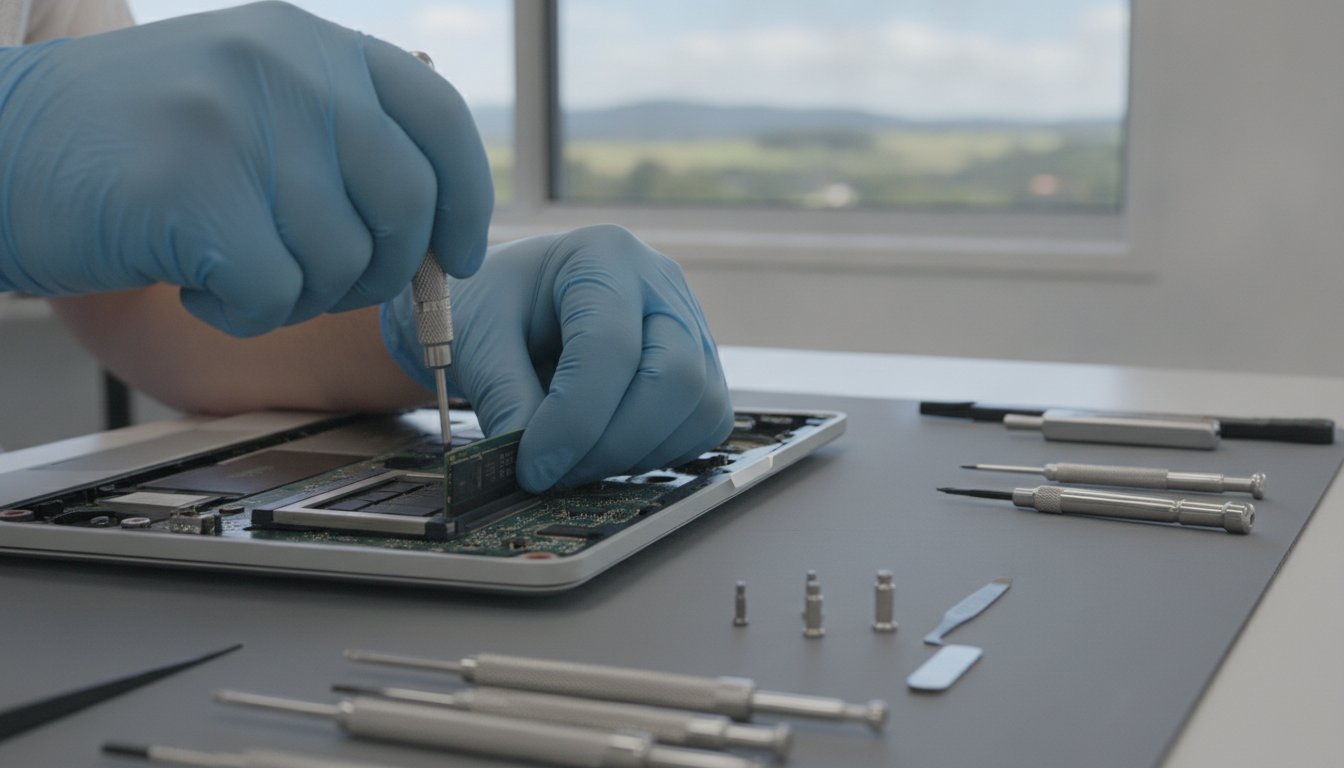
Small Business IT Setup in Toowoomba: The 2026 Infrastructure Guide

What if the most expensive server money can buy is actually the wrong choice for your office? Many owners feel pressured to overspend on high-end hardware, yet they still struggle with patchy regional internet and the constant worry of a cyber attack. Getting your small business IT setup Toowoomba right isn’t about having the flashiest gear. It’s about building a foundation that stays stable when you need it most. You deserve a network that runs quietly in the background, allowing you to focus on your clients rather than your router.

I know that technical failures cause genuine anxiety, especially when you’re responsible for staff productivity and sensitive data. With significant 2026 Privacy Act reforms now impacting many local firms, the stakes for your digital security have never been higher. This guide provides a clear roadmap to a resilient, cost-effective infrastructure. I’ll show you how to achieve complete peace of mind through smart data recovery and a “set and forget” network. We will also look at how to secure reliable local support that can actually visit your site when things break.

Key Takeaways

  • Learn why a security-first approach is essential in 2026 to protect your business against data loss and increasingly sophisticated cyber threats.
  • Discover the “hybrid” balance between physical hardware and cloud services that keeps regional offices productive even during internet outages.
  • Implement the Essential Eight security framework on a small business budget to ensure complete continuity and peace of mind.
  • Follow a practical 5-step roadmap to modernise your small business IT setup Toowoomba and move from technical chaos to a stable, “set and forget” system.
  • Understand the critical advantage of local on-site support for rapid recovery in suburbs like Newtown, Wilsonton, and Highfields.

What is IT Infrastructure for Small Business in 2026?

Think of your IT infrastructure as the digital foundation of your office. It is far more than just a laptop sitting on a desk or a printer in the corner. In technical terms, IT infrastructure refers to the entire ecosystem of hardware, software, and network services that allow your business to function. For a successful small business IT setup Toowoomba, you need these components to work together seamlessly. If one part fails, the whole system can grind to a halt.

To better understand how a professional space looks once it’s fully operational, watch this example of a local business getting their equipment ready:

In 2026, we have seen a massive shift in how we build these systems. We no longer just buy one-off “boxes” or individual pieces of software. Instead, we manage a scalable digital environment. A security-first approach is now required from the very first day of your setup. You can’t simply bolt security on as an afterthought. By planning your small business IT setup Toowoomba correctly now, you prevent “tech debt.” This is the hidden cost of fixing cheap or poorly matched gear that eventually hampers your growth and costs more to replace later.

The Core Components of a Modern Local Stack

Building a reliable stack starts with business-grade hardware. Consumer models from big-box retailers often lack the durability and long-term warranty support that a busy Toowoomba office needs. For those integrating modern tech into their workspace, sourcing quality components like switchboards from Asthome Smart Electrical Supplies can help ensure your physical infrastructure supports your digital needs. Your networking essentials, including high-quality routers and switches, play a vital role in how you access the NBN. Without a stable connection, even the best cloud tools become useless. Finally, implementing productivity suites like Microsoft 365 ensures your team can collaborate effectively, whether they are in the office or working remotely.

The True Cost of ‘Good Enough’ Tech

Many owners try to save money by using “good enough” technology, but the true cost of downtime is often much higher than the initial investment in quality gear. If your system crashes, you lose more than just staff wages; you risk your local reputation. Australian standards for data privacy are also becoming stricter. For instance, businesses must update their privacy policies by 10 December 2026 to disclose how they use automated systems. Professional it support for business provides the stability and compliance you need to scale without fear of technical failure or legal issues.

Hardware vs. Cloud: Finding Your Hybrid Balance

Finding the right balance for your small business IT setup Toowoomba means looking beyond the “all or nothing” approach to technology. While some providers push for a total shift to the cloud, many local firms find that a hybrid model is much more reliable. This strategy combines the speed of local hardware with the mobility of cloud applications. It’s a practical way to ensure you can keep working even if your internet connection becomes unstable. By keeping high-performance tasks on local machines, you avoid the lag often associated with regional network congestion.

Evaluating the lifespan of your physical equipment is a key part of this process. Most business-grade PCs are built to last three to five years, but you don’t always need to buy a brand-new fleet. Often, strategic hardware upgrades can extend the utility of your current devices for a fraction of the cost of replacement. This proactive approach saves money and prevents the stress of emergency hardware failures. When designing this hybrid environment, it’s helpful to consult resources like the Cyber Guidance for Small Businesses to ensure your local and cloud components are equally secure.

On-Premises Hardware: When Physical Reliability Wins

Physical reliability is non-negotiable for essential peripherals like business-grade printers and scanners. In a document-heavy office, a broken printer can halt your entire workflow. Professional printer supply and repair ensures you have the right equipment for your volume and a technician who can fix it quickly. Local storage drives also act as your first line of defense. If the NBN goes down during a storm on the Range, having a local backup means you can still access your most critical files without waiting for the web to return.

Cloud Services: Flexibility for the Darling Downs

Cloud services provide the flexibility that modern Darling Downs businesses need to thrive. Whether you’re accessing your Newtown office from home or checking invoices while out in Wilsonton, the cloud keeps your data within reach. Using Software as a Service (SaaS) models also helps reduce upfront licensing costs, allowing you to pay for only what you use. These platforms handle automatic updates, which keeps your software current and secure without any manual intervention. If you aren’t sure whether your current gear is worth saving, a quick check-up with Aspire Computing can help you decide on the best path forward for your specific needs.

Security and Business Continuity: The Non-Negotiables

A common mistake many regional owners make is believing they are “too small” to be a target. In reality, hackers often prefer smaller targets because their defenses are easier to bypass. For a small business IT setup Toowoomba, security must be part of the initial design, not a reaction to a crisis. By implementing the “Essential Eight” security controls, you can significantly reduce your risk without needing an enterprise-sized budget. These controls, developed by the Australian Signals Directorate, focus on practical steps like patching applications and restricting administrative privileges to stop threats before they take hold.

Active defense involves more than just installing software. It requires a commitment to ongoing maintenance and monitoring. Professional virus and malware removal is a critical part of this strategy, ensuring that hidden threats don’t sit dormant on your network. If a breach does occur despite your best efforts, you need a “worst-case” recovery path. This plan acts as a step-by-step guide to ensure your team can resume work within hours rather than days. Knowing exactly how you will recover your data reduces the intense anxiety that usually follows a technical failure.

Protecting Your Perimeter with Firewalls and Antivirus

Basic built-in tools are a good start, but business-critical laptops and desktops need more robust protection. A firewall is the digital gatekeeper that monitors all incoming and outgoing business traffic. Relying solely on default settings can leave gaps that modern threats easily exploit. Regular Windows “tune-ups” are also essential. These sessions allow a technician to patch emerging security vulnerabilities and ensure your defensive software is actually active. This proactive care keeps your systems running smoothly and ensures your hardware isn’t bogged down by unnecessary background processes.

The 3-2-1 Backup Strategy for Local Data

Backup systems are your insurance policy against hardware failure, human error, or ransomware. We recommend the 3-2-1 rule for every small business IT setup Toowoomba. This means keeping three copies of your data on two different media types, with one copy stored securely off-site. If your office in the CBD suffers a localized disaster like a fire or theft, that off-site copy becomes your lifeline. While data recovery services act as a final safety net, they should be your last resort. Always test your restores regularly. A backup is only useful if it actually works when a real crisis hits your business.

Small Business IT Setup in Toowoomba: The 2026 Infrastructure Guide

A 5-Step IT Setup Roadmap for Toowoomba Businesses

Moving from technical chaos to a stable, “set and forget” system requires a methodical approach. Setting up a new office or upgrading an existing one can feel overwhelming, but this 5-step roadmap simplifies the process for your small business IT setup Toowoomba. By following these stages, you ensure your infrastructure is built to support your growth rather than hinder it.

  • Step 1: Audit your current tech. Before buying anything new, look at what you already have. Many businesses find they have salvageable gear that just needs a proper configuration or a minor hardware upgrade.
  • Step 2: Map your business workflows. Trace the path of your data. How does a client inquiry become a finished invoice? Understanding this flow helps you choose software that actually fits your daily operations.
  • Step 3: Plan your hardware refresh. Don’t wait for a total failure. Choose your PCs and laptops based on a 3-to-5-year cycle to ensure you always have reliable, warranty-backed equipment.
  • Step 4: Secure your connection. A standard residential NBN plan isn’t enough for a busy office. You need business-grade connectivity paired with a redundant backup to keep you online if the main line fails.
  • Step 5: Establish a support model. Decide how you will handle trouble. A hybrid model, combining remote help with a local expert who can visit on-site, offers the best balance of speed and reliability for Darling Downs firms.

Assessing Regional Connectivity and NBN Needs

Choosing the right NBN business tier is essential for smooth video conferencing and fast file uploads. If your team frequently uses cloud-based accounting or CRM tools, a higher upload speed will prevent frustrating bottlenecks. Redundancy planning is equally important. Implementing a 4G or 5G failover ensures that your business stays connected even during local network maintenance or storm-related outages. We also find that many older Toowoomba commercial buildings have thick walls that create Wi-Fi dead zones. A professional site audit can identify where you need additional access points to maintain a strong signal in every corner of your office.

Budgeting for Growth and Scalability

It’s tempting to save money with consumer-grade electronics, but you should avoid the “cheap laptop” trap. Business-grade gear is designed for 40-plus hours of use per week and typically offers much better long-term value. You also need to plan for recurring costs, such as software subscriptions and security updates. Proactive IT infrastructure is an operational investment that prevents future emergency expenses. If you’re ready to build a more stable foundation, you can get started with a professional IT assessment to see exactly what your business needs to thrive.

Implementation with a Local Expert: The Aspire Difference

Choosing the right partner for your small business IT setup Toowoomba shouldn’t feel like a gamble. While large, anonymous helpdesks offer remote support, they often lack the local context needed for regional businesses. We understand the specific challenges of the Darling Downs, from NBN variations across the Range to the local business community’s unique needs. Having a technician who can actually drive to your office in Newtown, Wilsonton, or Highfields makes a world of difference when a critical system fails. It’s about having a real person you can trust to show up and fix the problem on-site.

Aspire Computing bridges the gap between high-level enterprise strategy and the practical reality of running a small firm. You don’t need a massive IT department to have a secure and efficient environment. You just need a trusted, personal contact who takes accountability for your tech. This personal approach significantly reduces the anxiety that often follows a technical failure. When you call us, you aren’t just a ticket number in a queue; you’re a local business owner we are committed to helping. We turn complex technical requirements into straightforward, manageable solutions that allow you to get back to work quickly.

25+ Years of Trust in the Toowoomba Business Community

With over 25 years of experience, I’ve built a deep understanding of the local technical landscape. My mission is to provide a dual focus on security and functional utility in every setup we perform. This means your system won’t just be safe; it will also be easy for your team to use every day. We highly recommend starting with an initial IT health check. This simple process identifies hidden risks in your current setup, such as aging hardware or outdated software, before they turn into expensive emergencies. It’s a proactive way to ensure your business remains stable and resilient.

Next Steps: Moving from Planning to Action

Don’t wait for a hardware failure or a security breach to think about your infrastructure. Taking a proactive approach to your business tech is the best way to prevent future stress. We handle everything from simple computer repairs and hardware upgrades to full network implementations. Whether you’re starting a new venture or modernising an existing office, we provide the steady hand you need to get it right. If you’re ready for a more reliable foundation, contact Aspire Computing today for a reassuring chat about your local IT setup needs. Let’s build a system that works as hard as you do.

Secure Your Digital Future in the Darling Downs

Building a stable foundation for your company doesn’t have to be a source of stress. By focusing on a hybrid balance of local hardware and cloud flexibility, you ensure your office remains productive regardless of regional internet fluctuations. A successful small business IT setup Toowoomba prioritises security from the first day, protecting your hard-earned reputation against modern digital threats. Following a structured roadmap allows you to grow with confidence, knowing your infrastructure is an investment rather than a constant emergency expense.

Since 1999, I’ve helped local owners across the Darling Downs navigate these technical shifts with ease. Whether you need expert data recovery, robust cyber security, or reliable hardware supply, we provide the on-site and remote support your office requires to thrive. You don’t have to manage this complex landscape alone. It’s time to move from technical uncertainty to complete peace of mind. Get Your Small Business IT Setup Handled by Local Experts and let’s build a foundation that supports your vision for years to come.

Frequently Asked Questions

How much should a small business in Toowoomba spend on IT setup?

Your investment depends on your staff count and the specific hardware required to run your operations. It’s better to budget for business-grade equipment that offers a longer lifespan and better warranty support than cheaper consumer gear. Focusing on quality foundations for your small business IT setup Toowoomba prevents the high costs of emergency repairs and lost productivity later on. Investing in reliable networking and security from the start is always more cost-effective than fixing a breach.

Do I really need a server for a 5-person office in 2026?

Most small teams now thrive on a cloud-first or hybrid model without needing a physical on-site server. Modern tools like Microsoft 365 handle file sharing and security permissions more efficiently for a 5-person office. Unless you run high-performance databases or specific local software, a physical server often adds unnecessary maintenance costs. Moving these functions to the cloud provides better remote access and reduces the physical footprint in your Newtown or Wilsonton office.

What is the most critical part of an IT infrastructure plan?

Security and business continuity are the most vital components of any digital plan. While hardware is important, your data is the lifeblood of your business and must be protected at all costs. A plan that doesn’t prioritise active defense and a clear recovery path leaves you vulnerable to permanent data loss. Ensuring you can resume work within hours after a failure provides the peace of mind needed to focus on your clients.

How often should I replace my business laptops and PCs?

You should aim for a hardware refresh cycle every three to five years to maintain peak performance. After five years, the risk of hardware failure increases and the system may no longer support the latest security patches. Replacing gear proactively as part of your small business IT setup Toowoomba prevents the stress of a sudden breakdown. It also ensures your team isn’t frustrated by slow machines that hamper their daily productivity and efficiency.

Can I manage my own business IT to save money?

Managing your own tech might seem cheaper, but it often leads to hidden costs through downtime and security gaps. Business owners frequently lose valuable hours troubleshooting technical issues instead of growing their company. Professional support ensures your systems are correctly configured, patched, and monitored against emerging threats. Having a local expert handle the technical details allows you to run your business with confidence while we handle the background complexity.

What happens if my business data is lost without a backup plan?

Losing data without a backup can lead to permanent operational failure and severe financial penalties under Australian privacy laws. You may face the high cost of specialised data recovery services with no guarantee that your files can be retrieved. Beyond the technical loss, a total data wipeout damages your reputation with clients who trust you with their information. A 3-2-1 backup strategy is the only way to ensure your business survives a disaster.

Is cloud storage safer than keeping files on my office computer?

Cloud storage is generally much safer because it provides professional encryption and redundancy that local drives can’t match. Files kept only on an office computer are at high risk from theft, fire, or simple hardware failure. Most cloud providers include automatic versioning, which allows you to recover earlier copies of a document if a file becomes corrupted. It’s a more resilient way to manage your business information while enabling secure remote work.

Which NBN plan is best for a small business in Toowoomba?

A business-grade NBN plan with high upload speeds and a 4G or 5G failover is essential for modern offices. Residential plans often lack the upload capacity needed for smooth video conferencing and large cloud backups. Ensure your plan includes a service-level agreement that guarantees faster support if the connection drops. This redundancy keeps your Darling Downs office online even during local network maintenance or unexpected outages on the main line.

Data Recovery from Corrupted Hard Drives: A Toowoomba Expert Guide

Imagine sitting down at your desk here in Toowoomba, ready to look through your family photos or finish your business tax records, only to be met with an error message saying your drive is inaccessible. That sudden pit in your stomach is something I’ve helped many of our neighbors through. When you’re facing data recovery from corrupted hard drive issues, technical jargon like “bad sectors” or “RAW partitions” only adds to the confusion. It’s completely natural to feel anxious about the potential cost or the fear that your irreplaceable files have vanished forever.

I want to reassure you that corruption isn’t necessarily a digital dead end. My mission is to provide you with the same dependable, expert assistance I’ve offered our community for years. In this guide, you’ll learn how to identify the specific signs of a failing drive and the safest steps to recover your precious files without risking permanent loss. I’ll walk you through the difference between logical and physical failures so you can move forward with confidence and operational stability.

Key Takeaways

  • Identify early warning signs of corruption, such as frequent system crashes or unreadable file errors, before they lead to permanent data loss.
  • Distinguish between logical software issues and physical mechanical failures to understand the safest recovery path for your specific situation.
  • Learn why using DIY software for data recovery from corrupted hard drive can often worsen hardware damage through excessive “read stress.”
  • Explore how professional bit-level imaging protects your original hardware by creating a safe clone to work on during the recovery process.
  • Understand the security and privacy advantages of choosing a local Toowoomba expert to handle your sensitive personal or business records.

Recognising a Corrupted Hard Drive: Symptoms and First Steps

When your computer suddenly freezes or displays the dreaded Blue Screen of Death (BSOD), it’s easy to feel a sense of panic. While a slow computer is often just a sign of age or too many background apps, actual file system corruption is a much more serious matter. Identifying the early warning signs of data recovery from corrupted hard drive issues is the first step toward saving your files. You might notice that certain folders take forever to open, or you may be greeted by a blunt message stating the “File or Directory is Corrupted and Unreadable.” These aren’t just glitches; they are clear signals that your data is at risk. Understanding the data recovery process begins with knowing exactly what your hardware is trying to tell you.

To better understand how a failing drive behaves and how it might be fixed, watch this helpful video:

The “Stop Everything” Protocol

The moment you suspect corruption, you must stop using the drive. Every second a corrupted drive remains powered on, the operating system may attempt to “fix” it by writing new data or moving existing files. This often leads to permanent overwriting. Avoid using tools like “chkdsk” or automatic Windows repair features; these utilities are designed to fix file systems, not save data, and they can be incredibly destructive to a failing drive. Disconnect the power immediately to preserve the current state of your files.

Common Error Messages and What They Mean

If you see “Operating System Not Found” or “Drive Not Formatted” prompts, don’t click “Format.” These errors usually mean the partition table is damaged. In Disk Management, a corrupted drive often appears as “RAW,” meaning the computer no longer recognizes the file structure. You should also listen to the hardware itself. A rhythmic ticking or “Click of Death” indicates a physical mechanical failure, while silent corruption is typically a logical software issue. If you’re unsure, reaching out to a local expert at Aspire Computing can help clarify your next steps safely.

Logical vs. Physical Failure: Why Corruption Happens

Understanding why your storage failed is the first step in deciding how to fix it. Generally, failures fall into two categories: Logical vs. Physical Failure. Knowing the difference can save you from making a mistake that turns a simple software fix into a permanent data loss event. While the symptoms might look the same, the path to recovery is very different for each. One involves fixing code; the other involves delicate mechanical repair.

Logical Corruption: The Software Side

Logical corruption occurs when the physical parts of your drive are working perfectly, but the data itself is scrambled. Think of it like a library where the building is fine, but the index cards have been tossed in the air. This often happens due to malware or viruses that specifically target the file allocation table. It’s also common during interrupted write operations, such as when your laptop loses power during a major Windows update. You might face accidental formatting or spontaneous partition loss where the drive suddenly appears empty. In these cases, data recovery from corrupted hard drive is often highly successful because the “bits” are still there; the computer just doesn’t know where to find them.

Physical Failure: The Mechanical Side

Physical failure is a different beast altogether. This involves mechanical damage to internal components like the motor, read/write heads, or the magnetic platters. Traditional hard drives are mechanical wonders with parts moving at thousands of revolutions per minute. “Bad sectors” are small areas of the disk that can no longer store data. If these spread, they can act like a digital virus, slowly consuming your files. Then there’s the “head crash,” where the read head physically touches the platter. This requires a specialized cleanroom environment to prevent dust from ruining the data forever. For residents here, environmental factors like Toowoomba’s humidity or intense summer heat can accelerate the degradation of older mechanical drives, leading to sudden hardware failure.

By 2026, most of us have switched to Solid State Drives (SSDs). These fail differently than traditional HDDs. They have no moving parts, so they don’t click or grind. Instead, they fail due to controller chips burning out or NAND flash cells wearing out from too many write cycles. When an SSD fails, it’s often silent and sudden. Whether you are dealing with an old mechanical drive or a modern SSD, the first attempt at data recovery from corrupted hard drive is always your best chance for success. If you’re unsure which type of failure you’re facing, you can always reach out for professional data recovery services to get a clear diagnosis without risking your files.

The Hidden Dangers of DIY Data Recovery Software

When you’re staring at a blank screen or a “drive not found” error, the temptation to download a free tool is immense. It feels like a quick, low-cost win. However, these “free” downloads can often be the most expensive mistake you’ll ever make. Most people don’t realize that data recovery from corrupted hard drive is a high-stakes process where you often only get one real shot at success. If your hardware is already struggling, running a deep scan is like forcing an injured athlete to run a marathon; it usually leads to a total collapse. I’ve seen many cases where a drive that could have been saved by a professional was rendered permanently unrecoverable by a single DIY attempt.

The primary risk is something called “Read Stress.” When software performs a deep scan, it forces the drive’s read heads to work overtime, hitting every single sector on the disk. If your drive has the physical issues I mentioned earlier, like degrading platters or failing heads, this intense activity can cause a total mechanical failure in minutes. There’s also the common mistake of installing recovery software onto the same drive you’re trying to save. This act alone can overwrite the very files you’re trying to rescue, as the computer sees that “empty” space as a place to store new program data.

So, when is DIY software actually safe? I call it the 1% rule. It’s only appropriate if you are 100% certain the drive is physically healthy and you’re just trying to “undelete” a file you accidentally trashed. If there’s any hint of corruption, system slowness, or strange noises, it’s time to step away from the keyboard.

How Software Can Overwrite Your Data

Many tools use a “Sector-by-Sector” scan that sounds thorough but is actually incredibly invasive. These scans cause massive mechanical fatigue. Even worse, some software offers a “Repair” function for corrupted partitions. This isn’t a recovery process; it’s a destructive write process that changes the drive’s structure. Before I ever touch a customer’s files, I create a bit-level clone of the drive. This ensures we are working on a digital copy, leaving your original hardware safe from further wear and tear.

When to Put the Mouse Down

You need to stop immediately if your computer hangs or freezes during a scan. These are signs that the drive is too weak to handle the process. There is a massive difference between “undeleting a file” and “recovering a corrupted partition.” The latter requires non-invasive imaging techniques that consumer software simply isn’t designed to handle. Professional tools allow us to control the read speed and skip over “bad sectors” to avoid stressing the drive, a level of precision that DIY tools lack. If your data is irreplaceable, don’t risk it on a “free” gamble.

Data Recovery from Corrupted Hard Drives: A Toowoomba Expert Guide

The Professional Data Recovery Process in 2026

Professional data recovery from corrupted hard drive is a methodical science that goes far beyond simply running a software program. When a drive comes into my office, I follow a strict four-step protocol designed to maximize the chances of a full recovery while keeping your hardware safe. It’s about precision and patience, ensuring that we don’t cause further damage to an already fragile system.

The first step is a non-destructive diagnostic. Unlike the high-stress DIY scans I warned about in the previous section, this assessment checks the physical health of the drive without pushing it to the limit. Once I’m sure the drive can handle it, I perform bit-level imaging. This creates a perfect digital clone of every single bit on your device. From this point on, I work exclusively on the clone. Your original hardware is safely set aside, which is the gold standard for protecting your files.

Next comes the logical reconstruction. This is where I piece together the scrambled file system and directory structure. It’s like solving a complex puzzle to find your specific documents and photos among the digital fragments. Finally, once the data is verified, I perform a secure data transfer to a new, healthy storage device, ensuring your files are ready for use immediately.

Advanced Tools for Modern Drives

Modern drives require specialized hardware imagers that can bypass bad sectors that would normally cause a standard PC to freeze or crash. I also perform firmware repair, which involves fixing the internal “brain” of the hard drive. This is often necessary for encrypted drives using BitLocker or FileVault, where the recovery path is much more technical than a standard file restoration.

Security and Confidentiality

Privacy isn’t just a policy; it’s a commitment to our community. Handling sensitive business records or private family photos requires a strict Cyber security approach. I ensure your data stays local right here in Toowoomba, so you never have to worry about it being shipped off to a distant lab. Before I return your files, I make sure they are completely virus-free and safe to use.

If you want to ensure your files are handled with this level of care, you can book a professional Data Recovery Service to get your files back safely.

Secure Data Recovery in Toowoomba with Aspire Computing

When you’re dealing with a technical failure, the last thing you want is to post your sensitive drive to a laboratory in a distant capital city. Shipping a fragile, failing device through the mail adds unnecessary risk and delay. I’ve been providing a local, professional alternative for our community since 1999. By choosing a local expert, you ensure your data stays right here in Toowoomba under the care of someone you can actually talk to. I’ve spent over two decades specialising in data recovery from corrupted hard drive situations, helping families save their photos and businesses protect their essential records. My approach is comprehensive; I don’t just recover your files and send you on your way. I look at the bigger picture to fix the underlying IT issues that caused the failure in the first place.

Whether you’re a home user in Newtown or a business owner in the Darling Downs, I provide both on-site and remote support options. This convenience means you don’t have to struggle with disconnected cables or technical setups on your own. I take personal accountability for every project, ensuring that your hardware is treated with the precision it requires. My goal is to reduce your anxiety by providing a clear, methodical path back to operational stability.

Local Support for Toowoomba and Surrounds

I am proud to serve the Lockyer Valley and Darling Downs with expert Data Recovery Services. One of the biggest advantages of working with a local technician is the direct communication. You won’t be stuck in a call centre queue or assigned a random ticket number. You’ll talk directly to me, the person handling your files. For small businesses, this personal touch means faster turnaround times. I know that every hour your data is inaccessible is an hour of lost productivity, so I work efficiently to get you back up and running.

Preventing Future Data Loss

Once your files are safe, we need to make sure this doesn’t happen again. The best way to handle data recovery from corrupted hard drive is to avoid the need for it entirely. I help my clients implement robust Data Backup solutions that run automatically in the background. Often, this involves transitioning from older, unreliable mechanical drives to modern SSDs that offer much better durability. If you’re worried about the health of your current system, you can book a Computer Repair in Toowoomba for a full system health check. It’s much easier to replace a degrading drive now than it is to recover a dead one later.

Restore Your Files and Secure Your Future

Facing a technical failure is undeniably stressful, but your data doesn’t have to be lost forever. By recognising the early signs of corruption and following the “stop everything” protocol, you’ve already taken the most important step toward success. Remember that data recovery from corrupted hard drive is a delicate process where the first attempt is your best chance. Avoid the temptation of invasive DIY software and trust in a methodical, professional approach that puts the safety of your hardware first.

I have been serving the Toowoomba community since 1999, offering specialised expertise in both PC and laptop data recovery. Whether you need on-site support in the Darling Downs or assistance in the Lockyer Valley, I am here to provide the dependable, local service you deserve. Don’t risk your data—Contact Aspire Computing for expert Data Recovery in Toowoomba today. Your irreplaceable photos and essential business records are far too valuable to leave to chance. I look forward to helping you get back on track with confidence and peace of mind.

Frequently Asked Questions

Is it possible to recover data from a hard drive that won’t turn on?

Yes, it’s certainly possible. A drive that won’t power up usually has an electronic failure on its printed circuit board or a seized motor. Professional recovery involves repairing these components or using specialised hardware to bypass the faulty electronics. This allows us to access the internal platters where your data lives. It’s a technical process, but it’s a common scenario I handle for local clients.

How much does professional data recovery cost in Toowoomba?

The cost depends entirely on the severity of the damage and whether the failure is logical or physical. Simple software-level recoveries are less expensive than mechanical repairs that require a cleanroom environment. To give you certainty and reduce anxiety, I provide a free assessment for your drive. This allows me to diagnose the specific issue and provide a clear quote before you commit to any recovery work.

Can I recover files from a corrupted SSD as easily as an HDD?

Recovery from a corrupted SSD is actually more complex than a traditional HDD. SSDs use NAND flash memory and a controller chip that scrambles data across the drive to prevent wear. When these fail, the data isn’t stored in a linear fashion, making reconstruction difficult. Additionally, features like TRIM can permanently erase data quickly after a failure, so you must stop using an SSD immediately if corruption occurs.

How long does the data recovery process typically take?

Most data recovery from corrupted hard drive projects are completed within two to five business days. The exact timeframe depends on the health of the hardware. A drive with minor logical errors can often be imaged in a few hours. However, if the drive has physical damage and reads data very slowly, the bit-level cloning process can take several days to ensure every possible file is safely retrieved without further damage.

Is my data kept private and secure during the recovery process?

Yes, your privacy is a fundamental part of my service. Unlike large corporate labs that require you to ship your drive away, all work is performed locally right here in Toowoomba. I follow strict security protocols to ensure your sensitive business records or family photos are never exposed. Once the data is recovered, it’s transferred to a secure device and your original files are handled according to the highest privacy standards.

What should I do if my computer says “The disk in drive X needs to be formatted”?

You should never click the “Format” button if you see this message. This error usually means the operating system can’t read the partition table or the file system has become RAW. Formatting will wipe the directory structure and start writing new data to the drive, which can permanently overwrite your original files. Instead, safely disconnect the drive and seek a professional assessment to preserve your data.

Can you recover data from a drive that has been physically dropped?

Yes, data can often be recovered from dropped drives, but these require extreme care. A physical impact can cause the read heads to crash into the magnetic platters, creating microscopic scratches. If you’ve dropped your drive, don’t try to power it on to see if it still works. The safest path is to use specialised hardware imagers that can stabilise the drive and extract data before the mechanical components fail completely.

Does Aspire Computing offer on-site data recovery assessments?

I do offer on-site assessments for residents and businesses throughout the Darling Downs and Lockyer Valley. For many data recovery from corrupted hard drive cases, I can perform an initial diagnosis at your home or office to determine the failure type. If the drive requires advanced bit-level imaging or firmware repair, I can safely transport it to my local workshop where I have the specialised tools needed for a successful recovery.

What to Do When You Lose Important Files: A Step-by-Step Recovery Guide

Imagine the moment you realize a folder is empty or a hard drive refuses to spin. That sudden sinking feeling is something 85% of organizations experienced last year; for a local family or business owner, it feels like the world has stopped. You need to know exactly what to do when you lose important files before a simple mistake makes the loss permanent. Whether it is irreplaceable family photos or critical financial records, the panic you are feeling is completely normal.

We understand the anxiety of business downtime and the confusion surrounding which recovery tools are actually safe to use. This guide provides the immediate actions you need to take, and more importantly, what you must avoid to maximize your chances of success. You will learn the crucial differences between a logical software glitch and a physical hardware failure. We will walk you through the recovery process step by step, ensuring you have the information needed to find a trusted expert right here in Toowoomba to help you get your digital life back on track.

Key Takeaways

  • Stop using your device the second you notice data is missing to prevent background processes from permanently overwriting your files.
  • Discover what to do when you lose important files by distinguishing between simple software glitches and serious physical hardware failures.
  • Evaluate the risks of DIY recovery software and learn why professional services are necessary for drives making unusual noises.
  • Gain peace of mind by understanding the professional recovery process, including how a diagnostic file list ensures you only pay for successful results.
  • Secure your future data with the 3-2-1 Backup Rule, the gold standard for protecting both home memories and local business continuity.

Stop Everything: The Critical First Steps After Losing Important Files

The moment you realize a file is gone, your instinct is to search, download software, or restart. Don’t. Every second the device remains active, the risk of permanent loss increases. Knowing what to do when you lose important files starts with one simple rule: stop using the device immediately. This isn’t just a suggestion; it’s the single most important factor in whether your data can be saved.

Modern operating systems are constantly writing data in the background. Even if you aren’t actively saving a document, your computer is updating logs, downloading updates, or caching web data. These invisible processes can overwrite the very sectors where your “deleted” data still sits. If you are using an external drive or SD card, safely eject it right now to freeze its current state and prevent the system from making further changes.

To better understand this concept and how to protect your information, watch this helpful video:

The “Golden Rule” of Data Recovery

When you delete a file, the computer doesn’t actually erase the data from the drive immediately. Instead, it marks that space as “available.” Think of it like a library book being removed from the catalog while the physical book stays on the shelf. The data remains there until new information is written over it. Data recovery is the process of retrieving this “invisible” information before the system reuses that space. Overwriting is the primary cause of permanent data loss. This is why browsing the web to find a solution on the affected computer is dangerous; the browser cache alone could destroy your files.

Emergency Shutdown Protocol

If you hear unusual noises, the rules change. A clicking, grinding, or whirring sound indicates a mechanical failure. In these cases, a standard “soft” shutdown via the Start menu can be harmful because the drive continues to spin while the OS closes programs. For a desktop PC making noise, pull the power cord directly. For laptops, hold the power button until the screen goes black. This stops the physical movement that could be carving permanent scratches into your data platters.

Avoid the temptation to restart your computer repeatedly. Hardware malfunctions are the leading technical cause of data loss, accounting for 40-44% of incidents according to industry data. If a drive has a physical fault, every reboot is like running a car engine with no oil. You might cause a “head crash,” where the internal components physically damage the storage surface. If you’re in Toowoomba and unsure if your drive is failing physically, it’s safer to bring it to a professional at Aspire Computing for a safe diagnostic check.

Evaluating Your Recovery Options: DIY Software vs. Professional Services

Many people’s first reaction after a data loss is to search for a quick fix online. It’s a natural response. You want your files back immediately. However, deciding between a software download and professional help is the most critical choice you’ll make. Understanding what to do when you lose important files requires a calm assessment of the drive’s health. If you accidentally deleted a file from a healthy, working hard drive, DIY software might be a viable path. It’s important to remember that software is a tool, not a miracle worker.

Resources like Forbes provide general advice on how to recover deleted files, but these methods have limits. Consumer-grade apps are designed for “logical” issues, like accidental formatting or emptied Recycle Bins. They cannot fix a mechanical problem. If your drive is making any noise or isn’t being recognized by the computer, running a DIY scan is dangerous. The software forces the drive to read every single sector. This can lead to a total head crash on a failing unit, making future recovery impossible.

The Danger of “Free” Recovery Tools

The internet is full of “free” data recovery software, but many of these downloads carry hidden risks. Malware often hides inside these tools, preying on people in a state of panic. You might also encounter the “trial version” trap. These apps scan your drive for free and show you a list of your files, giving you hope. Then, they demand a payment before you can actually save or export the recovered data. Most importantly, installing this software directly onto the affected drive is a mistake. It overwrites the very space where your lost files reside, as we discussed in the previous section.

Professional Recovery: What Happens Behind the Scenes

Professional Data Recovery Services use a vastly different approach than home software. Instead of working on the original drive, experts create a bit-for-bit clone, or “image,” of the device. This preserves the original state and allows the recovery work to happen on a safe copy. Specialised hardware tools can bypass bad sectors that standard Windows or Mac operating systems simply cannot read. This significantly increases the success rate compared to consumer apps.

Professional labs also use “clean room” environments for physical repairs. When a drive has a failed motor or damaged read/write heads, opening it in a normal room would destroy the data instantly. Microscopic dust particles can ruin the platters. Experts can also perform firmware repairs on modern SSDs and HDDs, fixing the internal “brain” of the drive that consumer apps cannot reach. Getting expert advice is the best way to know exactly what to do when you lose important files without risking further damage.

Identifying the Cause: Is Your Data Loss Logical or Physical?

Diagnosis is the fork in the road for any recovery attempt. If you’re searching for what to do when you lose important files, you must first identify if your problem lies in the software or the hardware. A logical failure means your hard drive is physically healthy, but the data has been deleted, formatted, or scrambled by software. Physical failure means the device itself is broken. Hardware malfunctions account for roughly 40% to 44% of all data loss incidents, making them a common hurdle for many users.

In Toowoomba, our local environment plays a significant role in hardware longevity. The Darling Downs region is known for intense summer storms and frequent power surges. These electrical spikes can fry the delicate circuit boards on external drives and desktop PCs instantly. Additionally, our high humidity can contribute to internal component corrosion over time. Understanding these local risks helps you better protect your equipment from the elements.

Signs of Logical Corruption

Logical issues often present as confusing error messages. You might see a pop-up stating “Drive needs to be formatted before use” or “File system not recognized.” This happens when the “map” your computer uses to find files is damaged. You might also notice disappearing folders or files that open as a jumble of strange symbols. While these situations are stressful, the recovery success rate is generally higher because the hardware is still operational. If you encounter these errors, do not click “Format,” as this will make the recovery much more difficult.

Warning Signs of Physical Failure

Physical failure is a mechanical emergency. The most famous sign is the “Click of Death,” a rhythmic ticking sound caused by the read/write heads struggling to find their position. If you smell something burning or feel excessive heat coming from your laptop or external drive, shut it down immediately. Physical failure often causes the entire computer to freeze or become extremely slow as it tries repeatedly to read a damaged sector. These are signs of a device that is literally wearing itself out.

Traditional Hard Disk Drives (HDDs) usually give you these audible warnings. Solid State Drives (SSDs), however, often fail silently. An SSD might work perfectly one minute and be completely invisible to the system the next. Because SSDs use complex encryption and NAND flash memory, they require specialized lab tools for recovery. If you suspect your drive is physically failing, contact Aspire Computing for a professional assessment before the damage becomes irreversible.

What to Do When You Lose Important Files: A Step-by-Step Recovery Guide

What to Expect During the Professional Data Recovery Process

Handing over a drive containing your life’s work or family memories requires a high level of trust. Once you’ve moved past the initial panic and decided to seek help, the process should be transparent and methodical. Knowing what to do when you lose important files often leads you to a local expert who can handle the technical heavy lifting while keeping you informed. A professional recovery isn’t a “black box” operation; it’s a structured service designed to provide certainty in an uncertain situation.

When you drop off your device in Toowoomba, the first priority is a professional assessment. Reputable shops handle your sensitive information with strict privacy protocols, ensuring that your financial records or private photos remain secure throughout the process. Depending on the complexity of the failure, the timeline can range from a few business days for logical issues to longer periods if specialized parts are required for a mechanical repair. We aim for a streamlined process that balances thoroughness with the need for a rapid turnaround.

The Diagnostic and Quote Phase

A professional should never offer a “flat fee” over the phone without seeing the drive first. Every data loss event is unique. A diagnostic phase is essential to determine the “recoverability” of the data and the specific steps required. During this stage, it’s helpful to prioritize which files you need back first. If you only need a specific database for your business to resume operations, the technician can focus their efforts there to speed up your recovery. Many experts in the industry operate on a “No Data, No Fee” policy, which means you only pay for the service if the required data is successfully retrieved. This approach ensures personal accountability and reduces the financial risk for the customer.

If you are currently facing a data emergency, the best way to move forward is with an expert evaluation. Our team at Aspire Computing provides clear, professional Data Recovery Services to help you understand exactly what can be saved.

Receiving Your Recovered Data

Transparent communication is a hallmark of a quality service. Before you pay for the full recovery, you should receive a file list. This allows you to verify that the critical documents or photos you lost are actually present and recoverable. Once confirmed, your data is usually returned on a new, healthy external drive. We don’t put recovered data back onto the original failing device because that hardware is no longer reliable. When you receive your new drive, the final step is integrating that data back into your home or business workflow. This is also the perfect moment to verify the integrity of the files, ensuring they open correctly and aren’t corrupted. This methodical approach guides you logically from the identification of a problem to a functional, long-term solution.

Securing Your Future: How to Prevent Data Loss from Happening Again

Recovering from a data disaster is a relief, but the goal is to never experience that panic again. Once you understand what to do when you lose important files, the logical next step is to build a system that makes data loss impossible. Prevention is always more cost effective and less stressful than recovery. By setting up a robust redundancy plan, you can ensure your family photos and business records remain safe regardless of hardware failure or accidental deletion.

Automation is the key to a successful long-term strategy. Relying on your memory to “press save” or manually copy files to a thumb drive is a recipe for gaps in your history. Modern backup hardware and software can handle these tasks in the background, allowing you to focus on your work or family while your data stays protected in real time. For Toowoomba residents, this also means choosing hardware that can withstand our local environmental challenges, such as power surges during storm season.

Implementing the 3-2-1 Strategy

The 3-2-1 Backup Rule is the gold standard for data redundancy used by IT professionals worldwide. It’s a simple framework that ensures your data exists in multiple places at once. You should maintain three copies of your data: the original on your computer and two backups. These backups should be stored on two different types of media, such as an external hard drive and a cloud service. Finally, keep one of those copies off-site to protect against physical threats like fire or theft.

Combining a local external drive with a secure Australian-based cloud storage provider offers the best balance of speed and security. Local drives allow for rapid recovery of large files, while the cloud provides a safety net if your home or office is damaged. A synced folder, such as Dropbox or OneDrive, is not a true backup because any accidental deletion or corruption on your computer is instantly mirrored in the cloud. True backups keep “point-in-time” versions of your files, allowing you to roll back to a version from yesterday or last week.

Expert Local Support in Toowoomba

Choosing a local partner for your IT needs provides a level of security that anonymous online services can’t match. Aspire Computing helps local residents and small businesses navigate the complexities of Data Recovery Services and long-term data security. The benefit of a local Toowoomba shop is clear: there are no shipping risks, and you receive face-to-face updates from a technician who understands your specific needs. We take personal accountability for your data, treating every drive as if it were our own.

Proactive maintenance is another powerful tool in your arsenal. Regular “Windows tune-ups” allow us to monitor your drive’s health and spot early warning signs of failure before a crash occurs. We can check for bad sectors, monitor internal temperatures, and ensure your backup software is actually doing its job. Don’t wait for a clicking sound or a blue screen to think about your digital safety. Contact Aspire Computing today for a professional assessment of your device and let us help you build a backup plan that keeps your important files exactly where they belong.

Take Control of Your Digital Recovery Today

Losing files is a high-stress event, but following a structured plan completely changes the outcome. You now know the importance of stopping all device activity immediately and the critical differences between logical software errors and physical hardware failures. Understanding what to do when you lose important files is the first step toward a successful recovery and long-term data security. It’s about moving from panic to a methodical solution that protects your irreplaceable information.

Aspire Computing has been serving the Toowoomba and Darling Downs community since 1999. As local small business specialists, we provide personalised service and deep expertise in both PC and Laptop hardware repair. You don’t have to navigate this technical challenge alone or risk mailing your precious data to an anonymous lab. We offer the dependable, experienced assistance you need to recover what matters most. Don’t risk your data; Contact Aspire Computing in Toowoomba for expert recovery help. We are here to help you get your digital life back on track with confidence, professional care, and a focus on your total peace of mind.

Frequently Asked Questions

Is it possible to recover files from a formatted hard drive?

Yes, it is usually possible to recover files from a formatted drive. Formatting typically clears the address book of your data but leaves the actual files on the platters or chips. If you stop using the drive immediately, we can use professional tools to rebuild the file structure. This is a common logical recovery scenario that we handle frequently for both home and business users.

How much does professional data recovery cost in Australia?

Data recovery costs depend entirely on the type of damage your device has sustained. Logical issues like accidental deletion are simpler and generally less costly to resolve. Physical damage, such as a failed motor or damaged read heads, requires specialized lab equipment and replacement parts. We provide a clear diagnostic assessment first so you understand the scope of work required before we begin the recovery process.

Can files be recovered from a physically broken USB stick or SD card?

Yes, we can often retrieve data from physically broken USB sticks or SD cards. Even if the connector is snapped or the casing is crushed, the internal memory chip might still be intact. Our technicians use advanced techniques to read the data directly from the memory chip. This process bypasses the broken physical components to save your important documents and photos.

What is the “Click of Death” and can my data be saved if I hear it?

The “Click of Death” signals a mechanical failure of the read/write heads, but your data can often be saved. You must power down the device the second you hear rhythmic ticking or clicking. Continuing to run a clicking drive allows the broken heads to scrape the data platters. If you act fast, we can often replace the internal components in a clean room to recover your files.

How long does the data recovery process typically take?

The data recovery process typically takes between two and five business days. Simple logical recoveries might be finished sooner, while physical repairs that require sourcing specific donor parts can take longer. We prioritize clear communication and will give you a specific timeline after our initial diagnostic check. Our goal is always a rapid turnaround to minimize your downtime and anxiety.

Is it safe to use free data recovery software I found online?

Free software is only safe to use if your drive is physically healthy and you only need to recover an accidentally deleted file. If the drive is making noise or failing to mount, free software will likely destroy your data. These tools stress the drive by reading every sector repeatedly. This often leads to a permanent mechanical crash on a device that was already struggling.

Does a “No Data, No Fee” policy really mean I won’t pay if the recovery fails?

Yes, a “No Data, No Fee” policy means you don’t pay the recovery service fee if your critical files cannot be retrieved. This policy ensures that we are held accountable for the results we deliver. It is a reassuring way to figure out what to do when you lose important files because it removes the financial risk of paying for an unsuccessful attempt. You only pay for successful outcomes.

Can Aspire Computing recover data from a laptop that won’t turn on?

Aspire Computing can definitely recover data from a laptop that won’t power on. We remove the hard drive or SSD from the faulty machine and connect it to our specialized recovery hardware. This allows us to access your files even if the laptop has a dead motherboard, broken screen, or liquid damage. Your data is often perfectly safe even when the computer itself is beyond repair.

Data Recovery from a Dead Laptop: A Complete Guide to Getting Your Files Back

Your laptop screen is black, the fans are silent, and it won’t respond to the power button. It’s easy to assume your files vanished with the hardware, but a dead laptop is usually a power problem rather than a data problem. In fact, data recovery from a dead laptop is often very successful because the storage drive itself is frequently still in perfect health. I understand the sinking feeling that comes with a sudden technical failure, especially when years of photos and documents are on the line.

I’m here to help you lower the stress and find a clear path forward. You’ll learn how to identify your specific drive type, whether it’s a common SATA SSD or a newer NVMe model, and which tools you need to access your files safely. We’ll also cover the warning signs of physical drive damage so you don’t accidentally make things worse. By the end of this guide, you’ll know exactly how to attempt a DIY recovery or when it’s smarter to bring your device to a trusted Toowoomba professional for a specialized assessment.

Key Takeaways

  • Understand that a laptop failing to power on usually doesn’t mean your files are gone. It’s often just a power issue rather than a drive failure.
  • Learn how to identify if your drive is a SATA or NVMe model. This is the most critical step before you buy any recovery tools or adapters.
  • Discover how to perform data recovery from a dead laptop using an external enclosure to safely transfer your files to a working computer.
  • Recognize the risks of static electricity and physical damage so you know when it’s safer to call a professional.
  • Find out how a local Toowoomba expert can diagnose your device to see if the laptop itself can be saved instead of just harvested for parts.

Is Your Data Truly Gone? Understanding Why Laptops “Die”

When your laptop refuses to turn on, your first thought is likely about the files trapped inside. It feels like a total loss, but there’s a vital distinction you need to understand: a dead laptop is rarely the same thing as a dead drive. Most of the time, the failure happens in the components that provide power or manage the display, leaving the storage component untouched. This makes data recovery from a dead laptop a highly successful process in the majority of cases.

Think of your laptop like a car. If the engine won’t start, it doesn’t mean the luggage in the boot is destroyed. Your photos, documents, and spreadsheets live on a specific piece of hardware called a hard drive or SSD. This part is physically separate from the motherboard, screen, and keyboard. Unless the drive itself has suffered a major electrical surge or physical impact, the process of data recovery is often as simple as moving that drive to a new “home” where it can be read.

To better understand this concept, watch this helpful video:

Common causes of laptop failure include:

  • Motherboard circuit failure, often caused by age or heat.
  • Liquid spills that short out the power delivery system.
  • Broken charging ports or dead internal batteries.
  • Damaged display cables or cracked LCD panels.

The “Black Screen” vs. “No Power” Diagnostic

Before you start taking screws out, check if the laptop is actually “dead” or just “blind.” Listen closely for the hum of a fan or look for small indicator lights on the side of the chassis. If you hear noise but the screen is black, try plugging the laptop into an external monitor or your TV using an HDMI cable. This simple step often reveals that the computer is working fine, and you can copy your files to a USB stick immediately without any technical surgery. If there’s no noise at all, you’re likely dealing with a power or motherboard issue, which means data recovery from a dead laptop will require accessing the drive directly.

When to Stop: Identifying Physical Drive Failure

There are times when DIY attempts become risky. If you hear clicking, grinding, or a rhythmic beeping sound coming from inside the case, stop immediately. These are signs of mechanical failure within a traditional hard drive. Trying to force a damaged drive to run can cause the internal heads to scratch the data platters, leading to permanent loss. Physical clicking or grinding requires professional clean-room intervention to recover any information safely.

Step 1: Identifying Your Storage Type (SATA vs. NVMe)

Before you spend money on adapters or enclosures, you must know what’s inside your machine. Many generic online guides suggest buying a standard SATA-to-USB cable, but this advice is outdated for modern hardware. If you’re attempting data recovery from a dead laptop made in the last five years, there’s a high chance a standard cable won’t fit your drive at all. Identifying the drive type is the most critical step in the entire process.

The industry has shifted rapidly from bulky 2.5-inch spinning hard drives to slim “gum stick” style SSDs. While enterprise data recovery often deals with massive server arrays, your home recovery depends on matching one of three main physical formats. It’s also vital to check if your laptop has soldered storage. Most modern MacBooks and some ultra-thin Windows tablets have the storage chips welded directly to the motherboard. If that’s your situation, the drive cannot be removed, and you’ll need professional help to bypass the power failure.

2.5-inch SATA Hard Drives and SSDs

These are common in older laptops or larger “budget” models. Despite the shift to newer tech, SATA interfaces are projected to hold a 58.81% market share in the SSD market in 2026 because they’re reliable and affordable. You can identify these by their rectangular shape, roughly the size of a small notebook. The connector features two distinct “L-shaped” plastic notches. To remove these, you’ll typically need a small Phillips head screwdriver and perhaps a plastic spudger to pry the laptop’s bottom case open without scratching the finish.

M.2 NVMe and SATA SSDs

Modern Ultrabooks use M.2 drives, which look like a stick of chewing gum. Here’s where it gets tricky: M.2 is just the shape, not the speed. Some M.2 drives use the older SATA protocol, while others use the much faster NVMe protocol. They often look identical, but an “NVMe-only” enclosure will not read a “SATA M.2” drive. Always read the label on the drive itself before ordering a part. If the technical jargon feels overwhelming, Aspire Computing can help identify your hardware and perform the extraction for you.

The BitLocker Hurdle: Encryption Keys

Even if you have the right adapter, you might hit a digital wall. Windows 10 and 11 often enable BitLocker encryption by default. When you plug your old drive into a new computer, it will ask for a 48-digit recovery key. You can usually find this by logging into your Microsoft account on another device. Without this key, data recovery from a dead laptop becomes nearly impossible for a DIYer, as the data is scrambled for security. Ensure you have this key ready before you begin the hardware swap.

DIY Recovery vs. Professional Data Recovery Services

Choosing between a DIY attempt and professional help depends on the value of your files and your comfort with tiny hardware. A basic external enclosure typically costs around $30, making it an attractive first step for data recovery from a dead laptop. However, this low cost comes with a trade off in risk. If you’re working with a healthy drive from a laptop that simply has a broken screen or a dead battery, the DIY path is often straightforward. If the drive itself is failing, every minute you spend tinkering could bring it closer to permanent failure.

One invisible threat many home users overlook is Electrostatic Discharge (ESD). You don’t need to see a spark to damage a circuit board. A tiny amount of static electricity from your clothes or carpet can fry the controller on an SSD instantly. Professional labs use grounded mats and anti-static tools to prevent this. They also use specialized software that can read around bad sectors on a drive, something standard Windows or Mac file explorers can’t do. Most reputable experts operate on a “no data, no fee” policy, which provides a safety net that DIY projects lack.

You also need a second, healthy computer to perform the recovery. You cannot simply fix the files on the dead laptop. You’ll need enough free space on a host machine or an extra external drive to hold everything you rescue. If you don’t have a spare PC with the right ports, your DIY costs will quickly rise beyond that initial $30 enclosure.

When DIY is the Right Choice

DIY is a great option if your laptop is already out of warranty and you don’t want to pay for a repair on an old machine. If you have a steady hand and a set of precision screwdrivers, following a guide to recover data from a dead computer can be a rewarding way to save money. This path is best when the data is important but not life altering if a mistake happens during the extraction.

When to Call a Toowoomba Expert

If your laptop suffered a liquid spill, you should skip the DIY step entirely. Moisture can linger under the chips on a drive for days. Applying power to a damp drive via a USB adapter can cause a short circuit that kills the data forever. You should also seek help if the drive makes any clicking or rhythmic beeping noises. For these high risk situations, using Aspire Computing’s data recovery services ensures your hardware is handled with the right diagnostic tools for a high success outcome. We’re right here in Toowoomba to help when the situation feels overwhelming.

Data Recovery from a Dead Laptop: A Complete Guide to Getting Your Files Back

The External Enclosure Method: A Practical Recovery Guide

If you’ve decided to proceed with a DIY attempt, the external enclosure method is the most reliable way to handle data recovery from a dead laptop. This process involves physically removing your storage drive and turning it into a temporary external hard drive. It’s a methodical process that requires patience and a gentle touch. Follow these steps to extract your data safely.

  • Step 1: Disconnect all power sources. If your laptop has a removable battery, take it out immediately. This prevents accidental short circuits while you work on the internal components.
  • Step 2: Carefully open the laptop casing. Use a plastic spudger to pry the edges apart. Start at the corners and move slowly to avoid snapping the plastic clips or scratching the chassis.
  • Step 3: Locate the storage drive. For older models, look for the 2.5-inch rectangular drive. For modern laptops, find the M.2 “gum stick” SSD. Remove the securing screws and pull the drive gently from its slot at a slight angle.
  • Step 4: Slide the drive into your purchased USB enclosure. Ensure the pins align perfectly with the connector before applying light pressure. Secure the enclosure with its included screws or clips.
  • Step 5: Connect the enclosure to a working PC using the USB cable. Wait a few moments for the system to recognize the hardware and mount the drive in File Explorer.

If you encounter any resistance during the physical removal or if the drive doesn’t appear when plugged in, contact Aspire Computing for expert assistance before continuing.

Bypassing “Access Denied” Folder Permissions

When you plug your old drive into a different computer, Windows might prevent you from opening your personal folders. It’s common to see an “Access Denied” error message. This happens because the folder’s security settings are still linked to the user account from your dead laptop. To fix this, you must “Take Ownership” of the folder. Right click the folder, select Properties, and navigate to the Security tab. Click Advanced, then Change next to the Owner field, and enter your current username. You must have administrative rights on the working computer to bypass these user folder locks.

Transferring Files Safely

Once you gain access, prioritize the “Users” folder. This is where your Desktop, Documents, and Photos are stored. Always use the “Copy” command rather than “Move” when transferring files. If the connection drops or the old drive fails during the process, a “Move” command can leave your files in a corrupted state between the two locations. Don’t forget to check the “Downloads” folder for recent files or the “AppData” folder if you need to rescue browser bookmarks and local email archives. Taking it one folder at a time ensures a higher success rate for data recovery from a dead laptop.

Professional Data Recovery in Toowoomba: How Aspire Computing Helps

While DIY methods can work, many residents in Newtown and across the Darling Downs prefer the peace of mind that comes with a local expert. At Aspire Computing, I provide data recovery from a dead laptop directly at your home or office. My mobile service means you don’t have to worry about unplugging cables, finding a park, or driving across town. I’m right here to help. I understand that your data is private and often contains sensitive personal or financial information. That’s why I follow strict security protocols during every step of the recovery. Your family photos or business spreadsheets stay secure and confidential throughout the entire process.

A professional diagnostic is the most valuable step you can take when a device fails. Instead of just harvesting the drive and throwing the rest away, I look at the whole machine. Sometimes the failure is simpler than you think. A dead laptop might just have a failed power jack, a faulty internal cable, or a motherboard component that can be replaced. If I can fix the laptop, you save the cost of a replacement and get your data back in its original environment. It’s a more sustainable and often more affordable approach than buying a new device and trying to migrate everything manually.

Beyond Recovery: Repairing the “Dead” Laptop

Sometimes, a laptop that appears completely dead is actually a candidate for a straightforward fix. I’ve seen many cases where a simple battery replacement or a new power port brought a machine back to life. Aspire Computing evaluates every device to see if a repair is more cost-effective than a new purchase. You can explore my laptop repair services in Toowoomba to see how I help locals get back to work without the expense of a brand new computer. I take personal accountability for every job, ensuring you get the best advice for your specific situation.

Preventing Future Loss: The 3-2-1 Backup Rule

Once we’ve successfully performed data recovery from a dead laptop, I help you ensure it never happens again. I’m a big believer in education and prevention. I recommend the 3-2-1 backup rule: keep three copies of your data, on two different media types, with one copy stored off-site. For small businesses in Toowoomba, I can implement professional business continuity plans that automate this process. This means your work is safe even if the hardware fails tomorrow. Most data is recoverable if you act quickly and use the right approach. You can rest easy knowing your digital life is in good hands with a local expert who cares about your results.

Take Control of Your Digital Life Today

A laptop that won’t power on is a stressful situation, but it doesn’t have to be a permanent loss. By identifying your storage type and understanding the difference between a power failure and a drive failure, you’ve already taken the most important steps toward recovery. Successfully managing data recovery from a dead laptop is about moving methodically and knowing when to stop if you hear unusual noises or suspect liquid damage.

If the DIY process feels risky or if you simply don’t have the time to tinker with hardware, I’m here to help. Serving Toowoomba and the Darling Downs since 1999, I provide the expertise needed for complex hardware repairs and secure file retrieval. Whether you need on-site support at your home or remote assistance for your local business, you can count on professional, reliable service. Don’t risk your data; contact Aspire Computing for expert Data Recovery in Toowoomba today. Your files are likely still safe on that drive, and together we can get them back where they belong.

Frequently Asked Questions

Can I recover data from a laptop that won’t turn on without taking it apart?

You can only retrieve files without disassembly if the issue is a failed display rather than a total power failure. Try connecting your laptop to an external monitor or TV using an HDMI cable to see if your desktop appears. If the laptop remains completely silent and unresponsive, data recovery from a dead laptop will require you to physically remove the drive and use an external adapter.

How much does professional data recovery cost in Toowoomba?

The cost depends entirely on whether your drive has a simple software glitch or a major physical hardware failure. Most local experts provide a free assessment to determine the complexity of the job before you commit to any work. This process ensures you receive an accurate quote based on the specific tools and time required to save your files, often backed by a “no data, no fee” policy.

What if my hard drive is encrypted with BitLocker?

You’ll need your 48-digit BitLocker recovery key to access your files on another computer. Windows often enables this encryption by default for security, and the key is typically stored in your Microsoft account online. Without this specific code, the data on the drive remains scrambled and unreadable, even if the hardware itself is in perfect health.

Can I plug a laptop hard drive into a desktop computer?

Yes, you can connect a laptop drive to a desktop as long as you have the right interface. Older 2.5-inch SATA drives use the same connectors as desktop hard drives, allowing you to plug them directly into the motherboard. Modern M.2 SSDs require a compatible slot on the desktop motherboard or a specific USB adapter to bridge the connection.

Will taking my hard drive out void my laptop warranty?

Opening your laptop case can sometimes void the manufacturer’s warranty, especially if you have to break a factory seal to reach the drive. It’s important to check your specific warranty terms before you start. If your device is still under a protection plan, you might want to contact the manufacturer first, though they rarely include data recovery as part of their standard repair service.

How do I know if my hard drive is an SSD or an HDD?

Physical size and sound are the most obvious indicators. Traditional HDDs are heavier, rectangular boxes that make a faint spinning or humming noise when they’re powered on. SSDs are silent and much lighter; they either look like a slim plastic case or a small, thin circuit board similar to a stick of chewing gum.

What tools do I need to open a modern laptop for data recovery?

You’ll generally need a precision screwdriver set that includes small Phillips, Torx, and Pentalobe bits. Most modern laptops use tiny screws that are easily stripped with standard household tools. A plastic prying tool, or spudger, is also essential for popping the clips on the laptop’s casing without scratching the finish or damaging the internal components.

Is it possible to recover files from a water-damaged laptop?

Recovery is often successful, but you must act quickly and never try to power the device on. Liquid causes immediate corrosion on the drive’s controller board, which can lead to a permanent short circuit. For data recovery from a dead laptop that has been submerged, a professional needs to clean the components with specialized chemicals to stop the oxidation process before attempting to read the data.

Is My Data Recoverable After a Format? Your Guide to File Retrieval

Imagine the sinking feeling when you realize you’ve just formatted the drive containing a decade of family photos or your business’s tax records. You’re likely staring at an empty folder and asking yourself: is my data recoverable after a format, or did I just delete my history? It’s a moment of pure panic that many of my clients have faced, and it’s completely natural to feel overwhelmed by technical terms like NTFS or file system journaling.

I understand the anxiety of potentially losing irreplaceable documents. The good news is that formatting is often just a “map change” rather than a “book burning.” Your files might still be there, waiting to be found. In this guide, I’ll show you exactly how formatting works and provide the specific steps you can take to recover your data safely. We’ll look at the vital difference between a Quick Format and a Full Format, how modern SSDs handle deleted data, and when it’s best to stop the DIY attempts to ensure you don’t make the problem worse.

Key Takeaways

  • Understand the “Library Index” analogy to see how your data often remains on the drive even after the file index is wiped.
  • Learn the technical factors that determine if is my data recoverable after a format, including the crucial difference between Quick and Full formatting.
  • Discover why modern SSD technology and the TRIM command create unique challenges for file retrieval compared to traditional hard drives.
  • Identify the two most critical immediate actions you must take to prevent your lost files from being overwritten or permanently erased.
  • Know exactly when to stop using DIY recovery tools and contact a professional to ensure your irreplaceable documents are handled safely.

Understanding Disk Formatting: Is Your Data Truly Deleted?

When you format a hard drive or USB stick, you aren’t actually scrubbing the individual bits of data off the platter or flash chip. Think of formatting as the process of preparing a storage device so your operating system can talk to it. It sets up a new structure, but it doesn’t necessarily erase what was already there. One of the most common questions I hear from worried customers in Toowoomba is: is my data recoverable after a format? The answer is often a reassuring yes, provided you act quickly.

To understand why, use the “Library Index” analogy. Imagine a massive library filled with thousands of books. Disk formatting is like tearing the index cards out of the cabinet and throwing them away. The books (your data) are still sitting on the shelves, but the librarian (your computer) no longer knows where they are. Until someone comes along and places a new book on that exact spot on the shelf, your original information remains intact but invisible to the operating system. This is a core part of the data recovery process, where specialists use software to find those “books” without needing the index.

To better understand this concept, watch this helpful video:

Logical vs. Physical Data Loss

Data loss generally falls into two categories. Physical loss happens when the hardware itself fails, perhaps you hear clicking, grinding, or the drive isn’t recognized at all. Logical loss is different. This is when the hardware works perfectly, but the file system is wiped, corrupted, or formatted. Because a formatted drive is usually a logical issue, the success rate for recovery is remarkably high. As long as you haven’t overwritten the old files with new ones, a professional can often piece the “books” back together. This is why is my data recoverable after a format is usually met with a positive outlook if the drive is still healthy.

The Role of File Systems (NTFS, FAT32, exFAT)

Different file systems handle the “deletion” process in their own way. Windows usually uses NTFS, which is quite robust and often keeps better remnants of file metadata after a format. Older systems like FAT32 or the exFAT used on many SD cards are simpler. While they are less “forgiving,” recovery is still very possible. At Aspire Computing, I handle all major file system recoveries. I use specialized tools to scan the raw sectors of your drive to identify file signatures, bypass the missing index, and bring your documents back to life. Time is your biggest enemy here; the more you use the drive, the higher the risk that the computer will “shelve” new data over your old files.

Quick Format vs. Full Format: Which One Allows for Data Recovery?

When you initiated the format, you likely saw a small checkbox labelled “Quick Format.” Whether that box was ticked or not determines the answer to the question: is my data recoverable after a format? A Quick Format is essentially a logical reset that leaves data clusters intact on the drive. It simply wipes the partition table, which is the system’s way of knowing where files begin and end. Because the actual data isn’t touched, professional recovery tools can often scan the drive and rebuild the entire directory structure. Quick Format is a logical reset that leaves data clusters intact.

A Full Format is a different beast entirely. It doesn’t just clear the file list; it performs a deep scan of the drive for bad sectors to ensure the hardware is healthy. If you are using Windows 10 or Windows 11, a Full Format also “zeros out” the data. This means the system replaces every bit of your information with a zero. This distinction is vital because it sets the expectations for whether is my data recoverable after a format or if the information has been permanently overwritten. If you aren’t sure which one you chose, think back to how long it took. A Quick Format usually finishes in seconds, while a Full Format can take several hours depending on the size of the drive.

The Quick Format Advantage

If your format was finished before you could even finish a cup of coffee, you’re in the best-case scenario for recovery. Since the data clusters remain untouched, I can often use specialized hardware and software to locate your files. These tools look for “file signatures,” which are unique patterns that identify a JPEG, a PDF, or a Word document, even without the original file names. This methodical approach allows us to piece your digital life back together. If you’ve realized you made a mistake during a quick format, it’s best to contact a local expert immediately to assess the drive before any new data overwrites those hidden files.

Why Full Formats are Different Now

In older versions of Windows, like XP, a Full Format didn’t actually erase data; it just checked for disk errors. However, Microsoft changed this behavior to improve security. Modern versions now use a process called “Zero Filling” during a Full Format. This makes professional file retrieval nearly impossible because the original data has been replaced by empty values. While this is devastating if done by accident, it is the correct choice if you are selling a computer or disposing of an old drive. It ensures your private information doesn’t end up in the wrong hands. For accidental formats, however, the “Full” option is usually the point of no return for your files.

The SSD Challenge: How Modern Technology Impacts File Retrieval

Most modern laptops and PCs now use Solid State Drives (SSDs) because of their incredible speed. While this makes your computer feel snappy, it complicates the question: is my data recoverable after a format? Traditional Hard Disk Drives (HDDs) store data on spinning magnetic platters. On those older drives, data remains until it’s physically overwritten by a new file. SSDs, however, use flash memory and a specific management system that prioritizes efficiency over data retention.

The biggest hurdle in modern recovery is a command called TRIM. This is a silent background process that helps the SSD maintain its speed over time. When you format an SSD, the operating system tells the drive that all the space previously occupied by your files is now “free.” Unlike an HDD, which just waits, an SSD uses TRIM to proactively clear those blocks of data. This “cleaning” happens internally and can be triggered almost immediately after the format is complete. This makes formatting an SSD often more permanent than formatting an old-school spinning drive.

How TRIM Changes the Recovery Game

Speed is everything when dealing with flash storage. TRIM can execute within minutes or even seconds of a format, making the data physically unrecoverable once the process finishes. This is why the “Power Off” rule is so critical. If you leave an SSD powered on, even if you aren’t using it, the drive controller will continue its background maintenance. This includes executing pending TRIM commands that destroy your files. By cutting the power immediately, you stop the controller in its tracks. At Aspire Computing, I use specialized hardware tools that communicate directly with the drive controller to bypass standard operating system commands. This gives us a fighting chance to pull the data before the drive wipes itself.

External SSDs and USB Flash Drives

You might have better luck if your lost files were on an external device. Whether an external SSD uses TRIM depends on the connection type and the controller inside the case. Many USB-to-SATA adapters don’t support TRIM, which inadvertently protects your data from being wiped after a format. USB flash drives, or “thumb drives,” almost never use TRIM because their controllers are much simpler. External storage often lacks the aggressive background cleaning of internal drives. If you’ve accidentally formatted a USB stick or portable drive, keep it unplugged. Every second it’s connected to a computer is a second the system could be trying to “clean” or overwrite your lost files. Knowing is my data recoverable after a format often comes down to how quickly you can isolate the drive from power.

Is My Data Recoverable After a Format? Your Guide to File Retrieval

Your Step-by-Step Recovery Checklist: Maximising Your Success Rate

If you’ve just realized your mistake, don’t panic. The steps you take in the next few minutes will determine the answer to the question: is my data recoverable after a format? Following a strict protocol is the best way to protect what’s left of your files and avoid making a bad situation worse. I’ve seen many cases where data was perfectly salvageable until the user tried to fix it themselves without a plan.

  • Step 1: Immediate Power Down. Stop all activity right now. If you’re using an SSD, the TRIM command is already working to wipe your data. If it’s a traditional hard drive, the operating system might write background files that overwrite your lost documents. Pull the plug or hold the power button down.
  • Step 2: Do Not Install Software on the Target Drive. This is the most common mistake people make. They download a recovery tool and install it directly onto the formatted drive. This action physically overwrites the very files they are trying to save.
  • Step 3: Assess the Value. Ask yourself if this data is “nice to have” or “business-critical.” If you’re looking for irreplaceable wedding photos or financial records, the risk of a DIY failure is likely too high.
  • Step 4: Choose Your Path. Decide between using DIY software on a different computer or calling a local expert in Toowoomba. Professional recovery is always the safest route for critical files.
  • Step 5: Create a Sector-by-Sector Image. This is the professional standard. I never work directly on your original drive. Instead, I create a bit-for-bit clone and perform the recovery on that copy to ensure your original hardware stays in its current state.

The Dangers of DIY Recovery Software

While some tools are helpful, “free” software can be dangerous. Many of these programs are poorly coded and may write temporary files to your drive during the scan, which destroys your data. You should also watch out for “scamware.” These programs often show you a promising list of your “found” files but demand a high fee before you can actually save them. Even worse, if your drive has a hidden hardware fault, running a DIY scan for several hours can cause the drive to fail completely, making professional recovery impossible.

When to Call a Professional Immediately

You should stop all DIY attempts and contact me for professional data recovery services if you notice any of these red flags. If your drive is making unusual noises like clicking, buzzing, or grinding, it’s a sign of physical failure that software cannot fix. You should also seek professional help if the data belongs to a small business or contains essential tax records. Finally, if you have already tried one software tool and it failed to find your files, continuing to scan the drive will only decrease the chances of a successful recovery.

Expert Data Recovery Services in Toowoomba: When Your Files Are Critical

The uncertainty of asking is my data recoverable after a format can be exhausting. While DIY tools offer a glimmer of hope, they often lack the precision needed for complex file systems or modern SSDs. If you have tried software and it failed, or if the files are too important to risk, professional intervention is the next logical step. At Aspire Computing, I provide specialized data recovery services designed to handle these exact scenarios. Unlike large, anonymous labs, you’ll speak directly with the expert who will be opening your drive and rebuilding your data. This personal accountability ensures your files are treated with the care they deserve.

Choosing a local Toowoomba service offers practical advantages that go beyond technical skill. Sending your drive to a facility in Brisbane or Sydney via courier introduces unnecessary risks. Transit vibrations or accidental drops can turn a simple logical recovery into a complex physical one. By keeping the drive local, you eliminate these shipping hazards. My process begins with a thorough diagnostic to determine exactly what can be salvaged. Once we have a clear path, I perform a secure sector-by-sector clone and work on that copy to protect your original hardware throughout the recovery. Whether you are asking is my data recoverable after a format because of a simple mistake or a system crash, I provide the technical clarity you need.

Why Local Expertise Matters for Small Businesses

For small businesses and home offices in suburbs like Newtown, the Darling Downs, and the Lockyer Valley, downtime is expensive. You need to know exactly where your sensitive financial records or client data are at all times. My local presence means I can offer faster turnaround times and a level of security that remote services can’t match. Whether you’re a sole trader or a growing business, I provide the IT support needed to get your operations back on track without the stress of losing your hardware to a distant city for weeks at a time.

Preventing Future Loss: Backups and Cyber Security

Recovering data is a vital reactive step, but building resilience is the long-term goal. I help my clients set up “set and forget” backup systems that ensure a future accidental format never causes panic again. A robust strategy often includes both local and cloud-based redundancies to protect against different types of failure. Maintaining your system’s overall health is also crucial, as malware can sometimes trigger unintended drive errors or corruption. My expertise in Virus and Malware Removal ensures your PC remains secure and stable after the recovery is complete.

Contact Aspire Computing today for a professional data recovery assessment.

Get Your Files Back with Confidence

You now know that a format doesn’t always mean your files are gone forever. Whether you performed a Quick Format on an old hard drive or you’re fighting the TRIM command on a modern SSD, the first few minutes after the mistake are the most important. By powering down your device immediately and avoiding the temptation to install DIY software on the target drive, you’ve already significantly increased your chances of a successful recovery.

If you’re still feeling anxious and asking is my data recoverable after a format, it’s time to let a professional take a look. Aspire Computing has been a trusted part of the Toowoomba community since 1999. I specialize in helping small businesses and home offices recover their most critical documents from my local workshop. Don’t risk your data—Contact Aspire Computing for Expert Data Recovery in Toowoomba. I take personal accountability for every drive that comes through my doors, ensuring your sensitive data is handled with the highest level of care.

Losing data is a stressful experience, but you don’t have to face it alone. With the right steps and expert assistance, those “lost” photos and business records are often just a few technical steps away from being restored to safety.

Frequently Asked Questions

Can I recover files from a formatted hard drive for free?

Yes, you can use free tools like Recuva or the trial versions of professional software to retrieve files. These tools work well for simple cases where you have formatted a traditional hard drive and haven’t written new data to it yet. However, free versions often have strict data limits, sometimes as low as 500MB or 2GB, which won’t be enough for large photo libraries or video collections. For critical data, free tools can sometimes be less effective than professional hardware-based recovery.

What is the best software for recovering a formatted drive?

The “best” software depends on your specific situation, but Disk Drill, EaseUS Data Recovery Wizard, and R-Studio are highly regarded in 2026. R-Studio is a favorite among professionals because it handles complex file system reconstruction very well. If you are a Mac user, Disk Drill offers excellent compatibility with the latest macOS versions. Always remember to install and run these programs from a separate drive or USB stick so you don’t accidentally overwrite the files you are trying to save.

How long does professional data recovery take in Toowoomba?

Most logical recoveries at my Toowoomba workshop are completed within 24 to 48 hours. The timeframe depends on the size of the drive and the speed of the hardware. If a drive is large or has developing bad sectors, it can take longer to create a safe sector-by-sector clone. I focus on a rapid turnaround to help my local clients get back to work, but I never rush the process at the expense of your data’s safety.

Is it possible to recover data after a Full Format in Windows 11?

Recovering data after a Full Format in Windows 11 is nearly impossible because the operating system “zeros out” the data. Unlike a Quick Format, which only deletes the file index, a Full Format overwrites every sector on the drive with empty values. This process is designed for security and permanent erasure. If you are asking is my data recoverable after a format and you know the process took a long time to finish, the files have likely been permanently replaced by zeros.

Can I recover my photos if I formatted my SD card by mistake?

Yes, SD card photo recovery has a very high success rate because these cards usually don’t use the aggressive TRIM command found in internal SSDs. When you format an SD card in a camera or PC, the photo data usually stays on the card until you take new pictures. It is vital that you stop using the card immediately. If you continue to take photos, the camera will write the new images over the old ones, making the original files unrecoverable.

Will formatting a drive remove a virus, and can I still get my files back?

Formatting a drive will remove most viruses and malware by wiping the active operating system, but it also hides your files. You can still recover your data after this, but there is a risk that you might also recover the infected files. When I handle these cases, I perform the recovery in a sandbox environment and scan the restored files for threats. This ensures that when I hand your data back to you, it’s clean and safe to use on your repaired system.

Why can’t I see my files even though the recovery software says they are there?

This usually happens when the file metadata is damaged, or the files have been partially overwritten. The software might find a “ghost” of the file name in the index, but the actual data clusters on the disk are gone or corrupted. It can also happen if the drive has physical bad sectors that prevent the software from reading the actual content. If you can see file names but can’t open the recovered files, the data itself is likely incomplete or damaged.

Does Aspire Computing offer on-site data recovery in Toowoomba?

I provide on-site IT support across Toowoomba, but I perform data recovery in my specialized workshop. Recovery scans can take many hours and require a stable, controlled environment to prevent further drive damage. Working in the workshop allows me to use dedicated hardware that isn’t portable. I can certainly collect your drive from your home or office in suburbs like Newtown or Darling Downs and return it to you once your files are safely recovered.

Computer Hardware Troubleshooting: The Complete DIY and Professional Guide for 2026

What if the most expensive part of your computer isn’t the hardware itself, but the irreplaceable business data and personal memories stored on it? When your machine refuses to boot or throws a cryptic CMOS error, the panic is real. Effective computer hardware troubleshooting is about more than just swapping parts. It is a careful balance of logic and risk management designed to protect your digital life above all else.

We understand how a sudden technical failure can stall your productivity and leave you feeling overwhelmed by technical jargon like BIOS or POST. You want your computer working again without the fear of making a mistake that leads to permanent data loss. This guide provides a clear path through the hardware challenges of 2026, including the impact of rising component costs and new Right to Repair laws. You will learn to identify common faults, perform safe DIY repairs, and recognize exactly when it is time to reach out to a reliable expert to ensure your system and your data remain fully intact.

Key Takeaways

  • Master a systematic process of elimination to quickly distinguish between a hardware “No POST” failure and a standard operating system boot error.
  • Learn a logical approach to computer hardware troubleshooting for power issues, including how to interpret motherboard beep codes and debug LEDs.
  • Identify early warning signs of failing RAM and SSDs to prevent sudden system crashes and protect your most important files from data loss.
  • Understand how the specific climate in Toowoomba impacts your cooling fans and thermal paste, and how to manage dust for better hardware longevity.
  • Recognize the “point of no return” where DIY repairs might void your warranty or risk further damage, helping you decide when to call a professional.

The Fundamentals of Computer Hardware Troubleshooting in 2026

Effective computer hardware troubleshooting is less about guessing and more about following a systematic approach to troubleshooting. It is a disciplined way of looking at a problem to find out why a system isn’t behaving as expected. In 2026, the stakes are higher than they used to be. With the AI boom driving up the cost of components like DDR5 RAM and NVMe SSDs, a single mistake during a repair can be a very expensive lesson. We want to help you avoid those pitfalls by building a solid foundation of logic and safety.

The first step is distinguishing between a “No POST” failure and an OS boot failure. POST stands for Power On Self Test, which is the very first thing your computer does when you hit the button. If your screen stays black, the fans don’t spin, or you hear a series of beeps, the hardware has failed its internal health check. If you see a logo but Windows or macOS fails to load, your hardware is likely fine, but your software or storage drive has a problem. Knowing this distinction immediately narrows your focus by half.

Safety is your absolute priority. Static electricity can kill a motherboard before you even realize you’ve touched it. Always use an anti-static wrist strap and work on a non-conductive surface. Before you touch any internal parts, unplug the power cable and hold the power button down for ten seconds to discharge any remaining electricity in the capacitors. Modern 2026 hardware, especially AI-integrated chips with high transistor density, is incredibly sensitive to voltage fluctuations and physical mishandling.

The Diagnostic Mindset: Logic Over Luck

Don’t start pulling parts out immediately. Take a moment to document exactly what is happening. Does the computer restart every time you open a specific app? Does it only crash after it has been running for an hour? Write these symptoms down. Most computer hardware troubleshooting successes come from the “Simple First” rule. Check your power cables, monitor connections, and external USB hubs. It’s frustrating to spend three hours diagnosing a “dead” power supply only to find the wall switch was off.

The process of elimination is a logical method where you systematically isolate and test individual components to identify the specific part causing a system failure.

Essential Tools for Your Troubleshooting Kit

You don’t need a laboratory to fix a PC, but you do need the right gear. A magnetic Phillips-head screwdriver prevents screws from falling into hard-to-reach crevices where they could cause a short circuit. For digital diagnostics, keep a bootable USB drive ready with memory testing software like MemTest86 version 11.7. These tools let you test the hardware without even loading your operating system.

Some problems look like hardware failures but are actually deep-seated driver or firmware conflicts. If you’re unsure whether a component is truly broken or just misconfigured, using remote IT support can save you the hassle of a physical teardown. An expert can often look at your system logs remotely to confirm if a part needs replacing before you spend money on new hardware.

A Systematic Approach to a PC That Won’t Power On

It’s a sinking feeling when you press the power button and nothing happens. Instead of rushing to buy a new computer, take a breath. Following a method for Systematic Hardware Troubleshooting helps you find the fault without wasting money on parts you don’t actually need. Effective computer hardware troubleshooting starts with the simplest possibilities before moving to complex component failures.

Start at the wall. Is the socket working? Try another device in that same plug to be sure. If the wall is fine, check the Power Supply Unit (PSU) at the back of your desktop. Ensure the switch is set to “I” for on. Sometimes “dirty power” or voltage spikes from the grid can cause a PSU to trip its internal safety breaker. If you’re using a surge protector, try bypassing it temporarily to see if the protector itself has failed or reached the end of its life.

If your motherboard has power but won’t start, it will often try to tell you why through “Beep Codes.” A single short beep usually means the system is healthy. A series of long or short beeps points to specific failures like faulty RAM or a missing CPU. Many modern motherboards also include small LED debug lights. You can identify the source of the hang by checking which light (CPU, DRAM, VGA, or BOOT) remains lit during the startup process.

Heat and vibration can cause components to shift over time. Unplug the PC, open the case, and firmly reseat your RAM sticks and Graphics Card (GPU) into their slots. Do the same for the internal power cables. Finally, don’t overlook the CMOS battery. This small coin-shaped battery saves your BIOS settings. If it’s dead, your PC might refuse to boot or constantly lose the correct date and time. Replacing this battery is a cheap fix that solves many mysterious startup issues.

Power and Battery Issues in Laptops vs. Desktops

Laptops add a layer of complexity because they rely on internal batteries and proprietary charging ports. If your laptop won’t start, try removing the battery (if it is removable) and running it solely on the AC adapter. If it works, your battery is the culprit. For desktops, some enthusiasts use a “Paperclip Test” to check if a PSU is dead. We don’t recommend this for beginners because it involves jumping live pins. If your machine stays silent after these steps, it might be time for professional PC and laptop repair to avoid accidental damage.

Visual and Audio Cues of Hardware Failure

Your ears are excellent diagnostic tools. If you still use an older mechanical hard drive for storage, listen for a repetitive metallic clicking. This is known as the “Click of Death,” and it signifies an immediate physical failure. For those with high-end motherboards, matching the two-digit code on the built-in LED display to the table in your manual provides an exact diagnosis of the hardware fault.

Signs of Component Failure: RAM, SSD, and Motherboard Diagnostics

Once you have confirmed your PC has power, the next phase of computer hardware troubleshooting involves identifying which specific component is causing instability. Hardware doesn’t always fail completely at once. Instead, it often gives off warning signs that, if caught early, can save you from a total system crash. Identifying these symptoms requires a calm, methodical look at how your computer behaves under load.

Failing RAM is a frequent cause of the dreaded “Blue Screen of Death” (BSOD). If your computer restarts randomly or shows error codes like PAGE_FAULT_IN_NONPAGED_AREA, your memory sticks are likely struggling to hold data. In 2026, with DDR5 memory prices reaching record highs due to AI demand, you want to be certain a stick is faulty before replacing it. Similarly, Graphics Card (GPU) failure often reveals itself through “artifacts.” These are strange visual glitches, like colorful lines or blocks that look like a kaleidoscope across your monitor. If these appear, your GPU might be overheating or suffering from a permanent hardware fault.

Motherboards are notoriously difficult to diagnose because they connect everything else. However, intermittent freezing that doesn’t follow a specific pattern is a common sign of a motherboard reaching the end of its life. While modern solid-state capacitors are more reliable than older versions, you should still check for any bulging or leaking components on the board’s surface. These physical defects often lead to power delivery issues and sudden shutdowns.

Storage Failures and the Urgency of Data Recovery

Storage drives, including modern NVMe and SATA SSDs, have a unique way of failing. They often enter a “read-only” mode. You might find that you can open files but cannot save new ones, or certain folders suddenly go missing. If you are still using an older mechanical hard drive for bulk storage and hear a grinding or rhythmic clicking sound, shut the system down immediately. Physical damage to a drive’s internal platters is irreversible. In these cases, continuing to power the device can make Data Recovery Services much more difficult. Protecting your data is always more important than trying to force a dying drive to boot one last time.

Memory and Graphics Glitches

You can use built-in tools like Windows Memory Diagnostic to stress-test your RAM. If the test returns errors, try testing one stick at a time to find the specific faulty module. For graphics issues, it is vital to distinguish between a failing monitor and a failing video card. A simple trick is to open the monitor’s built-in menu using the physical buttons on the screen. If the menu looks perfect but the Windows desktop behind it is distorted, the problem is your GPU or the cable, not the monitor itself. Also, keep an eye on “thermal throttling.” If your GPU slows down significantly during intense tasks, it might just need a thorough cleaning rather than a full replacement.

Computer Hardware Troubleshooting: The Complete DIY and Professional Guide for 2026

Toowoomba’s Climate and Your Hardware: Managing Heat and Dust

Living on the Darling Downs offers a beautiful lifestyle, but our environment can be surprisingly harsh on electronics. Fine dust and seasonal heat play a significant role in how often you might need to perform computer hardware troubleshooting. In Toowoomba, dust isn’t just an inconvenience; it is a thermal insulator that traps heat inside your machine. When fans become clogged with regional grit, they spin slower and eventually fail. This leads directly to the overheating and stability issues that frustrate so many local users.

The Queensland heat also accelerates the degradation of thermal paste. This is the conductive material sitting between your processor and its cooling unit. In cooler climates, this paste might last five years. In our local heat, it often dries out and becomes brittle much sooner. If you notice your fans ramping up to maximum speed just by opening a web browser, your thermal paste has likely lost its effectiveness. A simple re-pasting can often drop your temperatures by 10 to 15 degrees Celsius, extending the life of your expensive components.

Cleaning your hardware is the best preventative measure you can take. Use compressed air to blow dust out of your heatsinks and power supply. Always do this outdoors and hold your fans still so they don’t spin too fast and damage their bearings. If you are uncomfortable opening your case or laptop, we can help. Regular maintenance is a small investment compared to the cost of replacing a heat-damaged motherboard.

Managing Heat and Airflow in Regional QLD

Optimizing your PC’s airflow is vital for longevity. We recommend a “Positive Pressure” setup. This means you have more fans pulling fresh air in through filtered intakes than fans pushing air out. This pressure prevents dust from being sucked into the small gaps and ports of your case. By 2026, All-In-One (AIO) liquid coolers have become the preferred standard for home offices in regional areas. They are more efficient at moving heat away from high-performance AI chips than traditional air coolers. You can monitor these temperatures using free tools like HWMonitor to ensure your system stays within safe operational limits.

Power Stability and Surge Protection

Power reliability is another local concern. Residents in the Lockyer Valley and surrounding suburbs often experience voltage sags and surges during storm season. A standard power board provides very little protection against a direct or nearby lightning strike. For expensive workstations or small business servers, an Uninterruptible Power Supply (UPS) is essential. A UPS acts as a buffer, cleaning the “dirty power” and providing battery backup so you can shut down safely during an outage. We offer a range of professional hardware supply options to help you secure your equipment against these local environmental risks.

If your computer is running hot or struggling with the local climate, don’t wait for a total failure. Contact us today for reliable PC and laptop repair to restore your system’s peak performance and peace of mind.

DIY vs. Professional Repair: Making the Right Call for Your Tech

Deciding whether to continue with your own computer hardware troubleshooting or call for help is a choice between saving money and managing risk. While many minor issues can be fixed at home, there is a clear “point of no return.” This is usually when you need to perform invasive surgery on the machine, such as removing the motherboard or handling components that are soldered in place. Knowing when to stop is just as important as knowing how to start.

You should also consider your warranty and the current legal landscape. While new Right to Repair laws in 2026 are making it easier to access parts and documentation, physical damage caused by an amateur repair attempt is rarely covered. If you are working on a modern ultrabook where the RAM and SSD are integrated into the board, a single slip of a screwdriver can turn a simple fix into a very expensive replacement. The high cost of components in 2026, with some 32GB DDR5 kits projected to reach $600, means the financial stakes of a DIY mistake are higher than ever before.

The cost-benefit analysis of repairing a computer vs. replacing it has shifted. Because of the global memory shortage and the AI boom, high-end hardware is holding its value longer. A professional can help you determine if your current machine has enough life left to justify the investment. Often, a targeted repair or a strategic component swap is far more economical than buying a whole new system in the current market.

The Risks of DIY Over-Repair

Static discharge remains an invisible killer of electronics. Even if you don’t see or feel a spark, a tiny discharge can degrade the lifespan of a chip or cause immediate failure. Modern ultrabooks are particularly difficult to service because they use tiny, fragile connectors and proprietary screws. This is where professional hardware upgrades provide the most value. A technician has the specialized tools and the steady hand required to handle these delicate parts without snapping clips or stripping screws.

Why Local Toowoomba Expertise Matters

Generic online advice can’t account for the specific needs of local users. We have been serving the Toowoomba community since 1999, providing a level of personal accountability that a YouTube tutorial simply can’t match. Whether you need on-site support in Newtown or Highfields, or prefer a remote diagnostic session, we focus on getting you back to work quickly. We understand the local environment and the common issues that affect hardware in our region.

A professional guarantee gives you the peace of mind that your data is safe and your machine is stable. If you have reached the limit of your own computer hardware troubleshooting skills, contact Aspire Computing for a professional hardware diagnostic today. We are here to help you get your technology back on track with minimal stress and maximum reliability.

Secure Your Technology for the Years Ahead

Maintaining a reliable computer requires a balance of systematic logic and proactive care. By following a structured approach to computer hardware troubleshooting, you can identify faults early and protect your data from permanent loss. Remember that the unique climate of the Darling Downs requires extra attention to dust management and cooling to prevent premature failure. Knowing when to transition from DIY attempts to professional assistance is the most effective way to save time and avoid the rising costs of modern replacement parts.

Aspire Computing has been serving Toowoomba and the surrounding regions since 1999. We provide expert support for both PC and Mac systems, offering on-site and remote assistance tailored for local small businesses. Whether you are facing a complex motherboard failure or simply need a performance boost, our team has the experience to resolve the issue correctly the first time. Don’t let hardware frustration affect your productivity any longer.

Book Your Professional Hardware Diagnostic with Aspire Computing today. We look forward to helping you restore your machine to peak condition and giving you the peace of mind you deserve.

Frequently Asked Questions

Is it safe to troubleshoot my computer hardware while it is still plugged in?

No, it is never safe to work on internal components while the power is connected. Even when turned off, a plugged-in PC can still have live current running through the motherboard. Always unplug the cable and hold the power button for ten seconds to discharge the capacitors before you start any computer hardware troubleshooting. This protects both you and your sensitive electronics from accidental shorts.

How do I know if my computer problem is hardware or software related?

You can usually tell by when the error appears during the startup process. If the screen stays black or you hear beeps before the Windows or Mac logo shows up, you are likely facing a hardware failure. If the computer starts but crashes later or shows specific app errors, the problem is usually software or driver related. Testing the system in “Safe Mode” is a great way to confirm if software is the culprit.

Can a power surge in Toowoomba actually fry my motherboard?

Yes, local power surges during the storm season frequently damage sensitive electronics in Toowoomba and the Lockyer Valley. A single voltage spike can bypass a standard power board and permanently damage your motherboard or power supply. Using an Uninterruptible Power Supply (UPS) is the best way to protect your investment from these unpredictable events. It acts as a buffer against “dirty power” common in regional areas.

What should I do if I hear a loud grinding or clicking noise inside my PC?

Power off the computer immediately to prevent further damage. A clicking sound often indicates a physical failure in a mechanical hard drive, which can lead to permanent data loss if you keep trying to use it. If the noise is a high-pitched grind, it might be a failing cooling fan or a simple obstruction. Shutting down the system is the only way to ensure you don’t turn a small issue into a total hardware crash.

Is it worth repairing a laptop that is more than five years old in 2026?

It is often worth it if the rest of the machine is high quality. Because of the 2026 global memory shortage and high component prices, repairing a five-year-old workstation can be much cheaper than buying a new one. We can help you perform a cost-benefit analysis to see if a repair or upgrade makes sense for your specific model. Often, a simple part replacement can give an older machine several more years of life.

What are the most common signs that my RAM is failing?

Frequent crashes, corrupted files, and random restarts are the most common signs of failing memory. You might also notice that your computer becomes extremely slow when you have multiple tabs or programs open. Running a tool like MemTest86 can confirm if your RAM sticks need to be replaced. Identifying these issues early is a vital part of effective computer hardware troubleshooting to prevent data corruption.

How often should I apply new thermal paste to my CPU?

We recommend replacing your thermal paste every two to three years. The high temperatures and dust levels in our region cause the paste to dry out and lose its ability to move heat away from your processor. If your internal temperatures are consistently high even after cleaning the dust out, a fresh application can significantly improve your system’s stability and performance.

Can I perform hardware troubleshooting on a laptop as easily as a desktop?

No, laptops are much more complex to service than desktop PCs. Most modern laptops use proprietary parts and soldered-in memory or storage that require specialized tools to access. While you can check external issues or software, internal repairs should usually be handled by a professional. This avoids the risk of damaging fragile ribbon cables or plastic clips that are difficult and expensive to replace.

Data Recovery for Photographers: How to Save Your Work in 2026

Imagine the sinking feeling in your stomach when you plug in an SD card after a twelve-hour wedding shoot, only to see the dreaded “Card Error” message. It’s a nightmare scenario that 74% of computer users have faced in some form according to 2026 Backblaze data. When a client’s once-in-a-lifetime memories are on the line, professional data recovery for photographers becomes more than just a technical service; it’s a career-saver. You’ve worked too hard to let a hardware glitch or a corrupted file system erase your portfolio.

I understand the anxiety of staring at a blank screen and wondering how you’ll explain this to your clients. You’re likely seeing conflicting advice about DIY software and don’t want to risk further damage to your high-value RAW files. This guide will show you the exact steps to rescue your work using the latest 2026 tools like Disk Drill 6.2 or PhotoRec. We’ll also walk through how to build a fail-proof backup system with help from our local Toowoomba team, ensuring your digital assets stay safe from the moment you press the shutter.

Key Takeaways

  • Learn why immediately stopping all use of a corrupted card and engaging the write-protect switch is the most critical step to prevent permanent data loss.
  • Discover the vital differences between logical file errors and physical hardware failure so you can choose the safest recovery method for your gear.
  • Understand when DIY software is a safe option and when professional data recovery for photographers is required to save a high-stakes shoot.
  • Master the 3-2-1 backup rule and the benefits of using Network Attached Storage (NAS) to create a fail-proof workflow for your RAW image libraries.
  • Find out how partnering with a local Toowoomba expert provides the fast, personal service needed to meet tight client deadlines during a digital emergency.

The Photographer’s Nightmare: Why SD Cards and Hard Drives Fail

Losing a day’s work is a gut-wrenching experience that most pros will face at least once. It’s often helpful to understand the technical side of the problem before you panic. What is data recovery? At its core, it’s the process of retrieving information from media that cannot be accessed through standard means. For professionals, data recovery for photographers often involves dealing with high-speed storage that has been pushed to its thermal or structural limits.

To better understand how you might tackle simple issues at home, watch this helpful video:

Logical vs. Physical Failure: Knowing the Difference

Identifying the type of failure is your first priority. Logical failures happen when the data structure is scrambled but the hardware is still healthy. You’ll see errors like “Card needs formatting” or “File not found.” Physical failure is far more serious. If your external hard drive is clicking or your SD card isn’t detected by any computer at all, the hardware itself is broken. You should never run recovery software on a physically failing drive. It puts immense stress on the damaged components. This is the fastest way to turn a recoverable situation into a permanent loss of your work.

The Vulnerability of Modern Storage Media

Today’s high-speed SDXC and CFexpress cards are marvels of engineering, but they have a significant weakness: heat. During long 4K or 8K video shoots, these cards can become incredibly hot. This heat can lead to controller chip failure or instant data corruption. Unlike old mechanical drives, flash storage has no moving parts. However, the tiny cells that hold your RAW files can wear out over time. There’s also a “Silent Killer” known as BitRot. Over several years, the electrical charge in these cells can leak. This causes your archived photos to become unreadable even if the card has been sitting safely in a drawer.

Simple mistakes often lead to the biggest headaches in our Toowoomba lab. A camera battery dying while the buffer is writing to the card is a frequent culprit for file corruption. Pulling a card out before the “writing” light goes off can also scramble the file allocation table. It’s a fragile ecosystem. One small interruption during a write cycle can cause a total lockout from your digital assets. Understanding these triggers is the first step toward building a more resilient workflow and knowing when to call in professional data recovery for photographers.

Immediate Triage: What to Do When You Lose Photos

The moment you see an empty folder or an error message on your camera, the survival of your images depends on what you do in the next sixty seconds. The panic is real, but your first move must be to stop using the device immediately. Continuing to shoot or even browsing through remaining photos on the card can trigger a write cycle. This is the most vital step in data recovery for photographers because it prevents the system from overwriting the very data you need to save.

Follow these steps to stabilize your media and protect your files:

  • Flip the write-protect switch: Most SD cards have a small plastic slider on the side. Engage it immediately to ensure the card is in “read-only” mode.
  • Avoid dangerous software: Be wary of “free” tools that require you to install them directly onto the drive you are trying to save. Never save recovered files back onto the original card. For a better understanding of your choices, you can read about Professional Recovery vs. DIY Software.
  • Use anti-static protection: If you have an anti-static bag from a previous hardware purchase, place your card or drive inside. This protects the sensitive controller chips from static discharge.
  • Write down the sequence of events: Memory is fickle during a crisis. Note exactly what happened before the failure while it is still fresh in your mind.

The Golden Rule: Do No More Harm

It is tempting to try “one more time” to see if the computer will recognize the drive. However, every second a failing drive is powered on, the chance of recovery drops. You should also avoid using built-in system tools like “chkdsk” on Windows or “First Aid” on macOS. these commands often try to “fix” the file system by moving or deleting corrupted entries. While this might make the drive work again, it usually does so by permanently erasing the pointers to your lost RAW files. If the drive is physically failing, software repairs will only accelerate the damage.

Documenting the Incident for Your Recovery Expert

When you bring your media to a specialist, specific details can significantly speed up the process. Note any error codes that appeared on your camera’s LCD screen. Try to identify which specific files are missing, such as the last 100 shots of a wedding ceremony. You should also provide the exact camera model and the file formats you were using, such as Sony ARW or Canon CR3. Having these details ready makes the process much smoother when you contact our local team for data recovery services.

Professional Recovery vs. DIY Software: Making the Right Call

When a card fails, the first instinct for many is to search for a quick software fix. The market is flooded with tools promising instant results, and for certain minor issues, these can work well. However, data recovery for photographers is rarely a one-size-fits-all situation. Choosing the wrong path can turn a temporary glitch into a permanent loss of your entire shoot. You must weigh the convenience of a DIY attempt against the potential for irreversible damage.

DIY software is generally safe enough if you have accidentally deleted files or formatted a healthy card. In these cases, the physical storage cells are fine; the camera has simply marked the space as “empty.” Professional-grade software can often scan these sectors and rebuild the file structure without much risk. But if the card shows any signs of instability, the constant “reading” required by software scanning can cause the storage controller to fail completely. This is why we prioritize hardware-level imaging in our lab before we even attempt to look for files.

When to Try Software (And When to Run)

You can consider using a software tool if your computer recognizes the card immediately and you can see the correct total capacity in your disk management settings. If the card isn’t physically damaged and stays cool during use, a logical recovery might be successful. However, you should stop immediately if you notice any of these red flags:

  • The drive or card becomes extremely hot to the touch.
  • Your computer freezes or slows down as soon as the media is plugged in.
  • You hear clicking, grinding, or whirring sounds from an external hard drive.
  • The card is recognized one minute and disappears the next.

The tools we use at Aspire Computing are far more advanced than “Home Edition” software. We use specialized hardware that can bypass bad sectors and communicate directly with the chip, which is something standard retail software simply cannot do.

The Hidden Costs of “Free” Recovery

“Free” or cracked software often comes with significant risks. Many of these downloads are bundled with malware that can compromise your entire studio network. Beyond security, there is the massive time cost. We have seen local photographers spend 20 hours or more struggling with complex command-line tools like PhotoRec, only to end up with corrupted files. In contrast, our professional services in Toowoomba often provide a 24-hour turnaround. For a professional, your time is better spent behind the lens than staring at a progress bar that might never finish. A recovery fee is a small price to pay when compared to the cost of a ruined reputation or the legal headache of a lost wedding gallery.

Data Recovery for Photographers: How to Save Your Work in 2026

Future-Proofing Your Portfolio: A Pro Photographer’s Backup Strategy

Recovery is a reactive measure, but true professionals focus on prevention. While professional data recovery for photographers provides a vital safety net, a robust backup strategy ensures you never have to experience that initial moment of panic. A 2026 Backblaze survey revealed that only 12% of computer users back up their data weekly. For a creative professional handling thousands of high-resolution RAW files, that level of risk is simply unacceptable. Building a fail-proof system is about creating redundancy so that no single hardware failure can end your career.

One often overlooked aspect of future-proofing is hardware retirement. Many photographers wait for a drive to start clicking before replacing it. We recommend a proactive approach: replace your primary working drives every three to four years, even if they seem healthy. This significantly reduces the likelihood of a catastrophic mechanical failure. Using a Network Attached Storage (NAS) system in your studio can also centralize your data, allowing for automated redundancy across multiple internal disks.

The 3-2-1 Rule for Digital Assets

This industry-standard framework is the most effective way to protect your work. It’s especially critical for those living in the Darling Downs region, where local disasters like flash flooding or severe storms can threaten physical equipment. The rule is simple:

  • 3 copies of every photo: Maintain your primary working copy, a local backup, and a secondary offsite backup.
  • 2 different media types: Use a mix of storage technologies. For example, keep your active projects on a fast SSD for editing and your archives on high-capacity HDDs or cold-storage cloud services.
  • 1 offsite location: Always have a copy of your library outside your home or studio. Services like Backblaze or AWS Glacier are essential for long-term, encrypted cloud archives.

Automating Your Workflow to Prevent Human Error

Most data loss incidents occur because of a manual mistake during the ingest process. You can eliminate this risk by using professional ingest software like Photo Mechanic. These tools allow you to “ingest” your cards to two separate drives simultaneously. This means that before you even format your SD card, you already have two identical copies of the shoot. You should also set up automated mirroring for your primary editing drive, ensuring that every change you make in Lightroom or Capture One is instantly reflected on a backup disk.

Setting up these complex systems can be daunting when you’re busy with shoots and edits. Our team at Aspire Computing can help you design and implement secure Data Backup systems tailored specifically for Toowoomba creatives. We’ll ensure your workflow is both efficient and impenetrable, giving you the peace of mind to focus on your art. If you’re worried your current setup won’t survive a drive failure, contact us today to build a professional-grade backup solution.

Expert Data Recovery in Toowoomba: Why Aspire Computing is the Choice

When your professional reputation is on the line, you need a recovery partner who understands the pressure of a looming deadline. We know that for local creatives, “losing data” isn’t just a technical glitch; it’s the potential loss of a client’s most precious memories. Aspire Computing provides a personalized, face-to-face approach to data recovery for photographers that large, interstate labs simply cannot match. You aren’t just a ticket number here. You can talk directly to the expert who will be handling your media, ensuring your specific needs and deadlines are prioritized.

Confidentiality is a cornerstone of our service. As a photographer, you handle sensitive, high-value digital assets that require total discretion. Whether you are shooting private portraits or high-profile commercial events, we ensure your files are processed in a secure environment. We focus on a rapid turnaround because we know your clients are waiting for their galleries. By choosing a local expert, you eliminate the risks and delays associated with posting sensitive cards to Brisbane or Sydney. Your work stays right here in the Darling Downs, where it belongs.

Local Expertise You Can Trust

We have been serving the Toowoomba community since 1999, building a long-standing history of reliability and technical excellence. Our deep roots in the region mean we understand the unique needs of local small businesses, from the bustling studios in Newtown to independent creators throughout the Lockyer Valley. We offer proven Data Recovery Services with a methodical, user-friendly process. If you are facing a technical failure, we provide the calm, experienced assistance needed to reduce your anxiety and get your business back on track quickly.

A Comprehensive Tech Partner

Our commitment to your success goes beyond just rescuing lost files. We aim to be a total technology partner for your photography business. To prevent future issues, we provide professional Hardware Upgrades to ensure your editing rig is fast, stable, and capable of handling 2026’s massive RAW file sizes. We also offer thorough Virus and Malware Removal to protect your studio network from external threats. Our “No Data, No Fee” policy means you can feel confident in our process; we are as committed to your data’s safety as you are.

Don’t let a hardware failure derail your creative career. Contact Aspire Computing today for a confidential data recovery assessment and let our local experts save your work.

Secure Your Creative Legacy and Client Trust

Facing data loss is a defining moment for any creative professional. By now, you know that immediate action and a disciplined 3-2-1 backup strategy are your best defenses against technical failure. Whether you’re dealing with a corrupted high-speed card or a failing studio drive, professional data recovery for photographers is the most reliable way to ensure your client’s memories aren’t lost forever. It’s about more than just files; it’s about protecting your professional reputation.

Once your digital assets are safe and your professional reputation is secured, you can finally enjoy the peace of mind needed for a premium getaway; for those who appreciate the finer things, you can visit Golf Escape Travel to discover luxury, fully hosted golf vacations at world-class destinations.

Since 1999, we’ve helped Toowoomba creatives rescue their high-resolution RAW and JPEG files from the brink of disaster. Our local Newtown-based workshop offers the fast turnaround and personal discretion you need when a gallery deadline is looming. You don’t have to navigate this digital emergency alone. We’ve seen almost every type of failure and we’re here to help you recover what matters most.

Get a Professional Data Recovery Assessment in Toowoomba. Let’s get your files back and build a workflow that keeps your work safe for years to come. Your art deserves a fail-proof foundation.

Frequently Asked Questions

Can you recover photos from a formatted SD card?

Yes, you can usually recover photos from a formatted SD card as long as you haven’t written new data to it. A “Quick Format” only removes the pointers to your files, leaving the actual image data intact on the storage cells. It is critical to stop using the card immediately to prevent overwriting those hidden files before a professional can scan the drive.

How much does professional data recovery for photographers cost in Toowoomba?

The cost of data recovery for photographers depends on whether the failure is logical, such as a deleted folder, or physical, such as a broken connector. Simple file retrievals are generally less complex than mechanical repairs that require a lab environment. We operate on a ‘No Data, No Fee’ policy, ensuring you only pay if we successfully retrieve your work.

Can RAW files be recovered as easily as JPEGs?

RAW files can be recovered just as effectively as JPEGs, though their larger size makes the process more data-intensive. Professional recovery tools are designed to recognize specific headers for formats like Canon’s CR3, Sony’s ARW, and Nikon’s NEF. This ensures that even fragmented high-resolution data is reconstructed correctly during the scanning process.

What is the success rate for recovering photos from a clicking hard drive?

Success rates for a clicking hard drive are high if you turn the power off immediately. The clicking sound often suggests a mechanical head failure. If the platters where your photos are stored aren’t scratched, a professional lab can typically replace the damaged parts and image the data in a controlled environment.

Is it possible to recover files from a snapped or physically damaged SD card?

Recovery is often possible even from a snapped or physically damaged SD card, provided the internal memory chip remains intact. We use advanced “chip-off” techniques to bypass broken plastic and damaged connectors. This allows us to read the data directly from the NAND flash chip, which is a delicate process requiring specialist equipment.

How long does the data recovery process usually take?

Most data recovery tasks are completed within 24 to 72 hours. The exact timeline depends on the extent of the damage and the total volume of data we need to process. We prioritize efficiency because we know your clients are waiting for their galleries, and we provide regular updates throughout the entire process.

Do you offer data recovery for Apple Mac users in Toowoomba?

Yes, we provide full data recovery services for Apple Mac users throughout Toowoomba and the Darling Downs. Whether you use a MacBook Pro or an iMac, we can recover data from APFS and HFS+ formatted drives. We also specialize in retrieving photos from external drives used for Time Machine backups or Lightroom libraries.

Will my photos remain private during the recovery process?

Your photos remain completely private and secure throughout the entire recovery process. We understand the sensitive nature of professional photography and handle every file with total discretion. Your digital assets are stored on secure, local systems and are never shared or viewed beyond what is necessary to verify a successful recovery.

What if the tool you just downloaded to save your family photos or business documents actually made them unrecoverable forever? It is a common fear, and for good reason. When a drive starts clicking or files suddenly vanish, the first question on your mind is likely, is data recovery safe for your hardware and your personal privacy? You want your digital life back, but you don’t want to cause permanent damage or expose your sensitive information to a security breach.

I understand the stress that comes with technical failures, and I am here to help you navigate this process calmly. You will learn how to identify the real risks of DIY recovery and how to protect your files from evolving threats. With 68% of ransomware attacks now targeting backup systems and new Australian Privacy Act obligations arriving on December 10, 2026, keeping your data secure is more important than ever. This guide provides a clear path to getting your files back by explaining the difference between simple software fixes and the mechanical repairs that require a professional touch.

Key Takeaways

  • Learn why the question of is data recovery safe depends on both the physical health of your drive and the security of the tools you choose.
  • Discover how professional “read-only” cloning techniques protect your original files from being overwritten or damaged during the retrieval process.
  • Identify the hidden risks of free recovery software, including privacy concerns and “scareware” tactics that can lead to further data loss.
  • Understand the critical first steps to take when a drive fails, such as powering down immediately to preserve the integrity of your information.
  • See the benefits of choosing a local specialist who provides personal accountability and a transparent process for handling your sensitive files.

Understanding the Safety of Data Recovery

Data recovery is the technical data recovery process of retrieving inaccessible, lost, or deleted information from storage media like hard drives, SSDs, or USB sticks. When your computer fails, the first question you likely have is: is data recovery safe? The honest answer is that it depends on the physical health of your device and the methods you choose. If your drive is mechanically sound, the process is very safe. However, if the hardware is failing, the wrong move can lead to permanent loss.

The “First Rule” of data safety is to stop using the device immediately. This is the most important step you can take. When you continue to use a failing drive, your operating system constantly writes new data to the background, which can overwrite the very files you are trying to save. Professional recovery is safer than unguided DIY attempts because experts use specialized hardware to create a bit-by-bit clone of your drive. This “read-only” approach ensures your original data remains untouched and protected from any further corruption during the retrieval attempt.

To better understand this concept, watch this helpful video:

Data Integrity vs. Privacy Security

Data integrity is the prevention of accidental file modification during the retrieval process. You want to ensure that the files you get back are exactly as they were before the failure. Privacy is just as critical. In 2026, with stricter Australian privacy regulations in effect, you must know who is handling your sensitive personal or business documents. A local expert provides a level of personal accountability that anonymous online software cannot match. Choosing a trustworthy professional ensures your private information doesn’t leak or end up in a cloud database you don’t control.

When is Data Recovery ‘Dangerous’?

Data recovery becomes dangerous when you apply software solutions to a physical problem. If your hard drive is making unusual noises like clicking, grinding, or beeping, it likely has a mechanical failure. Running DIY scanning software forces the drive heads to move across damaged internal platters. This can physically “kill” the drive and scrape away the magnetic layer where your data lives. Modern SSDs present a different challenge due to the “TRIM” command. This feature automatically clears data blocks to maintain speed, often making deleted files unrecoverable within minutes. Botched DIY attempts remain the leading cause of permanent data loss.

Professional Data Recovery vs. DIY Software: Which is Safer?

Choosing between a software download and a professional service is the most critical decision you’ll make after losing files. While software is a tool, a professional service is a complete solution. Many people ask is data recovery safe when using home-brewed methods, and the answer often depends on your specific hardware. There’s a significant difference between a traditional hard drive (HDD) and a modern solid-state drive (SSD) that most “one-click” software packages fail to address.

On a mechanical HDD, software might work for simple deletions. However, if that drive is physically failing, software can cause the heads to crash. SSDs are even more complex. Because of “wear leveling” and “TRIM” commands, an SSD is constantly moving and erasing data in the background to maintain speed. Professional hardware tools can sometimes pause these background processes, whereas consumer software cannot. If you’re dealing with sensitive business information, following FTC data breach guidance is vital to ensure you don’t accidentally expose data while trying to save it.

The Hidden Dangers of DIY Software

The biggest risk with DIY software is the installation process itself. If you download and install a recovery tool onto the same drive that lost the data, you’re actively overwriting the very sectors you need to rescue. Once a sector is overwritten with new software files, the old data is gone forever. There’s also the issue of “scareware.” Some unverified free tools are bundled with malware or bloatware that can compromise your system security. If a DIY process hangs or crashes halfway through, there is no technical support to help you undo the damage.

The Professional Advantage

Professional recovery labs use a “read-only” cloning process. We never work directly on your failing drive. Instead, we use specialized hardware to create a bit-for-bit copy of the disk, then perform the recovery from that clone. This preserves your original hardware in its current state. Professionals also have access to:

  • Cleanroom environments: Essential for opening drives with mechanical failures without letting in dust.
  • Hardware imagers: Tools that can bypass operating system errors and read data from drives with “bad sectors.”
  • Expertise: The ability to distinguish between a simple file system glitch and a physical platter scratch.

If you’re worried about the integrity of your files, seeking professional data recovery services is the most reliable way to ensure a successful outcome without the risks of unguided software attempts.

The Hidden Risks of ‘Free’ Data Recovery Downloads

The lure of a free solution is strong when you’re staring at an empty folder where your work used to be. You might wonder, is data recovery safe when the software doesn’t cost a cent? In 2026, the answer is increasingly complicated. Cyber criminals often use the desperation of data loss as a delivery method for malware. This ‘scareware’ frequently shows you a list of ‘recoverable’ files but forces you to pay a ransom or download a secondary, malicious file to actually access them. You end up with the same lost files and a compromised computer.

It’s vital to distinguish between genuine open-source tools and ‘cracked’ versions of professional software. A cracked program has been modified by a third party to bypass licensing. These modifications often include hidden backdoors that allow hackers to access your system later. If you want to try a DIY approach, always stick to reputable data recovery software that has been verified by industry experts. Even then, you must be certain your drive isn’t physically failing before you start a scan.

Privacy and Data Leaks

As the OAIC conducts its first-ever compliance sweeps in 2026, your personal data has never been more vulnerable. Many ‘cloud-based’ recovery tools require you to upload metadata or even actual file contents to their servers for processing. This creates a massive security hole for sensitive business documents or private photos. You have no way of knowing where that data is stored or who has access to it. Performing local, offline recovery is the gold standard for privacy because your files never leave the safety of your own hardware.

Functional Limitations

Free tools often come with frustrating functional hurdles. The ‘2GB limit’ trap is common. While 2GB might have been enough years ago, it’s practically useless for modern drives filled with high-resolution video and large databases. You might spend six hours scanning a drive only to find you can only ‘save’ three files before being asked for a credit card. Even worse is poor file reconstruction. Free tools often recover the file name but fail to piece together the actual data blocks. You get your files back, but they are corrupted and won’t open. If you suspect a rogue download has already affected your PC, our Virus and Malware Removal Guide can help you regain control of your digital security.

Your 5-Step Safety Checklist for Lost Files

When files disappear, the panic is real. People often ask, is data recovery safe to do on their own? The answer depends entirely on your first few actions. Following a structured protocol can mean the difference between a full recovery and permanent loss. If you find yourself staring at an empty folder or a system error, use this checklist to protect your information.

  • Step 1: Power down immediately. This is the single most effective way to protect your data. It stops any background processes from overwriting deleted sectors or continuing to stress a failing component.
  • Step 2: Listen for unusual sounds. If you hear clicking, grinding, or beeping, your drive has a mechanical failure. Powering it on again could cause the internal heads to scrape the data right off the platters.
  • Step 3: Identify the cause. Did you accidentally hit delete? Was there a liquid spill or a power surge? Knowing the cause helps a technician choose the right retrieval method.
  • Step 4: Avoid ‘home remedies’. You might read about the freezer trick or opening a drive yourself. These myths almost always cause more damage and can make professional recovery impossible.
  • Step 5: Consult a professional. A local expert can provide a risk-free assessment. They have the tools to tell you exactly what is wrong without risking your files.

Immediate Do’s and Don’ts

Don’t restart the computer multiple times. This essentially stress-tests a dying drive and can lead to a total hardware crash. Instead, use a different device like a phone or tablet to search for help. One common mistake is running ‘Check Disk’ on Windows or ‘First Aid’ on a Mac. While these are great for healthy drives, they can be destructive on a drive with missing files because they try to “fix” the file system by moving or deleting data fragments. Always use a different computer to download any tools if you decide to try software.

Assessing the Severity

Understanding the difference between logical and physical failure is key to file safety. Logical loss happens through software glitches, virus infections, or accidental deletion. Physical failure involves broken internal parts. If your drive isn’t appearing in the computer’s BIOS or makes any physical noise, it’s a hardware issue. These cases require immediate professional intervention to prevent the read heads from scratching the storage platters. For residents needing Data Recovery Toowoomba, getting an expert opinion early is the safest path forward. If you are unsure about the state of your drive, contact us at Aspire Computing for professional guidance.

Secure Data Recovery in Toowoomba with Aspire Computing

When you are worried about your private documents or business records, the safest way to answer is data recovery safe is to know exactly who is handling your hardware. Since 1999, I have provided the Toowoomba community with dependable technical support, ensuring that your sensitive information stays secure and local. Dealing with a local expert means you don’t have to worry about the distant, anonymous feel of a large corporate lab. Instead, you get personal accountability and the opportunity to speak directly with the technician who is working on your files.

Our ‘Privacy First’ policy is designed specifically for small businesses and home office clients who handle confidential data. We understand that your files aren’t just bits of data; they are your livelihood and your memories. Whether you need help at our Newtown office or require on-site support across the Darling Downs and Lockyer Valley, our process is methodical and transparent. We also offer remote IT support for software-related issues, providing a convenient and fast way to address data concerns without you even leaving your desk.

Why Local Matters for Safety

Choosing a local professional significantly reduces the physical risks to your device. You don’t have to trust a courier service with a fragile, failing hard drive, which eliminates the chance of it being lost or further damaged in the post. Because we are right here in Toowoomba, we can offer a quicker turnaround to get your business back online. We also believe in transparent pricing. You won’t face hidden “success fees” for simple recoveries, and we’ll always provide a clear explanation of the work required before we begin.

Next Steps for Your Data

If you have lost access to your files, the best thing you can do is stay calm and follow the safety steps we’ve discussed. You can book a secure assessment at our Newtown office to get a professional opinion on the state of your drive. When you come in for your session, please bring the following to help us help you:

  • The affected laptop, desktop, or external drive.
  • Any associated power cables or specialized connection leads.
  • A spare “target” drive to store your recovered files, if you have one available.

Don’t risk your important information with unverified software or distant services. We are committed to providing a reliable, community-focused solution for all your data needs. Contact Aspire Computing for a secure data recovery assessment today and let’s get your digital life back on track.

Take Control of Your Digital Recovery

Losing access to your files is stressful, but it doesn’t have to be permanent. By now, you understand that the answer to is data recovery safe depends largely on your first response. Powering down your device immediately and avoiding unverified free software are the most effective ways to prevent further damage. While DIY tools might seem convenient, they lack the “read-only” safety and specialized hardware used by professionals to protect your original storage platters.

Choosing a local partner ensures your sensitive documents stay in safe hands. I have been serving the Toowoomba community since 1999, specializing in small business IT and home office support. You can visit our local Newtown office directly; this means no shipping risks and a faster turnaround for your recovery. We are here to help you through this process with a focus on both data integrity and your personal privacy.

Secure Your Files with Toowoomba’s Data Recovery Experts

Don’t let a technical failure disrupt your life. With the right expert assistance, your files can be retrieved safely and securely. We look forward to helping you get your digital life back on track.

Frequently Asked Questions

Is it safe to use free data recovery software?

It is only safe if the software comes from a reputable developer and your hardware is physically healthy. Many free tools found online are bundled with “bloatware” or even malware that can compromise your system. Always verify the source before downloading. If your drive is making any unusual noises, using any software becomes a high risk move that could lead to permanent loss.

Can data recovery software damage my hard drive?

Yes, software can cause significant physical damage if your drive has failing internal components. Scanning a drive requires the read heads to move across the platters repeatedly. If the heads are already unstable, this stress can cause them to crash into the platter surface. This process can scrape away the magnetic coating where your files live, making the is data recovery safe question a firm “no” for clicking drives.

How do I know if my hard drive is physically failing?

Listen for specific mechanical sounds like clicking, grinding, or a high pitched whirring. These are the most common signs that the hardware is dying. Other symptoms include the drive not being recognized by your computer or the system freezing when you try to access specific folders. If you notice these signs, turn the power off immediately to preserve the remaining data.

Is it safe to send my hard drive away for recovery?

Shipping a drive involves the risk of physical impact during transit or the package getting lost. While many labs are legitimate, the lack of personal contact can be a concern for your privacy. Using a local Toowoomba expert allows you to hand over your device personally. This ensures your drive stays in a secure, local environment and avoids the dangers of the postal system.

Can deleted files be recovered if I’ve used the computer since?

Recovery is possible, but your chances decrease with every minute of use. Computers constantly write small bits of data to the background, even when you aren’t saving files. These new bits can overwrite the sectors where your deleted files were stored. Once data is overwritten, it’s gone for good. Shutting down the machine right away is the best way to keep your files recoverable.

What is the safest way to recover photos from an SD card?

The safest method is to use a card reader with a physical write-protect switch to create a bit-by-bit clone of the card. You should then run your recovery tools on the clone rather than the original card. This prevents the software from accidentally modifying or damaging the original file structure. It’s a methodical approach that keeps your precious photos as safe as possible during the retrieval.

How much does professional data recovery cost in Toowoomba?

The cost depends on whether your data loss is a simple software glitch or a complex mechanical failure. Recovering files from a drive that won’t spin requires much more specialized equipment than retrieving an accidentally deleted document. Since every situation is different, I provide custom quotes based on the specific needs of your device. This ensures you only pay for the level of service your recovery actually requires.

Is data recovery safe for encrypted drives?

The process is data recovery safe for encrypted drives as long as you still have your recovery key or password. Specialized hardware can often clone the encrypted data blocks even if the drive is failing. However, without your original key, the recovered data will remain a scrambled mess that no one can read. Always keep your BitLocker or FileVault recovery keys in a safe, separate location.

Small businesses now account for 43% of all reported cybercrime in Australia, and a single incident costs $46,000 on average. When you’re weighing up on-premise vs cloud backup for small business in 2026, you’re doing more than comparing tech specs. You’re building a shield against ransomware and hardware failure. It’s natural to worry about whether your data is truly safe on a local drive or if a cloud subscription will just become another hidden monthly drain on your cash flow.

We understand that you need a system that works automatically without slowing down your office internet. With NBN wholesale prices set to rise again on July 1, 2026, and global hardware costs jumping by 40% this year, making the right choice today is critical for your budget. This guide helps you discover the pros, cons, and security risks of local versus cloud strategies. We’ll show you how to find a reliable balance that keeps you compliant with the latest Australian privacy standards and ensures you can recover fast if a server fails.

Key Takeaways

  • Learn how to choose between on-premise vs cloud backup for small business by understanding the critical differences between local hardware and remote server storage.
  • Compare the financial impact of upfront equipment costs versus ongoing monthly subscriptions to find the most sustainable option for your budget.
  • Understand how regional NBN upload speeds can become a bottleneck and why a local recovery plan is essential for minimizing downtime.
  • Discover how to apply the 3-2-1 backup rule to create a resilient hybrid system that protects your data from both cyber threats and physical damage.
  • See why professional monitoring and managed backup services provide the peace of mind that your data is safe and recoverable at all times.

Understanding On-Premise and Cloud Backup for Small Business

Choosing the right path for your data shouldn’t be a source of stress. In 2026, the debate between on-premise vs cloud backup for small business has moved beyond simple storage. It’s now about data backup and how fast you can recover when things go wrong. Understanding On-Premise and Cloud Backup basics is the first step toward securing your livelihood against modern threats like ransomware.

To get a clearer picture of how these deployment options differ for your business, watch this helpful comparison:

Relying on a single USB stick or a manual copy-paste routine is a recipe for disaster. With the Australian government rolling out expanded obligations under the Privacy Act throughout 2026, your business needs a system that’s both verifiable and secure. The core difference between these two paths lies in physical control versus remote management. One lives in your office; the other lives in a highly secure, managed data centre.

What is On-Premise Backup?

On-premise backup involves keeping your data on physical hardware located right in your office. Most businesses use a Network Attached Storage (NAS) device or high-capacity external drives for this purpose. The biggest win here is speed. Because your data travels over your local office network rather than the internet, you can restore massive files in minutes. It’s a reliable choice for businesses with large amounts of data that would take days to download from the web. However, physical control comes with physical risk. If your office faces a fire, flood, or theft, your backups are just as vulnerable as your original data. You’re also responsible for maintaining the hardware, which has become more expensive lately due to global component shortages.

What is Cloud Backup?

Cloud backup sends your data to remote, third-party servers via the internet. Services like Microsoft Azure or specialized managed backup providers handle the heavy lifting for you. This gives you automatic off-site protection. It ensures that even if your office is inaccessible, your data remains safe and sound. It’s highly scalable, so you only pay for what you use as your business grows. The trade-off is your dependence on internet stability. In regional areas, slow NBN upload speeds can make the initial sync a slow process. You’ll also need to manage ongoing monthly subscription fees, but many find this easier to budget for than large, upfront hardware purchases.

Comparing Costs, Security, and Speed

Deciding between on-premise vs cloud backup for small business often feels like a balancing act between your budget and your peace of mind. You need a system that fits your cash flow but also ensures you don’t lose everything if a drive fails. Both options have different financial structures and performance levels. Understanding these trade-offs is the only way to build a resilient system that follows The Winning Strategy: Implementing the 3-2-1 Rule effectively.

The Cost Analysis: Short-term vs. Long-term

On-premise solutions are typically a capital expenditure (CapEx). You pay for the hardware, drives, and setup fees upfront. In 2026, this initial investment has become more significant. Global server hardware prices in Australia have increased by 40% this year due to high demand from the AI industry and component shortages. While you won’t have a high monthly bill, you must budget for “hidden” costs. Hard drives eventually fail and require replacement. You also need to account for the electricity and cooling required to keep a local server running 24/7.

Cloud backup operates as an operating expense (OpEx). It features a low entry cost, which is helpful for managing monthly cash flow. You skip the big hardware bill and pay a subscription instead. However, these costs can climb as your data volume grows. Some providers also charge “egress fees,” which are costs associated with downloading your data during a recovery. If you’re unsure which model fits your current growth, a professional can help you design a custom data backup plan that avoids these pricing traps.

Security and Data Protection

Security isn’t just about hackers; it’s about control. With an on-premise system, you have full physical access to your data. This is great for privacy, but only if your office is secure. Many small businesses keep their server in an unlocked cupboard or under a desk, making it vulnerable to tampering or accidental damage. Cloud providers, on the other hand, use enterprise-grade encryption and multi-factor authentication (MFA) that is difficult for a small office to replicate on its own.

Modern ransomware is the biggest threat in 2026. Cloud services often include “versioning,” which allows you to roll back your files to a time before they were encrypted by a virus. To stay truly safe, you should look for systems that support immutable backups. Immutable backups are data copies that cannot be altered, encrypted, or deleted for a specific duration, serving as a final line of defence against sophisticated cyber attacks. This ensures that even if a hacker gains access to your network, they cannot destroy your last hope of recovery.

Recovery Time Objective (RTO)

Speed is the final piece of the puzzle. Your Recovery Time Objective (RTO) is simply how long your business can afford to be offline. Local backups win on speed every time. Restoring a terabyte of data over a local office network is significantly faster than downloading it from the cloud. If your server fails on a Monday morning, a local backup could have you back at work by lunch. A cloud-only recovery might leave you waiting for days, especially if your internet connection is under pressure.

The NBN Factor: Local Challenges for Toowoomba Businesses

While the debate over on-premise vs cloud backup for small business often focuses on hardware, your internet connection is the silent partner that determines your success. In Toowoomba and regional Queensland, NBN performance is generally stable, but upload speeds remain a significant bottleneck. Most business plans offer high download speeds but much lower upload capacities. This means sending your initial backup of several hundred gigabytes to the cloud can take days or even weeks, potentially saturating your connection and slowing down your daily operations.

Large initial syncs also carry the risk of data throttling. Some providers may deprioritize your traffic if they detect a massive, continuous upload. It’s also vital to consider regional reliability. If a local outage hits the NBN network, a cloud-only strategy leaves you unable to access or restore your files until the connection returns. This is where a hybrid approach often saves the day by providing a local safety net that keeps you working even when the internet is down.

Internet Speed and Recovery Realistic Expectations

It’s easy to assume that “the cloud” is instant, but the reality is governed by physics. If you need to restore 1TB of data on a standard NBN 50 plan, you’re looking at roughly 44 hours of continuous downloading before your business is back online. That’s nearly two full days of downtime. Testing your restore speed is just as critical as Comparing Costs, Security, and Speed because a backup you can’t download quickly isn’t a functional recovery plan. Many local businesses now use local “caching” devices that store a copy of the backup on-site first, then slowly sync it to the cloud overnight to bypass these speed issues.

Compliance and Australian Privacy Laws

Data sovereignty is no longer optional when choosing between on-premise vs cloud backup for small business in 2026. With the Australian government rolling out expanded obligations under the Privacy Act throughout 2026, you must know exactly where your data lives. If you’re in the medical, legal, or financial sectors, your compliance may depend on ensuring sensitive information stays on Australian soil. The Office of the Australian Information Commissioner (OAIC) began its first-ever Privacy Compliance Sweep in January 2026, and penalties for non-compliant policies can reach $66,000. It’s essential to verify that your cloud provider uses Australian data regions. For more details on staying compliant, check out our guide on IT Support for Business to see how local expertise helps you meet these evolving standards.

The Winning Strategy: Implementing the 3-2-1 Rule

The most resilient businesses don’t treat the choice between on-premise vs cloud backup for small business as an “either/or” decision. Instead, they use a hybrid approach that combines the best of both worlds. This strategy is built on the industry-standard 3-2-1 rule. It’s a simple, reliable framework designed to ensure your data survives everything from a spilled coffee on a laptop to a major regional disaster.

To follow this rule, you need three copies of your data. This includes the original files you work on every day, plus two separate backups. You should store these backups on two different types of media, such as a local network drive and a remote server. Finally, one of those copies must stay off-site. By spreading your risk across different locations and technologies, you eliminate any single point of failure that could cripple your operations.

Automation is the secret to making this work without adding to your daily to-do list. Modern systems can be configured to handle these tasks in the background. Your local backup can run every hour, while the off-site sync happens overnight when your internet is quiet. This removes human error from the equation, ensuring your protection is always up to date without you having to lift a finger.

Step-by-Step 3-2-1 Implementation

  • Step 1: Set up a local Network Attached Storage (NAS) or a high-quality external drive to capture hourly snapshots of your entire system.
  • Step 2: Use an encrypted cloud service to mirror your most critical business data every night, providing that essential off-site layer.
  • Step 3: Schedule a monthly “fire drill” where you or your IT partner try to open a handful of random files from both backups to confirm they aren’t corrupted.

Why Hybrid is the “Goldilocks” Solution

A hybrid strategy is often called the “Goldilocks” solution because it’s just right for the needs of a growing office. It gives you the lightning-fast recovery speeds of an on-premise system if a single PC fails. At the same time, it provides the disaster-proof security of the cloud if your physical office is damaged. It’s a balanced way to approach on-premise vs cloud backup for small business that keeps you running no matter what happens.

Many owners fall into the trap of a “set and forget” mentality, but this lack of regular checking is responsible for 90% of data loss cases where a backup was technically in place but failed to restore. Relying on a single vendor or a single internet connection is a gamble you don’t need to take. If you want to ensure your office is truly protected, we can help you set up professional data backup and business continuity systems that are monitored and tested regularly.

Why a Local IT Partner is Your Best Backup

Choosing between on-premise vs cloud backup for small business is a technical decision, but your recovery is a human one. When your system crashes on a busy Tuesday morning, the last thing you need is a long wait in a global call centre queue. A local IT partner in Toowoomba provides a level of personal accountability that large, anonymous providers simply can’t match. We understand the local challenges, from regional NBN quirks to the specific needs of Darling Downs medical clinics and home offices.

For medical professionals in the region who are also looking to expand their digital patient offerings, you can learn more about Aussie Scripts to discover how Australian-owned telehealth platforms are supporting the healthcare industry.

Managed Backup Services take the weight off your shoulders by providing professional monitoring. Instead of hoping your backups worked, you have a team checking your backup health daily. If a sync fails or a drive shows signs of wear, we often see it and fix it before you even notice a problem. This proactive approach turns a potential disaster into a minor, background adjustment, keeping your business continuity intact. It’s the most reliable way to ensure your data remains secure without requiring you to become an IT expert yourself.

Personal service means having someone who can physically visit your office when remote support isn’t enough. If a local server fails, we can be on-site to swap hardware or initiate a high-speed local recovery. This eliminates the anxiety of waiting for a replacement part to arrive in the mail or a massive cloud download to finish over a struggling internet connection. You get a partner who is just as invested in your business’s stability as you are.

Beyond the Software: The Human Element

Software is only part of the solution. We bring years of experience in Data Recovery Services to help you avoid the worst-case scenario. Our team doesn’t just sell you a drive; we look at your office layout and physical security to ensure your hardware is placed safely. This personal touch ensures your on-premise vs cloud backup for small business strategy is tailored to your specific building and workflow, providing the reassuring, professional support you deserve.

Next Steps for Your Business

It’s time to move away from a “hope-based” backup strategy. The first step toward real security is conducting a professional IT health check to find hidden vulnerabilities in your current setup. We can help you transition to a managed 3-2-1 system that protects your data from ransomware, hardware failure, and local disasters. You deserve a reliable system that works automatically so you can focus on running your business. Contact Aspire Computing for a local IT assessment and let’s build a strategy that keeps your data safe on Australian soil.

Secure Your Business Data for a Resilient Future

The choice between on-premise vs cloud backup for small business doesn’t have to be a source of stress. As we’ve explored, a hybrid strategy using the 3-2-1 rule is the most secure way to protect your livelihood. A local system ensures you can recover almost instantly from a hardware failure, while the cloud provides a critical safety net against fire, theft, and ransomware. Keeping your data on Australian soil also ensures you stay on the right side of the evolving Privacy Act changes throughout 2026.

Since 1999, I’ve helped business owners across Toowoomba and the Darling Downs navigate these regional IT challenges. We understand how to work with local NBN limitations to build a system that’s both fast and reliable. You don’t have to manage this alone or settle for a generic call centre queue when things go wrong. Personalized support from a local expert ensures your specific office needs are always the priority.

Take the first step toward a more stable and secure future. Get a Professional IT Health Check for Your Business and let’s find the vulnerabilities before they become problems. You deserve the peace of mind that comes with a truly resilient backup plan.

Frequently Asked Questions

Is cloud backup safe for sensitive medical or financial data?

Yes, cloud backup is highly secure if you use a provider that features end to end encryption and stores data in Australian regions. This setup ensures you meet the strict requirements of the Privacy Act. Most professional services use AES 256 encryption, which is the same standard used by global financial institutions to protect sensitive information.

How often should my small business run a backup?

You should aim for hourly local backups and at least one nightly off-site cloud backup. The frequency depends on your data loss tolerance. If your team produces a high volume of work daily, more frequent snapshots ensure you don’t have to spend days recreating lost documents after a system failure.

What happens to my cloud backup if my business internet goes down?

Your cloud backup will pause and automatically resume once your internet connection is restored. This is a primary reason why the on-premise vs cloud backup for small business discussion often leads to a hybrid solution. A local backup component continues to protect your files even when the NBN is offline, providing constant coverage.

Do I really need on-premise backup if I already use OneDrive or Dropbox?

Yes, because synchronization tools like OneDrive are not the same as a dedicated backup. If a file is accidentally deleted or encrypted by ransomware, those changes are instantly synced to the cloud. A true backup system keeps separate, historical versions of your data that remain safe even if your live files are compromised.

How long does it take to recover a full server from the cloud?

Recovery time depends on your NBN download speed and the total amount of data. Restoring 1TB of data on a standard NBN 50 plan can take roughly 44 hours of non stop downloading. Keeping a local backup copy allows you to bypass this wait and get your business back online in a fraction of the time.

Are external hard drives reliable enough for long-term business backups?

External drives are useful for short term copies but aren’t reliable enough to be your only backup source. They are prone to mechanical failure, physical damage, and theft. They work best as one part of a 3-2-1 strategy, provided they are replaced every few years and supplemented by an off-site cloud copy.

What is the most cost-effective backup for a business with under 10 employees?

A managed hybrid system is usually the most budget friendly option for smaller teams. It avoids the large upfront expense of high end server hardware while providing the speed of local recovery and the security of the cloud. This approach to on-premise vs cloud backup for small business ensures your data is protected without unpredictable monthly costs.

Can Aspire Computing help if my current backup has already failed?

Yes, we can assist you through our professional Data Recovery Services. If you’ve discovered that your current backup is corrupted or hasn’t been running, we can work to retrieve your lost files from the original hardware. Once your data is safe, we can implement a reliable, automated system to ensure you aren’t left vulnerable again.