
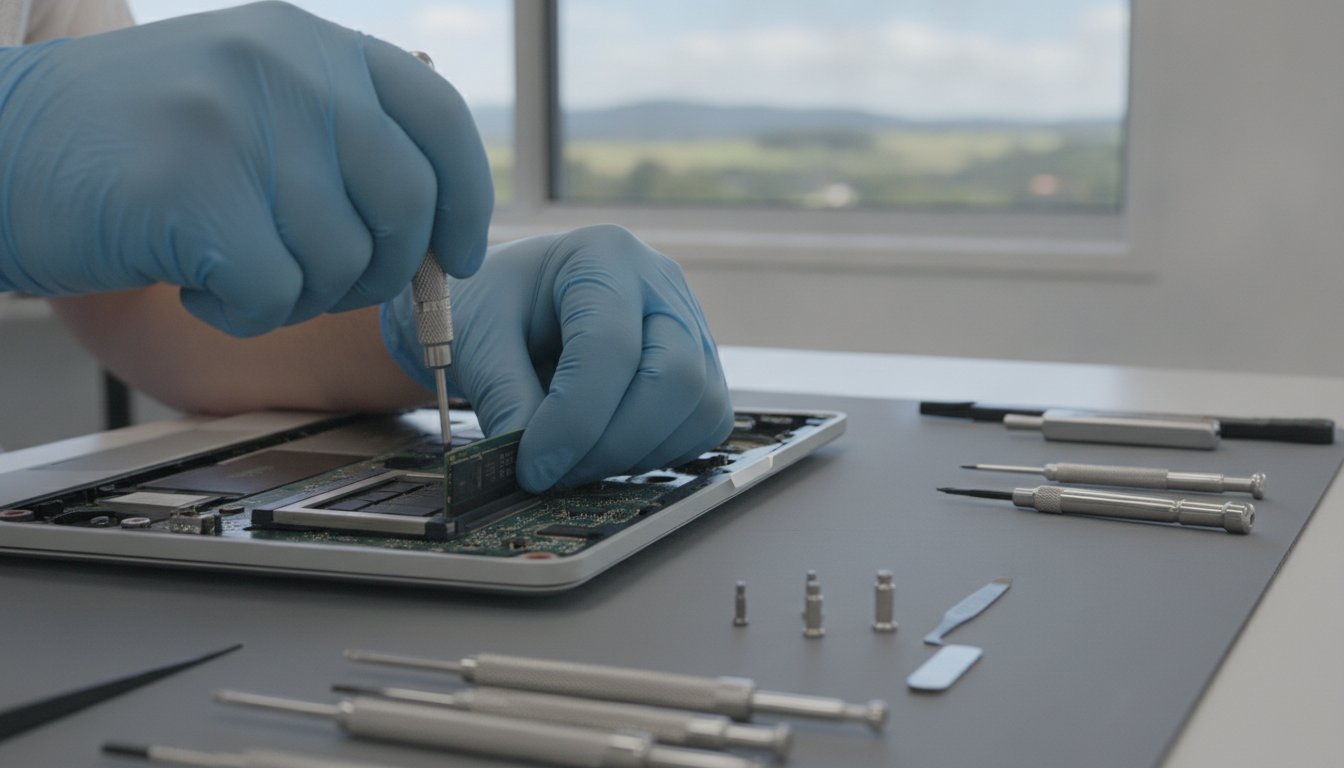
Your laptop screen is black, the fans are silent, and it won’t respond to the power button. It’s easy to assume your files vanished with the hardware, but a dead laptop is usually a power problem rather than a data problem. In fact, data recovery from a dead laptop is often very successful because the storage drive itself is frequently still in perfect health. I understand the sinking feeling that comes with a sudden technical failure, especially when years of photos and documents are on the line.
I’m here to help you lower the stress and find a clear path forward. You’ll learn how to identify your specific drive type, whether it’s a common SATA SSD or a newer NVMe model, and which tools you need to access your files safely. We’ll also cover the warning signs of physical drive damage so you don’t accidentally make things worse. By the end of this guide, you’ll know exactly how to attempt a DIY recovery or when it’s smarter to bring your device to a trusted Toowoomba professional for a specialized assessment.
Key Takeaways
- Understand that a laptop failing to power on usually doesn’t mean your files are gone. It’s often just a power issue rather than a drive failure.
- Learn how to identify if your drive is a SATA or NVMe model. This is the most critical step before you buy any recovery tools or adapters.
- Discover how to perform data recovery from a dead laptop using an external enclosure to safely transfer your files to a working computer.
- Recognize the risks of static electricity and physical damage so you know when it’s safer to call a professional.
- Find out how a local Toowoomba expert can diagnose your device to see if the laptop itself can be saved instead of just harvested for parts.
Is Your Data Truly Gone? Understanding Why Laptops “Die”
When your laptop refuses to turn on, your first thought is likely about the files trapped inside. It feels like a total loss, but there’s a vital distinction you need to understand: a dead laptop is rarely the same thing as a dead drive. Most of the time, the failure happens in the components that provide power or manage the display, leaving the storage component untouched. This makes data recovery from a dead laptop a highly successful process in the majority of cases.
Think of your laptop like a car. If the engine won’t start, it doesn’t mean the luggage in the boot is destroyed. Your photos, documents, and spreadsheets live on a specific piece of hardware called a hard drive or SSD. This part is physically separate from the motherboard, screen, and keyboard. Unless the drive itself has suffered a major electrical surge or physical impact, the process of data recovery is often as simple as moving that drive to a new “home” where it can be read.
To better understand this concept, watch this helpful video:
Common causes of laptop failure include:
- Motherboard circuit failure, often caused by age or heat.
- Liquid spills that short out the power delivery system.
- Broken charging ports or dead internal batteries.
- Damaged display cables or cracked LCD panels.
The “Black Screen” vs. “No Power” Diagnostic
Before you start taking screws out, check if the laptop is actually “dead” or just “blind.” Listen closely for the hum of a fan or look for small indicator lights on the side of the chassis. If you hear noise but the screen is black, try plugging the laptop into an external monitor or your TV using an HDMI cable. This simple step often reveals that the computer is working fine, and you can copy your files to a USB stick immediately without any technical surgery. If there’s no noise at all, you’re likely dealing with a power or motherboard issue, which means data recovery from a dead laptop will require accessing the drive directly.
When to Stop: Identifying Physical Drive Failure
There are times when DIY attempts become risky. If you hear clicking, grinding, or a rhythmic beeping sound coming from inside the case, stop immediately. These are signs of mechanical failure within a traditional hard drive. Trying to force a damaged drive to run can cause the internal heads to scratch the data platters, leading to permanent loss. Physical clicking or grinding requires professional clean-room intervention to recover any information safely.
Step 1: Identifying Your Storage Type (SATA vs. NVMe)
Before you spend money on adapters or enclosures, you must know what’s inside your machine. Many generic online guides suggest buying a standard SATA-to-USB cable, but this advice is outdated for modern hardware. If you’re attempting data recovery from a dead laptop made in the last five years, there’s a high chance a standard cable won’t fit your drive at all. Identifying the drive type is the most critical step in the entire process.
The industry has shifted rapidly from bulky 2.5-inch spinning hard drives to slim “gum stick” style SSDs. While enterprise data recovery often deals with massive server arrays, your home recovery depends on matching one of three main physical formats. It’s also vital to check if your laptop has soldered storage. Most modern MacBooks and some ultra-thin Windows tablets have the storage chips welded directly to the motherboard. If that’s your situation, the drive cannot be removed, and you’ll need professional help to bypass the power failure.
2.5-inch SATA Hard Drives and SSDs
These are common in older laptops or larger “budget” models. Despite the shift to newer tech, SATA interfaces are projected to hold a 58.81% market share in the SSD market in 2026 because they’re reliable and affordable. You can identify these by their rectangular shape, roughly the size of a small notebook. The connector features two distinct “L-shaped” plastic notches. To remove these, you’ll typically need a small Phillips head screwdriver and perhaps a plastic spudger to pry the laptop’s bottom case open without scratching the finish.
M.2 NVMe and SATA SSDs
Modern Ultrabooks use M.2 drives, which look like a stick of chewing gum. Here’s where it gets tricky: M.2 is just the shape, not the speed. Some M.2 drives use the older SATA protocol, while others use the much faster NVMe protocol. They often look identical, but an “NVMe-only” enclosure will not read a “SATA M.2” drive. Always read the label on the drive itself before ordering a part. If the technical jargon feels overwhelming, Aspire Computing can help identify your hardware and perform the extraction for you.
The BitLocker Hurdle: Encryption Keys
Even if you have the right adapter, you might hit a digital wall. Windows 10 and 11 often enable BitLocker encryption by default. When you plug your old drive into a new computer, it will ask for a 48-digit recovery key. You can usually find this by logging into your Microsoft account on another device. Without this key, data recovery from a dead laptop becomes nearly impossible for a DIYer, as the data is scrambled for security. Ensure you have this key ready before you begin the hardware swap.
DIY Recovery vs. Professional Data Recovery Services
Choosing between a DIY attempt and professional help depends on the value of your files and your comfort with tiny hardware. A basic external enclosure typically costs around $30, making it an attractive first step for data recovery from a dead laptop. However, this low cost comes with a trade off in risk. If you’re working with a healthy drive from a laptop that simply has a broken screen or a dead battery, the DIY path is often straightforward. If the drive itself is failing, every minute you spend tinkering could bring it closer to permanent failure.
One invisible threat many home users overlook is Electrostatic Discharge (ESD). You don’t need to see a spark to damage a circuit board. A tiny amount of static electricity from your clothes or carpet can fry the controller on an SSD instantly. Professional labs use grounded mats and anti-static tools to prevent this. They also use specialized software that can read around bad sectors on a drive, something standard Windows or Mac file explorers can’t do. Most reputable experts operate on a “no data, no fee” policy, which provides a safety net that DIY projects lack.
You also need a second, healthy computer to perform the recovery. You cannot simply fix the files on the dead laptop. You’ll need enough free space on a host machine or an extra external drive to hold everything you rescue. If you don’t have a spare PC with the right ports, your DIY costs will quickly rise beyond that initial $30 enclosure.
When DIY is the Right Choice
DIY is a great option if your laptop is already out of warranty and you don’t want to pay for a repair on an old machine. If you have a steady hand and a set of precision screwdrivers, following a guide to recover data from a dead computer can be a rewarding way to save money. This path is best when the data is important but not life altering if a mistake happens during the extraction.
When to Call a Toowoomba Expert
If your laptop suffered a liquid spill, you should skip the DIY step entirely. Moisture can linger under the chips on a drive for days. Applying power to a damp drive via a USB adapter can cause a short circuit that kills the data forever. You should also seek help if the drive makes any clicking or rhythmic beeping noises. For these high risk situations, using Aspire Computing’s data recovery services ensures your hardware is handled with the right diagnostic tools for a high success outcome. We’re right here in Toowoomba to help when the situation feels overwhelming.

The External Enclosure Method: A Practical Recovery Guide
If you’ve decided to proceed with a DIY attempt, the external enclosure method is the most reliable way to handle data recovery from a dead laptop. This process involves physically removing your storage drive and turning it into a temporary external hard drive. It’s a methodical process that requires patience and a gentle touch. Follow these steps to extract your data safely.
- Step 1: Disconnect all power sources. If your laptop has a removable battery, take it out immediately. This prevents accidental short circuits while you work on the internal components.
- Step 2: Carefully open the laptop casing. Use a plastic spudger to pry the edges apart. Start at the corners and move slowly to avoid snapping the plastic clips or scratching the chassis.
- Step 3: Locate the storage drive. For older models, look for the 2.5-inch rectangular drive. For modern laptops, find the M.2 “gum stick” SSD. Remove the securing screws and pull the drive gently from its slot at a slight angle.
- Step 4: Slide the drive into your purchased USB enclosure. Ensure the pins align perfectly with the connector before applying light pressure. Secure the enclosure with its included screws or clips.
- Step 5: Connect the enclosure to a working PC using the USB cable. Wait a few moments for the system to recognize the hardware and mount the drive in File Explorer.
If you encounter any resistance during the physical removal or if the drive doesn’t appear when plugged in, contact Aspire Computing for expert assistance before continuing.
Bypassing “Access Denied” Folder Permissions
When you plug your old drive into a different computer, Windows might prevent you from opening your personal folders. It’s common to see an “Access Denied” error message. This happens because the folder’s security settings are still linked to the user account from your dead laptop. To fix this, you must “Take Ownership” of the folder. Right click the folder, select Properties, and navigate to the Security tab. Click Advanced, then Change next to the Owner field, and enter your current username. You must have administrative rights on the working computer to bypass these user folder locks.
Transferring Files Safely
Once you gain access, prioritize the “Users” folder. This is where your Desktop, Documents, and Photos are stored. Always use the “Copy” command rather than “Move” when transferring files. If the connection drops or the old drive fails during the process, a “Move” command can leave your files in a corrupted state between the two locations. Don’t forget to check the “Downloads” folder for recent files or the “AppData” folder if you need to rescue browser bookmarks and local email archives. Taking it one folder at a time ensures a higher success rate for data recovery from a dead laptop.
Professional Data Recovery in Toowoomba: How Aspire Computing Helps
While DIY methods can work, many residents in Newtown and across the Darling Downs prefer the peace of mind that comes with a local expert. At Aspire Computing, I provide data recovery from a dead laptop directly at your home or office. My mobile service means you don’t have to worry about unplugging cables, finding a park, or driving across town. I’m right here to help. I understand that your data is private and often contains sensitive personal or financial information. That’s why I follow strict security protocols during every step of the recovery. Your family photos or business spreadsheets stay secure and confidential throughout the entire process.
A professional diagnostic is the most valuable step you can take when a device fails. Instead of just harvesting the drive and throwing the rest away, I look at the whole machine. Sometimes the failure is simpler than you think. A dead laptop might just have a failed power jack, a faulty internal cable, or a motherboard component that can be replaced. If I can fix the laptop, you save the cost of a replacement and get your data back in its original environment. It’s a more sustainable and often more affordable approach than buying a new device and trying to migrate everything manually.
Beyond Recovery: Repairing the “Dead” Laptop
Sometimes, a laptop that appears completely dead is actually a candidate for a straightforward fix. I’ve seen many cases where a simple battery replacement or a new power port brought a machine back to life. Aspire Computing evaluates every device to see if a repair is more cost-effective than a new purchase. You can explore my laptop repair services in Toowoomba to see how I help locals get back to work without the expense of a brand new computer. I take personal accountability for every job, ensuring you get the best advice for your specific situation.
Preventing Future Loss: The 3-2-1 Backup Rule
Once we’ve successfully performed data recovery from a dead laptop, I help you ensure it never happens again. I’m a big believer in education and prevention. I recommend the 3-2-1 backup rule: keep three copies of your data, on two different media types, with one copy stored off-site. For small businesses in Toowoomba, I can implement professional business continuity plans that automate this process. This means your work is safe even if the hardware fails tomorrow. Most data is recoverable if you act quickly and use the right approach. You can rest easy knowing your digital life is in good hands with a local expert who cares about your results.
Take Control of Your Digital Life Today
A laptop that won’t power on is a stressful situation, but it doesn’t have to be a permanent loss. By identifying your storage type and understanding the difference between a power failure and a drive failure, you’ve already taken the most important steps toward recovery. Successfully managing data recovery from a dead laptop is about moving methodically and knowing when to stop if you hear unusual noises or suspect liquid damage.
If the DIY process feels risky or if you simply don’t have the time to tinker with hardware, I’m here to help. Serving Toowoomba and the Darling Downs since 1999, I provide the expertise needed for complex hardware repairs and secure file retrieval. Whether you need on-site support at your home or remote assistance for your local business, you can count on professional, reliable service. Don’t risk your data; contact Aspire Computing for expert Data Recovery in Toowoomba today. Your files are likely still safe on that drive, and together we can get them back where they belong.
Frequently Asked Questions
Can I recover data from a laptop that won’t turn on without taking it apart?
You can only retrieve files without disassembly if the issue is a failed display rather than a total power failure. Try connecting your laptop to an external monitor or TV using an HDMI cable to see if your desktop appears. If the laptop remains completely silent and unresponsive, data recovery from a dead laptop will require you to physically remove the drive and use an external adapter.
How much does professional data recovery cost in Toowoomba?
The cost depends entirely on whether your drive has a simple software glitch or a major physical hardware failure. Most local experts provide a free assessment to determine the complexity of the job before you commit to any work. This process ensures you receive an accurate quote based on the specific tools and time required to save your files, often backed by a “no data, no fee” policy.
What if my hard drive is encrypted with BitLocker?
You’ll need your 48-digit BitLocker recovery key to access your files on another computer. Windows often enables this encryption by default for security, and the key is typically stored in your Microsoft account online. Without this specific code, the data on the drive remains scrambled and unreadable, even if the hardware itself is in perfect health.
Can I plug a laptop hard drive into a desktop computer?
Yes, you can connect a laptop drive to a desktop as long as you have the right interface. Older 2.5-inch SATA drives use the same connectors as desktop hard drives, allowing you to plug them directly into the motherboard. Modern M.2 SSDs require a compatible slot on the desktop motherboard or a specific USB adapter to bridge the connection.
Will taking my hard drive out void my laptop warranty?
Opening your laptop case can sometimes void the manufacturer’s warranty, especially if you have to break a factory seal to reach the drive. It’s important to check your specific warranty terms before you start. If your device is still under a protection plan, you might want to contact the manufacturer first, though they rarely include data recovery as part of their standard repair service.
How do I know if my hard drive is an SSD or an HDD?
Physical size and sound are the most obvious indicators. Traditional HDDs are heavier, rectangular boxes that make a faint spinning or humming noise when they’re powered on. SSDs are silent and much lighter; they either look like a slim plastic case or a small, thin circuit board similar to a stick of chewing gum.
What tools do I need to open a modern laptop for data recovery?
You’ll generally need a precision screwdriver set that includes small Phillips, Torx, and Pentalobe bits. Most modern laptops use tiny screws that are easily stripped with standard household tools. A plastic prying tool, or spudger, is also essential for popping the clips on the laptop’s casing without scratching the finish or damaging the internal components.
Is it possible to recover files from a water-damaged laptop?
Recovery is often successful, but you must act quickly and never try to power the device on. Liquid causes immediate corrosion on the drive’s controller board, which can lead to a permanent short circuit. For data recovery from a dead laptop that has been submerged, a professional needs to clean the components with specialized chemicals to stop the oxidation process before attempting to read the data.

B.App.Sc., Cert. Computer Engineering PC Service and Repair
As the owner of Aspire Computing founded in 1999, Chaim Lee has been working for over 20 years as the Leading Computer Technician.
He has a life long interest in electronics, computing, science and technology. He has completed studies and gained qualifications in Applied Science, Computer Repair and Service, Microsoft Installation and Maintenance, Technical Writing, Workplace Training, and Technical Sales Training.

Write a Comment