
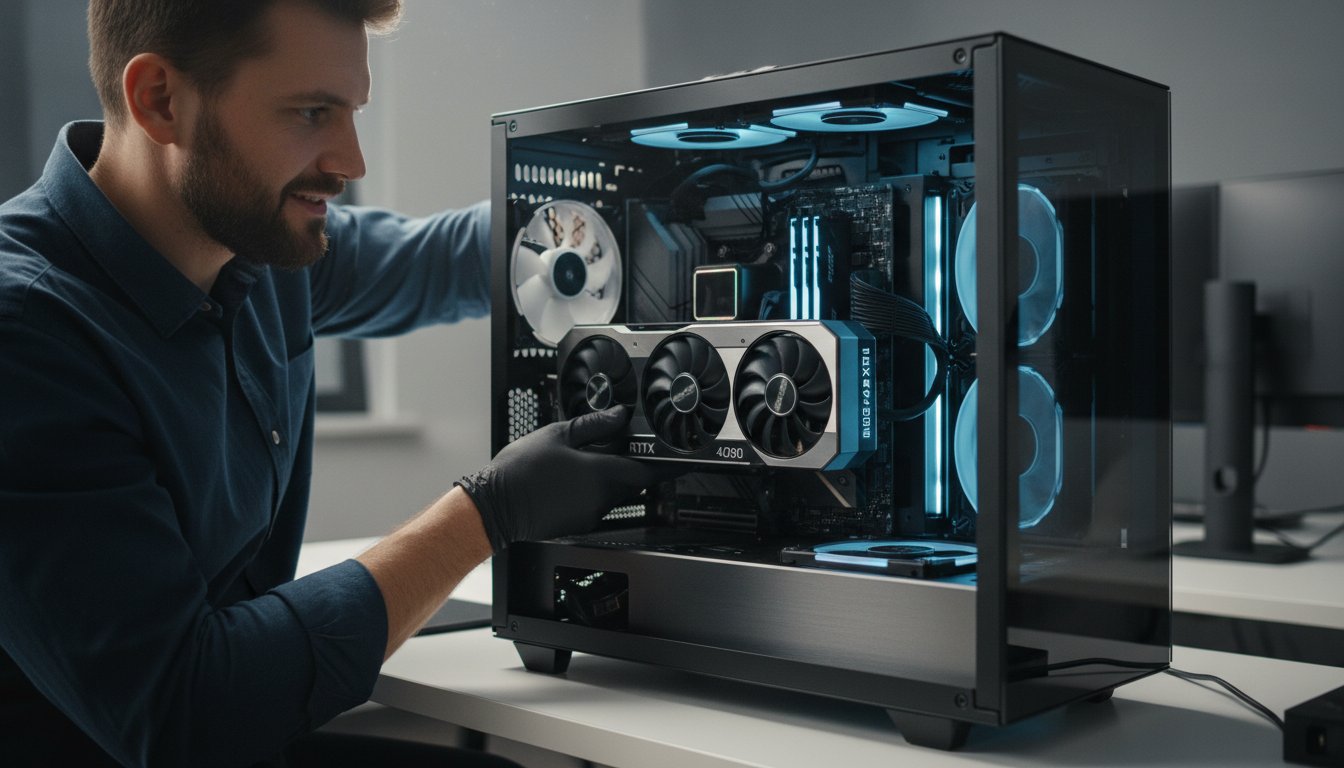
Is stuttering gameplay turning your favourite titles into a slideshow? Are slow video renders and sluggish creative software holding you back? This kind of frustration is a clear signal that your PC is due for a performance boost. For many, a graphics card upgrade is the single most effective way to breathe new life into their machine. However, the path to a faster PC can seem filled with technical hurdles, from choosing a compatible card to understanding power requirements and the fear of making a costly mistake during installation.
Don’t worry, we’re here to help. This guide is designed to give you complete confidence in your upgrade. We will walk you through how to choose the perfect graphics card for your needs and budget, how to check compatibility with your system, and the step-by-step process for a safe and successful installation. You’ll gain the knowledge to do it yourself or recognise when calling on our experts is the best choice for a flawless result. Let’s get your PC running faster than ever.
Is It Time for a Graphics Card Upgrade? Key Signs to Look For
Before investing in new hardware, it’s essential to confirm that your graphics card is the true performance bottleneck in your system. The Graphics Processing Unit (GPU) is the dedicated engine that handles everything from gaming visuals to complex design rendering. If you’re unfamiliar with the component, understanding what a graphics card is provides a helpful foundation. A powerful GPU can dramatically improve your computer’s capabilities, but how do you know if you need one? If you’re experiencing any of the following issues, it might be time for a graphics card upgrade.
To check if your GPU is the cause, you can monitor its usage during demanding tasks. On Windows, simply open Task Manager (Ctrl+Shift+Esc), go to the “Performance” tab, and select your GPU. If its usage is consistently at 99-100% while your CPU is lower, it’s a clear sign your graphics card is holding you back.
Poor Gaming Performance
For PC gamers, the graphics card is the heart of the experience. An underpowered GPU will quickly become apparent. Key symptoms include:
- Low Frame Rates (FPS): Modern games feel choppy, stutter, or are simply unplayable at your monitor’s native resolution.
- Reduced Quality Settings: You have to turn down textures, shadows, and resolution just to achieve a smooth frame rate, sacrificing visual quality.
- Visual Glitches & Crashes: You may see strange visual errors, known as “artifacts” (e.g., odd colours or distorted shapes), or the game might crash to the desktop frequently.
Slow Creative & Professional Software
A graphics card upgrade isn’t just for gamers. Professionals and creators rely on GPU acceleration for a smooth and efficient workflow. Watch for these signs:
- Long Rendering Times: Exporting videos in software like Adobe Premiere Pro or DaVinci Resolve takes an excessively long time.
- Laggy Viewport Performance: Navigating complex 3D models in programs like Blender, AutoCAD, or SolidWorks is slow and unresponsive.
- Slow AI Processing: Machine learning or AI-driven tasks that leverage the GPU take far too long to complete, hindering your productivity.
System & Hardware Limitations
Sometimes, the need for an upgrade comes from other changes to your setup or the age of the card itself. Consider these factors:
- Lack of Modern Features: Your current card doesn’t support new technologies like Ray Tracing for realistic lighting or DLSS/FSR for AI-powered performance boosts.
- Failing Hardware: The graphics card fan is constantly running at maximum speed, making excessive noise, or has stopped spinning altogether, leading to overheating.
- New High-Resolution Monitor: You’ve upgraded your display to 1440p or 4K, but your old GPU can’t deliver a smooth experience at that higher resolution.
Before You Buy: The Essential 4-Point Compatibility Check
The excitement of a new graphics card is often followed by a nagging question: “Will it actually work with my PC?” It’s the most common fear, and for good reason-an incompatible part can turn an exciting upgrade into a costly mistake. Don’t panic! This simple 4-point check is designed to give you peace of mind. Taking a few minutes to confirm these details ensures your chosen graphics card upgrade will be a perfect fit for your system.
Power Supply Unit (PSU): Do You Have Enough Wattage?
Modern graphics cards are powerful, and they need plenty of electricity to perform at their best. Your Power Supply Unit (PSU) is the engine that provides this power. To check its capacity, you’ll need to power down your PC, unplug it, and open the side panel. The PSU is the boxy component where the power cord connects, and it will have a large sticker detailing its maximum wattage (e.g., 550W, 750W). Compare this number to the “recommended PSU wattage” on the new card’s specification sheet. Also, check that you have the correct power cables, typically one or two 8-pin PCIe connectors.
Physical Size: Will the New Card Fit in Your Case?
Graphics cards have grown significantly over the years. Before you buy, grab a tape measure. You need to measure the internal clearance inside your case, from the rear expansion slots where the card is installed to the front of the case where fans or hard drive cages might be. Compare this measurement to the new card’s dimensions (Length, Height, and Width), which are always listed on the manufacturer’s website. Also, check how many slots it occupies (e.g., a “2-slot” or “3-slot” card) to ensure you have enough room.
Motherboard & CPU: Avoiding Bottlenecks
Nearly all modern motherboards have the required PCIe x16 slot for a graphics card, but it’s worth a quick check. More importantly, you need to consider balance. A “CPU bottleneck” occurs when a powerful new GPU is paired with a much older, slower processor. Think of it like putting a V8 engine in a car with bicycle wheels-you have all that power, but the rest of the system can’t keep up. To get the full value from your graphics card upgrade, your CPU should be reasonably modern.
Feeling Overwhelmed? Let Us Check for You
We understand that checking technical specifications can feel a bit daunting. If you’re not confident about opening your PC or just want a professional second opinion, we’re here to help. The team at Aspire Computing can quickly assess your system’s compatibility and recommend the perfect upgrade for your needs and budget. Bring your PC in for a quick compatibility check!
The Upgrade Process: A Safe, Step-by-Step Installation Guide
You’ve chosen your new component, and now it’s time for the most hands-on part of the process. Don’t worry, this isn’t as complex as it sounds. By following these steps methodically, you can ensure your graphics card upgrade is a safe and successful one. We have broken the installation down into three simple stages: software prep, the physical swap, and final testing.
Step 1: Software Preparation (Before You Open the Case)
A clean start is the key to avoiding driver conflicts. Before you touch any hardware, prepare your system on the software side. This ensures a smooth transition and prevents performance issues down the line.
- Download New Drivers: Go to the manufacturer’s website (NVIDIA, AMD, or Intel) and download the latest driver for your new card. Save it to your desktop for easy access later.
- Uninstall Old Drivers: We highly recommend using a free tool called Display Driver Uninstaller (DDU). It completely removes all traces of old drivers. Run it in Safe Mode for the best results.
- Power Down: Once the old drivers are gone, shut down your PC completely. Switch off the power supply at the back and unplug the power cable from the wall outlet.
Step 2: The Physical Swap (Handling with Care)
With the PC powered off, it’s time to open the case. Your main enemy here is static electricity, which can damage sensitive components. Always handle parts by their edges and avoid touching the gold connectors or circuitry.
IMPORTANT: Before you touch anything inside, ground yourself by touching a large metal part of the computer case for a few seconds. This discharges any static buildup. Now, locate your old graphics card. It’s a long circuit board plugged into a slot on your motherboard.
- Unplug any power cables connected to the card.
- Unscrew the metal bracket holding the card to the back of the case.
- Press down on the small plastic clip at the end of the motherboard slot (the PCIe slot) to release the card.
- Gently pull the old card straight out.
- Align your new card with the slot and press it in firmly until you hear and feel it click into place. The clip will lock automatically.
- Screw the new card’s bracket to the case and plug in the required power cables from your power supply.
Step 3: Final Setup and Testing
You’re on the home stretch! Close up your computer case and move to the final software setup. A common mistake here can prevent your PC from displaying anything, so pay close attention to where you plug in your monitor.
- Connect Your Monitor: Plug your monitor cable directly into one of the ports on your new graphics card, not the ports on your motherboard.
- Install Drivers: Plug the power cable back in, turn on the PC, and boot into Windows. Your resolution might look low, which is normal. Find the driver file you downloaded earlier and run the installer.
- Restart and Test: Follow the on-screen prompts and restart your computer when the installation is complete. To confirm everything is working perfectly, run your favourite game or a free benchmarking tool like FurMark to test for stability and performance.

Common Problems After Upgrading and How to Fix Them
You’ve installed your new hardware, and you’re ready for a superior gaming or creative experience. But what happens when your PC doesn’t cooperate? Don’t panic. Most issues that pop up after a graphics card upgrade are common and can be solved with a few simple checks. This guide will walk you through the most frequent problems and how to get your system running smoothly.
My PC Won’t Turn On or Has No Display
That moment of silence when you press the power button and nothing happens can be stressful, but the fix is often straightforward. Before assuming the worst, run through these essential checks:
- Check Power Connections: Modern graphics cards require dedicated power. Ensure all 6-pin or 8-pin PCIe power cables are firmly and securely connected from your power supply to the graphics card. You should hear a ‘click’ as they lock in.
- Confirm Proper Seating: Make sure the graphics card is fully seated in the motherboard’s PCIe slot. The locking tab at the end of the slot should be engaged. Sometimes it takes a bit of firm, even pressure.
- Verify Monitor Cable: This is a classic mistake. Your monitor’s display cable (HDMI or DisplayPort) must be plugged into a port on your new graphics card, not the motherboard’s built-in video outputs.
My Computer is Crashing or Unstable
If your computer boots up but then crashes during games or demanding tasks, it points to an instability issue. This is usually related to power, heat, or software conflicts. Here’s what to investigate:
- Insufficient Power Supply (PSU): Your previous power supply might not have enough wattage to handle the new card. Check the recommended PSU wattage for your specific GPU model and ensure yours meets or exceeds it.
- Overheating: A new, powerful card generates more heat. Check that your case fans are spinning and that airflow isn’t blocked. You can use monitoring software to watch your GPU temperatures.
- Driver Conflicts: Old graphics drivers can cause major conflicts. It’s best to perform a clean driver installation. Use a tool like Display Driver Uninstaller (DDU) to completely remove old drivers before installing the new ones from the manufacturer’s website.
Performance is Not as Good as Expected
Sometimes the system runs fine, but the performance boost you paid for just isn’t there. A successful graphics card upgrade depends on the whole system working together. If your frame rates are disappointing, consider these factors:
- CPU Bottleneck: If you’ve paired a high-end GPU with an older, slower CPU, your processor may not be able to keep up, limiting the graphics card’s potential.
- Check Your RAM Speed: Ensure you have enabled XMP (or DOCP for AMD systems) in your computer’s BIOS. Without it, your RAM may be running at a much slower default speed, holding back performance.
- Optimise Game Settings: Dive into the in-game graphics settings. Make sure the resolution is set correctly and that features like ray tracing or higher texture quality are enabled to take advantage of your new hardware.
If you’ve worked through these steps and are still facing issues, don’t hesitate to seek professional help. Sometimes a problem requires an expert eye. For quality assurance and expert hardware support, talk to the experts at Aspire Computing to get your system protected and connected.
When to Call a Professional for Your Graphics Card Upgrade
While a DIY installation can be a rewarding project, a graphics card upgrade isn’t always straightforward. For a process that is safe, efficient, and guaranteed to work, calling a professional is often the smartest move. At Aspire Computing, we ensure your investment is protected and your PC is running at its peak potential, saving you time and preventing costly mistakes.
If You’re Not Confident Opening Your PC
It’s perfectly understandable to be hesitant about opening up your computer. PC components are delicate and sensitive to static electricity, and a simple slip can lead to damage. A professional service eliminates that risk. We handle the entire process for you-from recommending the best card for your system and budget to the final driver installation and performance testing. You get all the benefits of the upgrade with complete peace of mind.
If You Have a Complex or Custom-Built PC
Specialised builds require expert handling. If your computer has any of the following, we highly recommend professional installation:
- Custom water-cooling loops: These systems must be carefully drained and refilled to avoid leaks and damage.
- Small form-factor (SFF) cases: Working in tight spaces with intricate cable routing requires patience and experience to ensure proper airflow and prevent components from overheating.
Our technicians have extensive experience with all types of PC builds, ensuring your unique system is treated with the care it deserves.
If You’ve Tried and Run Into Problems
You’ve installed the new card, but your screen is blank, the PC won’t boot, or games keep crashing. Don’t waste hours battling frustrating driver conflicts or troubleshooting cryptic error messages. Our team uses professional diagnostic tools to quickly identify the root cause, whether it’s a power supply limitation, a software conflict, or an incorrect BIOS setting. We can turn a frustrating afternoon into a fast, successful fix. Talk to our experts in Toowoomba for a hassle-free upgrade.
Since 1999, Aspire Computing has provided trusted hardware support in the Toowoomba region. A professional graphics card upgrade from our team saves you time and guarantees a perfect result, letting you get back to what you love doing.
Unlock Your PC’s Full Potential
Armed with this guide, you now understand the key signs that it’s time for an upgrade and the crucial compatibility checks to perform before you buy. Following the step-by-step installation process is the final piece of the puzzle to boosting your PC’s performance for gaming, creating, and everything in between.
While a DIY approach is rewarding, we understand it’s not for everyone. If you want to ensure your graphics card upgrade is handled with expert care, don’t hesitate to reach out. At Aspire Computing, we provide friendly, local, and professional service, backed by our experience serving Toowoomba and the Darling Downs since 1999. We handle the expert diagnostics and hardware installation so you can get back to what you love, faster. Need help with your graphics card upgrade? Contact Aspire Computing today!
Get ready to enjoy smoother frame rates and a faster, more responsive PC!
Frequently Asked Questions About Graphics Card Upgrades
Do I need to reinstall Windows after a graphics card upgrade?
In most cases, no. After a graphics card upgrade, you do not need to reinstall your entire operating system. The correct procedure is to completely uninstall the old graphics drivers from your system before you physically remove the old card. Once the new card is installed, you can then install the latest drivers for it. This ensures a clean transition and prevents software conflicts, helping your new hardware perform at its best from the start.
Can I put any graphics card in any computer?
No, compatibility is crucial when choosing a new graphics card. You must check three key factors: physical size (will it fit in your PC case?), power supply unit (does it provide enough wattage and have the necessary connectors?), and motherboard compatibility (does it have a free PCIe x16 slot?). We always recommend measuring your case and checking your power supply’s specifications before making a purchase to ensure a successful and stress-free installation.
How much does it cost to have a graphics card professionally installed?
In Australia, the cost for a professional graphics card installation typically ranges from A$80 to A$150. This service usually includes the physical installation of the card, connecting the power cables correctly, and installing the necessary drivers to ensure everything runs smoothly. The final price can depend on your location and the complexity of your computer’s build, but it provides peace of mind that the job is done right.
Will upgrading my graphics card void my PC’s warranty?
Upgrading a component like a graphics card in a pre-built PC generally does not void the entire system’s warranty, thanks to Australian Consumer Law. However, if you cause damage to another part of the computer during the installation, that specific damage will not be covered. Your new graphics card will come with its own manufacturer’s warranty, separate from the warranty of your original PC.
How long should a modern graphics card last?
A modern graphics card can physically function for over five years, but its useful lifespan for gaming is different. A high-end card might handle the latest games at maximum settings for 2-3 years before you need to lower them. A mid-range card may need settings adjusted sooner. For general productivity, video, and non-demanding tasks, a quality card can easily last until you decide it’s time for a major system overhaul.
Is it better to buy a new NVIDIA or AMD graphics card?
Both NVIDIA and AMD produce excellent graphics cards, and the best choice depends on your budget and primary use. NVIDIA often leads in high-end performance and features like ray tracing and DLSS. AMD is highly competitive, frequently offering great value and performance with its own upscaling technology, FSR. We recommend checking current benchmarks and reviews for cards within your specific price range to see which offers the best performance for the games you play.

B.App.Sc., Cert. Computer Engineering PC Service and Repair
As the owner of Aspire Computing founded in 1999, Chaim Lee has been working for over 20 years as the Leading Computer Technician.
He has a life long interest in electronics, computing, science and technology. He has completed studies and gained qualifications in Applied Science, Computer Repair and Service, Microsoft Installation and Maintenance, Technical Writing, Workplace Training, and Technical Sales Training.

Write a Comment