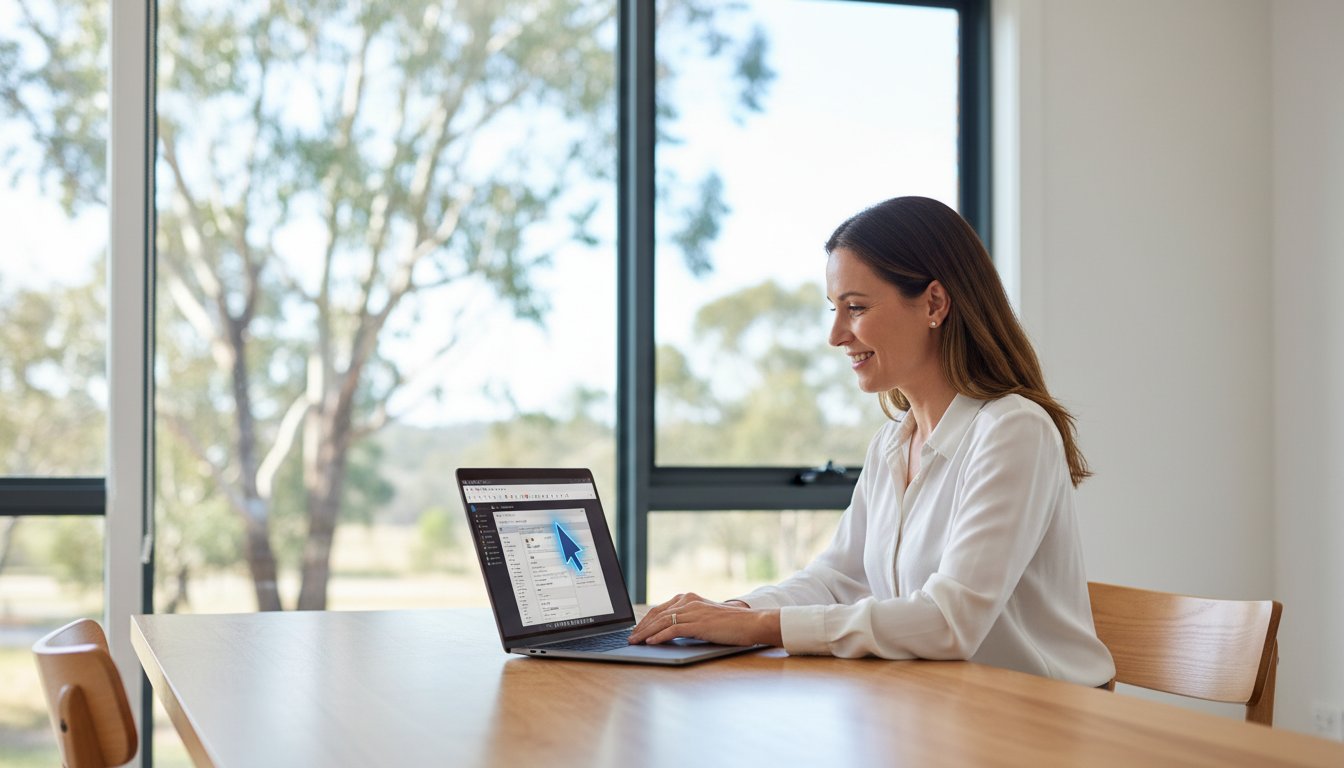
Remote IT Support: Your Guide to Fast, Secure & Convenient Tech Help

That familiar feeling of dread-your computer is running painfully slow, a critical file won’t open, or a strange error message has appeared, and you need a fix, now. The thought of unplugging a tangle of cables and driving to a repair shop is enough to cause a headache. But what if you could get expert help from a trusted technician without ever leaving your home or office? This is the power of professional remote IT support, a fast, convenient, and secure way to solve your tech troubles.

We understand that letting someone access your computer from afar can seem daunting. Is it safe? How does it even work? In this guide, we’ll demystify the entire process for you. We will show you exactly how our secure support sessions work, how we protect your data and privacy, and why it’s the most efficient way to get your technology working for you again. Prepare to discover the peace of mind that comes with having expert help just a click away.

Key Takeaways

  • Get fast and effective tech solutions for many common computer issues without ever having to unplug your machine or leave your home.
  • Understand the simple, secure process of a remote support session, giving you full control and peace of mind from start to finish.
  • Learn which frustrating software glitches, virus problems, and performance issues can be fixed instantly, and when an on-site visit is necessary.
  • Discover the advantages of choosing a local expert for your remote IT support, ensuring you get personalised service you can trust.

What is Remote IT Support? Demystifying Tech Help from a Distance

When technology troubles strike, the last thing you need is the stress of waiting for a technician to arrive. Put simply, remote IT support is a secure and incredibly efficient way for our experts to fix your computer problems directly over the internet. Think of it like having a trusted IT professional sitting right beside you, taking control of your mouse and keyboard to diagnose and resolve issues in real-time. It’s a similar concept to a telehealth appointment with a doctor, but for the health of your technology.

To see how these tools work in practice, this short video provides a helpful overview:

The entire process is built on a foundation of security and your complete control. Using specialised software, we create a temporary, encrypted connection to your computer. This modern approach to technical support is only possible with your explicit permission for each session. You can watch every action our technician takes on your screen and can end the connection at any moment, giving you total peace of mind.

How Does the Technology Work?

The process is straightforward and designed to be user-friendly. When you have an issue, you contact us. We guide you to a secure section of our website to download a small, safe application. You will then be given a unique, single-use access code to start the session. Once you enter the code, the connection is established, and we can begin our work. Security is our top priority, so every session includes:

  • User-Initiated Connection: We can never access your computer without your consent and action.
  • One-Time Access Codes: Each support code is unique and expires after the session ends.
  • Full Encryption: The data transmitted during the session is fully encrypted to protect your privacy.
  • Immediate Disconnection: The moment the session is closed, our access is permanently terminated.

Remote Support vs. On-Site Visits: What’s the Difference?

While incredibly versatile, remote support is best suited for certain types of problems. It’s often the fastest and most cost-effective first step in diagnosing any issue. However, some situations still require a hands-on, on-site visit. A quality IT partner will offer both to ensure your business has the flexible support it needs.

  • Ideal for Remote Support: Software troubleshooting, virus and malware removal, system performance tune-ups, email configuration, and driver updates.
  • Requires an On-Site Visit: Hardware failures (e.g., a computer that won’t power on), physical network setup, internet or NBN connection outages, and installing new physical equipment like servers or printers.

The Key Benefits: Why Remote Support is a Game-Changer

When your computer plays up, the last thing you need is more frustration. Traditional IT support often means booking an appointment days in advance or packing up your machine for a trip to a repair shop. Fortunately, remote it support offers a modern solution that directly addresses these pain points, providing fast, affordable, and incredibly convenient help for home users and small businesses alike.

Speed and Efficiency: Get Help in Minutes, Not Days

The most significant advantage of remote support is speed. With no travel time required, our technicians can connect to your device almost instantly. Forget waiting for an on-site visit; many software glitches, email problems, or performance issues can be diagnosed and resolved in under an hour. This is a game-changer for urgent problems, like a POS system failure during business hours, getting you back to work with minimal disruption.

This focus on minimizing business disruption applies to more than just office computers. Many industries now use remote support for specialized equipment, such as industrial weighing systems that require precise calibration. For an example of how this specialized remote service works, check out Independent Scale Service.

Cost-Effectiveness: Save Money on Tech Support

Because we don’t need to travel to your location, we can pass those savings directly on to you. Remote support eliminates call-out fees, which often start from A$100 or more for an on-site visit. Our technicians can work more efficiently, leading to shorter billable hours. This model also reduces costly downtime for your business-a faster fix means you’re back to earning sooner. Many of our remote services also come with the assurance of a ‘no fix, no fee’ policy for complete peace of mind.

Ultimate Convenience: Support from Anywhere

Get expert help without leaving your desk. There’s no need to unplug a web of cables and haul your PC to a workshop. You can stay in your home or office and watch in real-time as our technician works on your screen. This transparency allows you to ask questions and see exactly what is being done. It’s also why it’s vital to choose a trusted provider and learn how to avoid tech support scams from illegitimate operators. For those in regional areas like the Darling Downs, this service provides access to expert help that might otherwise be hours away.

How a Remote Support Session Works: A Step-by-Step Guide

If you’ve never used remote IT support before, the idea of someone else accessing your computer can feel a bit strange. We understand completely. That’s why our process is designed to be completely transparent, secure, and simple, putting you in the driver’s seat from start to finish. There are no hidden steps or technical jargon-just a straightforward solution to get you back up and running. Here’s exactly what you can expect.

Step 1: Making Contact and Describing the Problem

It all begins with a simple phone call or by filling out our online request form. You’ll speak directly with one of our experienced technicians who will listen carefully to understand the issue you’re facing. Based on your description, we’ll assess whether the problem can be resolved remotely. Before any work begins, we will provide you with a clear, upfront cost estimate in AUD, ensuring there are no surprises down the line.

Step 2: Establishing a Secure Connection

Once you agree to proceed, we will guide you to a secure page on our website to download a small, temporary support application. This software creates a highly encrypted, one-time connection between your computer and our technician. This secure connection is the foundation of modern remote support, allowing us to see what you see. You will be given a unique session code to read back to us. Crucially, we cannot see or control anything until you explicitly grant permission on your screen.

Step 3: Diagnosis, Repair, and Completion

Now, you can sit back and watch our expert get to work. You’ll see your own mouse cursor move on the screen as our technician diagnoses and fixes the issue. We pride ourselves on clear communication and will explain what we are doing as we go. Once the repair is complete, we will walk you through the solution and confirm that you are 100% satisfied. The moment the session ends, the connection is permanently closed. We have no way to get back into your computer unless you initiate a brand new session with a new code. Your privacy and security are guaranteed.

Remote IT Support: Your Guide to Fast, Secure & Convenient Tech Help

What Problems Can Be Fixed Remotely? (And What Can’t)

One of the greatest strengths of modern technology is the ability to solve problems from a distance. High-quality remote it support can resolve a vast range of common and frustrating computer issues, getting your business back to full productivity faster. However, it’s important to be honest and realistic. Some problems simply require a hands-on approach. Understanding the difference helps you get the right help, right away.

By setting clear expectations, we can ensure we take the most efficient path to a solution, saving you time and stress.

Ideal Issues for Remote IT Support

If your computer can still turn on and connect to the internet, many software-related problems can be diagnosed and fixed quickly. Our remote sessions are secure and efficient, designed to solve issues like:

  • Virus, Spyware, and Malware Removal: We can securely access your system to scan, identify threats, and remove malicious software to protect your valuable data.
  • Software Troubleshooting & Updates: From Microsoft Office glitches and email configuration problems to installing new applications, we can resolve errors and ensure your software is up to date.
  • PC Tune-Ups and Performance Optimisation: Is your computer running slow? We can clean up unnecessary files, adjust system settings, and optimise startup programs to significantly boost its speed.
  • Driver and Peripheral Issues: We can update or reinstall drivers and troubleshoot connectivity problems for devices like printers, scanners, and webcams.

When You Need an On-Site Visit

Remote support relies on two things: a working computer and an internet connection. When a problem is physical or prevents the computer from starting up, a technician needs to be there in person. These situations include:

  • No Power or Failure to Boot: If your computer won’t turn on at all, it’s likely a hardware issue such as a failed power supply, motherboard, or hard drive.
  • Physical Damage: A cracked laptop screen, a broken keyboard, or a damaged USB port cannot be fixed through a screen share.
  • Total Internet Outage: If your business has no internet connection, we can’t connect remotely. This often points to a problem with your modem, router, or NBN service that needs physical diagnosis.

For these critical hardware or connectivity failures, you need professional on-site computer repairs to diagnose the faulty component and get you back online.

Choosing a provider who offers both remote and on-site services gives you the assurance that no matter the problem, there is always a solution available.

Why Choose a Local Toowoomba Expert for Your Remote Support?

While the convenience of remote IT support is clear, who you choose to provide that support makes all the difference. You could opt for a large, national provider and spend your time navigating call centre queues and speaking with a different technician every time. Or, you can partner with a local expert who knows your community and is invested in your success.

For Toowoomba businesses, choosing a local provider like Aspire Computing offers a level of service and accountability that faceless corporations simply can’t match. It’s about building a relationship, not just closing a support ticket.

The Value of Trust and Accountability

When you have a critical IT issue, trust is paramount. Aspire Computing isn’t a faceless helpdesk; we are a local Toowoomba business that has been serving our community since 1999. Our reputation is built on two decades of reliable, professional service. You can speak directly with the owner, Chaim Lee, a trusted local expert who stands behind our work. This direct accountability ensures you receive consistent, high-quality care from someone who values your business.

Seamless Transition to On-Site Help

What happens when a problem is too complex for a remote fix? This is where a local provider truly shines. Unlike remote-only services that leave you stranded, we offer a complete, integrated solution. If an issue requires hands-on attention, we don’t just give up. We seamlessly schedule an on-site visit to resolve the problem properly. This hybrid approach gives you the best of both worlds: the immediate response of remote it support and the thorough, in-person expertise needed for complex hardware or network issues. You get the right help for your situation, all from a single, trusted provider. Get the peace of mind that comes from a complete solution with Aspire Computing.

Embrace Smarter Tech Support with a Trusted Local Expert

As we’ve seen, tech troubles don’t have to mean downtime or inconvenient appointments. Modern remote support offers a fast, secure, and highly effective way to resolve a wide range of software issues, getting you back to work or play with minimal disruption. It’s the smart, convenient solution for today’s digital world.

But the true value comes from pairing this technology with personal, accountable service. When you choose a local Toowoomba expert for your remote it support, you get more than just a quick fix; you get peace of mind. At Aspire Computing, we’ve been proudly serving our community since 1999. You’ll receive personal service directly from the owner, ensuring a level of care and accountability that larger, anonymous companies simply can’t match.

Don’t let frustrating tech issues disrupt your day any longer. For dependable help that combines modern convenience with trusted, local service, get in touch. Need fast, reliable tech help? Talk to our Toowoomba experts today!

Frequently Asked Questions About Remote IT Support

Is remote IT support safe and secure?

Absolutely. Your security is our top priority. We use industry-leading remote access software that establishes a highly encrypted connection to protect your data. You are always in control of the session; you must grant us permission to connect, and you can see everything our technician does on your screen in real time. We believe in complete transparency to give you the assurance that your systems are in safe, professional hands.

What happens if my internet connection drops during a session?

Don’t worry, this is a common occurrence. If your internet connection drops, the remote session will automatically terminate. Our technician will lose access to your computer immediately, ensuring your system remains secure. Once your connection is restored, we will simply contact you to re-establish the session and continue resolving the issue right where we left off. It’s a straightforward process designed for business continuity.

Do I need to have any technical skills to use remote support?

Not at all. The process is designed to be as simple as possible for you. All you need is a working internet connection. Our technician will guide you through a couple of easy steps, which usually involves clicking a link and giving permission for us to connect. We handle all the technical complexities from our end, so you can sit back while we get your system running smoothly again. It’s a hassle-free solution.

What if the problem can’t be fixed remotely? Do I still have to pay?

While we can solve most issues remotely, some problems require a hands-on approach, like a hardware failure. If we determine the issue cannot be resolved remotely, we will explain the situation clearly. We operate on a fair-assessment basis. Often, we will apply the initial remote diagnostic fee as a credit towards the cost of an on-site visit, ensuring you only pay for a successful resolution. Our goal is to provide a quality solution, not just a service.

Can you provide remote support for both PC and Mac computers?

Yes, we certainly can. Our team is experienced in providing comprehensive support for a wide range of systems. This includes both Windows-based PCs and Apple Mac computers, whether they are desktops or laptops. Our remote tools are fully compatible with both macOS and Windows operating systems, allowing us to diagnose and resolve issues efficiently, regardless of your preferred platform. We are equipped to connect and assist with the technology your business relies on.

How much does remote IT support typically cost?

The cost of remote it support in Australia can vary based on the complexity of the issue and the provider. Many services charge an hourly rate, typically ranging from A$90 to A$180 + GST per hour. Some businesses opt for a managed services plan, which offers ongoing support for a fixed monthly fee. We believe in transparent pricing and will always provide a clear estimate before commencing any work, ensuring there are no surprises.

Mobile Computer Repair: Your Guide to Convenient On-Site Tech Help

That dreaded blue screen appears just before a deadline, or your laptop slows to a crawl right when you want to relax. We understand the frustration. The thought of unplugging a complex web of cables, packing up your device, and losing half your day at a repair shop is often more stressful than the problem itself. But what if the expert came directly to you? When you need a fast, quality solution with minimal fuss, searching for a mobile computer repair near me is the smartest first step you can take to restore your digital continuity.

This guide is here to provide clarity and assurance. We’ll walk you through exactly how on-site tech help works, the surprising range of issues that can be resolved right in your home or office, and the key benefits of choosing this convenient service. More importantly, we’ll give you practical advice on how to find a trustworthy local technician you can feel confident welcoming into your space. Let’s demystify the process and help you get your technology back on track without the headache.

Key Takeaways

  • Mobile computer repair brings a qualified technician to your home or office, saving you the hassle of unplugging and transporting your equipment.
  • Many frustrating software issues, including virus removal, system slowdowns, and email problems, can often be resolved in a single on-site visit.
  • When searching for “mobile computer repair near me,” learn how to identify a trustworthy local business with genuine customer reviews for your peace of mind.
  • Understand the simple steps of an on-site appointment, from the initial diagnosis to the final solution, ensuring a stress-free and efficient repair experience.

What is Mobile Computer Repair and How Does It Work?

When your computer slows down or stops working, the last thing you need is more hassle. Mobile computer repair is a professional service designed to eliminate that stress by bringing an expert technician directly to your location. Instead of you having to unplug a tangled mess of cables, pack up your machine, and drive to a shop, Aspire Computing comes to your home, home office, or small business to solve the problem on-site. It’s the most convenient and efficient way to get your technology back on track.

The process is simple and focused on you. It all starts with a phone call or online inquiry where you describe the issues you’re experiencing. Our experienced technicians at Aspire Computing will ask a few key questions to understand the problem, often providing an initial remote diagnosis and a clear idea of the next steps. From there, we schedule an appointment at a time that perfectly fits your schedule, ensuring you receive a quality solution exactly when you’re searching for mobile computer repair near me.

The Difference: On-Site vs. Drop-Off Repair

Traditional repair shops require you to do all the heavy lifting: unplugging your PC, transporting it, waiting in a queue, and then having to set everything back up again when you get home. On-site service is the modern alternative. The technician not only saves you time and effort but also gets to see the problem in its actual environment. This is a huge advantage, as many issues are related to your specific Wi-Fi network, printer, or other connected devices. Understanding the full picture is a core part of what a computer repair technician does to provide a lasting, reliable fix.

Who is Mobile Repair For?

Our on-site service at Aspire Computing is designed for anyone who values efficiency, convenience, and personalised support. It’s an ideal solution for:

  • Busy professionals and small business owners who cannot afford operational downtime.
  • Home users and families who prefer the security and ease of an expert coming to them.
  • Individuals with mobility issues or those who find it difficult to transport bulky equipment.
  • Anyone who wants a straightforward, expert solution without the technical headaches.

The Top Benefits of Choosing an On-Site Technician

When your computer fails, the last thing you want is the added stress of dismantling your setup and hauling it to a repair shop. Searching for mobile computer repair near me is the smart first step toward a faster, more secure, and convenient solution. An on-site technician brings the expertise directly to your door, offering a superior service experience that a traditional depot repair simply can’t match. From saving you time to providing total peace of mind, the advantages are clear.

Save Time and Hassle

Your time is valuable. On-site computer repair is designed to protect it. Forget about spending your afternoon navigating traffic and waiting in queues. We eliminate the entire process of unplugging a complex web of cables, packing up your tower or laptop, and transporting it across town. Our technician comes to you, allowing you to get back to your work, family, or life with minimal disruption. The entire service is built around your convenience.

  • No Travel Required: We come to your home or office at a time that suits you.
  • No Heavy Lifting: Your desktop PC and peripherals stay exactly where they are.
  • Immediate Return to Normalcy: Once fixed, your computer is ready to use instantly.

Holistic Problem Solving

Some of the most frustrating tech issues aren’t caused by the computer alone. Is it a slow PC, or is your NBN connection the real culprit? Is your printer refusing to connect because of a driver or a network glitch? A technician working in your environment can see the whole picture. By diagnosing your computer within its own ecosystem-connected to your Wi-Fi, your printer, and your other devices-we can solve the actual problem accurately and ensure the fix is permanent.

Peace of Mind and Security

When you hand over your computer, you’re also handing over your personal data. With our on-site mobile computer repair near me service, your device and its sensitive information never leave your sight. This provides an unmatched level of security and transparency. You can oversee the entire repair process, ask questions, and be confident that your privacy is protected. This approach aligns with expert recommendations on maintaining good digital safety, as you remain in full control of your hardware and data. We believe this transparency is fundamental to building trust and ensuring you feel secure, reinforcing the Good Security Habits that keep your information safe.

Common Issues a Mobile Technician Can Fix at Your Doorstep

You might be surprised by the wide range of issues that can be resolved without you ever leaving your home or office. When you search for mobile computer repair near me, you’re looking for a fast, effective solution that doesn’t disrupt your day. The good news is that most software, network, and even some hardware problems are perfectly suited for on-site service, bringing professional help directly to you.

Software & Operating System Fixes

Software-related faults are the most common reason for call-outs, and they are ideal for on-site diagnosis and repair. Our technician can work on your device in its own environment to quickly identify the root cause. Because your system security is vital, choosing a trustworthy technician is paramount to protect your data. We can help with:

  • Virus & Malware Removal: We thoroughly scan for and eliminate viruses, spyware, and other malicious software to secure your data.
  • Operating System Errors: We resolve frustrating Windows or macOS errors, crashes, and the dreaded “blue screen of death.”
  • Software Troubleshooting: From setting up new applications to fixing problems with existing software like email clients, we ensure everything runs smoothly.
  • Performance Tune-Ups: If your computer is running slow, we can perform a comprehensive system clean-up to restore its speed and responsiveness.

Connectivity and Network Problems

Is your Wi-Fi constantly dropping out or is the internet painfully slow? Network issues are best diagnosed at your location, where we can test the entire setup. We come to you to fix frustrating connectivity problems and get you back online quickly. Services include diagnosing slow internet, setting up new modems and routers, and configuring printers or other network devices to ensure all your technology works together seamlessly.

Hardware Upgrades and Simple Repairs

While complex hardware failures may require workshop tools, many common upgrades and replacements can be done on-site. This is a convenient way to boost your computer’s performance without the hassle of unplugging everything. We can perform fast hardware services such as:

  • Installing new RAM (memory) for a significant speed boost.
  • Upgrading an old, slow hard drive (HDD) to a modern, lightning-fast Solid State Drive (SSD).
  • Replacing faulty components like noisy fans or failing power supplies.

From software glitches to hardware boosts, we handle a wide range of PC and laptop repair issues on-site, providing quality assurance and continuity for your home or business.

Mobile Computer Repair: Your Guide to Convenient On-Site Tech Help

How to Choose a Trustworthy Mobile Repair Service in Toowoomba

When your computer fails, a quick search for “mobile computer repair near me” can feel overwhelming. You need a service that is not only skilled but also reliable and trustworthy. In Toowoomba, knowing what to look for can save you time, money, and stress. A professional technician should provide peace of mind, not more problems. By checking for a few key indicators, you can confidently choose a service that will get you back up and running fast.

Verify Their Local Presence and Experience

A truly local business understands the community and its unique needs. Look for a provider with a physical address and a long, established history in the area. Experience is crucial; a technician who has seen it all is better equipped to handle complex issues efficiently. For example, Aspire Computing has proudly served Toowoomba and the Darling Downs since 1999. Always check their service map or list of suburbs to confirm they come directly to your home or office.

Read Reviews and Testimonials

Genuine customer feedback is one of the best indicators of quality service. Look for reviews on platforms like Google that mention specific positive traits: professionalism, punctuality, clear communication, and technical skill. A few good reviews are nice, but a consistent pattern of positive feedback suggests a dependable service. Also, note how the business responds to feedback-professional and helpful engagement is a great sign of a customer-focused company.

Understand Their Process and Pricing

Transparency is key to a stress-free repair. Before booking, a trustworthy technician will be upfront about their pricing structure. Don’t hesitate to ask about:

  • Any applicable call-out fees
  • Their hourly rates (in A$)
  • Potential costs for new parts or software

A reputable service will explain these details clearly, so there are no surprises. It’s also wise to learn about their full range of IT support services, as they may be able to assist with networking, data backup, or other tech needs down the track. Choosing a provider like Aspire Computing ensures you have a reliable partner for all your future tech challenges.

What to Expect During Your On-Site Repair Appointment

We understand that a broken computer is a major disruption. That’s why we’ve designed our entire on-site process to be simple, transparent, and completely stress-free for you. From the moment you call us to the final system check, our focus is on providing a clear, professional service that gets you back up and running as quickly as possible. Our goal is to solve the problem efficiently in a single visit, giving you peace of mind and a working device.

The Initial Call and Arrival

Your repair journey starts with a simple phone call. When you contact us, describe the symptoms your computer is experiencing. The more detail you provide, the better we can prepare. Our technician will arrive at your home or office at the scheduled time, ready to help. To ensure a speedy repair, please have the following ready:

  • The computer, laptop, or device that needs repair.
  • Any necessary power cords and accessories.
  • Relevant passwords (e.g., your Windows/Mac login or Wi-Fi password).

Diagnosis and Quoting

Once on-site, our technician will begin a thorough diagnostic process to identify the root cause of the issue. This may involve running specialised software or performing hardware tests. We believe in complete transparency, which is why our service for mobile computer repair near me includes a no-obligation quote. Before any work begins, we will explain the problem to you in plain English and provide a clear, upfront cost in Australian Dollars (A$) for the required parts and labour. You will have all the information you need to make an informed decision.

The Repair and Final Checks

With your approval, our expert technician will perform the necessary repairs, replacements, or upgrades right there on the spot. We use only high-quality components to ensure a lasting fix. After the work is complete, we don’t just pack up and leave. We conduct final system checks to guarantee that the issue is fully resolved and your computer is running smoothly and reliably. You’ll have the chance to test it yourself and ask any questions, ensuring you’re completely satisfied before we go. It’s all part of our commitment to being the most dependable solution for mobile computer repair near me.

Your Local Solution for Stress-Free Tech Support

When your computer slows down or stops working, the last thing you need is the hassle of unplugging it and hauling it to a repair shop. Mobile computer repair eliminates this stress by bringing expert technical help directly to your doorstep. This on-site service not only saves you valuable time but also ensures a more accurate fix, as the technician can diagnose problems within your own home or office environment.

The next time you find yourself searching for reliable mobile computer repair near me, remember that the best choice is a local service built on trust and experience. For residents and businesses in Toowoomba and the surrounding areas, Aspire Computing has been that trusted partner since 1999. Our local, experienced technicians are dedicated to providing quality solutions with the convenience of both on-site and remote support.

Don’t let tech troubles disrupt your day. Get the fast, professional help you need without leaving your home. Need fast, on-site computer help in Toowoomba? Contact Aspire Computing today!

Frequently Asked Questions

Is mobile computer repair more expensive than taking it to a shop?

While our mobile computer repair near me service includes a call-out fee, many clients find it more economical overall. When you consider the value of your time, fuel costs, and the hassle of disconnecting your equipment, our on-site solution provides excellent value. We offer a transparent pricing structure with no hidden charges, so you know the costs upfront. Our goal is to provide a convenient, quality service that saves you time and stress.

How long does a typical on-site repair visit take?

Most common issues, such as software troubleshooting, virus removal, or network configuration, are typically resolved within one to two hours. More complex hardware problems might take a little longer. Our experienced technicians work efficiently to diagnose and implement a quick fix, ensuring minimal disruption to your day. We always aim for a fast return to full functionality, letting you get back to what’s important.

What happens if my computer can’t be fixed on-site?

In the rare event a repair requires specialised equipment, we offer a workshop service. With your permission, our technician will safely transport your computer to our fully equipped workshop. We will keep you updated throughout the process and return the device to your home or office once the repair is complete and fully tested. This ensures your computer gets the expert attention it needs while maintaining our commitment to convenience and quality assurance.

Is it safe to have a technician work on my computer at home?

Absolutely. Your security and peace of mind are our top priorities. All our technicians are thoroughly vetted, professional, and operate with the utmost integrity, a standard set by our owner, Chaim Lee. We work transparently in your presence and are committed to protecting your data and privacy at all times. We are a trusted, local business dedicated to providing a secure and reliable service you can depend on for your home or office.

Do I need to provide any tools or software for the repair?

No, you don’t need to provide anything. Our technicians arrive fully equipped with all the necessary diagnostic tools and repair hardware to handle a wide range of issues. The only exception is if a specific piece of software you own needs to be reinstalled; in that case, having your license key available can speed up the process. We aim to make the repair as seamless and hassle-free for you as possible.

Can you fix both PC and Mac computers on-site?

Yes, we certainly can. Our technicians are highly experienced in diagnosing and repairing both Windows-based PCs and Apple Mac computers, including desktops and laptops. Whether you’re facing a software glitch on your MacBook or a hardware failure on your PC, we have the expertise to help. You can trust our team to provide a quality, on-the-spot solution for all major computer brands, right in your home or office.

How to Speed Up a Slow Computer: 10 Proven Tips for a Faster PC

Is there anything more frustrating than a computer that moves at a snail’s pace? The endless startup time, the spinning wheel when you open a program, and the productivity lost while you wait. Before you start worrying about the A$1,000+ cost of a new machine, take a deep breath. Learning how to speed up a slow computer is often simpler than you think, and you don’t need to be a tech expert to make a real, noticeable difference.

This straightforward guide is here to help. We’ll walk you through 10 proven tips to diagnose and fix the lag, from easy software tweaks you can safely do yourself to simple hardware advice. You’ll gain a faster, more responsive PC and understand how to prevent it from slowing down again. We’ll also give you the assurance to know when a DIY fix is the answer and when it’s time to call a local expert for a professional tune-up, getting you back to work, frustration-free.

Key Takeaways

  • Start with simple, no-cost software adjustments that can make an immediate and noticeable difference to your PC’s responsiveness.
  • Learn the essential maintenance steps for how to speed up a slow computer, addressing the common underlying causes of sluggish performance.
  • Discover when software tweaks aren’t enough and which two hardware upgrades provide the most powerful performance boost for an ageing PC.
  • Recognise the clear warning signs that point to a deeper issue, helping you decide when it’s best to contact a trusted expert for professional help.

Quick Software Fixes: Your First Steps to a Faster PC

When your computer slows to a crawl, it’s easy to feel frustrated. Before you worry about complex issues, the best first step is some simple digital housekeeping. These quick software fixes are free, safe, and can make a significant difference by reducing the unnecessary load on your system. Think of it as decluttering your computer’s digital workspace to improve its efficiency. By clearing out the junk, you directly improve key computer performance metrics and get back to working smoothly.

For a visual guide on some of these quick fixes, watch this helpful video:

Tame Your Startup Programs

One of the most common reasons for a slow boot-up is the sheer number of applications trying to launch at once. Many programs configure themselves to start with Windows, consuming memory and processing power before you’ve even opened a file. Here’s how to take back control:

  • Press Ctrl+Shift+Esc to open the Task Manager.
  • Navigate to the ‘Startup’ tab (or ‘Startup Apps’ in Windows 11).
  • Review the list of programs. You can sort by ‘Startup impact’ to see the worst offenders.
  • Right-click on any non-essential application (like chat clients, music apps, or software updaters) and select ‘Disable’.

Uninstall Unused Software (Bloatware)

Over time, your computer accumulates programs you no longer use, along with pre-installed ‘bloatware’ from the manufacturer. These applications take up valuable disk space and can run background processes that slow you down. Go to the Windows ‘Add or remove programs’ feature and sort the list by ‘Install date’ to find old software you’ve forgotten about. Be ruthless with programs you haven’t used in months, but be cautious-if you don’t recognise something, it’s best to leave it alone.

Clean Up Your Web Browser

Your web browser is often the most resource-hungry application on your PC. To lighten its load, regularly clear your browsing data, including the cache and cookies. More importantly, review your browser extensions or add-ons. Disable or remove any you don’t actively use, as many run in the background. Finally, try to limit the number of tabs you have open simultaneously; each one consumes memory. This is a simple but effective part of how to speed up a slow computer.

Essential System Maintenance for Peak Performance

To truly fix a slow computer, we need to move beyond a simple cleanup and establish a routine of proactive system health checks. These essential maintenance tasks address the common underlying causes of poor performance, from cluttered hard drives to hidden security threats. By keeping your system healthy, you not only boost its current speed but also help prevent future slowdowns. Think of it as a regular tune-up that’s crucial for both performance and your digital security.

Free Up Critical Disk Space

Your computer’s hard drive needs “breathing room” to operate efficiently. When your main drive has less than 15% free space, Windows struggles to manage temporary files and virtual memory, causing a significant performance drop. A great first step is using the built-in Disk Cleanup tool. To run it, simply search for “Disk Cleanup” in your Start Menu.

You can safely delete:

  • Temporary Internet Files
  • Files in your Recycle Bin
  • Windows Update Cleanup files
  • Thumbnails

For a bigger impact, consider moving large personal files like photos, videos, and documents to an external hard drive or a secure cloud storage service.

Scan for Viruses and Malware

One of the most common culprits behind a suddenly sluggish PC is malicious software. Viruses, spyware, and other malware can run silently in the background, consuming your computer’s memory, CPU power, and network bandwidth. If you’re wondering how to speed up a slow computer that was recently fast, a malware infection is a strong possibility. We recommend running a full system scan using Windows Security or your trusted third-party antivirus software. While many threats can be removed automatically, some persistent infections may require professional tools to eradicate completely.

Keep Windows and Drivers Updated

Software updates are not just about adding new features; they are vital for system health. Microsoft regularly releases Windows updates that include critical security patches, bug fixes, and performance improvements that keep your system running smoothly and securely. You can check for updates by going to Settings > Update & Security > Windows Update.

Equally important are your hardware drivers. Drivers are small pieces of software that allow Windows to communicate correctly with your hardware (like your graphics card or printer). Following a guide with detailed performance boosting tips is always useful, and ensuring drivers are current is a key part of that process. Outdated drivers can lead to instability, crashes, and performance bottlenecks, so it’s important to keep them up-to-date through Windows Update or the manufacturer’s official website.

How to Speed Up a Slow Computer: 10 Proven Tips for a Faster PC

The Ultimate Speed Boosts: Hardware Upgrades Explained

You’ve cleaned up your files and tweaked your settings, but your computer still feels sluggish. When software fixes aren’t enough, it’s often a sign that your machine’s physical components are the bottleneck. Before you consider the high cost of a brand-new computer, a couple of targeted hardware upgrades can provide a massive performance boost for a fraction of the price. This is the most effective long-term solution for how to speed up a slow computer that’s a few years old.

Focusing on the right parts is key. For the vast majority of PCs and laptops, two upgrades deliver the most dramatic and noticeable improvements in day-to-day speed.

The SSD vs. HDD Difference: A Game-Changer

Think of your old Hard Disk Drive (HDD) as a large filing cabinet. To find a file, a mechanical arm has to physically move and locate it. A modern Solid-State Drive (SSD), on the other hand, is like a digital library with an instant search function. It has no moving parts, allowing it to access data almost instantly. As detailed in Intel’s guide to speeding up your PC, your storage drive is a critical performance component. Upgrading to an SSD is the single best investment you can make, resulting in dramatically faster boot times, quicker program loading, and a much more responsive feel overall.

Why More RAM (Memory) Matters

If your storage drive is the library, then RAM (Random Access Memory) is your workshop bench. The more bench space you have, the more projects you can work on at the same time without everything becoming cluttered and slow. RAM allows your computer to run multiple applications-like your web browser, email, and music player-simultaneously without lagging. If you find your computer stutters when you have many tabs or programs open, a RAM upgrade is the answer. For most users, 8GB is a good minimum, but upgrading to 16GB is ideal for smooth multitasking.

Choosing and installing the right parts can be daunting, but you don’t have to do it alone. A professional PC tune-up service can assess your system, recommend the best value-for-money components, and handle the installation for you, ensuring a seamless and effective upgrade.

When to Call a Professional: Signs You Need Expert Help

You’ve worked through the software tweaks and hardware checks, but what if your computer is still lagging? While many performance issues can be resolved with the tips in this guide, some problems signal a deeper fault that requires an expert touch. Knowing when to stop troubleshooting and call a professional can save you hours of frustration, protect your valuable data, and provide a lasting solution.

If you’re still wondering how to speed up a slow computer after trying everything, look for these critical warning signs. They indicate it’s time to let an expert take over.

Persistent Slowness After Trying Everything

When you’ve cleaned up your files, optimised your startup, and scanned for malware but see no improvement, the problem is likely not superficial. This persistent sluggishness can point to a failing hardware component, such as your hard drive or RAM, or a deeply corrupted operating system. A professional can run advanced diagnostic tools to pinpoint the root cause quickly, getting you back up and running without the guesswork.

Strange Noises or Overheating

Your computer’s physical symptoms are often the most urgent warnings. Pay close attention to these red flags:

  • Clicking or grinding noises: These sounds almost always indicate that your hard drive is physically failing. Continued use risks complete data loss. Power down your computer and seek immediate help.
  • Excessive heat or a constantly running fan: While computers get warm, excessive heat can force your system to “throttle” or slow itself down to prevent damage. This could be caused by a failing fan or blocked vents.

Ignoring these signs can lead to permanent hardware failure. An expert can safely diagnose the issue and replace the failing parts.

Frequent Crashes or Error Messages

Is your computer randomly shutting down or displaying the infamous ‘Blue Screen of Death’ (BSOD)? These events are clear signs of system instability. They can be triggered by software conflicts, driver issues, or failing hardware that can be difficult to diagnose. If your computer is unreliable and prone to crashing, it’s no longer just a matter of speed-it’s about stability and protecting your work. Don’t struggle alone. For fast, reliable computer repairs in Toowoomba, our team is ready to help.

Your Path to a Faster, Frustration-Free PC

You’ve now explored a range of powerful solutions, from quick software fixes and essential system maintenance to the significant impact of hardware upgrades. These steps can breathe new life into a sluggish machine, restoring the speed you depend on for work and play.

While these tips provide a great roadmap for how to speed up a slow computer, sometimes a persistent issue requires an expert eye. If you’ve tried everything and are still facing delays, or you simply want a guaranteed solution from a trusted professional, we’re here to help.

Aspire Computing has been the go-to local Toowoomba service for PC performance since 1999. We offer professional on-site and remote support to diagnose and resolve issues quickly, saving you time and frustration. Tired of the lag? Talk to our Toowoomba experts for a fast fix! Let us help you get back to a seamless, responsive computing experience.

Frequently Asked Questions

How often should I perform these maintenance tasks on my computer?

A good rule of thumb is to perform software-based tasks monthly. This includes running disk cleanup, checking for system updates, and clearing your browser cache to keep things running smoothly. For physical maintenance, like cleaning dust from internal fans and vents, an annual check-up is usually sufficient. Regular, simple maintenance is one of the best ways to ensure your computer remains fast and reliable, preventing small issues from becoming bigger problems.

Will speeding up my old computer make it last longer?

Yes, it often can. When you optimise your computer, you reduce the workload on its processor (CPU) and storage drive. This efficiency means components run cooler and with less strain, which can help prevent overheating and premature failure. While it won’t reverse natural ageing, reducing this daily operational stress is a practical way to extend the useful life of your machine and get the most from your investment.

Is it cheaper to upgrade my PC or just buy a new one?

This depends on your computer’s age and what needs upgrading. For many machines, a targeted upgrade like installing a Solid-State Drive (SSD) or adding more RAM is a highly cost-effective solution, often costing between A$150 and A$300. However, if core components like the processor or motherboard are outdated, the combined cost can approach that of a new budget-friendly PC. We can help you assess which option provides the best value.

Can a virus make my computer slow even if my antivirus scan comes back clean?

Absolutely. Not all malicious software is a “virus” in the traditional sense. Spyware, adware, and other potentially unwanted programs (PUPs) can run in the background, consuming system resources without being detected by standard antivirus software. These programs are a common cause of mysterious slowdowns. If your computer is slow despite a clean scan, a professional deep-dive diagnostic is often required to find and remove these hidden culprits.

What is the single most effective way to speed up an old computer?

Without a doubt, the most impactful upgrade is replacing an old mechanical hard disk drive (HDD) with a modern Solid-State Drive (SSD). This one change provides a massive boost, dramatically reducing the time it takes for your computer to start up and for applications to load. For anyone wondering how to speed up a slow computer with a single, high-value upgrade, switching to an SSD is our number one recommendation.

Can you speed up a computer that has run out of storage space?

Yes, and it’s a critical fix. Your operating system requires free space on your primary drive to use as “virtual memory” and for temporary files. When a drive is more than 85% full, the system can’t operate efficiently, resulting in significant slowdowns. Freeing up space by deleting unnecessary files or moving data to an external drive is an essential first step. Upgrading to a larger drive is another excellent long-term solution.

Is Your Computer Infected? 10 Telltale Signs of a Computer Virus

Is your computer suddenly running at a snail’s pace, or are you being bombarded with strange pop-ups and error messages? That nagging feeling that something isn’t right can be stressful, leaving you to wonder: is my computer just getting old, or am I seeing the first signs of a computer virus? When your personal files and online security are at stake, it’s easy to feel overwhelmed and unsure of what to do next. The good news is, you don’t have to guess or panic.

In this guide, we will help you take back control. We’ve created a simple checklist of 10 telltale symptoms to help you confidently identify if your PC has an infection. You’ll gain the clarity you need to stop worrying and, more importantly, learn the safe, immediate steps to take to protect your data and privacy. Let’s diagnose the issue together and get your computer running safely and efficiently again.

Performance Problems: The Most Common Virus Symptoms

Is your computer suddenly running at a snail’s pace? A frustratingly slow PC is one of the most common complaints we hear from clients, and it’s often one of the first signs of computer virus activity. While it’s true that an older hard drive or insufficient RAM can cause slowdowns over time, a sudden and dramatic drop in performance is a major red flag. To understand why, it helps to know what a computer virus is: it’s malicious software designed to run hidden tasks that consume your system’s processor, memory, and internet bandwidth, leaving very little for your own use.

If you suspect an infection, don’t panic. The first step is to identify the symptoms. Here are the key performance issues to watch for.

Sudden and Unexplained Slowness

A gradual decline in speed can be normal, but a sharp, overnight change is not. This is a classic symptom of malware that has recently installed itself and is now running in the background. Look for these specific issues:

  • Your computer takes significantly longer to start up or shut down than it used to.
  • Applications like your web browser or email client take ages to load.
  • Even simple tasks, like opening a file or a folder, cause the system to lag or freeze temporarily.

Frequent Crashing or Freezing

A healthy computer should operate without constant interruptions. If your system freezes completely, forcing you to perform a hard reboot by holding the power button, something is wrong. Frequent crashes, including the infamous Blue Screen of Death (BSOD) in Windows, are serious warning signs. This often happens when malware damages or interferes with essential system files, making your PC unstable and unreliable.

Unusual Hard Drive Activity

Your computer’s hard drive shouldn’t be working overtime when you’re not. Pay close attention to the hard drive indicator light on your PC or laptop. If it is flashing constantly even when the computer is idle, it’s a cause for concern. This hyperactivity could be a virus scanning your personal files, or worse, ransomware in the process of encrypting your data. This is one of the most critical signs of computer virus infection to act on quickly.

Annoying Interruptions: Pop-ups, New Programs, and Changed Settings

While some malware tries to stay hidden, other types are designed to be as disruptive as possible. If your computer experience is suddenly filled with annoying interruptions, it’s a strong indicator that something is wrong. These issues are often caused by specific types of malware like adware or browser hijackers, which are designed to grab your attention and generate fraudulent revenue. These aggressive interruptions are some of the most common signs of a computer virus, and it’s crucial that you don’t click on any suspicious links or pop-ups, as this can lead to further infections.

A Flood of Unexpected Pop-up Ads

One of the most blatant signs of a malware infection is a sudden barrage of pop-up advertisements. These ads might appear even when your web browser is closed, cluttering your screen with offers for questionable products or alarming (and fake) virus warnings. This is a classic symptom of an adware infection. The goal of adware is to force you to view ads, and clicking them can install even more malicious software onto your PC. Your best course of action is to close them without clicking inside the window.

Your Browser Homepage Has Changed

Have you opened your web browser only to find a strange new homepage or a different default search engine? This is a clear sign of a browser hijacker. This type of malware modifies your browser settings without your permission, often redirecting your searches to websites you never intended to visit. The criminals behind these hijackers earn money from the forced web traffic and ad clicks. Regaining control of your browser is a key step in cleaning your system and protecting your data.

New Toolbars, Icons, or Programs You Didn’t Install

Another one of the more obvious signs of computer virus activity is the mysterious appearance of new software. You might notice unfamiliar icons on your desktop, strange new toolbars attached to your web browser, or programs in your installed software list that you don’t remember downloading. These are often called Potentially Unwanted Programs (PUPs) and are frequently bundled with free software you downloaded from the internet. While not always malicious, they can slow down your PC, compromise your privacy, and create security vulnerabilities.

Security and Access Issues: Alarming Red Flags You Can’t Ignore

While slow performance and pop-ups are frustrating, some symptoms are far more sinister. These are not just annoyances; they are clear warnings that your personal data, financial information, and digital identity are at immediate risk. The most dangerous signs of computer virus infections are those where malware is actively trying to steal your information, spread to your contacts, or hold your files hostage. If you recognise any of the following red flags, it’s crucial to take immediate action to protect your system.

Antivirus or Firewall is Mysteriously Disabled

You go to check your security software, only to find it has been turned off without your permission. Worse, when you try to re-enable it, it either won’t start or immediately shuts down again. This is a classic tactic of advanced malware. Malicious programs are designed to neutralise the very tools that could detect and remove them, giving them free rein on your PC. This is one of the strongest indicators of a serious, active infection.

Friends Receive Spam Emails or Social Media Messages From You

If colleagues or family members contact you about strange messages they’ve received from your email or social media accounts, your credentials have likely been compromised. A virus has hijacked your accounts and is using your trusted name to spread itself to everyone you know. This puts both your reputation and your contacts’ security at risk. Your first step: from a separate, clean device (like your phone), change your passwords for all affected accounts immediately.

You’re Locked Out of Your Own Files (Ransomware)

This is one of the most distressing situations a computer user can face. You try to open your important documents, photos, or business files and find they are inaccessible. Instead, you might see a pop-up message demanding a payment (a “ransom”) to get them back. Your file icons may have changed, or their names may have new, strange extensions (e.g., .locked). This is ransomware, one of the most destructive types of malware, and it requires expert help to handle correctly.

Dealing with these high-level threats can be overwhelming. To ensure your PC is thoroughly cleaned and your data is secure, talk to the experts at Aspire Computing for professional assistance.

Is Your Computer Infected? 10 Telltale Signs of a Computer Virus

What to Do Immediately if You Suspect a Virus (Your 4-Step Action Plan)

If you’re noticing any of the common signs of a computer virus we’ve discussed, the most important thing is not to panic. Acting quickly and methodically can significantly limit the damage. This 4-step emergency plan is designed to help you contain the threat immediately, protecting your valuable data before a professional can perform a thorough cleanup and secure your system for the future.

Follow these steps to minimise your risk right now.

Step 1: Disconnect from the Internet

Your first priority is to cut the virus off from the outside world. Immediately unplug your ethernet network cable or turn off your computer’s Wi-Fi connection. This simple but critical action stops malware from sending your personal information to a hacker’s server. It also prevents the infection from spreading to other computers, phones, or smart devices connected to your home or office network.

Step 2: Do Not Use Online Banking or Enter Passwords

Assume that anything you type is being watched. Many viruses include “keyloggers” that secretly record your keystrokes to steal login details. Until your PC is confirmed to be 100% clean, you must avoid logging into any sensitive accounts, including:

  • Online banking or financial portals
  • Email accounts (personal and work)
  • Social media profiles
  • Any website that requires a password

This simple precaution is essential for protecting your finances and personal identity from being compromised.

Step 3: Back Up Critical Files (With Caution)

If your computer is still functional, you may have an opportunity to save your most important files. Using an external hard drive or USB stick, copy over essential data like personal documents, family photos, and irreplaceable work files. Be extremely cautious: do not back up any programs, applications, or system files, as these are likely to be infected and will only re-infect your computer later. This backup is a vital safety net in case the system needs to be completely wiped.

Step 4: Contact a Professional for Safe Removal

While running an antivirus scan is a good idea, many malicious programs are designed to hide deep within your system, leaving remnants behind that can reactivate later. DIY removal can be risky and often incomplete. The only way to guarantee your computer is completely clean is to have it inspected by an expert who can address all the potential signs of computer virus activity.

A professional technician can identify and remove all traces of the malware, repair damage to your operating system, and ensure your security is fortified against future attacks. Don’t leave your digital safety to chance.

Don’t risk your data. Contact Aspire Computing for expert virus removal in Toowoomba.

Take Control of Your Computer’s Health

Recognising the warning signs is the first crucial step to protecting your digital life. From frustrating slowdowns and endless pop-ups to locked files and security alerts, these are all common signs of a computer virus that require immediate action. While our 4-step plan can help you contain the damage, a deep, professional clean is the only way to ensure the threat is gone for good.

A virus infection can feel overwhelming, but you don’t have to face it alone. Since 1999, Aspire Computing has been the local, trusted choice for Toowoomba and the surrounding areas. Our experienced technicians provide professional virus, malware, and ransomware removal to restore your computer’s security and performance. Think you have a virus? Don’t panic. Talk to our local Toowoomba experts for a fast, secure solution.

Frequently Asked Questions

Can a computer virus damage my hardware?

While extremely rare, some advanced malware can theoretically cause physical damage by forcing components to overheat. However, the vast majority of viruses are designed to harm your software, steal data, or corrupt files. The primary threat is to your digital information, such as banking details and personal documents, not the physical integrity of your computer itself. Your focus should be on protecting your data first.

How did I get a computer virus in the first place?

Viruses typically enter your system through a few common pathways. These include opening malicious attachments in emails, downloading software from untrusted sources, or visiting a compromised website. Clicking on deceptive pop-up ads or using an infected USB drive can also introduce malware. It’s a reminder of how crucial it is to be cautious about what you click, download, and connect to your PC.

Will running an antivirus scan be enough to remove a serious virus?

A quality antivirus scan is an essential first step and will remove many common threats. However, more aggressive forms of malware, like rootkits or some ransomware, are built to hide from standard scans and can persist. If you continue to see signs of a computer virus after a scan, or if the program can’t remove the threat, it’s best to seek professional help to ensure every trace is safely and completely eliminated.

Are Apple Mac computers immune to viruses?

This is a common but dangerous myth. While Windows PCs have historically been a larger target, Macs are absolutely not immune to viruses and malware. As Apple’s market share has grown, so have the number of cyber threats specifically designed for macOS. It is just as important for Mac users to use reliable security software and practice safe browsing habits to protect their valuable data.

What’s the difference between a virus, malware, and ransomware?

Think of “malware” as the overall category for all malicious software. A “virus” is a specific type of malware that infects other files and spreads when they are run. “Ransomware” is another distinct type of malware; its purpose is to encrypt your files, making them inaccessible. The attackers then demand a ransom payment, often in cryptocurrency, to restore your access.

How can I prevent getting a virus in the future?

Proactive protection is the best defence. Always use a reputable, updated antivirus program and enable a firewall. Be cautious with emails from unknown senders and avoid clicking suspicious links or attachments. Regularly back up your important files to a separate location, like an external hard drive or a secure cloud service. Keeping your operating system and applications updated also closes security holes that viruses exploit.