
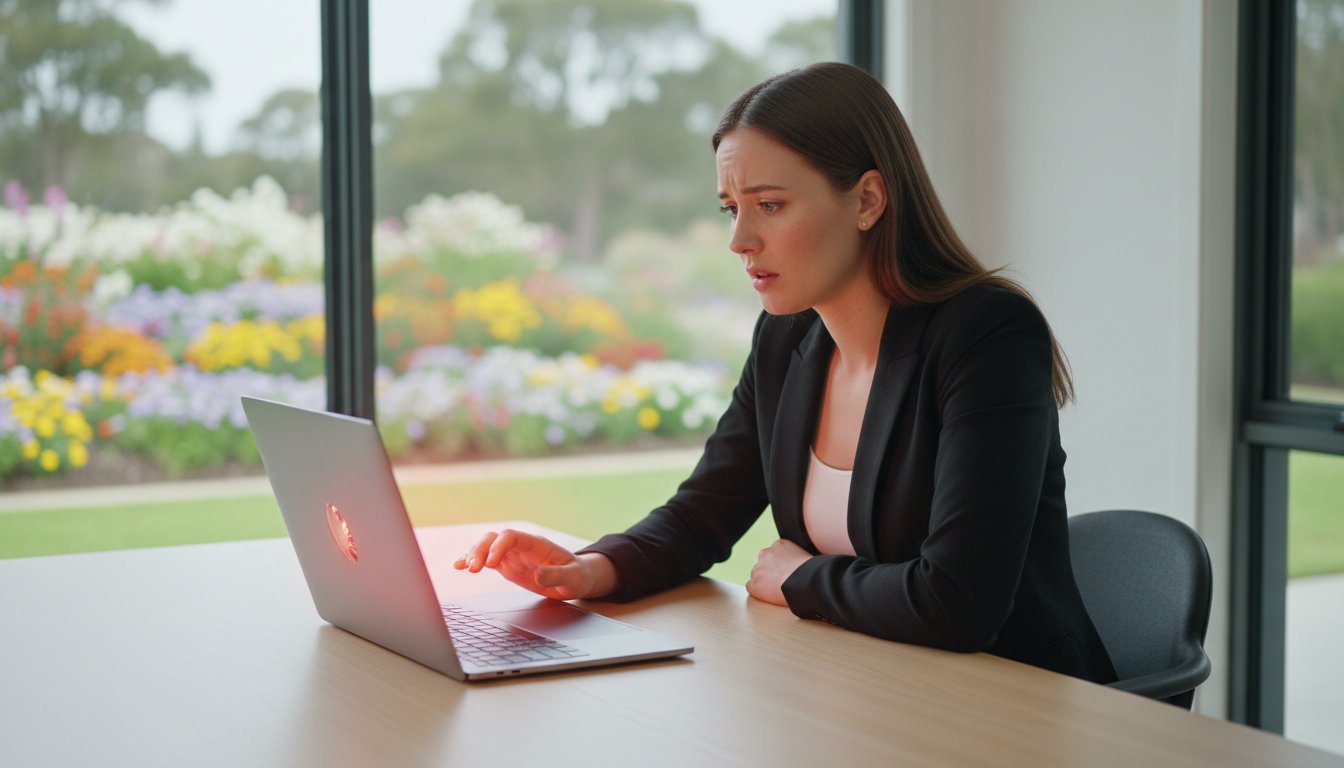
Last Tuesday, a client named Sarah from Toowoomba was halfway through a critical work project when her laptop fan began sounding like a jet engine taking off. Within minutes, the keyboard felt uncomfortably hot to the touch, her system started lagging, and the screen suddenly went black before she could save her progress. If you’re currently hearing that loud whirring or feeling the heat through your desk, don’t panic. You aren’t alone in wondering why is my laptop overheating, as nearly 30% of the hardware repairs we see at Aspire Computing stem from thermal issues that could have been prevented.
We understand how stressful it is to feel like your computer might crash at any second. It’s vital to address these temperature spikes early, because internal components like your CPU can sustain permanent damage if they consistently run above 90 degrees Celsius. In this guide, we’ll show you exactly how to identify the culprits behind the heat and provide a clear plan to restore your device to its quiet, cool-running state and avoid an A$350 motherboard replacement.
You’ll discover simple DIY fixes you can try at home today and learn the specific warning signs that mean it’s time to seek professional help to protect your data and your machine.
Key Takeaways
- Learn to identify the warning signs of thermal throttling before excessive heat causes permanent damage to your laptop’s internal components.
- Uncover the primary culprits behind why is my laptop overheating, including how everyday dust and pet hair act as dangerous insulation.
- Follow our simple, immediate steps to lower your device’s temperature right now using only a flat surface and your Task Manager.
- Evaluate the risks of static electricity and improper tools to determine if your device needs a professional repair or if it’s safe for DIY troubleshooting.
- Discover how to implement an “Active Protection” maintenance schedule to keep your technology running efficiently and reliably in the Toowoomba climate.
Recognising the Signs: Is Your Laptop Actually Overheating?
It’s perfectly normal for your device to feel warm, especially during a humid Queensland summer. Every laptop generates heat while processing data, but there’s a clear line between a machine that’s working hard and one that’s entering the danger zone. If you’re constantly asking yourself why is my laptop overheating, you’ve likely noticed the fans working overtime or a sudden drop in speed. Most modern devices rely on specific computer cooling principles to move thermal energy away from sensitive parts like the CPU and GPU.
When these cooling systems can’t keep up, your laptop triggers a feature called thermal throttling. This is a built-in safety mechanism that slashes your processor’s clock speed, sometimes by 50% or more, to lower the temperature. It’s why your once-fast machine suddenly feels like it’s stuck in slow motion. If temperatures continue to climb despite throttling, the system will execute a hard shutdown. This is your laptop’s last line of defence to prevent the hardware from literally melting.
To better understand this concept, watch this helpful video:
Common Symptoms of Thermal Stress
Identifying the problem early can save you from a total hardware failure. Look out for these specific warning signs:
- Aggressive Fan Noise: Your fans spin at maximum RPM even when you’re just checking emails or the laptop is idle.
- Physical Heat: The keyboard or the bottom casing becomes uncomfortably hot, often exceeding 45°C to the touch.
- System Instability: You experience frequent “Blue Screen of Death” (BSOD) errors or the mouse cursor freezes for several seconds.
- Performance Lag: Significant stuttering during video calls or when switching between browser tabs.
Why Ignoring the Heat is Risky
Don’t ignore these symptoms. Heat is the primary enemy of electronic longevity. For instance, consistent exposure to high temperatures can degrade a lithium-ion battery’s capacity by 20% in a single year. Internal components are also at risk; excessive heat can cause the solder joints on a motherboard to crack or warp the delicate circuits within the CPU.
If your storage drive overheats, you face a high risk of permanent data loss, which is often more devastating than the hardware failure itself. Waiting until the laptop won’t turn on at all usually results in a much more expensive computer repair bill. A professional service to clear out dust and replace thermal paste is a small investment compared to the A$400 or A$600 cost of a new motherboard or a total system replacement. Dealing with the issue now ensures your tech stays reliable for years to come.
The Core Culprits: Why Is My Laptop Overheating?
When you find yourself asking, why is my laptop overheating, the answer often involves a protective process called thermal throttling. This is your computer’s built-in survival mechanism. When internal sensors detect temperatures reaching dangerous levels, the CPU intentionally slows its clock speed to reduce heat output. While this prevents the hardware from sustaining permanent damage, it results in frustrating lag and performance drops. It is a safety feature, but it is also a sign that your cooling system is struggling to keep up.
In our local Toowoomba and Darling Downs region, environmental factors are a major contributor to these issues. During the drier months, high seasonal dust levels mean your laptop’s internal cooling fins act like a vacuum filter. Over time, this dust combines with pet hair to form a thick layer of insulation. This “blanket” prevents heat from escaping through the vents. Furthermore, the thermal paste that transfers heat from the processor to the cooling assembly typically dries out after 2 to 3 years. Once it becomes brittle and loses its conductivity, your fan has to work twice as hard to achieve half the cooling.
Physical and Environmental Blockages
The way you use your device matters just as much as what is inside it. Placing a laptop on soft surfaces like beds, cushions, or even your lap can block the intake vents located on the bottom of the chassis. To help your device breathe, you can try to physically cool down your laptop by moving it to a hard, flat surface like a timber desk or a dedicated cooling pad.
Mechanical wear and tear is another factor, especially in pre-2022 laptop models. Fans are mechanical parts with bearings that eventually wear out. If you notice a rattling sound or, conversely, a total lack of fan noise when the machine is hot, the fan has likely failed. Without active airflow, internal temperatures can spike to over 90 degrees Celsius in minutes.
Software Stress and Background Processes
Sometimes the heat isn’t caused by a blocked vent, but by a software “engine” that won’t stop revving. High CPU usage from hidden background apps or outdated BIOS drivers can lead to inefficient power management. Even having too many browser tabs open simultaneously can put a significant load on your system resources.
Malware is a frequent, invisible culprit. Malicious programs often run complex processes in the background without your knowledge, forcing the hardware to work at maximum capacity. We often see that a professional virus and malware removal service fixes what the owner thought was a hardware heat issue. If your fans are spinning loudly even when you aren’t doing much, a professional system tune-up can help identify if software is the primary cause of your overheating woes.
DIY Troubleshooting vs. Professional Repair: When to Call an Expert
Understanding why is my laptop overheating often leads to a choice between a quick home fix and a trip to the workshop. Since 1999, Aspire Computing has helped thousands of Toowoomba residents keep their tech running cool and efficient. Before you reach for a screwdriver, honestly assess your comfort level. Modern laptops are incredibly compact; a single static discharge or the wrong bit size can strip a screw or damage a motherboard. Professional maintenance is a small investment that often extends a device’s lifespan by 24 to 36 months.
What You Can Safely Do at Home
You don’t need to be a technician to perform basic maintenance. Start by cleaning external vents with a soft brush or low-pressure air. Be careful with compressed air cans; if held at the wrong angle, they can spray liquid refrigerant that freezes components. To help you troubleshoot overheating issues, you can also try these steps:
- Use a laptop cooling pad to increase airflow by 20% or more.
- Manage startup programmes in Task Manager to reduce the initial thermal load on your CPU.
- Adjust Windows power settings to “Balanced” or “Power Saver” to cap energy consumption.
- Avoid using your laptop on soft surfaces like beds or couches that block intake grilles.
Red Flags That Require Professional Tools
If your device continues to struggle, it’s time to talk to the experts. Don’t panic, but do pay attention to these warning signs. If you hear grinding or rattling noises, your fan assembly likely has a mechanical failure. A fan replacement is a quick fix that prevents a total system meltdown. If the laptop remains hot after an external cleaning, the internal thermal paste has probably dried out and needs a professional application.
The most urgent red flag is the smell of burning plastic or visible smoke. Unplug the device immediately and call a professional. Also, check your documentation; if your laptop is still under its 12-month or 24-month warranty, opening the case yourself will likely void your coverage. Our team at Aspire Computing can help you determine the best path forward without risking your hardware. Always remember that identifying why is my laptop overheating early can save you from a costly A$1,500 replacement bill later.

Immediate Steps to Cool Down Your Laptop Right Now
If you’re asking “why is my laptop overheating” while the internal fans whir like a jet engine, don’t panic. You can take control of the temperature immediately with a few simple actions. Your first step is to move the device to a hard, flat surface like a wooden desk or a kitchen table. Soft surfaces such as blankets, carpets, or even your lap block the intake vents. This can cause internal temperatures to spike by 15 degrees Celsius in less than 10 minutes, leading to an emergency shutdown.
Next, check your software load. Open the Windows Task Manager by pressing Ctrl + Shift + Esc. Look for any applications consuming more than 15% of your CPU resources. Programs like video editors, high-definition games, or even a browser with 30 open tabs can push your hardware to its limits. Close these high-demand applications to give your processor an immediate break. While you’re at it, perform a quick visual inspection of your ports. A gentle wipe with a soft cloth to remove visible dust from the side and rear vents can restore a small amount of vital airflow.
If the heat persists, check for essential updates. Operating system patches often include efficiency improvements that reduce the strain on your hardware. Finally, give the machine a dedicated rest period. Shut it down completely for at least 20 minutes. This allows the internal heat sink and copper pipes to return to ambient temperature, which is much more effective than simply putting the laptop into “Sleep” mode.
Software Adjustments for Lower Temperatures
Identifying resource hogs in the Task Manager is the fastest way to cool a system. Look for background processes that you don’t recognise; often, old software you haven’t used in months is still drawing power. You can also dive into the Control Panel to adjust your processor power management. By setting the “Maximum processor state” to 99% instead of 100%, you prevent the CPU from entering “Turbo” modes that generate excessive heat. A professional Windows Tune-Up is a great way to ensure your thermal efficiency is at its peak. It’s also worth checking for BIOS updates from your manufacturer. These updates often contain refined fan control curves that allow your fans to react more intelligently to temperature changes.
Physical Airflow Optimisation
The best way to position your laptop is on a slight incline. You can use the “elevated back” trick by placing a small book or a dedicated laptop stand under the rear edge of the machine. This creates a 2-centimeter gap that allows the intake fans to pull in much more cool air. Never block the side or rear exhaust ports, as this traps hot air inside the chassis. If your laptop is more than three years old and still running hot, you might consider a hardware upgrade for better thermal efficiency. Swapping an old mechanical hard drive for a modern SSD reduces internal friction and heat while making your computer significantly faster.
Still worried about your laptop’s temperature? Talk to the experts at Aspire Computing for a professional thermal service and peace of mind.
Long-Term Thermal Health: Protection and Connection in Toowoomba
Dealing with a hot computer is frustrating, but it doesn’t mean your device is reaching the end of its life. Most users wonder why is my laptop overheating when dust builds up or background processes spike unexpectedly. You can prevent 85% of hardware failures by sticking to a 6-month maintenance schedule. This routine keeps your home office running smoothly and avoids the panic of a sudden shutdown during an important meeting.
We call this “Active Protection.” It involves balancing software efficiency with hardware cleanliness. If your fans are spinning at 100% capacity just to browse the web, your system needs a tune-up. Most overheating issues are fixable with the right care and a proactive approach to cooling.
Professional Maintenance and Thermal Paste Refresh
When you bring your device to Aspire Computing for an internal clean, we do more than just blow out the dust. Our team uses compressed air and anti-static brushes to clear every vent and fan blade. We also ensure all internal components are seated correctly for heat dissipation. If a heat sink has shaken loose by even a millimetre, cooling efficiency drops by 40% or more.
Thermal paste is the vital bridge between your CPU and its cooling system. Over 2 to 3 years, this compound dries out and loses its ability to transfer heat effectively. During a professional refresh, we carefully remove the old, brittle material and apply high-quality thermal compound. This simple step can drop your internal operating temperatures by as much as 15 degrees Celsius, extending the life of your motherboard significantly.
How Aspire Computing Keeps Toowoomba Tech Cool
Toowoomba’s climate can be harsh on electronics, especially during 30-degree summer days in Newtown, Rangeville, or Highfields. Chaim Lee established Aspire Computing in 1999 to provide local, reliable help that goes beyond basic repairs. Our mission is to “Protect and Connect” your technology so your work never stops. We provide convenient on-site services across the entire Toowoomba region, saving you the hassle of unplugging your home office setup.
Local expertise matters because we understand the specific environmental factors, like high humidity or dust levels, that affect Queensland computers. Whether you’re a remote worker or running a small business, we prioritise speed and efficiency to get you back online. If you’re tired of asking why is my laptop overheating, let a professional provide a permanent fix. Contact us today for a fast diagnostic and repair to keep your technology running at its best.
Keep Your Laptop Running Cool and Reliable
Dealing with a hot computer is stressful, but you don’t have to tackle it alone. Understanding why is my laptop overheating is the first step toward preventing a total system crash or permanent hardware damage. Keep your vents clear of dust and monitor for unusual fan noise or sudden shutdowns. If simple DIY fixes like using a hard surface don’t lower the temperature, it’s vital to seek a professional assessment before your internal components fail.
Since 1999, Chaim Lee and the team at Aspire Computing have provided Toowoomba residents with the personal service they deserve. We offer both on-site and remote support to get your device back to peak performance without the corporate jargon. Our goal is to protect your digital life and ensure your continuity. Don’t let your laptop go up in smoke—talk to the Toowoomba experts at Aspire Computing today!
Your technology should work for you, not against you. Stay cool, stay connected, and let’s get your laptop back to its best.
Frequently Asked Questions
Why is my laptop fan so loud all of a sudden?
Your fan is working harder to push out heat because the internal temperature has spiked. This usually happens when dust blocks 70 percent or more of the airflow or when background processes consume over 80 percent of your CPU. At Aspire Computing, we often find that a fan spinning at its maximum 5,000 RPM is a cry for help. It’s a clear sign that you should check for obstructions before the hardware sustains permanent damage.
Can a virus cause my laptop to overheat?
Yes, malicious software like crypto-miners can force your processor to run at 100 percent capacity, which generates extreme heat. These resource-hog viruses operate in the background without your knowledge, making you wonder why is my laptop overheating even when you aren’t using it. We’ve seen cases where malware increased idle temperatures from a stable 45°C to a dangerous 85°C within minutes. A professional security scan can identify and remove these threats to restore your system’s continuity.
Is it safe to use a vacuum cleaner to clean laptop vents?
You should avoid using a standard household vacuum because it generates static electricity that can fry your motherboard’s delicate circuits. High-powered vacuums can also spin your fans too fast, leading to bearing failure or motor damage. Instead, use a can of compressed air or a specialized electronic blower. If you’re unsure, our team in Toowoomba can perform a safe, professional internal clean to protect your investment and ensure everything stays connected.
How often should I have my laptop professionally cleaned?
You should have your laptop professionally cleaned every 12 to 24 months to maintain peak performance. If you work in a dusty environment or have pets, an annual service is better for preventing thermal throttling. At Aspire Computing, we’ve been helping locals since 1999, and we’ve found that regular maintenance can extend a laptop’s lifespan by 3 to 4 years. This small investment prevents the need for a costly A$400 motherboard replacement later on.
Will a cooling pad actually fix my overheating laptop?
A cooling pad is a temporary fix that typically lowers external temperatures by 3 to 5 degrees Celsius; however, it won’t solve the underlying issue. If your internal heat sink is clogged with dust, a cooling pad just blows air against a wall of debris. You need to address the root cause of why is my laptop overheating to ensure long-term reliability. Think of a cooling pad as a band-aid rather than a cure for a failing thermal system.
What is the “normal” temperature for a laptop under load?
A normal temperature for a laptop under heavy load, such as gaming or video editing, ranges between 70°C and 85°C. If your CPU temperature exceeds 90°C, most modern systems will automatically slow down to prevent a total hardware failure. We recommend monitoring your stats; if you consistently see 95°C or higher, your thermal paste has likely dried out. Replacing this paste can drop your temperatures by 10 to 15 degrees immediately and improve your performance.
Can a faulty battery cause the laptop to get hot?
A degrading lithium-ion battery can generate significant heat during the charging cycle, especially if the internal cells are failing. If you notice the palm rest area feels hot or the battery has swollen by even 2 millimetres, stop using it immediately. This is a serious safety risk that can lead to a fire. A replacement battery usually costs between A$80 and A$180, which is a small price for your safety and peace of mind.
What happens if I keep using an overheating laptop?
Continued use of an overheating laptop will eventually lead to permanent component failure and data loss. Excessive heat causes the solder joints on your motherboard to crack, which results in blue screen errors or a laptop that won’t turn on at all. You’ll also see a 40 percent drop in speed as the system throttles itself to stay cool. Don’t panic, but do act quickly to avoid a total system write-off and keep your digital life running smoothly.

B.App.Sc., Cert. Computer Engineering PC Service and Repair
As the owner of Aspire Computing founded in 1999, Chaim Lee has been working for over 20 years as the Leading Computer Technician.
He has a life long interest in electronics, computing, science and technology. He has completed studies and gained qualifications in Applied Science, Computer Repair and Service, Microsoft Installation and Maintenance, Technical Writing, Workplace Training, and Technical Sales Training.

Write a Comment