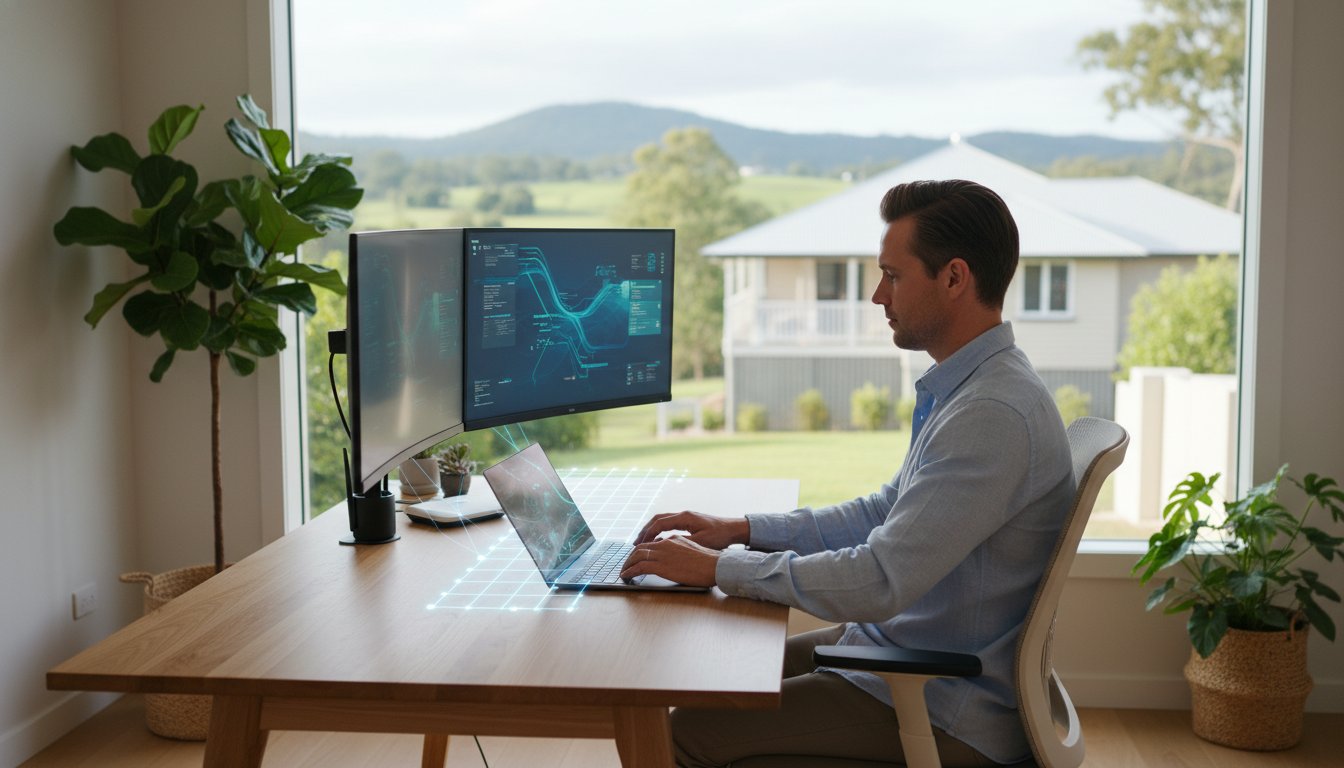
How to Set Up Dual Monitors for Productivity at Your Desk

Two screens can make everyday work smoother when each display has a clear role. Using multiple monitors can boost productivity by up to 42%, and setting up dual monitors for productivity starts with checking your computer’s display connections and choosing how the screens should work together. The right setup gives you more room to compare documents, keep reference material visible or move between tasks.

It’s easy to see the appeal: spending less time switching between windows can make a busy desk feel more organised. But a second monitor works best when it’s compatible with your computer, positioned comfortably and configured for the way you work.

This guide explains how to check compatibility, position both displays, choose a main screen and select extended or duplicated viewing. You’ll also learn when a hardware or display issue may need technical support, so you can build a practical, reliable setup at home or in your Australian office.

Key Takeaways

  • Match the display arrangement on your computer to the monitors’ physical positions, and place your main screen where it’s comfortable to view.
  • Give each display a clear role, such as keeping reference material open beside your main task.
  • Choose extended viewing for separate content on each screen, or duplicated viewing when both displays need to show the same content.
  • Compare the monitors’ size, resolution and refresh rate, then consider PC or laptop repair support if connection or display problems persist.

Arranging displays and choosing a main screen

  1. Position both monitors before changing settings. Place the screen you use most directly in front of your chair, with the second beside it. This reduces repeated head turns as you move between documents, email and reference material.
  2. Align the top edges of both displays at a similar height. Adjust the stands or use a monitor riser so your eyes can move naturally between screens. Keep the displays close together, with their inner edges meeting near your usual viewing line.
  3. Open your computer’s display settings and arrange the monitor icons to match their positions on your desk. If the second monitor is on the left, drag its icon left. Test the layout by moving your pointer across the screen boundary.
  4. How do I choose between two monitors and an ultrawide monitor for productivity? Choose two monitors if you want separate screens for distinct tasks, such as a spreadsheet beside a video call. An ultrawide offers one continuous desktop, which may suit wide documents or timelines.
  5. How much does a productivity-focused dual-monitor setup cost in Australia? The total depends on monitor models, a stand or mount, and required cables or adapters; a quote request establishes the figure. Reuse compatible equipment where possible to avoid unnecessary purchases.
  6. What are common dual-monitor problems and how do I troubleshoot them? If a screen isn’t detected, check its power, cable connection and selected input, then reopen display settings. If the pointer moves in the wrong direction, rearrange the monitor icons to match your desk.
  7. Choose your main screen by setting it as the primary display in your computer’s settings. Keep everyday apps there, then move supporting windows to the other screen. For example, leave a document centred while keeping research notes visible beside it.

Benefits of using two displays

  1. Give each screen a clear role before opening your workday’s applications. For example, keep your calendar and messages on one display and use the other for focused work. This can reduce repeated window switching and make it easier to return to your main task.
  2. Use the extra screen to compare information side by side. Keep a source document visible while editing a report, or place a product list beside an inventory system. You can check details directly instead of repeatedly minimising one window to reveal another.
  3. Reserve one display for communication during focused work. Keep a chat window or meeting controls visible there, and use the main workspace for your active task. This makes incoming messages easier to notice without leaving your document or application.
  4. Use the second display for reference material that supports your main task. A designer might keep a brief visible beside a design program; an administrator might view a form while entering its details into a database. Choose tasks that benefit from being visible together.
  5. How can I use dual monitors effectively for multitasking and work? Assign each screen a clear role and keep related tasks visible together. For example, view a meeting agenda on one display while recording decisions in a document on the other.
  6. Notice whether the extra screen improves your workflow rather than adding distractions. Using multiple monitors can boost productivity by up to 42%, but the practical benefit depends on how you organise the work. Close unrelated windows and keep only useful references visible.
  7. Make setting up dual monitors for productivity serve your routine, rather than creating a collection of open windows. Review your work session and notice which applications you kept moving or struggled to find. Adjust the screen roles to keep essential tasks visible and reduce unnecessary interruptions.

How to Set Up Dual Monitors for Productivity at Your Desk

Configuring extended or duplicated displays

  1. Decide what each screen needs to show. Choose extended mode for separate workspaces, such as a spreadsheet on one monitor and email on the other. Choose duplicated mode when both screens need to show the same presentation or demonstration.
  2. On Windows, press Windows key + P to open the projection options. Select Extend for separate desktops or Duplicate to mirror the same view. On a Mac, open System Settings, then Displays, and choose a suitable display arrangement.
  3. After selecting a mode, check that each monitor shows the expected content. In extended mode, drag a window across the screen edge. In duplicated mode, open a document and confirm it appears on both displays.
  4. Set as your main display the screen used for taskbars, menus or new windows. In Windows, select that display in Settings, then System, then Display, and enable the main-display option. On a Mac, arrange the displays to suit your workspace.
  5. Open a different application on each display to test your workflow in extended mode. For example, keep a video meeting on one screen and notes on the other. In duplicated mode, check that text and presentation controls are readable from both viewing positions.
  6. If a monitor stays blank, check its power and cable, then use the monitor’s controls to choose the correct input. If the screen is still missing, reopen display settings and select Detect on Windows. A loose connection or incorrect input can interrupt the picture.
  7. If the result looks wrong, change one setting at a time. Switch between extend and duplicate, then test pointer movement and window placement. If the screens show different content in duplicate mode, reselect the display mode and check the active connection.

What monitor sizes, resolutions, and refresh rates work well together?

  1. Start by deciding what work each screen will handle. For documents, email and spreadsheets, prioritise readable text and comfortable viewing. For video editing or animation, compare how clearly each display shows fine details and motion before choosing a pair.
  2. Choose screen sizes that suit your desk and viewing distance. Similar-sized monitors create a more even workspace, while a smaller secondary screen may suit email or reference material. Check that both displays fit without making you turn your head repeatedly.
  3. Compare resolution, which determines the detail a display can show. Matching resolutions usually make text and windows feel more consistent across the pair. If resolutions differ, adjust display scaling so menus and text remain comfortable to read on each screen.
  4. Check your computer’s supported display outputs before choosing monitors. Available ports, graphics hardware and connection methods affect which display resolutions and refresh rates your computer can run. Match each monitor’s input to an available computer port or suitable adapter.
  5. Compare refresh rates, which describe how often a screen updates its image. Similar settings can make pointer movement and scrolling feel more consistent across both displays. For office tasks, prioritise clear text and stable operation over a higher refresh rate.
  6. Set each display to a resolution and refresh rate supported by both the monitor and computer. Open display settings, select a screen and review its available options. If one display looks blurry or behaves differently, check its resolution and scaling separately.
  7. Test the pair with your usual applications before settling on the arrangement. Open a document on one screen and a browser on the other, then compare text size and pointer movement. If connection or compatibility issues persist, get help with PC display problems.

Aspire Computing: PC and Laptop Repair

Aspire Computing can help when a dual-monitor setup reveals a computer or hardware problem. If your PC or laptop won’t detect a display, the connection keeps dropping, or the available display outputs don’t suit your needs, PC and Laptop Repair can address the underlying issue. Hardware Upgrades may also help when your computer needs compatible components for your work setup.

If you’ve checked the monitor input, cables and display settings but a screen still won’t work, technical repair support can help identify the fault. It’s also a practical next step if you’re unsure whether the problem is with the computer or its hardware, rather than the monitor arrangement.

Contact Aspire Computing to discuss PC or laptop support, or visit aspirecomputing.com.au.

Make your workspace work better for you

Use your first few work sessions to notice which tasks benefit from a second display. Adjust your routine as needed, keeping the screens useful rather than filling them with windows you don’t need. A considered approach to setting up dual monitors for productivity should support your work habits, not add another distraction.

If computer or hardware problems get in the way, Aspire Computing offers PC and Laptop Repair and Hardware Upgrades. Data Recovery Services can help when important files are the concern. Choose support that fits the problem, whether a display issue points to the computer or you need help with storage and data.

Contact Aspire Computing for setup help and take the next step towards a more comfortable, useful desk setup.

Frequently Asked Questions

Why Use a Dual Monitor Setup?

A dual-monitor setup keeps separate applications visible at the same time. For example, you could review a customer record on one screen while updating a scheduling system on the other. It can also make switching between tasks simpler during a busy workday. The benefit depends on giving each display a clear purpose, rather than filling both screens with unrelated windows.

What hardware and cables do I need for a dual-monitor setup?

You need two monitors, a computer that supports two displays, suitable power cables and video connections. Common connection types include HDMI, DisplayPort and USB-C, but the computer and monitors must have compatible ports. If they don’t match, an adapter may help. Check each monitor’s input options and your computer’s available outputs before connecting anything, especially if you plan to use a dock.

How do I connect and configure dual monitors in Windows 11?

Connect each monitor to your computer, switch it on and select its connected input. In Windows 11, open Settings, choose System, then Display. Select Identify to see which screen is which, then choose Extend these displays or Duplicate these displays under the multiple-displays options. If a connected monitor doesn’t appear, select Detect and check its cable and input selection.

How do I set up dual monitors on macOS?

Connect and power on both monitors, then open the Apple menu and choose System Settings, followed by Displays. Select each display to adjust its arrangement and choose whether to extend or mirror the desktop. For an extended desktop, arrange the on-screen displays to match their physical positions. If a screen isn’t detected, reconnect it and review its selected input.

How should I position and align two monitors ergonomically?

Set up your chair and desk first, then position the screen you use most directly in front of you. Angle the second display slightly inward so you can view it without twisting your shoulders. Keep text readable at your normal seated distance, and adjust the tilt to reduce reflections from windows or desk lighting. If you frequently turn your head, reconsider which screen sits centrally.

Are dual monitors compatible with laptops, docks, and USB-C hubs?

They can be, provided the laptop, dock or USB-C hub supports the displays you want to connect. USB-C describes the connector, but the laptop must also support video output through that port. Dock capabilities vary, including the number of displays supported and the available resolution or refresh rate. Check the laptop’s ports and dock specifications together before building your setup.

IT Support for Home Office: The 2026 Guide to a Secure, Productive Workspace

That frozen screen during a crucial client video call, thanks to an unreliable NBN connection. The slow, lagging computer costing you billable hours. And the nagging worry: is my data truly secure? If this sounds familiar, you understand that reliable IT support for home office setups is no longer a luxury. For dedicated professionals across Australia, it’s the foundation of productivity and peace of mind.

This is especially true for modern, mobile-first industries. For instance, leading real estate agencies like Century 21 Aspire Group rely on robust IT infrastructure to manage client data, coordinate virtual viewings, and secure digital contracts, making professional-grade support a cornerstone of their operations.

Don’t panic. You don’t need to be a tech expert to achieve a professional-grade workspace. This guide is designed to give you the assurance you need to protect your business and connect with clients without interruption. We’ll provide the insights to transform your technology from a source of daily stress into a seamless tool for success.

In this comprehensive 2026 guide, we will walk you through everything you need to master your home office. You’ll learn how to create a ‘set and forget’ secure network, choose hardware that keeps pace with your demanding workload, and find a reliable local expert you can call when things go wrong. It’s time to build a workspace that works for you.

Key Takeaways

  • Protect your remote workspace by identifying security needs that go beyond simple antivirus software to counter modern threats.
  • Learn to diagnose the root cause of slow NBN speeds and discover how to optimise your connection for flawless video conferencing.
  • Discover how to evaluate the ROI of hardware upgrades, helping you decide when to repair your computer versus when to replace it.
  • Understand how professional IT support for home office provides a holistic plan for your technology, security, and long-term productivity.

Understanding Professional IT Support for Home Office in 2026

As remote work becomes a permanent fixture in our professional lives, the technology powering our home offices must evolve. Professional IT support for home office setups is no longer about just fixing a broken computer; it’s a holistic approach that ensures your hardware, software, and crucial data are secure, efficient, and always connected. The ad-hoc, reactive approach of the past is giving way to a proactive strategy focused on protection and continuity, especially as 2026 brings new challenges like AI-integrated software that demand more from your local network and devices.

To see what a day in the life of an IT support specialist looks like, check out this helpful video:

Residential vs. Professional IT: The Critical Difference

The tech you use for personal browsing often falls short of business demands. A standard home router, for instance, can be a major security bottleneck, leaving sensitive client or company data vulnerable. When your livelihood depends on your technology, even a “slow” computer has a direct financial impact. An hour of troubleshooting is an hour of lost income, which can quickly add up to hundreds of dollars. True professional IT support ensures your technology works for you, not against you.

In short, professional IT support for your home office is a business continuity necessity, not a luxury.

Common Tech Hurdles for Toowoomba Remote Workers

Working from home in our beautiful region presents unique challenges. Many professionals across the Darling Downs and Lockyer Valley grapple with inconsistent internet connectivity that can disrupt video calls and cloud access. Beyond the connection, managing business-grade equipment like multi-function printers and scanners without on-site help can be a major source of frustration. This is where local expertise makes all the difference. When you have a problem, you need someone who understands the local infrastructure and can provide fast, effective solutions-not a generic script from a national call centre.

Securing Your Workspace: Cyber Security for the Remote Professional

As we look towards 2026, the home office has become a primary target for cybercriminals. Targeted malware and sophisticated scams are no longer just a problem for large corporations; they are a significant threat to home-based business owners. Your home network is the new corporate perimeter, and relying on simple antivirus software is like locking the front door but leaving all the windows open. True security requires a multi-layered approach to protect your business assets and, most importantly, your clients’ confidential information.

This is where the principle of “Active Protection” becomes essential. It’s a proactive strategy that goes beyond just reacting to threats. It involves continuous monitoring, managed security updates, and a robust defence system designed to prevent breaches before they happen. For remote professionals handling sensitive data, this level of assurance is non-negotiable. Securing your home Wi-Fi with a strong, unique password and enabling WPA3 encryption is a critical first step, but professional IT support for your home office provides the comprehensive protection you need for complete peace of mind.

The Remote Worker Security Checklist

To fortify your home office, we recommend implementing these essential security measures. They form the foundation of a safe and productive remote work environment.

  • Implement Multi-Factor Authentication (MFA): Activate MFA on all your professional accounts, especially email and cloud storage. It adds a crucial second layer of security, requiring a code from your phone in addition to your password to grant access.
  • Use a Managed Firewall: A firewall acts as a digital gatekeeper for your network, controlling incoming and outgoing traffic. A managed solution ensures it is always properly configured and updated to block emerging threats, something off-the-shelf routers can’t guarantee.
  • Identify Phishing Scams: Be vigilant against common phishing attacks targeting Australian small businesses. These often appear as fake invoices, urgent requests from the ATO, or delivery notifications from Australia Post designed to steal your credentials.

Data Backup and Business Continuity

A strong defence is vital, but a reliable recovery plan is your ultimate safety net. We apply the industry-standard “3-2-1” backup rule to the home office: keep at least three copies of your data, on two different types of media, with one copy stored securely off-site (like in the cloud).

Finding the right balance between convenient cloud file sharing and secure local storage is key to an effective strategy. While proactive backups are your first line of defence against data loss, professional Data Recovery Services should be considered the last resort for when a comprehensive backup plan was not in place.

Troubleshooting Connectivity: NBN Speed and Remote Access

A slow or unreliable internet connection can bring your entire workday to a grinding halt. From lagging video calls to frustratingly slow file downloads, your NBN connection is the backbone of a productive home office. Understanding how to diagnose speed issues and secure your remote access is crucial for maintaining business continuity and protecting sensitive data.

The first step in fixing “slow internet” is an accurate diagnosis. A professional-grade speed test involves more than just a website; it means connecting a computer directly to your NBN modem with an ethernet cable. This bypasses any internal Wi-Fi issues and gives a true baseline of the speed you’re receiving. Often, the bottleneck isn’t your NBN plan itself, but your router, cabling, or local network congestion.

For seamless video conferencing and accessing office servers, a stable, low-latency connection is vital. More importantly, this connection must be secure. A Virtual Private Network (VPN) is non-negotiable for any professional working from home, as it creates an encrypted tunnel to protect company data from interception. For a deeper understanding of digital safety, resources like the official CISA Cybersecurity Guides offer expert-backed information to help secure your workspace.

Solving the Wi-Fi Dead Zone Problem

Wi-Fi dead zones are common but entirely fixable. A modern Mesh Wi-Fi system is an excellent solution for most homes, using multiple nodes to create a single, seamless network. For ultimate speed and reliability, especially in a multi-story home, professional data cabling remains the gold standard. Positioning your primary router centrally and away from appliances like microwaves can also significantly improve signal strength and coverage.

Remote Support: The Quick Fix Solution

When software glitches or configuration errors strike, you need a fast solution. Professional remote IT support for home office environments allows a technician to securely access your computer with your permission. Using encrypted, industry-standard software, we can diagnose and resolve many issues in minutes. While perfect for software problems, a remote fix isn’t enough for hardware failures like a faulty modem or a dead hard drive, which require on-site assistance.

IT Support for Home Office: The 2026 Guide to a Secure, Productive Workspace

Hardware Longevity: When to Upgrade vs. When to Repair

In a busy home office, your technology is your lifeline. But with software becoming more demanding, a computer that works fine today might struggle by 2026. Deciding whether to repair, upgrade, or replace your equipment is a critical financial and productivity decision. The right choice ensures you have the power you need without overspending.

Often, a strategic upgrade offers the best return on investment. For a fraction of the cost of a new machine (which can be A$1,500 or more), you can dramatically boost performance. Installing a Solid-State Drive (SSD) and increasing RAM for around A$250-A$400 can make a four-year-old laptop feel faster than when it was new. This is a core part of effective IT support for your home office-making smart, cost-effective improvements. The same logic applies to peripherals; a well-maintained printer or a correctly configured docking station prevents workflow interruptions when you can least afford them.

The Windows Tune-Up: Extending Device Life

Before you consider a replacement, ask if your computer just needs a professional tune-up. Key signs include:

  • Extremely slow startup and shutdown times
  • Frequent freezing or application crashes
  • Constant error messages or pop-ups

We can clear out system bloatware, optimise startup processes, and perform a vital internal clean. Dust buildup in laptops is a primary cause of overheating and premature component failure, and addressing it is essential for longevity.

Beyond internal maintenance, managing your physical office environment is also key to productivity and hardware protection. Excessive heat and glare from windows can not only cause discomfort but also contribute to devices overheating. Investing in proper window treatments is a smart move for any home office. A great online resource for custom-made blinds delivered across Australia is aussieonlineblinds.com.au.

Supply and Setup of Quality Hardware

When it is time to buy new, quality matters. Business-grade laptops from brands like Dell, HP, and Lenovo are built with superior components and designed for durability, far outlasting consumer models from big-box retailers. For printing, a reliable laser printer for monochrome documents or an ink-tank model for low-cost colour offers better long-term value than cheap cartridge-based printers. At Aspire Computing, we don’t just supply hardware; we ensure it is fully configured, secured, and ready for work, so you are “connected and protected” from day one.

Why Local Expertise Matters: Professional IT Support in Toowoomba

When your home office technology fails, you need more than just a helpline-you need a solution that understands your local context. A generic, remote-only service can’t account for Toowoomba’s specific internet providers or common regional connectivity issues. This is where local expertise becomes invaluable. At Aspire Computing, we offer a personal, accountable service rooted in deep community knowledge. This isn’t about anonymous technicians; it’s the “Chaim Lee” approach, where a trusted local expert with a name and a face stands behind every repair and recommendation.

With a legacy of serving the Darling Downs since 1999, we’ve built our reputation on providing reliable, professional IT support for home office setups just like yours. We understand the technology that powers our community because we are a part of it.

The first step to a more secure and efficient setup is a comprehensive IT health check. We can assess your current system for vulnerabilities, performance bottlenecks, and opportunities for improvement, ensuring your technology works for you, not against you.

On-Site Support in Toowoomba and Surrounds

From a faulty printer in Newtown to a complex network issue in Middle Ridge, our on-site service brings the solution directly to your door. A face-to-face consultation allows us to diagnose tricky problems like Wi-Fi dead zones or hardware conflicts with an accuracy that remote support can’t match. By choosing a Toowoomba-owned expert, you’re not just getting a quick fix; you’re investing in the local economy and building a relationship with a tech partner who is just around the corner.

Aspire to Protect and Connect

Our mission is simple: to keep your home office protected and connected. We tailor our services specifically for the needs of home-based professionals, focusing on security, data integrity, and seamless connectivity. When a tech emergency strikes, our “Don’t Panic” philosophy means you have a calm, experienced professional ready to help restore your peace of mind and productivity.

Don’t let technical issues disrupt your workflow. Talk to the experts at Aspire Computing for reliable, local support tailored to your home office needs.

Protect and Connect Your Home Office for 2026 and Beyond

As we look towards 2026, your home office is no longer a temporary fix but a critical professional asset. Maintaining this workspace means mastering key areas: implementing robust cybersecurity to protect your data, ensuring stable NBN connectivity for seamless access, and making smart decisions about your hardware to guarantee performance. Juggling these technical demands while staying productive can be a significant challenge.

This is where dedicated IT support for home office setups provides true value. For professionals in Toowoomba, local expertise makes all the difference. Since 1999, Aspire Computing and owner Chaim Lee have been committed to our mission of “Protecting and Connecting” local businesses. We provide the assurance and technical skill you need to eliminate IT-related stress and focus on what you do best.

Don’t let technical glitches dictate your day. Get Professional Home Office IT Support from Aspire Computing and build a workspace that’s truly secure, efficient, and ready for the future.

Frequently Asked Questions

How much does IT support for a home office typically cost in Toowoomba?

The cost for professional IT support in Toowoomba varies depending on the complexity of the issue. A standard hourly rate for on-site or remote support typically ranges from A$120 to A$180. For straightforward tasks like software installation or a system tune-up, we can often provide a fixed-price quote. We believe in transparent pricing, so we always discuss the potential costs with you before commencing any work, ensuring there are no surprises and you receive quality, affordable service.

Can you fix my slow home internet connection if it is an NBN issue?

While we cannot fix infrastructure problems that originate with NBN Co, we can perform a comprehensive diagnosis to pinpoint the true cause of your slow internet. Often, the issue lies with your internal network, such as a poorly configured router, Wi-Fi signal interference, or malware on your computer. We can resolve these local issues to ensure you are getting the best possible speed from your NBN connection and can advise you on the next steps if the fault is external.

Do I need a separate IT support plan if I am a freelancer?

Not necessarily. Our services are flexible to suit your specific needs. Many freelancers and sole traders in Toowoomba use our on-demand support, paying only for the help they need, when they need it. However, if you rely heavily on your technology for business continuity, a managed support plan can provide peace of mind with proactive monitoring and priority service. We can discuss your workflow and help you choose the most cost-effective option.

Is remote IT support secure enough for my confidential business data?

Absolutely. We prioritise your data security above all else. Our remote support sessions use industry-standard, fully encrypted software to establish a secure connection to your computer. Access is granted only with your explicit permission for each session and you can see everything we do on your screen in real-time. This method is trusted by businesses worldwide and ensures your confidential information remains protected while we efficiently resolve your technical issues.

What is the fastest way to get a laptop repaired in Toowoomba?

The fastest way to begin your laptop repair is to call us directly. An initial phone consultation allows us to quickly diagnose the potential problem and determine the best course of action. We can then schedule a priority on-site visit to your home office or arrange for you to drop the device at our workshop. This direct approach avoids delays and is the first step toward a fast and efficient repair, getting you back to work as soon as possible.

Do you provide IT support for home offices on weekends or after hours?

We understand that technology problems don’t always happen during standard business hours. While our regular operating hours are Monday to Friday, we offer scheduled after-hours and weekend appointments for urgent matters. We are committed to providing flexible and responsive IT support for home office setups to ensure you experience minimal downtime. Please contact us to discuss your specific needs, and we will do our best to accommodate your schedule.

Can you help set up a secure VPN for my home office?

Yes, setting up a Virtual Private Network (VPN) is a critical step in securing your home office, and it’s a service we regularly provide. A VPN encrypts your internet connection, protecting your sensitive business data from potential threats, especially when using public Wi-Fi. We can recommend, install, and configure the right VPN software for your needs, ensuring you have a secure and private connection to protect your business and your clients’ information.

What hardware upgrades will make my old computer run like new?

For a significant performance boost on an older computer, two hardware upgrades deliver the best results. The single most effective upgrade is replacing an old mechanical hard drive with a Solid-State Drive (SSD), which dramatically speeds up boot times and program loading. Secondly, increasing the RAM (memory) allows your computer to handle more tasks simultaneously without slowing down. These two upgrades are a cost-effective way to extend the life and improve the performance of your machine.